











SOLIDWORKS Tips: How to Animate Rotations in SOLIDWORKS Visualize

Written by: Richard Earley
Published: Jun 20, 2023
| View All Blogs
Pivot points hold the key to unlocking awesome animations in SOLIDWORKS Visualize.
Let’s walk you through how to move pivot points and group components to create engaging and dynamic animations.
Pivot points are what we control when creating animated rotations of models in SOLIDWORKS Visualize. Components can share the same pivot point, and these can be adjusted easily and precisely.
When you import a model into SOLIDWORKS Visualize, the model tree will look something like this.

Each model, group, and part has their own pivot point around which they rotate.
If we want multiple components to rotate about the same point then, before we do any animating, we need to group the components so that they share the same pivot points.
If we were to animate the components first and then regroup them, the positioning would be distorted during the animation.
Any component that doesn’t base is fixed in place so doesn’t need regrouping.
Make the most of existing pivot points and identify components with the desired pivot point. These can then be used to group components.
HOW TO GROUP COMPONENTS IN SOLIDWORKS VISUALIZE
Select all of the desired components and drag them into the group previously identified.
Double check that all the correct components are included in the group by hiding the group and seeing if anything is left behind. Drag any missed components into the group.
To make sure we’re moving and rotating components relative to their own axis, we need to clear the checkbox for absolute in the object manipulator tool.

The object manipulator tools have absolute ticked by default, so double check this is cleared.
HOW TO MOVE PIVOT POINTS IN SOLIDWORKS VISUALIZE
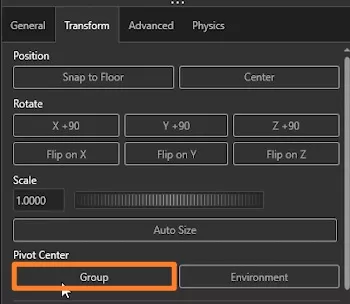
Pivot points can be moved by using the transform options. The group option under Pivot Center will place the pivot point at the centroid of the group.
We can also manually alter pivot points using the object manipulator tool and dragging the point along the XYZ axes.
Once you have your pivot points accurately positioned, it’s time to animate! Hit T on your keyboard to bring up the timeline, then drag the red end marker to the end point of your animation.
Position the yellow marker at different times and alter the appropriate rotation value. A keyframe will then be created at each point in time.
Learn how to create awesome animations just like these and enhance your skills with our SOLIDWORKS Visualise Pro training course. Attend online or in a classroom near you!
Categorised as: SOLIDWORKS Design | SOLIDWORKS Visualize | Tech Tips
Get Expert SOLIDWORKS Training
Get hands-on SOLIDWORKS training in-person or online, led by certified experts with real industry experience. With venues across the UK & Ireland, it’s easy to start learning today.
Related Posts

How to Find Reaction Forces in SOLIDWORKS Simulation
SOLIDWORKS helps us to find resultant forces through simulation studies. These virtual tests reduce the need for physical prototypes and give us an accurate answer.

Setting number of decimal places in a table on a drawing
When creating an equation in a drawing general table, is it possible to define the…

SOLIDWORKS Smart Fasteners
SOLIDWORKS Smart Fasteners is a really useful time saving tool, allowing you to automatically insert toolbox fasteners such as bolts and screws into an assembly providing there is a standard hole.

Why is my Flat Pattern not showing in SOLIDWORKS Drawings?
This may be linked to how the drawing is saved or it can be related to how sheet metal parts are displayed in drawings, read on to find out how to fix it.

Why is SOLIDWORKS Crashing?
It’s one of the great mysteries of life – why is SOLIDWORKS crashing? Let’s explore how SOLIDWORKS crashes and how we can improve performance in SOLIDWORKS.

SOLIDWORKS Tips: Are you Making this Common Mistake in Fatigue Analysis?
Simulation is a vital and complex engineering need. Fortunately, SOLIDWORKS makes it easy to test, correct mistakes and obtain accurate results.

Tech Support Blog: Why are my SOLIDWORKS BOM Quantities Wrong?
Why are my SOLIDWORKS BOM Quantities Wrong? A support call cropped up this week which…

SOLIDWORKS Visualize. Why go pro? – 6 Post Processing
In this blog we will be look at the post-processing options that can be found in SOLIDWORKS Visualize

SOLIDWORKS Visualize. Why go pro? – 7 Lighting
SOLIDWORKS Visualize uses a non-biased rendering engine, which allows for physically accurate lighting within a scene. It generates images with high amount of realism and correct set up can replicate photo studio lighting.

How to Get Your Serial Number for SOLIDWORKS Visualize Standard
Want to download Visualize to make photorealistic renders? Follow this guide for accessing your Visualize serial number that comes bundled in with SolidWorks Professional and Premium.