











The 6 Golden Rules of Managing Data in SOLIDWORKS

Written by: Wayne Marshall
Published: Feb 11, 2021
| View All Blogs
1. Unique filenames
It is important to always use unique filenames for Managing Data in SOLIDWORKS files. It’s OK to name a drawing after the model as they are different file types, but if you have several files with the same name SOLIDWORKS may load the wrong one into an assembly or drawing leading to confusion and potential for error.
2. Avoid descriptive filenames
It’s hard to maintain unique file names if they are purely descriptive. What one person calls a ‘washer’ another may call a ‘spacer’ making filenames potentially very inconsistent and it difficult to find the right file quickly in Windows Explorer. Instead use SOLIDWORKS file properties to add a description property. Properties can be mapped to notes on a drawing border, displayed in a Bill of Materials part list and displayed as a ‘Description’ column in Windows Explorer.
3. Create a SOLIDWORKS folder
Create a SOLIDWORKS folder separate from the default install directories. Store all of your customised templates and optionally your SOLIDWORKS part, assembly and drawing files here. The SOLIDWORKS folder can be on your local machine or a shared location if you collaborate within a team of users. It’s easy to manage and back-up one SOLIDWORKS folder, it can be stored or mirrored to a shared location that you can point SOLIDWORKS to, and if you upgrade your SOLIDWORKS installation in the future there’s no danger of accidentally over-writing your customised templates as they are stored outside of the standard install locations.
4. Don’t store copies
Store your SOLIDWORKS files in one place if possible, your SOLIDWORKS folder. Having multiple copies of the same file in multiple locations leads to confusion over which is the correct version of that file and could lead to accidentally manufacturing to an old version. SOLIDWORKS looks in lots of different places to find and load the files used in an assembly or a drawing, so if it finds the wrong copy first you may end up with an older version loaded on screen.
5. Pack and go old versions
To store a previous version of a part or assembly, use Pack & Go. This allows you to safely rename, or add a prefix or suffix to any files that are being up-revisioned (e.g. -Rev01) whilst maintaining all of the references between files. With Pack & Go you can package the files in a zip file, and we recommend saving old revisions in a separate folder named ‘REVISIONS’ or similar to avoid confusion. You might consider simply saving a PDF copy of the drawing at each revision as a document of the drawing history, these are completely detached from the SOLIDWORKS files and can be stored in your ‘REVISIONS’ folder.
6. Avoid moving and renaming
If you must rename a SOLIDWORKS file use Windows Explorer SOLIDWORKS options (Found under your right mouse button) to do this whilst keeping all the file references intact. A SOLIDWORKS drawing or assembly will look for a part (or sub-assembly) by name and location, so renaming or moving a part (or sub-assembly) in Windows will break that reference. SOLIDWORKS will prompt you to browse for the renamed file and reattach it to the assembly or drawing, but this is very manual and could quickly become very confusing, so best to use Pack & Go!
Past PDM Webcast Series
6 Golden Rules of SOLIDWORKS File Management
When modelling in SOLIDWORKS, before you know it, you will have created lots of parts, assembly and drawing files, so it’s important to think about how you will manage these files and keep everything organised.
In this webinar we discussed the ‘6 Golden Rules’ of managing your SOLIDWORKS files using Windows Explorer and recommended methods for file naming, structuring your projects and managing revisions.
Why should you look to implement a Professional CAD Data Management System?
Managing your SOLIDWORKS files/data manually using Windows Explorer can be done, but it does have its limitations. As products develop, assemblies become larger with more and more complex data sets. There is no fixed marker of when you should look to implement more secure and professional management systems, some say from the start, but there are indicators.
SOLIDWORKS PDM – Why Go Pro?
Our next webinar in a series looking at managing CAD data we explored the key reasons companies choose to upgrade to SOLIDWORKS PDM Professional. Understand how you may develop your data management in the future with an upgrade to PDM Professional.
Introduction to SOLIDWORKS Manage
Our penultimate webinar in our series looking at managing CAD data we explore SOLIDWORKS Manage, the powerful tool for managing CAD data, processes and project delivery. This set of advanced data management tools harness the file management capabilities of SOLIDWORKS PDM Professional and adds powerful project, process and record management capabilities including interactive dashboards and reports.
Categorised as: Data Management
Get Expert SOLIDWORKS Training
Get hands-on SOLIDWORKS training in-person or online, led by certified experts with real industry experience. With venues across the UK & Ireland, it’s easy to start learning today.
Related Posts

How to Create a Pack and Go in SOLIDWORKS
Pack and Go in SOLIDWORKS should be used when sending SOLIDWORKS files to another person. Use this simple guide to help you safely send entire SOLIDWORKS projects.
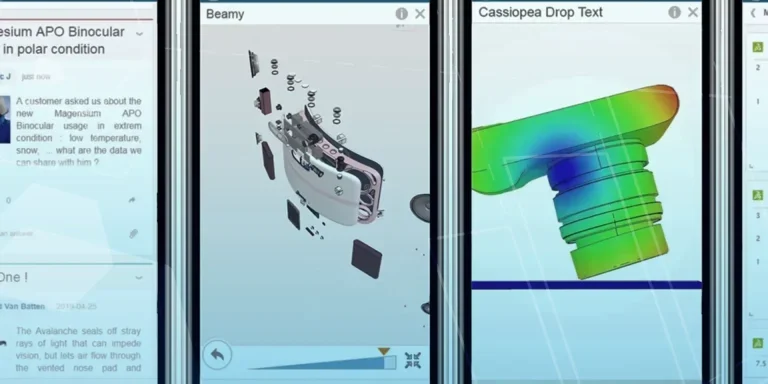
What is 3DSWYM? A 3DEXPERIENCE Platform Tutorial
3DSwym is the application at the heart of the 3DEXPERIENCE, allowing users to connect and collaborate across the platform.

Microsoft SQL Server licensing for SOLIDWORKS PDM
October 2020 marks two important milestones for the SOLIDWORKS PDM family and SQL Server.

Part Numbering in SOLIDWORKS PDM Professional
When implementing a new PDM Professional Vault Customers will have the option to review their part numbering and classification requirements as they move to a system that allows them to, in most cases, automate the way the identify ‘parts’ within the Vault. Part Numbering is something that a lot of customers approach differently and this is often based on ‘how it’s always been done’ without necessarily considering what is the purpose of a Part Number within their organisations and wider within their supply chains. If we consider the humble part number. What is it’s purpose?

PDM Professional – Assigning Users with Conditional Notifications
Often customers will create smaller project teams for specific jobs and in the past we have been asked if it is possible, within a multi stage workflow, to pre-assign at the creation stage users who will be notified as checker / approver within those transitions. This blog will demonstrate how, using conditional Notifications in PDM Professional, this can be configured. We will also create some logic to allow for certain parts of the workflow to be bypassed by validating the selected ‘names’ against transition conditions. In this example the ‘approvers’ will be assigned on the files DataCard, but it would be just as feasible to have these names inherited from a project folder card if defining the rules at a higher level was possible within your Teams.
Managing Disk Space with SOLIDWORKS PDM Part #1: Distributing the Archive
This blog series was prompted by a recent support ticket, logged when a customer found their PDM Professional installation suddenly became unusable. The warning message, led to my reviewing the Archive Server Log file and this quickly identified the problem being a result of the PDM Server running out of disk space.
Managing Disk Space with SOLIDWORKS PDM Part #2: Deleted vs Destroyed and the Vault Cleaner Service
In this blog series we are examining the factors influencing disk usage within PDM and what you can do to manage them. In the first part we discussed how you can re-organise your archive across multiple drives to get you back up and running quickly should you find you are short on space. This blog and the next part will discuss behaviours in PDM that can result in redundant disk usage and how you can free that up with the vault cleaner service.
Managing Disk Space with SOLIDWORKS PDM Part #4: Cold Storage
In this blog series we are examining the factors influencing disk usage within PDM and what you can do to manage them. In the first part we discussed how you can re-organise your Archive across multiple drives to get you back up and running quickly should you find you are short on space. In the second part we looked at the differences between a deleted and a destroyed file and the impact the PDM recycle bin has on Disk usage. Part three discussed temporary session files created by the PDM Web Server and this Part will look at an option within PDM called Cold Storage.
Managing Disk Space with SOLIDWORKS PDM Part #5: Archive Compression
In this blog series we are examining the factors influencing disk usage within PDM and what you can do to manage them. In the first part we discussed how you can re-organise your archive across multiple drives to get you back up and running quickly should you find you are short on space. In the second part we looked at the differences between a deleted and a destroyed file and the impact the PDM recycle bin has on Disk usage. Part three discussed temporary session files created by the PDM Web Server. In part four we discussed cold storage and in this last part we will look at archive compression.

What’s the difference between SOLIDWORKS PDM Standard, Professional and Manage?
SOLIDWORKS offer two core PDM packages: PDM Standard and PDM Professional. The recent release of SOLIDWORKS Manage builds upon the functionality of SOLIDWORKS PDM Professional, but what’s the real difference?