











What is a Registry Reset? How to Reset SOLIDWORKS to Default Settings
Written by: Terry O'Reilly
Published: Sep 7, 2023
| View All Blogs
“We need to do a registry reset.”
Scary words?
They don’t have to be.
Sometimes our expert SOLIDWORKS Engineers will suggest this when troubleshooting issues to determine whether your SOLIDWORKS registry needs resetting to default.
A registry reset will affect your menus, toolbars, custom shortcuts, and file locations, and set them back to the default SOLIDWORKS settings.
Our Engineers are trained to deliver registry resets and restore previous registries, so you can rest assured our team know what they are doing.
How To Backup Your SOLIDWORKS Settings
Before performing a registry reset, we always recommend taking a backup of your current SOLIDWORKS settings. This makes it straightforward to restore them if needed.

To backup your SOLIDWORKS settings, head to the dropdown next to Settings > Save/Restore Settings. This will launch the Copy Settings Wizard.
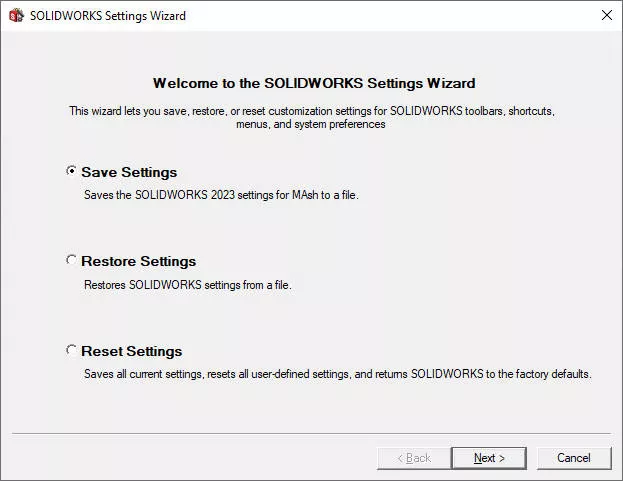
Select the Save Settings option.
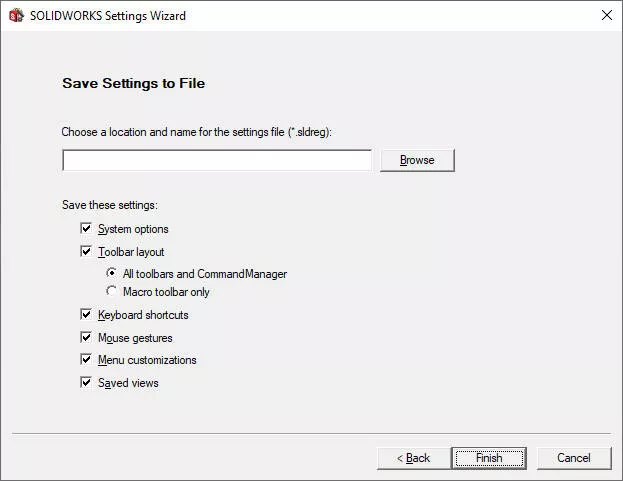
Choose a suitable location for backups – we recommend creating a folder for your SOLIDWORKS settings on your local drive – and name it with the current date.
e.g. MySOLIDWORKSsettings_2023_04_11
Click Finish to complete the backup.
How To Reset Registry In SOLIDWORKS 2023
SOLIDWORKS 2023 streamlined the registry reset process. The SOLIDWORKS registry can now be reset directly through the Copy Settings Wizard.
The wizard now also prompts you to backup as part of the process.
Select the dropdown next to Settings > Save/Restore Settings to launch the Copy Settings Wizard.
This opens in a separate window to SOLIDWORKS – make sure you close the SOLIDWORKS window at this point.
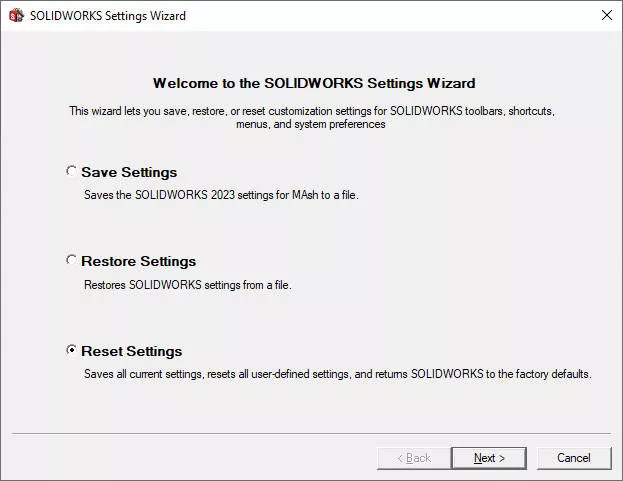
Choose the third option to Reset Settings and click next.
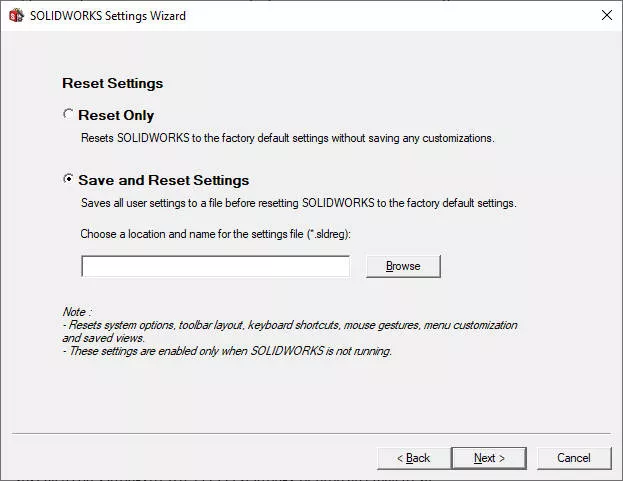
Here you can back up your current settings through Save and Reset Settings
Choose a location and name the settings file as above.
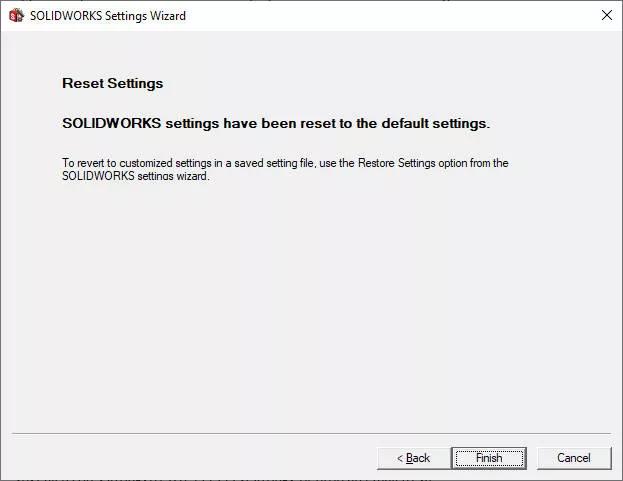
Click Next and Finish to reset all of your SOLIDWORKS settings to default.
How To Reset SOLIDWORKS Registry Through Windows
If you aren’t using SOLIDWORKS 2023 or later, the registry needs to be reset through the Windows Registry Editor.
We recommend making the most of your SOLIDWORKS subscription by calling our expert Technical Support team on 01926 333 777 to guide you through the process.
You will need Administrator rights to conduct a registry reset.
- Save your work & close SOLIDWORKS.
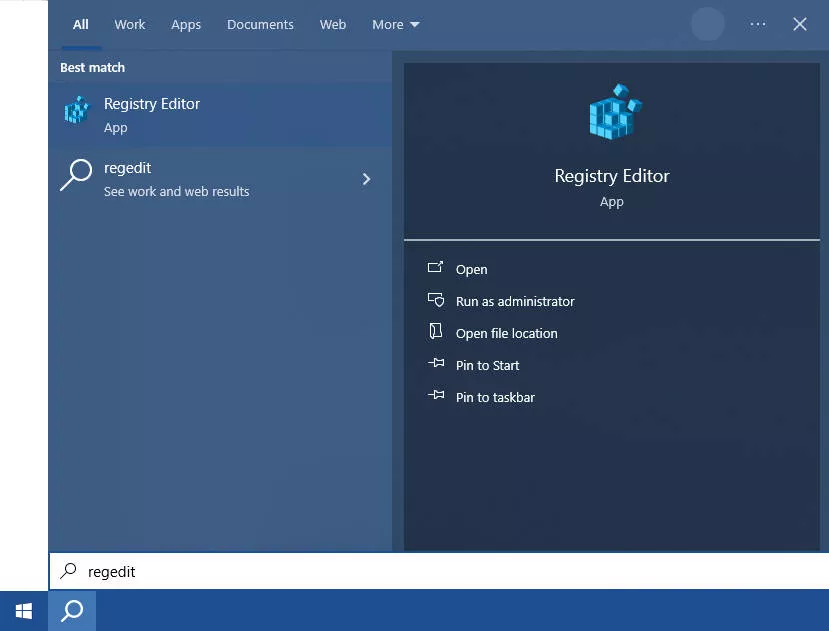
- Search for ‘regedit’ in the Windows Start Menu and open the Registry Editor app.
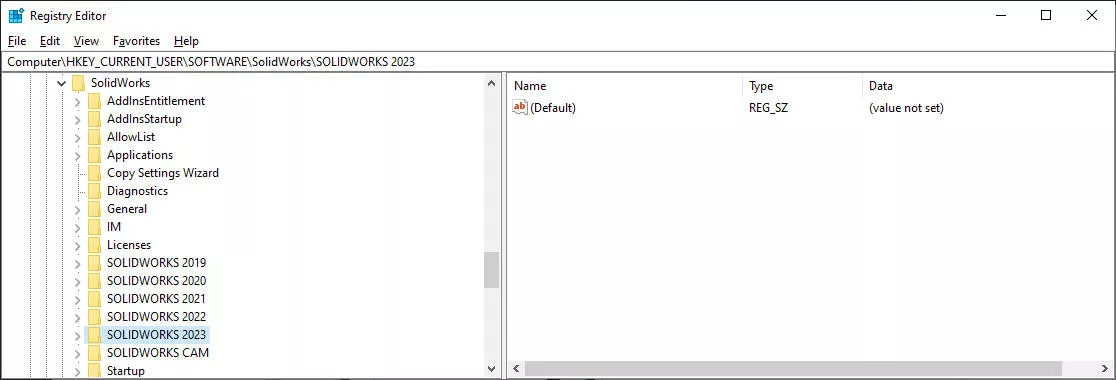
- Browse to the following folder within it:
HKEY_CURRENT_USERSOFTWARESOLIDWORKSSOLIDWORKS 20xx
- Right click on and rename the ‘SOLIDWORKS 20xx’ folder to ‘SOLIDWORKS 20xx_OLD’20xx is a placeholder for whichever year of SOLIDWORKS (e.g. SOLIDWORKS 2022) you are running.
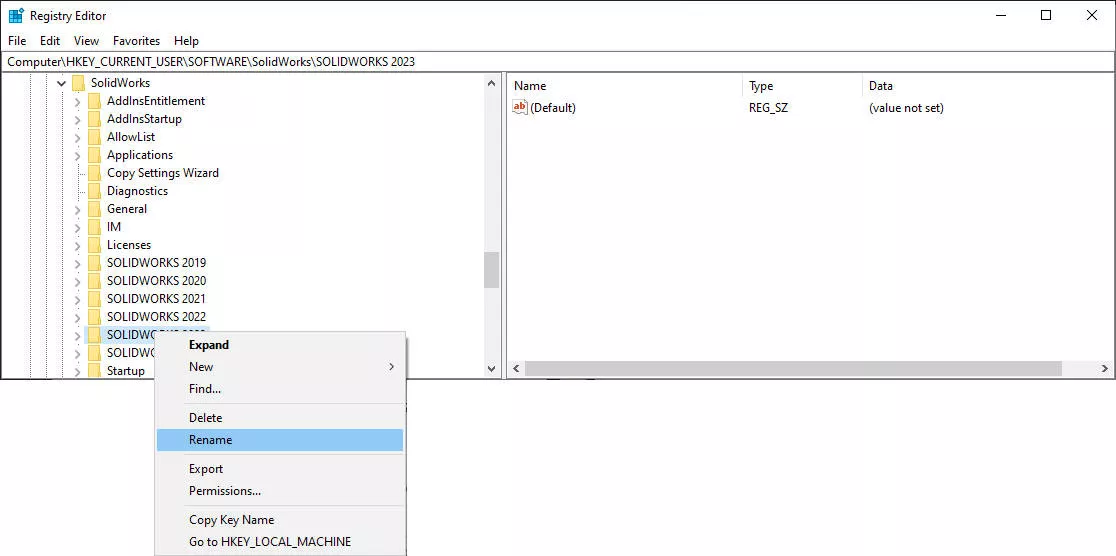 IMPORTANT: Do NOT delete folders or keys. Deleted folders or keys are not recoverable and may cause issues with your installation.
- Browse to the following folder within it:
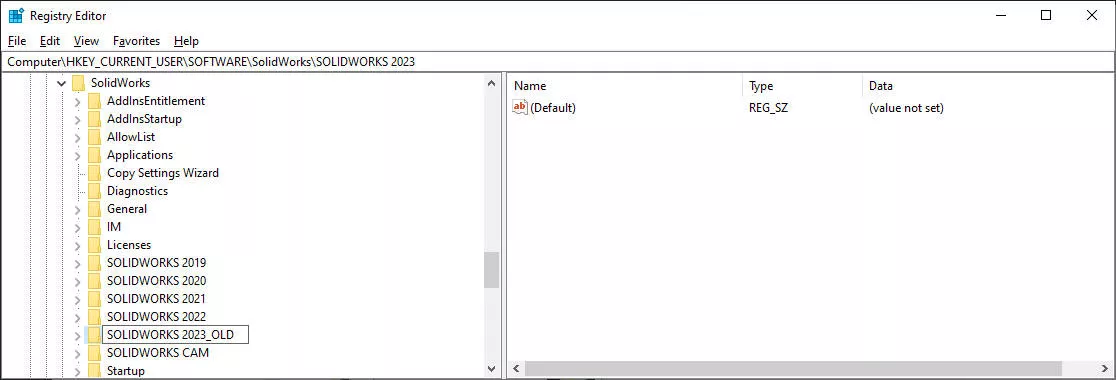
- Reopen SOLIDWORKS. This will encourage SOLIDWORKS to recreate the registry key with default settings.
Modifying the Windows registry can be a risky operation when you don’t know what you are doing.
Incorrect modifications can result in irreparable changes to the system or application, so we recommend that only a professional SOLIDWORKS Engineer carries out the operation.
How To Restore SOLIDWORKS Settings
If you’ve backed up your SOLIDWORKS settings, then restoring them is straightforward.
Any SOLIDWORKS settings file can be double clicked. Then, follow the wizard to restore the previous settings.
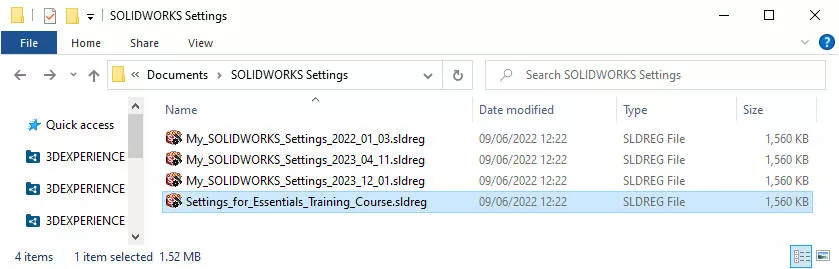
TOP TIP – Naming settings files with dates prevents confusion during restoration.
The restore settings wizard can also be accessed through the Copy Settings Wizard under Save/Restore Settings > Restore Settings and then browsing to the appropriate file.
Looking For More Tips?
Sign up to our CPD-accredited training courses.
It doesn’t matter whether you’re a complete beginner or are intimately familiar with CAD, our friendly and expert trainers are ready to help you get the most out of SOLIDWORKS, either online or in a classroom local to you.
We also have a load of free SOLIDWORKS tutorials across our site.
Get SOLIDWORKS Technical Support
With a SOLIDWORKS subscription you gain access to our expert SOLIDWORKS Technical Support team.
Call on 01926 333 777 or drop an email to help@trimech.com and one of our expert engineers will be in contact.

Related Posts

How to Find Reaction Forces in SOLIDWORKS Simulation
SOLIDWORKS helps us to find resultant forces through simulation studies. These virtual tests reduce the need for physical prototypes and give us an accurate answer.

Setting number of decimal places in a table on a drawing
When creating an equation in a drawing general table, is it possible to define the…

Why is my Flat Pattern not showing in SOLIDWORKS Drawings?
This may be linked to how the drawing is saved or it can be related to how sheet metal parts are displayed in drawings, read on to find out how to fix it.

Why is SOLIDWORKS Crashing?
It’s one of the great mysteries of life – why is SOLIDWORKS crashing? Let’s explore how SOLIDWORKS crashes and how we can improve performance in SOLIDWORKS.

Tech Support Blog: Why are my SOLIDWORKS BOM Quantities Wrong?
Why are my SOLIDWORKS BOM Quantities Wrong? A support call cropped up this week which…

Series 1 Land Rover Pedal Car – Made Easy with Solidworks!
The Series1 began production in 1948 designed to help get Britain farming after the war effort. It grew extremely popular and today enthusiasts are prepared to throw their life savings at restoring originals from that period.

How to Get Your Serial Number for SOLIDWORKS Visualize Standard
Want to download Visualize to make photorealistic renders? Follow this guide for accessing your Visualize serial number that comes bundled in with SolidWorks Professional and Premium.

How to Recover SOLIDWORKS Files After a Crash
SOLIDWORKS has two different methods to help you recover from an unexpected crash or loss of data in the form of auto-recovery and back-up settings.

SOLIDWORKS Magnetic Mates
Magnetic makes are used within SolidWorks assemblies to easily configure and position assembly components. Through defining connection points and ground plane(s) – position components through drag and dropping one component within close proximity of another to snap the asset into position.

SOLIDWORKS Dimensions – Collated Quick Tips
We have collated some of our favourite tips on creating, manipulating and controlling dimensions in SolidWorks, both at a sketching and drawing level. Read on to find out more…