











3D Experience – 3DDrive

Written by: Prasad Bhonsule
Published: Jul 26, 2019
| View All Blogs
3DDrive is the storage application that sits on the 3DEXPERIENCE platform. As a basic comparison it is similar to Dropbox, OneDrive and Google Drive, and in fact these three programs can also be integrated into 3DEXPERIENCE. Each user you invite to join your platform will consume a license and be given 5GB of storage space within 3DDrive.
If you haven’t seen Part 2 – Dashboard Creation, then you can watch it here.
Within 3DDrive, each user can upload their own files which are only accessible to them unless they choose to share the files, or the parent folder with colleagues. Each user is therefore likely to have access to a mix of their own data, and files from shared project work. In our scenario, we have the 4 users working on the “Red Bull Soap Box” project, and in the previous post where a template dashboard was created and shared, a central holding folder in 3DDrive was created and made available to the rest of the team.
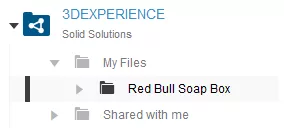
Chris MANAGER sees this folder under “My Files” with the other users seeing it under “Shared with Me”

Management of 3DDrive
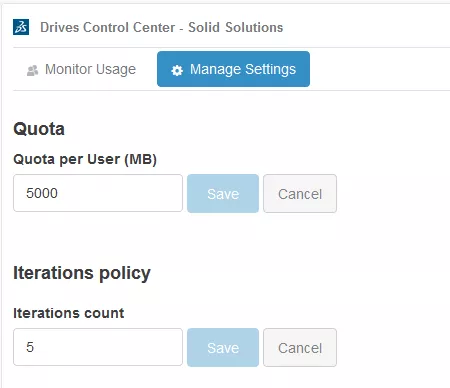
 | Either by launching the “Drives Control Center” app (North part of the Compass for Admins), or using the Platform Management option from the main toolbar pull down, you can review the “Content” for each user and manage their settings to allocate the amount of space on a user basis. |
 |  |
3DDrive Desktop Application
You can use 3DDrive exclusively within the platform where you can preview, share and attach files across other applications. You can also download any files locally (but at this point they will not be synchronised). When you move between computers and login with your 3DEXPERIENCE Passport the same files will be available to you. There is, however, also an option to install a desktop version of 3DDrive which will synchronise with what is in the online platform for you to have access- this would be ideal for SOLIDWORKS files for you to open and work on them.
From the previous post and video, ‘Chris MANAGER’ setup a template dashboard and shared to the rest of his team. Within this dashboard he added the 3DDrive app to the left hand side as pictured. He also shared the “Red Bull Soap Box” folder with his team so they could access the project files.

There is not much in there at this stage, but each user who logs in gets the option to “Install 3DEXPERIENCE Drive for Windows”

This will download an installer which runs from the system tray in the bottom right corner of your screen
It will install the software in the usual way and can be found in your PCs Programs and Features

 | Back in the System tray there is a new icon available, which gives you a quick preview of some of the recent files, as well as a settings button where you can designate the local working folder the 3DEXPERIENCE will synchronise with (typically c:users ….) |

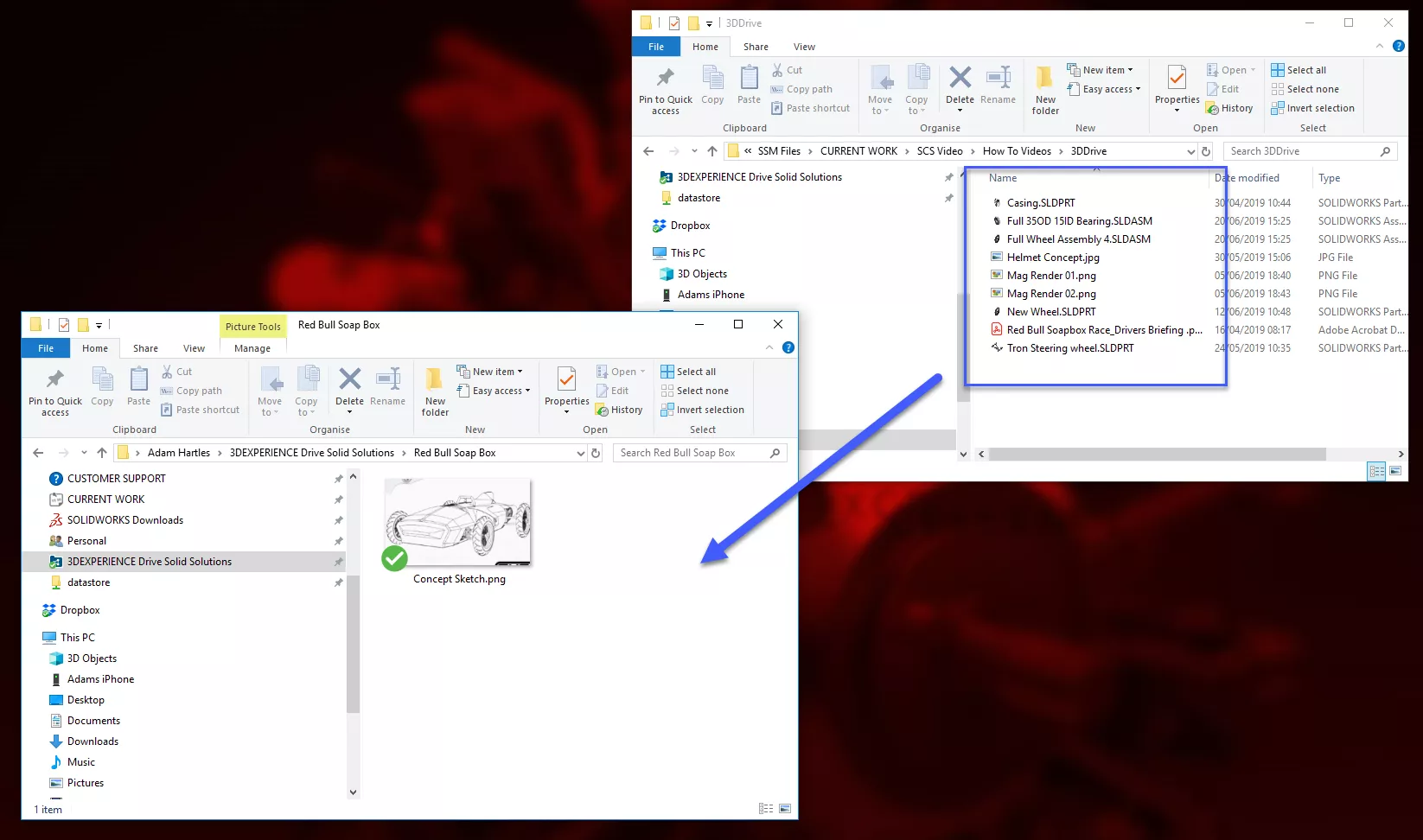
In that specific folder, any files already in the platform will be download locally and you will see icons indicating whether the files and folder are fully up to date. You can copy/drag and drop more files into this local directory, and they will be uploaded and synchronised to the platform. This folder will be the one used as a working folder within SOLIDWORKS when using the SOLIDWORKS Connector Add in that we describe in blog 6 of this series.

Adding files to 3DDrive
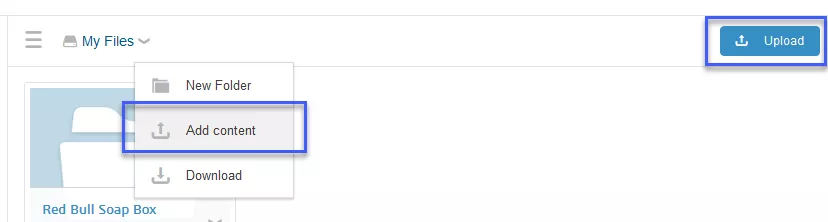
To add further content into 3DDrive there are a few options. In the web browser Platform within the 3DDrive App you can use either the UPLOAD button, or the down arrow next to “My Files” and ADD CONTENT. You will then be shown a browser where you can find the files from your local machine. As soon as the files get uploaded any users with the 3DDrive desktop application that have had the directory shared with them will see the new files appear and synchronise.
Likewise, if files are dragged into the local Windows Explorer directory they will be synched and will appear in the platform. You get handy status symbols on files (green tick and blue arrows) to show whether the synchronisation has completed.

Sharing content within 3DDrive
Once you have built up some content, the next step is likely to share this will other members of your team. Sharing has to be done within the web platform as oppose to the desktop application/explorer folder. For an individual file you can select the file in the web platform and use the down arrow next to the preview to find the SHARE button.

You then see a selection of options for full control over the sharing capabilities. From top to bottom you can share to an individual or group. Publish into a community for all invites guests to see and review, or send a direct URL link to people that may not have been invited into the platform.
Those you share with can be given view rights, or full Editing rights, with the latter also allowing an option for the recipient to be able to share the file to their own colleagues.
For SOLIDWORKS assemblies you need to ensure “Share the Selected File with All Links” is used to ensure all references are maintained. You can then add a message to the recipient.

When you share by link, to ensure you still have a degree of control beyond the platform, you can be explicit in who receives the link, and the Platform Admins can revoke access further down the line:

It is probably more likely that you would share an entire folder with your colleagues so all content can be readily accessed. To do this, simply use the dropdown arrow next to the folder name and use the SHARE option. Here I use this to share to the rest of the “SOAP BOX” team. I also allow the team to further share the folder if they need to.


As a result, one of the other team members sees the notification and can begin interacting with these files:


File Versions
3DDrive is not a data management solution- it is purely a storage area with the ability to share with your colleagues and use within the context of the 3DEXPERIENCE Platform. When renaming SOLIDWORKS files, you may be warned about the potential to break references so you need to be careful in this respect. Also whilst 3DDrive will keep records of older versions of files, they are not truly revision managed. You can roll back to an older version if needs be, but for a scenario like a SOLIDWORKS assembly or drawing, rolling back one of these parent references, won’t automatically rollback the children (i.e. parts) to the same equivalent version.
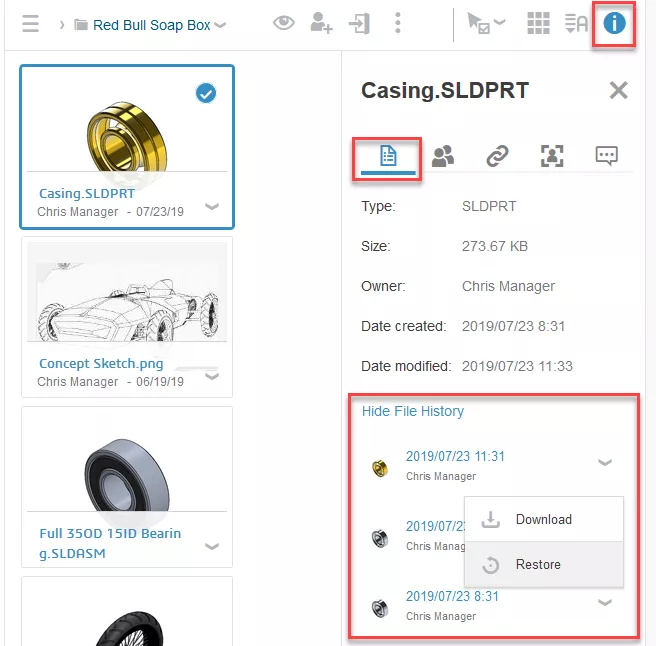
You cannot review versions using the desktop version of 3DDrive so must do this within the platform itself. With a file selected- click the Information (“i”) icon and the first tab called Properties.
You can then expand the File History and see the versions listed in date order- any of these can be restored as the active file using the drop down arrow:
We will see in a future post how your SOLIDWORKS models are likely to be used within the task pane of SOLIDWORKS itself, but for now, you can see how easy it is to upload and share your files and ensure you have the latest data, regardless of whether you review files from within the Platform (web) or the desktop folder.
Further learning videos for 3DEXPERIENCE Business Innovation can be found here in the MySOLIDWORKS Community, and general online help can be accessed here.
Categorised as: 3DEXPERIENCE
Get a SOLIDWORKS Quote
Interested in SOLIDWORKS? Contact us for questions, trials, or demos by clicking the button below or call 01926 333777. Our experts will help you find the perfect solution.

Related Posts

3DExperience – Overview and Gaining Access
3DEXPERIENCE allows you to bring together colleagues and invited suppliers into a single web based platform allowing ideas to be shared and decisions to be made. The platform is CAD intelligent so will allow storage and viewing of your 3D models, even to non-SOLIDWORKS users if they need to review designs. In this series of blog posts we break down the general structure of the platform as well as a more in depth look into the main applications you can use. Each blog post will contain a commentated video summarising all that has been discussed in text form.

3D Experience – Dashboard Creation
Without Dashboards your 3DEXPERIENCE platform will be pretty empty so we need to understand what can be done with them on a per user basis and also how they can be shared to the rest of the team. In simple terms the dashboard is the layout of the webpage, the more complicated description you find on the 3DEXPERIENCE “Getting Started” screen is that “a dashboard is a holistic view on any topic or activity, gathering content from various sources. It is made of tabs, each tab containing widgets”.
What is 3DSWYM? A 3DEXPERIENCE Platform Tutorial
3DSwym is the application at the heart of the 3DEXPERIENCE, allowing users to connect and collaborate across the platform.

Case Study: Morgan Motors Accelerate Their Business with 3DEXPERIENCE
Discover how our Business Transformation team has been supporting Morgan Motor Company as they continue to strive forward and invest in opportunities to protect and improve their profitability, growth, product line and customer experience.
Why Move from CATIA V5 to CATIA 3DEXPERIENCE?
Design on the go, work with team members around the world, engineer across systems and domains, and effortlessly keep all your data up to date when you switch to 3DEXPERIENCE CATIA
Top 4 Benefits of Composite Materials for Lightweight Engineering
One method design and engineering teams have employed to combat high costs and high carbon emissions is the use of composite materials in the development of parts.

Hydrogen-Powered Aircraft: What are the Challenges?
In aviation industry, we’re seeing the rise of eVOTL concepts which challenge the traditional ideas…
Top 3 Enhancements to 3DEXPERIENCE Platform 2023x FD01
The latest release of the 3DEXPERIENCE platform brings with it many enhancements designed to ease the day-day life of SOLIDWORKS users.

What Happened to the SOLIDWORKS Forums?
The SOLIDWORKS Forum looks a little different these days. Find out what’s changed and what that means for you and your business.
Everything you Need to Know About SOLIDWORKS Cloud Services
Find out how the latest changes to SOLIDWORKS Subscriptions will affect you and your business. Here’s everything you need to know about the changes.