











3DExperience – Overview and Gaining Access

Written by: Prasad Bhonsule
Published: Jun 19, 2019
| View All Blogs
3DEXPERIENCE allows you to bring together colleagues and invited suppliers into a single web based platform allowing ideas to be shared and decisions to be made. The platform is CAD intelligent so will allow storage and viewing of your 3D models, even to non-SOLIDWORKS users if they need to review designs. In this series of blog posts we break down the general structure of the platform as well as a more in depth look into the main applications you can use. Each blog post will contain a commentated video summarising all that has been discussed in text form.
First of all it is worth mentioning that the 3DEXPERIENCE platform has 100s of applications (apps) that run in either a full web based (cloud) environment, or a hybrid mode that will add a local installation. A subset of these apps are available to SOLIDWORKS customers.
The packaging of these apps comes together in what are referred to as “Roles” which is equivalent to an end user license. In an attempt to draw comparison with the SOLIDWORKS product matrix, you can think of the Role as being akin to SOLIDWORKS Premium, and the apps equivalent to the SOLIDWORKS Add-ins (i.e. Motion, Routing and Simulation).
The entry-level role is known as “Business Innovation” and is the foundation of the entire platform. In fact, no other role can function without Business Innovation. You may hear mention of Social Collaboration Services in marketing emails and videos- this can be used interchangeably with Business Innovation as they are identical.
Within the Business Innovation role, the following are the main apps that are available- subsequent blog posts will look deeper at each of these:
- 3DSWYM – post ideas, comments, surveys and how to articles to progress projects
- 3DDrive – store files (CAD or otherwise) in the cloud, with a replicated local directory
- 3DPlay – view a range of 3D files in an online viewer which allows annotation and review.
- 3DDashboards – create a customised web page with embedded applications
- 3DSearch – find what you need first time based upon tags and other specific properties
- SOLIDWORKS Connector – connect SOLIDWORKS desktop to 3DDrive to ensure your working files are up to date.
There are some additional apps you will find which are quite self explanatory such as Web Notes (a web based jotter tool) and a Web Page Reader (to allow you to embed external websites onto the platform).
Whilst these applications on their own are similar to others you may already be using, the beauty of the platform is the connectivity between apps, all the while being CAD intelligent. 3DSWYM for example is not too dissimilar to social media groups where information can be shared and commented on. 3DDrive is very similar to DropBox and Google Drive. 3DPlay is equivalent to eDrawings you may have on your desktop. In isolation these other solutions do as good a job as what the 3DEXPERIENCE platform can offer, but none of them can step up to the interconnectivity to allow design project collaboration. The latest CAD models from 3DDrive can be attached to 3DSWYM posts, all the while this intelligent attachment is linked to the most up to date version of the file in 3DDrive. The same goes for 3DPlay where the preview will always reflect the current version. SOLIDWORKS Desktop uses a task pane addin to open, sync and upload CAD data again to ensure all are working on the current versions.
The Compass
 |
|
Put simply, the compass is just a means of launching apps. Each compass direction will give access to a subset of apps categorised according to their function.The compass features in the upper left corner of the platform as a shortcut to quickly access applications. You can also create “favourites” for even quicker access to the apps you use most frequently.
Platform User Interface
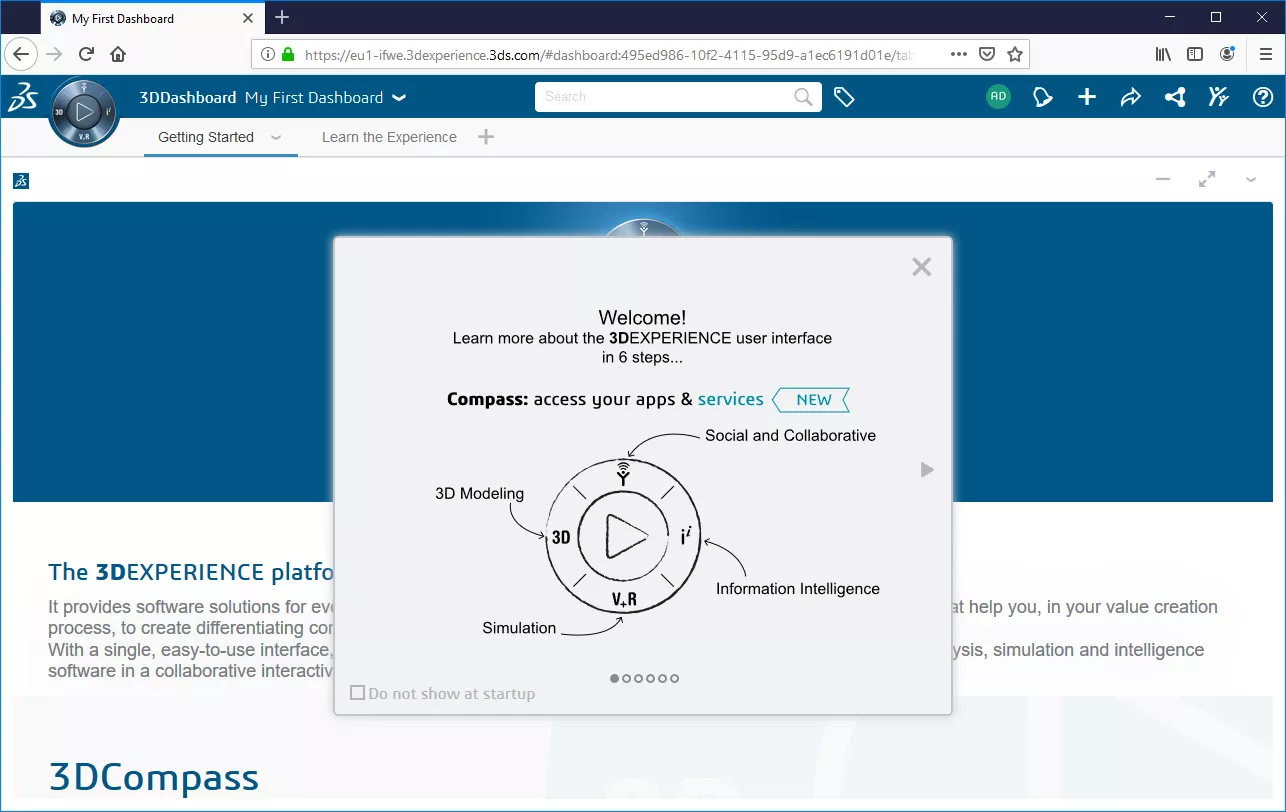
Like many other platforms (Amazon, Netflix, Google), 3DEXPERIENCE has a common task bar to make its usage as seamless as possible.

- Compass – The door to all 3DEXPERIENCE platform apps and experiences.
- Dashboards – can swap to different communities, which may correspond to different projects. These are available by invite, or if created by the individual themselves.
- Tabs – webpages showing specific data and embedded apps
-
 Search – searches for content
 -
 Tags – captures the semantics on any content (either automatically extracted, or created by users) to help with more effective search results.
 -
 Me – accesses user-related information
 -
 Notifications – accesses the notifications control
centre -
 Add – creates and adds content
 -
 Share – shares and collaborates
 -
 Content – integrates files from different drives
 -
 Communities – accesses the power of communities
 -
 Help – accesses a getting started and the support community
This task bar remains in place at all times so it is easy to switch back to the most common elements of the platform.
3D Passport
The login/registration is created via a 3DPassport (aka 3DEXPERIENCE ID). You can also use the same login information that is currently in use for the SOLIDWORKS websites (i.e. Customer Portal or MySOLIDWORKS). Login is required to access public dashboards, private dashboards you have been invited to and private dashboards you host and have created yourself.
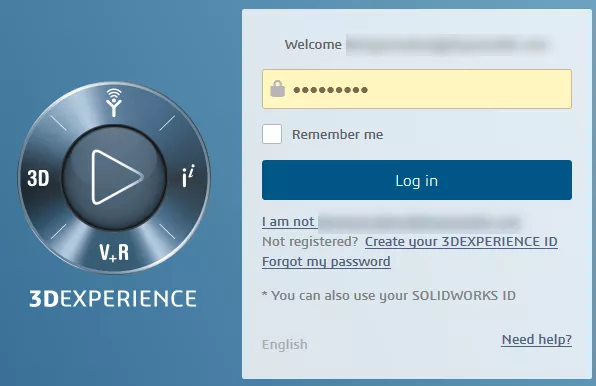
Public dashboards include the DraftSight User Community which you can find using a simple web search. As this is a public dashboard you can gain access purely by creating a login account. For private dashboards you need to be invited and therefore may come up against the following error:

Tenant
The 3DEXPERIENCE platform is cloud based and so to allow you to create private dashboards and control user invites, the licensing also generates a “tenant” specific to the end customer. Put simply, a tenant is a reserved portion of space dedicated to an end customer. A user is linked to the tenant and it is this person that becomes the administrator for the platform and consumes a license. If more licenses are available, colleagues can be invited into the platform with their permissions set by the Admin (further admins can be assigned too). The tenant comes equipped with 5GB of storage space per user (but can be redistributed) and more storage capacity can be purchased.
When first accessed the default Welcome dashboard is presented for you to get started. As mentioned above, creating a 3DEXPERIENCE ID/Passport is not enough to begin creating your own customised dashboards. You need to work with your commercial account manager for them to order your Business Innovation licenses and start the process off for tenant creation.
Platform and Member Management
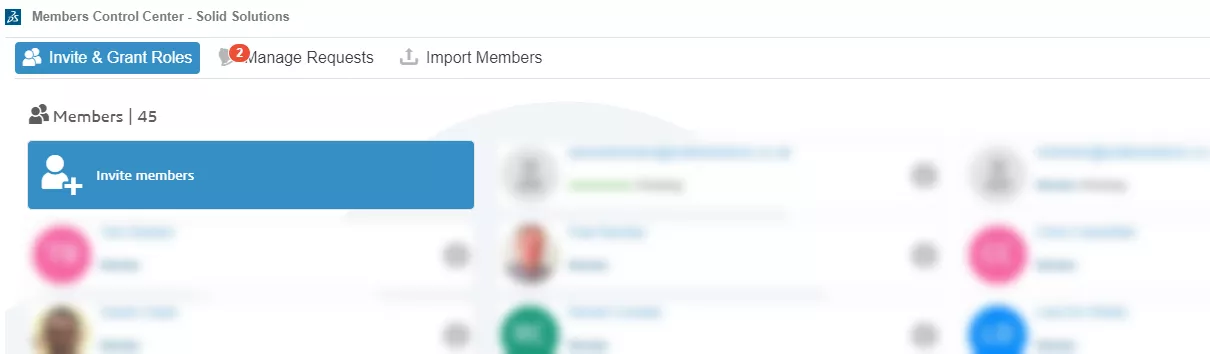
To get started on the platform it is likely you will want to invite in colleagues and begin sharing ideas and content. The admin user will have access to Members and Platform Management from the Dashboard pull down menu:
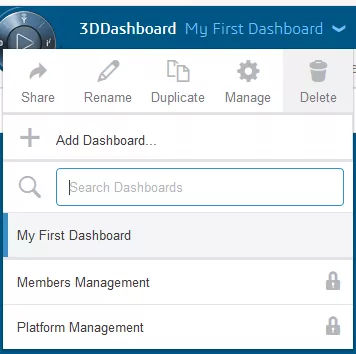
From here you can get some basic information about your platform and under the “Members” tab can begin inviting users. Only an email address is required with that end user then having to sign in, or create a 3DEXPERIENCE ID. New members can be set up as an Administrator, Members or Contractor (external member).
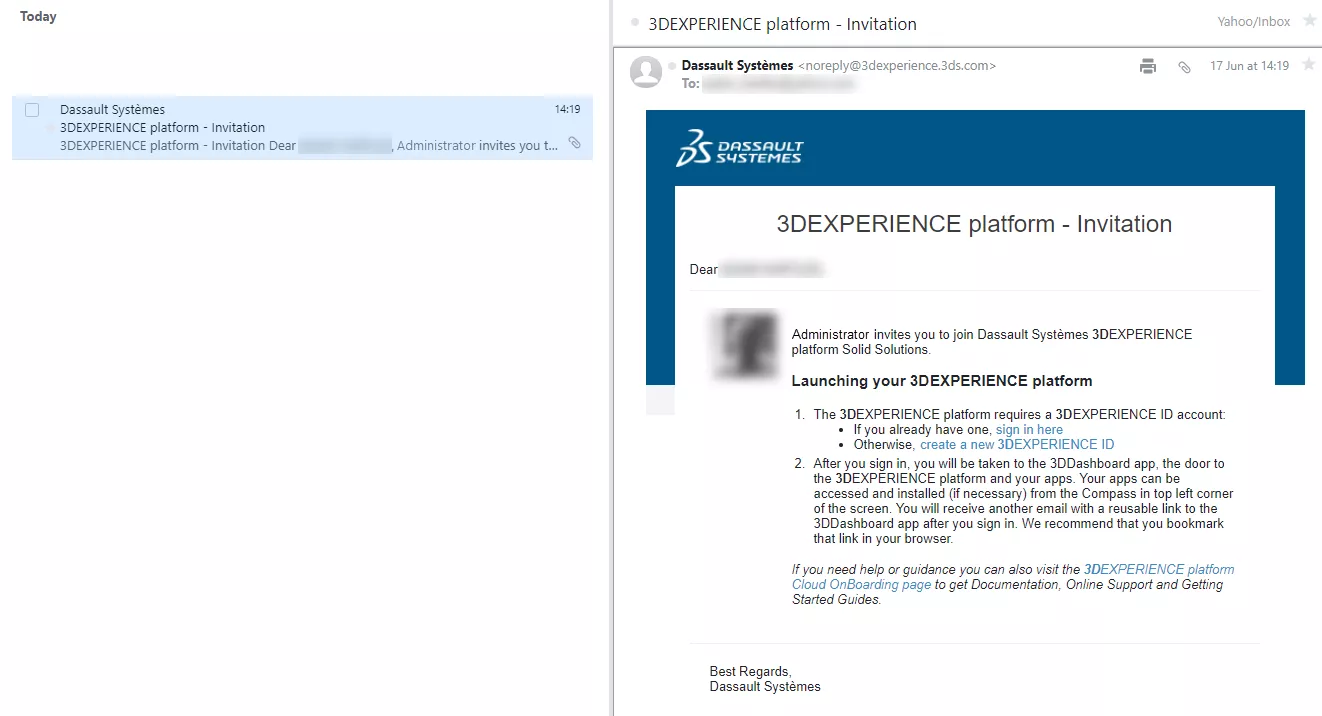
A newly invited user then receives an email (example below) and can then join the platform and begin working with you.
This new user will see a similar default Welcome Dashboard for them to begin customising their view. As you will see in the blog post “Creating 3DDashboards” it is far more likely an administrator would create a template dashboard and share this with their colleagues so they see the same.
Check out the video at the beginning of this blog for a demonstration of how the 3DEXPERIENCE platform can be administrated and follow this blog series to find out more about the individual applications available to you. Also there is a wealth of “How To” training videos on the MySOLIDWORKS Platform. The specific series for 3DExperience Business Innovation can be found
here.
Categorised as: 3DEXPERIENCE
Get a SOLIDWORKS Quote
Interested in SOLIDWORKS? Contact us for questions, trials, or demos by clicking the button below or call 01926 333777. Our experts will help you find the perfect solution.

Related Posts
3D Experience – Dashboard Creation
Without Dashboards your 3DEXPERIENCE platform will be pretty empty so we need to understand what can be done with them on a per user basis and also how they can be shared to the rest of the team. In simple terms the dashboard is the layout of the webpage, the more complicated description you find on the 3DEXPERIENCE “Getting Started” screen is that “a dashboard is a holistic view on any topic or activity, gathering content from various sources. It is made of tabs, each tab containing widgets”.

3D Experience – 3DDrive
3DDrive is the storage application that sits on the 3DEXPERIENCE platform. As a basic comparison it is similar to Dropbox, OneDrive and Google Drive, and in fact these three programs can also be intergrated into 3DEXPERIENCE. Each user you invite to join your platform will consume a license and be given 5GB of storage space within 3DDrive.
What is 3DSWYM? A 3DEXPERIENCE Platform Tutorial
3DSwym is the application at the heart of the 3DEXPERIENCE, allowing users to connect and collaborate across the platform.

Case Study: Morgan Motors Accelerate Their Business with 3DEXPERIENCE
Discover how our Business Transformation team has been supporting Morgan Motor Company as they continue to strive forward and invest in opportunities to protect and improve their profitability, growth, product line and customer experience.

Why Move from CATIA V5 to CATIA 3DEXPERIENCE?
Design on the go, work with team members around the world, engineer across systems and domains, and effortlessly keep all your data up to date when you switch to 3DEXPERIENCE CATIA
Top 4 Benefits of Composite Materials for Lightweight Engineering
One method design and engineering teams have employed to combat high costs and high carbon emissions is the use of composite materials in the development of parts.

Hydrogen-Powered Aircraft: What are the Challenges?
In aviation industry, we’re seeing the rise of eVOTL concepts which challenge the traditional ideas…
Top 3 Enhancements to 3DEXPERIENCE Platform 2023x FD01
The latest release of the 3DEXPERIENCE platform brings with it many enhancements designed to ease the day-day life of SOLIDWORKS users.

What Happened to the SOLIDWORKS Forums?
The SOLIDWORKS Forum looks a little different these days. Find out what’s changed and what that means for you and your business.
Everything you Need to Know About SOLIDWORKS Cloud Services
Find out how the latest changes to SOLIDWORKS Subscriptions will affect you and your business. Here’s everything you need to know about the changes.