











Everything you Need to Know About SOLIDWORKS Cloud Services

Written by: Prasad Bhonsule
Published: Jun 21, 2023
| View All Blogs
The SOLIDWORKS Cloud Services are here! Communicating and collaborating on designs just got easier.
These services empower engineering and design teams to solve modern challenges and minimise those mundane tasks by providing tools to improve collaboration, cloud data management and design sharing.
We’ve set up a dedicated website to help you discover more about the 3DEXPERIENCE platform and answer your FAQs.
When are SOLIDWORKS Subscriptions Changing?

Dassault Systèmes have announced that, from 1 July 2023, all new purchases of SOLIDWORKS CAD will include SOLIDWORKS Cloud Services as part of their subscription package, and you’ll have the option to upgrade any existing licenses for a nominal fee.
Don’t panic! We’re not going anywhere – you’ll still have access to our expert Technical Support team to help you learn and implement the new tools and navigate these changes.
What are SOLIDWORKS Cloud Services?

SOLIDWORKS Cloud Services include advanced tools for design sharing and markup, secure storage and revisioning, and design management and control.
These tools come in the form of three roles on the 3DEXPERIENCE platform: Collaborative Industry Innovator, Collaborative Designer for SOLIDWORKS, and 3DSwymer.
Click the links to discover more about each role.
The SOLIDWORKS Cloud Services enable SOLIDWORKS users to easily share and markup designs, access CAD-intelligent online storage and manage their design data effectively.
In a nutshell, they provide a secure online hub for storage and collaboration.
The SOLIDWORKS Cloud Services provide a connection from SOLIDWORKS to the 3DEXPERIENCE platform and access to an introductory set of tools on the 3DEXPERIENCE platform.
The platform’s capabilities are vast, but they are also completely modular.
We recommend that you start by taking advantage of the cloud data storage and collaboration tools and expanding into other areas as and when you need.
Why is my SOLIDWORKS Subscription Changing?

This is a global change that Dassault Systèmes have brought in to match the pace of innovation and better support designers and engineers across the world.
As design and engineering processes evolve, the tools we use must be adapted to facilitate growth and improve communication routes. With the additional benefit of the SOLIDWORKS Cloud Services, your subscription grants you access to new tools that can help you design faster, and communicate more efficiently.
Do I have to use the 3DEXPERIENCE Platform?

We understand that this is a big change.
But you don’t have to use the 3DEXPERIENCE platform straight away. We recommend activating your license and getting started by using the new tools built into SOLIDWORKS.
Our Onboarding team are here to help you get started and comfortable with using the SOLIDWORKS Cloud Services. And when you’re ready, you can move beyond the extra functionality that SOLIDWORKS Cloud Services bring and continue your journey into the 3DEXPERIENCE.
We’ve seen businesses of all sizes across every industry benefit from using the 3DEXPERIENCE platform to complement their design process and achieve success.
Check out how Dexai Robotics have been using the 3DEXPERIENCE platform to design robot chefs!
If your business can’t harness cloud-based tools, then on-premise options are available to suit your needs. Get in touch with our expert consultants today to explore your options.
Will our SOLIDWORKS Subscription Price Change in July?

In short… Not if you don’t want it to!
Customers with existing subscriptions of perpetual SOLIDWORKS Desktop CAD products can choose whether or not to upgrade their product subscriptions to include SOLIDWORKS Cloud Services.
SOLIDWORKS Desktop CAD term licenses that are set to automatically renew after July 2023 will also not include SOLIDWORKS Cloud Services or the associated price increase by default but are offered as an additional upgrade if desired.
The cost to upgrade varies between countries and for different license types, so we recommend that you contact your account manager for the latest pricing and advice.
Are New SOLIDWORKS Licenses Changing?

From July 2023 new perpetual SOLIDWORKS desktop CAD licenses must also be purchased with two years of subscription.
After the initial two year period licenses can be renewed on an annual basis. If you choose not to renew then you will keep access to SOLIDWORKS but you will lose all subscription benefits including SOLIDWORKS Cloud Services, technical support, version and service pack updates and SOLIDWORKS Visualize.
How to Activate the 3DEXPERIENCE Platform

After your order is confirmed, you will receive an email containing the activation link and terms and conditions CLOSA that you’ll need to read and agree to before using the platform.
The Administrator must then click the link in the email and log in with their 3DEXPERIENCE ID to activate the licenses and invite other members to the platform.
If you haven’t received these emails or have misplaced them then please contact your Account Manager or local support team, we’ll be happy to assist.
Be sure to check out our video tutorial to guide you through the process and learn how to activate, install and use the 3DEXPERIENCE platform.
Still have questions? Check out the full list of SOLIDWORKS Cloud Services FAQs or give us a call on 01926 333 777.
Take the Next Steps…
Learn how to work with 3DSWYM and check out this blog post tutorial to run you through working with the 3DEXPERIENCE platform and getting the most from it.
Not only does the thread-based community approach allow you to easily find old discussions and track the decision-making process, but it can also help you to manage your CAD data effectively.
Watch this video find out why you should be using the 3DEXPERIENCE platform to manage your SOLIDWORKS and CAD data and take the next steps on your design journey.
If you have any further queries or need help getting started with the 3DEXPERIENCE platform, then visit experience.trimech.com and be sure to get in touch with our expert Technical Support team on 01926 333777 or via support@solidsolutions.co.uk.
Categorised as: 3DEXPERIENCE | Data Management | SOLIDWORKS Cloud Services
Get a SOLIDWORKS Quote
Interested in SOLIDWORKS? Contact us for questions, trials, or demos by clicking the button below or call 01926 333777. Our experts will help you find the perfect solution.

Related Posts

How to Create a Pack and Go in SOLIDWORKS
Pack and Go in SOLIDWORKS should be used when sending SOLIDWORKS files to another person. Use this simple guide to help you safely send entire SOLIDWORKS projects.

3DExperience – Overview and Gaining Access
3DEXPERIENCE allows you to bring together colleagues and invited suppliers into a single web based platform allowing ideas to be shared and decisions to be made. The platform is CAD intelligent so will allow storage and viewing of your 3D models, even to non-SOLIDWORKS users if they need to review designs. In this series of blog posts we break down the general structure of the platform as well as a more in depth look into the main applications you can use. Each blog post will contain a commentated video summarising all that has been discussed in text form.

3D Experience – Dashboard Creation
Without Dashboards your 3DEXPERIENCE platform will be pretty empty so we need to understand what can be done with them on a per user basis and also how they can be shared to the rest of the team. In simple terms the dashboard is the layout of the webpage, the more complicated description you find on the 3DEXPERIENCE “Getting Started” screen is that “a dashboard is a holistic view on any topic or activity, gathering content from various sources. It is made of tabs, each tab containing widgets”.

3D Experience – 3DDrive
3DDrive is the storage application that sits on the 3DEXPERIENCE platform. As a basic comparison it is similar to Dropbox, OneDrive and Google Drive, and in fact these three programs can also be intergrated into 3DEXPERIENCE. Each user you invite to join your platform will consume a license and be given 5GB of storage space within 3DDrive.
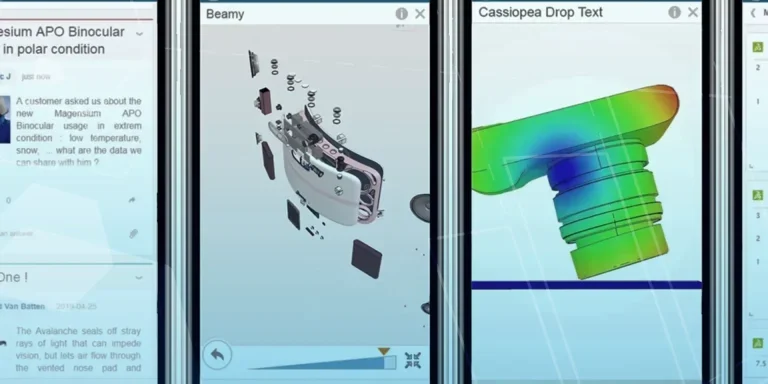
What is 3DSWYM? A 3DEXPERIENCE Platform Tutorial
3DSwym is the application at the heart of the 3DEXPERIENCE, allowing users to connect and collaborate across the platform.
Microsoft SQL Server licensing for SOLIDWORKS PDM
October 2020 marks two important milestones for the SOLIDWORKS PDM family and SQL Server.

Part Numbering in SOLIDWORKS PDM Professional
When implementing a new PDM Professional Vault Customers will have the option to review their part numbering and classification requirements as they move to a system that allows them to, in most cases, automate the way the identify ‘parts’ within the Vault. Part Numbering is something that a lot of customers approach differently and this is often based on ‘how it’s always been done’ without necessarily considering what is the purpose of a Part Number within their organisations and wider within their supply chains. If we consider the humble part number. What is it’s purpose?

The 6 Golden Rules of Managing Data in SOLIDWORKS
When modelling in SOLIDWORKS, before you know it, you will have created lots of parts, assembly and drawing files, so it’s important to think about how you will manage these files and keep everything organised. Here we discuss the ‘6 Golden Rules’ of managing your SOLIDWORKS files using Windows Explorer and recommended methods for file naming, structuring your projects and managing revisions.
This kicks off a month looking at the management of CAD data, register for one of our upcoming live webinars at the bottom of this article.

PDM Professional – Assigning Users with Conditional Notifications
Often customers will create smaller project teams for specific jobs and in the past we have been asked if it is possible, within a multi stage workflow, to pre-assign at the creation stage users who will be notified as checker / approver within those transitions. This blog will demonstrate how, using conditional Notifications in PDM Professional, this can be configured. We will also create some logic to allow for certain parts of the workflow to be bypassed by validating the selected ‘names’ against transition conditions. In this example the ‘approvers’ will be assigned on the files DataCard, but it would be just as feasible to have these names inherited from a project folder card if defining the rules at a higher level was possible within your Teams.
Managing Disk Space with SOLIDWORKS PDM Part #1: Distributing the Archive
This blog series was prompted by a recent support ticket, logged when a customer found their PDM Professional installation suddenly became unusable. The warning message, led to my reviewing the Archive Server Log file and this quickly identified the problem being a result of the PDM Server running out of disk space.