











How to Mate Ball and Socket Joints in SOLIDWORKS
Written by: Terry O'Reilly
Published: Dec 7, 2021
| View All Blogs
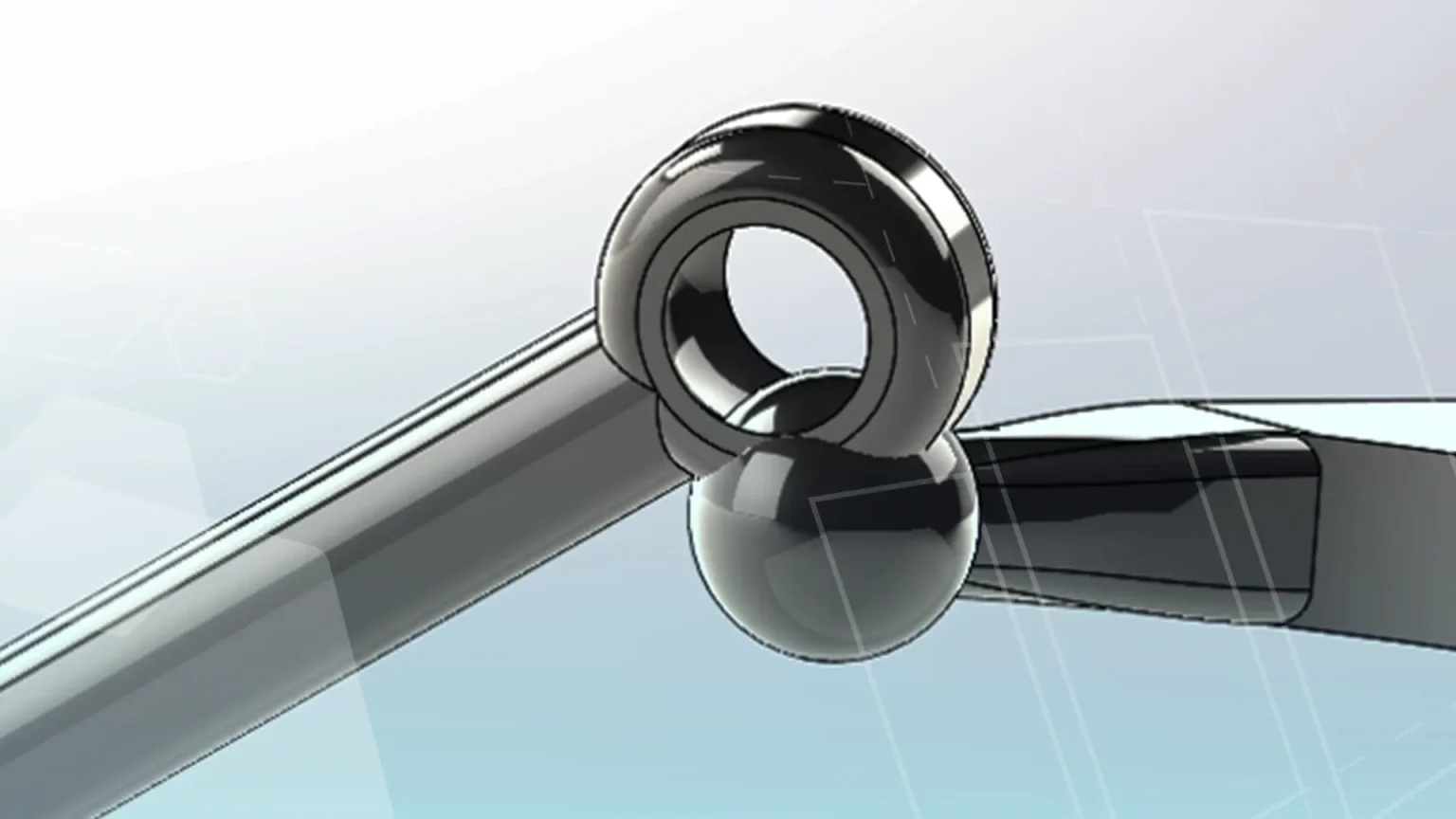
Ball and socket joints have a wide variety of uses in several applications because of the degrees of freedom they possess. For this reason, they are often created within SOLIDWORKS as part of assemblies, but sadly there is no dedicated mate type for this within the software.
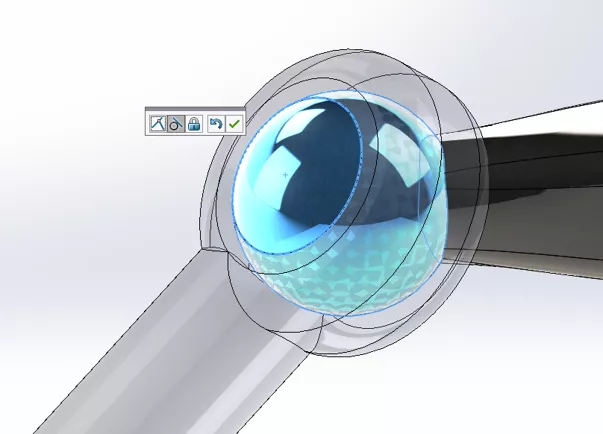
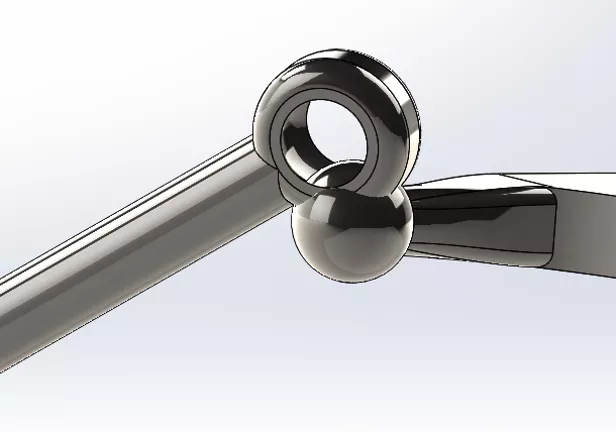
Ball joints therefore appear difficult to mate to begin with, at least whilst maintaining the full degrees of freedom. At first, adding a tangency mate between the ball surface the pocket edge seems like a sensible method, however when trying to achieve the fluid movement ball joints possess, the ball can ‘pop out’ of the socket similar to the instance below. This is a limitation of the tangent mate; if the tangency remains at a minimum of one point, the mate is still satisfied.
 #
#
Another method you might try would be to add a concentric mate between the ball face and the pocket face; however, this can lead into some limitations down the line, causing the mate rotation to become locked.
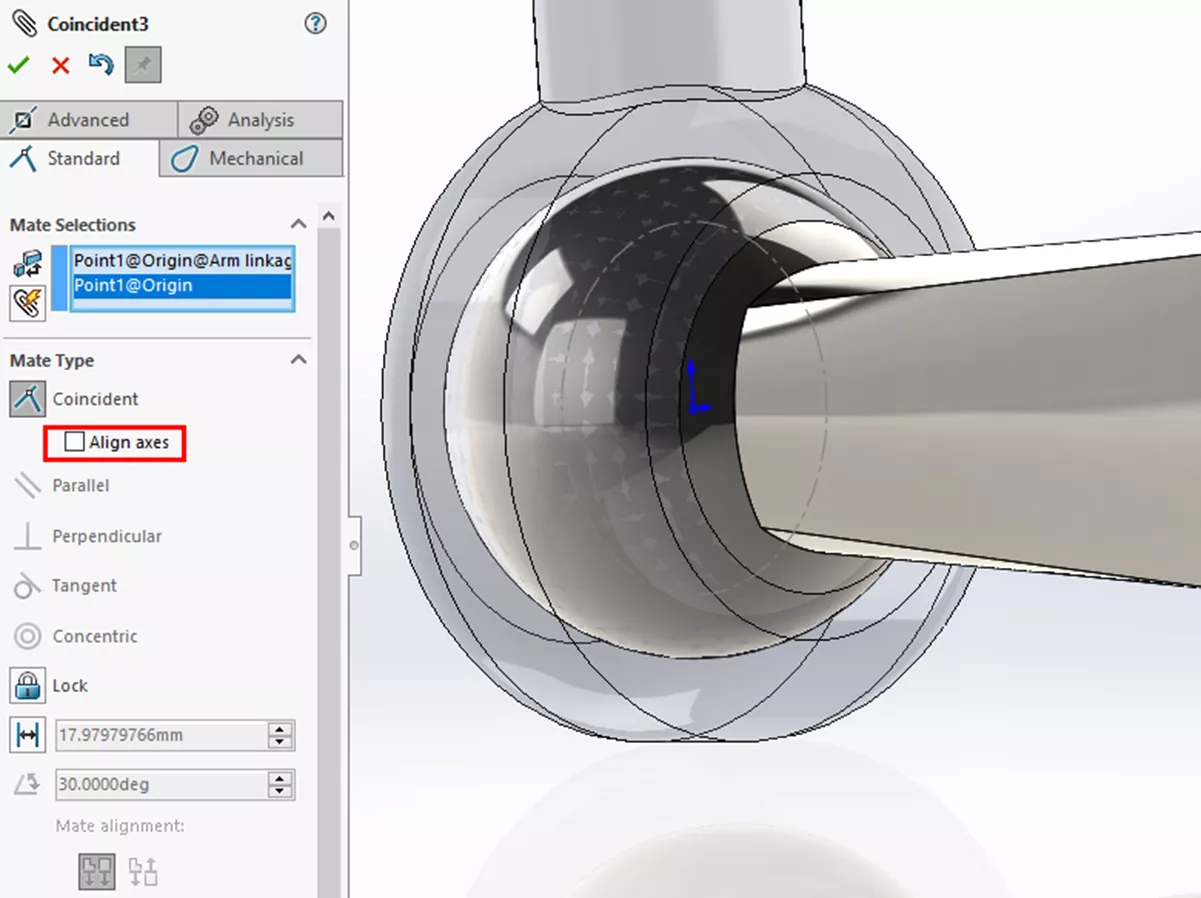
The best practice to mate a ball to a socket, is to find a way to mate the centre of the socket to the centre of the ball coincidently. So, how exactly do we achieve this? The simplest method is to have good design intent and design the ball and socket to be centred around the origin. This makes life simple down the line, as you can just add a coincident relation between the two origin points. It is important to untick ‘Align axes’ checkbox when mating the origin points, otherwise there will be no rotation.
Often however, it is either not possible to have an origin at the centre of the parts in question (e.g. when using imported geometry), or it could be too late in the design process. In this instance, we need to create a sketch point that can be used in the mate instead. The first step we need to do is create a plane in the centre of the ball section.
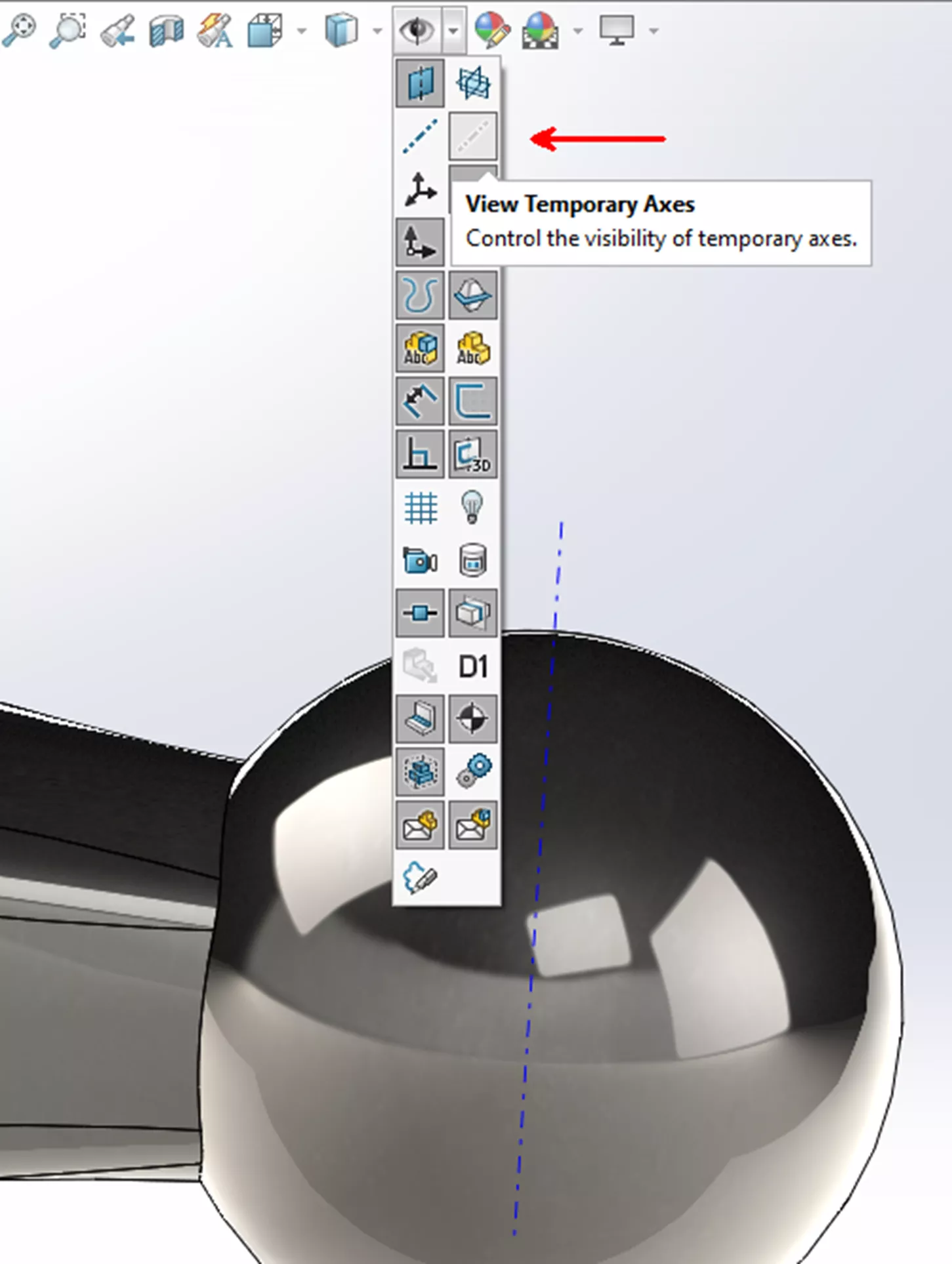
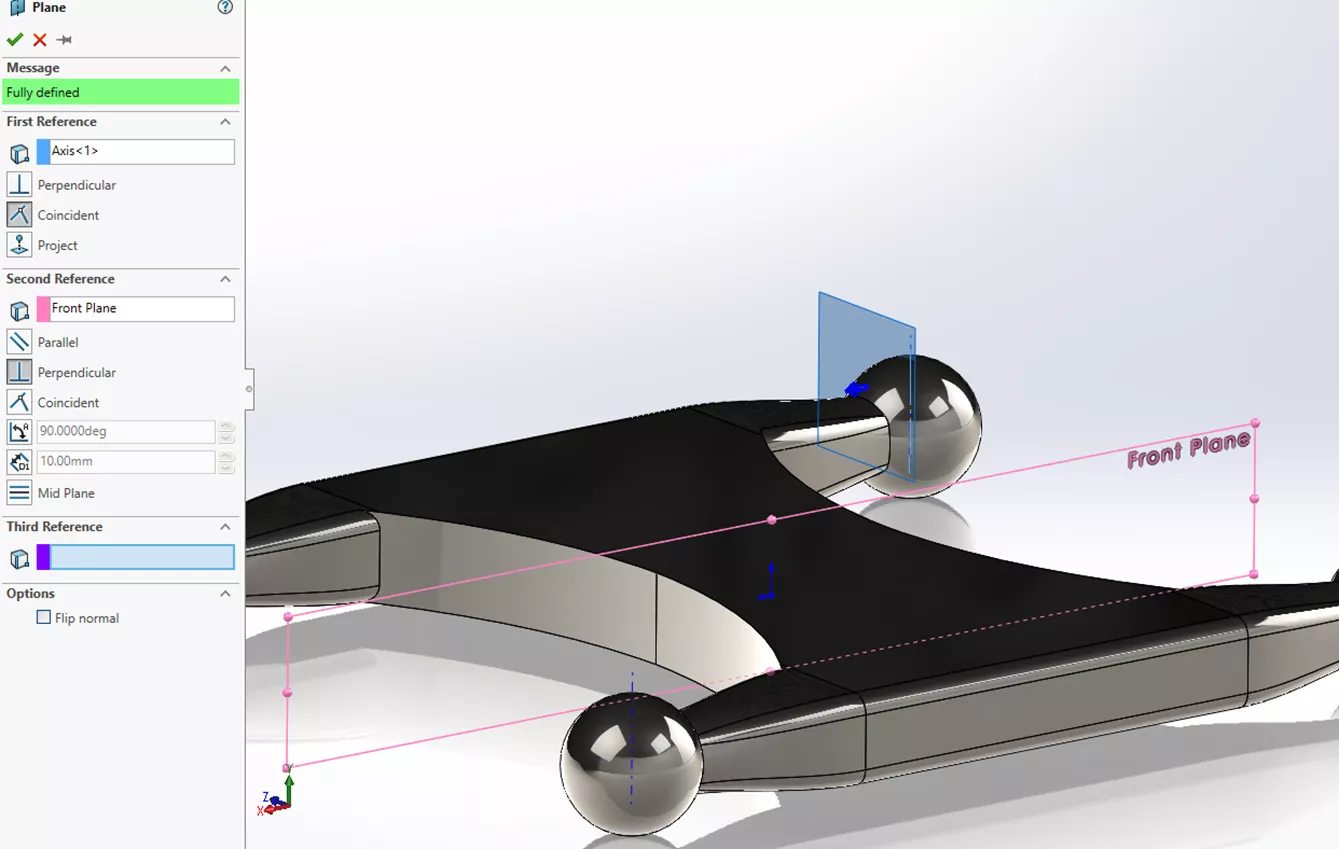
We can make use of temporary axes for this, as they populate at the centre of every cylindrical and conical face. To make the temporary axes visible, simply select the option from the heads-up view toolbar. Together the temporary axis and a perpendicular plane can be used as references for a new plane that intersects through the centre of the ball.
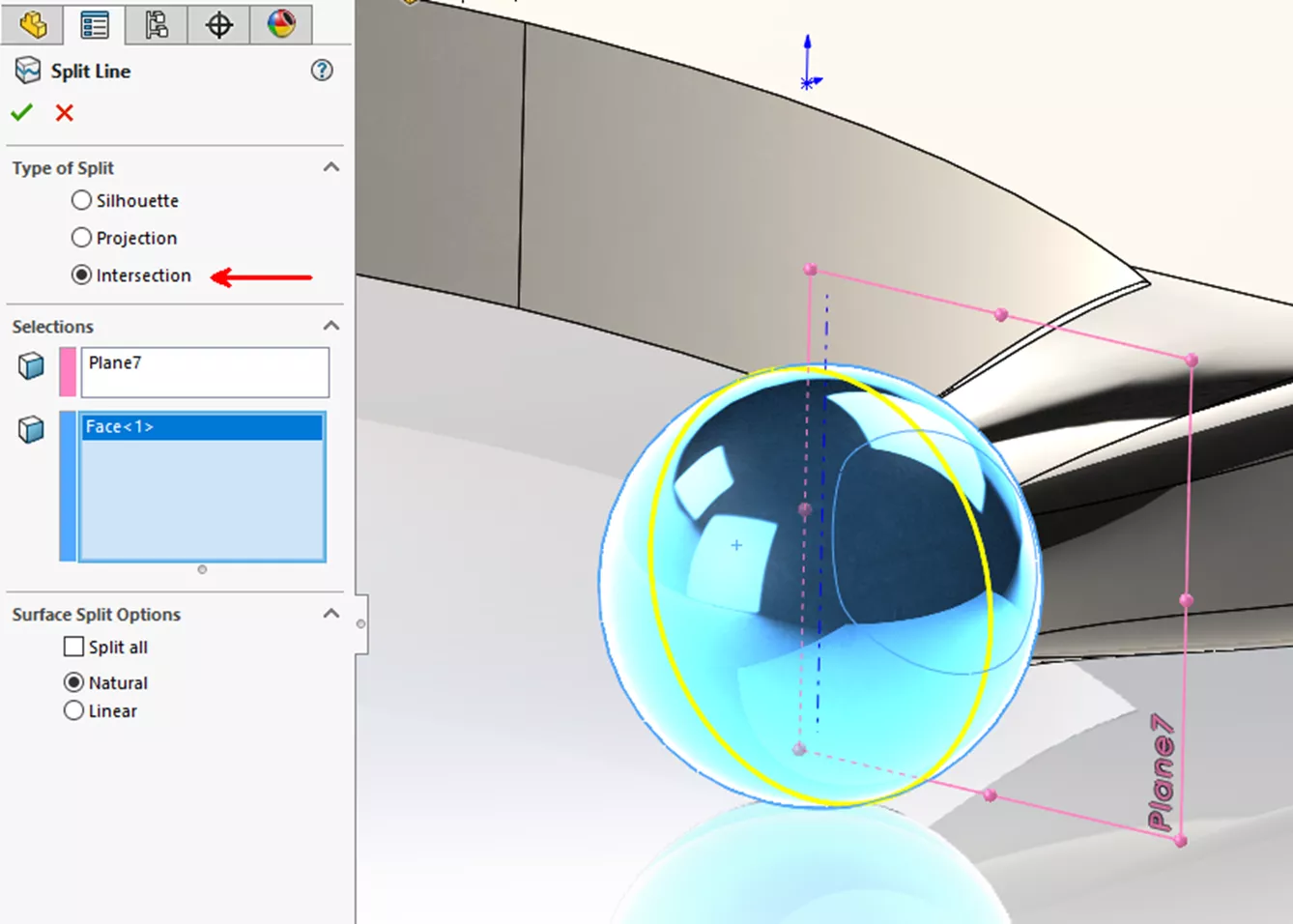
To create a sketch point, it is easiest to first use our new plane to intersect the ball and create a line down the centre. This can be achieved by ‘Split Line’ and selecting ‘Intersection’ for the split type and selecting the plane and ball face in respective selection boxes.
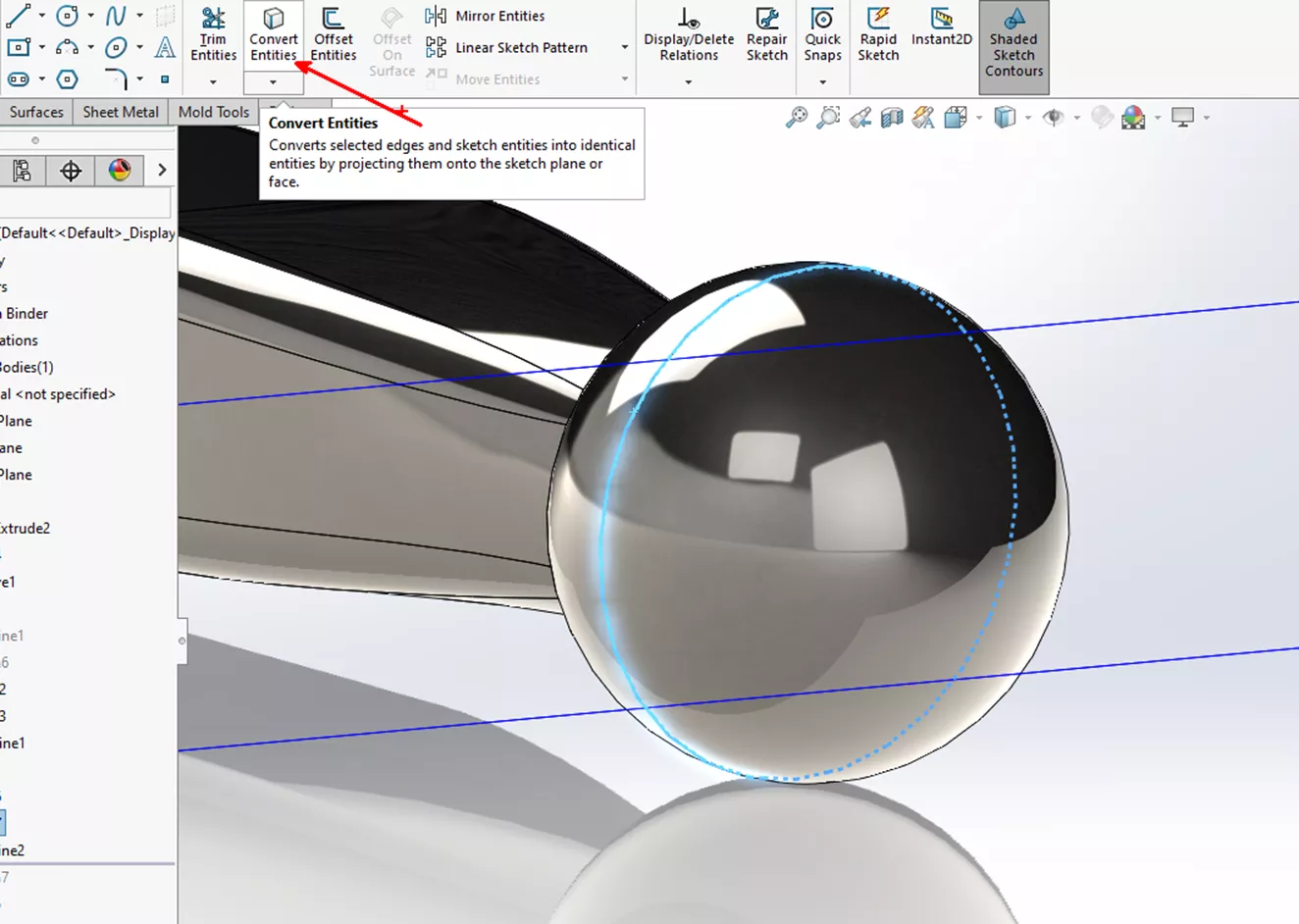
The intersection line can be used in a new sketch on our intersecting plane to convert its entities. Once converted, the sketch should change to construction geometry, leaving a central point that can be used to mate to a socket.
For the socket, the method is similar however it is normally much easier to create a plane that intersects the centre. In this instance, the two flat edges were used to create a midplane. On this plane, one of the circular edges can have its entities converted and changed to construction geometry.
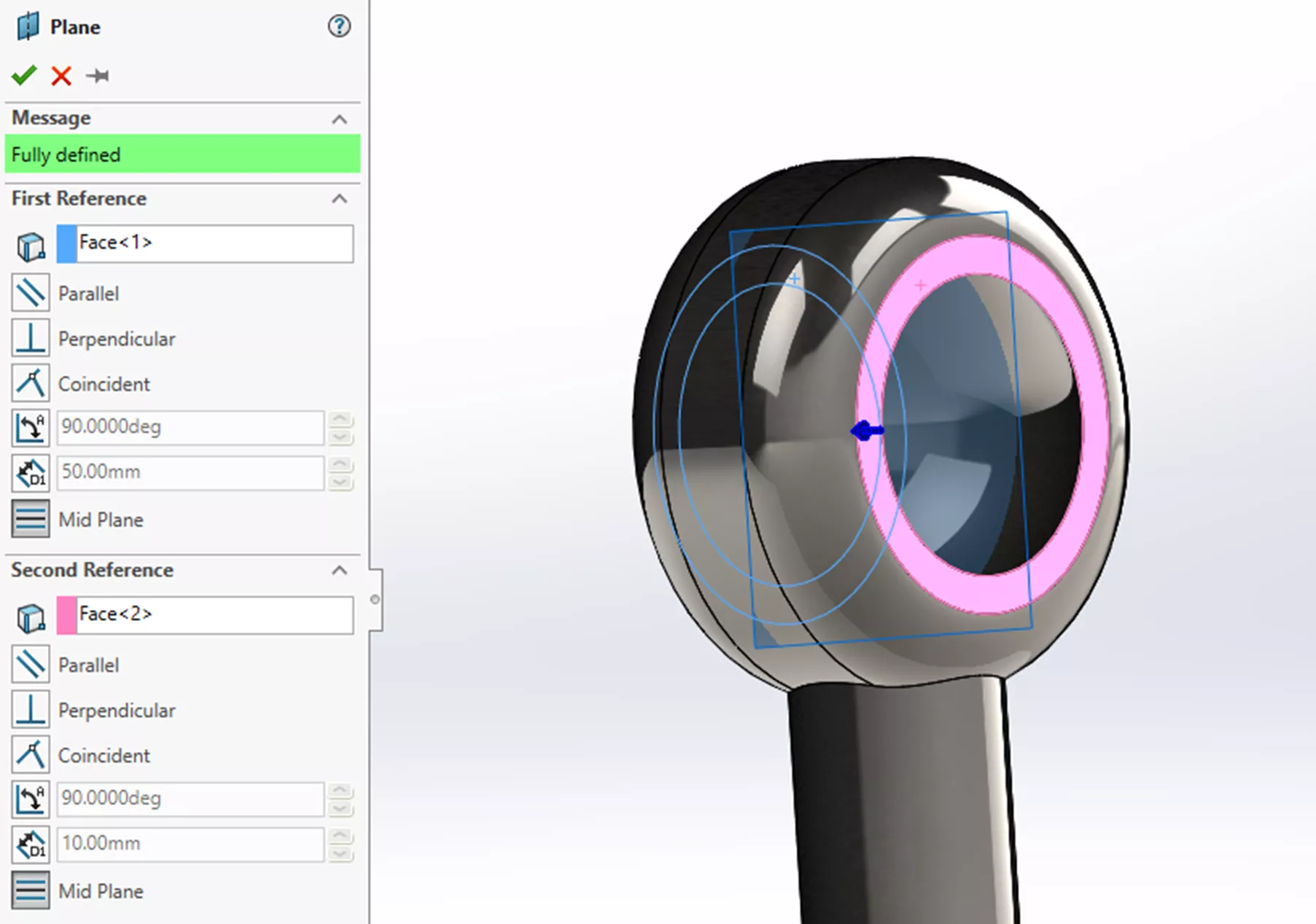
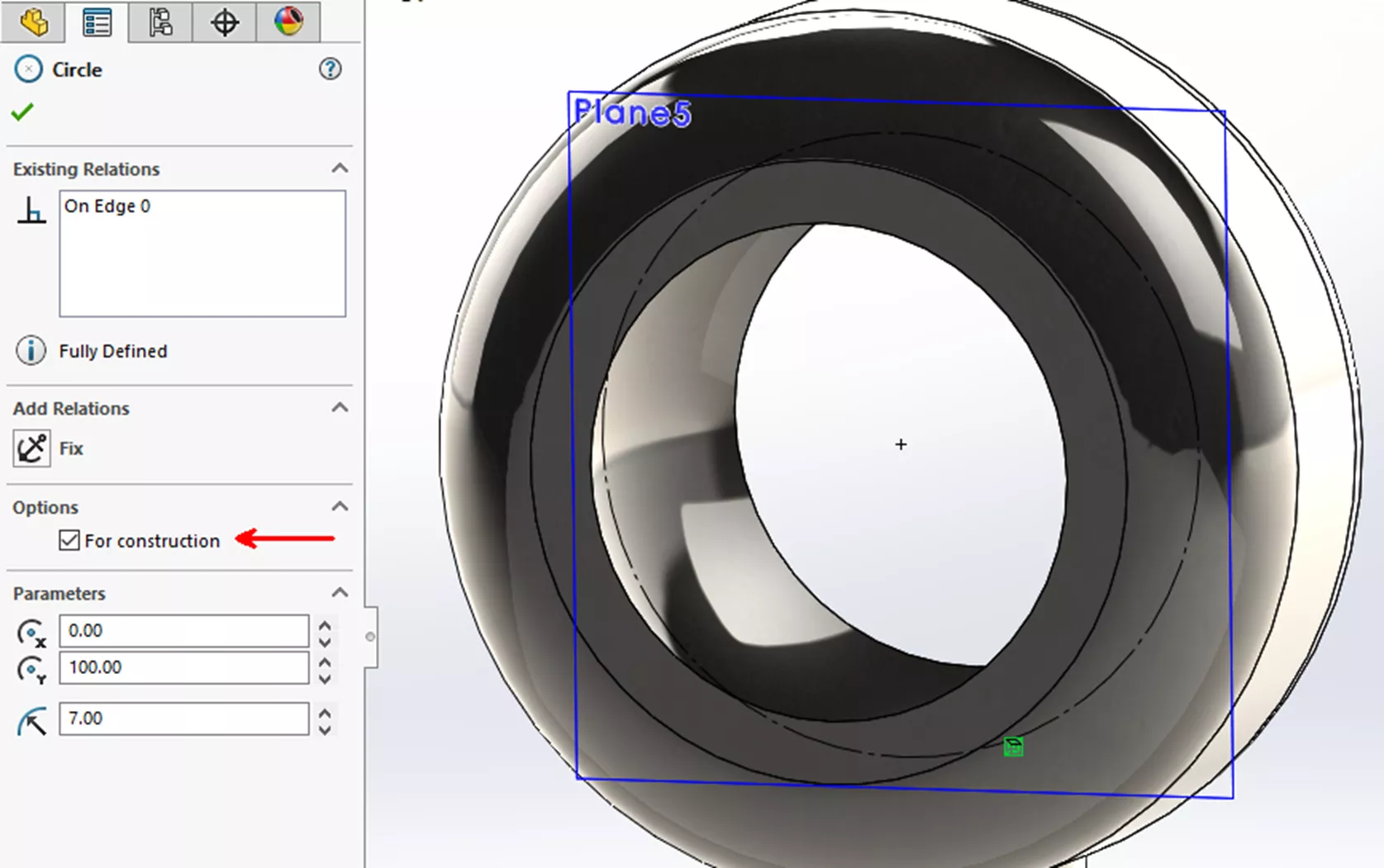
Now that we have two central sketch points, we can mate these coincidently to achieve the full range of movement expected from a ball and socket joint.
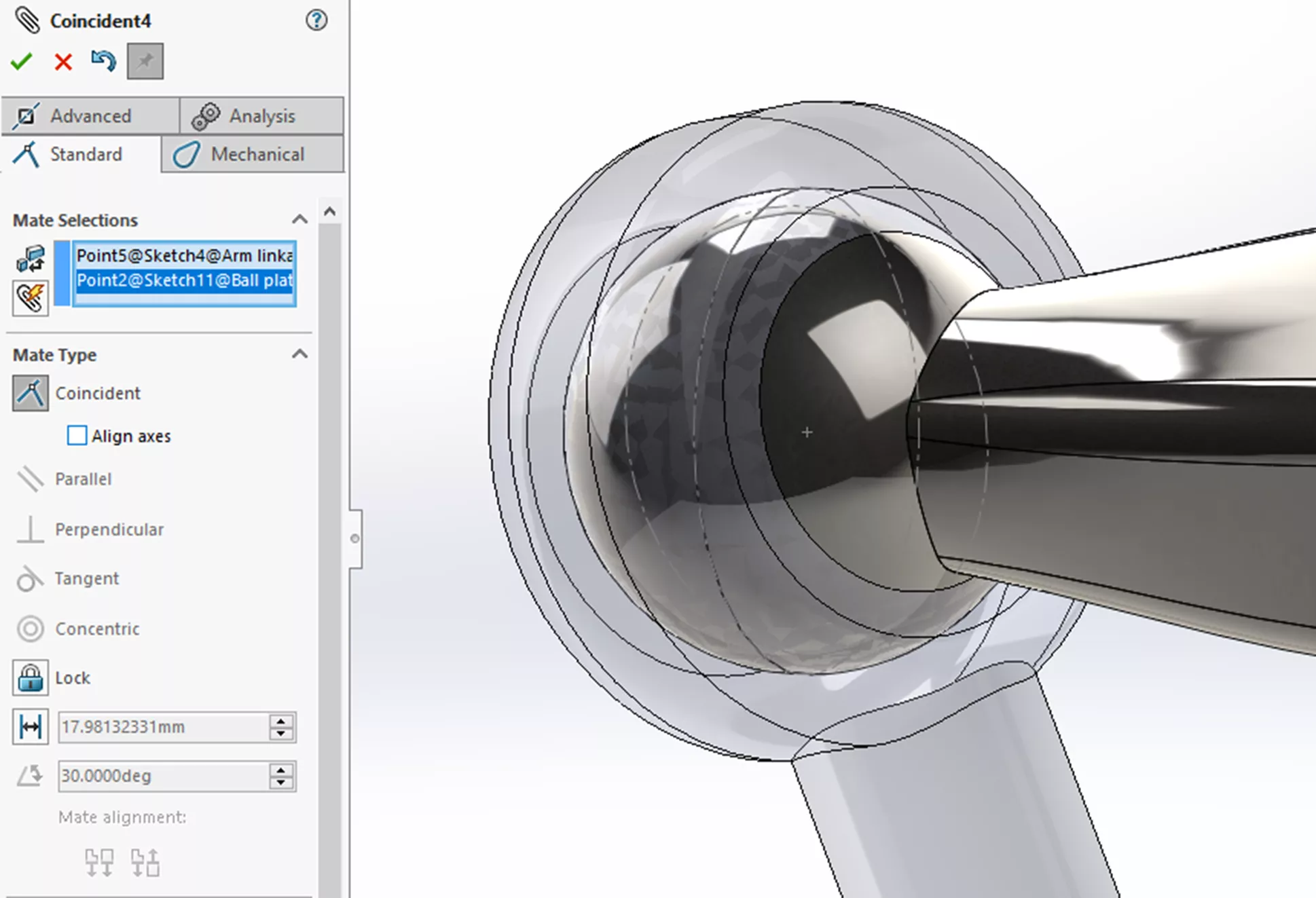
See video for full range of motion
Categorised as: SOLIDWORKS Design | Tech Tips
Get a SOLIDWORKS Quote
Interested in SOLIDWORKS? Contact us for questions, trials, or demos by clicking the button below or call 01926 333777. Our experts will help you find the perfect solution.

Related Posts

How to Find Reaction Forces in SOLIDWORKS Simulation
SOLIDWORKS helps us to find resultant forces through simulation studies. These virtual tests reduce the need for physical prototypes and give us an accurate answer.

Setting number of decimal places in a table on a drawing
When creating an equation in a drawing general table, is it possible to define the…

SOLIDWORKS Smart Fasteners
SOLIDWORKS Smart Fasteners is a really useful time saving tool, allowing you to automatically insert toolbox fasteners such as bolts and screws into an assembly providing there is a standard hole.

Why is my Flat Pattern not showing in SOLIDWORKS Drawings?
This may be linked to how the drawing is saved or it can be related to how sheet metal parts are displayed in drawings, read on to find out how to fix it.

Why is SOLIDWORKS Crashing?
It’s one of the great mysteries of life – why is SOLIDWORKS crashing? Let’s explore how SOLIDWORKS crashes and how we can improve performance in SOLIDWORKS.

SOLIDWORKS Tips: Are you Making this Common Mistake in Fatigue Analysis?
Simulation is a vital and complex engineering need. Fortunately, SOLIDWORKS makes it easy to test, correct mistakes and obtain accurate results.

Tech Support Blog: Why are my SOLIDWORKS BOM Quantities Wrong?
Why are my SOLIDWORKS BOM Quantities Wrong? A support call cropped up this week which…

How to Get Your Serial Number for SOLIDWORKS Visualize Standard
Want to download Visualize to make photorealistic renders? Follow this guide for accessing your Visualize serial number that comes bundled in with SolidWorks Professional and Premium.

How to Recover SOLIDWORKS Files After a Crash
SOLIDWORKS has two different methods to help you recover from an unexpected crash or loss of data in the form of auto-recovery and back-up settings.

Redesigning Santa’s Sleigh in SOLIDWORKS
Every year Father Christmas has to fly in his sleigh to deliver presents to boys and girls all over the world in just one night. To put this into perspective, it takes a little under 24 hours to fly from London (UK) to Sydney (Australia) in a streamlined Boeing 747, whereas Father Christmas’ mode of transport is believed to be a rather non-aerodynamic sleigh.