











How to Save Time with Open Modes in SOLIDWORKS

Written by: Terry O'Reilly
Published: Jun 22, 2020
| View All Blogs
New to SolidWorks 2020, the format of accessing different open modes in SOLIDWORKS has changed, and a time saving, ‘Detailing’ open mode has been introduced for working with drawings. Now that these options are more apparent, some of you may be wondering, what do these different functions do, and how can they be useful to you?
The short answer is that different open modes allow you to control how much information you load when you open a file. Understanding which open mode is appropriate to use can be a great time saver for when you’re working on larger models, so let’s go over where to find them and what they do.
Up until this point, if you have been using SOLIDWORKS 2019 and prior, you may have seen the drop down menu allowing you to select different open modes in SOLIDWORKS when opening a model.
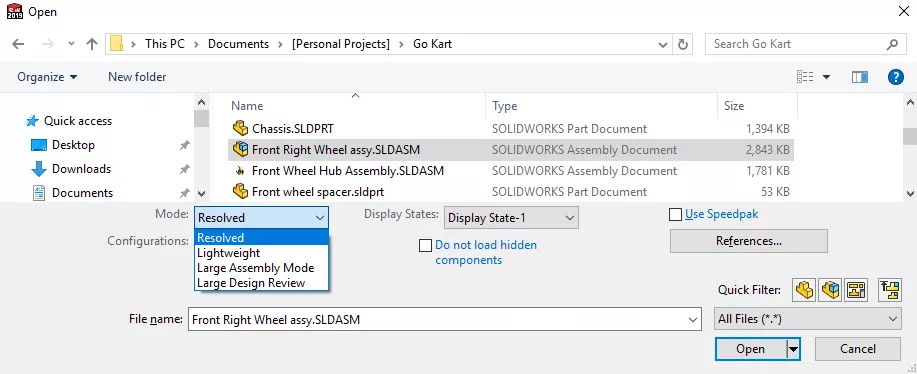
However, since the 2020 release, you will now see that a slider has replaced this drop down menu, so you can tell at a glance which open mode you are using. As you move down the options, the model or drawing will be resolved at a higher level, offering more functionality, at the expense of a higher demand on your system. This is how the new interface looks when opening a part:
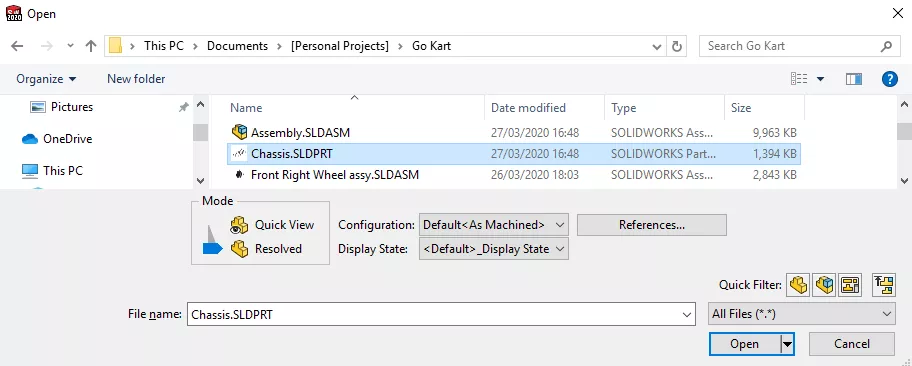
an Assembly,
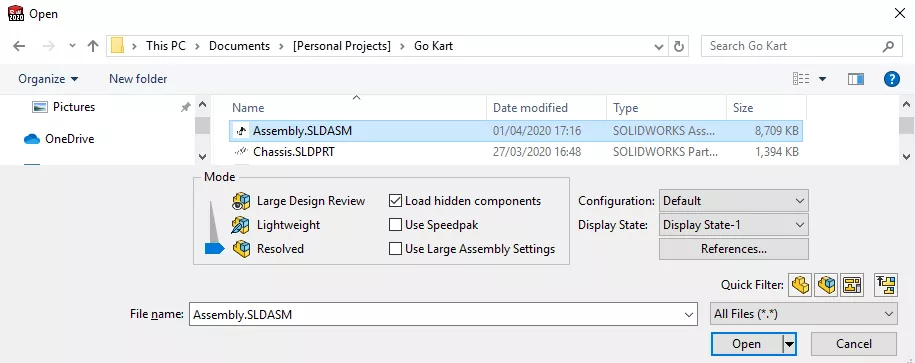
and a Drawing.
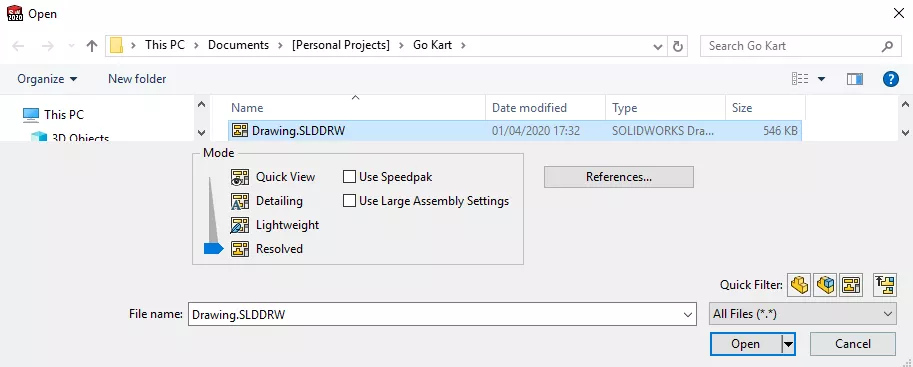
So, what do they all mean? Here’s a breakdown for the modes available for each file type.
Parts
Quick View

This will be the quickest way to review how a part looks.
- The part is opened for viewing only
- You can pan, zoom & rotate
- You cannot edit, measure or save the document
You can switch to edit mode at any time by right-clicking in the graphics area and selecting edit
Resolved

Fully loads all the model data into memory. This is the option to use for complete functionality in SOLIDWORKS.
Assemblies
Large Design Review

This mode will open very large assemblies quickly, displaying graphical data only, while retaining some key functionality. Great for a quick design review.
- You can review the FeatureManager design tree
- You can measure distances, create cross sections, and hide and show components as necessary
- You can create, edit, and play back walk-throughs
- You cannot see certain aspects of the FeatureManager design tree, such as: assembly features, component patterns, and mates
- Note that only configurations with the display data mark checked are loaded
You can enable ‘Edit Assembly’ mode within this, which will make more tools available for quick assembly design changes, such as: Insert components, mate and linear & circular component pattern.
Lightweight

This will only load a subset of the model data into memory, with remaining data loaded as needed. Using this will significantly improve the performance of large assemblies.
- You can add or remove mates and reference geometry
- You can add annotations and dimensions as required
- You can use many of the assembly evaluation features: measure, mass & section properties, and interference & collision detection
- You can create section views and exploded views
Individual components can between toggled between lightweight and resolved once open.
Resolved

Fully loads all the model data into memory. This is the option to use for complete functionality in SOLIDWORKS.
Drawings
Quick View

Opens a simplified representation of a drawing in a read-only mode. This is the quickest way to review a drawing with SOLIDWORKS. You can choose to fully load a selection of sheets when working in a multi-sheet document
Detailing

Opens the drawing without any part or assembly data. Very useful if you only need to make minor edits to drawings of large assemblies.
- You can add or modify annotations or dimensions in most situations
- You can edit existing drawing views
- You can export to .pdf and .dxf
- You cannot add or modify some dimensions which require specific model information such as: hole callouts, cosmetic threads, or any links to model properties
- You cannot create new drawing views
Lightweight

Loads only a subset of model data into memory, analogous to the lightweight open mode on assemblies.
- You can create all drawing views
- You can create dimensions in all views
- You can attach annotations to models in all views
Full model data can be loaded as needed.
Resolved

Fully loads all the model data into memory. This is the option to use for complete functionality in SOLIDWORKS.
Using the most suitable mode in the situations requiring different levels of functionality can help you speed up your workflow and reduce unnecessary computational demand on your system. Listed here is only an overview of the different modes, and you may wish to check the SOLIDWORKS help page for more detailed information.
Categorised as: SOLIDWORKS Design | Tech Tips
Get Expert SOLIDWORKS Training
Get hands-on SOLIDWORKS training in-person or online, led by certified experts with real industry experience. With venues across the UK & Ireland, it’s easy to start learning today.
Related Posts

How to Find Reaction Forces in SOLIDWORKS Simulation
SOLIDWORKS helps us to find resultant forces through simulation studies. These virtual tests reduce the need for physical prototypes and give us an accurate answer.

Setting number of decimal places in a table on a drawing
When creating an equation in a drawing general table, is it possible to define the…

SOLIDWORKS Smart Fasteners
SOLIDWORKS Smart Fasteners is a really useful time saving tool, allowing you to automatically insert toolbox fasteners such as bolts and screws into an assembly providing there is a standard hole.

Why is my Flat Pattern not showing in SOLIDWORKS Drawings?
This may be linked to how the drawing is saved or it can be related to how sheet metal parts are displayed in drawings, read on to find out how to fix it.

Why is SOLIDWORKS Crashing?
It’s one of the great mysteries of life – why is SOLIDWORKS crashing? Let’s explore how SOLIDWORKS crashes and how we can improve performance in SOLIDWORKS.

SOLIDWORKS Tips: Are you Making this Common Mistake in Fatigue Analysis?
Simulation is a vital and complex engineering need. Fortunately, SOLIDWORKS makes it easy to test, correct mistakes and obtain accurate results.

Tech Support Blog: Why are my SOLIDWORKS BOM Quantities Wrong?
Why are my SOLIDWORKS BOM Quantities Wrong? A support call cropped up this week which…

How to Get Your Serial Number for SOLIDWORKS Visualize Standard
Want to download Visualize to make photorealistic renders? Follow this guide for accessing your Visualize serial number that comes bundled in with SolidWorks Professional and Premium.

How to Recover SOLIDWORKS Files After a Crash
SOLIDWORKS has two different methods to help you recover from an unexpected crash or loss of data in the form of auto-recovery and back-up settings.

Redesigning Santa’s Sleigh in SOLIDWORKS
Every year Father Christmas has to fly in his sleigh to deliver presents to boys and girls all over the world in just one night. To put this into perspective, it takes a little under 24 hours to fly from London (UK) to Sydney (Australia) in a streamlined Boeing 747, whereas Father Christmas’ mode of transport is believed to be a rather non-aerodynamic sleigh.