









How to Use and Rotate Text in SOLIDWORKS
Written by: Amani Ahmad
Published: Jul 23, 2026
| View All Blogs
Text in SOLIDWORKS is used throughout models for engraving, embossing, logos, serial numbers, labels, and manufacturing information.
Rather than using sketch tools to manually create it, SOLIDWORKS uses system fonts and workflows much like a word processor works.
When Should You Use Sketch Text?
Sketch text is commonly used when creating part numbers, nameplates, identification marks, or decorative texts. In situations where you want to apply a company logo, it is best to use a Sketch Block instead since it can include more than just text elements.
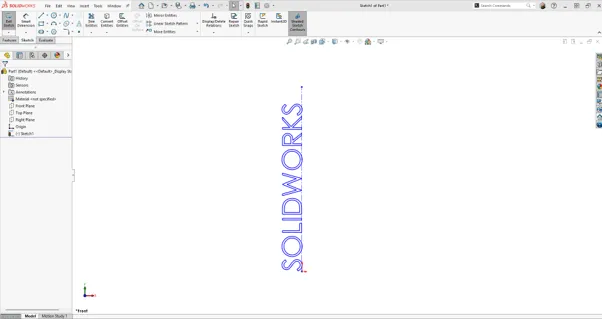
Text rotated 90 degrees
If the text needs to become part of the model, using the text sketch tools is the best option because it can later be extruded, cut, wrapped, or patterned. Decals and appearances can be used to add warnings to a model but can not be easily extruded, if at all.
Why Rotate Text in SOLIDWORKS?
While text is inserted horizontally by default, many designs require it to follow a specific orientation or align with part geometry.
Being able to rotate text allows you to:
- Create professional-looking engravings and embossed features.
- Align text with angled faces or features.
- Add logos and branding to parts.
- Position text correctly before using features, such as Extruded Cut or Boss Extrude.
- Improve the appearance and readability of drawings and models.
Whether you’re designing consumer products, fixtures, or machined components, knowing how to control text orientation can save time and reduce unnecessary sketch edits.
How to Rotate Text in SOLIDWORKS
Text in SOLIDWORKS can be rotated several ways. Choose the best option depending on your comfort level with the workflows.
Rotate Sketch Text with Construction Lines
This method is commonly used when the text is going to remain in a straight line but needs to be rotated as a single unit. The individual letters will stay aligned with each other.
To rotate text in SOLIDWORKS:
- Create a new sketch on a face or plane.
- Open the text tools by navigating to Tools > Sketch Entities > Text or from the Sketch tab of the CommandManager.
- Using the Sketch Text PropertyManager, enter your text.
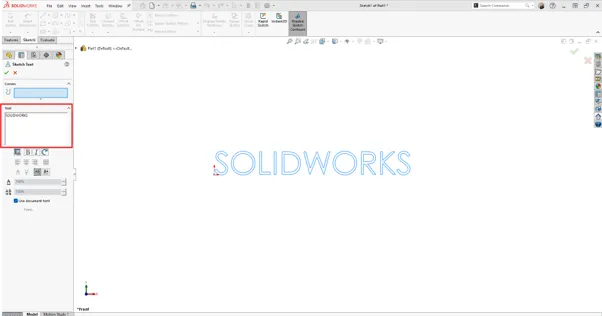
Creating text in SOLIDWORKS
- Create a new construction line in the sketch and select it in the Curves section.
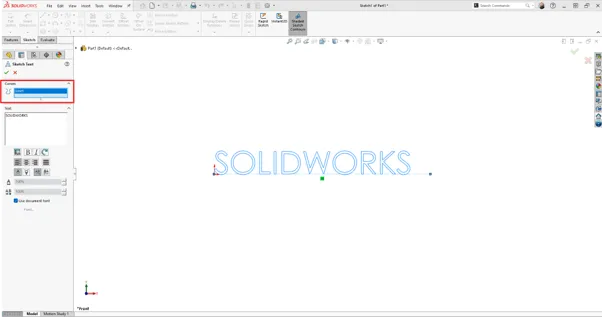
Selecting a curve for SOLIDWORKS text
- Accept and close the Sketch Text PropertyManager.
- Navigate to Tools > Sketch Tools > Rotate.
- Select the construction line and enter the desired rotation angle.
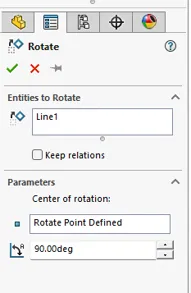
The Rotate PropertyManager
- Accept and close the Rotate PropertyManager.
Rotating Text on a Circular Path
This method is commonly used when text needs to wrap around a circular feature. Typically, it is reserved for badges, stamps, coins, or other decorative engravings.
To place text on a circular path:
- Create a new sketch on a face or plane.
- Sketch a circle, arc, or spline.
- Open the text tools by navigating to Tools > Sketch Entities > Text or from the Sketch tab of the CommandManager.
- Using the Sketch Text PropertyManager, enter your text.
- Select the circle, arc, or spline so it goes in the Curves section.
- Adjust the options in the Sketch Text PropertyManager to reverse direction, flip text, and customize the text alignment.
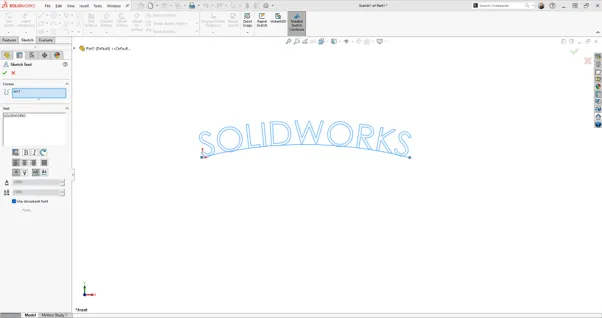
Creating text on a curve in SOLIDWORKS
- Accept and close the Sketch Text PropertyManager.
Alternative Methods
Rotating sketch text isn’t the only way to position text in SOLIDWORKS.
Depending on your design, you can also:
- Use the Wrap command to place text onto cylindrical or curved faces.
- Create text in a separate sketch and use Move Entities or Rotate Entities to reposition it.
- Use Decals or Appearances if the text is only needed for visual presentation and won’t be manufactured into the part.
Choosing the appropriate method depends on whether the text is cosmetic or part of the model geometry.
Common Troubleshooting Steps for SOLIDWORKS Text
If text in SOLIDWORKS does not behave as expected, there are a few simple troubleshooting steps to diagnose the issue.
- Make sure the text is still part of the active sketch.
- Verify that the selected curve is not broken or made of multiple disconnected entities.
- If rotating the sketch moves the text to an unexpected location, check the sketch origin or select a different centre of rotation.
- Ensure the text isn’t fully defined by dimensions or relations that prevent movement.
For other issues with SOLIDWORKS text, raise a ticket here.
Improving SOLIDWORKS Models With Text
Rotating text in SOLIDWORKS is straightforward once you know where the appropriate tools are located. Creating engraved parts, embossed logos, identification marks, or decorative features makes rotating text and using curve-based text a significant improvement in the appearance of your model.
For simple text placement, rotating the sketch provides a quick solution. When working with circular or complex geometry, placing text along a curve offers greater flexibility and a more professional result.
Understanding these techniques will help you create cleaner models and reduce the time spent repositioning sketch text.
Categorised as: SOLIDWORKS Design | Tech Tips
Get Expert SOLIDWORKS Training
Get hands-on SOLIDWORKS training in-person or online, led by certified experts with real industry experience. With venues across the UK & Ireland, it’s easy to start learning today.
Related Posts

How to Find Reaction Forces in SOLIDWORKS Simulation
SOLIDWORKS helps us to find resultant forces through simulation studies. These virtual tests reduce the need for physical prototypes and give us an accurate answer.

Setting number of decimal places in a table on a drawing
When creating an equation in a drawing general table, is it possible to define the…
SOLIDWORKS Smart Fasteners
SOLIDWORKS Smart Fasteners is a really useful time saving tool, allowing you to automatically insert toolbox fasteners such as bolts and screws into an assembly providing there is a standard hole.
Why is my Flat Pattern not showing in SOLIDWORKS Drawings?
This may be linked to how the drawing is saved or it can be related to how sheet metal parts are displayed in drawings, read on to find out how to fix it.

Why is SOLIDWORKS Crashing?
It’s one of the great mysteries of life – why is SOLIDWORKS crashing? Let’s explore how SOLIDWORKS crashes and how we can improve performance in SOLIDWORKS.

SOLIDWORKS Tips: Are you Making this Common Mistake in Fatigue Analysis?
Simulation is a vital and complex engineering need. Fortunately, SOLIDWORKS makes it easy to test, correct mistakes and obtain accurate results.
Tech Support Blog: Why are my SOLIDWORKS BOM Quantities Wrong?
Why are my SOLIDWORKS BOM Quantities Wrong? A support call cropped up this week which…

How to Get Your Serial Number for SOLIDWORKS Visualize Standard
Want to download Visualize to make photorealistic renders? Follow this guide for accessing your Visualize serial number that comes bundled in with SolidWorks Professional and Premium.
How to Recover SOLIDWORKS Files After a Crash
SOLIDWORKS has two different methods to help you recover from an unexpected crash or loss of data in the form of auto-recovery and back-up settings.

Redesigning Santa’s Sleigh in SOLIDWORKS
Every year Father Christmas has to fly in his sleigh to deliver presents to boys and girls all over the world in just one night. To put this into perspective, it takes a little under 24 hours to fly from London (UK) to Sydney (Australia) in a streamlined Boeing 747, whereas Father Christmas’ mode of transport is believed to be a rather non-aerodynamic sleigh.