











Modelling Tips and Tricks – The Scrum Machine
Written by: Terry O'Reilly
Published: Jul 16, 2021
| View All Blogs
As the Rugby Lions South Africa tour continues we are launching into a series of CAD modelling competitions between Solid Solutions and MECAD – South African SOLIDWORKS Reseller, battling it out in SOLIDWORKS, as our countries’ teams are battling it out on the rugby field.
For our first challenge both teams were required to create a scrum machine, MECAD opted to go for a traditional scrum machine designed for a single scrum to train against whereas we chose a two sided scrum machine design.
These are often used to train on as the chance of injury is lower than in an actual scrum, teams can also use these to focus purely on their pushing technique.
In this blog we’re going to share some techniques we used to model our machine, but first lets take a look at all the finished components in the animation below.
MODELLING TIPS
Master Modelling
The Scrum Sled’s major framework is made up of two separate weldment parts each comprising of bent structural members that are later assembled. To ensure that these parts properly interface they were created first as a singular part using a 3D sketch as the weldment path and later saved out to separate files. This approach is known as master modelling and can be very useful when you want to create integrated parts.
The 3D sketch path that gives the sled its flowing shape was produced by first creating a solid cuboid. The convert entities tool then allowed us to copy these edges simplifying the 3D sketch process and finally adding in our desired fillets at the corners. Once the body has been used for the 3D sketch it can be removed using the Delete/Keep Bodies command. This method allows for simple resizing of the 3D sketch by editing the initial extrude feature

Master model cuboid
Any holes that will later be relied on for alignment and fixing are created in the master model before saving out the top and base elements. This is a simple way to guarantee that everything lines up as expected when it comes to the assembly.
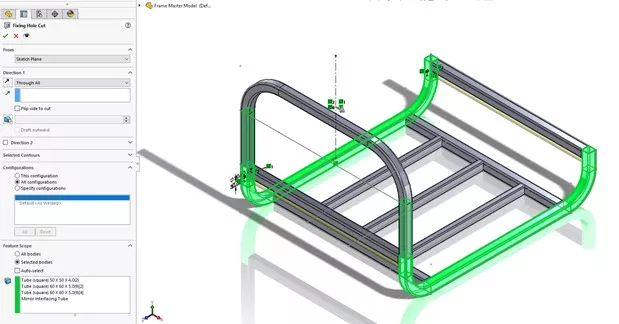
Master model hole alignment
Custom Weldment Profile
Weldment structural members are defined by selecting paths and a cross sectional profile, the default SOLIDWORKS library did not have a rectangular hollow section in the size that we required so we had to create a custom one. To create a new weldment profile, a sketch must be saved into a designated weldment profiles location as a library feature. This location can be checked and updated via your system options.

Weldment profile
Saving Bodies into New Parts
To split the 13 bodies into two separate components we used the insert into new part command which allows us save multiple bodies into a new part file, these new parts maintain a link to the original file and so will update with any changes. Splitting them into separate files allows us to easily create separate drawings and represent them as distinct components in our final assembly.

Multibody component exported – part 1
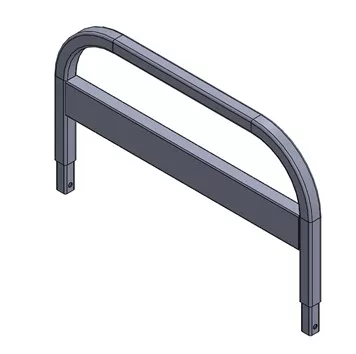
Multibody component exported – part 2
Reusing Geometry with Insert Part
A common piece of geometry required on both parts of the framework was a female swivel fitting. Rather than model the piece twice we created a part with the desired geometry and used the insert part feature to add to our existing models. This is one of many methods to solve this issue and it is ideal if you wish to reuse the geometry across multiple different parts.
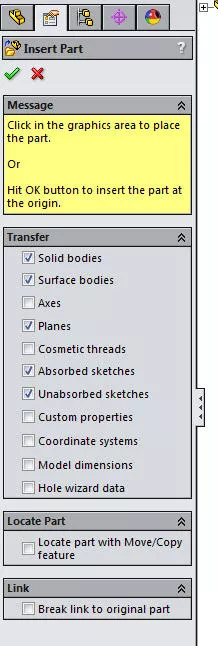
Solidworks insert part feature

Solidworks insert part feature
In Context Part
The Supporting beams connecting the two elements of our frame work at its four corners was created incontext inside the assembly environment. This allowed us to drive the size of the beam of the placement of the swivel fittings ensuring we had the correct size.

Scrum machine cross brace
Setback Fillets and Delete Face
For the more organic corners found on the Pads we used multi-radius fillets paired with setback parameters, the setback parameters allow you to change how the different fillets blend into each other, these settings are all available from within the regular fillet command. Unfortunately this method can create transitions where edges meet it often results in unsightly edges. To improve the aesthetics and smoothness of this corner we used the Delete Face command with the tangent fill option, this allowed us to form a singular face.

Setback fillet
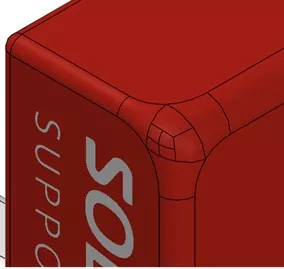
Delete face before
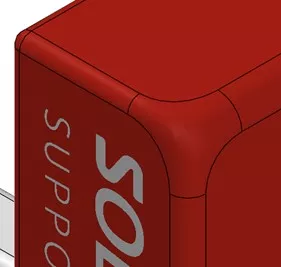
Delete face after
MORE RUGBY LIONS
We hope you enjoyed reading about our first challenge and hopefully learnt something too, the techniques shown in this blog are a small sample of what is taught during our Weldments, Advanced Part and Visualize training courses.
Next week’s competition is going to focus around the design of a rugby kicking tee, so check back for some more modelling tips and a look into SOLIDWORKS Plastics Simulations. Keep your fingers crossed for the Lions this weekend and for now I’ll leave you with a couple more brilliant SOLIDWORKS Visualize renders of our Scrum Machine!

Scrum machine stadium

Scrum machine stadium
Categorised as: SOLIDWORKS Design | Tech Tips
Download Additional Weldment Profiles
Want to download additional weldment profiles for your SOLIDWORKS? Expand your design library and open the SOLIDWORKS Content -> Weldments folder and click to download the standards your require, or download our extra pack of weldment profiles.

Related Posts

How to Find Reaction Forces in SOLIDWORKS Simulation
SOLIDWORKS helps us to find resultant forces through simulation studies. These virtual tests reduce the need for physical prototypes and give us an accurate answer.

Setting number of decimal places in a table on a drawing
When creating an equation in a drawing general table, is it possible to define the…

SOLIDWORKS Smart Fasteners
SOLIDWORKS Smart Fasteners is a really useful time saving tool, allowing you to automatically insert toolbox fasteners such as bolts and screws into an assembly providing there is a standard hole.

Why is my Flat Pattern not showing in SOLIDWORKS Drawings?
This may be linked to how the drawing is saved or it can be related to how sheet metal parts are displayed in drawings, read on to find out how to fix it.

Why is SOLIDWORKS Crashing?
It’s one of the great mysteries of life – why is SOLIDWORKS crashing? Let’s explore how SOLIDWORKS crashes and how we can improve performance in SOLIDWORKS.

SOLIDWORKS Tips: Are you Making this Common Mistake in Fatigue Analysis?
Simulation is a vital and complex engineering need. Fortunately, SOLIDWORKS makes it easy to test, correct mistakes and obtain accurate results.

Tech Support Blog: Why are my SOLIDWORKS BOM Quantities Wrong?
Why are my SOLIDWORKS BOM Quantities Wrong? A support call cropped up this week which…

How to Get Your Serial Number for SOLIDWORKS Visualize Standard
Want to download Visualize to make photorealistic renders? Follow this guide for accessing your Visualize serial number that comes bundled in with SolidWorks Professional and Premium.

How to Recover SOLIDWORKS Files After a Crash
SOLIDWORKS has two different methods to help you recover from an unexpected crash or loss of data in the form of auto-recovery and back-up settings.

Redesigning Santa’s Sleigh in SOLIDWORKS
Every year Father Christmas has to fly in his sleigh to deliver presents to boys and girls all over the world in just one night. To put this into perspective, it takes a little under 24 hours to fly from London (UK) to Sydney (Australia) in a streamlined Boeing 747, whereas Father Christmas’ mode of transport is believed to be a rather non-aerodynamic sleigh.