











Nesting 3D printed components using the additive build preparation app in 3DExperience DELMIA
Written by: Tom Buxton
Published: May 18, 2026
| View All Blogs
Creating a nested build plate of components for printing can be a time-consuming task but with the additive build preparation app in 3DExperience DELMIA this is not the case. A rules-based process means that, after initial setup, users can quickly interrogate different nesting configurations and export them ready to be sent to slicing software for manufacture.
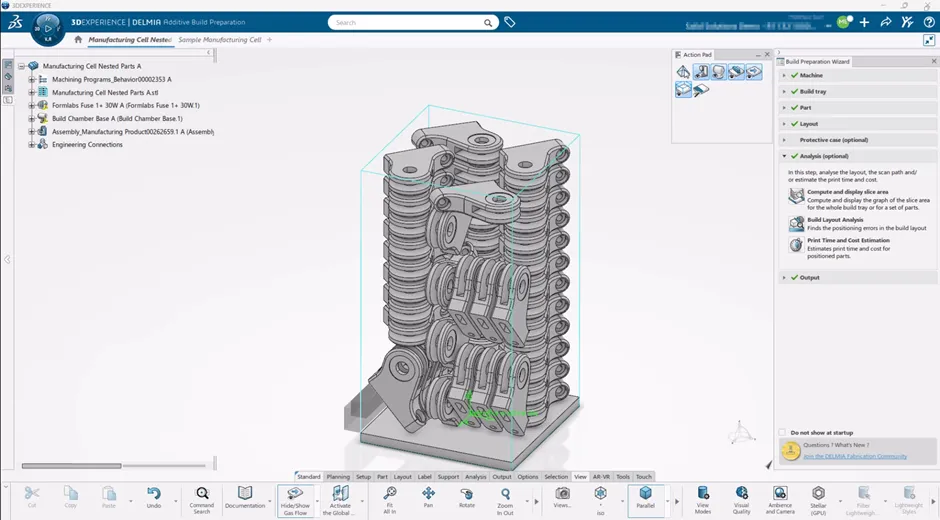
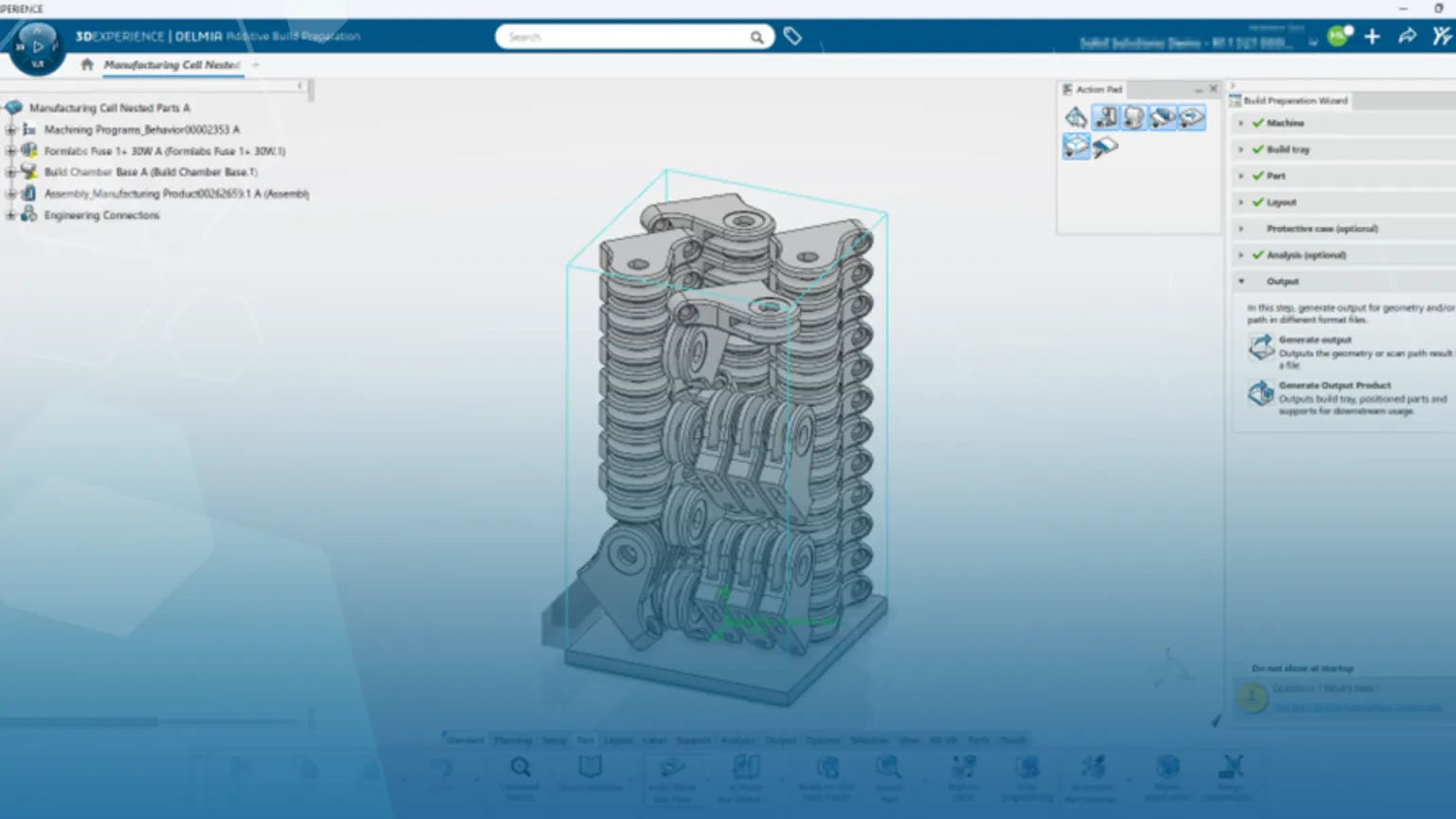
Nested build plates can be setup quickly using pre-created rules & the build preparation wizard
An overview of the additive build preparation app
The additive build preparation app in 3DExperience DELMIA allows users to quickly generate build plates of nested components across a wide range of additive manufacturing methods. The nesting process is entirely rules based which gives users the option of using pre-defined rules to ensure consistency or a more on-the-fly method for one-off jobs.
Once nested, the app also comes with an array of analysis and reporting tools to review the layout of nested parts and estimate their print time and cost. Depending on the additive manufacturing process used there are also options to create support material or protective cases around components. Finally, the nested build plate can be exported in standard formats such as 3MF or STL to allow a direct import into slicing software.
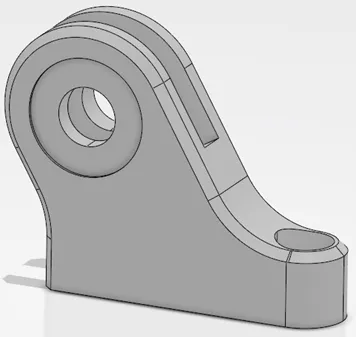
Single or multiple components can be nested together
What are the main benefits of the product?
The primary benefits of using additive build preparation to create nested build plates are the timesaving and ease of use aspects with the additional reporting tools also of good use.
The app incorporates a useful build preparation wizard which, like other DELMIA applications, provides an intuitive step-by-step process to follow and create a nested build plate. This makes basic nesting a quick process if rules have been pre-defined for the end user to select from. Rules can be reused for any number of processes once they are created. The steps shown in the wizard are tailored to the type of additive manufacturing process the selected process uses. This means that optional steps like creating supports or protective cases are only shown when appropriate.
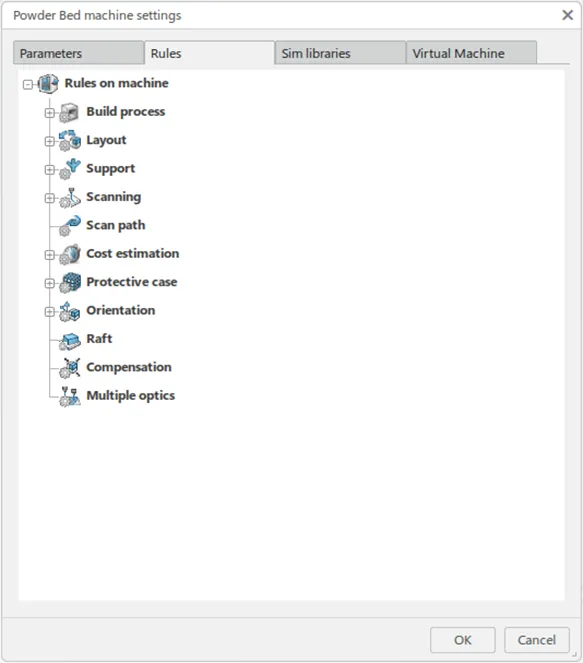
Rules can be created, saved and reused for many nesting processes
Nesting criteria can be tested by selecting different rules which allows for optimal part positioning. Within the build layout tool, key information is provided for the density of nested parts and slice area variation is calculated to help to reduce waste material and prevent component warping.
Formlabs fuse Case study
This short case study will outline the nesting process for a component on a Formlabs Fuse 1+ powder bed printer. Any number of machines can be predefined and store information such as physical properties and dimensions of the printer, appropriate build plates and any rules for the various next steps.
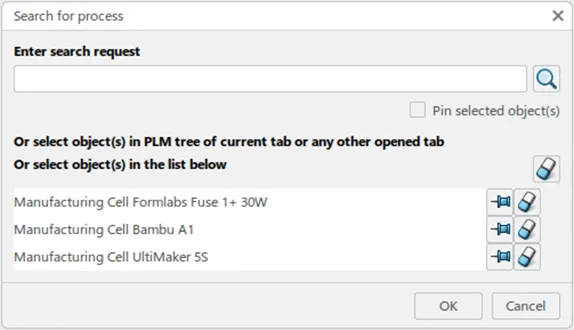
Once defined, printers can be easily selected using the process reuse option
In this case, only instances of a single component will be nested but multiple different components can be included within the same build plate if desired. Files can be opened through any existing collaborative space on the 3DExperience platform or imported from a file explorer location.
The build layout command is used to create the nest of components within the printers build volume. The number of desired instances is set for each component to be included in the nest. Different layout rules can be selected to tailor the nesting operation to specific requirements.
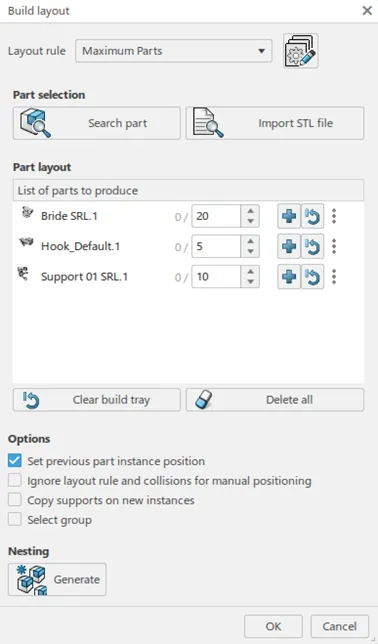
Instances of multiple components can be nested within the same build layout
Layout rules can incorporate key parameters like component spacing and clearances to build volume borders. They can also prioritise different nesting parameters such as fitting the maximum number of parts within the build volume, minimising build height or optimising slice area variation.
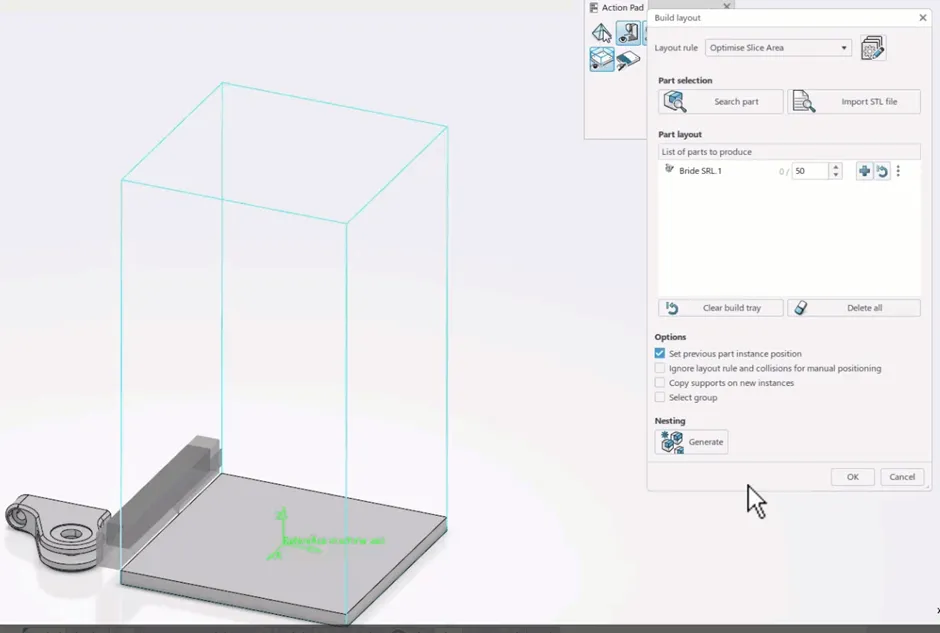
Nests are created in a couple of clicks once a rule is selected from the dropdown
The build layout command gives you useful information like number of nested parts, total nested volume and height as well as the density of nested parts which should be considered to help lower wasted powder. Layouts can be accepted or rejected depending on whether they fit necessary criteria. If rejected, a different layout rule can be easily selected and the nesting process recalculated allowing users to quickly interrogate multiple different nested layouts to determine which works best.
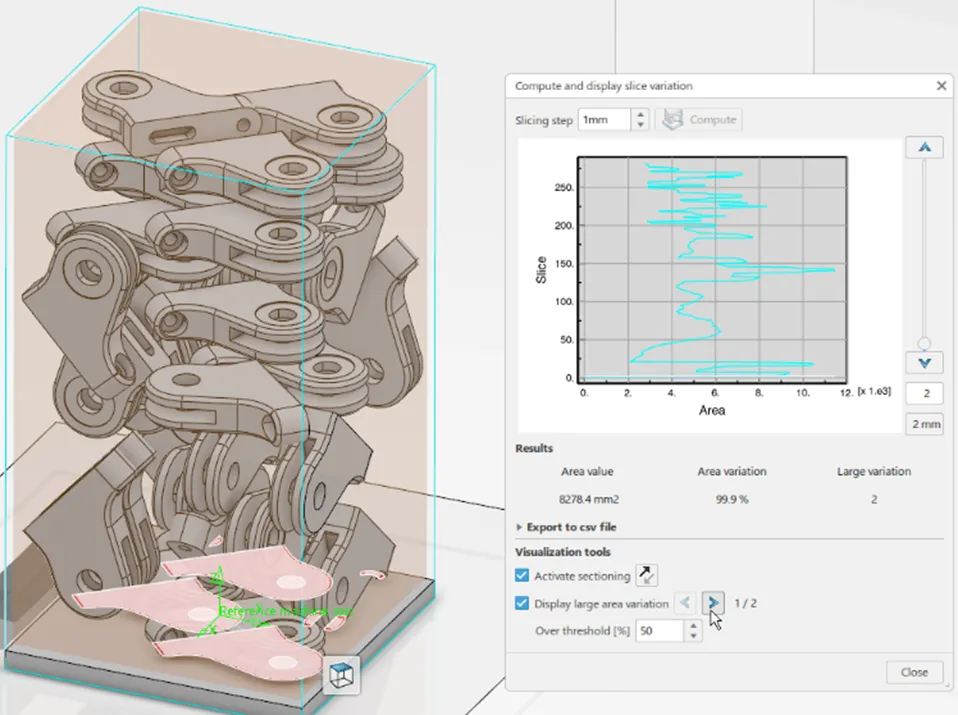
Slice variation can be checked at appropriate layer heights & represented in model graphics
A key analysis tool during the nesting process is slice area variation which identifies the percentage of material powder that will be sintered in each layer of the build volume. This is a key consideration with a selective laser sintering manufacturing method as large variations between layers can cause components to warp. Results are shown graphically but can also be represented visually on the nested model. Areas over a provided threshold can also be shown to help identify any problematic areas.
Once a desired layout has been accepted, there are additional analysis tools available to double check components are spaced correctly relative to each other and build volume borders. The print time and cost estimation tool can also be used to provide an idea of print time based on a selected costing rule. The rule selected will hold information such as material cost as well as laser scan speed and, like the build layout tool, different cost rules can be quickly compared within the dialogue.
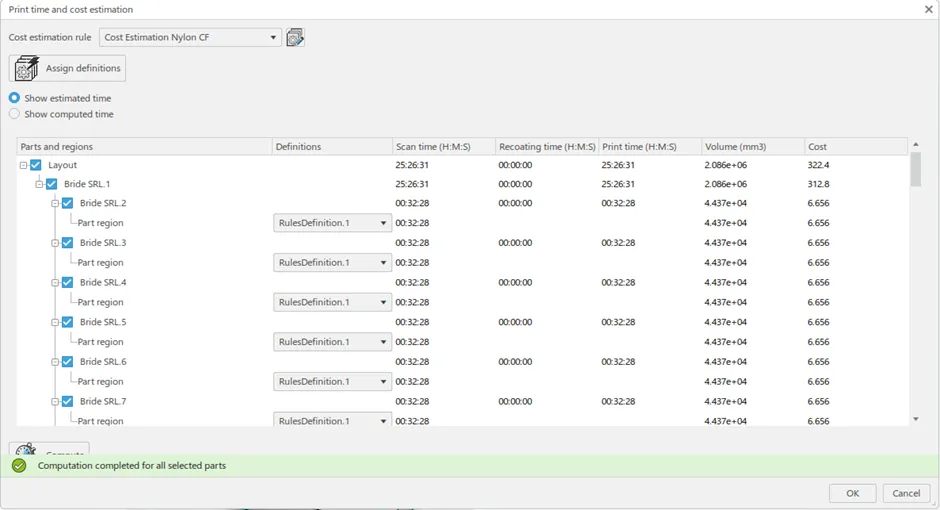
By part and total costs and print times are shown
The last step is to create an output file where it’s possible to export as common file formats 3MF and STL which can then be imported directly into slicing software giving you a pre-nested build plate and very little post processing before sending the job off to print.
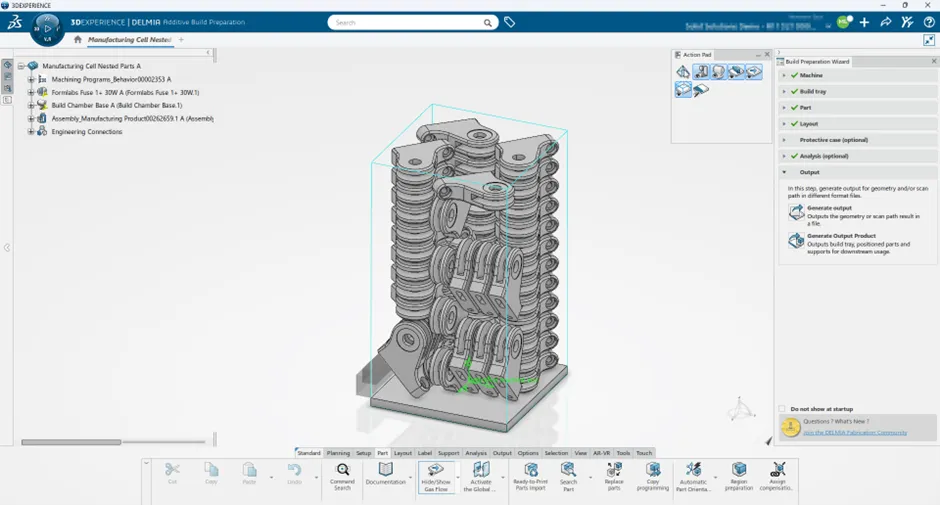
The final nested build plate ready to be exported for use in slicing software
Categorised as: 3DEXPERIENCE | Manufacturing | Software
Get a SOLIDWORKS Quote
Interested in SOLIDWORKS? Contact us for questions, trials, or demos by clicking the button below or call 01926 333777. Our experts will help you find the perfect solution.

Related Posts

How to Find Reaction Forces in SOLIDWORKS Simulation
SOLIDWORKS helps us to find resultant forces through simulation studies. These virtual tests reduce the need for physical prototypes and give us an accurate answer.

Setting number of decimal places in a table on a drawing
When creating an equation in a drawing general table, is it possible to define the…

SOLIDWORKS Smart Fasteners
SOLIDWORKS Smart Fasteners is a really useful time saving tool, allowing you to automatically insert toolbox fasteners such as bolts and screws into an assembly providing there is a standard hole.

Why is my Flat Pattern not showing in SOLIDWORKS Drawings?
This may be linked to how the drawing is saved or it can be related to how sheet metal parts are displayed in drawings, read on to find out how to fix it.

SOLIDWORKS Tips: Are you Making this Common Mistake in Fatigue Analysis?
Simulation is a vital and complex engineering need. Fortunately, SOLIDWORKS makes it easy to test, correct mistakes and obtain accurate results.

SOLIDWORKS Visualize. Why go pro? – 6 Post Processing
In this blog we will be look at the post-processing options that can be found in SOLIDWORKS Visualize

SOLIDWORKS Visualize. Why go pro? – 7 Lighting
SOLIDWORKS Visualize uses a non-biased rendering engine, which allows for physically accurate lighting within a scene. It generates images with high amount of realism and correct set up can replicate photo studio lighting.

How to Get Your Serial Number for SOLIDWORKS Visualize Standard
Want to download Visualize to make photorealistic renders? Follow this guide for accessing your Visualize serial number that comes bundled in with SolidWorks Professional and Premium.

How to Recover SOLIDWORKS Files After a Crash
SOLIDWORKS has two different methods to help you recover from an unexpected crash or loss of data in the form of auto-recovery and back-up settings.

Redesigning Santa’s Sleigh in SOLIDWORKS
Every year Father Christmas has to fly in his sleigh to deliver presents to boys and girls all over the world in just one night. To put this into perspective, it takes a little under 24 hours to fly from London (UK) to Sydney (Australia) in a streamlined Boeing 747, whereas Father Christmas’ mode of transport is believed to be a rather non-aerodynamic sleigh.