











Server Considerations: Selecting the Right Hardware for SOLIDWORKS PDM

Written by: Wayne Marshall
Published: Dec 20, 2024
| View All Blogs
At its core, SOLIDWORKS PDM is a ‘traditional’ Client / Server application designed to be installed on one or more Windows Server(s) within a Local (LAN) or Wide Area Network (WAN), and the purpose of this article is to address the questions we are typically asked regarding hardware selection.
Components of SOLIDWORKS PDM
Before we discuss those questions, lets first consider the architecture of SOLIDWORKS PDM and a few deployment scenarios.
To use SOLIDWORKS PDM, the following components must be installed and configured. For an explanation of terminology used within this article please refer to the appendix. For up-to-date information on supported environments please refer to the SOLIDWORKS website.
| Microsoft SQL Server Standard or Enterprise Edition | The SOLIDWORKS PDM Professional file vault database should be hosted on SQL Server Standard or Enterprise Edition. In some situations, it may be possible to host within SQL Express, however this is not recommended. |
|---|---|
| SOLIDWORKS PDM database server | The Database Server Service periodically polls SOLIDWORKS PDM databases for updates such as notifications, local view refresh, replication schedule updates, and index server changes. It also manages data import and export rules. It is typically installed on the same server as the SQL software |
| SOLIDWORKS PDM archive server | The Archive Server Service hosts the physical files stored in a file vault, and manages users and their log-in credentials |
| SolidNetWork License Manager | The SolidNetWork License (SNL) Manager manages licensing of SOLIDWORKS PDM. If you already have a SolidNetWork License Manager installed for SOLIDWORKS, you can likely use it with SOLIDWORKS PDM. |
The following (SOLIDWORKS PDM Professional) installation components are optional
| SOLIDWORKS PDM Web Server | The web server provides access to a file vault from the Internet or an intranet (Requires Microsoft Internet Information Services 7 or higher (IIS)). |
|---|---|
| SOLIDWORKS PDM Index Server | The SOLIDWORKS PDM index server provides for full content search in many file types stored in a file vault. |
For the majority of our customers, who have a single site deployment of SOLIDWORKS PDM, a single Server will be deployed to host all PDM Components. For optimal resource planning in medium to large PDM deployments however, it is sometimes beneficial to separate the Archive and Database Server Services to their own dedicated servers. For a multi-site deployment additional archive, and optionally database, servers may be required.
Scenario 1: PDM Standard or Professional | Single site
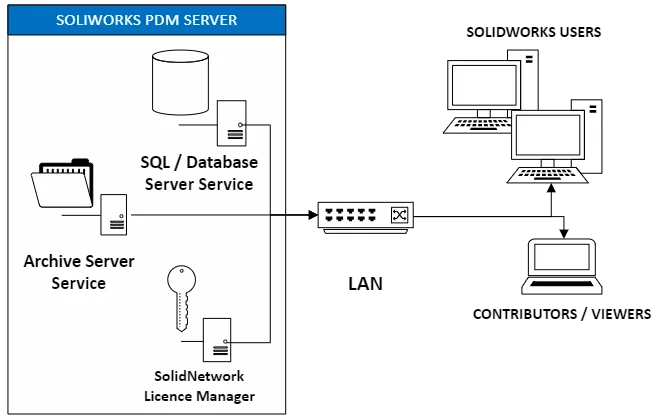
The diagram (below) illustrates a ‘typical’ small to medium sized installation of SOLIDWORKS PDM STANDARD or PROFESSIONAL within a single LAN.
In this scenario, one server runs all PDM software and services. SOLIDWORKS PDM client PC’s attach to the server within the local network over a Windows domain or workgroup.
Scenario 2: PDM Professional | Single Site with Remote (web) Users
This next diagram (below) illustrates an example of a large, single site, installation of PDM Professional with remote contributor or viewer access via the Web.
In this scenario we have multiple servers; One server running Microsoft SQL Server hosts the file vault database(s) and the Database Server Service and a separate server hosts the Archive Server Service, and SolidNetwork License Manager (SNL). Workstations installed with the SOLIDWORKS PDM client attach to the servers within the LAN and a Web server, outside the company firewall, allows access to PDM using SOLIDWORKS PDM Web clients.

Scenario 3: PDM Professional | Multisite
This third scenario shows the previous PDM Pro deployment with the addition of a remote connected site, running a replicated Archive Server that the clients on that site are connected to, and optionally also taking licenses from (requires a separate serial number).
NOTE: In this scenario whilst files are added to and taken from a local ‘Archive’, the users on the remote site are still connected, via the WAN, to the database server on the primary site.

A fourth (not illustrated) scenario could include a replicated (Read only) database on the remote site too. This is rarely deployed however, due to the requirement for SQL Server Enterprise to support this set up.
Do I need dedicated hardware for SOLIDWORKS PDM?
As indicated above, for optimal resource planning and flexibility, it is recommended to have SOLIDWORKS PDM on its own dedicated Server, and for medium to large PDM deployments, it may be beneficial to separate the Archive and Database Servers to their own dedicated platforms.
Database Server Service: For best performance it is best to install the SOLIDWORKS PDM Database (DB) Server Service on the same system as the SQL Server software. If your DB Administrators do not permit this, it can be installed alongside the Archive Server, but this introduces a small risk of DB timeouts because of the increased latency.
Other databases: To allow for discrete tuning and maintenance, we advise that you don’t host other databases on the same SQL Instance as the PDM database.
In summary, while it is possible to run SOLIDWORKS PDM on shared hardware for smaller setups, using dedicated hardware is recommended to ensure optimal performance and reliability.
Can I install SOLIDWORKS PDM on a PC?
Whilst Dassault Systèmes SOLIDWORKS no longer actively state that running SOLIDWORKS PDM server components on a PC is unsupported, installing server software on a PC is generally not recommended for several reasons:
- Uptime and Reliability: Servers are designed to run 24/7 with minimal downtime, whereas PCs are not built for continuous operation. This can lead to increased risk of hardware failure and data loss.
- Security: Servers often have advanced security features that are not available on standard PCs. These features are crucial for protecting sensitive data and ensuring secure access.
- Hardware Limitations: PCs typically lack the redundant power supplies, error-correcting memory, and other hardware features that are standard in servers. These features are essential for maintaining data integrity and system stability. Servers are also designed to be scalable, allowing for easy upgrades and expansion as the needs of the organization grow. PCs, on the other hand, have limited scalability.
- Network Performance:
Servers are optimized for handling high network traffic and multiple connections simultaneously. PCs may struggle with network performance under heavy loads, leading to slower response times and potential bottlenecks.
In summary, while it is technically possible to install SOLIDWORKS PDM Server software on a PC, it is not advisable due to performance, security, scalability, and reliability concerns.
Can I install SOLIDWORKS PDM on a Domain Controller?
Although SQL Server can operate on a domain controller, it is not advisable for optimal performance. To achieve the best results, SQL Server (and therefore PDM) should be hosted on a dedicated server rather than one that performs multiple functions, such as a domain controller or file server.
Managing servers that support multiple applications presents challenges, as each application may demand distinct and sometimes incompatible configurations. Whilst no longer blocked by the Installer, Microsoft does not recommend installing SQL Server on a domain controller because of security and performance concerns:
Security
Domain controllers represent prime targets for potential attackers, and installing PDM on them could expose critical IP stored within the vault, potentially leading to network-wide security breaches. Moreover, installing additional software on domain controllers elevates the risk of potential vulnerabilities.
Performance
For best performance, SQL Server should be dedicated to its own server and not shared with other functions. It can be difficult to tune servers that run multiple applications and left unrestricted, SQL Server has the potential to grab all the resources from the OS ad other functions, which could effectively shut down your domain controller and, in turn, your network.
Complexity and Maintenance:
Integrating PDM with domain controllers can complicate system maintenance and upgrades, necessitating careful coordination to ensure compatibility and minimize downtime. Technical support may be reluctant to modify registry files or reboot servers during operational hours, potentially disrupting critical services.
SQL Specific Limitations
There are several limitations that apply when installing SQL Server on a domain controller, including:
- You can’t run SQL Server services using a local service account.
- You can’t change the computer from a domain member to a domain controller without uninstalling SQL Server first.
- SQL Server failover cluster instances aren’t supported if cluster nodes are domain controllers.
- SQL Server Setup cannot create security groups or provision SQL Server service accounts on a read-only domain controller. In this scenario, Setup will fail.
In conclusion, whilst technically feasible, installing PDM on a domain controller is fraught with risks that could compromise both security and performance. Organisations are urged therefore to adhere to best practices and explore alternative deployment strategies to ensure seamless operations while safeguarding critical data.
One option could be to utilise virtual server instances for Domain Controllers and deploy PDM in separate instances on the same virtualised server.
Are Virtual or Physical Servers best for SOLIDWORKS PDM?
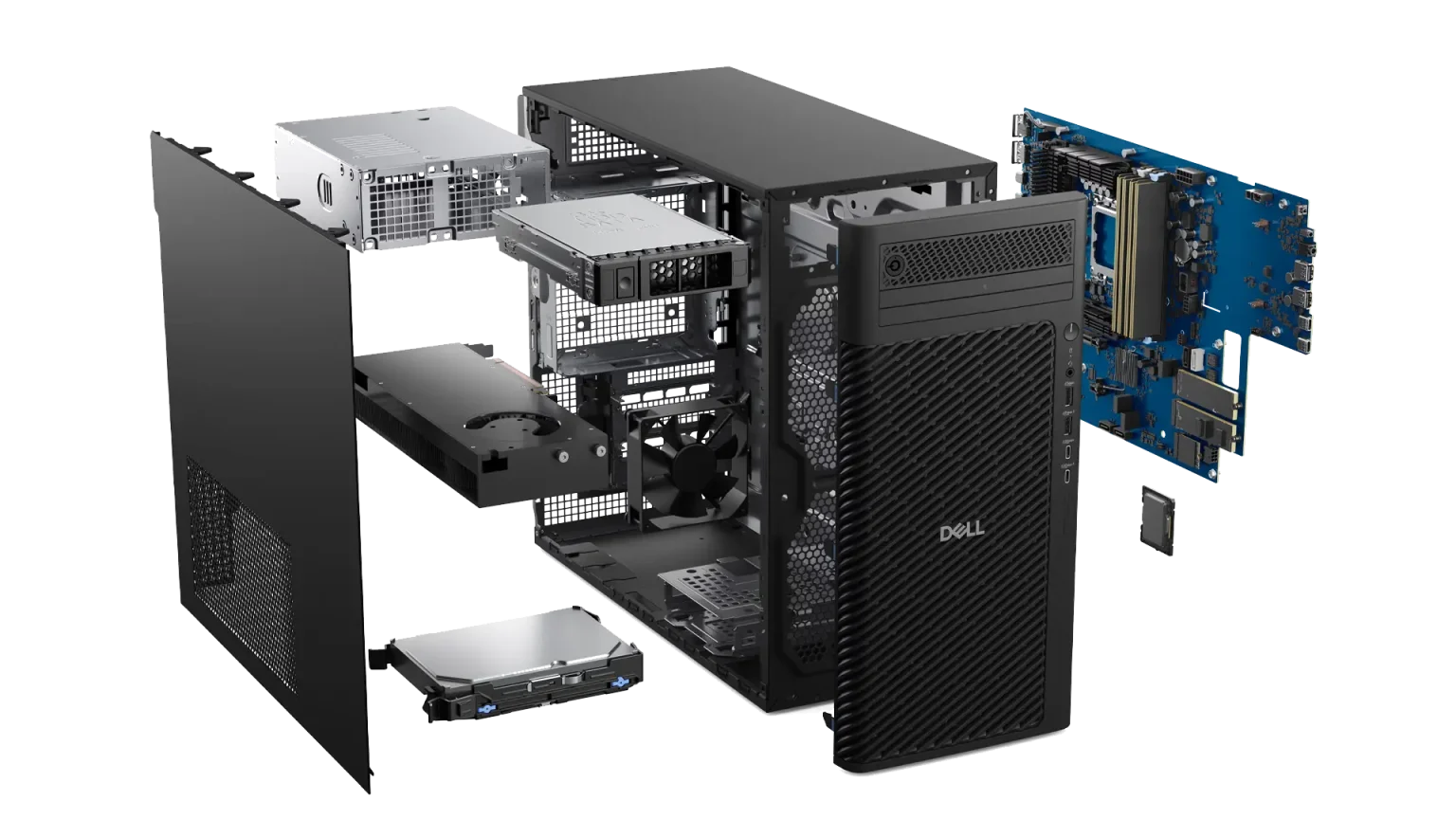
In many cases, the simplicity of a dedicated physical server, with potentially lower upfront costs and ‘hands on’ maintenance, may be a better option for smaller organisations implementing PDM and Solid Solutions are able to provide suitable hardware (tower and rack) via our partnership with Dell. For larger organisations where virtualisation already has a foothold, it is likely you will want to continue with that strategy for PDM. But does SOLIDWORKS PDM work in virtual environments? In simple terms… Yes, however SOLIDWORKS only test, and therefore support, PDM in specific virtual environments with some Hypervisors actively blocked due to risks around software compliance.
To see the latest supported version of a specific virtualisation platform for the version of PDM you are deploying, make sure to check the system requirements page.
What are benefits of virtualisation?
Cost savings: Virtualisation can reduce the number of physical servers required, which can lower the overall cost of hardware and therefore also has the chance to potentially reduce energy costs.
Improved efficiency: Virtualisation can help IT teams be more productive by reducing the time spent maintaining physical hardware. Remote management of Virtual Machines is also greatly simplified as the platforms are developed specifically to support this.
Better scalability: Virtualisation allows for on-demand scaling, so you can easily increase or decrease the number of virtual machines, or the allocated resources / storage capability to specific machines based on your changing needs.
Safer application testing: Virtualisation can be used to quickly deploy pilot environments to test new releases or functionality without affecting production.
Improved disaster recovery: Virtual machines can be cloned or replicated to help with disaster recovery.
Can I install SOLIDWORKS PDM on ‘The Cloud’?
Interest in cloud-based data management solutions has risen significantly in the last few years. For current SOLIDWORKS PDM users – and those looking to implement a PDM solution for the first time – you may be wondering, can SOLIDWORKS PDM be hosted in the cloud? And the answer is yes!*
SOLIDWORKS PDM can* be hosted “in the cloud” which means that the server components of PDM are installed on a Virtual Machine in a private datacentre or commercial cloud computing service like IoMART, Amazon Web Services or Microsoft Azure.
Your team then connects to the virtual server via the internet, allowing access to your PDM Vault in the same way they would connect to a server if it were physically located in your office. Whether your SOLIDWORKS PDM is installed on a local or cloud hosted server, the end-user experience is the same.
Users can check files out/in to the vault, track revisions, and manage approval processes with all of the same functionality, and all within Windows File Explorer.
*The official statement from SOLIDWORKS is that they do not test (and therefore support) the use of SOLIDWORKS PDM on any cloud platforms.
However, this is not because of expected issues, it is simply a fact that the scale of possible combinations of cloud environments (public/private) and connectivity options would be too large and costly for them to validate them all.
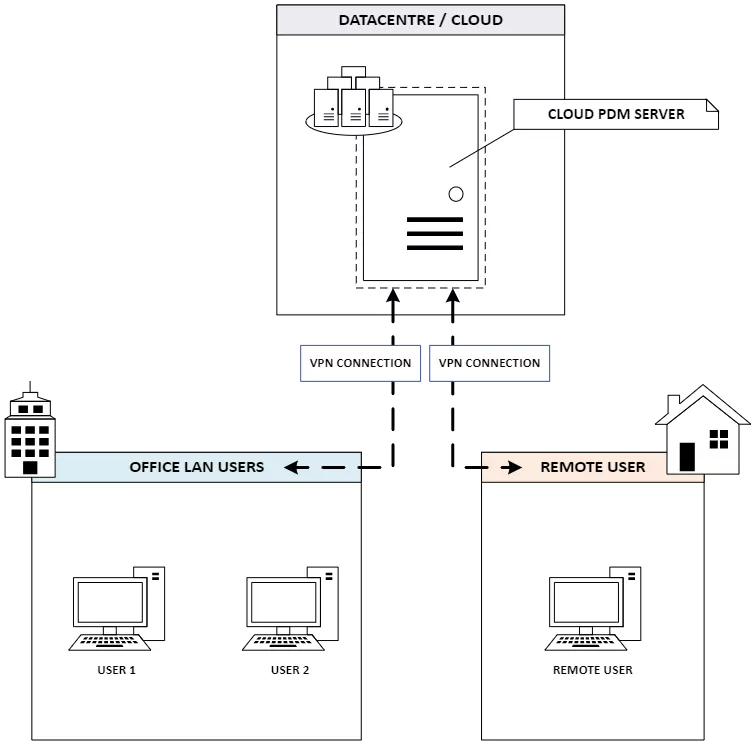
When implementing SOLIDWORKS PDM on-cloud (as shown), one or more virtual machine(s) are used to host all the PDM Server components, such as the database, archive and SNL much like the previously discussed deployment scenarios. However, rather than using a local server that physically sits in the office, the server is in a data centre.
In the UK, Solid Solutions Partner with iOmart to offer a complete cloud hosted solution covering installation, implementation and maintenance. In North America TriMech utilise both Amazon Web Services (AWS) and MS Azure.
iOmart are a UK based company that provided managed hosted environments. They have various datacentres in the UK and footprints around the world. They are highly accredited and a certified Microsoft partner.
We have partnered with iOmart for a number of years now and they provide hosting solutions for Windows VMs that have been specified specifically to support SOLIDWORKS PDM. iOmart take care of the uptime and manage the Servers on their platform infrastructure as well as supporting the networking for customer connectivity and firewall configuration. They are also able to supply SQL Standard licenses for PDM Professional deployments using both core and user/device licensing models.
Our iOmart infrastructure is safe and secure with each of our customers having their own dedicated virtual server and network subnet. The internal firewalls taking care of restricting access between VMs to ensure customer environments are fully secure.
Depending on where you host there are different configurations available for connecting to the cloud server, but a common one is shown in the diagram above where the virtual server is connected directly to the local network (site to site VPN), so that any users who connect to the LAN automatically have access to the cloud server. For remote users, their personal VPN connection can also go directly to the cloud hosted PDM server.
As Cloud Hosted Servers are also vrtual, by installing your PDM in the Cloud you get all the benefits of virtualisation with several added benefits.
#1 – Cost
With a traditional on-premises setup, the server where PDM resides must undergo regular upgrades and maintenance.
Every so often, the hardware may even become obsolete requiring an entirely new machine be purchased. Plus, managing the server and its connection to the users typically requires an IT resource.
When using a virtual machine, your server is managed and maintained at an industry-leading datacentre, over time, the costs of maintaining physical servers on-premises may prove to be more expensive than a monthly recurring fee for the virtual server.
#2 – Security
Storing your data at a remote location means you have an extra layer of security from events that may cause problems for an on-premises PDM server, such as power outages, fires, floods, or other events beyond your control.
With your data secured in a virtual server, you’ll never have to worry about downtime if your office becomes inaccessible.
By storing data in a virtual environment such as SOLIDWORKS PDM Standard, it is also safe from things like physical damage or overheating, which may occur to an in-office server if the proper precautions are not taken.
#3 – Remote Working Flexibility
For users who often work remotely, connecting to the office network via VPN means their connection speed is limited by both internet speeds (Home and Office) and the LAN saturation at the office.
This means if the office network has a slow internet connection or is experiencing particularly high bandwidth usage onsite, the remote user will also be impacted by that slowdown.
However, when a user is connected to the cloud server, they will be connecting directly to the datacentre, and are essentially only limited by their home/office internet speed.
If you are investigating your own cloud environment, please take note of the following:
- Azure Managed Instance and Azure SQL are not supported by SOLIDWORKS PDM meaning you need to install full SQL Server on the Azure Server.
- Amazon Web Service’s Relational Database Services (RDS) is not an appropriate option for hosting PDM databases as it does not allow using a db owner This leads to several issues when using PDM.
- The latency between the clients to the cloud server must be under 150 milliseconds to prevent issues, best performance will be achieved if latency is below 100 milliseconds. Keep this in mind when selecting your availability zone.
What are the recommended Hardware specifications for a SOLIDWORKS PDM server?
The following recommendations are for a ‘good’ server, not the minimum requirements.
- All drives are SSD, with RAID 1 recommended as a minimum for SQL drive(s) and if possible, RAID 10 for ultimate performance and resilience on DATA drives.
- For operating system / SQL Server version support please refer to system requirements
- For the Database Server, Microsoft SQL can take advantage of multi core processing. For optimal performance of PDM functions, it is recommended that the average CPU utilization be kept below 50%. If average utilization is above 50%, then more cores may be needed.Please note, If using Microsoft SQL Server Standard Core Licensing, adding additional cores may require also purchasing additional core licenses. The 4 Core recommendations below is based on minimum SQL Core based licensing requirements.
PDM Standard Combined SQL and Archive Server
- Processor: x64 bit Intel or AMD Processor: For virtual servers we would suggest 2.5Ghz and above. For a physical server with only 4 cores then 3Ghz or higher may be more suitable.
- Memory: 16 Gb RAM (8Gb minimum)
- Storage configuration: Drive 1: 150 Gb (for OS and SQL), Drive 2: 500 Gb (Min) for Archive
PDM Professional Combined SQL and Archive Server
- Processor: x64 bit Intel or AMD Processor: For virtual servers we would suggest 2.5Ghz and above. For a physical server with only 4 cores then 3Ghz or higher may be more suitable.
- Memory: 32 Gb RAM (16Gb minimum)
- Storage configuration: Drive 1: 150 Gb (for OS and SQL), Drive 2: 500 Gb (Min) for Archive
PDM Professional Separate SQL and Archive Server
SQL Database Server:
- Processor: x64 bit Intel or AMD Processor: For virtual servers we would suggest 2.5Ghz and above. For a physical server with only 4 cores then 3Ghz or higher may be more suitable.
- Memory: 16 Gb RAM (16Gb minimum)
- Storage configuration: Drive 1: 150 Gb (for OS), Drive 2: 150 Gb (SQL)
Archive Server:
- Processor: x64 bit Intel or AMD Processor: For virtual servers we would suggest 2.5Ghz and above. For a physical server with only 4 cores then 3Ghz or higher may be more suitable.
- Memory: 16GB
- Storage configuration: Drive 1: 150 Gb (for OS), Drive 2: 500 Gb (Data – minimum)
Summary
In closing. When selecting hardware for SOLIDWORKS PDM, advice is generally based around the following key considerations:
- Scalability: It is inevitable, since PDM stores all historical versions of your files, that moving your data into PDM will over time increase your storage needs. So, as your data grows, your hardware should be able to handle increased storage and processing requirements. How you scale will depend on whether your server is physical or virtual but ensuring that your hardware can scale with your business needs is paramount.
Please Note: Whilst it is typical for the PDM File Archive to sit within a single ‘Drive’, SOLIDWORKS PDM does support ‘Archive Distribution’ to allow you to split the archive over multiple drives.
However, as SOLIDWORKS do not currently support the use of network attached storage for PDM you should plan for expansion based on only adding ‘internal’ storage to your physical or virtual server.
- Performance: Choose hardware that offers high performance to manage large datasets efficiently. For database performance, this includes fast processors and ample RAM. For the Archive Server high-speed and resilient storage solutions is also advisable.
- Reliability: There could be millions of pounds worth of intellectual property on that server so always opt for reliable hardware with redundancy features to minimize downtime and data loss. With physical servers, this includes RAID configurations for storage, backup power supplies and a comprehensive disaster recovery plan. For virtual / cloud Servers mirrored servers, and backups should be part of the contract.
- Compatibility: If investing in a new hardware platform, ensure it is compatible with your PDM software and other systems in your IT infrastructure for as long as possible.
- Security: Implement hardware that supports robust security measures to protect sensitive product data from unauthorized access and cyber threats and ensure that operating system and other security patches are applied as soon as possible.These considerations help ensure that your PDM system runs smoothly and supports your business’s productivity and growth.
Terminology
It’s fair to say that this blog is full of technical language. For clarity, we’ve provided a glossary of technical jargon below!
| Local Area Network (LAN) | A Local Area Network (LAN) is a computer network that interconnects computers within a limited area such as an office building. LANs are typically used to connect end devices like computers and IoT devices within a confined geographic area. They enable file sharing, printing, and internet access using cables, switches, routers, and Wi-Fi. LANs typically offer high-speed connections (up to 1000 Mbps) |
| Wide Area Network (WAN) | A Wide Area Network (WAN) is a telecommunications network that extends over a large geographical area, far surpassing the reach of a Local Area Network (LAN). WANs are designed to connect separate LANs enabling data exchange across cities, countries, and even continents. Access to a WAN can be granted via different links, such as virtual private networks (VPNs), wireless networks, cellular networks, or internet access. WANs generally have lower speeds than LANs (around 150 Mbps) |
| Domain Controller (DC) | A Domain Controller (DC) is a crucial server within a Local Area Network (LAN) that manages security authentication requests from users and computers. It is responsible for allowing access to domain resources, authenticating users, storing user account information, and enforcing security policies within the domain |
| Hypervisors | A hypervisor, also known as a virtual machine monitor (VMM), is software that creates and runs virtual machines (VMs) by separating a system’s operating system and resources from the hardware. This technology pools computing resources like processing, memory, and storage, and reallocates them among multiple VMs, making virtualisation possible.
|
| VPN | A Virtual Private Network (VPN) is a technology that creates a secure and encrypted connection over a less secure network, such as the internet. VPNs are commonly used to protect sensitive data and ensure privacy when employees access a company’s internal network from a remote location. In a WAN a site-to-site VPN is typically used to connect entire networks to each other. For remote workers a personal VPN, also known as a remote access VPN, can be used to connect to a secure network. |
| Latency | Often referred to as “ping” or “lag”, latency is the time it takes for data to travel from your device to a server and back again and is measured in milliseconds (ms). Lower latency means a more responsive connection, which is crucial for real-time applications. Latency can be affected by various factors, including the physical distance between the user and the server, the quality of the internet connection, and the type of network infrastructure in use. |
| Bandwidth | Internet bandwidth refers to the maximum rate at which data can be transferred over an internet connection in a given amount of time. It is essentially the “width” of the “band” through which data can flow, and it is measured in bits per second (bps). Higher bandwidth means more data can be transmitted at once, leading to a perception of faster internet speeds when transferring large amounts of data. |
Categorised as: Data Management | SOLIDWORKS PDM
Looking to buy Hardware?
Having partnered with Dell for over 20 years, we can offer optimal SOLIDWORKS certified hardware at great value and with next business day delivery on most models.
Related Posts
How to Create a Pack and Go in SOLIDWORKS
Pack and Go in SOLIDWORKS should be used when sending SOLIDWORKS files to another person. Use this simple guide to help you safely send entire SOLIDWORKS projects.
What is 3DSWYM? A 3DEXPERIENCE Platform Tutorial
3DSwym is the application at the heart of the 3DEXPERIENCE, allowing users to connect and collaborate across the platform.
Microsoft SQL Server licensing for SOLIDWORKS PDM
October 2020 marks two important milestones for the SOLIDWORKS PDM family and SQL Server.

Part Numbering in SOLIDWORKS PDM Professional
When implementing a new PDM Professional Vault Customers will have the option to review their part numbering and classification requirements as they move to a system that allows them to, in most cases, automate the way the identify ‘parts’ within the Vault. Part Numbering is something that a lot of customers approach differently and this is often based on ‘how it’s always been done’ without necessarily considering what is the purpose of a Part Number within their organisations and wider within their supply chains. If we consider the humble part number. What is it’s purpose?

The 6 Golden Rules of Managing Data in SOLIDWORKS
When modelling in SOLIDWORKS, before you know it, you will have created lots of parts, assembly and drawing files, so it’s important to think about how you will manage these files and keep everything organised. Here we discuss the ‘6 Golden Rules’ of managing your SOLIDWORKS files using Windows Explorer and recommended methods for file naming, structuring your projects and managing revisions.
This kicks off a month looking at the management of CAD data, register for one of our upcoming live webinars at the bottom of this article.

PDM Professional – Assigning Users with Conditional Notifications
Often customers will create smaller project teams for specific jobs and in the past we have been asked if it is possible, within a multi stage workflow, to pre-assign at the creation stage users who will be notified as checker / approver within those transitions. This blog will demonstrate how, using conditional Notifications in PDM Professional, this can be configured. We will also create some logic to allow for certain parts of the workflow to be bypassed by validating the selected ‘names’ against transition conditions. In this example the ‘approvers’ will be assigned on the files DataCard, but it would be just as feasible to have these names inherited from a project folder card if defining the rules at a higher level was possible within your Teams.
Managing Disk Space with SOLIDWORKS PDM Part #1: Distributing the Archive
This blog series was prompted by a recent support ticket, logged when a customer found their PDM Professional installation suddenly became unusable. The warning message, led to my reviewing the Archive Server Log file and this quickly identified the problem being a result of the PDM Server running out of disk space.
Managing Disk Space with SOLIDWORKS PDM Part #2: Deleted vs Destroyed and the Vault Cleaner Service
In this blog series we are examining the factors influencing disk usage within PDM and what you can do to manage them. In the first part we discussed how you can re-organise your archive across multiple drives to get you back up and running quickly should you find you are short on space. This blog and the next part will discuss behaviours in PDM that can result in redundant disk usage and how you can free that up with the vault cleaner service.
Managing Disk Space with SOLIDWORKS PDM Part #4: Cold Storage
In this blog series we are examining the factors influencing disk usage within PDM and what you can do to manage them. In the first part we discussed how you can re-organise your Archive across multiple drives to get you back up and running quickly should you find you are short on space. In the second part we looked at the differences between a deleted and a destroyed file and the impact the PDM recycle bin has on Disk usage. Part three discussed temporary session files created by the PDM Web Server and this Part will look at an option within PDM called Cold Storage.
Managing Disk Space with SOLIDWORKS PDM Part #5: Archive Compression
In this blog series we are examining the factors influencing disk usage within PDM and what you can do to manage them. In the first part we discussed how you can re-organise your archive across multiple drives to get you back up and running quickly should you find you are short on space. In the second part we looked at the differences between a deleted and a destroyed file and the impact the PDM recycle bin has on Disk usage. Part three discussed temporary session files created by the PDM Web Server. In part four we discussed cold storage and in this last part we will look at archive compression.