











SOLIDWORKS Manage 2025: Enhance your Engineering Process with these 10 New Features
Written by: Gordon Stewart
Published: Dec 4, 2024
| View All Blogs
SOLIDWORKS Manage 2025 builds on the robust CAD and file data management foundation of SOLIDWORKS PDM to provide advanced data management capabilities such as Item, Process and Project Management alongside dashboards and reporting tools to further streamline and improve your design and development process.
We’ve picked out 10 of the best enhancements to SOLIDWORKS Manage 2025 that enhance data security, engineering productivity, and usability to improve your Bill of Materials, Engineering Process and Project Management capabilities.
#10 – New Log In Options
To gain access to design and development data, SOLIDWORKS Manage users are subject to user authorisation and access permissions to ensure they only have access to appropriate information.
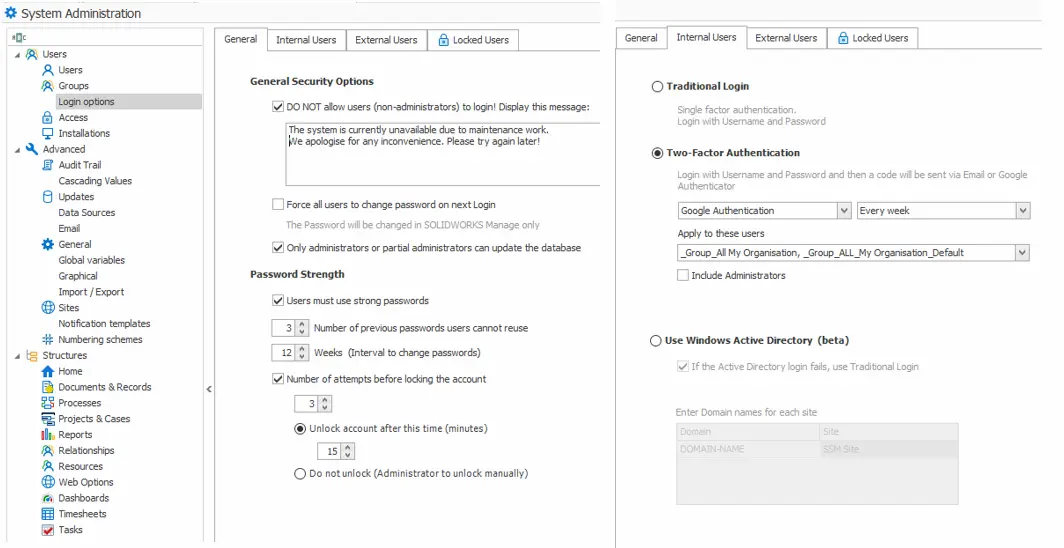
Greater security and convenience for users.
SOLIDWORKS Manage 2025 introduces great new security features, such as 2-Factor authentication, password strength and expiry rules and Active Directory integration to increase protection of your organisations valuable design intellectual property whilst improving ease of use.
#9 – Daily Capacity Planning
The capacity planning tools in SOLIDWORKS Manage help design teams to determine their resource availability and needs to match demand and ensure smooth operation and successful project delivery.
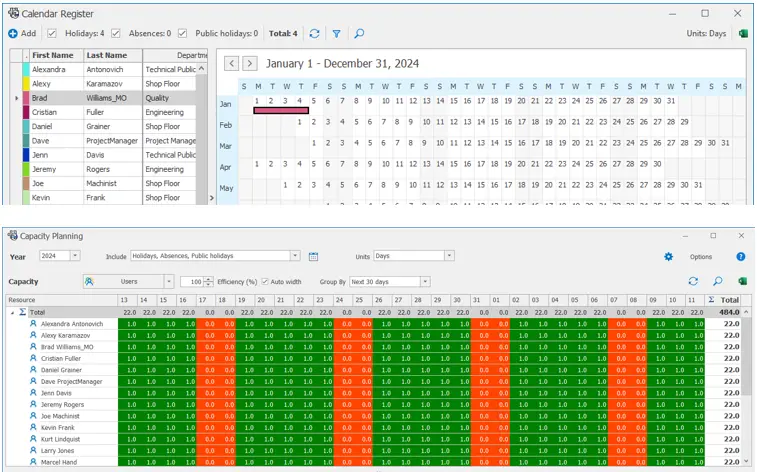
SOLIDWORKS Manage 2025 provides a more granular view of user availability.
In SOLIDWORKS Manage 2025, the calendar register is more granular and is now organised by individual days.
The capacity planning tool can now be viewed by The Next 7 days, Next 30 days, Months or Weeks making it much easier to visual your teams resource availability, to assign work tasks, maximise utilisation, and get projects delivered on time.
#8 – Application Programming Interface Compatibility
Previously, retrieving or setting information in SOLIDWORKS Manage requires complex SQL queries and scripts, whilst integration to 3rd party systems relies on the import and export of data.
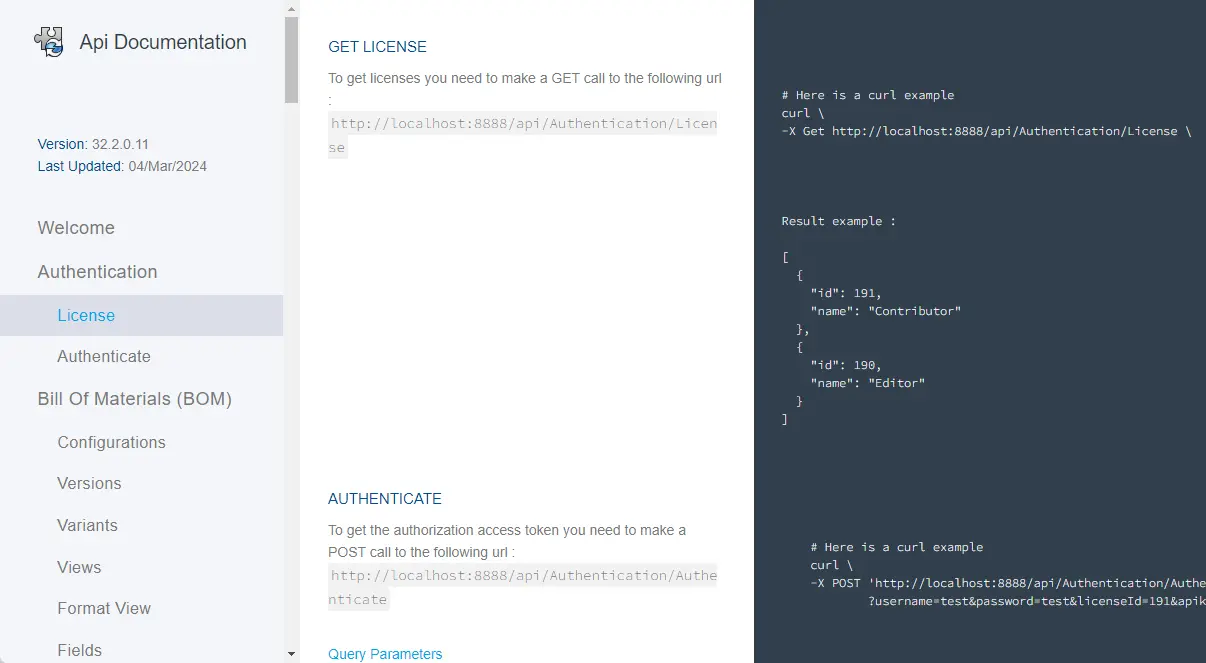
API compatibility provides a more efficient way to get or set information.
SOLIDWORKS Manage 2025 introduces a web based, REST Application Programming Interface (API).
This set of rules and protocols enables SOLIDWORKS Manage to communicate and exchange data with other software applications, thereby improving system integration and the flow of engineering information throughout your organisation.
#7 – Project Gantt Chart Images
SOLIDWORKS Manage reporting tools make it easy to share important information with stakeholders and team members, in a tailored, user-friendly format, helping to improve communication and decision making based on up to date, accurate information.
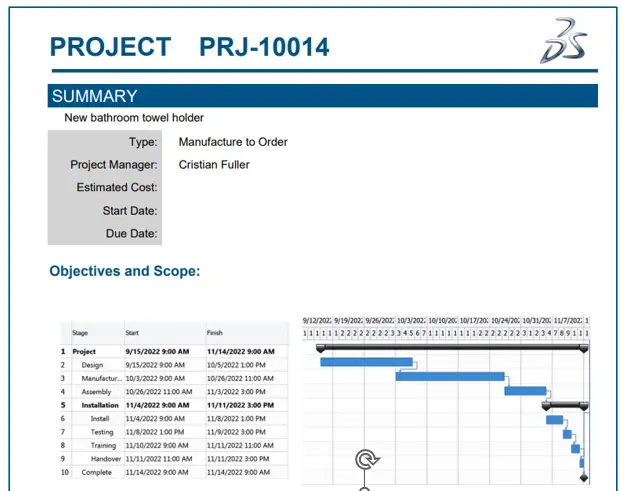
Capture and share more complete project information quickly with SOLIDWORKS Manage 2025.
In SOLIDWORKS Manage 2025, project reporting is enhanced with the ability to include images of the stage list and Gantt chart to enrich project reports and make them more intuitive and easier to interpret.
#6 – Project Snapshots
The embedded project management tools of SOLIDWORKS Manage enable teams to plan, organise, and execute engineering projects within an integrated data management system to help deliver projects on time.
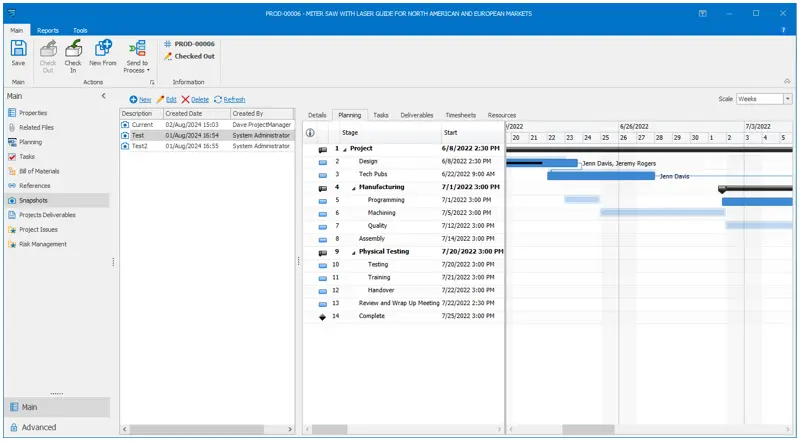
Fast and easy access to historic project information without the need for time-consuming reports.
SOLIDWORKS Manage 2025 introduces Project Snapshots which is the ability to capture project information at any time, to record the history of the major changes over the duration of the project.
Each snapshot captures the Gantt chart, task list and status, deliverables, timesheets, and resources, providing easy access to historic project information without the need for reports.
#5 – Import from BOMs
SOLIDWORKS Manage project plans can be based on user-defined templates or derived from previous projects to make initiation fast and easy to do.
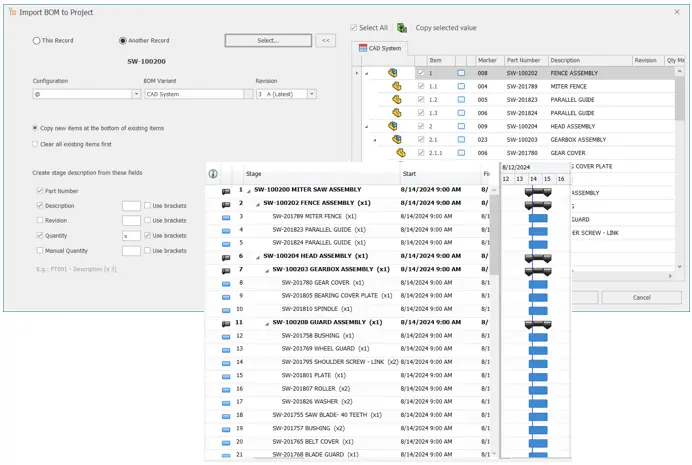
Easily create projects for product manufacturing timeline tracking.
In SOLIDWORKS Manage 2025, by importing a Bill of Materials, you can quickly and easily populate the project stages and Gantt chart for the timeline and tracking of product manufacturing.
Once the BOM is imported, each part becomes a project stage while assemblies become summary stages. This great new enhancement significantly reduces the time and effect required to initiate a project with a manufacturing phase.
#4 – Custom Fields in Flat Bills of Materials
SOLIDWORKS Manage takes an item-centric approach to Bill of Materials configuration management, enabling non modelled components to be properly represented in full engineering or manufacturing BOMs.
BOM-specific custom fields can be defined to making it easy to capture and share critical component and assembly information.
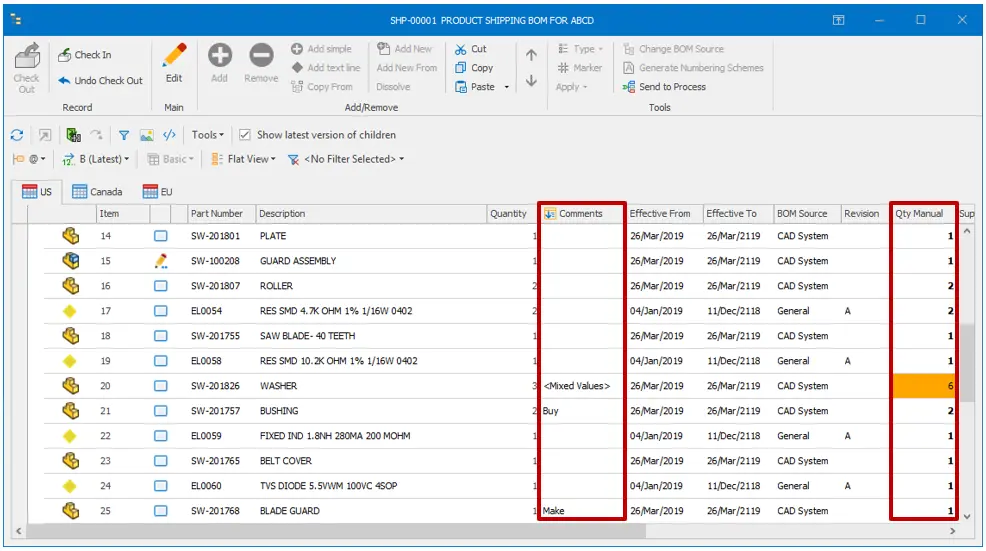
Flat views now contain even more useful and customisable information.
In SOLIDWORKS Manage 2025, Bills of Materials displayed in Flat view (a summarised view including rolled up part count) can now display custom fields making more useful information available when the BOM is being reviewed.
If multiple values exist for the same part number, then will be displayed in the cell.
If manual quantity values have been used to override the computed values, they will be rolled up as well.
#3 Download Files from BOM Share
SOLIDWORKS Manage makes it easy to securely share engineering files and Bill of Materials information with downstream consumers and 3rd parties, such as suppliers and customers.
Recipients can receive a web link with expiry and password protection giving them access to the targeted information.
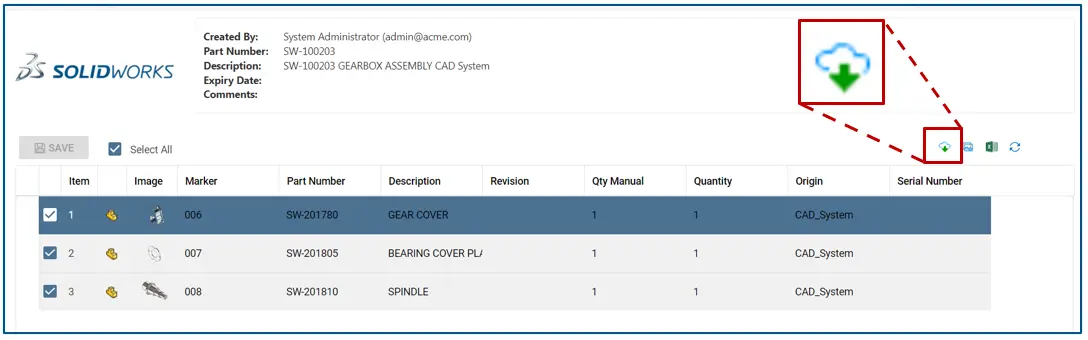
SOLIDWORKS Manage 2025 makes it easy to share information with external users.
In SOLIDWORKS Manage 2025, as well as sharing the Bill of Materials via an email or web link, the recipient will also be able to download the associated files as well. This makes it much easier to share information with team members and 3rd parties.
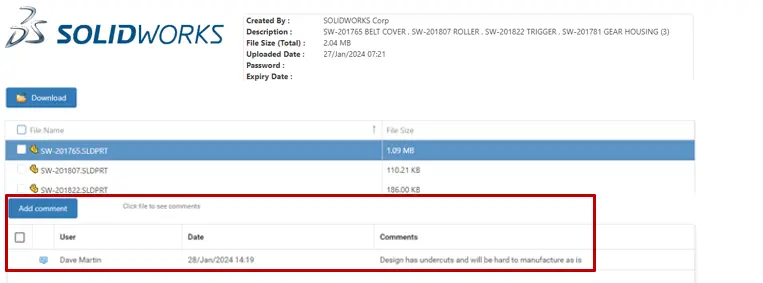
In addition to this when sharing files in a similar way, you can allow the recipients to add comments to the files being shared. These new enhancements make easier to share design information and foster better collaboration and communication.
#2 – Reduce repetition with ‘New From’
SOLIDWORKS Manage includes configurable Process Management tools that capture, manage, and streamline your key engineering processes such as Engineering Change and New Product Introduction.
Process tasks assigned to team members ensures that activities are visible and carried out in a timely manner. Dashboards enable you to track and monitor processes, while the reporting tools aid communication.
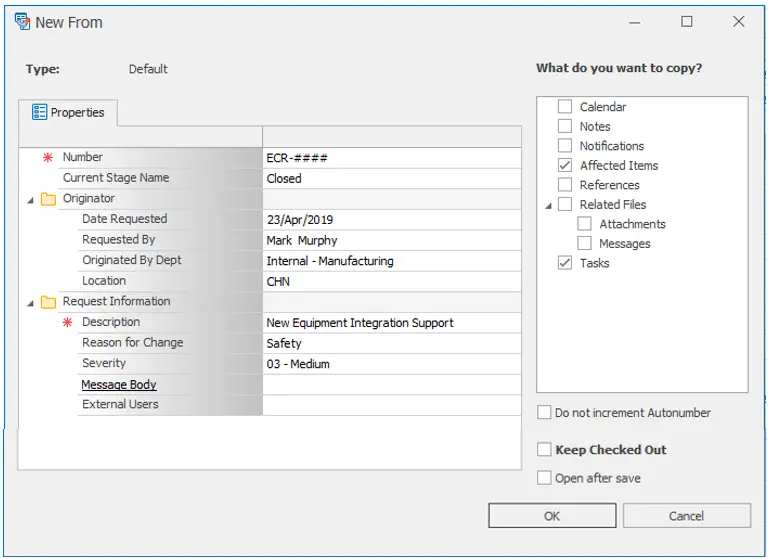
Save time, improve accuracy, and initiate new processes from your existing processes.
In SOLIDWORKS Manage 2025, the “New From” menu option allows you to initiate a new process from an existing process. For example, an Engineering Change has been successfully completed on one product in a range, and the same change needs to be carried out on another product in the range.
Using the “New From” option you can choose which elements of the previous process are reused, for example you can copy and reuse process properties, related files, and references, to benefit from the knowledge and information gained, and decisions made in the original process get the new process completed with the minimal amount of time and effort.
#1 – Task Subject Information
A key element of SOLIDWORKS Manage is the ability to assign and track user tasks. Tasks can be ad hoc or automatically assigned when a new project is created, and even as a process navigates from one workflow stage to the next.
Once the user tasks are completed the project plan is updated and processes proceed as the tasks are completed.
Dashboards and reports enable user tasks to be tracked and monitored to identify and avoid bottlenecks and streamline the flow of engineering information.
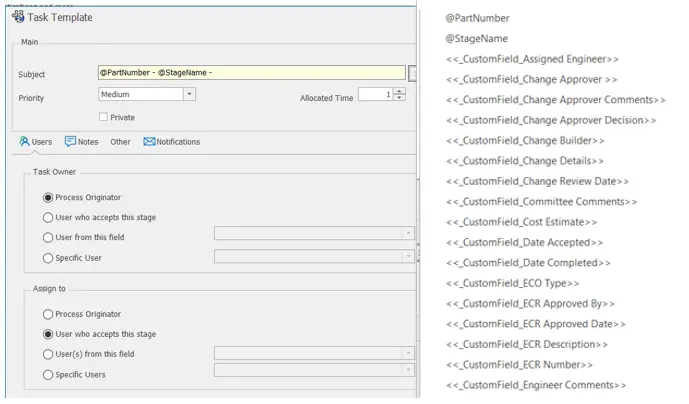
Additional task information is available for users.
In SOLIDWORKS Manage 2025 the task automation process is enhanced and enables the Task subject to include process field values other than number and stage name, thereby increasing the information available to the users.
Categorised as: Data Management | News | SOLIDWORKS Manage
Get a SOLIDWORKS Quote
Interested in SOLIDWORKS? Contact us for questions, trials, or demos by clicking the button below or call 01926 333777. Our experts will help you find the perfect solution.

Related Posts

How to Create a Pack and Go in SOLIDWORKS
Pack and Go in SOLIDWORKS should be used when sending SOLIDWORKS files to another person. Use this simple guide to help you safely send entire SOLIDWORKS projects.
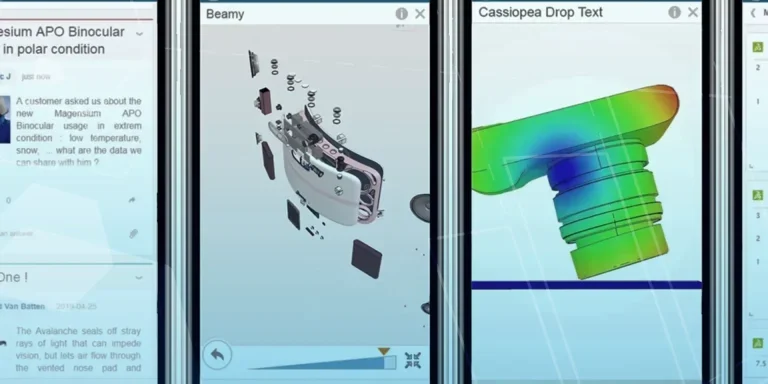
What is 3DSWYM? A 3DEXPERIENCE Platform Tutorial
3DSwym is the application at the heart of the 3DEXPERIENCE, allowing users to connect and collaborate across the platform.
Microsoft SQL Server licensing for SOLIDWORKS PDM
October 2020 marks two important milestones for the SOLIDWORKS PDM family and SQL Server.

Part Numbering in SOLIDWORKS PDM Professional
When implementing a new PDM Professional Vault Customers will have the option to review their part numbering and classification requirements as they move to a system that allows them to, in most cases, automate the way the identify ‘parts’ within the Vault. Part Numbering is something that a lot of customers approach differently and this is often based on ‘how it’s always been done’ without necessarily considering what is the purpose of a Part Number within their organisations and wider within their supply chains. If we consider the humble part number. What is it’s purpose?

The 6 Golden Rules of Managing Data in SOLIDWORKS
When modelling in SOLIDWORKS, before you know it, you will have created lots of parts, assembly and drawing files, so it’s important to think about how you will manage these files and keep everything organised. Here we discuss the ‘6 Golden Rules’ of managing your SOLIDWORKS files using Windows Explorer and recommended methods for file naming, structuring your projects and managing revisions.
This kicks off a month looking at the management of CAD data, register for one of our upcoming live webinars at the bottom of this article.

PDM Professional – Assigning Users with Conditional Notifications
Often customers will create smaller project teams for specific jobs and in the past we have been asked if it is possible, within a multi stage workflow, to pre-assign at the creation stage users who will be notified as checker / approver within those transitions. This blog will demonstrate how, using conditional Notifications in PDM Professional, this can be configured. We will also create some logic to allow for certain parts of the workflow to be bypassed by validating the selected ‘names’ against transition conditions. In this example the ‘approvers’ will be assigned on the files DataCard, but it would be just as feasible to have these names inherited from a project folder card if defining the rules at a higher level was possible within your Teams.
Managing Disk Space with SOLIDWORKS PDM Part #1: Distributing the Archive
This blog series was prompted by a recent support ticket, logged when a customer found their PDM Professional installation suddenly became unusable. The warning message, led to my reviewing the Archive Server Log file and this quickly identified the problem being a result of the PDM Server running out of disk space.
Managing Disk Space with SOLIDWORKS PDM Part #2: Deleted vs Destroyed and the Vault Cleaner Service
In this blog series we are examining the factors influencing disk usage within PDM and what you can do to manage them. In the first part we discussed how you can re-organise your archive across multiple drives to get you back up and running quickly should you find you are short on space. This blog and the next part will discuss behaviours in PDM that can result in redundant disk usage and how you can free that up with the vault cleaner service.
Managing Disk Space with SOLIDWORKS PDM Part #4: Cold Storage
In this blog series we are examining the factors influencing disk usage within PDM and what you can do to manage them. In the first part we discussed how you can re-organise your Archive across multiple drives to get you back up and running quickly should you find you are short on space. In the second part we looked at the differences between a deleted and a destroyed file and the impact the PDM recycle bin has on Disk usage. Part three discussed temporary session files created by the PDM Web Server and this Part will look at an option within PDM called Cold Storage.
Managing Disk Space with SOLIDWORKS PDM Part #5: Archive Compression
In this blog series we are examining the factors influencing disk usage within PDM and what you can do to manage them. In the first part we discussed how you can re-organise your archive across multiple drives to get you back up and running quickly should you find you are short on space. In the second part we looked at the differences between a deleted and a destroyed file and the impact the PDM recycle bin has on Disk usage. Part three discussed temporary session files created by the PDM Web Server. In part four we discussed cold storage and in this last part we will look at archive compression.