









SOLIDWORKS PDM Disaster Recovery

Written by: Wayne Marshall
Published: Apr 27, 2022
| View All Blogs
Have you got a SOLIDWORKS PDM disaster recovery procedure in place?
Over the last few weeks and months, we have seen a major uplift in the calls coming into the helpdesk asking for our advice and assistance after a customer suffered a cyber-attack that has corrupted all, or part, of a PDM implementation. The purpose of this article is to help your PDM Administrators or IT Professionals understand the steps involved in preparing for and then executing a SOLIDWORKS PDM Disaster Recovery, should you need to rebuild a copy of a PDM vault after your SOLIDWORKS PDM infrastructure becomes inoperable, inaccessible, or damaged as the result of unplanned disasters. This same process could also be used to create a duplicate system to recover individual or small groups of files after an accidental removal from the Vault (destroyed not deleted).
Before starting a recovery, you should make certain that the extent of the infection doesn’t also include your Backup Server(s) or that the infection didn’t occur before the last backup took place. For this reason, offsite backups (tape or cloud) should also form part of your backup strategy.
What to expect from a disaster recovery?
Restoring a Vault from Backup will revert the content of the Vault to the state it was in at the time that Backup was created. Based on the fact that the recovered Vault will only be as good as the last backup, this has a number of key observations:
- Any changed data, not Checked-in, will be excluded from the backup / recovered Vault
- Any new data, that has never been Checked-in, will be excluded from the backup / recovered Vault
- Any data created or modified after the last backup will be excluded from the recovered Vault
As there are a number of key backups required to complete the recovery process it is therefore very important, from an integrity point of view, to ensure that these Backup(s) are created as close as possible to each other.
Most Customers will be creating a single ‘daily’ backup during ‘downtime’ meaning that after a Disaster Recovery they could have lost a maximum of one day’s worth of data. To reduce the amount of data that you would risk losing you could consider running the Backup(s) more frequently, but this is only effective if new and changed Data is being Checked-in throughout the day.
NOTE: the use of Overwrite Latest Version during a Check in can reduce the number of file versions being created in the Archive with more frequent Check In’s.
It is also worth explaining that PDM doesn’t support Transactional Database recovery, so this would mean creating multiple Full SQL backups throughout the day with a Differential Backup of the Archive in parallel to this. A full Daily backup should still be archived to a safe location each day.
** If you are reading this as a result of a Disaster and are already missing the Archive Server Settings, or the ConsisioMasterDB Backup there is still the possibility of a recovery, however you will need assistance from Technical Support in the supply of an ‘application’ that can rebuild the missing Archive Server Registry keys from the Vault DataBase itself. **
Disaster Recovery Checklist
What follows is an overview of what you need to be doing now and what information you may need to have documented to ensure you can complete a full Disaster recovery. View our SOLIDWORKS Disaster Recovery PDF for full details on all of these points.
- Document Your Installation
- Understand And Confirm Your Backup Strategy
- Ensure Your ‘Passwords’ Are Documented And Verified
- Installation Media
- Document External ‘Links’
- Cold Storage
- Message System
- Add-Ins
- Implementing The Recovery Process
- Restore Vault Databases
- Restore Archive Server And File Vault Archives
- Configure The Moved Sql File Vault Database
- Configure The Moved Archive Server
- Updating Client Registry Keys (Local View Settings)
- Updating Web 2.0
- Updating Replication Settings (Pdm Professional Only)
- Firewall Rules
- Other Considerations – Administration Tool
Please note: You should only make changes within the SQL database if you are confident and competent that you can do this without compromising the integrity of the database. If you are unsure, we would strongly recommend that you use our Services to complete this Disaster Recovery exercise for you.
Registry changes should only be made after a backup of existing keys have been taken, and only by IT personal who are comfortable and competent to do so.
Categorised as: SOLIDWORKS PDM | Troubleshooting
Get SOLIDWORKS Technical Support
With a SOLIDWORKS subscription you gain access to our expert SOLIDWORKS Technical Support team.
Call on 01926 333 777 or drop an email to help@trimech.com and one of our expert engineers will be in contact.

Related Posts
Why is SOLIDWORKS Crashing?
It’s one of the great mysteries of life – why is SOLIDWORKS crashing? Let’s explore how SOLIDWORKS crashes and how we can improve performance in SOLIDWORKS.
Tech Support Blog: Why are my SOLIDWORKS BOM Quantities Wrong?
Why are my SOLIDWORKS BOM Quantities Wrong? A support call cropped up this week which…
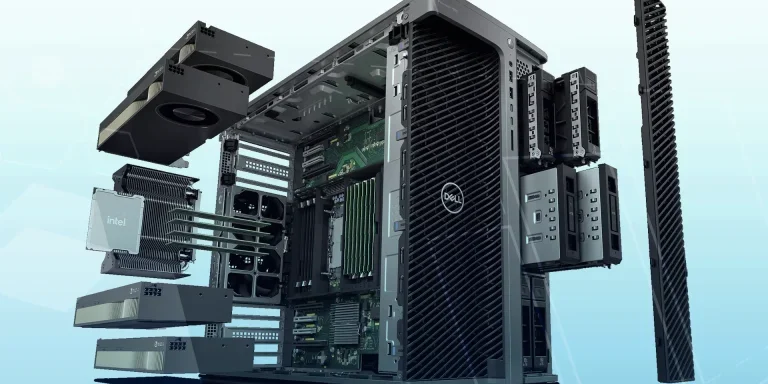
Hardware Setup and Support
When you receive a new system there are some things you can do to ensure optimum performance and other things that are good to know in the event of problems. This blog details everything you need to know if you encounter an issue.
Microsoft SQL Server licensing for SOLIDWORKS PDM
October 2020 marks two important milestones for the SOLIDWORKS PDM family and SQL Server.

Part Numbering in SOLIDWORKS PDM Professional
When implementing a new PDM Professional Vault Customers will have the option to review their part numbering and classification requirements as they move to a system that allows them to, in most cases, automate the way the identify ‘parts’ within the Vault. Part Numbering is something that a lot of customers approach differently and this is often based on ‘how it’s always been done’ without necessarily considering what is the purpose of a Part Number within their organisations and wider within their supply chains. If we consider the humble part number. What is it’s purpose?

PDM Professional – Assigning Users with Conditional Notifications
Often customers will create smaller project teams for specific jobs and in the past we have been asked if it is possible, within a multi stage workflow, to pre-assign at the creation stage users who will be notified as checker / approver within those transitions. This blog will demonstrate how, using conditional Notifications in PDM Professional, this can be configured. We will also create some logic to allow for certain parts of the workflow to be bypassed by validating the selected ‘names’ against transition conditions. In this example the ‘approvers’ will be assigned on the files DataCard, but it would be just as feasible to have these names inherited from a project folder card if defining the rules at a higher level was possible within your Teams.
Managing Disk Space with SOLIDWORKS PDM Part #1: Distributing the Archive
This blog series was prompted by a recent support ticket, logged when a customer found their PDM Professional installation suddenly became unusable. The warning message, led to my reviewing the Archive Server Log file and this quickly identified the problem being a result of the PDM Server running out of disk space.
Managing Disk Space with SOLIDWORKS PDM Part #2: Deleted vs Destroyed and the Vault Cleaner Service
In this blog series we are examining the factors influencing disk usage within PDM and what you can do to manage them. In the first part we discussed how you can re-organise your archive across multiple drives to get you back up and running quickly should you find you are short on space. This blog and the next part will discuss behaviours in PDM that can result in redundant disk usage and how you can free that up with the vault cleaner service.
Managing Disk Space with SOLIDWORKS PDM Part #4: Cold Storage
In this blog series we are examining the factors influencing disk usage within PDM and what you can do to manage them. In the first part we discussed how you can re-organise your Archive across multiple drives to get you back up and running quickly should you find you are short on space. In the second part we looked at the differences between a deleted and a destroyed file and the impact the PDM recycle bin has on Disk usage. Part three discussed temporary session files created by the PDM Web Server and this Part will look at an option within PDM called Cold Storage.
Managing Disk Space with SOLIDWORKS PDM Part #5: Archive Compression
In this blog series we are examining the factors influencing disk usage within PDM and what you can do to manage them. In the first part we discussed how you can re-organise your archive across multiple drives to get you back up and running quickly should you find you are short on space. In the second part we looked at the differences between a deleted and a destroyed file and the impact the PDM recycle bin has on Disk usage. Part three discussed temporary session files created by the PDM Web Server. In part four we discussed cold storage and in this last part we will look at archive compression.