











Hardware Setup and Support

Written by: Alan Sweetenham
Published: Jul 15, 2019
| View All Blogs
When you receive a new system there are some things you can do to ensure optimum performance and other things that are good to know in the event of problems. This blog details everything you need to know if you encounter hardware setup and support issue.
Dell
We have worked with Dell for over 20 years and use their Precision range of Workstation products internally as we have found them to perform optimally and reliably. We also value the hardware setup and support they offer since they are vital tools for us and our customers maximising performance while minimising any potential downtime is key.
In the rare event of issues, all of our Desktop and Laptop Workstations are provided with 3 Year Dell Pro Support based in Ireland/Scotland between UK office hours and 24/7 coverage through various Dell support locations worldwide.
They are on hand to diagnose any hardware set up and support related issues and in the event they cannot resolve it on the call an engineer will typically be on site the next business day (subject to parts availability etc). This keeps you working with the minimum of interruption. In cases where you are not sure if the issue relates to your SOLIDWORKS Software or Hardware, please contact our Support team (support@solidsolutions.co.uk) who are happy to rule out Software issues as far as possible.
Before Contacting Dell Pro Support
Firstly you will need to locate your Service Tag and Express Service Code. Dell uses these product identifiers to access information about your device’s specific tech specs and warranty so that they can provide personalized support options. The Service Tag is a 7 alphanumeric character code, and the Express Service Code is a 10 to 11-digit code that is a numeric version of the Service Tag.
Locate your Dell Laptop Service Tag
Windows users can detect the service tag automatically with Dell Support Assist Software
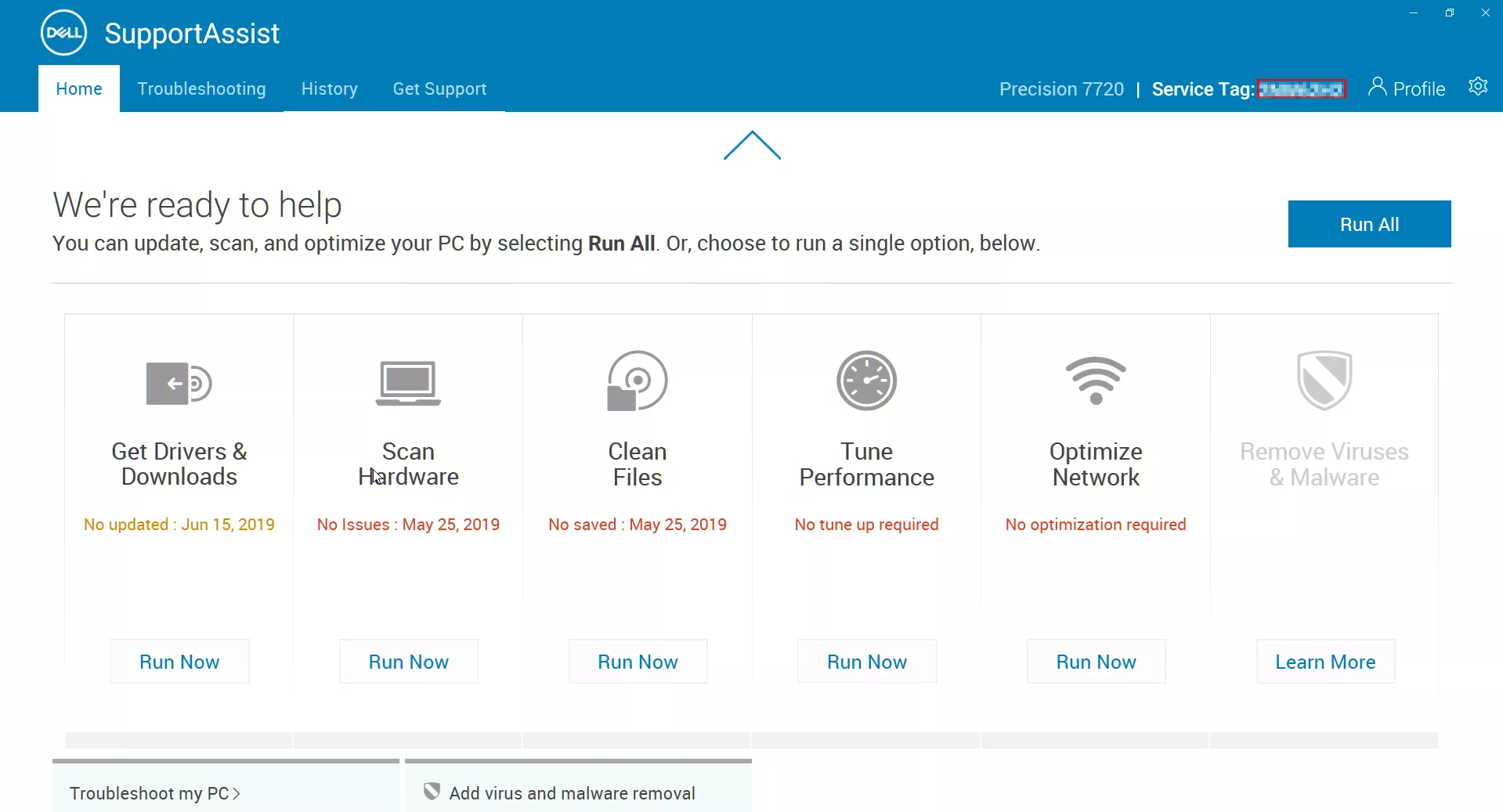
This also allows you to check your system is up to date which can also resolve many issues. Alternatively you can locate it on the system itself.
On Dell Laptops, the Dell Service Tag sticker is on the bottom. Some models have a flap, covering the sticker.
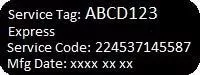
More information can be obtained on the Dell Website.
Example Location of Service tag on Dell Precision 7000 Series.

Locate your Dell Desktop Service Tag
On
Dell Desktops, the Dell Service Tag sticker is probably located on the back of the computer case, but can also be located on the top or side of the system.
Location on Dell 3000 Series Workstation Towers

More information can be obtained on the Dell Website
You can check Warranty information, download drivers etc from either Dell Support Assist or the Dell Support Website
Contact Information for Dell Pro Support
If you have issues with your Dell Hardware then Dell Pro Support are on hand to help your directly on 0800 169 1733, 24/7, 365 days a year. During business hours Monday – Friday this is staffed locally in Ireland/Scotland and out of hours by various offices worldwide to keep you productive. Remember to have your service tag to hand.
If you need a visit from an engineer subject to parts being available in time a local UK engineer will be typically be out on site the next business day.
Further contact Details can be obtained from the Dell Support Pages
If you are unsure if the issue is hardware or software we are happy are happy to assist the process from the software side to ensure you get the best resolution please contact support@solidsolutions.co.uk
We also have tips below for basic Troubleshooting you can go through yourself prior to contacting support.
Ensuring your System is Up to Date
Many issues can be solved by ensuring your system has the latest updates. Dell systems are supplied with an application that is typically pre- installed called “Dell Support Assist” which will show your service tag
information, and can be used to automate the download of drivers, BIOS updates. Alternatively they may be managed by your IT support team.

You can also manually check for required updates on the Dell Support Website run diagnostics, check warranty etc.
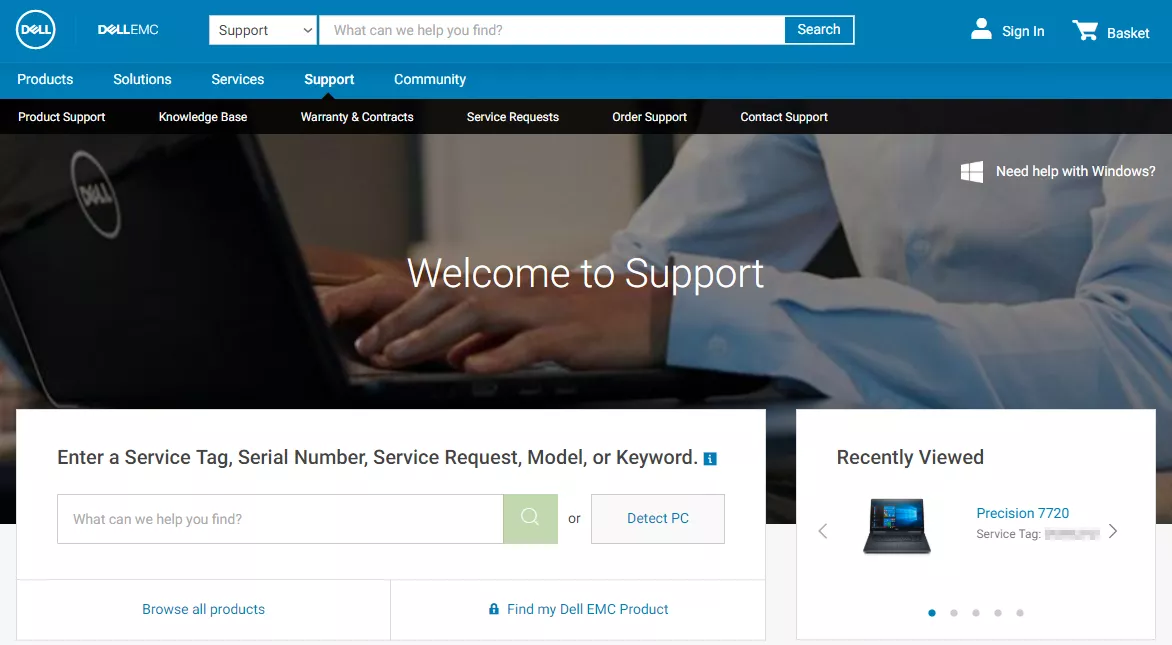
Downloads and Drivers can then be narrowed down by category or you can download and install everything.

Note that for the certified SOLIDWORKS graphics card driver, first check the driver that is supported for SOLIDWORKS ideally this should be used. Use this website for their suggested setup.
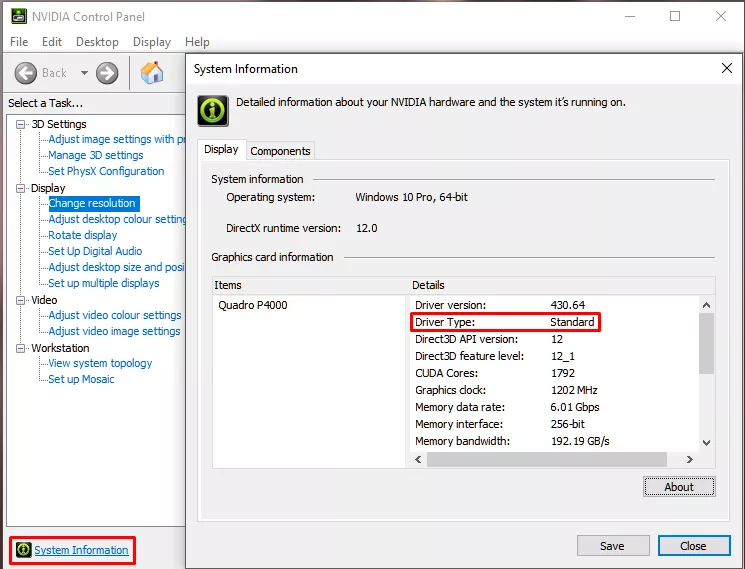
This may list two driver types, “Standard” and DCHU. The driver you need depends on what was installed when your system shipped, most systems older than Q4 2018 will have the standard type.
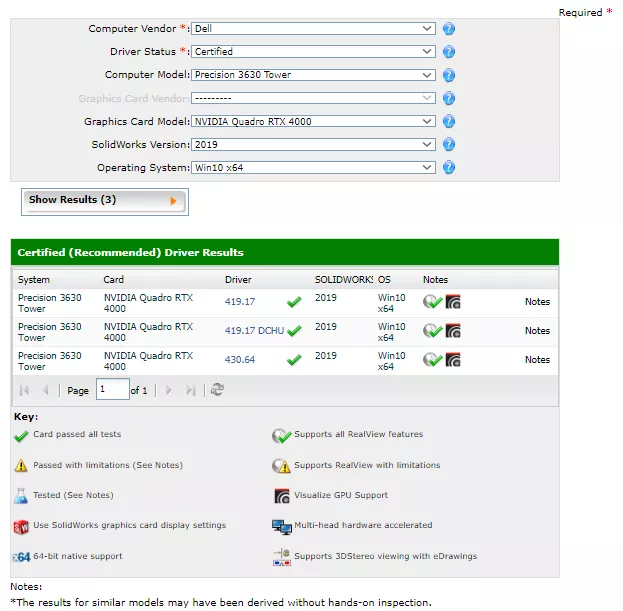
To tell which driver you have for NVIDIA systems Right Click on the Desktop, open the NVIDIA Control Panel -> select “System Information from the bottom left hand corner -> locate Driver Type. The text that follows will show if the driver type is DCH or Standard.
There are no performance differences between the two so there is no need to attempt to change the one you have installed.
In the event that you are not able to install the driver from the SOLDIWORKS Website you can also see if the Dell Support Downloads page has a matching driver.
Initial PC System Setup Tips
Desktops
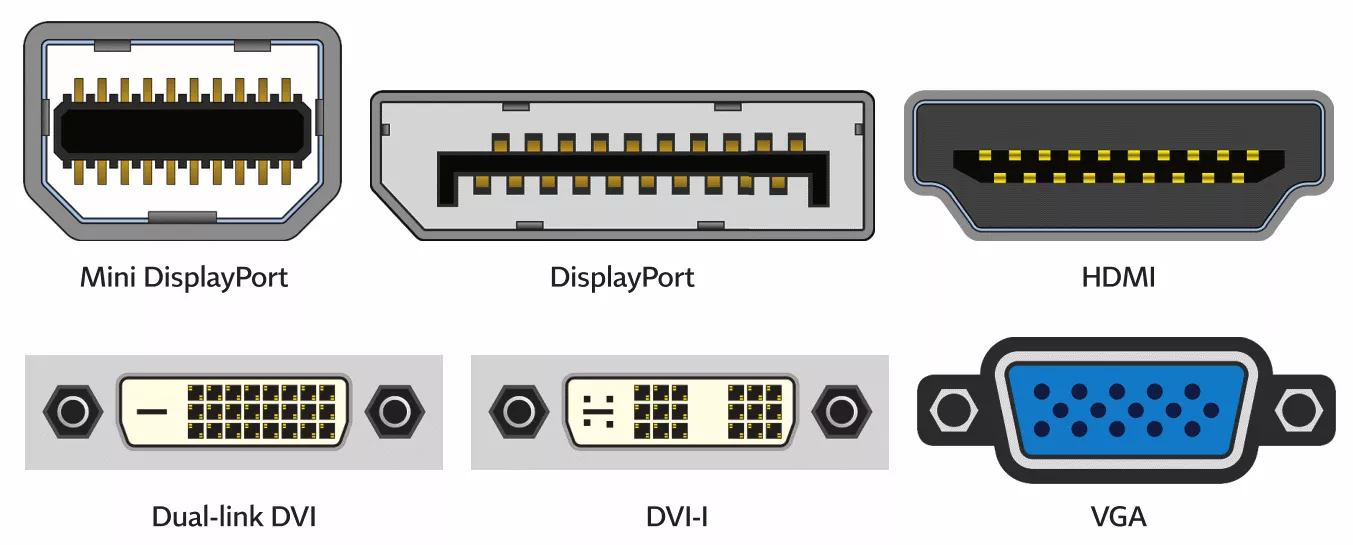
For desktops the key thing is to ensure your cables for the monitors are plugged into the dedicated graphics card, this is typically horizontal near the bottom of the case. Typically this will be a DisplayPort or Mini DisplayPort connector*
If plugged into the on-board graphics you typically will not get any graphics acceleration and experience performance and stability issues, you aren’t using the workstations graphics card!

If your monitor does not support DisplayPort then typically you will require either an adaptor or cable e.g. Display Port to HDMI or Display Port to DVI, VGA etc.
*Due to the many different display connectors, number of monitors in use and therefore cost of each adaptor, plus potential waste, systems supplied by Solid Solutions do not include these adaptors as standard.


Laptops
For laptops the key thing is that most use a function called Switchable Graphics. This should detect the graphics requirements of programs on the system and automatically use the correct graphics card. However if you experience performance issues or just want to ensure you always get the best performance you can manually set the program to a list to force it to use the high performance workstation graphics card.
This can be done by Right Clicking on the Desktop and choosing the NVIDIA Control Panel.
Under Manage 3D Settings, click on Program Settings and ensure that SOLIDWORKS is set to Use the “High Performance NVIDIA Settings.
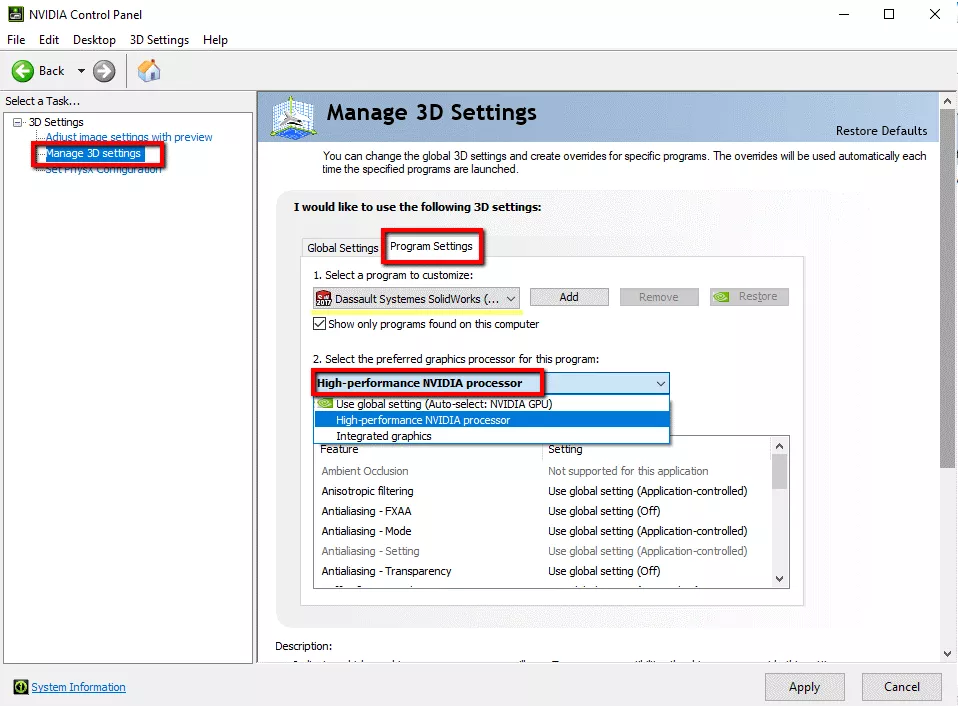
Repeat this process for any other applications you use such as SOLIDWORKS Visualize, Composer etc. If it does not appear on the list the easiest process is to make sure the application is open then click “Add” under Program Settings.
Note – Most Workstation laptops have a single HDMI port + Mini DisplayPort so you may require an adaptor or docking station if you wish to plug in to multiple monitors.
Alternatively, for some systems it can be disabled in the BIOS of the system so that the laptop always uses the dedicated workstation graphics card.
Other recommendations
We only recommend dual graphics cards for SOLIDWORKS Visualize users where it is used to compute renders. Dual cards will not benefit SOLIDWORKS, however if running dual cards, ensure that all monitors are connected to a single card to avoid issues.
You can also choose which cards are used for compute and graphics again under the Program Settings.
If you have any queries please get in touch with help@trimech.com.
Categorised as: Hardware | Troubleshooting
Looking to buy Hardware?
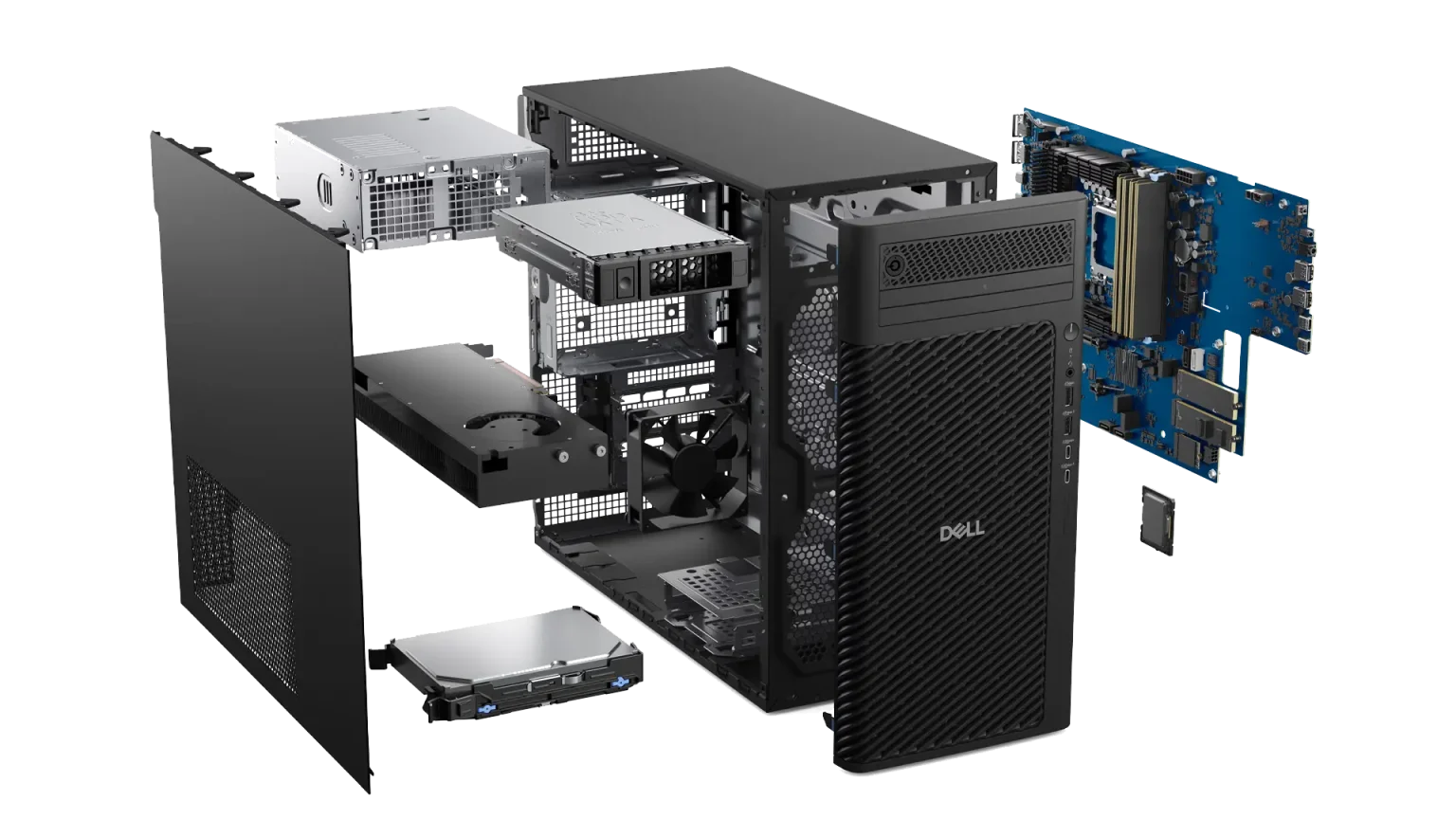
Having partnered with Dell for over 20 years, we can offer optimal SOLIDWORKS certified hardware at great value and with next business day delivery on most models.
Related Posts

Why is SOLIDWORKS Crashing?
It’s one of the great mysteries of life – why is SOLIDWORKS crashing? Let’s explore how SOLIDWORKS crashes and how we can improve performance in SOLIDWORKS.

Tech Support Blog: Why are my SOLIDWORKS BOM Quantities Wrong?
Why are my SOLIDWORKS BOM Quantities Wrong? A support call cropped up this week which…

SOLIDWORKS PDM Disaster Recovery
Understand the steps involved in preparing for and then executing a SOLIDWORKS PDM Disaster Recovery, should you need to rebuild a copy of a PDM vault after your SOLIDWORKS PDM infrastructure becomes inoperable, inaccessible, or damaged as the result of unplanned disasters.

A systematic approach to complex analysis models – “Crawl, Walk, Run”
Most engineers start out performing simple linear statics analysis model. Provided you’ve done the basic…

Hardware for SOLIDWORKS: Can SOLIDWORKS Run on a Mac in 2023?
While we recommend using a Windows operating system, there are ways you can install and use SOLIDWORKS on MacOS.

Windows 10 End of Life Announced! When does support end and how will it affect SOLIDWORKS users?
Dassault Systemes plan to end support for SOLIDWORKS products on Windows 10 at the same time as Microsoft stops providing support for both users and software developers…
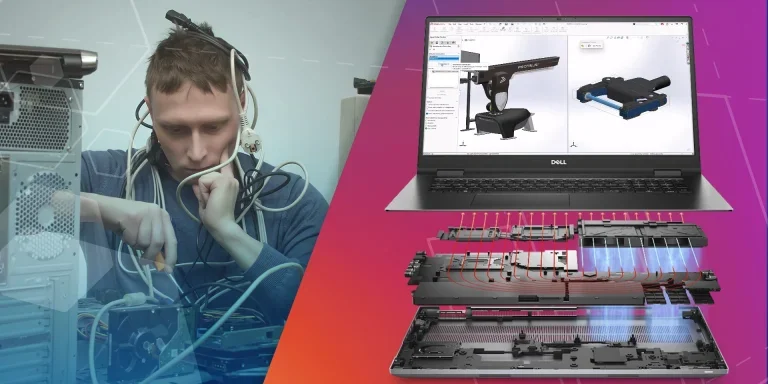
Using SOLIDWORKS? Here are 5 Reasons Why You Need to Consider Buying a Professional Workstation
Discover why professional workstations are the best choice for SOLIDWORKS users.

SOLIDWORKS Support: How to Access Your Account and Raise a Support Ticket
Find information about how to check your SOLIDWORKS subscription status, change your account details, and raise new support tickets through your MySolidSolutions account.

How to Fix “A Sharing Violation Occurred while Accessing an Unnamed File” in SOLIDWORKS Simulation
‘A sharing violation occurred while accessing an unnamed file’ is an error which you might see when using SOLIDWORKS Simulation, here is how to avoid it.

SOLIDWORKS Pre-Requisites: 10 Things to Do Before Upgrading to SOLIDWORKS 2026
Packed full of great new features, SOLIDWORKS 2026 is now available to download and install. Make sure your system meets the pre-requisite criteria for installing SOLIDWORKS with these 10 things to do before upgrading to SOLIDWORKS 2026.