











SOLIDWORKS PDM: Is this the Best Data Management Software for SOLIDWORKS?

Written by: Wayne Marshall
Published: Jun 6, 2023
| View All Blogs
Effective product data management (PDM) is the foundation of a successful design. Whether you are a solo designer, or are part of a larger team, it is vital that you have a secure system to store and manage your documents and CAD files.
SOLIDWORKS PDM Standard is our entry-level data management solution and, while it is best suited for small to medium sized design teams, we find that many solo designers enjoy great success with it as they seek to minimize file corruptions and implement a secure and straightforward CAD file management system.
We typically see it adopted when teams grow, and multiple users begin to design a variety products and work across several projects, as managing SOLIDWORKS data without a PDM system can cause a bit of a headache.
Nobody wants to lose data, time, or money.
So, when you find you need to integrate better traceability into your CAD files, or work with multiple versions or revisions, then it’s time to implement SOLIDWORKS PDM.
Let’s explore 10 reasons why you should be working with SOLIDWORKS PDM Standard, and why it’s the best option to get started with data management.
#10 – INTEGRATED
PDM Standard is included within both SOLIDWORKS Professional and Premium packages, and with seamless integration into the SOLIDWORKS user interface, it’s the must-have data management system that makes for easy access and efficient load times.
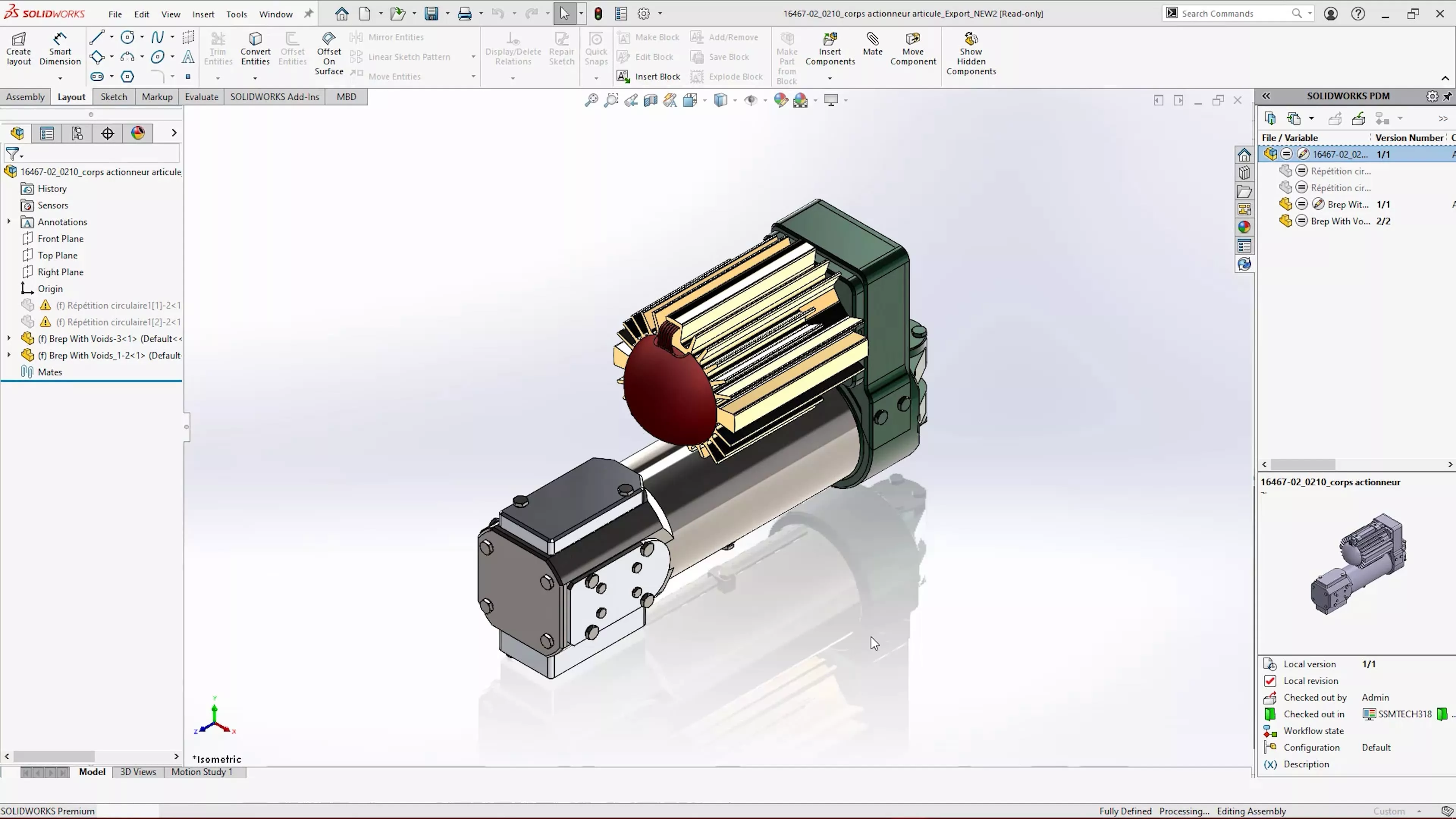
You can see which parts are up to date and check who is working on what at a glance, without even leaving SOLIDWORKS! You can operate key functionality and navigate revisions in-context to keep your data under control with ease.
#9 – FAMILIAR INTERFACE
Windows Explorer fully incorporates SOLIDWORKS PDM to give a comfortable familiarity to a powerful tool. You can manipulate and explore designs without loading large datasets through the dynamic preview powered by eDrawings, alter custom properties and design details in the datacard, and Pack & Go files with Copy Tree, removing the need to even open SOLIDWORKS to send your data.
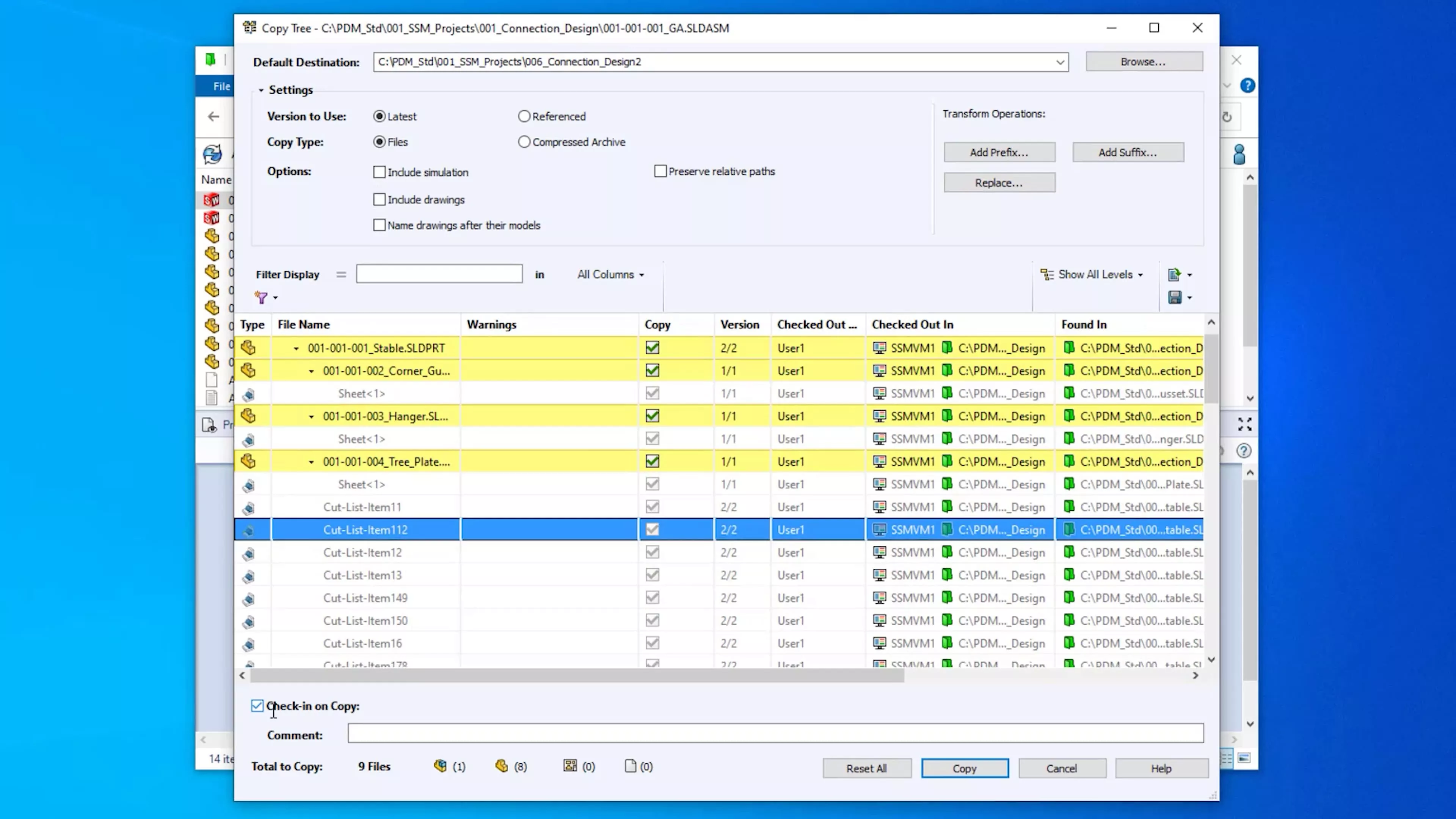
PDM Standard allows both experienced and non-SOLIDWORKS users to collaborate, co-ordinate, and customise designs easily and intuitively.
Don’t have SOLIDWORKS PDM yet? Learn how to create a Pack & Go the old-fashioned way…
#8 – MANAGE ANY DATA
Folders within PDM are not limited to containing just SOLIDWORKS files. Collate files from drawings to datasheets, quotes to quality assurance, and keep your projects organized and streamlined.
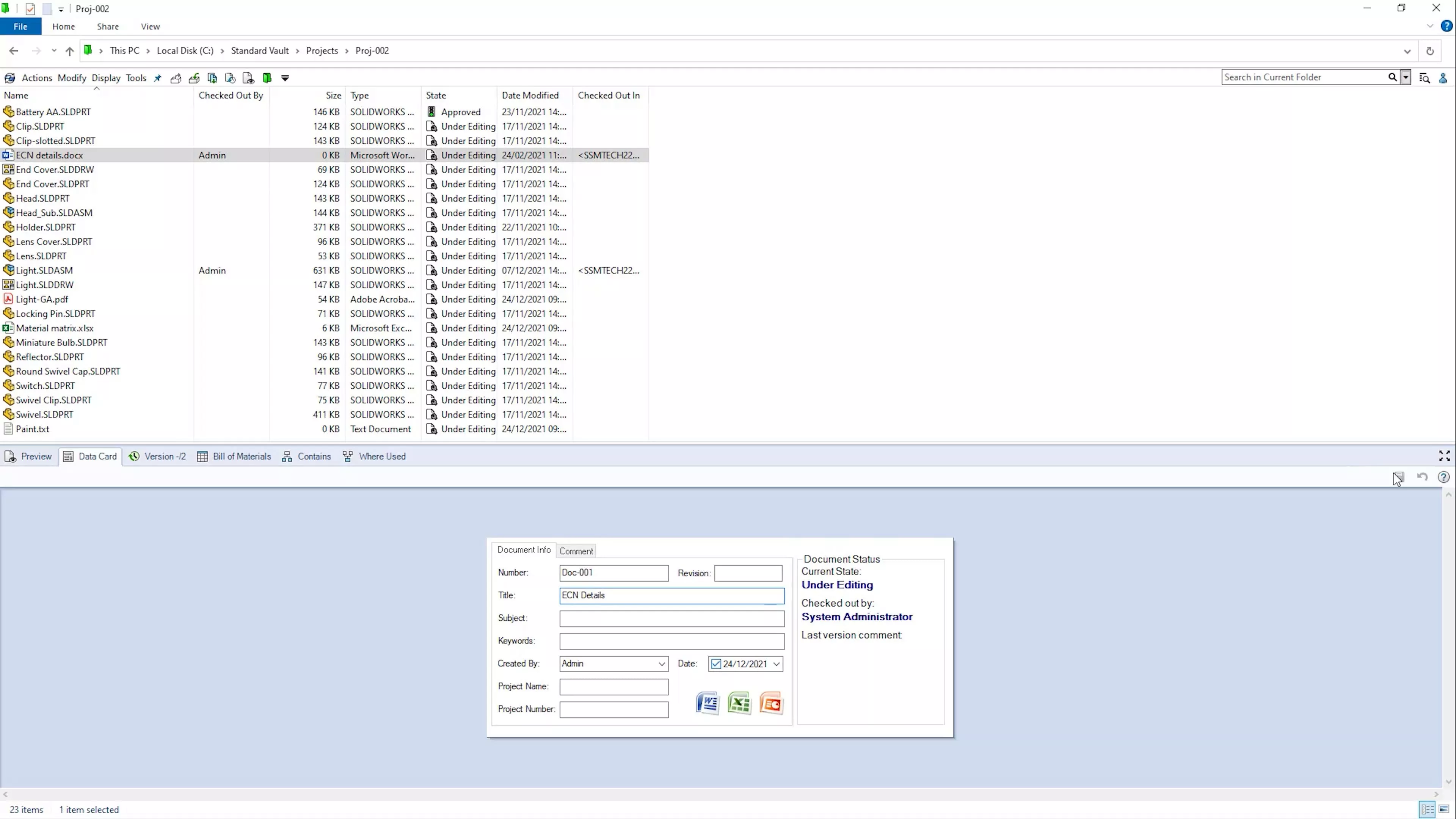
Any data related to your designs can be stored and managed within SOLIDWORKS PDM Standard, with complete control over who can access or even see each file.
You can even add extra data to non-SOLIDWORKS files through unique data cards, attach them to SOLIDWORKS files through Paste as Reference, and push them through your Workflow to ensure these files are revision controlled.
#7 – WORKFLOW
With Workflow you can map out the pathway from initial design to approved release. Move files from a Work-In-Progress state through quality checks before approving designs for release.
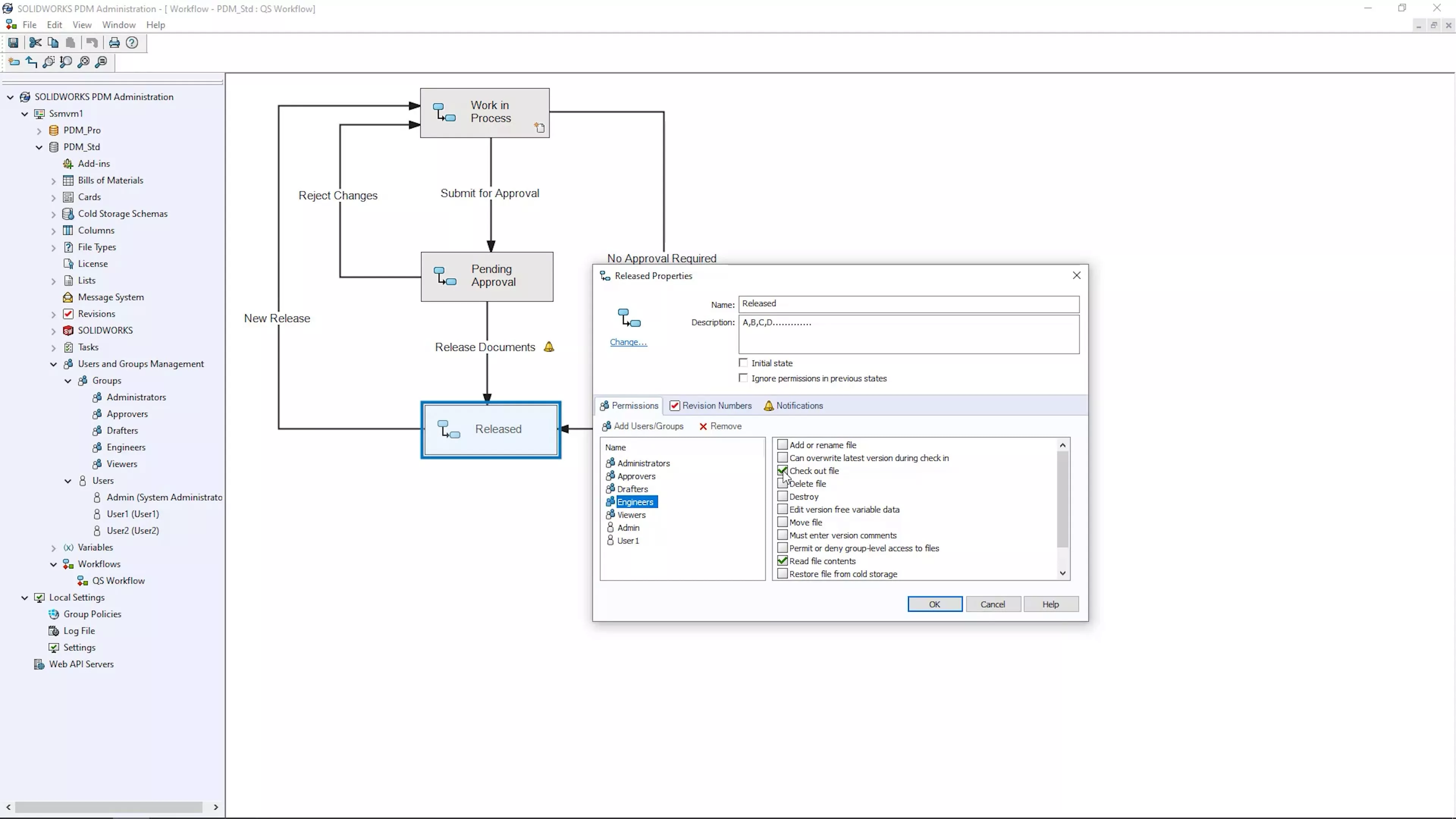
Send notifications manually or automatically when a file changes state in order to prompt an action such as checking or approving. Receive automatic notifications when files have been in a state for a given period to keep things moving and projects on track.
Files move through the workflow along pre-defined paths which are customisable and easy to follow, ensuring each file receives equal and proper treatment by appropriate persons.
#6 – USER PERMISSIONS
SOLIDWORKS PDM Standard allows you to control who has access to specific files and Workflow states. Dictate who can edit, access, or even see certain files with user rights.

Don’t want your design team editing already released files? Or maybe you need to prevent the workshop seeing unreleased designs? With SOLIDWORKS PDM Standard you have complete control over a file’s read & write privileges for anyone within the company.
#5 – FILE RELATIONS
Pinning down where a specific file is used in multiple assemblies can be time consuming. But with PDM Standard, it does the heavy lifting for you – track files and versions with ease to see where they are used and look back through older versions of assemblies.
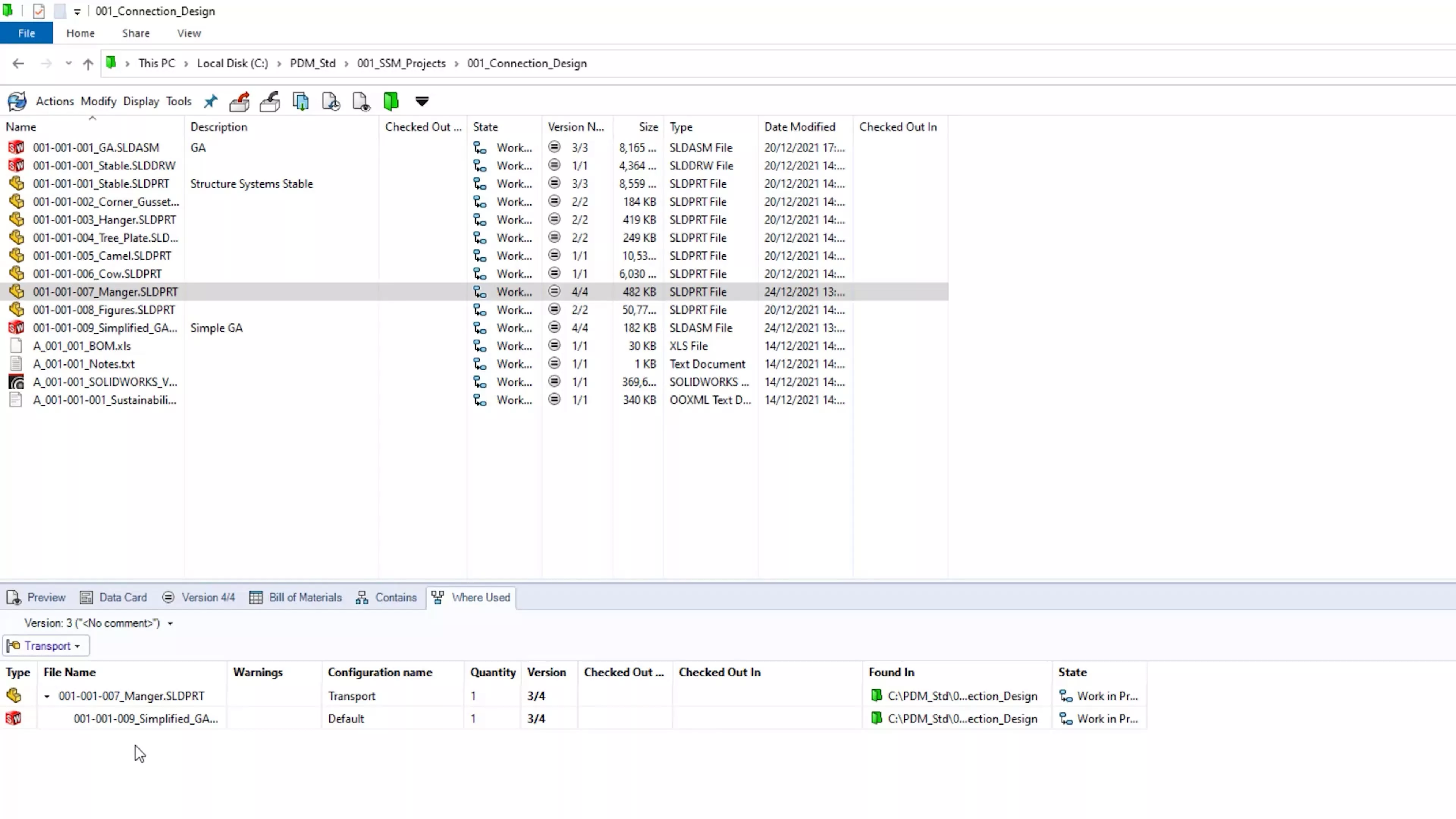
Drawings, configurations, and relationships can be tracked to so you can see at a glance how changes you make might impact other documents.
#4 – ADVANCED SEARCH
With advanced searching capabilities, SOLIDWORKS PDM Standard allows you to find your data quickly and accurately.
Be confident that you’re finding the right information and version from a centralised location, so you never have to recreate work. With advanced searching of custom properties, metadata, combined search terms and more, SOLIDWORKS PDM Standard makes your data accessible and easy to find.
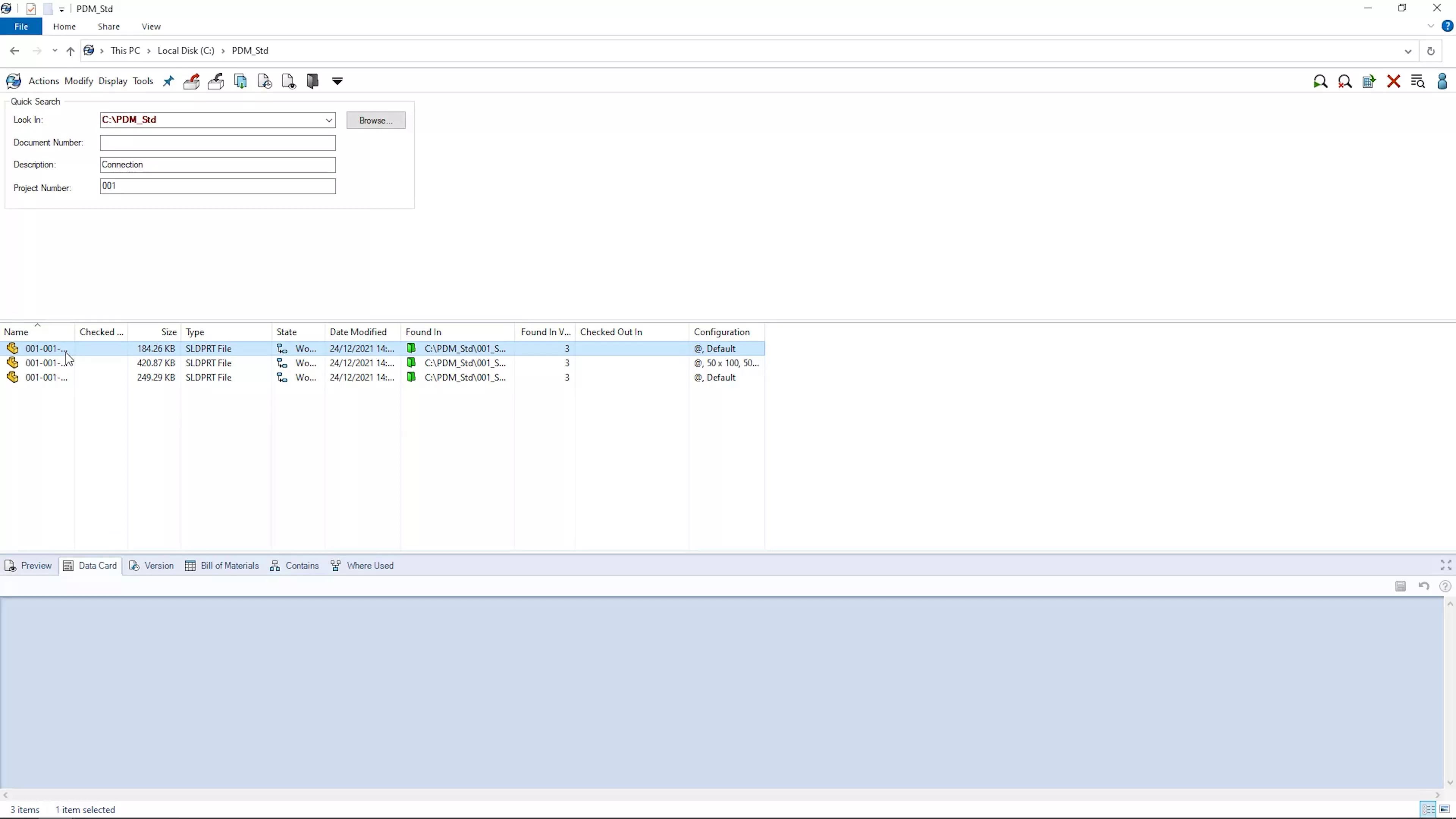
Speed is of the essence, and advanced searching saves you time by trawling databases instead of drives, and you can reuse common searches and create custom search cards to save yourself and your designers even more time.
#3 – SCALABILITY
SOLIDWORKS PDM Standard provides a seamless transition to SOLIDWORKS PDM Pro for more automation and more tasks, script PDM actions with Dispatch, automate Workflow transitions, and employ multiple Workflows with a larger number of states.
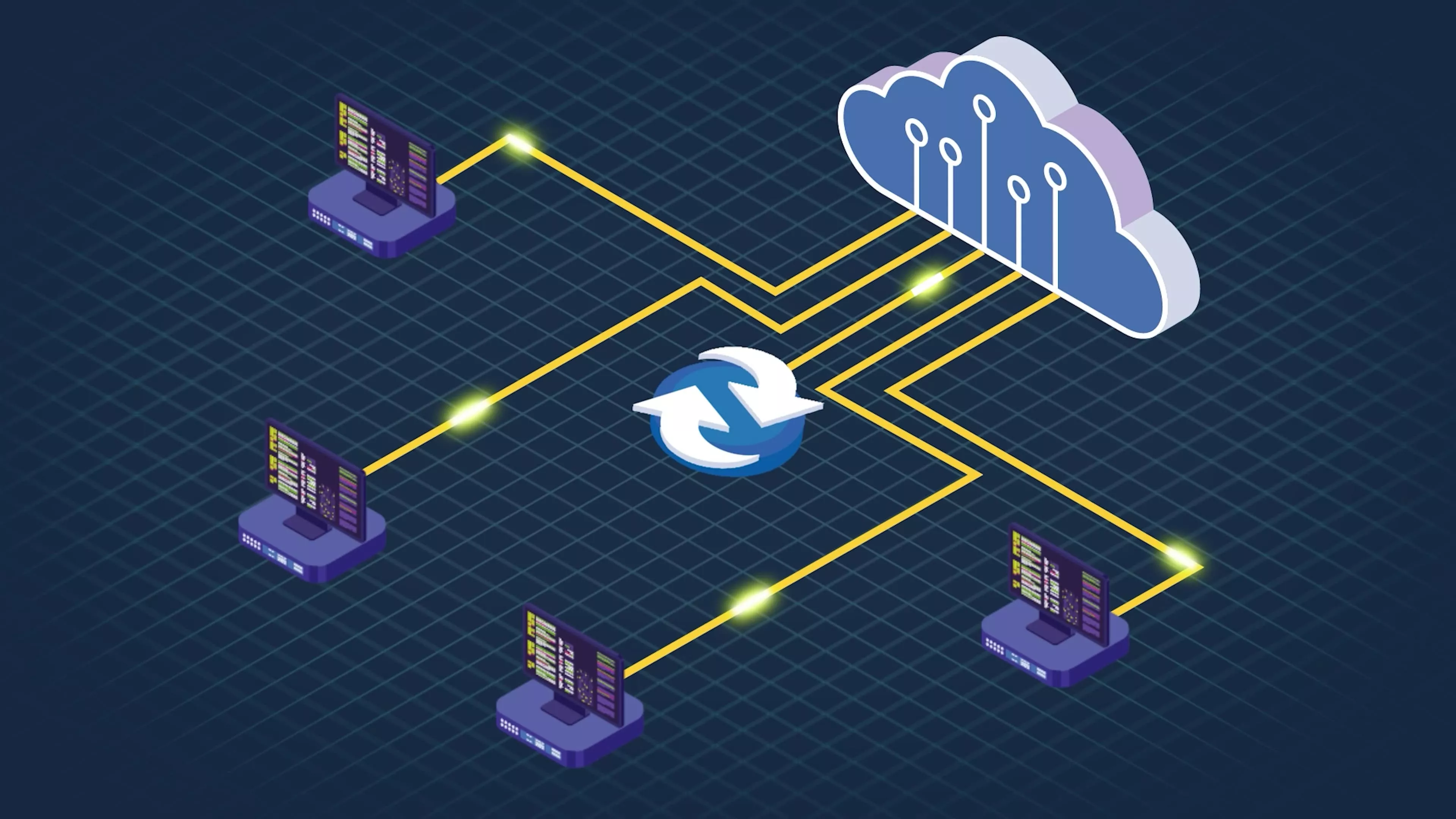
Multiple site scalability can be achieved with SOLIDWORKS PDM Standard through the use of VPNs to connect your sites across a Wide Area Network. Here at Solid Solutions, we also offer a cloud-hosted service that can host PDM Standard or Pro through iomart.
SOLIDWORKS PDM Pro builds on PDM Standard with the introduction of replication and having servers local to each site to give the best performance with overnight server synchronisation.
#2 – FILE SECURITY
SOLIDWORKS PDM Standard keeps your data secure. Files are backed up to servers to protect against corruption and eliminate the risk of saving across network drives.

We’ve seen many files corrupted by working on files stored on network drives, and SOLIDWORKS PDM Standard removes that risk by taking advantage of the local cache, so you’re working on and saving files locally to reduce the need to save and load over the network as often to increase reliability.
#1 – TRACEABILITY
Individual, password-protected accounts bring traceability to modification, as interactions with the file are logged against user accounts on check out. Logged in users must check out a file to work on it and other users can only edit it themselves once it is checked back in.
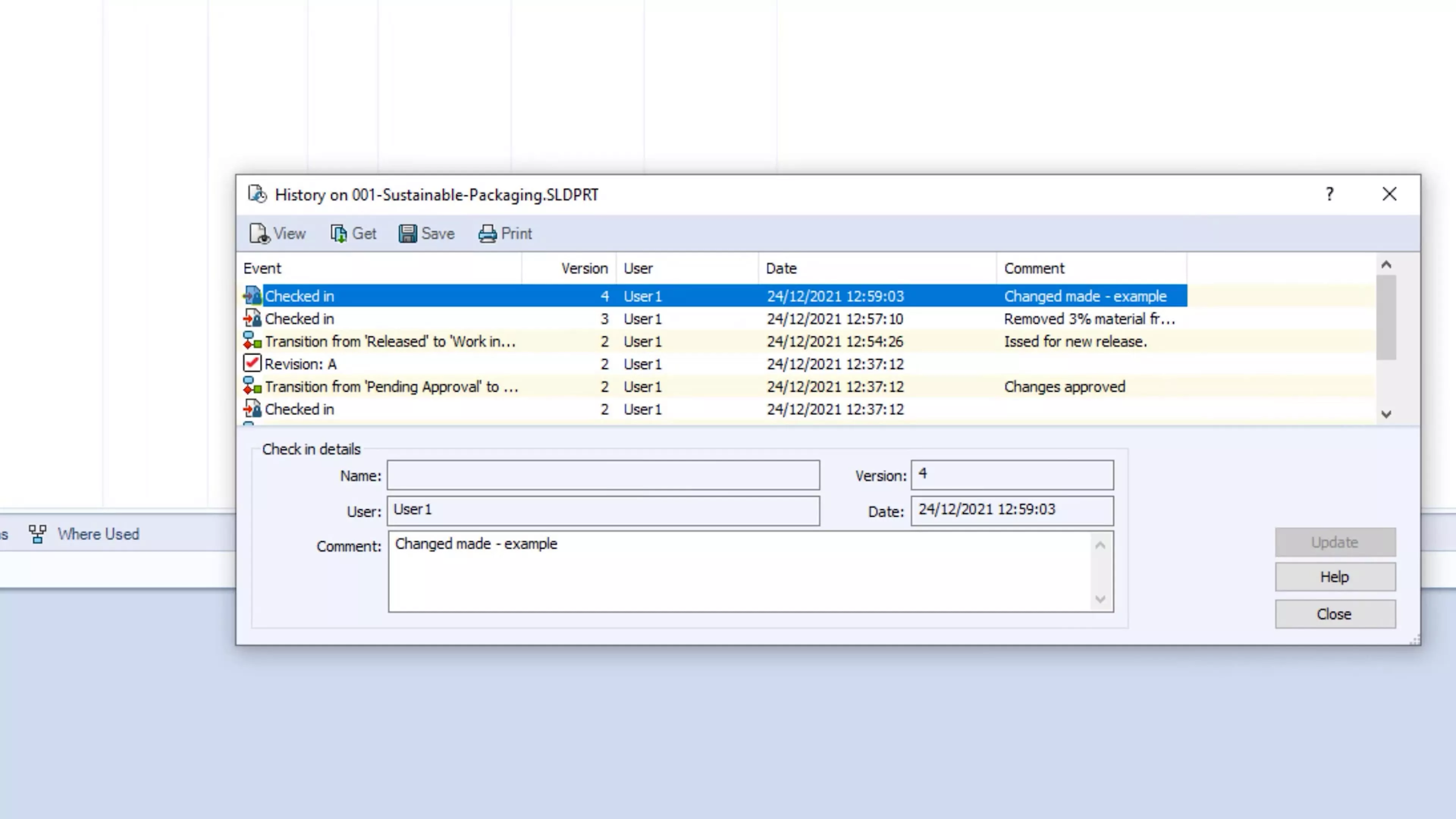
This also prevents data being overwritten when multiple people share access to files, as only one person can check out a file at a time.
Comments can be added to let other users know what changes have been made during a session, and SOLIDWORKS PDM keeps a complete version history of a file, allowing for saved changes to be undone to the last checked state and provides easy access to previous versions of the design.
Revisions can also be created on release, with complete control over who can access and edit the revised versions.
It’s these permissions that give you such power over your data, as SOLIDWORKS PDM Standard brings accountability to every stage of design.
Take the Next Steps…
Master data management with our CPD-accredited SOLIDWORKS PDM training courses. Our friendly and expert Trainers have first-hand experience of implementing and using SOLIDWORKS PDM in industry and are ready to help you get started, either online or in a classroom near you.
Why not take a deeper dive into what’s new in SOLIDWORKS PDM for 2023 and how PDM can work for you and your business?
Categorised as: Data Management
Get Expert SOLIDWORKS Training
Get hands-on SOLIDWORKS training in-person or online, led by certified experts with real industry experience. With venues across the UK & Ireland, it’s easy to start learning today.
Related Posts

How to Create a Pack and Go in SOLIDWORKS
Pack and Go in SOLIDWORKS should be used when sending SOLIDWORKS files to another person. Use this simple guide to help you safely send entire SOLIDWORKS projects.
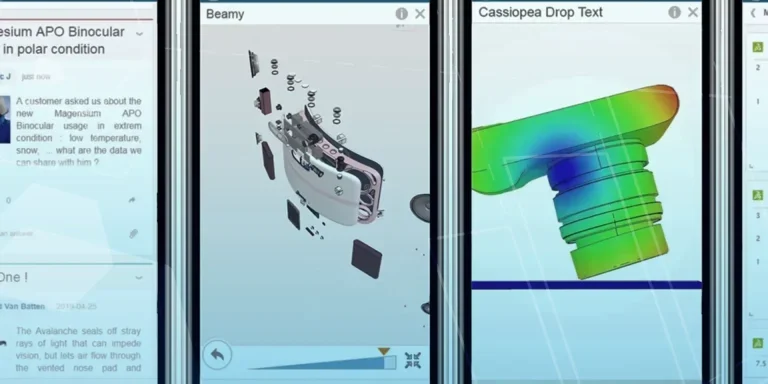
What is 3DSWYM? A 3DEXPERIENCE Platform Tutorial
3DSwym is the application at the heart of the 3DEXPERIENCE, allowing users to connect and collaborate across the platform.
Microsoft SQL Server licensing for SOLIDWORKS PDM
October 2020 marks two important milestones for the SOLIDWORKS PDM family and SQL Server.

Part Numbering in SOLIDWORKS PDM Professional
When implementing a new PDM Professional Vault Customers will have the option to review their part numbering and classification requirements as they move to a system that allows them to, in most cases, automate the way the identify ‘parts’ within the Vault. Part Numbering is something that a lot of customers approach differently and this is often based on ‘how it’s always been done’ without necessarily considering what is the purpose of a Part Number within their organisations and wider within their supply chains. If we consider the humble part number. What is it’s purpose?

The 6 Golden Rules of Managing Data in SOLIDWORKS
When modelling in SOLIDWORKS, before you know it, you will have created lots of parts, assembly and drawing files, so it’s important to think about how you will manage these files and keep everything organised. Here we discuss the ‘6 Golden Rules’ of managing your SOLIDWORKS files using Windows Explorer and recommended methods for file naming, structuring your projects and managing revisions.
This kicks off a month looking at the management of CAD data, register for one of our upcoming live webinars at the bottom of this article.

PDM Professional – Assigning Users with Conditional Notifications
Often customers will create smaller project teams for specific jobs and in the past we have been asked if it is possible, within a multi stage workflow, to pre-assign at the creation stage users who will be notified as checker / approver within those transitions. This blog will demonstrate how, using conditional Notifications in PDM Professional, this can be configured. We will also create some logic to allow for certain parts of the workflow to be bypassed by validating the selected ‘names’ against transition conditions. In this example the ‘approvers’ will be assigned on the files DataCard, but it would be just as feasible to have these names inherited from a project folder card if defining the rules at a higher level was possible within your Teams.
Managing Disk Space with SOLIDWORKS PDM Part #1: Distributing the Archive
This blog series was prompted by a recent support ticket, logged when a customer found their PDM Professional installation suddenly became unusable. The warning message, led to my reviewing the Archive Server Log file and this quickly identified the problem being a result of the PDM Server running out of disk space.
Managing Disk Space with SOLIDWORKS PDM Part #2: Deleted vs Destroyed and the Vault Cleaner Service
In this blog series we are examining the factors influencing disk usage within PDM and what you can do to manage them. In the first part we discussed how you can re-organise your archive across multiple drives to get you back up and running quickly should you find you are short on space. This blog and the next part will discuss behaviours in PDM that can result in redundant disk usage and how you can free that up with the vault cleaner service.
Managing Disk Space with SOLIDWORKS PDM Part #4: Cold Storage
In this blog series we are examining the factors influencing disk usage within PDM and what you can do to manage them. In the first part we discussed how you can re-organise your Archive across multiple drives to get you back up and running quickly should you find you are short on space. In the second part we looked at the differences between a deleted and a destroyed file and the impact the PDM recycle bin has on Disk usage. Part three discussed temporary session files created by the PDM Web Server and this Part will look at an option within PDM called Cold Storage.
Managing Disk Space with SOLIDWORKS PDM Part #5: Archive Compression
In this blog series we are examining the factors influencing disk usage within PDM and what you can do to manage them. In the first part we discussed how you can re-organise your archive across multiple drives to get you back up and running quickly should you find you are short on space. In the second part we looked at the differences between a deleted and a destroyed file and the impact the PDM recycle bin has on Disk usage. Part three discussed temporary session files created by the PDM Web Server. In part four we discussed cold storage and in this last part we will look at archive compression.