











SOLIDWORKS Tips: How to Create Planes in SOLIDWORKS
Written by: Terry O'Reilly
Published: Jul 19, 2023
| View All Blogs
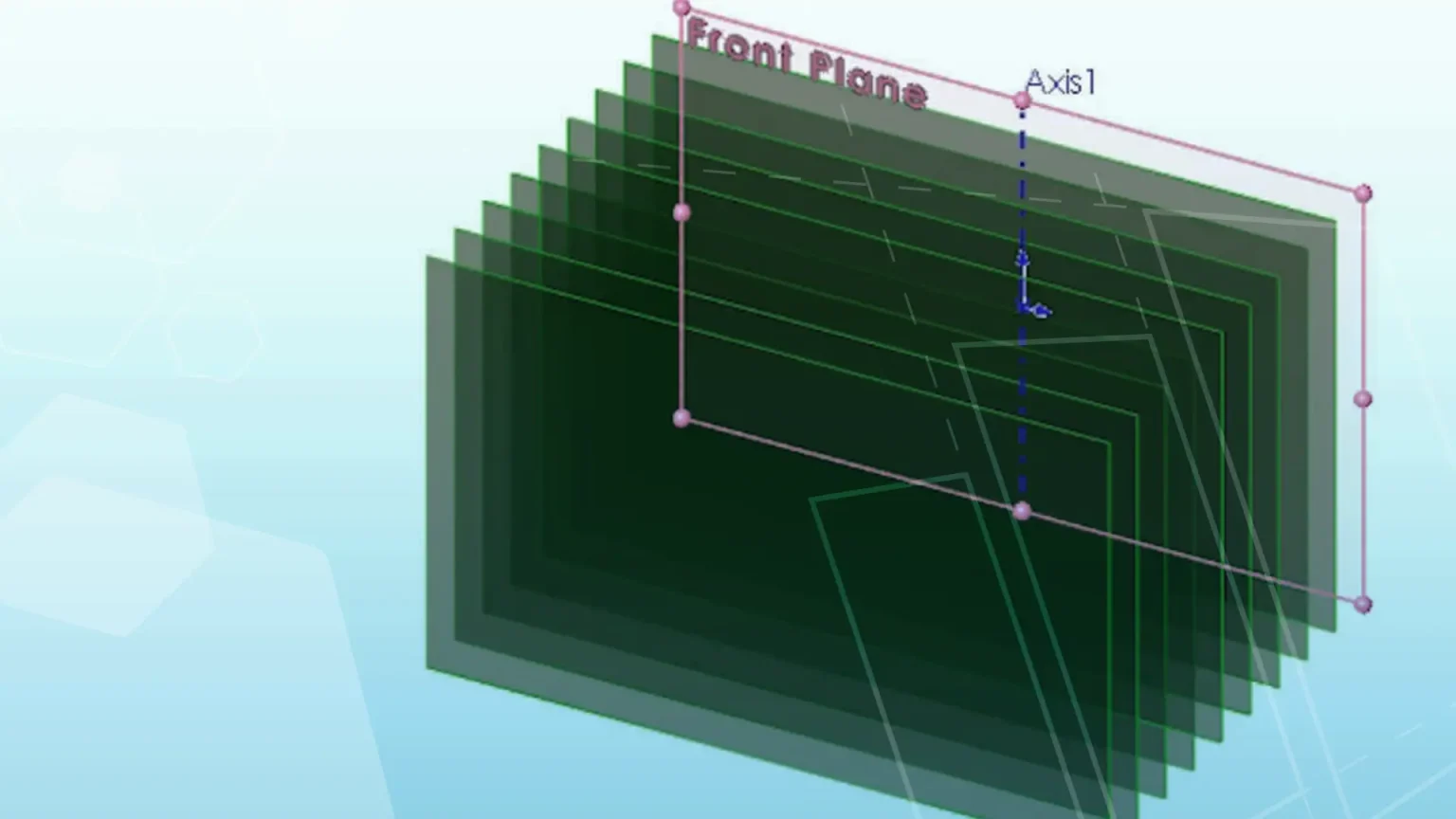
By default, every SOLIDWORKS Part and Assembly file has a Top, Front, and Right plane, each centred on the origin.
As a designer, it is essential that you know how to create planes in SOLIDWORKS to enable you to model more complex geometry. Fortunately, the process is straightforward and intuitive.
So, let’s guide you through how to create new planes in SOLIDWORKS.
HOW TO ADD PLANES IN SOLIDWORKS
Each plane is effectively infinite in two directions, but has visible edges for viewing and selection.
Adding planes in SOLIDWORKS is achieved using the Plane wizard.
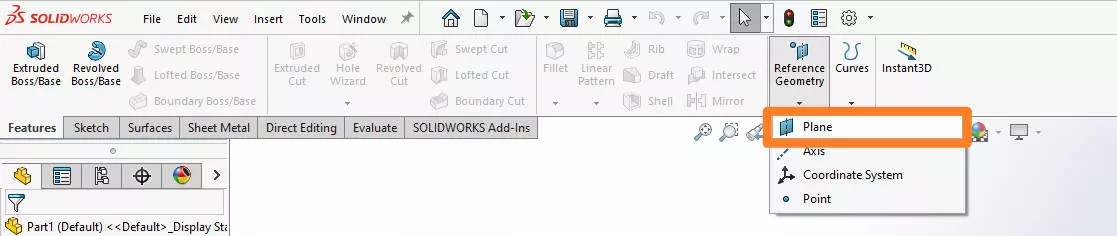
The Plane wizard can be accessed via Features > Reference Geometry > Plane on the command manager or via Insert > Reference Geometry > Plane from the drop-down menu.
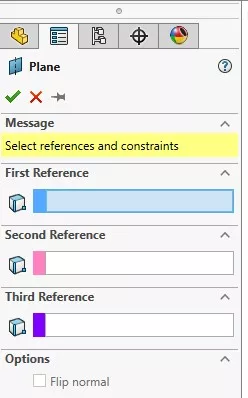
Up to three references can be selected in order to define a new plane. These references are listed as First, Second, and Third within the Plane command.
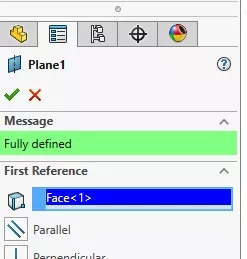
Just as in a sketch, planes must be fully defined. The property manager must be showing Fully Defined in green at the top before you can accept the command and create the plane.
You might need to select up to three references to create the plane that you want, but usually only one or two selections are necessary – it is only when you have selected points or vertices that you will need all three references.
SHORTCUT FOR CREATING PLANES IN SOLIDWORKS
The quickest way to create planes in SOLIDWORKS is to select a vertex of a plane, hold CTRL and drag the corner into the rough position.
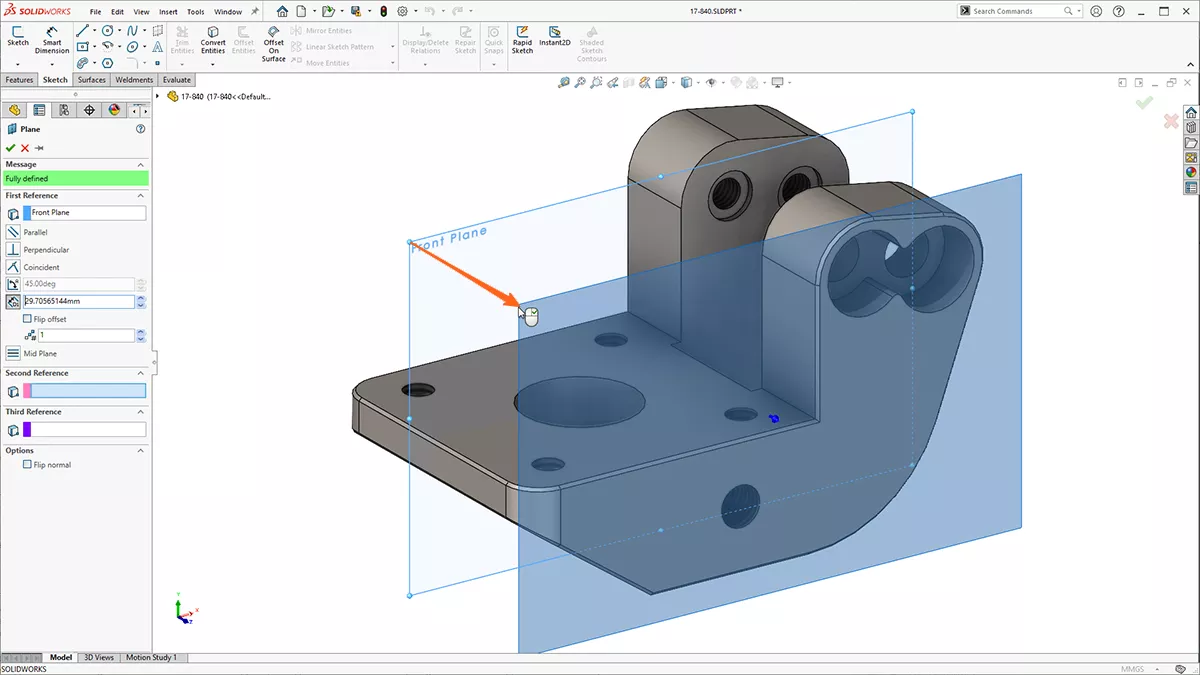
Then specify any references and distances.
Which Plane References Should I Use?
Let’s explore some of the reference variations we can use when creating a new plane.
OFFSET PLANES
Whether we select a flat face or an existing plane, we get a preview of a new plane being created parallel to it, with a numerical offset that we can vary.
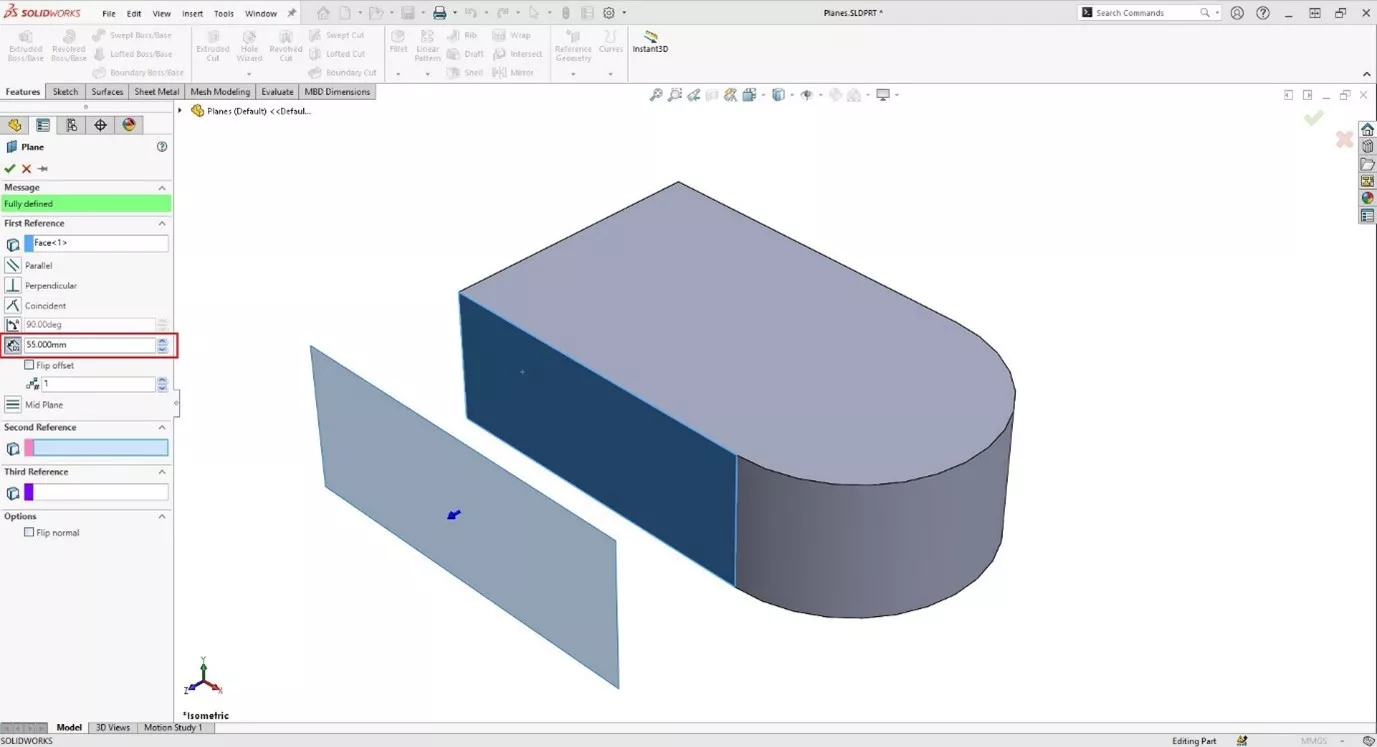
The direction of which can be reversed by ticking the Flip Offset option.
Be sure to select both references before modifying the offset value.
PERPENDICULAR PLANES
Here we have selected the left face and the vertical edge on the left corner – but no settings in the Primary reference plane were modified before selecting the secondary reference.
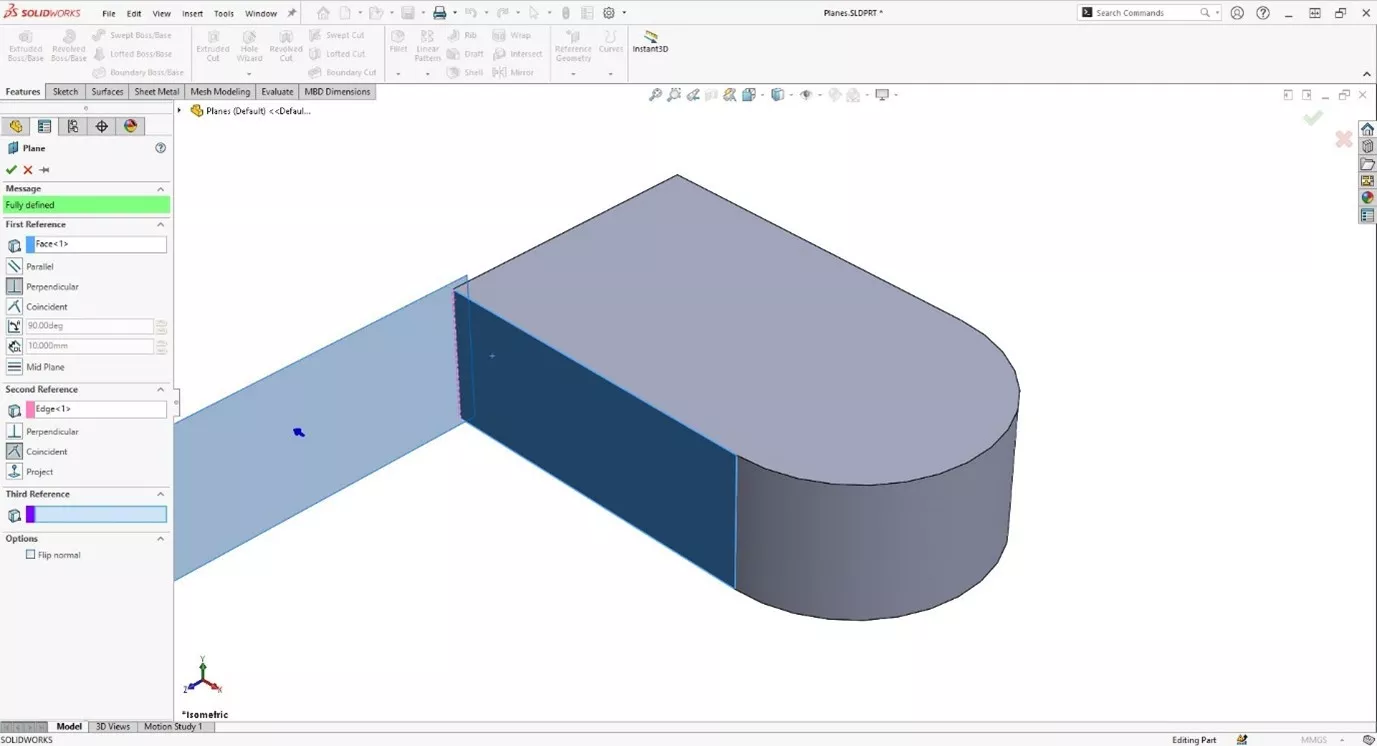
You can see that the system is automatically showing the new plane as perpendicular to the face and coincident to the straight edge.
ANGLED PLANES
We could then activate the angle option relative to the face, and then effectively rotate the plane about the straight edge.
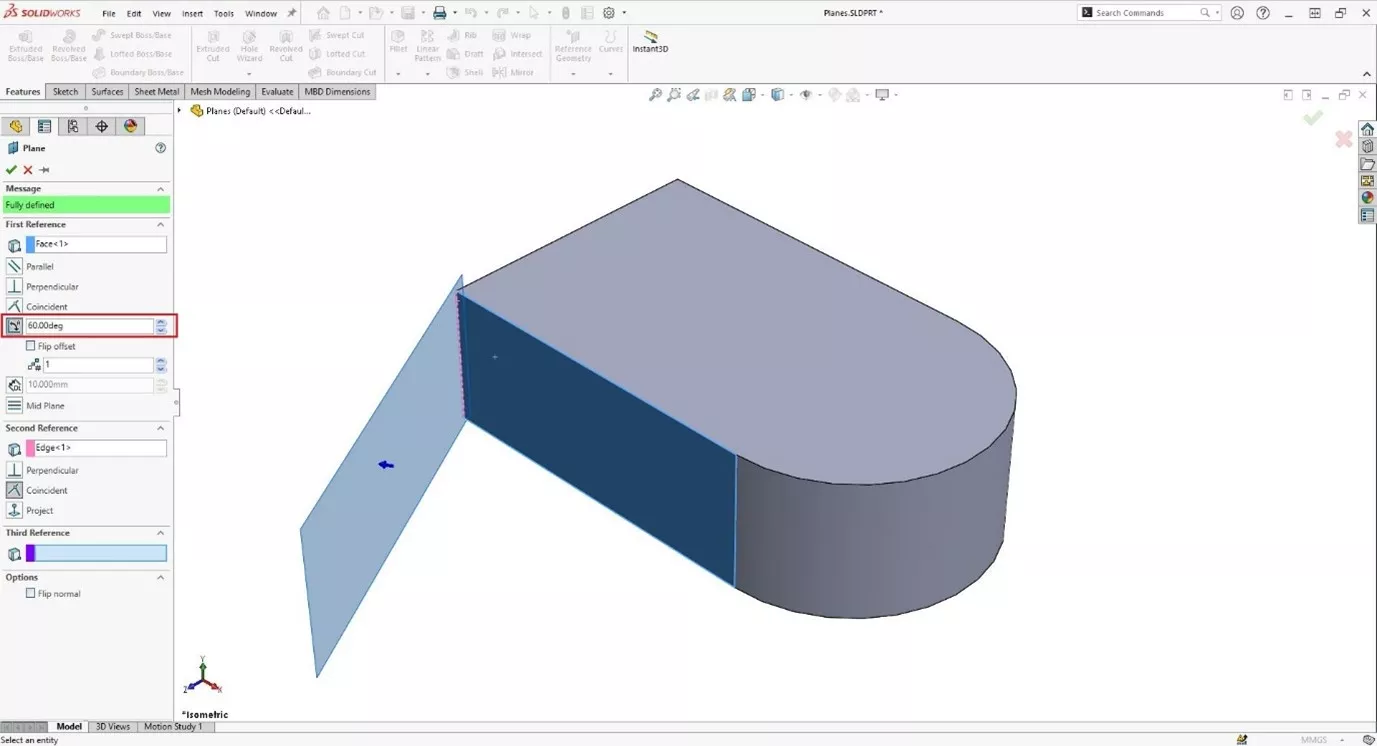
This maintains a logical order for selecting references.
PARALLEL PLANES
It’s important to note that there are many combinations of selections that are valid, but each combination will affect the design intent of your model.
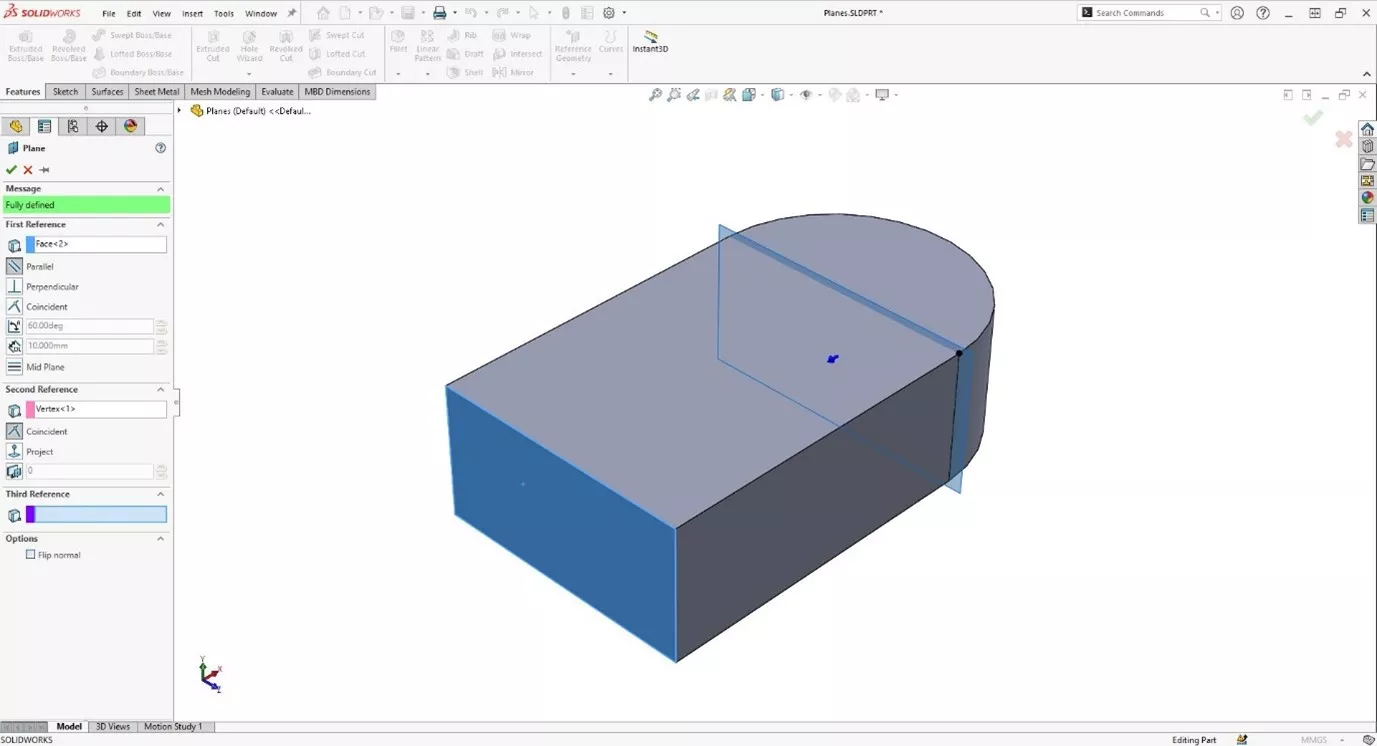
For instance, you can have a plane parallel to a face and have the offset specified by selecting a point or vertex on the model geometry.
If the earlier geometry is edited, then the plane will update its position.
SELECTING EDGES, VERTICES & OTHER PLANES
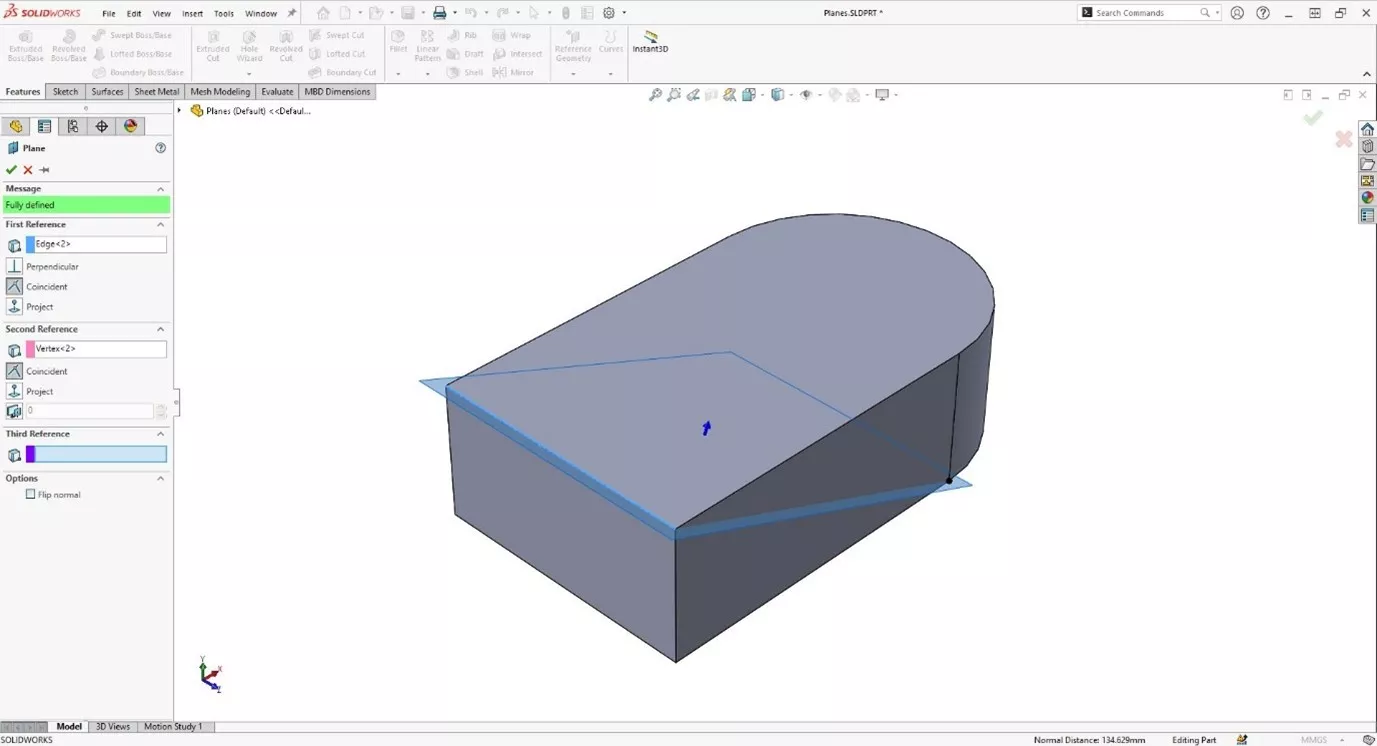
If you select a straight edge, line or axis, and a vertex you will get something like this.
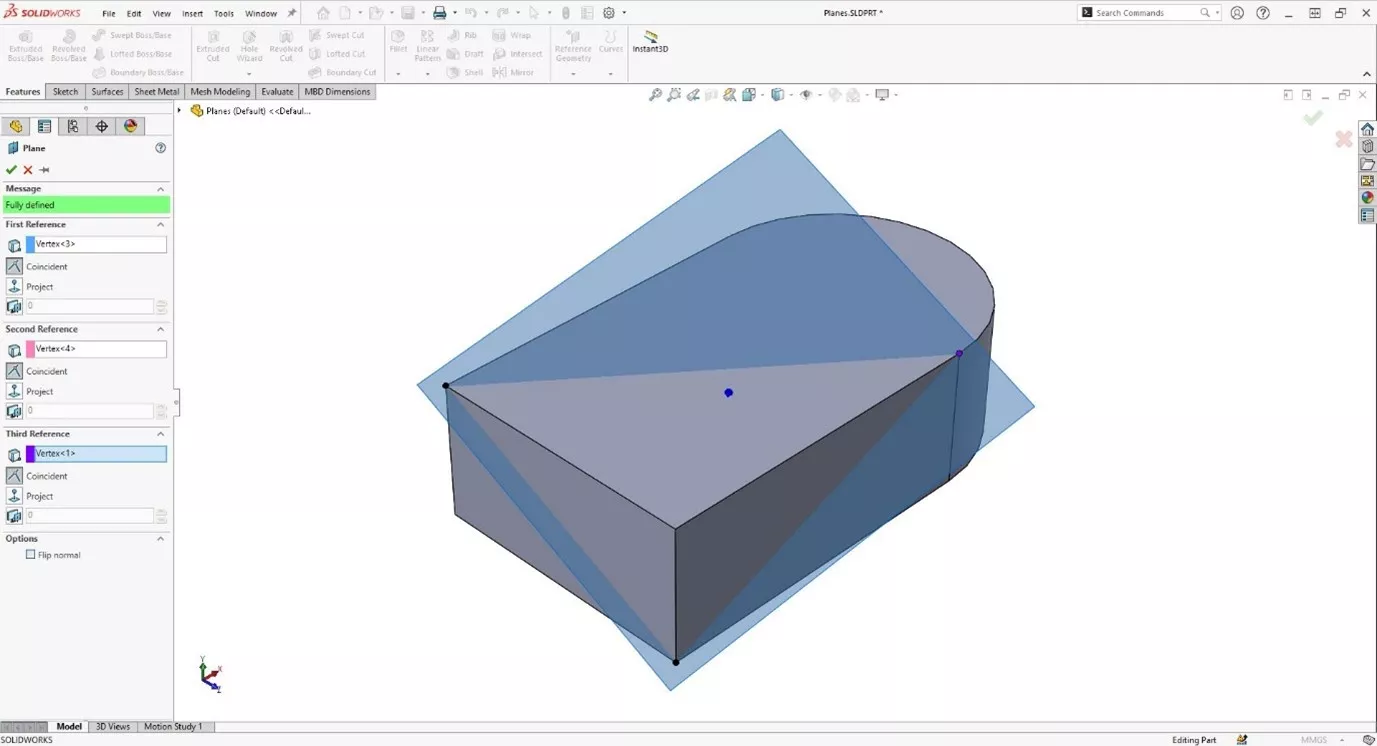
If you pick three vertices or sketch points.
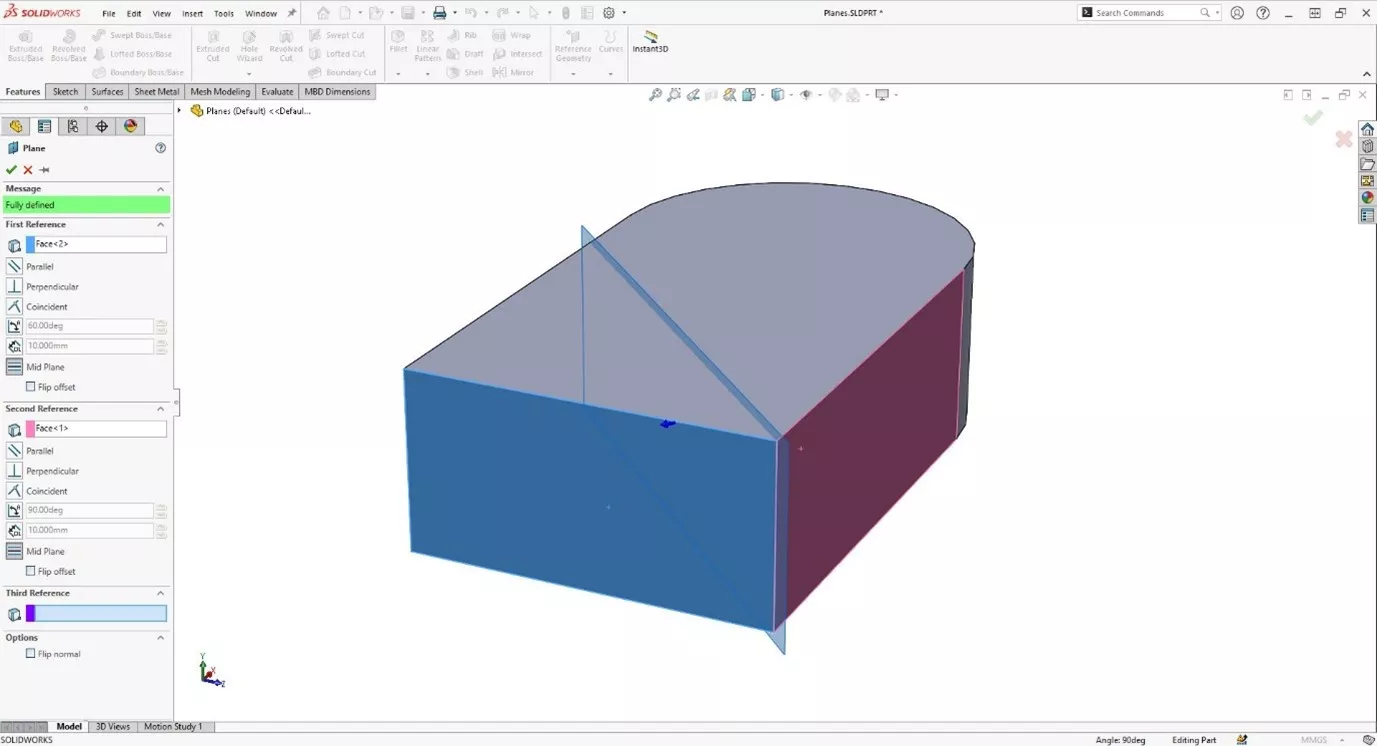
If you pick any two planes or flat faces, the system will give you a new plane halfway between the two.
TANGENTIAL PLANES
Choosing an existing plane or flat face and a cylindrical face will default to offering you a new plane that is perpendicular to the flat face or plane, and tangent to the cylindrical face.
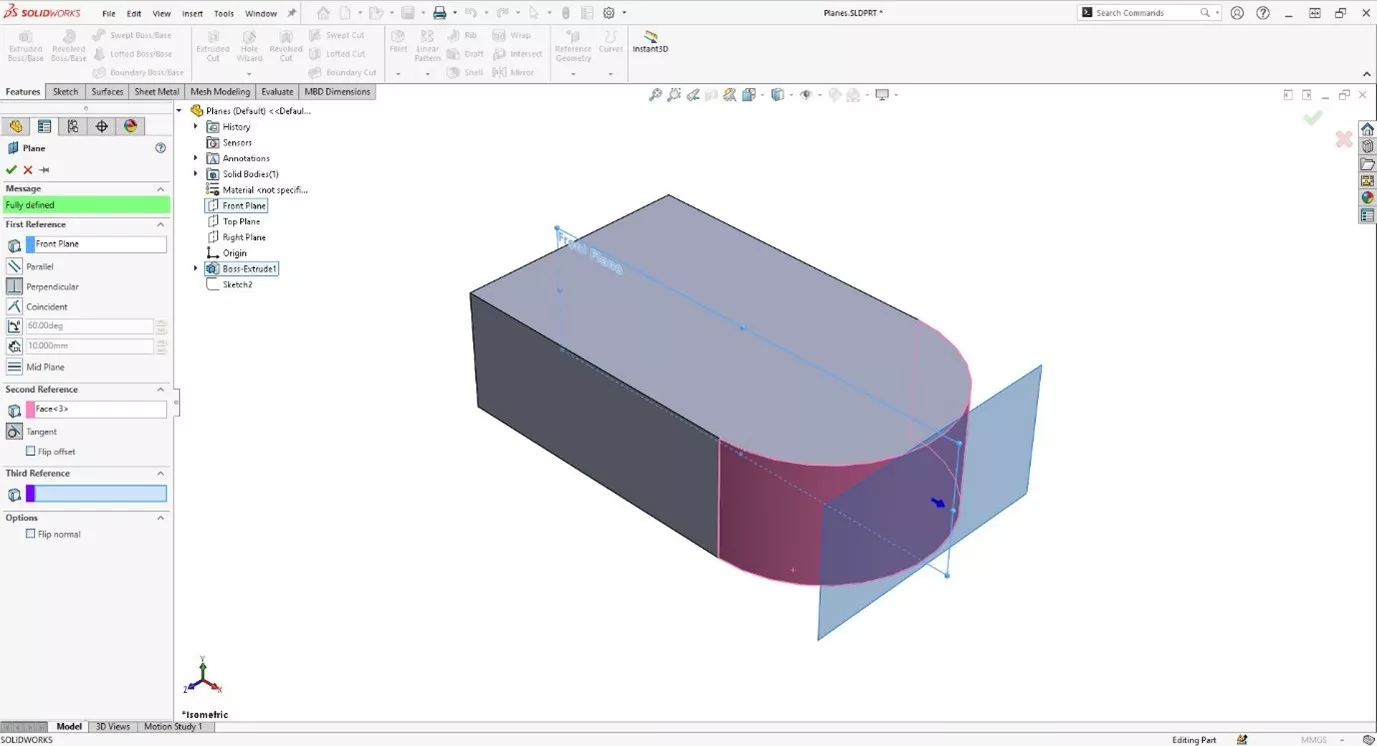
However, you could choose the angle option and then rotate the new plane around the cylindrical face.
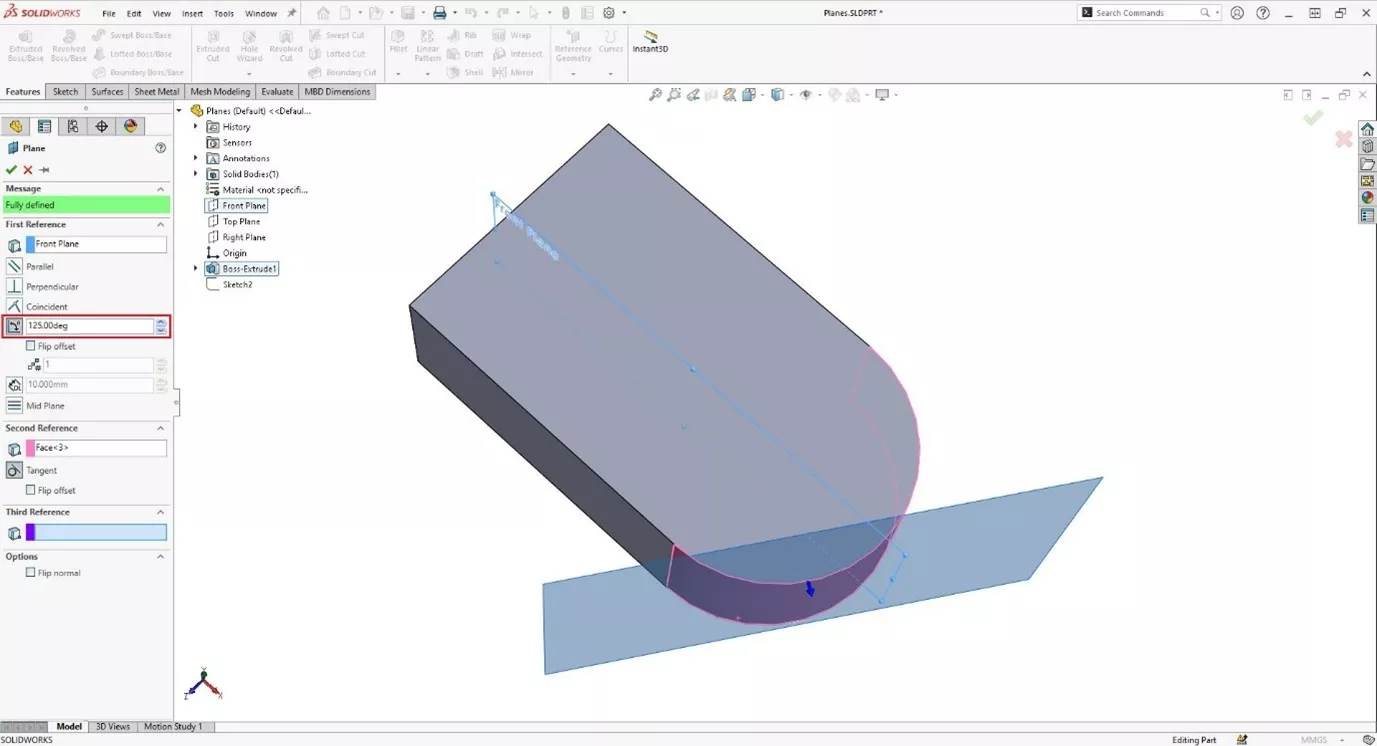
This is great if you are making a keyway into the side of a shaft. Create a sketch on the plane and make an extruded cut into the shaft to make the recess for the key.
You can then edit the timing of the cam or gear by editing the angle of the plane.
ENDPOINT PLANES
If you want to make a sweep feature, you can draw the path sketch and then create a plane on the end of it using the line and the endpoint.
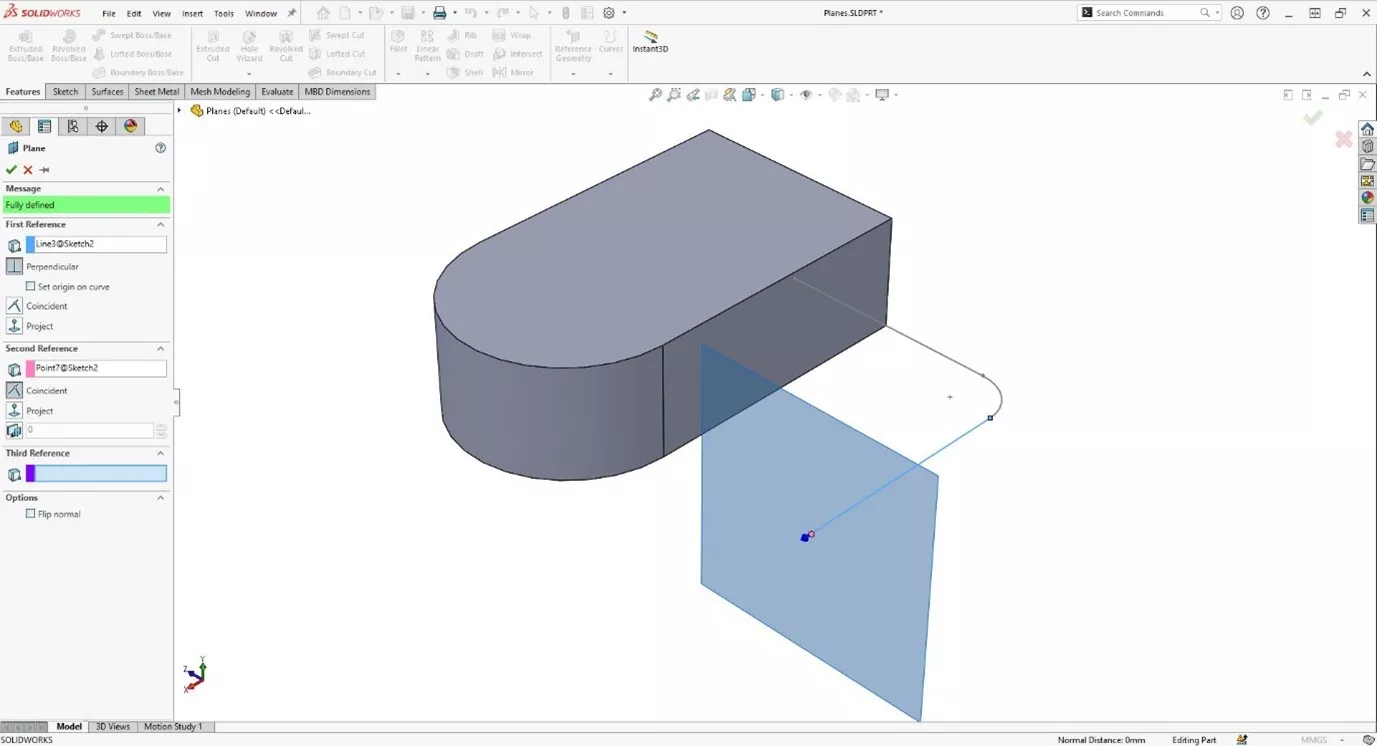
Create your profile sketch on that plane.
CREATE A PLANE PARALLEL TO THE SCREEN
This option is very rarely used, but you should know that it is at least possible… Here we can select a single point or vertex and using the parallel to screen option.
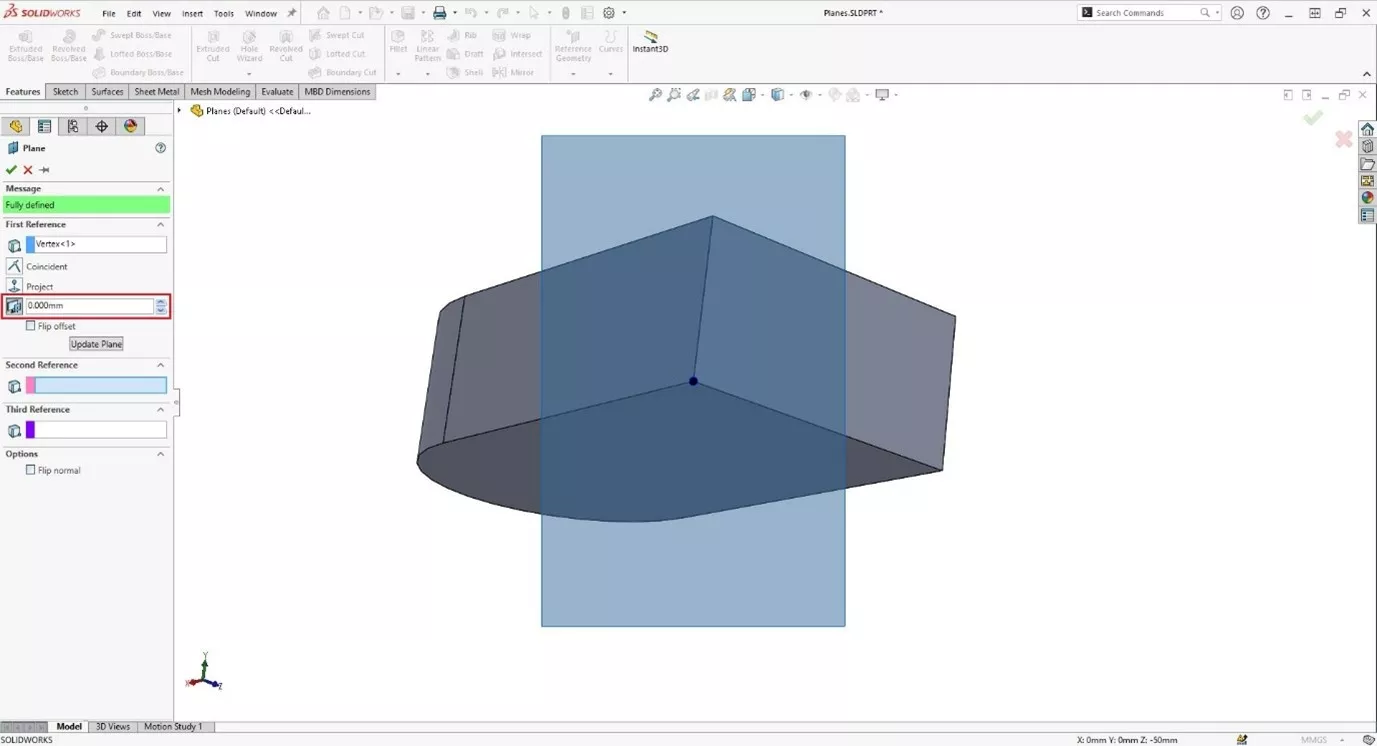
It’s helpful, but purely depends on the viewing angle you are in at that moment in time. So, accurate? Hmm.
CAN YOU CREATE PLANES IN AN ASSEMBLY?
You bet! You can also make planes inside an assembly in a similar way via Reference Geometry > Plane.
But do be aware that if you make an assembly-level plane using any of the components as references, then that plane can only update after those components (and their mates) have been rebuilt.
This could cause your system to run slowly, depending on what you have selected.
Get SOLIDWORKS Technical Support
With a SOLIDWORKS subscription you gain access to our expert SOLIDWORKS Technical Support team.
Call on 01926 333 777 or drop an email to help@trimech.com and one of our expert engineers will be in contact.
Categorised as: SOLIDWORKS Design | Tech Tips
Get Expert SOLIDWORKS Training
Get hands-on SOLIDWORKS training in-person or online, led by certified experts with real industry experience. With venues across the UK & Ireland, it’s easy to start learning today.
Related Posts

How to Find Reaction Forces in SOLIDWORKS Simulation
SOLIDWORKS helps us to find resultant forces through simulation studies. These virtual tests reduce the need for physical prototypes and give us an accurate answer.

Setting number of decimal places in a table on a drawing
When creating an equation in a drawing general table, is it possible to define the…

SOLIDWORKS Smart Fasteners
SOLIDWORKS Smart Fasteners is a really useful time saving tool, allowing you to automatically insert toolbox fasteners such as bolts and screws into an assembly providing there is a standard hole.

Why is my Flat Pattern not showing in SOLIDWORKS Drawings?
This may be linked to how the drawing is saved or it can be related to how sheet metal parts are displayed in drawings, read on to find out how to fix it.

Why is SOLIDWORKS Crashing?
It’s one of the great mysteries of life – why is SOLIDWORKS crashing? Let’s explore how SOLIDWORKS crashes and how we can improve performance in SOLIDWORKS.

SOLIDWORKS Tips: Are you Making this Common Mistake in Fatigue Analysis?
Simulation is a vital and complex engineering need. Fortunately, SOLIDWORKS makes it easy to test, correct mistakes and obtain accurate results.

Tech Support Blog: Why are my SOLIDWORKS BOM Quantities Wrong?
Why are my SOLIDWORKS BOM Quantities Wrong? A support call cropped up this week which…

How to Get Your Serial Number for SOLIDWORKS Visualize Standard
Want to download Visualize to make photorealistic renders? Follow this guide for accessing your Visualize serial number that comes bundled in with SolidWorks Professional and Premium.

How to Recover SOLIDWORKS Files After a Crash
SOLIDWORKS has two different methods to help you recover from an unexpected crash or loss of data in the form of auto-recovery and back-up settings.

Redesigning Santa’s Sleigh in SOLIDWORKS
Every year Father Christmas has to fly in his sleigh to deliver presents to boys and girls all over the world in just one night. To put this into perspective, it takes a little under 24 hours to fly from London (UK) to Sydney (Australia) in a streamlined Boeing 747, whereas Father Christmas’ mode of transport is believed to be a rather non-aerodynamic sleigh.