











Surface Modelling: How to Convert Surfaces to Solid Bodies in SOLIDWORKS
Written by: Terry O'Reilly
Published: Aug 18, 2023
| View All Blogs
Let’s show you a basic, but vital, surfacing modelling skill: converting a surface to a solid body.
Contrary to popular belief, solid modelling and surface modelling techniques are complementary, and knowing how to convert surfaces to solid bodies is essential when designing in SOLIDWORKS.
Whenever you work with ergonomic, freeform, or organic shapes, shapes with a particular focus on smooth curvature, and even defective (often imported) geometry, you should consider surface modelling tools.
What is Surface Modelling?

As opposed to solid modelling, where any creation will have a wall-thickness or solid volume (and therefore weight), surfaces have no thickness, and are entirely weightless.
A surface can be used as reference geometry, like the end-condition for an extruded solid, but is often used to produce complex solid geometry one face at a time.
We recommend a workflow that utilises a hybrid of solid and surface modelling techniques.
Most of the same tools you’re used to using to create solid bodies can be used to create surfaces.
These include extrudes, revolves, sweeps, lofts, and boundaries.
In conjunction with surface-only features like Fill Surface, these tools can be used to construct the outer shell of a complex model one face at a time, a workflow and outcome hard to achieve using the solid-feature counterparts.
HOW TO CREATE A SOLID BODY FROM MULTIPLE SURFACES
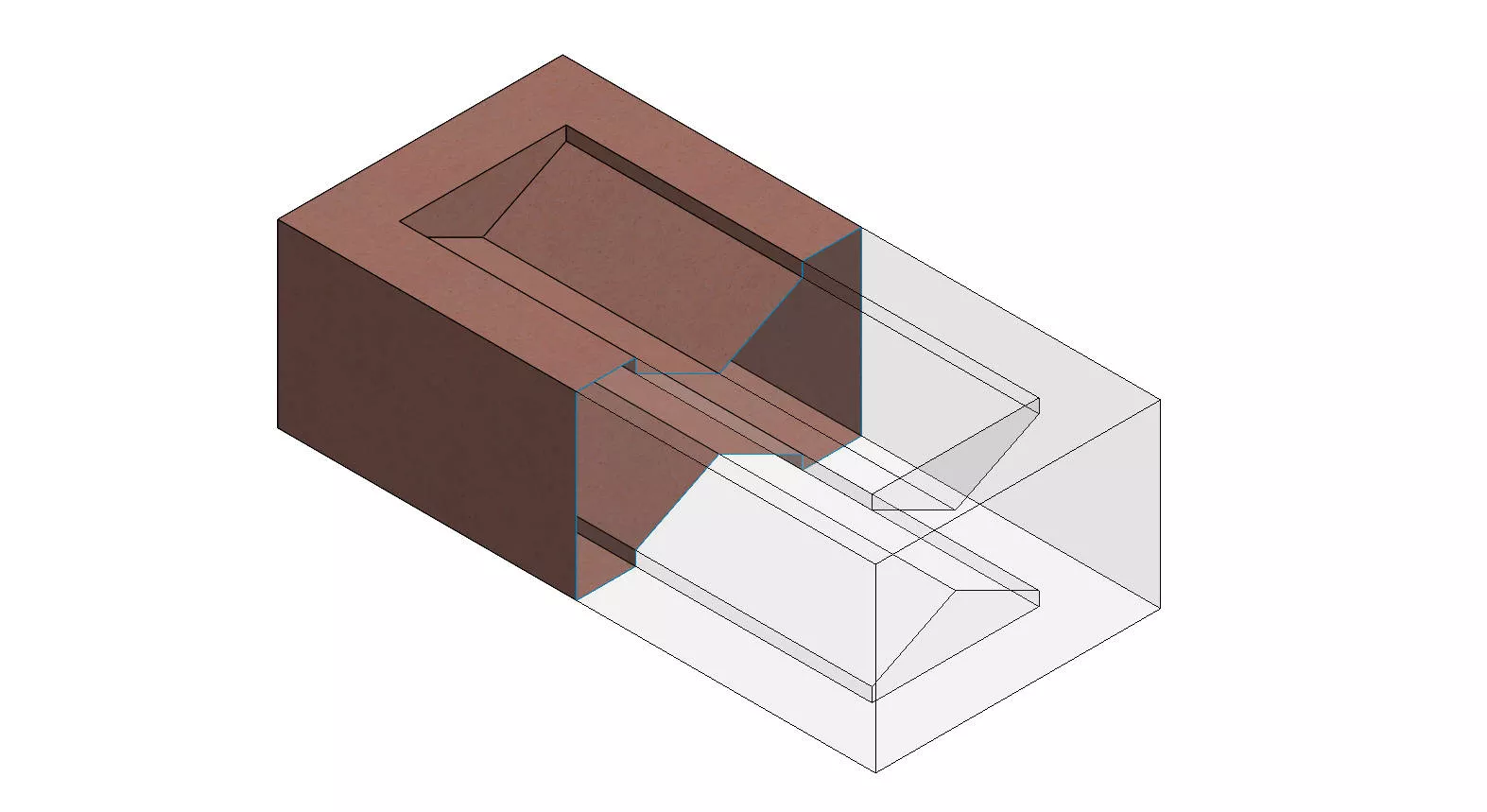
The model below has been created by only using surfaces and knitting them together with the Knit Surface command.
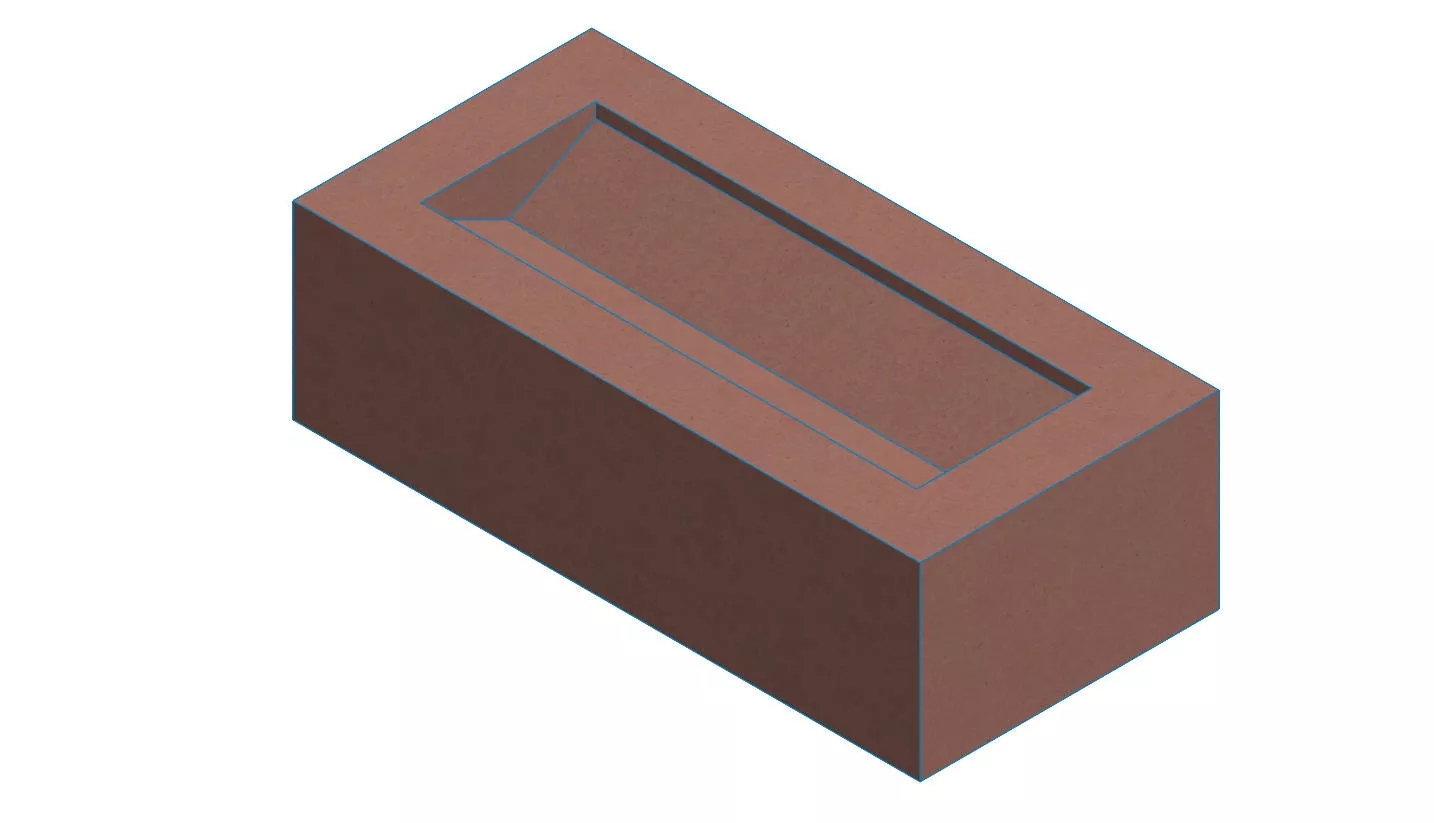
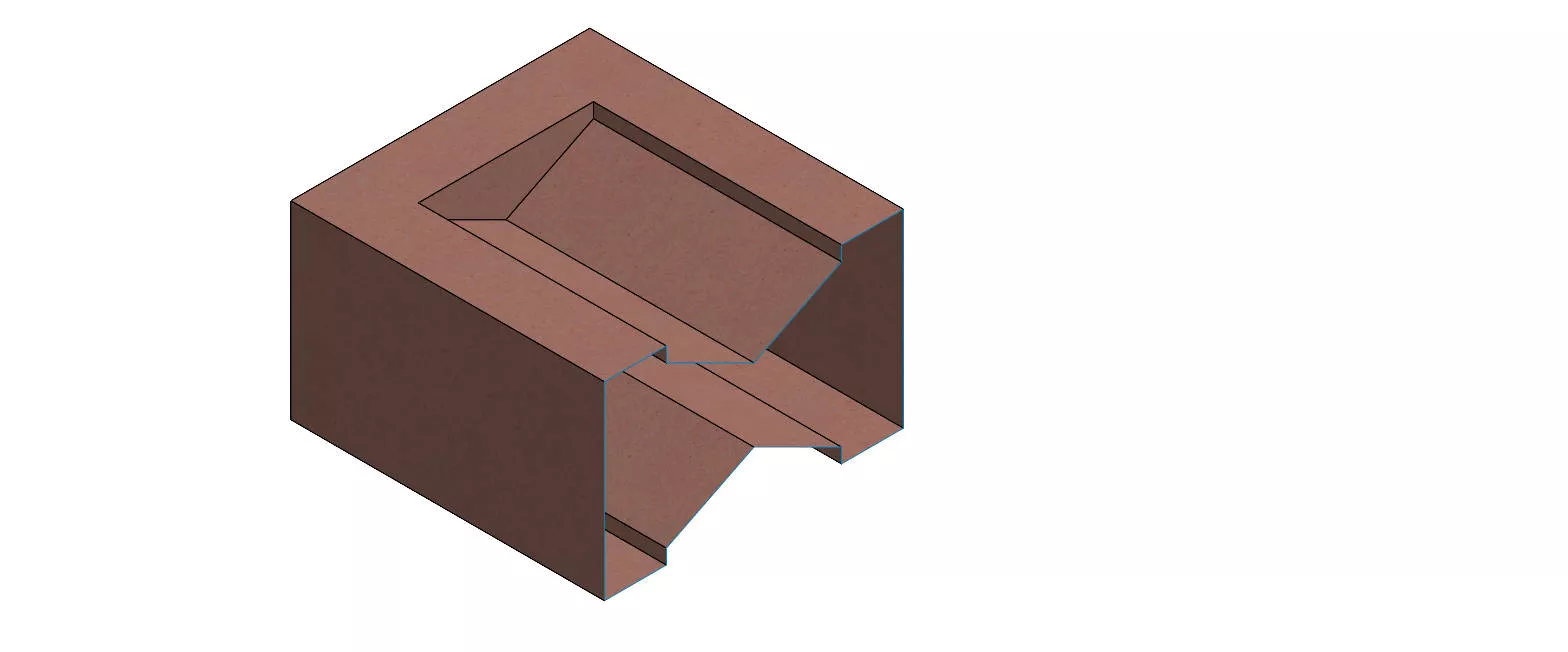
Although this looks like a standard solid body which has a completely solid volume, a section view through the model will prove that none of the faces have thickness.
Looking at the Surface Bodies folder, we can see 18 individual surface bodies. Although it may appear as though these faces join perfectly, SOLIDWORKS currently sees them as disconnected.
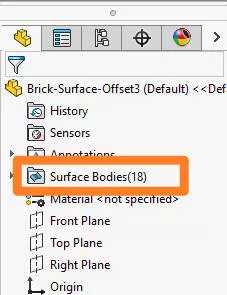
This often has advantages but, in this case, we need one complete surface to fill its volume and create a solid.
To merge these surfaces into one solid body, we use the Knit Surface command found on the Surfaces tab. If you don’t see your Surfaces tab, right click on the Command Manager > Tabs and enable Surfaces.
Don’t forget, you can also search for commands in SOLIDWORKS with the W or S keys!
TOP TIP – Look for blue lines when working with surfaces. If two surfaces are perfectly knit together, it will show a black edge-line. If the edge-line between two surfaces is blue, it’s not yet knit.
They may be perfectly aligned edge-to-edge, but if they are not knit, the two surfaces are completely disconnected.
HOW TO KNIT SURFACES IN SOLIDWORKS
Only surfaces that have adjacent edges can be knitted together.
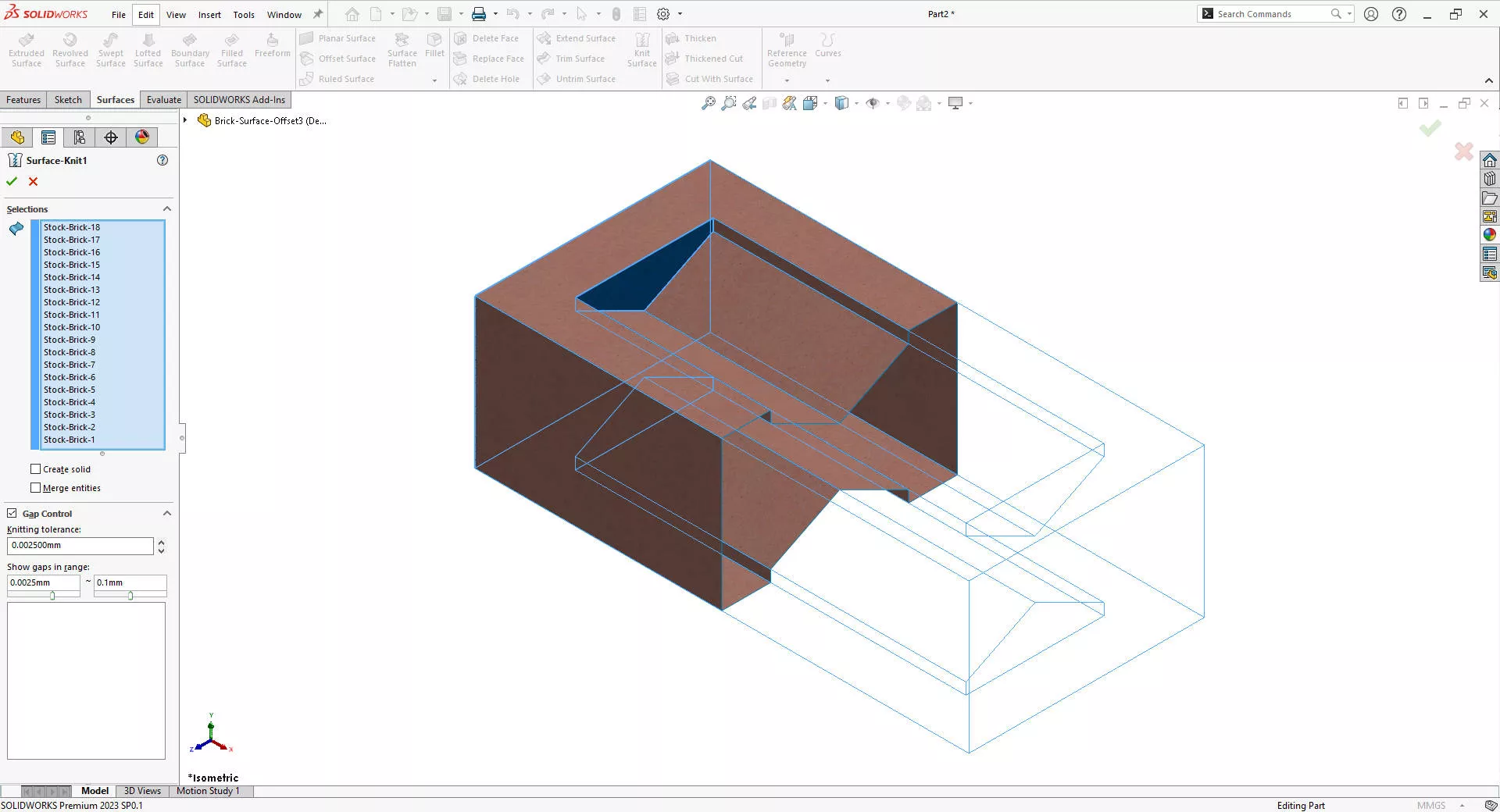
Sometimes there may be slight discontinuity between edges, which is why we use the built-in Gap Tolerance tool to repair edges.
The Gap Tolerance tool can be used to highlight and repair openings between surface bodies where the alignment wasn’t perfect.
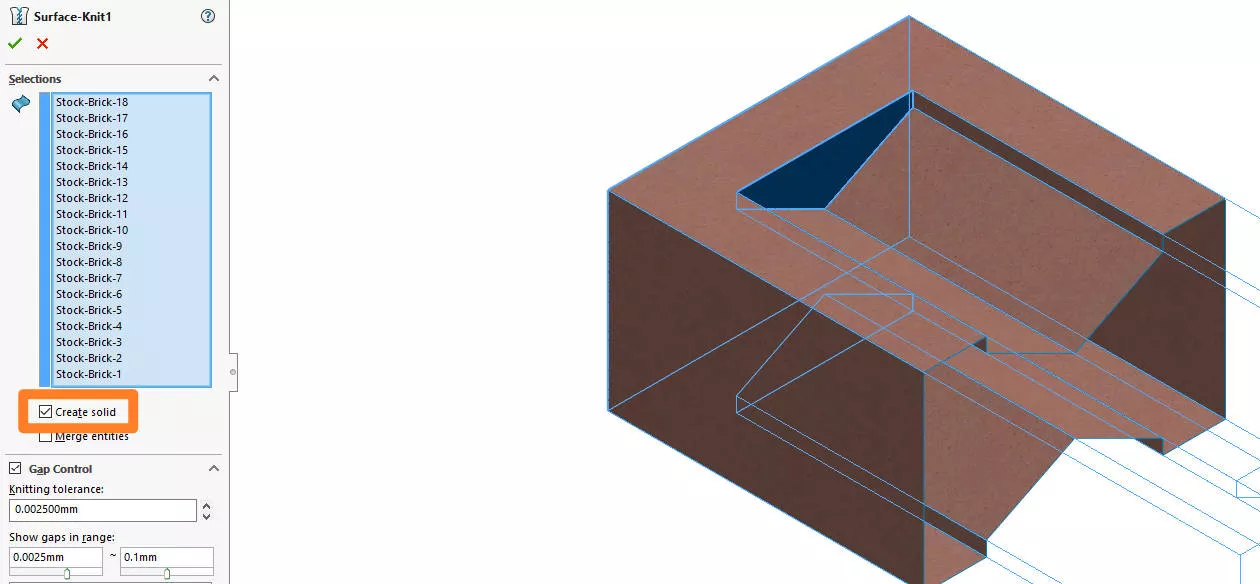
As this is an enclosed set of surface bodies, we can create a solid body directly from the Knit Surface property manager.
Simply select the checkbox to Create Solid and we are now left with a single solid body within the Solid Bodies folder.
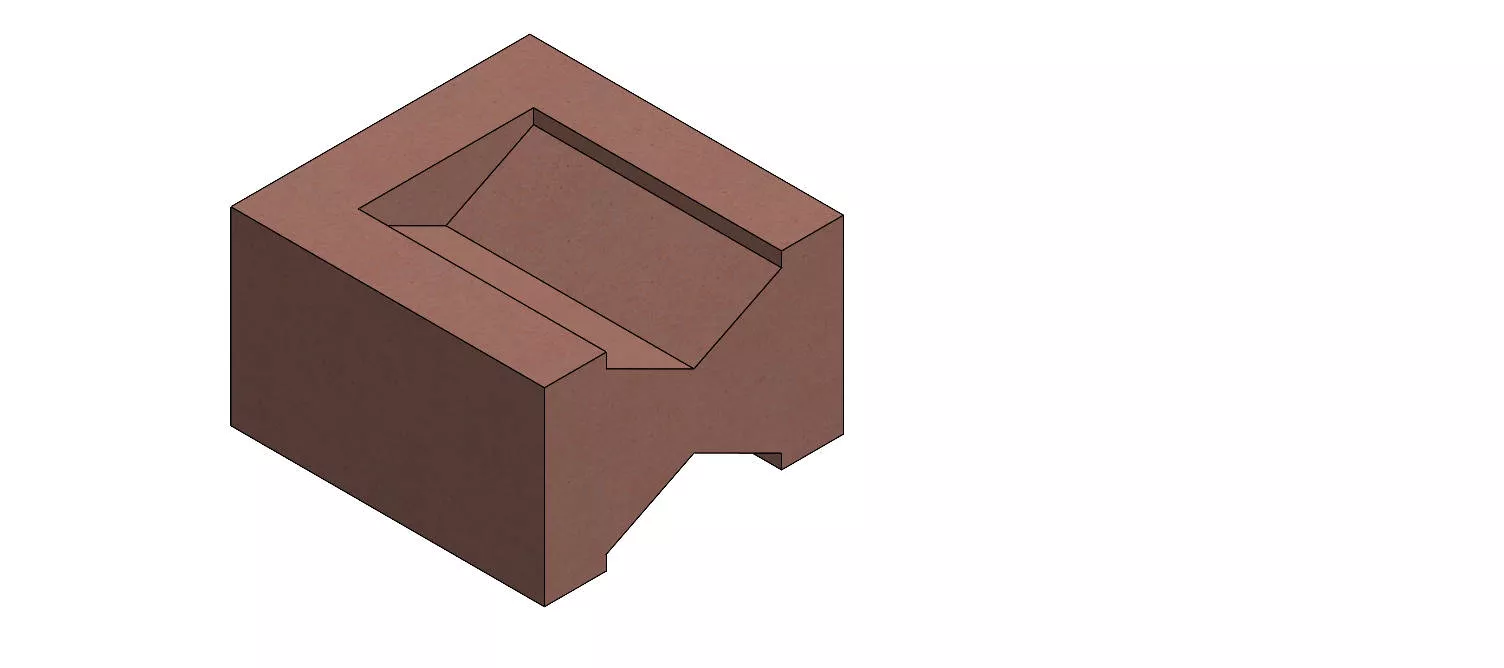
Had we ignored the Create Solid option, then we would be left with a fully knitted, single surface body.
To convert this enclosed surface into a solid body and give it a wall thickness or enclosed volume, we can use the Thicken command and select our single surface.
As it’s perfectly enclosed, the checkbox Create solid from enclosed volume is available.
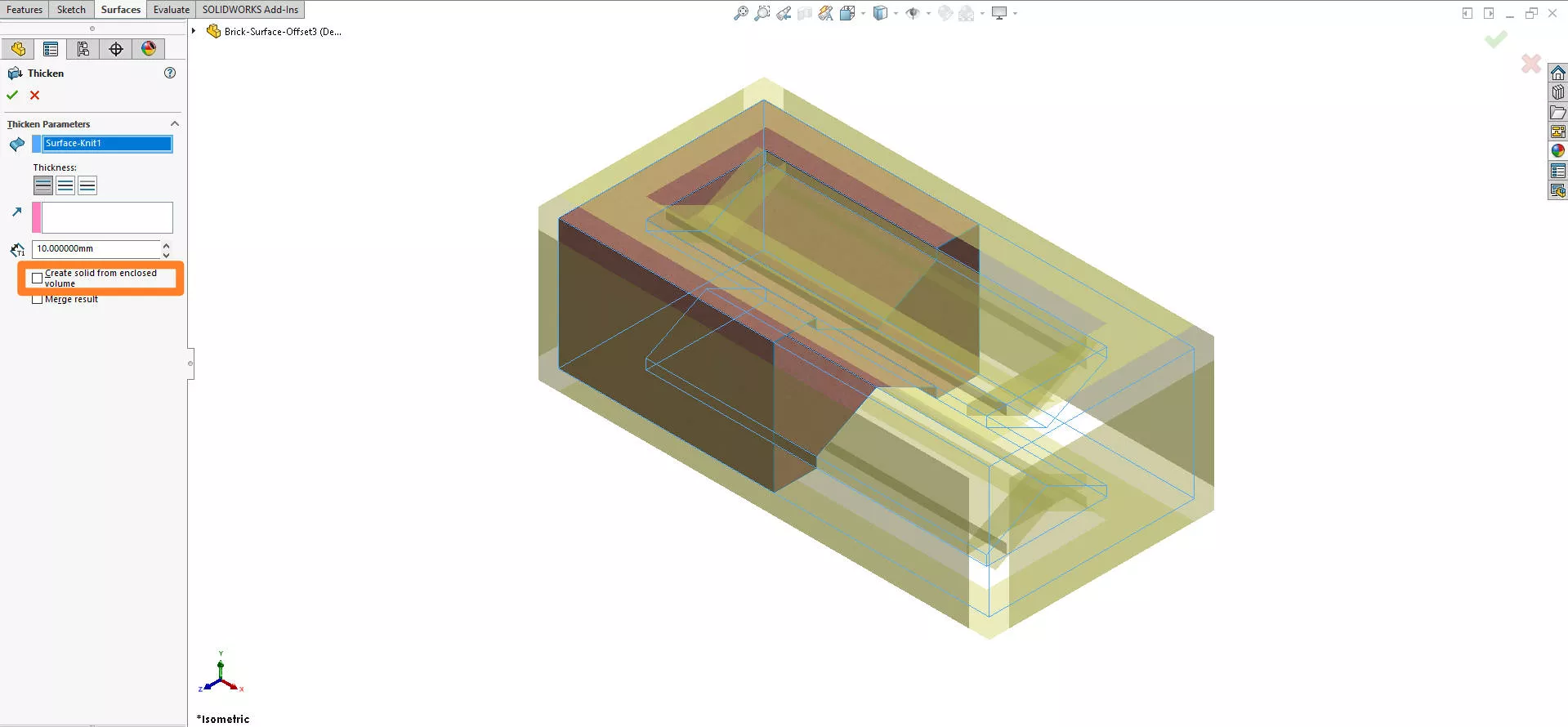
Selecting this does the same function as the Create Solid within the Knit Surface command: it takes our enclosed surface model and using it as the boundaries for a solid.
HOW TO CREATE A SOLID BODY FROM A SINGLE SURFACE
In situations where your surface doesn’t form an enclosed region, you can still create a solid using the Thicken command.
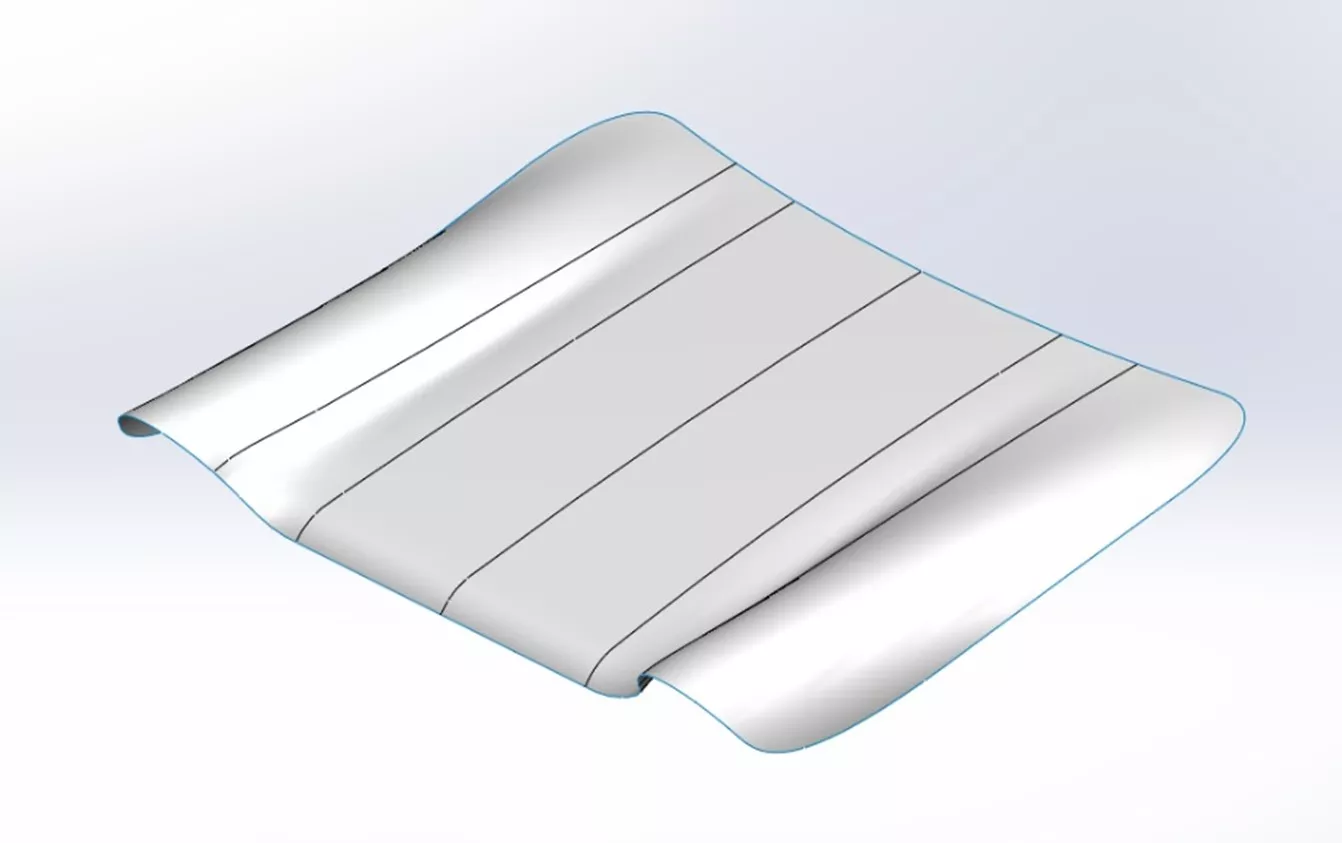
In this car bonnet scan we previously generated with Power Surfacing RE tools, we have a single surface formed by boundary features.
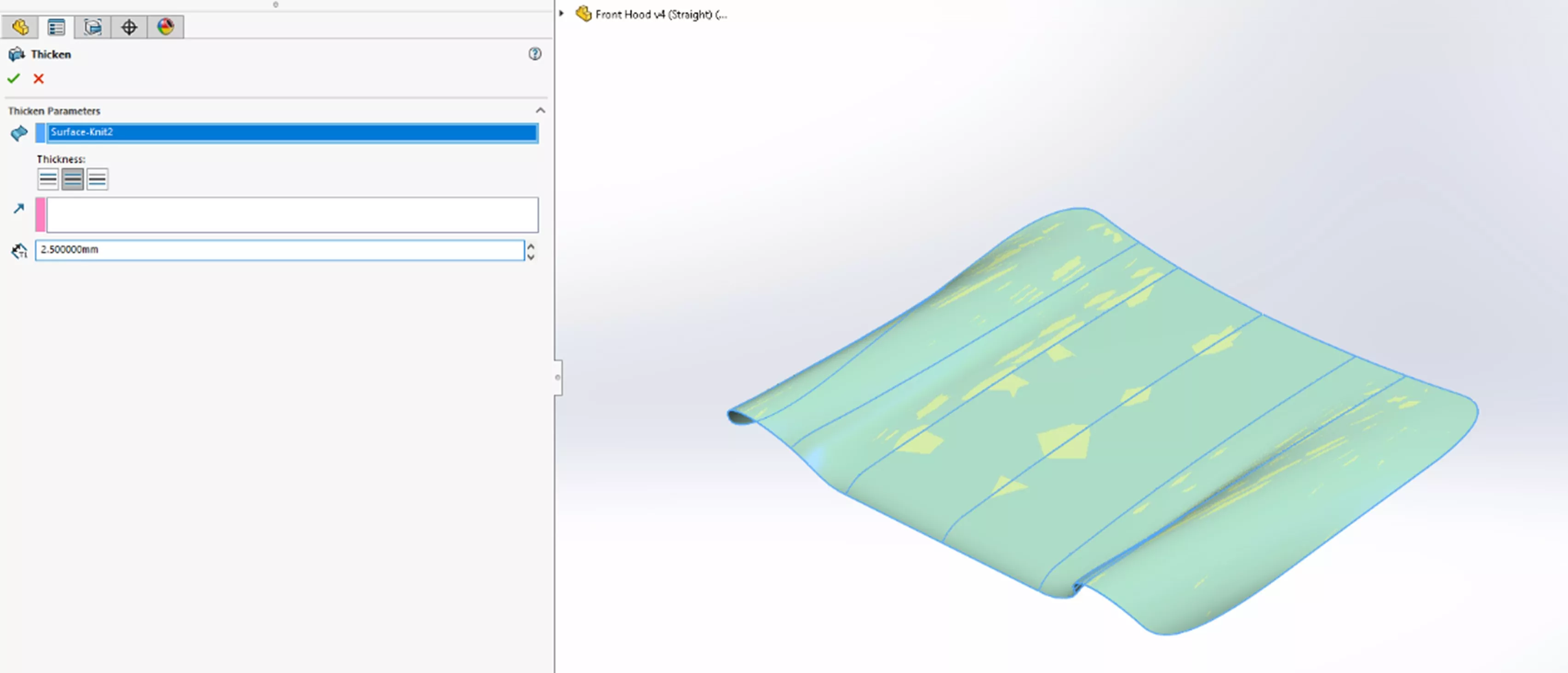
By activating the Thicken command and selecting the surface, we are prompted to add a wall-thickness to our surface. The three icons represent the three directions in which thickness can be applied:
- outside of the surface
- inside of the surface
- spaced equally about the surface
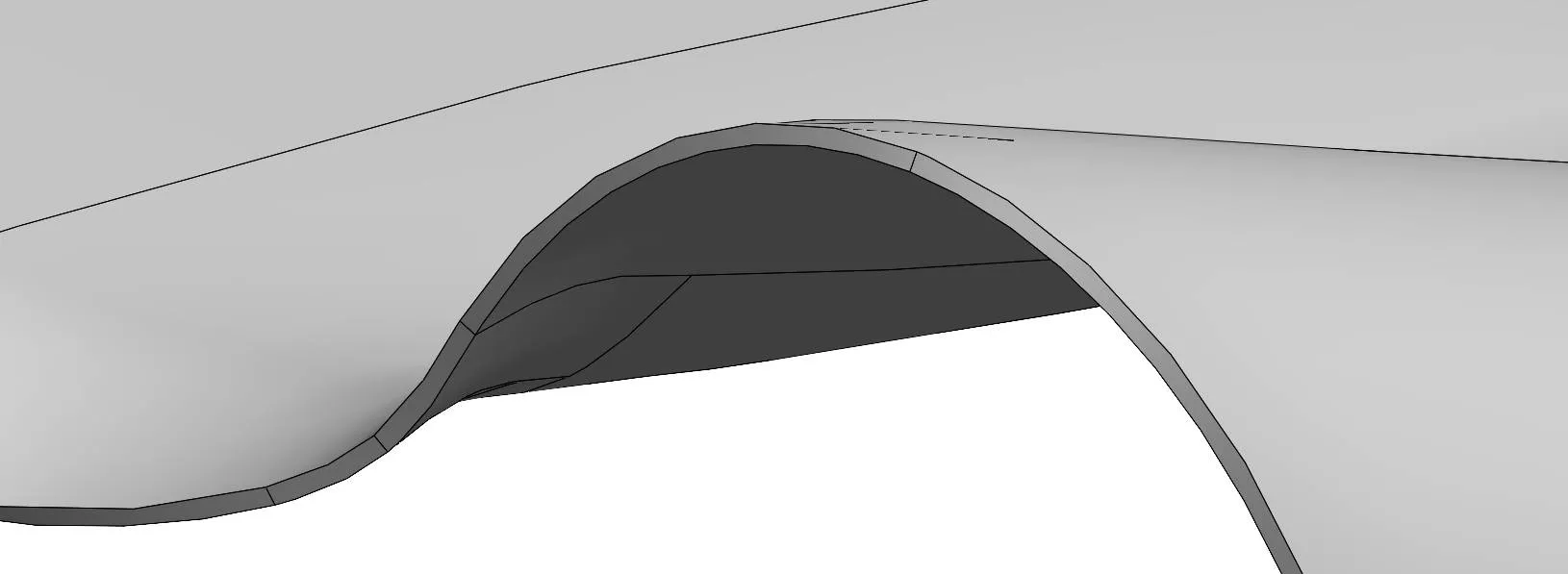
By inputting a value for the wall thickness and confirming, we are left with a single solid body.
HOW TO USE INTERSECT TOOL IN SOLIDWORKS
Another feature that can be used to generate a solid from surface bodies is the Intersect tool.
This powerful feature is not exclusive to surface geometry – planes, solids and surfaces can all be used, and is therefore found in the Features tab on the Command Manager.
In the context of surfaces, Intersect is special as they don’t need to be knitted to create a solid. In this model, there are 5 un-knit surfaces are intersecting each other. To prove the use of other types of geometry, the top plane can also be seen to intersect these surfaces.
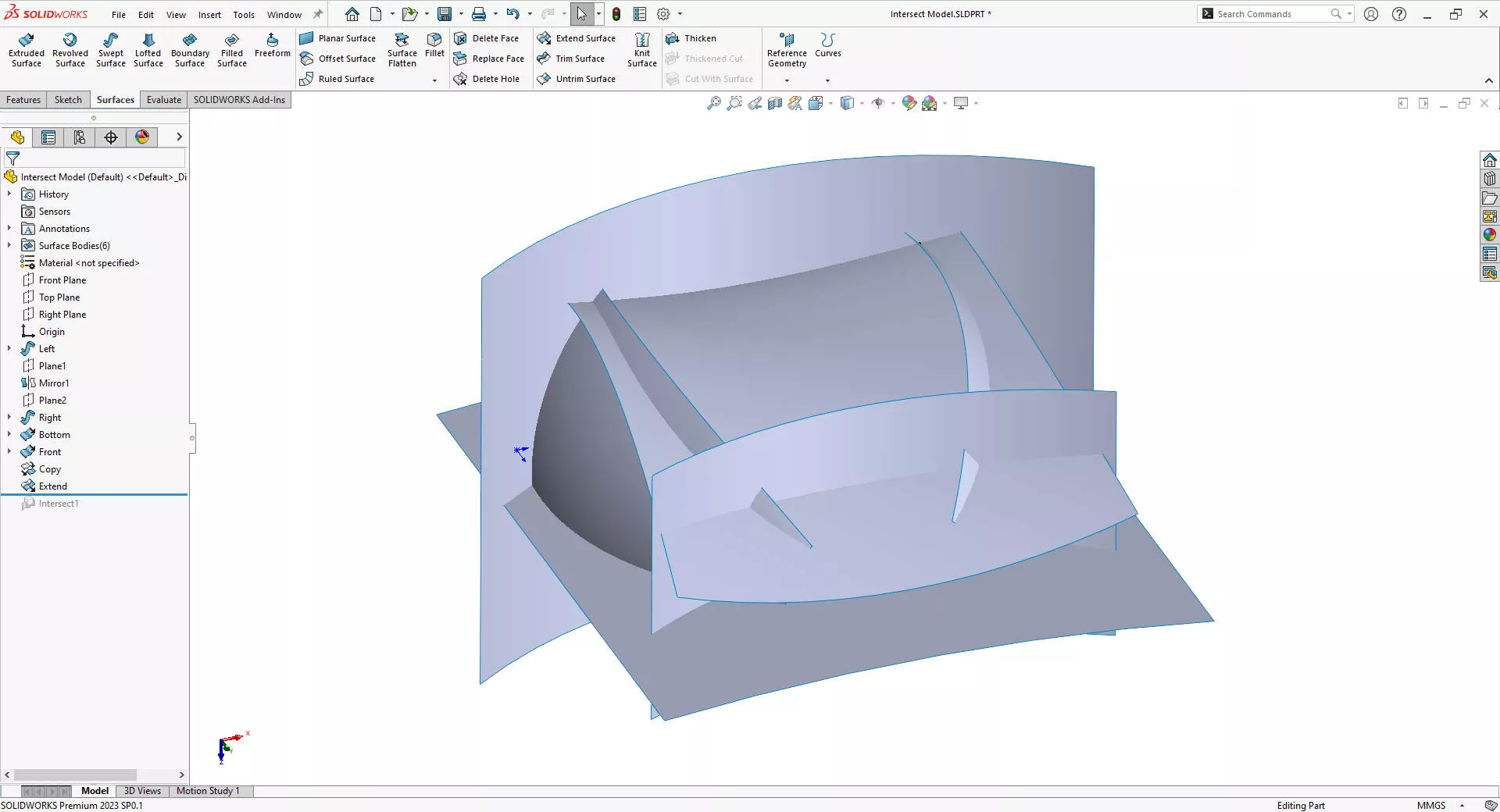
Within the Intersect tool, we can select all the geometry; the 5 individual surfaces as well as the top plane. Doing so reveals a region of empty space bound by the 6 selected entities. Selecting Create Internal Region and pressing Intersect, we can see that a solid body is created in the enclosed area.
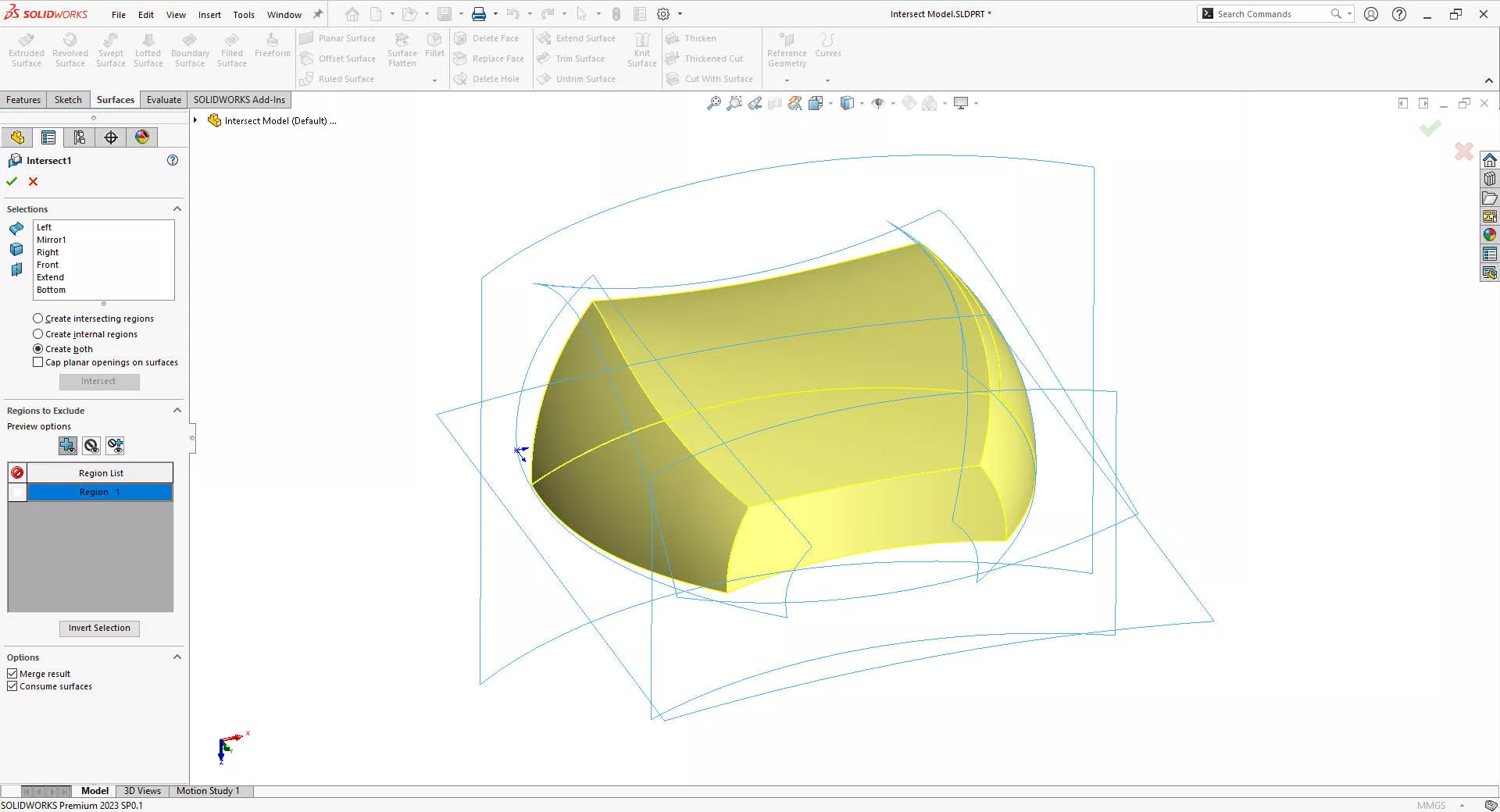
With the desired solid now created, we may no longer need these surfaces in the model. Selecting Consume Surfaces will delete the surface bodies upon confirmation of the Intersect tool, ensuring the only body left in the part is the solid.
Looking for More Tips?
Sign up to our CPD-accredited training courses.
It doesn’t matter whether you’re a complete beginner or are intimately familiar with CAD, our friendly and expert trainers are ready to help you get the most out of SOLIDWORKS, either online or in a classroom local to you.
Categorised as: SOLIDWORKS Design | Software | Tutorials
Get Expert SOLIDWORKS Training
Get hands-on SOLIDWORKS training in-person or online, led by certified experts with real industry experience. With venues across the UK & Ireland, it’s easy to start learning today.
Related Posts

How to Find Reaction Forces in SOLIDWORKS Simulation
SOLIDWORKS helps us to find resultant forces through simulation studies. These virtual tests reduce the need for physical prototypes and give us an accurate answer.

Setting number of decimal places in a table on a drawing
When creating an equation in a drawing general table, is it possible to define the…

SOLIDWORKS Smart Fasteners
SOLIDWORKS Smart Fasteners is a really useful time saving tool, allowing you to automatically insert toolbox fasteners such as bolts and screws into an assembly providing there is a standard hole.

Why is my Flat Pattern not showing in SOLIDWORKS Drawings?
This may be linked to how the drawing is saved or it can be related to how sheet metal parts are displayed in drawings, read on to find out how to fix it.

SOLIDWORKS Tips: Are you Making this Common Mistake in Fatigue Analysis?
Simulation is a vital and complex engineering need. Fortunately, SOLIDWORKS makes it easy to test, correct mistakes and obtain accurate results.

Series 1 Land Rover Pedal Car – Made Easy with Solidworks!
The Series1 began production in 1948 designed to help get Britain farming after the war effort. It grew extremely popular and today enthusiasts are prepared to throw their life savings at restoring originals from that period.

SOLIDWORKS Visualize. Why go pro? – 6 Post Processing
In this blog we will be look at the post-processing options that can be found in SOLIDWORKS Visualize

SOLIDWORKS Visualize. Why go pro? – 7 Lighting
SOLIDWORKS Visualize uses a non-biased rendering engine, which allows for physically accurate lighting within a scene. It generates images with high amount of realism and correct set up can replicate photo studio lighting.

How to Get Your Serial Number for SOLIDWORKS Visualize Standard
Want to download Visualize to make photorealistic renders? Follow this guide for accessing your Visualize serial number that comes bundled in with SolidWorks Professional and Premium.

How to Recover SOLIDWORKS Files After a Crash
SOLIDWORKS has two different methods to help you recover from an unexpected crash or loss of data in the form of auto-recovery and back-up settings.