











Surface Modelling Tips: How to Edit and Repair Imported Geometry in SOLIDWORKS

Written by: Terry O'Reilly
Published: Oct 27, 2023
| View All Blogs
If you need to edit or repair imported geometry in SOLIDWORKS there are three key tools you should know about: Import Diagnostics, the Check tool, and Surface Modelling tools.
This blog explores these tools and the techniques required to repair imported geometry, while identifying exactly what imported geometry is and the best file types to request from suppliers to import into your SOLIDWORKS models.
Before we explore these tools for repairing imported geometry, it’s important to understand exactly what imported geometry is and how SOLIDWORKS handles it, so we can edit and repair it efficiently.
What is Imported Geometry?
Imported or proprietary geometry is third-party data exported from different CAD software, like AutoCAD, and then imported into SOLIDWORKS. Common file formats include Parasolid, STEP and IGES.
These can transfer basic Windows data (file name, properties, etc.) and the database, which is the resulting body you see on screen.
The ‘dumb’ geometry is visible, but there is no feature history or ability to go back and edit what’s there – it’s just a block of geometry suspended in space.
What are the Recommended File Types SOLIDWORKS Can Import?
If you work with imported geometry, the recommended file type is Parasolid.
It’s the modelling engine (or Kernel) that SOLIDWORKS uses, so can be read directly without SOLIDWORKS having to translate it first, just like a native SOLIDWORKS part file would be.
This is useful as the mistranslation of files is often the main cause of issues when importing files into SOLIDWORKS.
The file extensions for Parasolid files are *.x_t and *.x_b.
If you can’t be supplied with a Parasolid, then ask for a STEP file.
Regardless of what CAD system is used, you’re unlikely to encounter backlash when requesting a STEP file, as it’s one of the most common non-native file types.
It also allows you to make use of a tool named 3DInterconnect.
What Is 3DInterconnect in SOLIDWORKS?
3DInterconnect is a utility that facilitates the opening of third-party CAD data in their native format, without translating it to a SOLIDWORKS file.
This bypasses the translation issues you may encounter if converting to a SOLIDWORKS file.
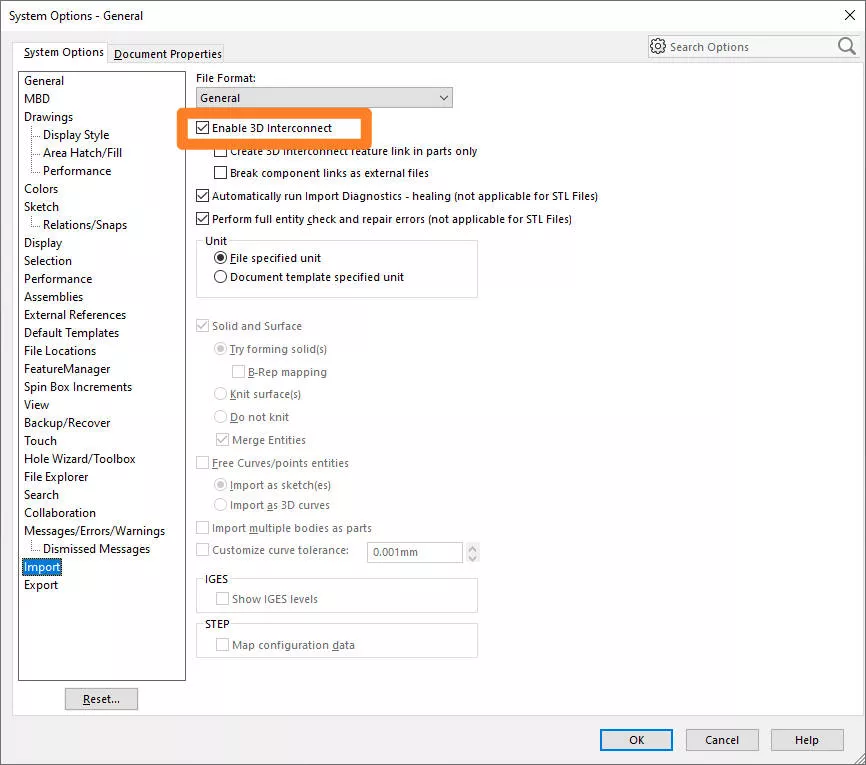
By default, 3DInterconnect is turned on. But it can be toggled on and off via the System Options > Import menu.
Additionally, the imported geometry remains linked, so any changes made to it on the original CAD system can instantly update the geometry seen in SOLIDWORKS. This link can be broken, if you wish to block any unintentional updates caused to the model outside of SOLIDWORKS.
STEP files take advantage of this feature, as do ACIS and IGES. Parasolid doesn’t need to, as there is no translation involved in the first place.
If you disable 3DInterconnect, the geometry is converted directly into a SOLIDWORKS file.
This is where errors can occur with the geometry. Geometry can import with defects that were not present in the software it exported from.
This can be for a range of reasons, but is commonly due to differences in unit-precision from one program to the next, or limitations in what types of geometry various CAD systems can support, e.g. splines vs arcs.
Knowing how analyse the quality of the geometry you’ve imported, and how to modify that geometry if it’s inadequate, is key for those who transfer files often.
This is where Import Diagnostics comes in.
How to use Import Diagnostics in SOLIDWORKS
Whether you are working with a model that’s been converted to a SOLIDWORKS native file or not, Import Diagnostics can be used to detect and repair geometry issues.
You may have seen this pop-up trigger whenever you import a file into SOLIDWORKS:
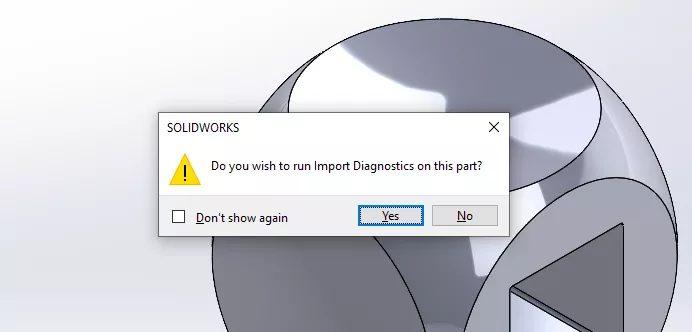
SOLIDWORKS automatically attempts to run Import Diagnostics to help you repair any translation errors.
Outside of running automatically on importing third-party geometry, you can run the tool through the Command Manager on the Evaluate Tab > Import Diagnostics.
We recommend using Import Diagnostics whenever you import fresh proprietary data, and building it into your modelling workflow.
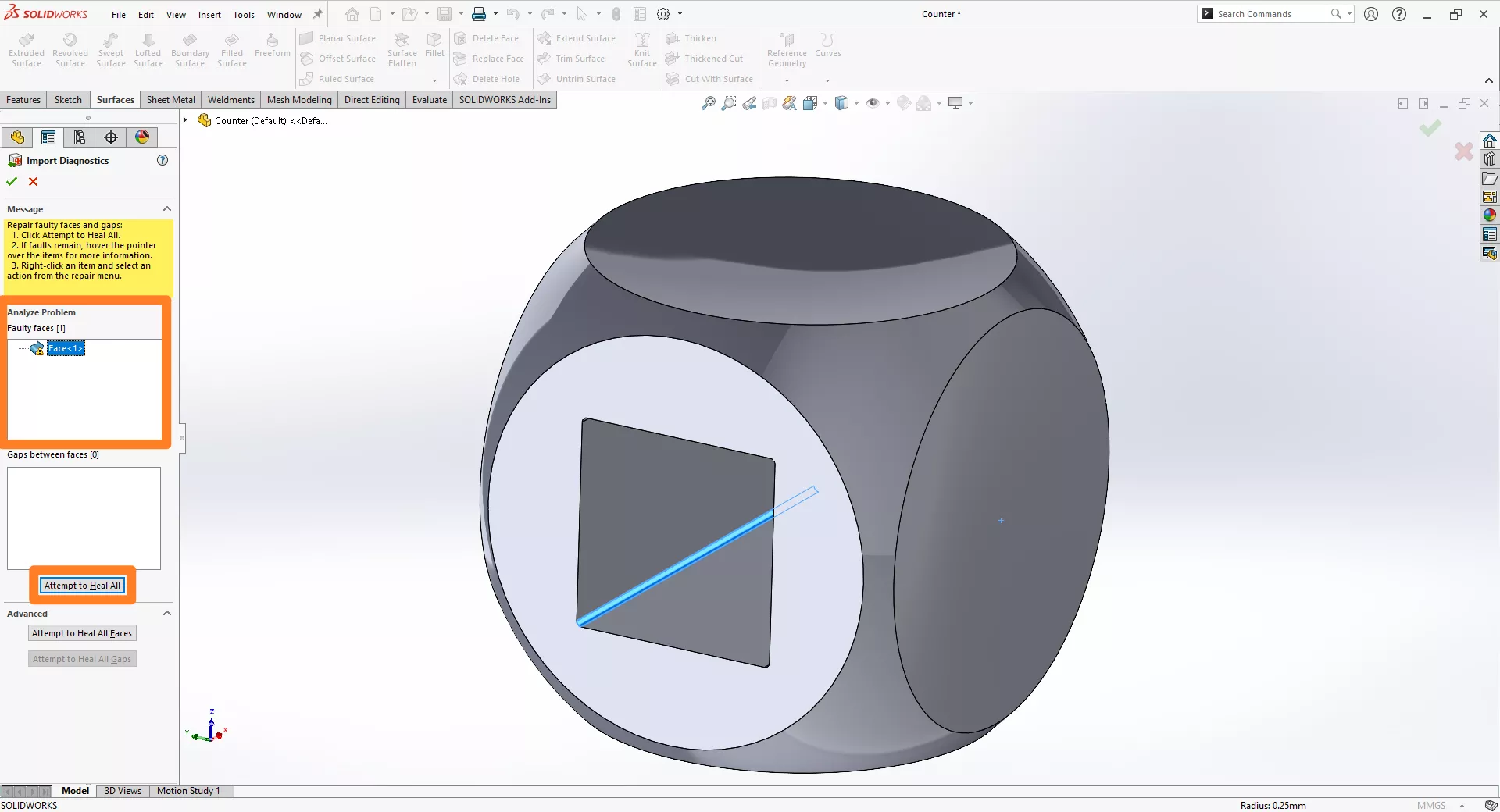
When you run Import Diagnostics, the tool will check your geometry for faulty faces or gaps where an edge should be. If it finds problems, it will highlight them, describe the issue, and give you an option to attempt to ‘Heal All’.
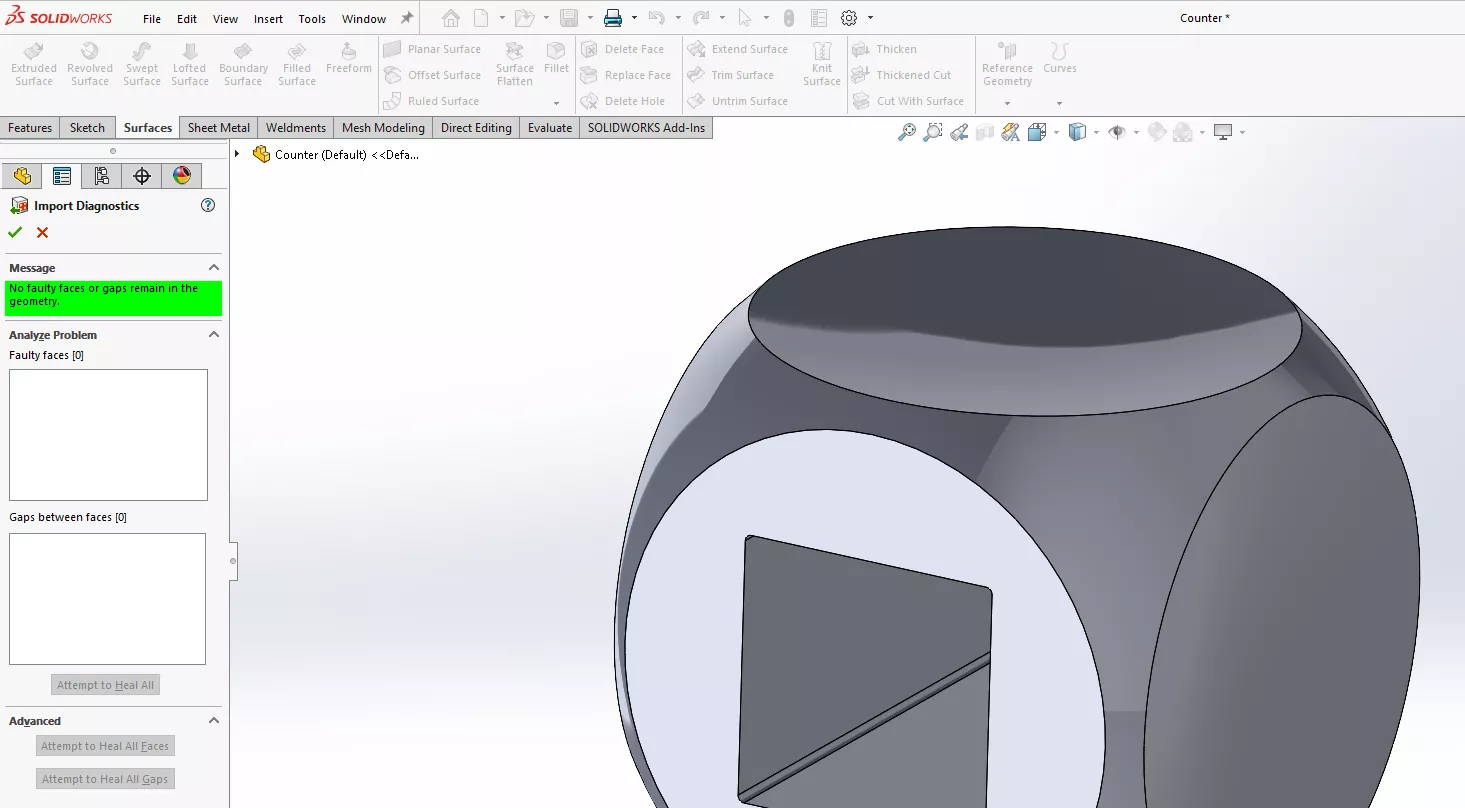
This will remodel the problematic geometry and leave you with geometry that SOLIDWORKS understands. If the tool cannot remodel all the issues, it will highlight the faces that remain problematic, so you know what’s left to work on.
How to use the Check Tool in SOLIDWORKS
The Check tool is also useful to find defective or invalid geometry, especially before repair imported geometry with surfacing.
Found on the Evaluate tab of the Command Manager, Check looks at your model and highlights problematic faces or edges, providing context as to why certain geometry is invalid and how it can be fixed.
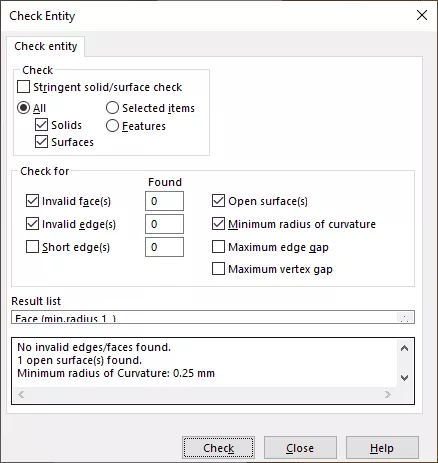
The benefit here is that you can filter your selection to fine-tune the type of geometry that’s being evaluated; whether it’s invalid faces, edges, open surfaces, gaps, or sharp curvature.
While it doesn’t repair geometry for you, it’s useful to understand what geometry you are working with before you start any surfacing repairs.
How to Repair Imported Geometry with Surfacing in SOLIDWORKS
Unfortunately if you work with imported files, you’re likely to encounter problematic geometry from time to time.
While the Import Diagnostics and Check tools can help, and often repair, these issues, when issues persist, then you’ll have to repair the defective geometry manually with surfacing tools.
Use the following process for repair imported geometry with surfacing tools:
- Run Import Diagnostics.
- Attempt to Heal All faulty faces.
- Use Check tool to identify remaining issues.
- Delete problematic faces.
- Patch the gap.
- Knit & Thicken.
- Evaluate curvature.
- Repeat steps 4-7 as required.
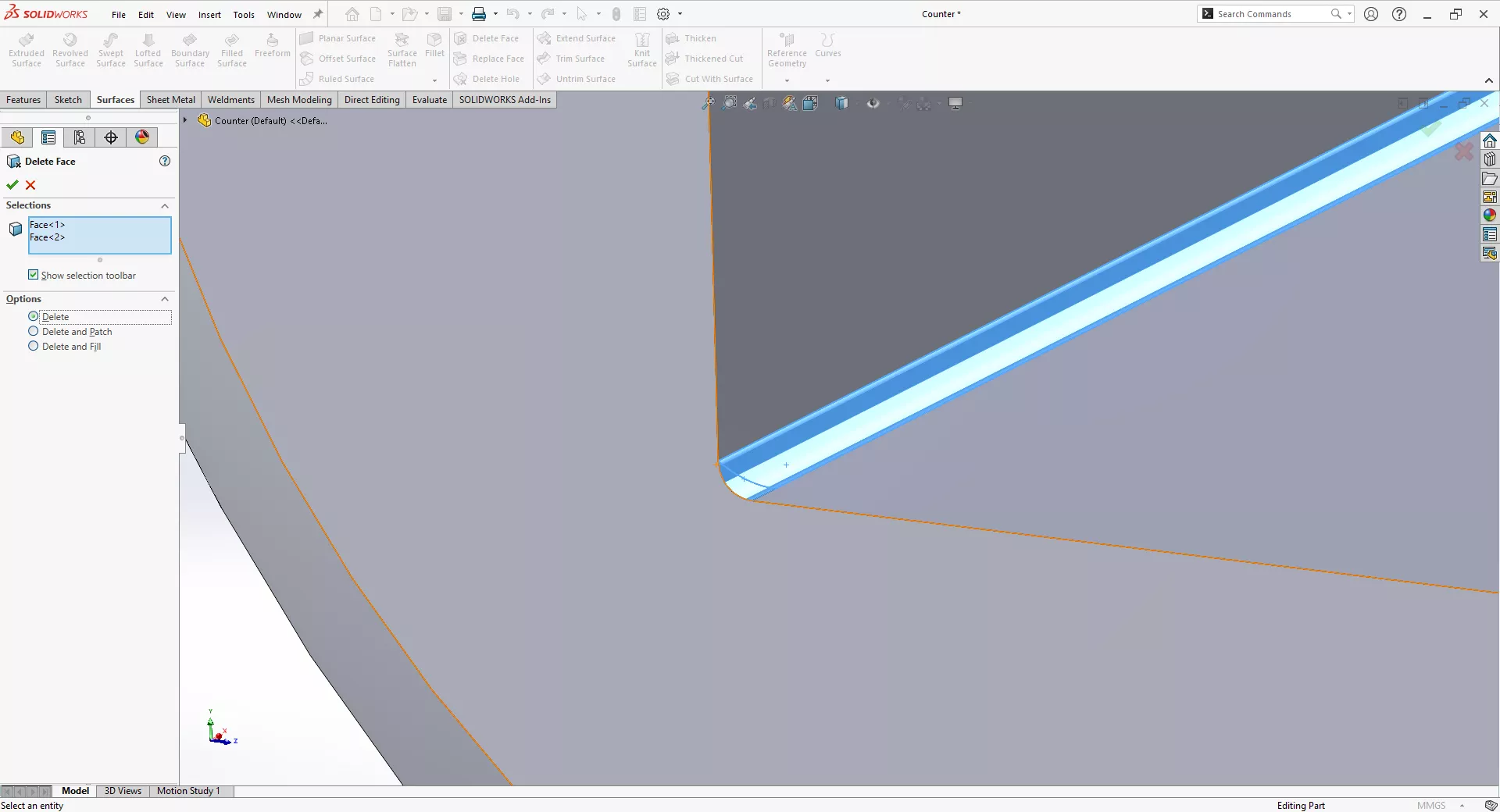
After using the tools described above, start by deleting out the problematic faces from the solid with the Delete Face command. This will convert the body’s geometry into a surface if it wasn’t already.
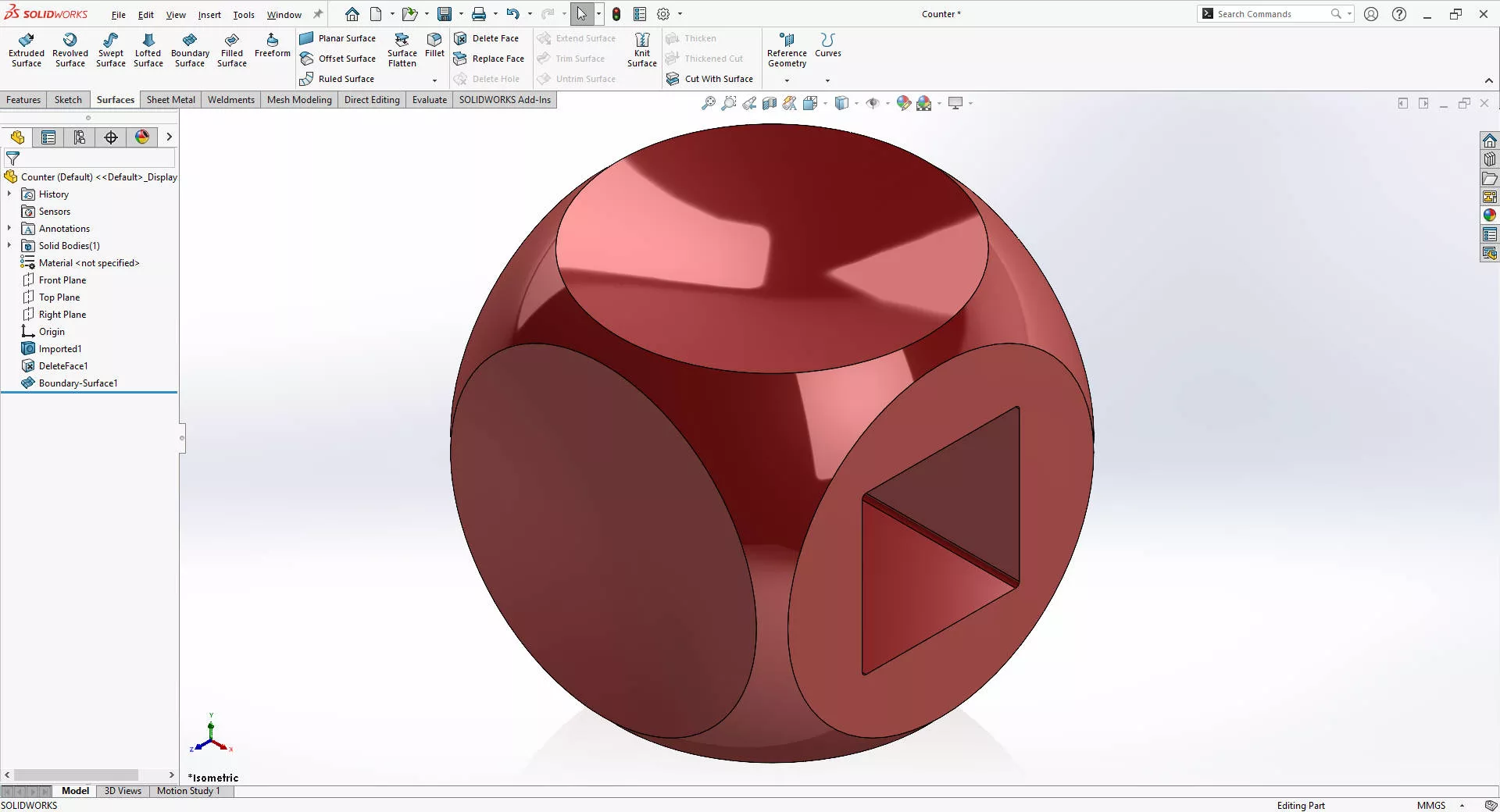
Then, patch the gap with surfacing tools like Fill Surface, Lofted Surface or Boundary Surface.
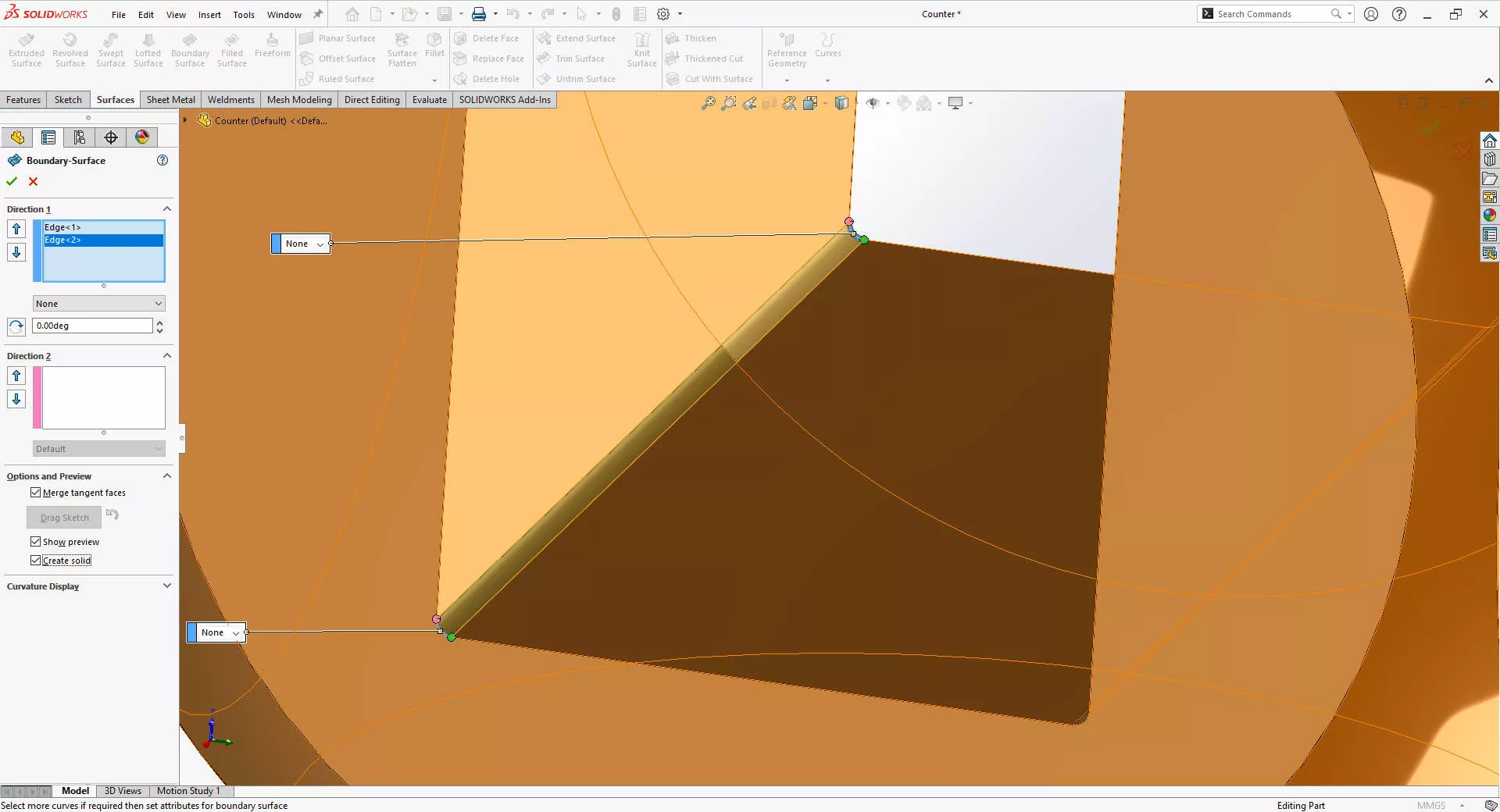
Look out for ‘Create Solid’ tick-boxes to automatically knit and thicken the surface into a solid.
The surface here has been recreated with a Boundary Surface.
When the gap is filled, Knit the surfaces together and Thicken to recreate the solid.
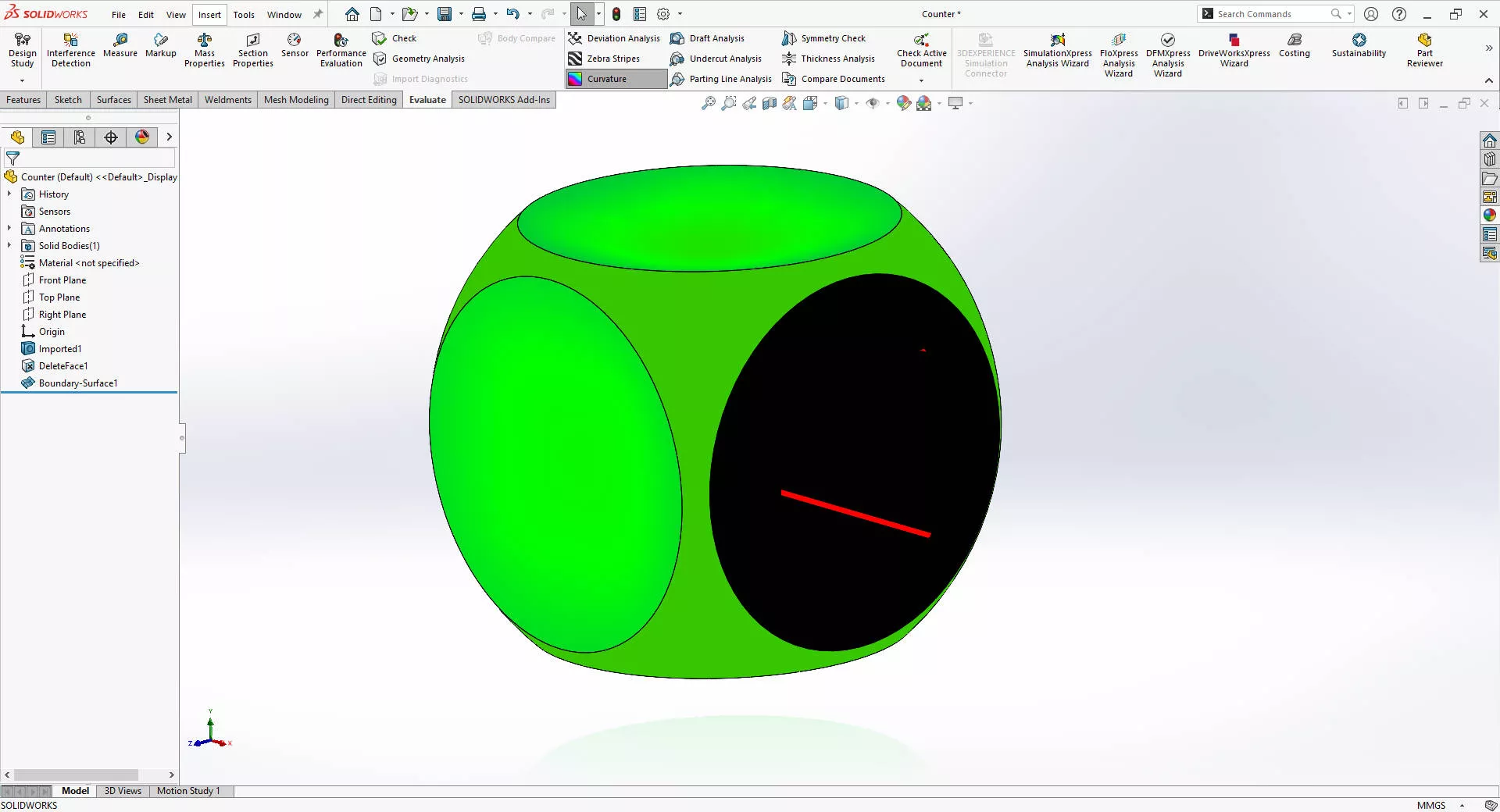
Finally, evaluate the quality of your repair imported geometry using visualisation tools like Zebra Stripes or Curvature, safe in the knowledge you’re taking forward a fully repaired and high-quality SOLIDWORKS part.
These high-level editing techniques, along with those you’ll discover on our Surface Modelling Training course, are invaluable when working with imported geometry and will help to enhance your SOLIDWORKS modelling skills.
Categorised as: SOLIDWORKS Design | Tech Tips
Get Expert SOLIDWORKS Training
Get hands-on SOLIDWORKS training in-person or online, led by certified experts with real industry experience. With venues across the UK & Ireland, it’s easy to start learning today.
Related Posts

How to Find Reaction Forces in SOLIDWORKS Simulation
SOLIDWORKS helps us to find resultant forces through simulation studies. These virtual tests reduce the need for physical prototypes and give us an accurate answer.

Setting number of decimal places in a table on a drawing
When creating an equation in a drawing general table, is it possible to define the…

SOLIDWORKS Smart Fasteners
SOLIDWORKS Smart Fasteners is a really useful time saving tool, allowing you to automatically insert toolbox fasteners such as bolts and screws into an assembly providing there is a standard hole.

Why is my Flat Pattern not showing in SOLIDWORKS Drawings?
This may be linked to how the drawing is saved or it can be related to how sheet metal parts are displayed in drawings, read on to find out how to fix it.

Why is SOLIDWORKS Crashing?
It’s one of the great mysteries of life – why is SOLIDWORKS crashing? Let’s explore how SOLIDWORKS crashes and how we can improve performance in SOLIDWORKS.

SOLIDWORKS Tips: Are you Making this Common Mistake in Fatigue Analysis?
Simulation is a vital and complex engineering need. Fortunately, SOLIDWORKS makes it easy to test, correct mistakes and obtain accurate results.

Tech Support Blog: Why are my SOLIDWORKS BOM Quantities Wrong?
Why are my SOLIDWORKS BOM Quantities Wrong? A support call cropped up this week which…

How to Get Your Serial Number for SOLIDWORKS Visualize Standard
Want to download Visualize to make photorealistic renders? Follow this guide for accessing your Visualize serial number that comes bundled in with SolidWorks Professional and Premium.

How to Recover SOLIDWORKS Files After a Crash
SOLIDWORKS has two different methods to help you recover from an unexpected crash or loss of data in the form of auto-recovery and back-up settings.

Redesigning Santa’s Sleigh in SOLIDWORKS
Every year Father Christmas has to fly in his sleigh to deliver presents to boys and girls all over the world in just one night. To put this into perspective, it takes a little under 24 hours to fly from London (UK) to Sydney (Australia) in a streamlined Boeing 747, whereas Father Christmas’ mode of transport is believed to be a rather non-aerodynamic sleigh.