












The Infinite Loop? How to Find and Fix Circular References in SOLIDWORKS

Written by: Terry O'Reilly
Published: Jun 3, 2025
| View All Blogs
SOLIDWORKS sketches, parts, and assemblies will naturally grow in complexity as your skills evolve. Its ability to be able to link components makes for a great tool for managing design changes, link updates, and configure multiple variations.
But there’s one particular issue that, if left unaddressed, can quickly tie you and your SOLIDWORKS model in knots.
Circular references pose a problem for even the most experienced SOLIDWORKS users, and being able to predict, diagnose, and remove them are key in creating robust CAD models through proper modelling technique.
What are Circular References?
Circular references are chains of dependencies that eventually lead back to the original component.
The issues occur when one component in the chain is modified and triggers an update in another upon which the component is already dependent.
This infinite loop can cause persistent rebuilds, a cascade of errors, and general instability in your model.
Common Causes of Circular References in SOLIDWORKS
There are multiple places where circular references can occur. Essentially, they could appear in any feature or sketch where a relationship with another sketch, feature, body, or component can be formed.
Let’s go over some common causes of circular references in SOLIDWORKS and how to fix them.
#1 – Reference Geometry
In this assembly example, there are two components. The same method was used on both components: each was modelled by creating an offset plane from a face, followed by a sketch and an extrusion.
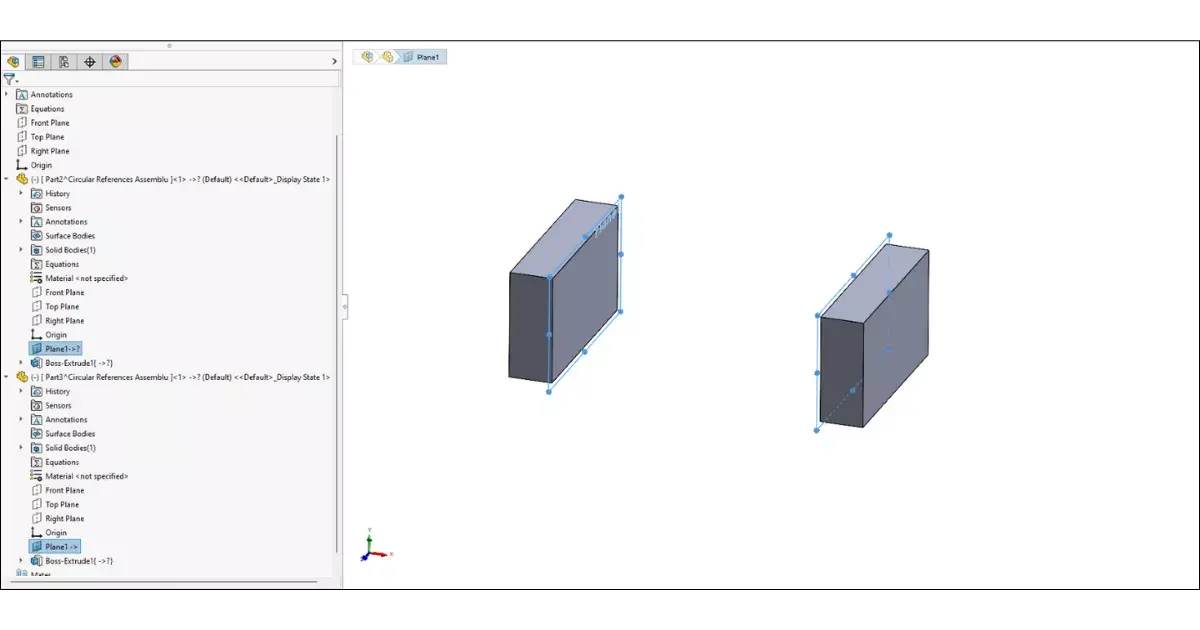
When the offset plane distance is changed on one component (for example, increased to 250 mm), the other component, set at 300 mm, will produce an error.
SOLIDWORKS cannot resolve the inconsistency between the interdependent dimensions, which leads to rebuilding issues.
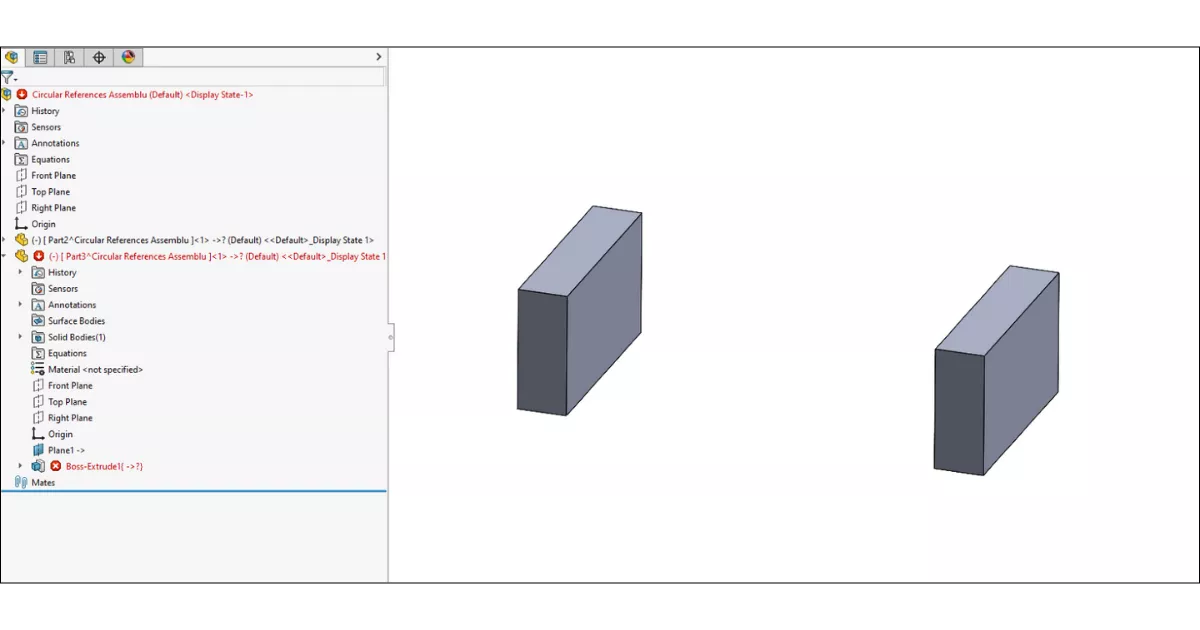
This kind of interdependency can cause major model performance problems. Always be cautious when relating features between components.
#2 – Equations
Microsoft Excel users will be familiar with how equations can quickly cause circular referencing issues.
Equations are frequently used in SOLIDWORKS sketches and features to drive multiple dimensions and configure automatic updates to parts and assemblies.
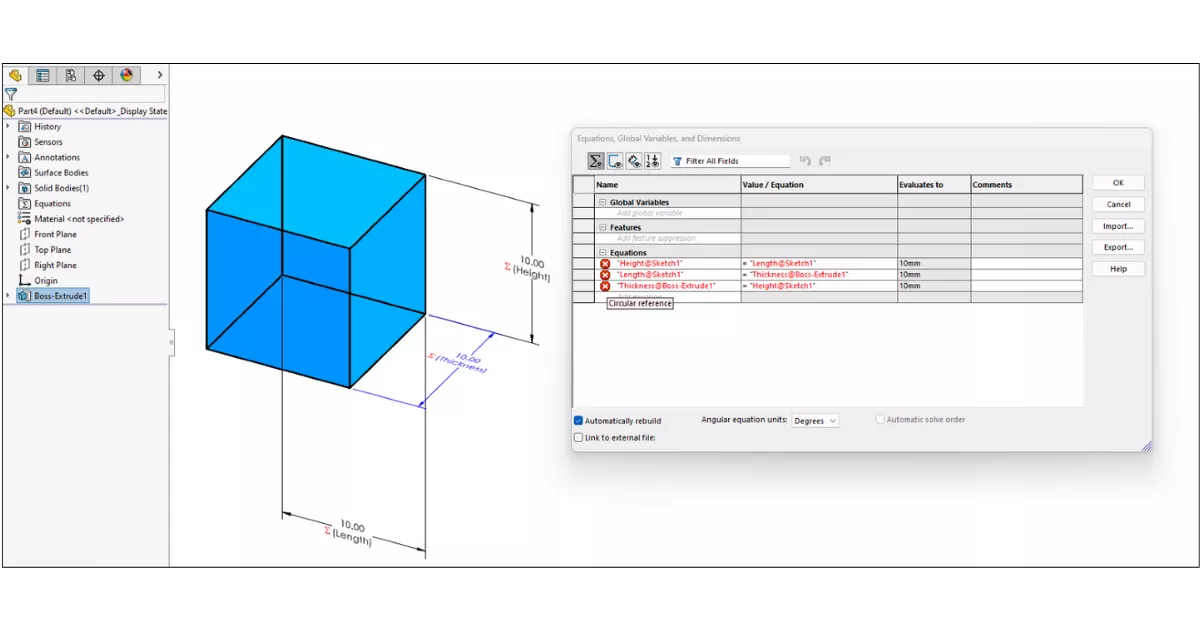
Consider a scenario where:
- D1 = D2
- D2 = D3
- D3 = D1
This loop creates a circular reference. SOLIDWORKS will display the affected equation in red text. When you hover over the red “X” icon, the software will indicate that a circular reference exists.
This disrupts the design intent and makes it difficult to predict how changes will affect the model.
#3 – Assemblies
It is also common for sub-assemblies to reference components in the top-level assembly. This is known as sequential referencing.
However, problems arise when this referencing becomes excessive or crosses between unrelated sub-assemblies, for example:
- A component in Sub-Assembly A referencing a Top-Level component is acceptable.
- A component in Sub-Assembly B also referencing that same Top-Level component can become problematic.
This creates multiple layers of dependency that are difficult to manage. Avoid setting up relationships where a child component depends on a grandparent component. Instead, try to maintain a straightforward chain of references with minimal branching.
Did you know you can make great savings on multiple SOLIDWORKS courses with our Training Passports?
Signs & Symptoms of Circular References in SOLIDWORKS
SOLIDWORKS will warn you about the potential creation of circular references when you attempt to create a feature with them. However, circular references may not always display as obvious errors.
Here are some common signs to look out for:
- Rebuild Symbol: A persistent rebuild icon (the traffic light symbol) in the Feature Manager tree can indicate an unresolved issue. Try forcing a rebuild using Ctrl+Q. If the symbol remains, a circular reference might be the cause.
- Performance Evaluation Tool: SOLIDWORKS includes a built-in diagnostic tool. Navigate to Evaluation Tab > Performance Evaluation > Rebuild Performance. This tool can help pinpoint components involved in circular references.
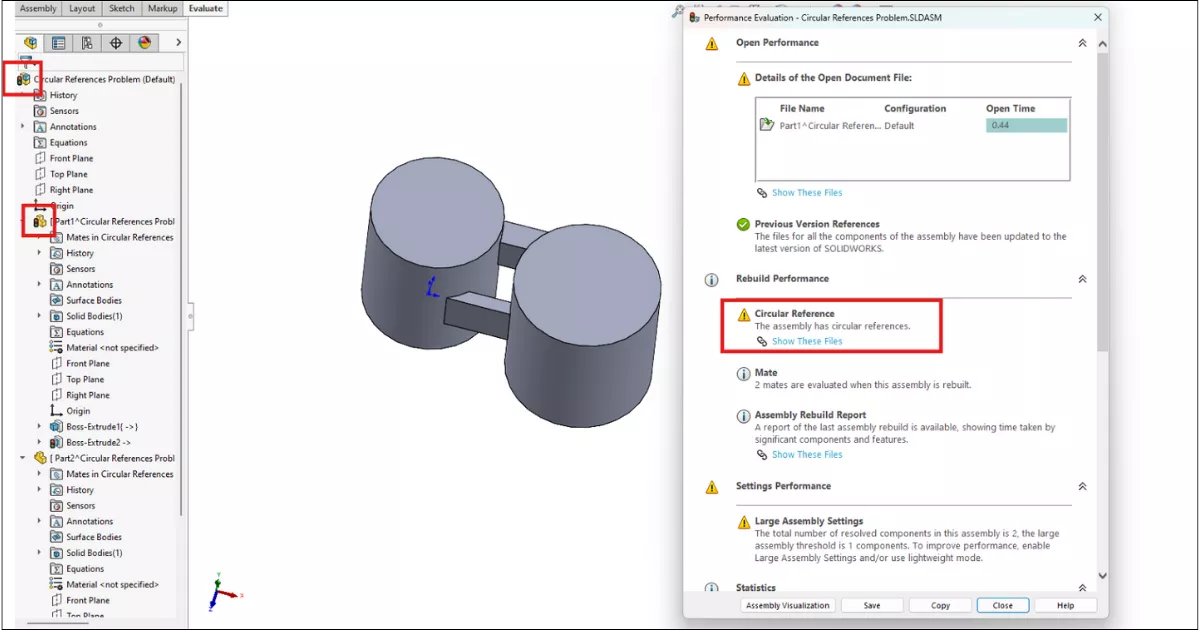
The ‘Performance Evaluation’ tool is useful for identifying circular references as well as a diagnostic tool for rebuild times, quantity of triangles, and opening information, etc.
You should now be equipped to spot and diagnose a variety of circular reference issues. Thankfully, circular references are easily resolved by taking a logical, step-by-step approach.
How to Fix Circular References Error in SOLIDWORKS
Establishing proper CAD modelling workflows and methods like those taught in our SOLIDWORKS Essentials training course are key to avoiding errors like circular references.
When circular references occur, we find following this logical step-by-step approach is sufficient to quickly resolve the issue:
- Locate the Problem Part:
- Begin with the part that displays the rebuild symbol.
- Lock External References:
- Right-click the part, select External References, then choose Lock All. This will temporarily disable all external references.
- Observe the Result:
- If the rebuild symbol or error disappears, this part is the source of the circular reference.
- Identify the Reference Loop:
- Within the External References box, you can view all dependencies. Investigate these to find the loop.
- Edit and Simplify:
- Remove or adjust the offending feature, sketch, or equation that is causing the circular relationship.
- Re-enable Valid References:
- Once resolved, return to External References and choose Unlock All to reapply the necessary links.
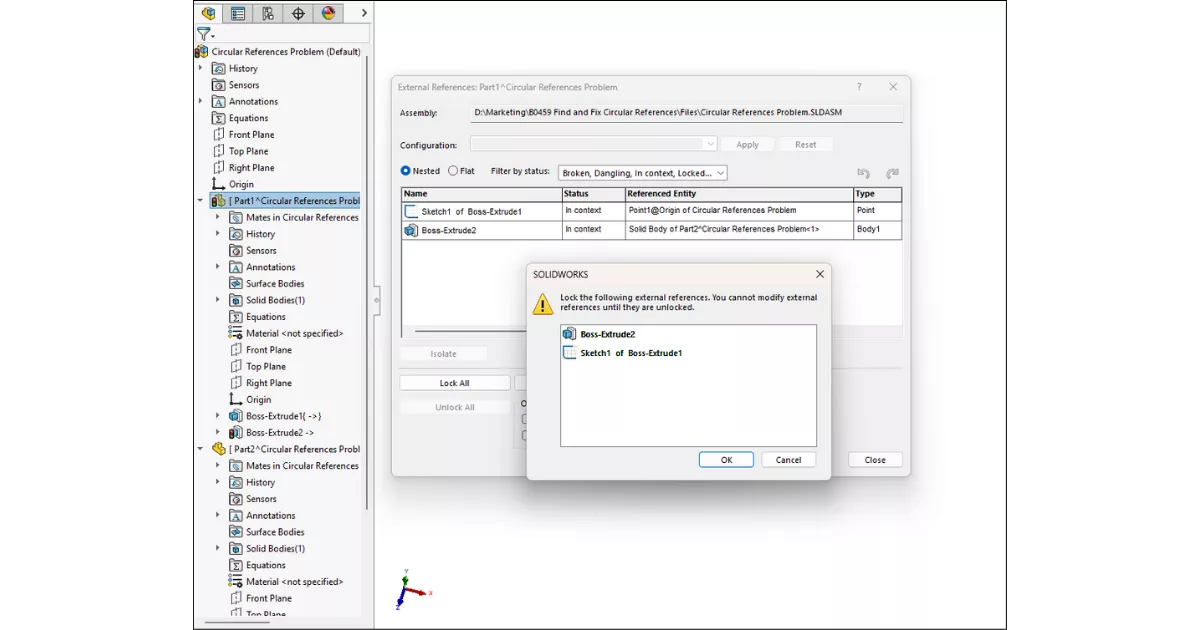
TOP TIP: Try to avoid overcomplicating inter-part references by maintaining a clear, logical direction of relationships between components.
Keeping your model structure tidy will help ensure stable rebuilds, better performance, and fewer errors during design changes.
Take the Next Steps
Master SOLIDWORKS with expert-led courses that help you boost your skills and confidence. You can attend online or in a classroom near you!
Choose from a huge range of professional SOLIDWORKS and CATIA training courses and save on multiple courses with a Training Passport.
Categorised as: SOLIDWORKS Design | Tech Tips
Get Expert SOLIDWORKS Training
Get hands-on SOLIDWORKS training in-person or online, led by certified experts with real industry experience. With venues across the UK & Ireland, it’s easy to start learning today.
Related Posts

How to Find Reaction Forces in SOLIDWORKS Simulation
SOLIDWORKS helps us to find resultant forces through simulation studies. These virtual tests reduce the need for physical prototypes and give us an accurate answer.

Setting number of decimal places in a table on a drawing
When creating an equation in a drawing general table, is it possible to define the…

SOLIDWORKS Smart Fasteners
SOLIDWORKS Smart Fasteners is a really useful time saving tool, allowing you to automatically insert toolbox fasteners such as bolts and screws into an assembly providing there is a standard hole.

Why is my Flat Pattern not showing in SOLIDWORKS Drawings?
This may be linked to how the drawing is saved or it can be related to how sheet metal parts are displayed in drawings, read on to find out how to fix it.

Why is SOLIDWORKS Crashing?
It’s one of the great mysteries of life – why is SOLIDWORKS crashing? Let’s explore how SOLIDWORKS crashes and how we can improve performance in SOLIDWORKS.

SOLIDWORKS Tips: Are you Making this Common Mistake in Fatigue Analysis?
Simulation is a vital and complex engineering need. Fortunately, SOLIDWORKS makes it easy to test, correct mistakes and obtain accurate results.

Tech Support Blog: Why are my SOLIDWORKS BOM Quantities Wrong?
Why are my SOLIDWORKS BOM Quantities Wrong? A support call cropped up this week which…

How to Get Your Serial Number for SOLIDWORKS Visualize Standard
Want to download Visualize to make photorealistic renders? Follow this guide for accessing your Visualize serial number that comes bundled in with SolidWorks Professional and Premium.

How to Recover SOLIDWORKS Files After a Crash
SOLIDWORKS has two different methods to help you recover from an unexpected crash or loss of data in the form of auto-recovery and back-up settings.

Redesigning Santa’s Sleigh in SOLIDWORKS
Every year Father Christmas has to fly in his sleigh to deliver presents to boys and girls all over the world in just one night. To put this into perspective, it takes a little under 24 hours to fly from London (UK) to Sydney (Australia) in a streamlined Boeing 747, whereas Father Christmas’ mode of transport is believed to be a rather non-aerodynamic sleigh.