











Top 5 Ways to Boost Performance for SOLIDWORKS 2024

Written by: Terry O'Reilly
Published: Mar 15, 2024
| View All Blogs
However, as projects become more intricate and your workstation hardware ages, performance bottlenecks can hamper your productivity.
To unlock the full potential of SOLIDWORKS, it’s important to optimise your SOLIDWORKS and graphics card settings to get the best performance from your software.
In this comprehensive guide, we’ll show you the best settings to make sure you are using SOLIDWORKS and your hardware effectively.
#1 – Choose the Right Graphics Card
The biggest boost for SOLIDWORKS performance comes from your graphics card.
We typically recommend opting for NVIDIA’s professional range of graphics cards. These cards are tested with SOLIDWORKS and can be relied upon to do the heavy lifting for you, especially the Ada generation of cards.
The RTX 3000 and RTX 4000 series offer what we believe to be the best price-to-performance ratio in 2024, but if you’re doing only very simple CAD work, you may be able to get away with opting for the lower series cards below the RTX 2000.
Other recommended Ada Generation cards for SOLIDWORKS 2024:
- RTX 2000
- RTX 3500
- RTX 4000
- RTX 5000
Every year, SOLIDWORKS release a full list of recommended graphics cards that offer the best performance and reliability for the software.
Regardless of whether you’re tackling complex simulations or rendering photorealistic designs, investing in a professional-grade graphics card ensures seamless operation and accelerated workflows.
#2 – Ensure Correct Setup
Even with the most powerful graphics card, improper setup can undermine its potential.
It’s imperative to ensure that your monitors are directly plugged into the dedicated graphics card, bypassing onboard graphics from your motherboard.
For laptop users, confirming that SOLIDWORKS is utilising the dedicated GPU is crucial for optimal performance.
You can check this by going to the NVIDIA Control Panel and Manage 3D Settings, setting SOLIDWORKS to run on your graphics card.
By eliminating potential bottlenecks in the hardware setup, you pave the way for a smoother and more responsive SOLIDWORKS experience.
#3 – Update Graphics Drivers
Graphics drivers serve as the bridge between your hardware and SOLIDWORKS software.
Keeping them up to date is essential for unlocking peak performance and ensuring compatibility with the latest features and hardware acceleration.
Regularly check for updates and install the latest drivers supported by your SOLIDWORKS version.
By staying on top of your driver updates, you can not only enhance performance but also mitigate potential compatibility issues and stability concerns.
Not sure how to update your graphics drivers? Check out our helpful walkthrough guide here.
#4 – Adjust Your SOLIDWORKS Settings
Fine-tuning SOLIDWORKS settings can yield significant performance gains, enhancing efficiency and productivity.
Within the Performance section of the System Options, enabling enhanced graphics performance and hardware acceleration for silhouette edges can yield noticeable improvements in rendering and visualisation tasks.
Experimenting with other settings allows you to tailor SOLIDWORKS to your specific workflow, maximising efficiency without compromising quality.
[DAM-VIDEO-34653]
For a full list of SOLIDWORKS settings to change for better performance, check out this comprehensive guide.
#5 – Optimise File-Specific Settings
While global settings impact overall performance, fine-tuning file-specific settings can provide targeted optimisations for demanding projects.
Performance Evaluation tools can help you identify CPU-intensive features. Make sure any threads are cosmetic to minimise rebuild times.
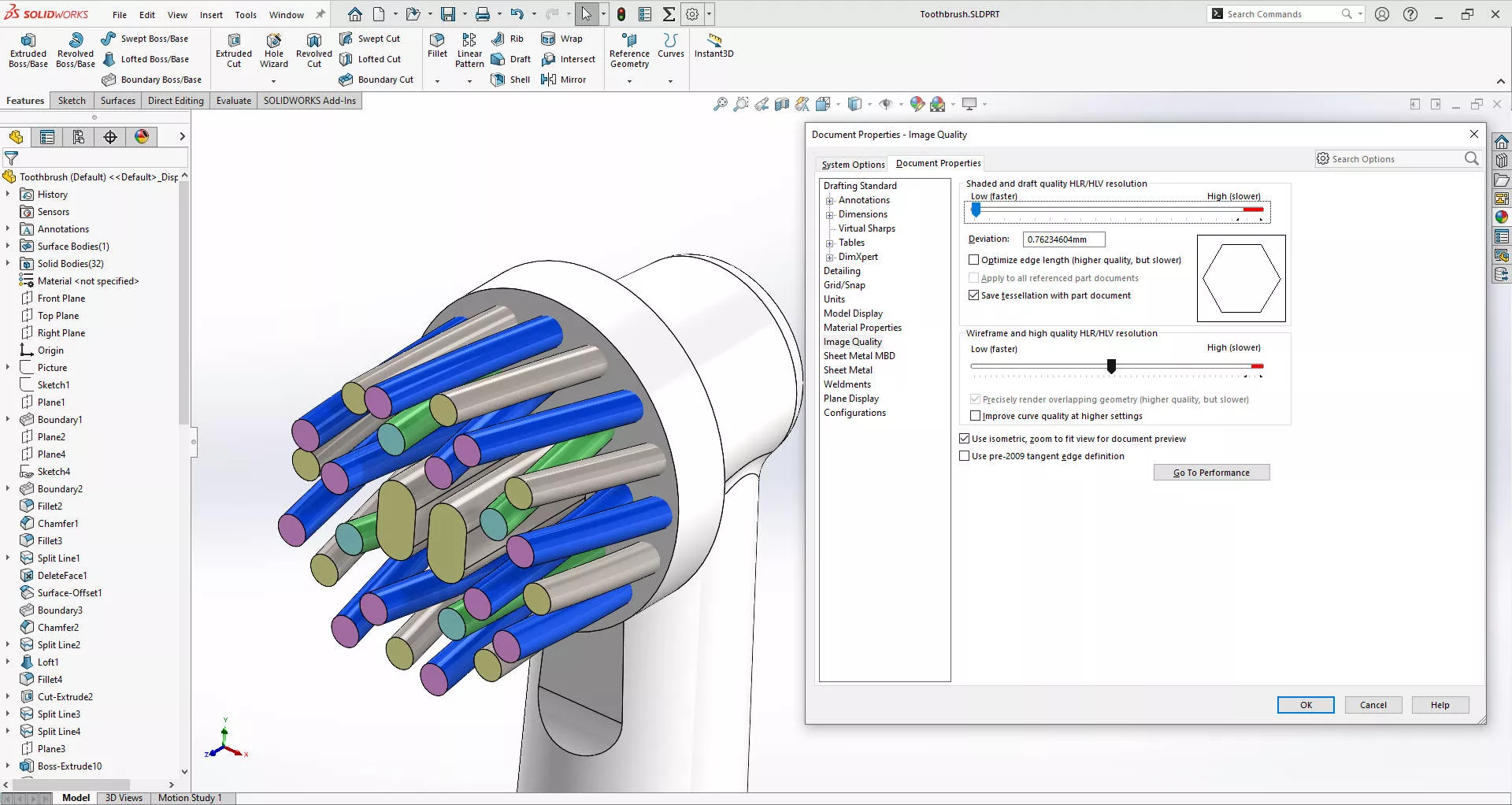
The document properties in SOLIDWORKS contain image quality sliders, and if you are seeing degraded performance, then it’s worth checking in on these to find a balance between performance and visual fidelity.
You might have heard that SOLIDWORKS only uses one core of a CPU, but we’ve debunked that myth in this blog article that you can read over here.
Categorised as: SOLIDWORKS Design | Tech Tips
Looking to buy Hardware?
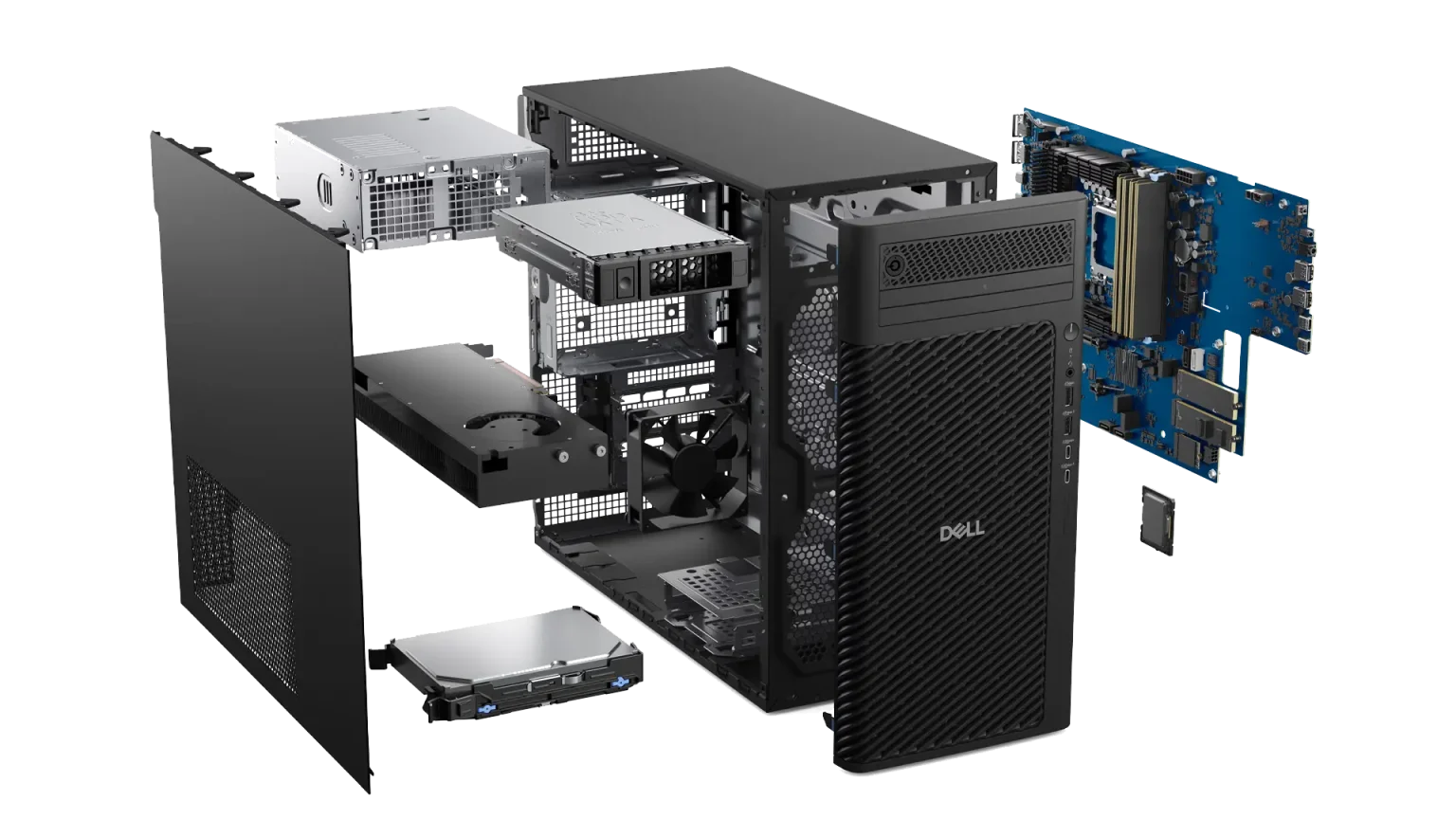
Having partnered with Dell for over 20 years, we can offer optimal SOLIDWORKS certified hardware at great value and with next business day delivery on most models.
Related Posts

How to Find Reaction Forces in SOLIDWORKS Simulation
SOLIDWORKS helps us to find resultant forces through simulation studies. These virtual tests reduce the need for physical prototypes and give us an accurate answer.

Setting number of decimal places in a table on a drawing
When creating an equation in a drawing general table, is it possible to define the…

SOLIDWORKS Smart Fasteners
SOLIDWORKS Smart Fasteners is a really useful time saving tool, allowing you to automatically insert toolbox fasteners such as bolts and screws into an assembly providing there is a standard hole.

Why is my Flat Pattern not showing in SOLIDWORKS Drawings?
This may be linked to how the drawing is saved or it can be related to how sheet metal parts are displayed in drawings, read on to find out how to fix it.

Why is SOLIDWORKS Crashing?
It’s one of the great mysteries of life – why is SOLIDWORKS crashing? Let’s explore how SOLIDWORKS crashes and how we can improve performance in SOLIDWORKS.

SOLIDWORKS Tips: Are you Making this Common Mistake in Fatigue Analysis?
Simulation is a vital and complex engineering need. Fortunately, SOLIDWORKS makes it easy to test, correct mistakes and obtain accurate results.

Tech Support Blog: Why are my SOLIDWORKS BOM Quantities Wrong?
Why are my SOLIDWORKS BOM Quantities Wrong? A support call cropped up this week which…

How to Get Your Serial Number for SOLIDWORKS Visualize Standard
Want to download Visualize to make photorealistic renders? Follow this guide for accessing your Visualize serial number that comes bundled in with SolidWorks Professional and Premium.

How to Recover SOLIDWORKS Files After a Crash
SOLIDWORKS has two different methods to help you recover from an unexpected crash or loss of data in the form of auto-recovery and back-up settings.

Redesigning Santa’s Sleigh in SOLIDWORKS
Every year Father Christmas has to fly in his sleigh to deliver presents to boys and girls all over the world in just one night. To put this into perspective, it takes a little under 24 hours to fly from London (UK) to Sydney (Australia) in a streamlined Boeing 747, whereas Father Christmas’ mode of transport is believed to be a rather non-aerodynamic sleigh.