











What’s New in SolidCAM 2026?
Written by: Tom Buxton
Published: Jul 3, 2026
| View All Blogs
SolidCAM 2026 introduces a broad set of new functionalities focused on helping manufacturers programme faster, manage complex setups more easily, simulate with greater confidence and reduce unnecessary manual work across milling, turning, mill-turn, multi-workpiece and Wire EDM workflows.
This release is especially focused on practical productivity: cleaner project packaging, faster simulation, smaller files, better fixture and machine setup control, improved turning strategies, and more efficient programming for advanced production environments.
Cleaner Project Handling and General Workflow Improvements
One of the first workflow changes users will notice is the update to the previous “Send To” command, which is now renamed “Pack and Go.” This aligns the command more closely with other CAD integrations and makes the purpose of the tool clearer for users who need to share or archive a complete CAM project.
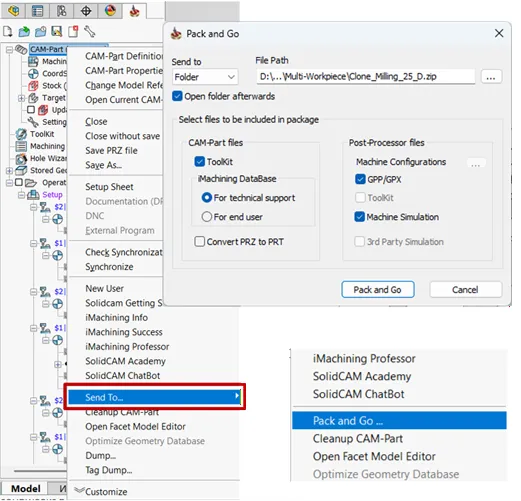
Send To” command, renamed “Pack and Go.”
The Pack and Go workflow has also been simplified into a single interface, removing separate dropdown options and avoiding unnecessary pop-up messages. Users can open the output folder immediately after packing the project, include or exclude Toolkit files, export post-processor configurations, machine simulation data, and third-party simulation files, and optionally exclude GPP or GPX files where required. The selected options are remembered for the next Pack and Go run, helping make repeat project transfer tasks faster and more consistent.
General setup has also been refined. The CNC-Controller path has moved into User Directories, CIMCO machine path settings have been added, Quick Tool Selection can now display more tool items, and the CAM-Part machining type is automatically determined from the selected machine configuration. For teams with large post-processor libraries, the new CNC-Machine Filter makes it easier to find and select the right machine.
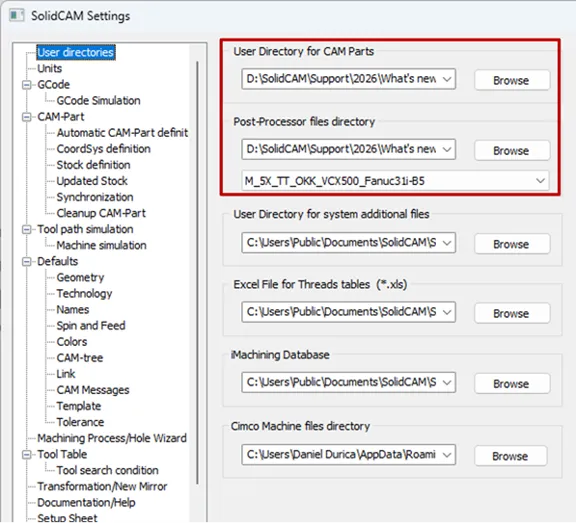
CNC-Controller path has moved into User Directories
Smarter 2.5D Milling and Feature-Based Programming
SolidCAM 2026 improves day-to-day 2.5D programming by reducing repetitive geometry selection and making recognised features more useful. Operations can now be created directly from Feature Groups in the CAM-Tree, allowing programmers to visualise a group and apply an operation from it more efficiently.
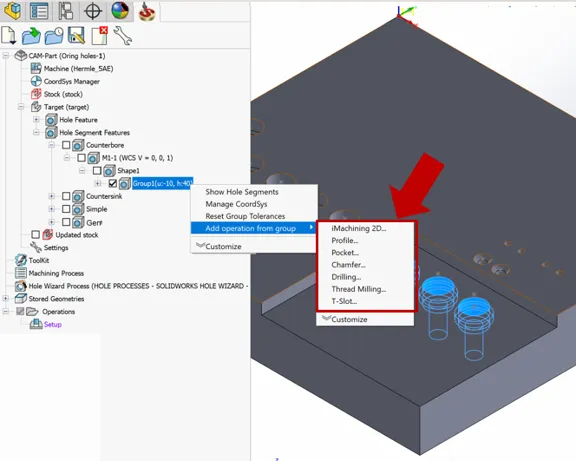
Reduce Repetitive Geometry Selection
Levels can also be picked directly from recognised hole features, either from the Levels dropdown or the flyout image. This is available across common operations including iMachining 2D, Profile, Pocket, Chamfer, Drilling, Thread Milling and T-Slot, helping users programme from recognised geometry with fewer manual steps.
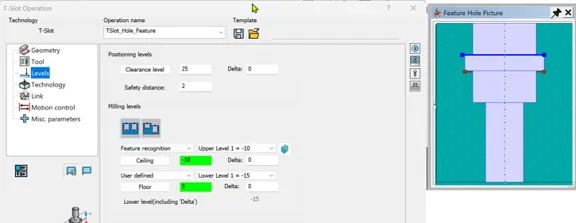
The Levels Dropdown
Several machining strategy updates also improve control and stability. T-Slot machining now supports a helical toolpath on the wall, Profile and Pocket operations can use a Ramping Delta Z in Lead In and Lead Out, and Multi-Step Chamfering provides better support for large chamfers by removing material in multiple controlled passes. SolidCAM also prevents mirrored transformations where Updated Stock would create empty toolpaths, helping avoid invalid operations before they reach calculation.
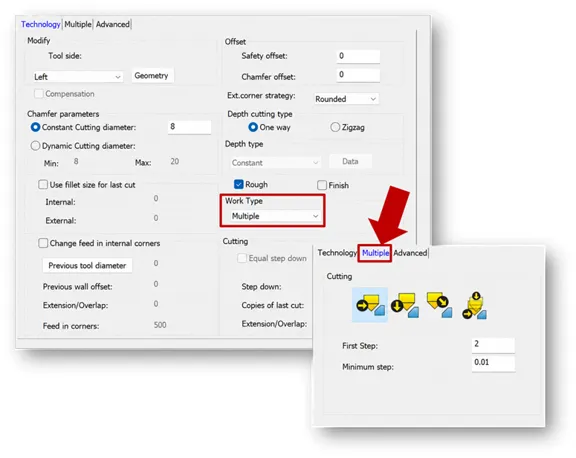
Work Type Multiple
ToolKit and Cutting Condition Improvements
ToolKit receives several usability improvements aimed at making tool management faster and clearer. In Machine Preview, a red dot now indicates the active cutting point for multi-cutter tools and updates dynamically as cutting point settings change. Users can also select multiple tools with CTRL or SHIFT and apply cutting conditions, turret settings, or coolant settings across the CAM-Part in fewer clicks.
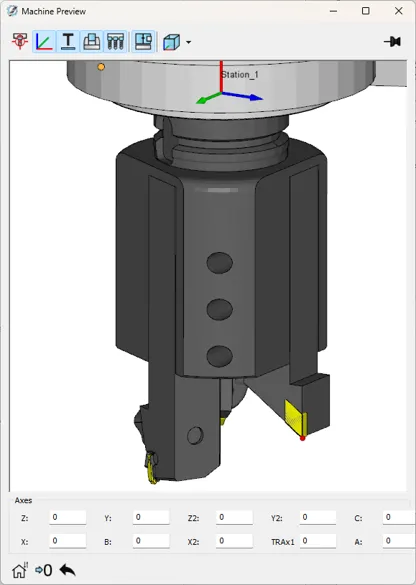
ToolKit and Cutting Condition Improvements
Working Conditions have also been expanded with new parameters including step down, stepover percentage, ramp angle, helical diameter, ramp feed, and ramp spin.
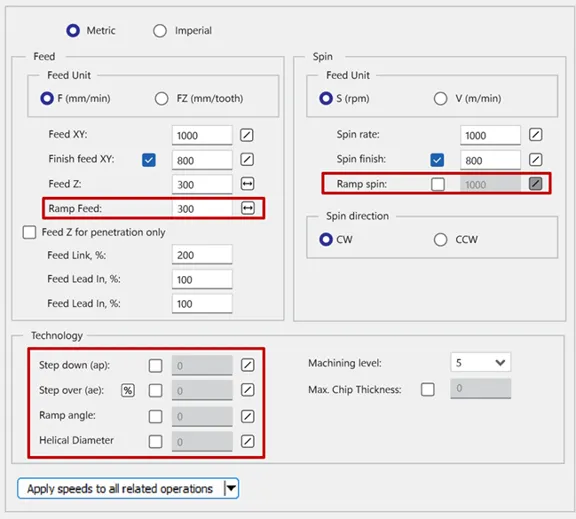
New Parameters
Optional parameters can be controlled with checkboxes, ranges can be defined, and the selected data is then carried into jobs accordingly. A new search bar for Cutting Conditions helps users quickly find conditions by name or work material, reducing time spent navigating larger tool libraries.
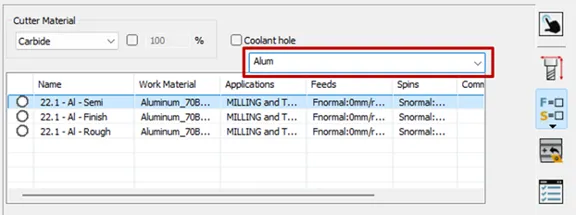
New search bar for Cutting Conditions
Multi-Workpiece Machining for Better Machine Utilisation
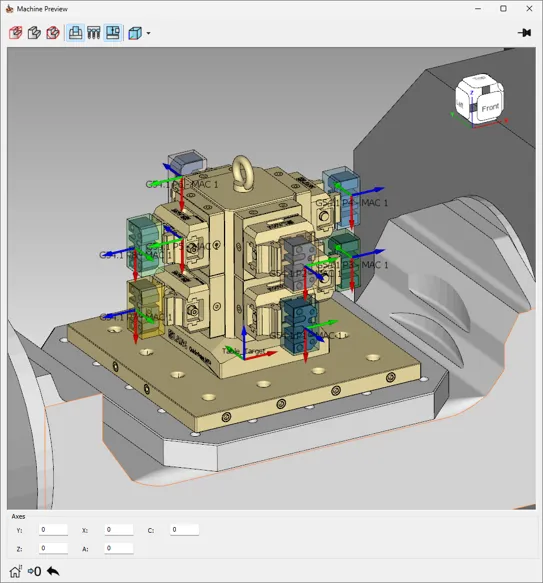
A major focus in SolidCAM 2026 is multi-workpiece machining, for multi-part and multi-operation setups where spindle utilisation needs to be maximised. The workflow allows users to manage multiple workpieces and their work offsets within a single programme cycle, supporting production scenarios such as multi-vise setups, same-side machining, multi-orientation machining, tombstones, pyramid fixtures, multi-table setups, and mill-turn workpieces from a single bar.
The Workpiece Configuration Manager gives an overview of active jobs for each workpiece and allows users to suppress or unsuppress individual or multiple jobs. The Operation Sequence Manager then helps control and optimise job execution order, with automatic sorting to reduce tool changes and vise-to-vise movement. This makes it easier to manage complex production setups while keeping programming organised and efficient.
Multi-Workpiece Machining for Better Machine Utilisation
Faster, More Flexible Simulation
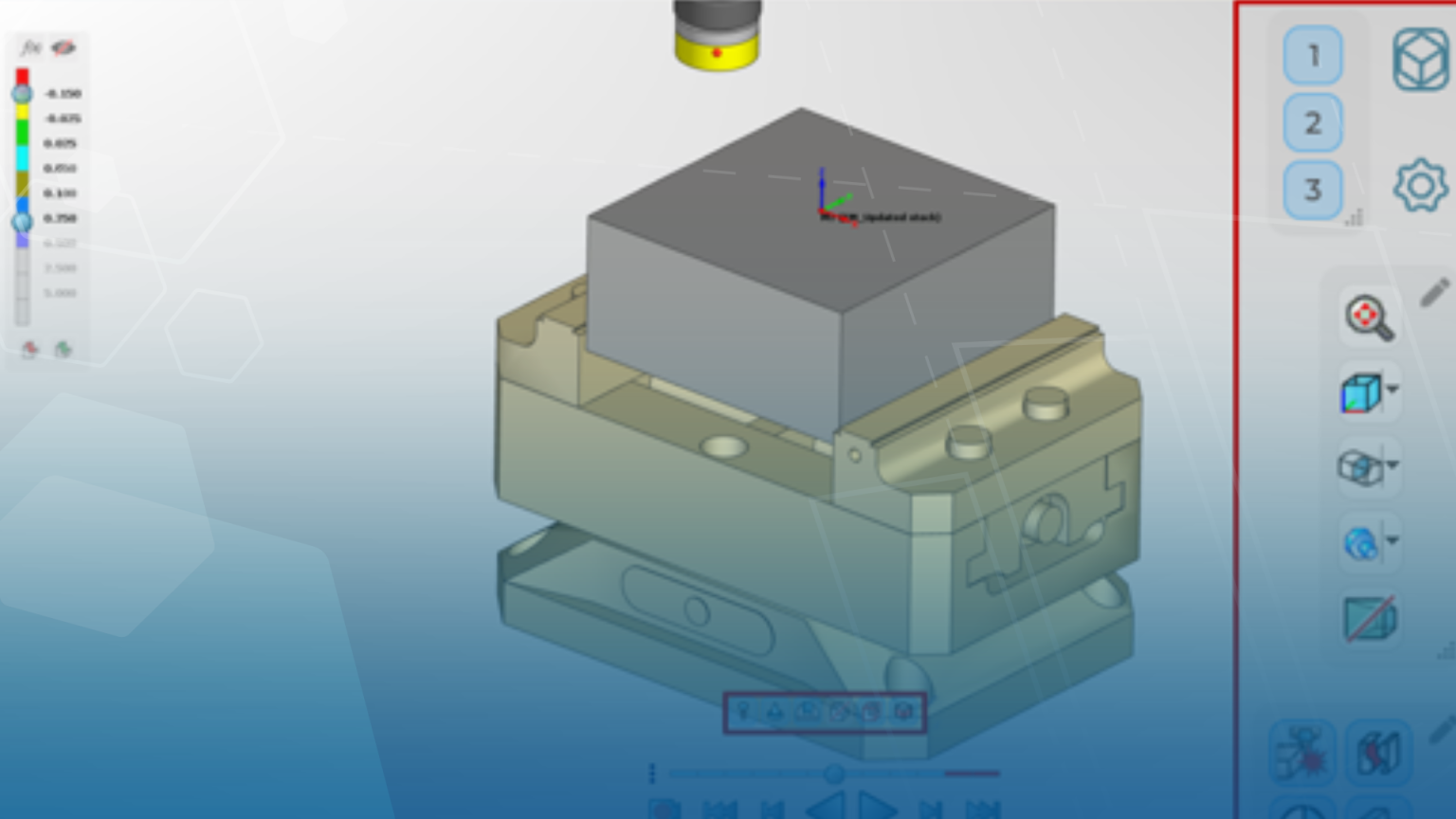
SolidCAM Simulator gains significant performance and usability enhancements in 2026. GPU-based simulation is available as a selectable simulation theme and can deliver up to 10x faster simulation compared with regular CPU simulation. It supports Solid Verification, clash detection, target and machined stock comparison, and adjustable stock rendering resolution. For detailed target and stock comparison, Ray Tracing can also be used.
For users without the system requirements for GPU simulation, CPU Sampled Stock Simulation offers an alternative route to faster verification, with performance improvements of up to 5x compared with regular CPU simulation. A new Kinematic Simulation mode is also introduced in beta, based on the SolidCAM Simulator engine, providing full machine simulation, collision control between simulation elements and target-to-stock comparison for milling operations.
Faster, More Flexible Simulation
The simulation user interface is also more flexible. Floating panels can host frequently used simulator options, the view cube now supports missing corners and edges with shortest-roll alignment behaviour, perspective view is available in both standard and kinematic simulation and Stop on Next can pause playback at key events such as collisions, job changes, tool changes, feed changes, Z changes or rapid motion.
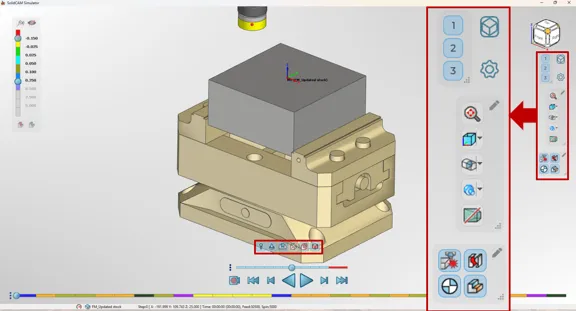
Turning, MCO and Synchronisation Enhancements
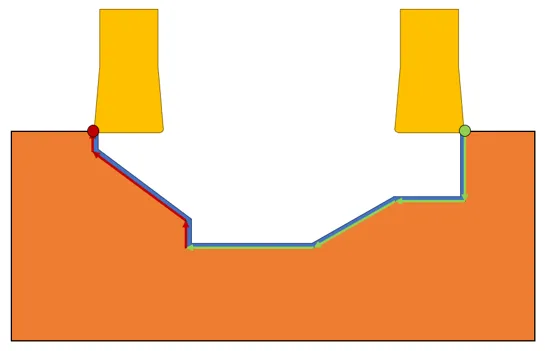
Turning receives several practical improvements for stability, chip control, and set-up reliability. Safety approach and retract point selection now better considers workpiece orientation relative to the table or spindle, which is especially useful when working on the back spindle. New turning strategies include diagonal ramp entry, thin-part cut-off with intermediate steps, chip breaking for roughing, and a multi-offset groove strategy that can use multiple offsets on a groove cutter in a single job.
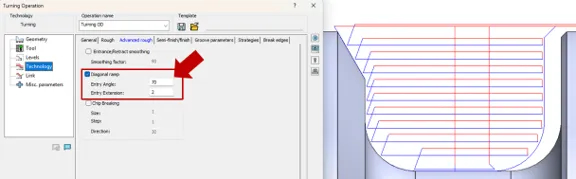
Diagonal Ramp
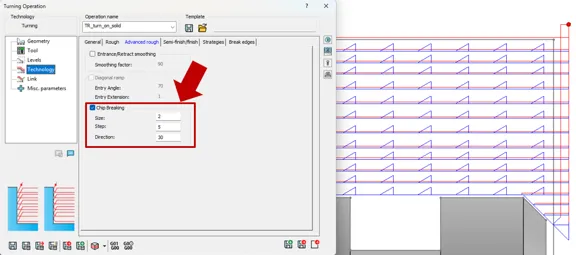
Chip Breaking
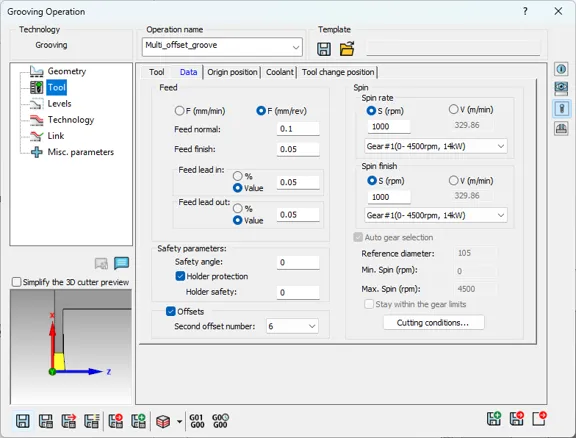
Multi-Offset Groove
MCO workflows have also been updated. CNC Operator can now move the workpiece within fixture mounting points, axes synchronisation can be defined for non-parallel axes in VMID and used in MCO, and Cycle Save includes an option to output the function result. Automatic Synchronisation helps improve machine utilisation, reduce cycle time, and reduce or eliminate manual synchronisation work by adding process splits, synchronisation marks, and axis patterns more efficiently.
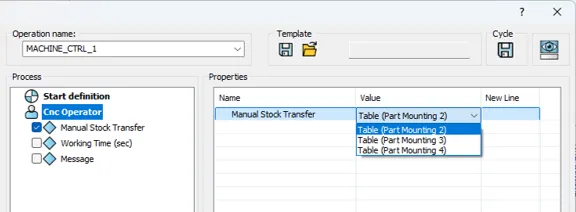
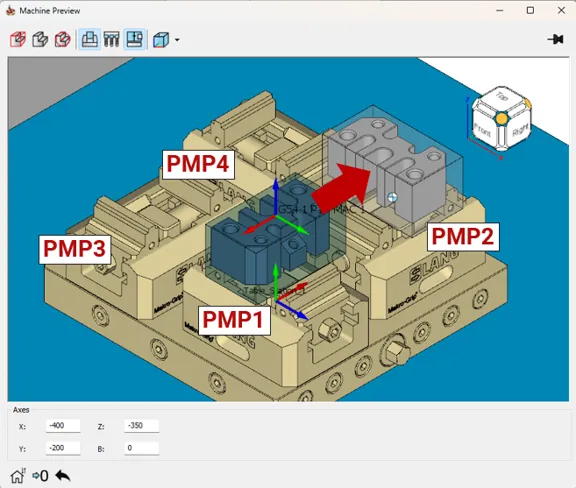
Machine Setup, Performance and Wire EDM Updates
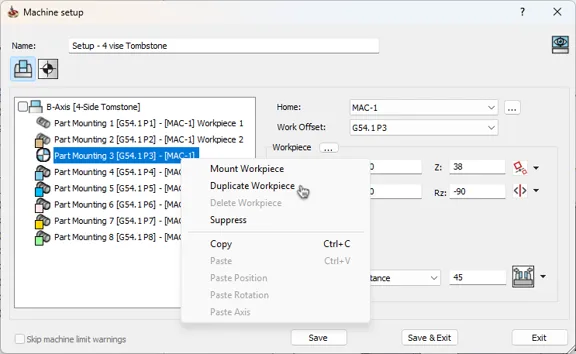
Machine Setup gains more direct control through Direct Mating in Machine Preview, multiple Part Mounting Point selection, copy and paste commands for mounting point data, support for multiple home references and the ability to suppress unused mounting points while still retaining fixtures for collision checking.
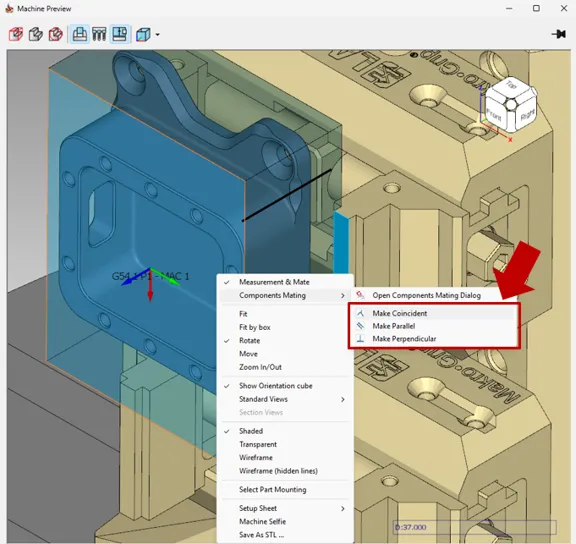
Direct Mating
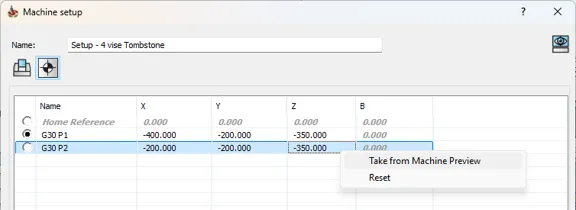
Multiple Home Positions
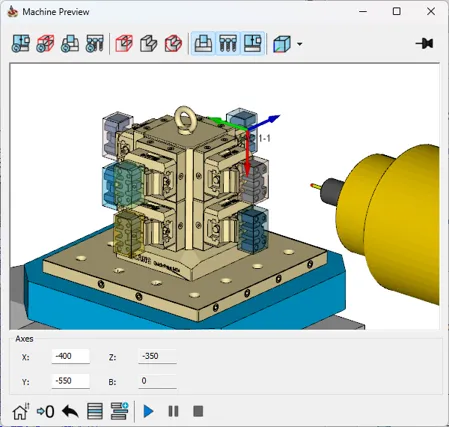
Performance has also improved through point reduction for Updated Stock calculation, compressed simulation files that can reduce file sizes by 75–80%, faster pocket calculation for geometry with thousands of islands, and faster G-code generation and simulation preparation. Wire EDM benefits from faster WDB workflows, improved facet tolerance handling, better validation for empty toolpaths, deeper insertion point placement in predrilled holes and improved tangent approach offset handling.
MultiAxis Machining Improvements
SolidCAM 2026 also includes useful improvements for MultiAxis machining, particularly around clearer setup, safer toolpath creation, and better surface quality. The Gouge Check and Clearance interfaces in 3-axis and 5-axis jobs now display only the tool elements that are actually used in the toolpath calculation, helping remove irrelevant data and making the setup easier to understand.
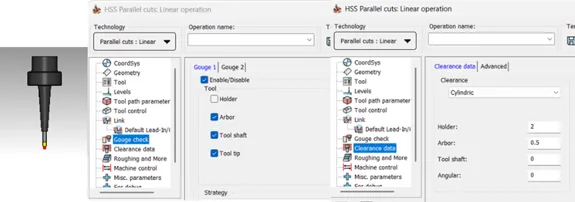
With Holder
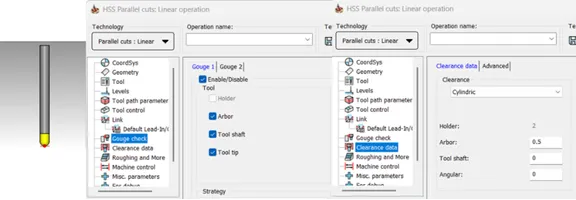
Without Holder
Pro 3D HSM also gains fixture support for Pencil and Horizontal strategies, allowing fixture surfaces or models to be recognised during calculation to help prevent collisions. Constant Stepover Machining has been improved with variable stepover control for both steep and shallow areas, helping optimise machining efficiency while improving surface finish.
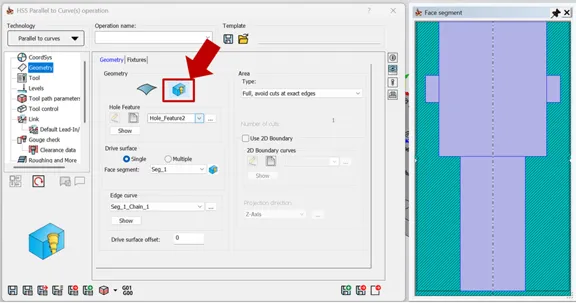
HSS also benefits from Hole Feature Geometry support, allowing toolpaths for conical, chamfer and radius hole features to be created using HSS Parallel to Curves, making it quicker to generate accurate 3D toolpaths from recognised hole geometry.
Why This Matters
SolidCAM 2026 is not just a collection of individual feature updates. It is a release built around improving real programming experience: fewer manual steps, faster calculation and simulation, better project handling, more flexible setup control, and stronger support for complex production environments.
Whether you are managing large 3D toolpaths, running multi-vise production, validating complex machine motion, or improving turning reliability, SolidCAM 2026 helps reduce waiting time, improve confidence, and make better use of machine capacity.
Get in Touch
If you would like to understand how SolidCAM 2026 could improve your current programming workflow, speak to the Solid Solutions team. We can help review your machining requirements, demonstrate the latest functionality, and advise on the best way to get more from SolidCAM.
Categorised as: SOLIDWORKS CAM | Software | SolidCAM
Get a SOLIDWORKS Quote
Interested in SOLIDWORKS? Contact us for questions, trials, or demos by clicking the button below or call 01926 333777. Our experts will help you find the perfect solution.

Related Posts

How to Find Reaction Forces in SOLIDWORKS Simulation
SOLIDWORKS helps us to find resultant forces through simulation studies. These virtual tests reduce the need for physical prototypes and give us an accurate answer.

Setting number of decimal places in a table on a drawing
When creating an equation in a drawing general table, is it possible to define the…

SOLIDWORKS Smart Fasteners
SOLIDWORKS Smart Fasteners is a really useful time saving tool, allowing you to automatically insert toolbox fasteners such as bolts and screws into an assembly providing there is a standard hole.

Why is my Flat Pattern not showing in SOLIDWORKS Drawings?
This may be linked to how the drawing is saved or it can be related to how sheet metal parts are displayed in drawings, read on to find out how to fix it.

SOLIDWORKS Tips: Are you Making this Common Mistake in Fatigue Analysis?
Simulation is a vital and complex engineering need. Fortunately, SOLIDWORKS makes it easy to test, correct mistakes and obtain accurate results.

SOLIDWORKS Visualize. Why go pro? – 6 Post Processing
In this blog we will be look at the post-processing options that can be found in SOLIDWORKS Visualize

SOLIDWORKS Visualize. Why go pro? – 7 Lighting
SOLIDWORKS Visualize uses a non-biased rendering engine, which allows for physically accurate lighting within a scene. It generates images with high amount of realism and correct set up can replicate photo studio lighting.

How to Get Your Serial Number for SOLIDWORKS Visualize Standard
Want to download Visualize to make photorealistic renders? Follow this guide for accessing your Visualize serial number that comes bundled in with SolidWorks Professional and Premium.

How to Recover SOLIDWORKS Files After a Crash
SOLIDWORKS has two different methods to help you recover from an unexpected crash or loss of data in the form of auto-recovery and back-up settings.

Redesigning Santa’s Sleigh in SOLIDWORKS
Every year Father Christmas has to fly in his sleigh to deliver presents to boys and girls all over the world in just one night. To put this into perspective, it takes a little under 24 hours to fly from London (UK) to Sydney (Australia) in a streamlined Boeing 747, whereas Father Christmas’ mode of transport is believed to be a rather non-aerodynamic sleigh.