











10 Reasons to Use SOLIDWORKS PDM Professional

Written by: Dylan Cowper
Published: Jan 25, 2024
| View All Blogs
This review focuses on the benefits of PDM Professional when compared to PDM Standard, so if you’re just starting out on your data management journey or still deciding if SOLIDWORSK PDM is right for you, then check out these 10 reasons why you need SOLIDWORKS PDM Standard first.
#1 – Automatic Part Numbers

SOLIDWORKS PDM Professional can generate numbers (and therefore filenames) automatically. Incremental numbers can be triggered during file or folder creation to allow for consistent and unique file naming and/or part number allocation.
Serial Number schemes can be tied to specific filetypes or Templates. These can be simple sequential codes, numbers pulled from a pre-defined list, or created by using the additional Project Numbering add-in developed by Solid Solutions, and configured to provide semi and fully significant numbers.
#2 – PDM Templates
Creating a consistent folder structure across multiple projects can be time-consuming work, prone to human error and generally reserved only for administrators.
Using PDM templates, a pre-defined file structure can be re-created on demand, allowing administrators to put more power in users’ hands to create these folders themselves and save some valuable time.
Folder Templates can also include files, leveraging existing metadata in a location based on pre-configured rules, or by requiring specific input at runtime meaning the folders can be created and populated with files with a single command.
File-based templates can also be created that add files directly into a selected folder, inheriting metadata from the selected location that can be used with Part Numbering rules as required.
#3 – Workflow Expansion

In SOLIDWORKS PDM Standard, only one Workflow is available, and it has a maximum of 10 states. This limit is removed in SOLIDWORKS PDM Professional, where workflows can increase significantly in complexity.
Multiple workflows can be deployed to handle files with different revision schemas, approval processes, or permission requirements.
Links can also be created between workflows to allow files to enter/exit alternative workflows based on changes to the lifecycle.
#4 – Enhanced Workflow Automation and Validation
In addition to the increased number of states, new and powerful transition types can be added to workflows in SOLIDWORKS PDM Professional to allow files to automatically transition based on pre-set conditions, or to add extra levels of validation by requiring two or more users in a parallel approval process.
Discover the power of automatic workflow transitions in this quick explainer.
#5 – Expanded Task Automation

Tasks in SOLIDWORKS PDM Professional are enhanced – allowing over 20 different file types to be exported via a workflow or manual trigger. This includes PDF, DWG & DXF (including flat patterns created directly from a part), STEP and STL files.
It also does not require the user triggering the task to have the exporting application installed, as the task can be outsourced to another machine.
This can allow non-SOLIDWORKS users to trigger tasks which they would not be able to in SOLIDWORKS PDM Standard. Tasks can be initiated on a case-by-case basis through a right-click command.
Plus, with PDM Professional having open API, we can create custom tasks to fit your requirements. Solid Solutions have developed a library of tasks for all sorts of scenarios, for example: converting Visio files to PDF, DWG, or DXF; and creating a book of PDFs for SOLIDWORKS Electrical projects.
#6 – BOM Exporting Tools
One of the most important outputs from a product data management environment is the Bill of Materials or ‘BOM’. This can be manually saved out to CSV from SOLIDWORKS PDM Standard (and Pro), but that has its limitations and must be done explicitly for each file.
By triggering an Export Rule during a workflow transition, SOLIDWORKS PDM Professional can be instructed to export BOM data from an assembly in XML format. In most cases, this can be directly imported into your company’s ERP system.
If the data needs to be in another format for importing or readability, Solid Solutions have developed an add-in which allows a BOM to be generated through a Custom Export task. It can be exported to CSV, TSV, or to an Excel Template which allows for the data to be displayed in a defined, consistent manner.
#7 – Improved Searching Power

The search tools in SOLIDWORKS PDM Professional get even more powerful, with the ability to integrate with Windows Indexing to search file contents, not just the metadata available in the database.
Search favourites allow you to save a search which you will be repeating often, saving you time setting up the search terms each time.
The standalone search tool provides more flexibility to users, allowing them to carry out a search without first loading into the Explorer view, and search across multiple vaults.
As a standalone application, this can be run from a shortcut which can be modified to load a given search, allowing users with less PDM experience to easily use the search functionality.
Learn how to customise your notifications in SOLIDWORKS PDM.
It’s straightforward to do with a little bit of HTML coding, so you can make your notifications work for you.
#8 – Extended Collaboration & Remote Access
When working across remote offices, nationwide or even globally, connecting to a central server and downloading large assembly files can often be prohibitively slow.
SOLIDWORKS PDM Archive Replication allows files to be synchronised to a remote server overnight, whilst automatically transferring any new versions created during the day on demand .
SOLIDWORKS PDM Database Replication (requires SQL Enterprise at each location) can also be used to speed up database operations in remote sites with high latency connections back to the Primary site.
Using SOLIDWORKS PDM Web 2.0, access to the vault through an internet browser, without the need for an installation of PDM is possible.
This works both on desktop (Windows, iOS or Linux) and mobile devices, and provides most functionality including previewing files, checking files in and out, viewing and modifying metadata.
Documents can even be downloaded and uploaded allowing them to be modified locally.
#9 – Multi-Product Support & Integration

SOLIDWORKS PDM Professional opens up integration with many other SOLIDWORKS products such as SOLIDWORKS Electrical and SOLIDWORKS Composer, as well as third-party products such as SWOOD and Autodesk products.
The expanded functionality is delivered via a combination of an add-in and a File Format plugin to seamlessly interact with PDM, where using these in conjunction with PDM Standard would otherwise require manual management.
Some Solid Solutions productivity tools such as SolidQ also offer PDM integration which only works with SOLIDWORKS PDM Professional.
Over 250 file formats can be previewed with the built-in file viewer, and tasks can be used to export PDFs from other file types including DWG and office documents.
#10 – Adaptable API

SOLIDWORKS PDM Professional includes a simple automation tool called Dispatch, but also allows software developers to extend the capabilities of PDM further through the use of API and custom add-ins.
At Solid Solutions, we have a dedicated team specialising in developing and maintaining these add-ins.
We can provide add-ins for any number of issues, some of them are tried and tested (such as the advanced number add-in and the BoM export tool mentioned previously), but bespoke tools can be created if an issue isn’t covered by an existing solution.
For more details on some of the available customisation, visit our SOLIDWORKS PDM Customisation page.
Take the Next Steps…
As part of the TriMech Group, we can not only implement SOLIDWORKS PDM, but support you and your users throughout your design journey with our expert Technical Support team, helping to give you a smooth experience and keep your projects on track.
Categorised as: Data Management | SOLIDWORKS PDM
Get Certified in PDM
Master data management with our CPD-accredited SOLIDWORKS PDM training courses. Our friendly and expert Trainers have first-hand experience of implementing and using SOLIDWORKS PDM in industry and are ready to help you get started, either online or in a classroom near you.

Related Posts

How to Create a Pack and Go in SOLIDWORKS
Pack and Go in SOLIDWORKS should be used when sending SOLIDWORKS files to another person. Use this simple guide to help you safely send entire SOLIDWORKS projects.
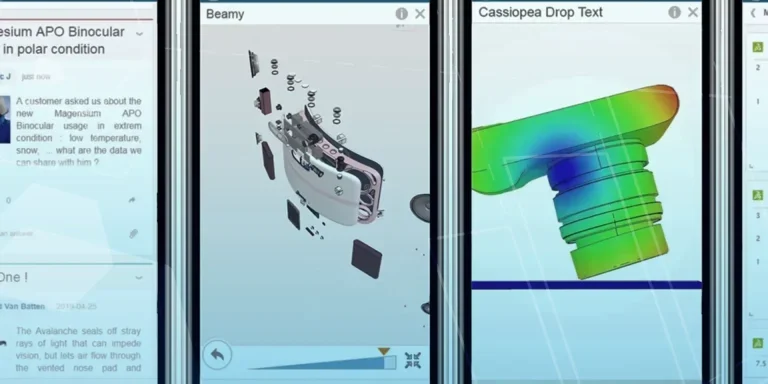
What is 3DSWYM? A 3DEXPERIENCE Platform Tutorial
3DSwym is the application at the heart of the 3DEXPERIENCE, allowing users to connect and collaborate across the platform.
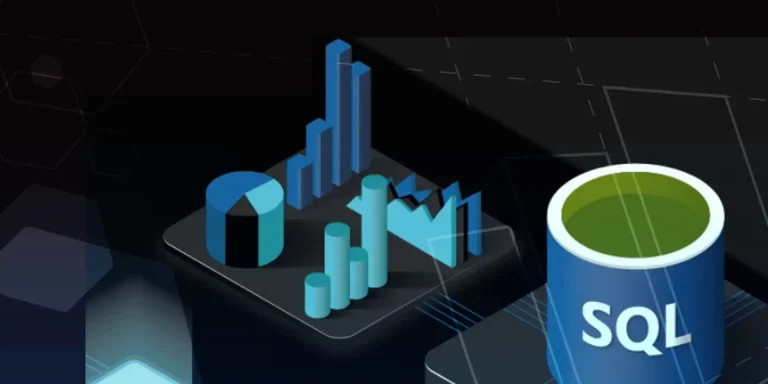
Microsoft SQL Server licensing for SOLIDWORKS PDM
October 2020 marks two important milestones for the SOLIDWORKS PDM family and SQL Server.

Part Numbering in SOLIDWORKS PDM Professional
When implementing a new PDM Professional Vault Customers will have the option to review their part numbering and classification requirements as they move to a system that allows them to, in most cases, automate the way the identify ‘parts’ within the Vault. Part Numbering is something that a lot of customers approach differently and this is often based on ‘how it’s always been done’ without necessarily considering what is the purpose of a Part Number within their organisations and wider within their supply chains. If we consider the humble part number. What is it’s purpose?

The 6 Golden Rules of Managing Data in SOLIDWORKS
When modelling in SOLIDWORKS, before you know it, you will have created lots of parts, assembly and drawing files, so it’s important to think about how you will manage these files and keep everything organised. Here we discuss the ‘6 Golden Rules’ of managing your SOLIDWORKS files using Windows Explorer and recommended methods for file naming, structuring your projects and managing revisions.
This kicks off a month looking at the management of CAD data, register for one of our upcoming live webinars at the bottom of this article.

PDM Professional – Assigning Users with Conditional Notifications
Often customers will create smaller project teams for specific jobs and in the past we have been asked if it is possible, within a multi stage workflow, to pre-assign at the creation stage users who will be notified as checker / approver within those transitions. This blog will demonstrate how, using conditional Notifications in PDM Professional, this can be configured. We will also create some logic to allow for certain parts of the workflow to be bypassed by validating the selected ‘names’ against transition conditions. In this example the ‘approvers’ will be assigned on the files DataCard, but it would be just as feasible to have these names inherited from a project folder card if defining the rules at a higher level was possible within your Teams.
Managing Disk Space with SOLIDWORKS PDM Part #1: Distributing the Archive
This blog series was prompted by a recent support ticket, logged when a customer found their PDM Professional installation suddenly became unusable. The warning message, led to my reviewing the Archive Server Log file and this quickly identified the problem being a result of the PDM Server running out of disk space.
Managing Disk Space with SOLIDWORKS PDM Part #2: Deleted vs Destroyed and the Vault Cleaner Service
In this blog series we are examining the factors influencing disk usage within PDM and what you can do to manage them. In the first part we discussed how you can re-organise your archive across multiple drives to get you back up and running quickly should you find you are short on space. This blog and the next part will discuss behaviours in PDM that can result in redundant disk usage and how you can free that up with the vault cleaner service.
Managing Disk Space with SOLIDWORKS PDM Part #4: Cold Storage
In this blog series we are examining the factors influencing disk usage within PDM and what you can do to manage them. In the first part we discussed how you can re-organise your Archive across multiple drives to get you back up and running quickly should you find you are short on space. In the second part we looked at the differences between a deleted and a destroyed file and the impact the PDM recycle bin has on Disk usage. Part three discussed temporary session files created by the PDM Web Server and this Part will look at an option within PDM called Cold Storage.
Managing Disk Space with SOLIDWORKS PDM Part #5: Archive Compression
In this blog series we are examining the factors influencing disk usage within PDM and what you can do to manage them. In the first part we discussed how you can re-organise your archive across multiple drives to get you back up and running quickly should you find you are short on space. In the second part we looked at the differences between a deleted and a destroyed file and the impact the PDM recycle bin has on Disk usage. Part three discussed temporary session files created by the PDM Web Server. In part four we discussed cold storage and in this last part we will look at archive compression.