











3 HUGE updates every Electrical Designer needs to know about | What’s New in SOLIDWORKS 2025

Written by: Stefano Bigazzi
Published: Oct 14, 2024
| View All Blogs
SOLIDWORKS Electrical 2025 is here, bringing exciting updates that promise to revolutionise electrical design workflows.
This year’s release includes advanced features that enhance usability, streamline processes, and improve design.
Here’s a closer look at what’s new, how these updates work, the benefits they offer, and their potential applications.
#1 – Distributed Terminal Symbols
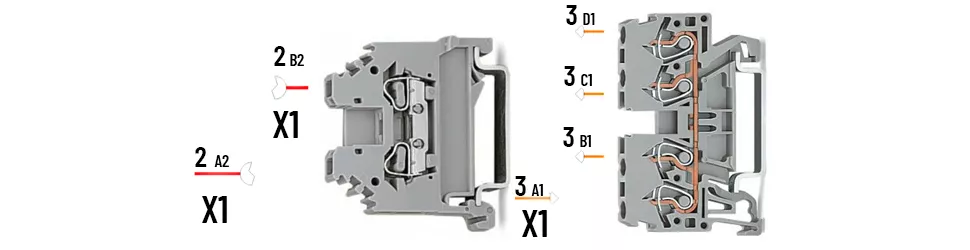
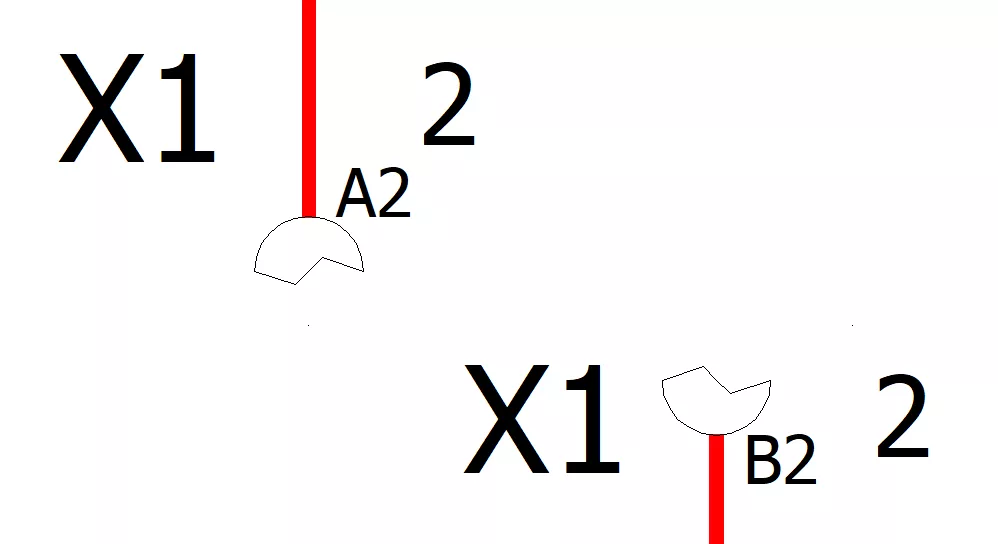
Distributed terminal symbols allow you to represent a single circuit using multiple terminal symbols spread across different pages of your electrical schematic.
Instead of having a single terminal symbol represent all connections in a circuit on one page, you can place multiple terminal symbols on different pages, each representing a segment of the same circuit.
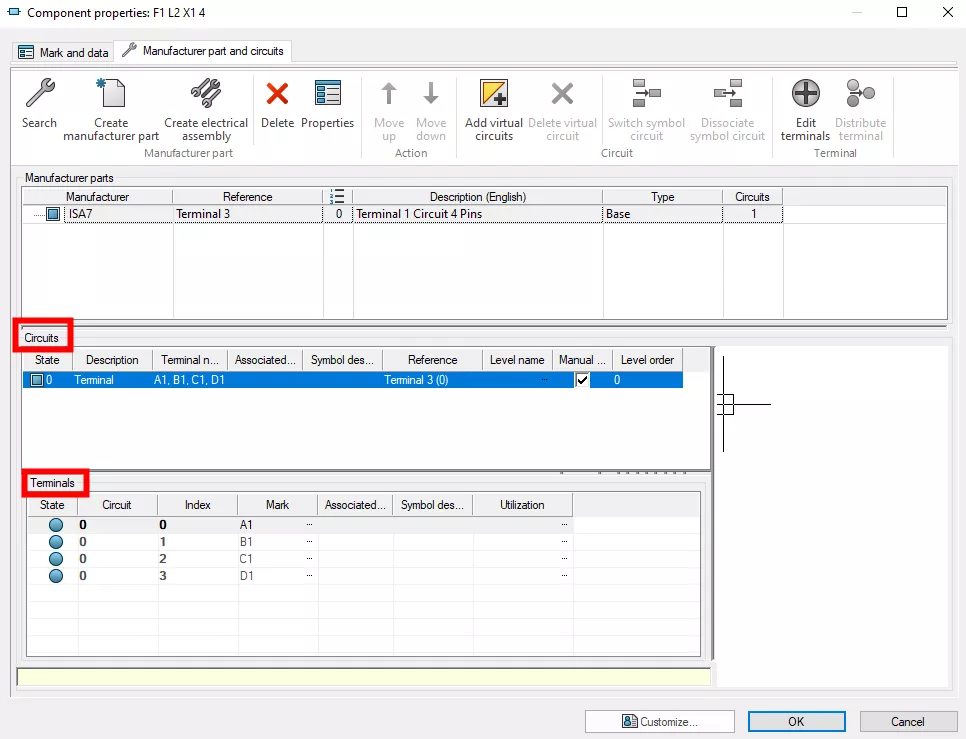
The manufacturer component interface has also been updated and we have a dedicated section for circuits and terminals.
How to Add Distributed Terminals
- Add a terminal part to the project.
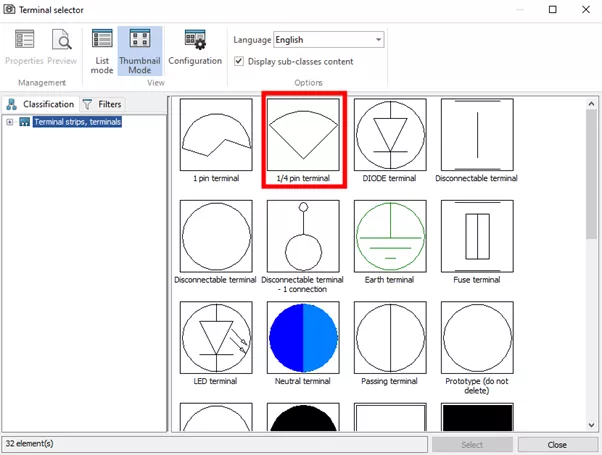
- Click Insert Terminal and select a symbol (e.g. ¼ pin terminal).
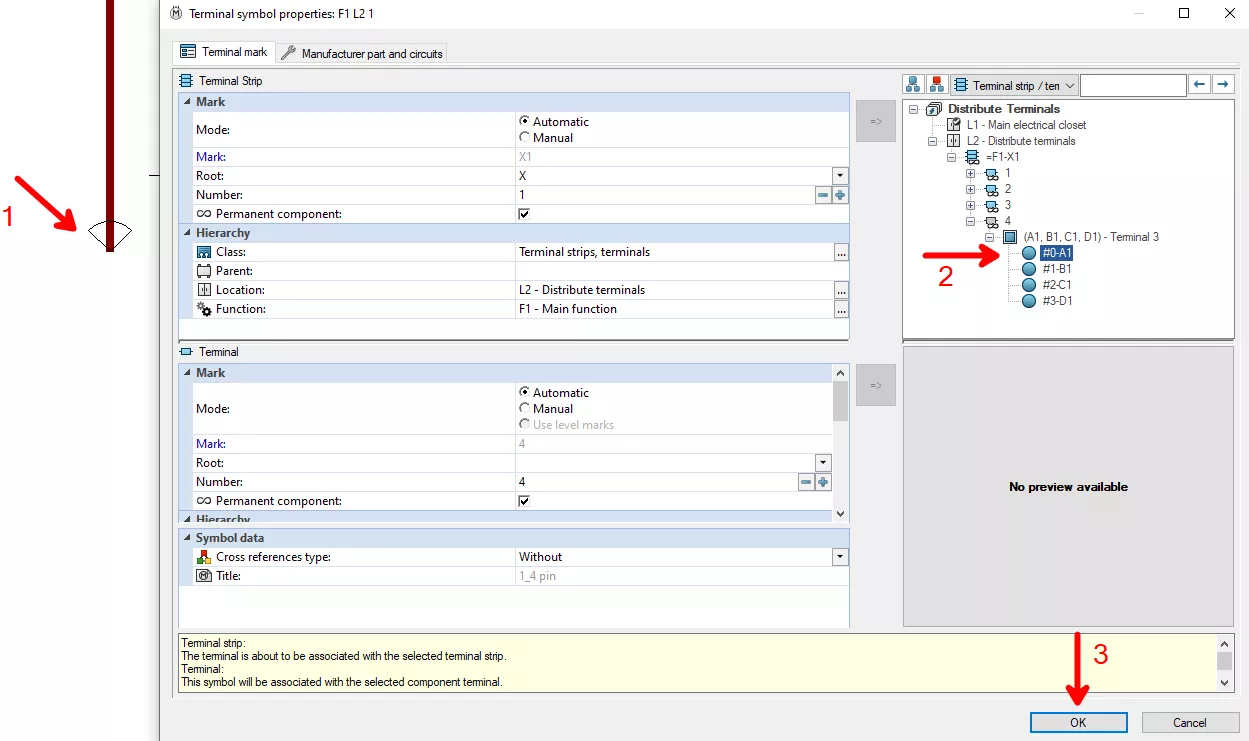
- Associate the symbol with the relevant terminal.
- Circuit terminals can be represented by symbols placed on multiple pages.
Benefits of Using Distributed Terminal Symbols
- Enhanced clarity and organisation are provided by simplified layouts. Large and complex electrical circuits can be difficult to manage on a single page, so by distributing terminal symbols across multiple pages, you can simplify the layout and avoid clutter.This makes it easier to read and understand each part of the circuit without overwhelming the viewer with too much information on one page.
- Design flexibility is enhanced in SOLIDWORKS Electrical 2025, as distributed terminal symbols offer dynamic representation of circuits. You can add or modify terminal symbols as needed, and these changes will be reflected across all pages where the circuit is represented.This flexibility allows you to adapt your design as requirements evolve without having to manually update each instance of the terminal symbol.
- Efficient design updates in the form of centralised changes. When modifications are needed, you can update the terminal symbols in one place, and these updates will propagate across all pages where the symbols are used.This centralised approach reduces the risk of inconsistencies and errors that can occur with manual updates on multiple pages.
When to use Distributed Terminals
Imagine you are designing a complex electrical control panel with multiple connections distributed across various sections. By using distributed terminal symbols, you can place terminals on different schematic pages corresponding to different sections of the panel.
This way, each page focuses on a specific part of the system, such as power distribution or control circuits, while maintaining a clear connection to the overall circuit.
In summary, distributed terminal symbols in SOLIDWORKS Electrical 2025 offer a range of benefits, from improved clarity and flexibility to streamlined documentation and maintenance.
This feature helps you manage complex designs more effectively, ensuring that your electrical schematics are both clear and adaptable to changing needs.
#2 – Import Electrical Content
SOLIDWORKS Electrical 2025 introduces a new feature that allows you to quickly add cable references and manufacturer part references into your shared library.
How to use Import Electrical Content
The Import Electrical Content feature simplifies the process of integrating electrical components into your SOLIDWORKS projects.
Here’s a step-by-step breakdown of how it works:
- Initiate the import process to generate a Microsoft Excel template.
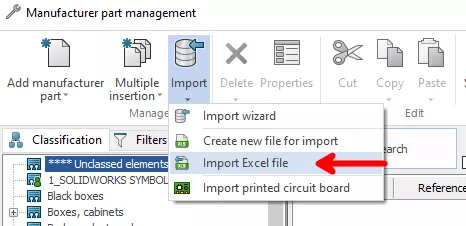
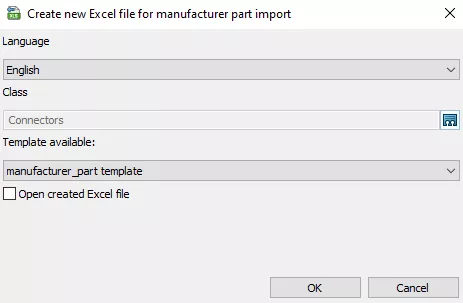 SOLIDWORKS will create an Excel template that includes all necessary part properties, including circuits and terminals.This template is designed to be user-friendly, capturing all relevant data in a structured format.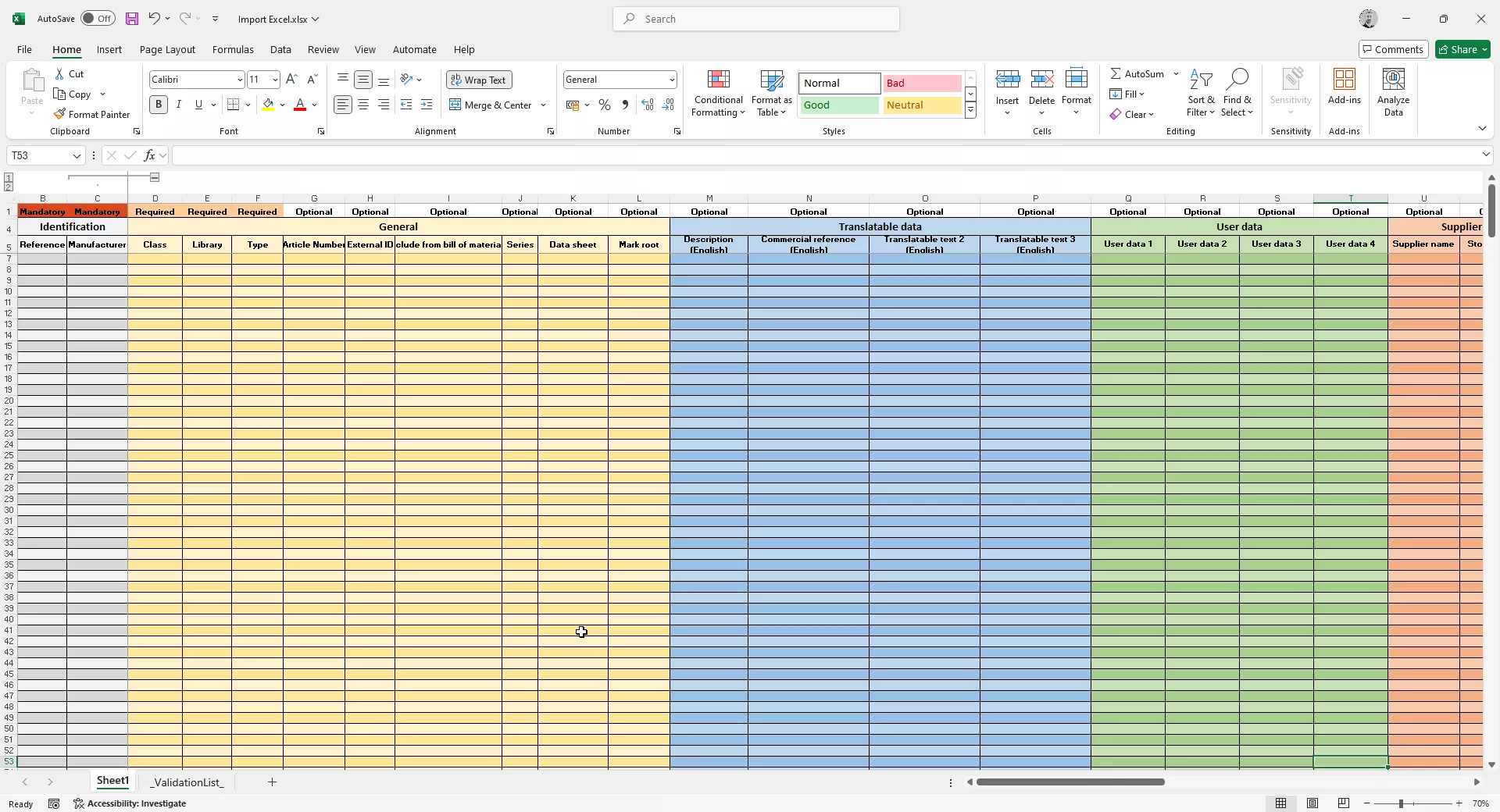
- We then need to populate the template. Open the Excel file and fill in the details for each part, including cable references and manufacturer part numbers.
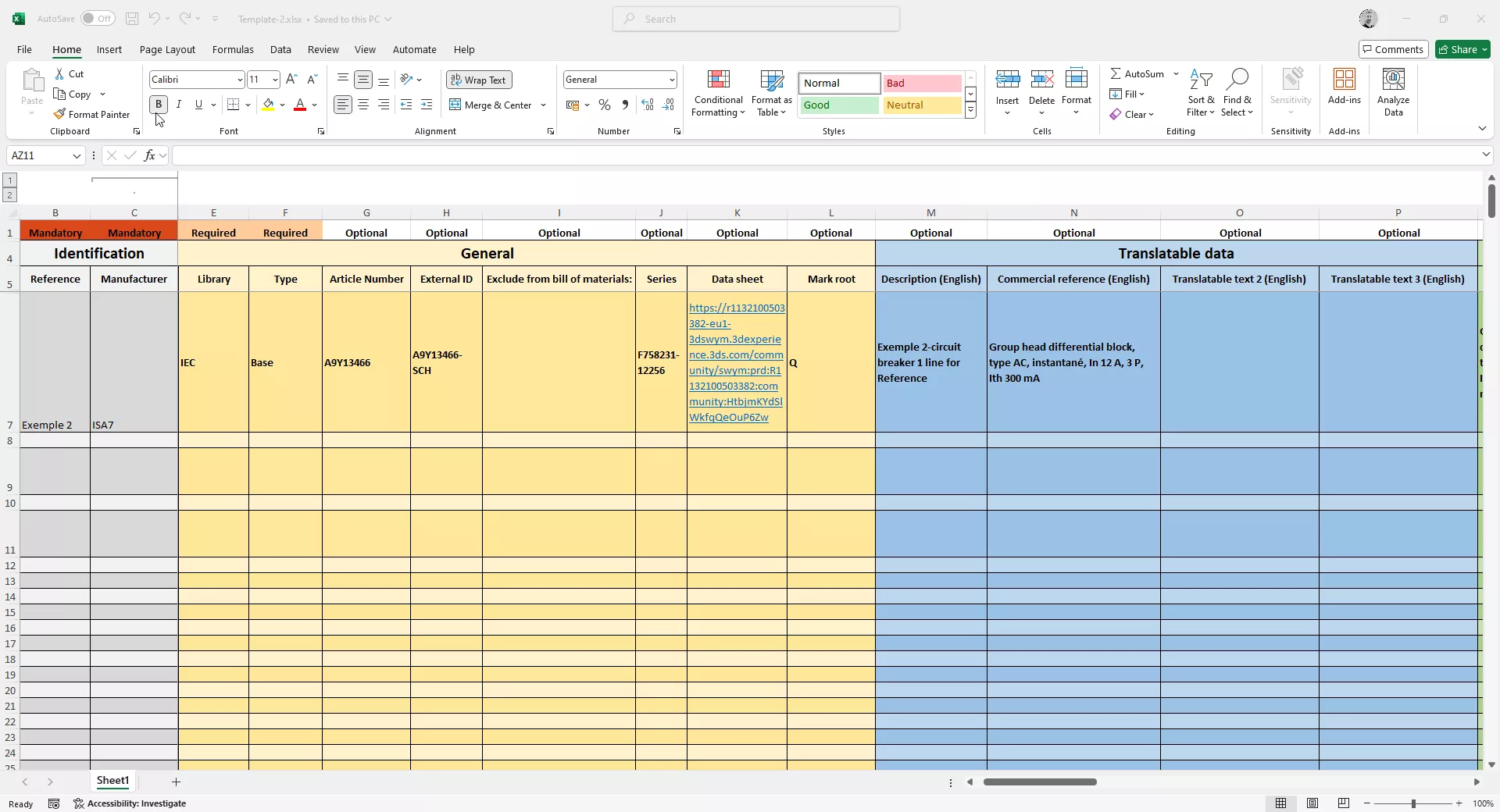 The template is equipped with fields to enter information about circuits, terminals, and other essential attributes.
 - Import the completed template into SOLIDWORKS. Once you’ve populated the template, save it and import it back into SOLIDWORKS.
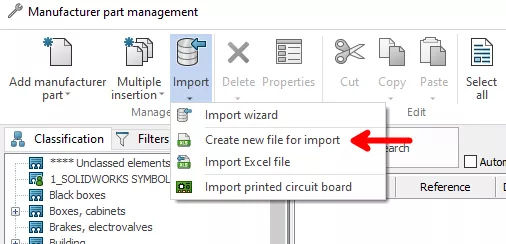 The software will read the data from the Excel file and integrate it into your shared library, making the new references available for use in your designs.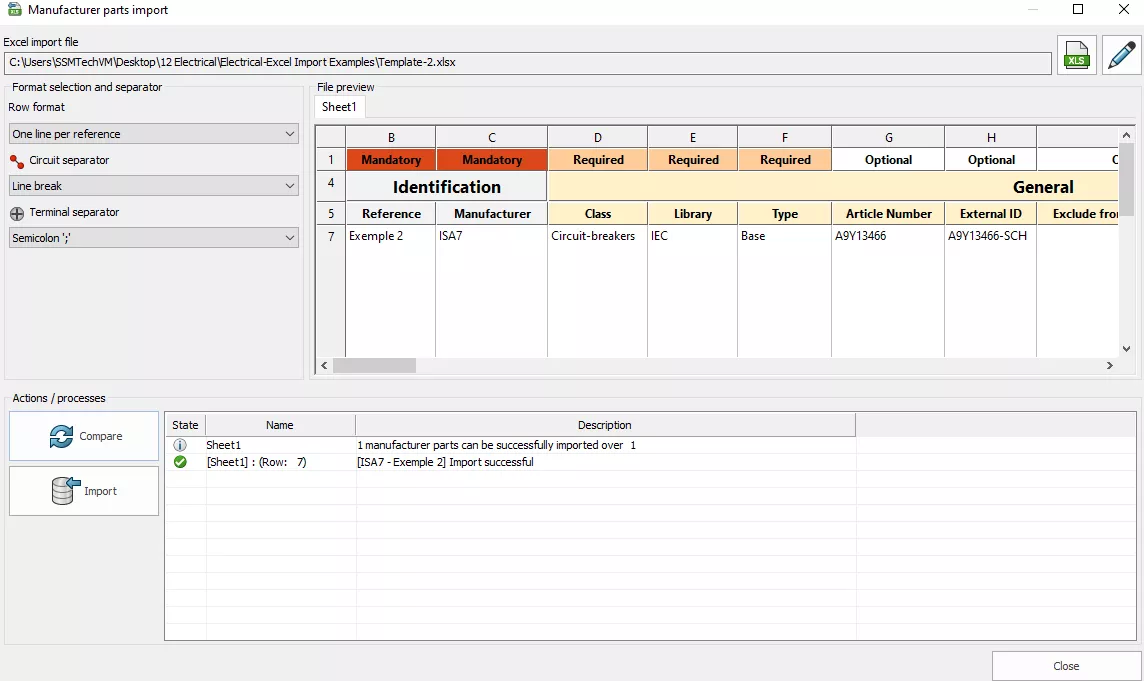
This streamlined process reduces manual data entry and minimizes errors, making it easier to manage and update your electrical components.
Key Benefits of Importing Electrical Content
The Import Electrical Content feature offers several key benefits:
- Efficiency: By automating the import process, you save time. This leads to faster project turnaround and improved productivity.
- Accuracy: Reducing manual data entry minimizes the risk of errors. The structured format of the Excel template ensures that all necessary information is captured accurately.
- Consistency: With a standardized import process, you can maintain consistency across your projects. All components will have the same format and property details, making it easier to manage and reference them.
- Ease of Use: The feature simplifies the integration of new parts into your library. Even if you’re not familiar with the specifics of each component, the Excel template guides you through the process.
When to use ‘Import Electrical Content’
The Import Electrical Content feature is versatile and can be applied in various scenarios:
- Import Component Libraries: Easily update your shared library with new components from manufacturers. This ensures that your designs are always using the most current parts.
- Collaborative Projects: When working in teams, streamline the process of sharing component data. Team members can import parts in the shared library, ensuring everyone has access to the latest information.
- Integration with Supplier Data: Incorporate data from suppliers into your design process. If a supplier provides an Excel file with part information, you can quickly import this data into SOLIDWORKS, saving time on manual data entry.
#3 – Intelligent Drawings
SOLIDWORKS 2025 drives ECAD/MCAD collaboration, and enables us to import flattened harness drawings or cabinet layouts from SOLIDWORKS into SOLIDWORKS Electrical.
Transforming standard graphical blocks into intelligent symbols that seamlessly integrate with the SOLIDWORKS Electrical database.
Let’s explore how this feature works, its benefits, potential applications, and a guide on how to use it effectively:
How to Make Intelligent Electrical Drawings
Here’s a step-by-step look at the process within a typical SOLIDWORKS Electrical 3D workflow.
- Create Mechanical Drawings: The cabinet, machine, or wiring harness previously designed in SOLIDWORKS Electrical Schematics is now available in SOLIDWORKS, so the mechanical engineer can route and create cabinet front view or harness flattening drawings.
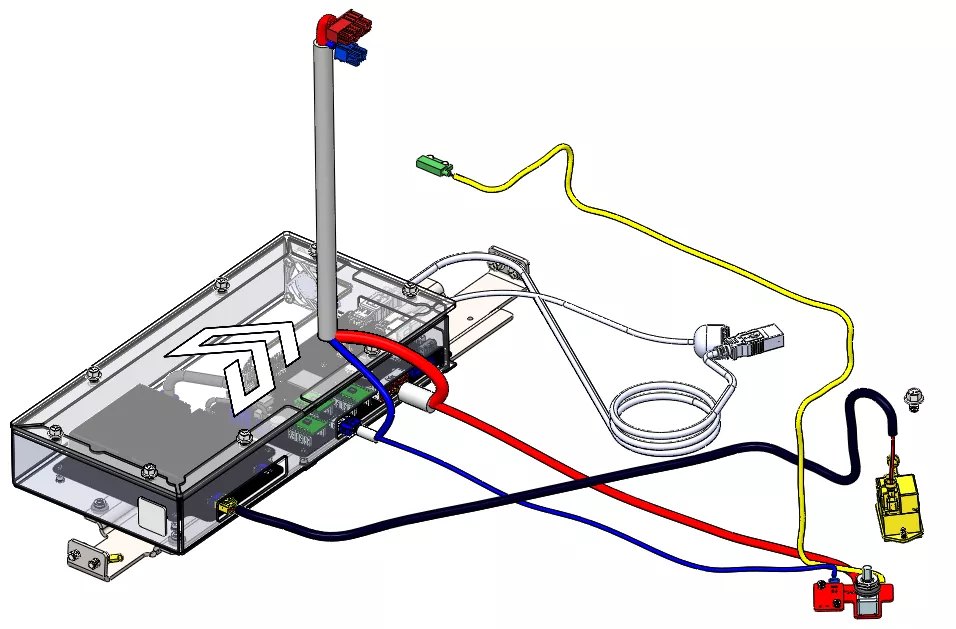

- Import into SOLIDWORKS Electrical: Use the new Intelligent Drawings feature to import the flattened mechanical drawings into SOLIDWORKS Electrical. This process converts the 2D layout into interactive electrical drawings.
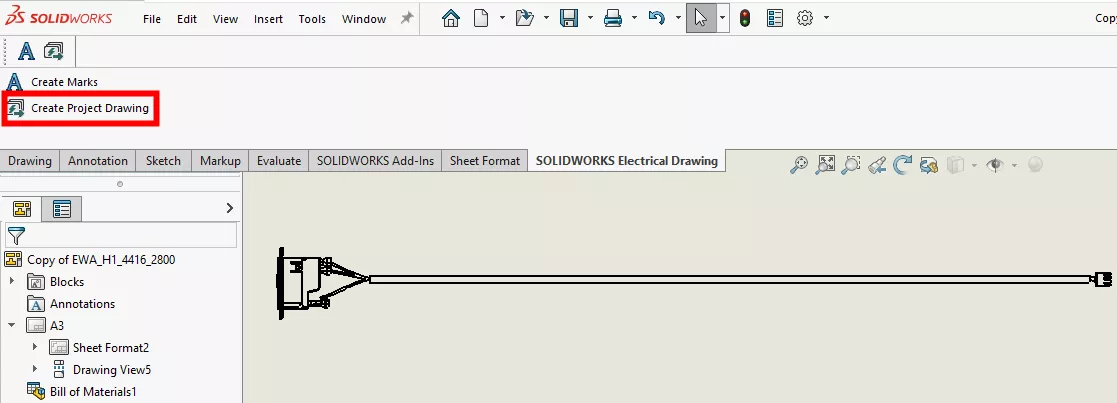
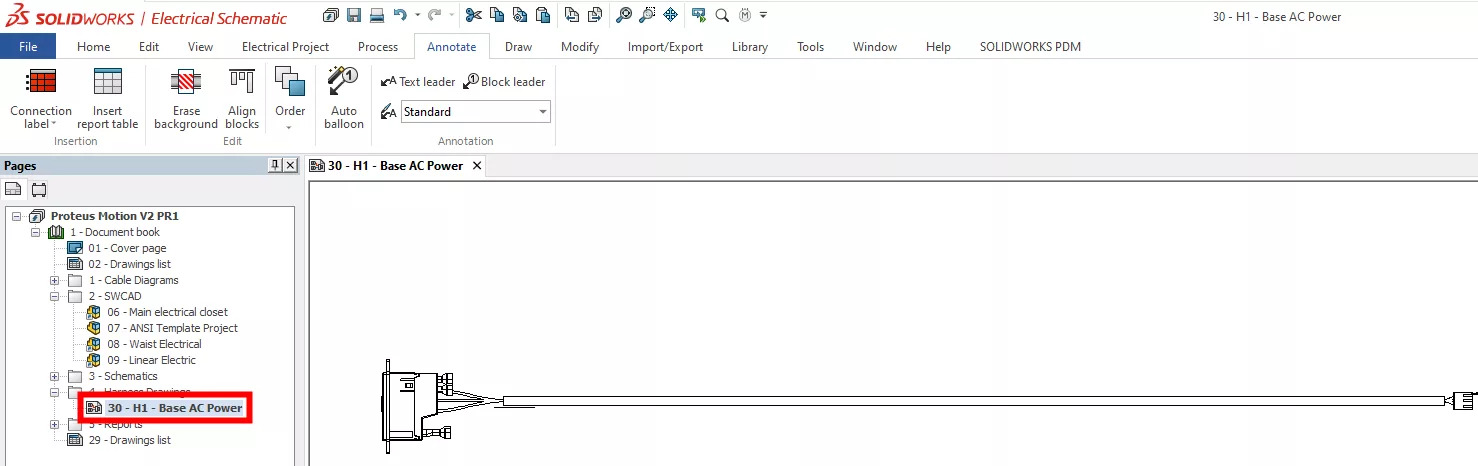
- Interactive Symbols: The imported drawing is transformed into an intelligent 2D drawing made up of interactive symbols. These symbols are fully integrated with your electrical project, linking directly to the components in your schematic.
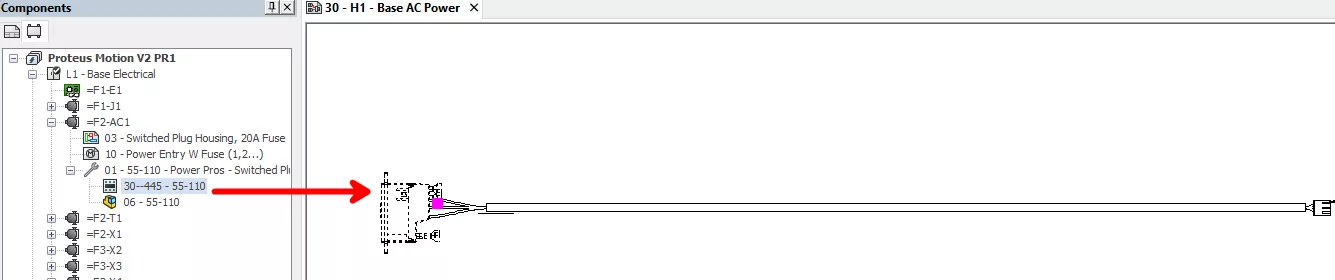
- Leverage Electrical Software Tools: Once imported, you can use the powerful tools within SOLIDWORKS Electrical to enhance your drawings.
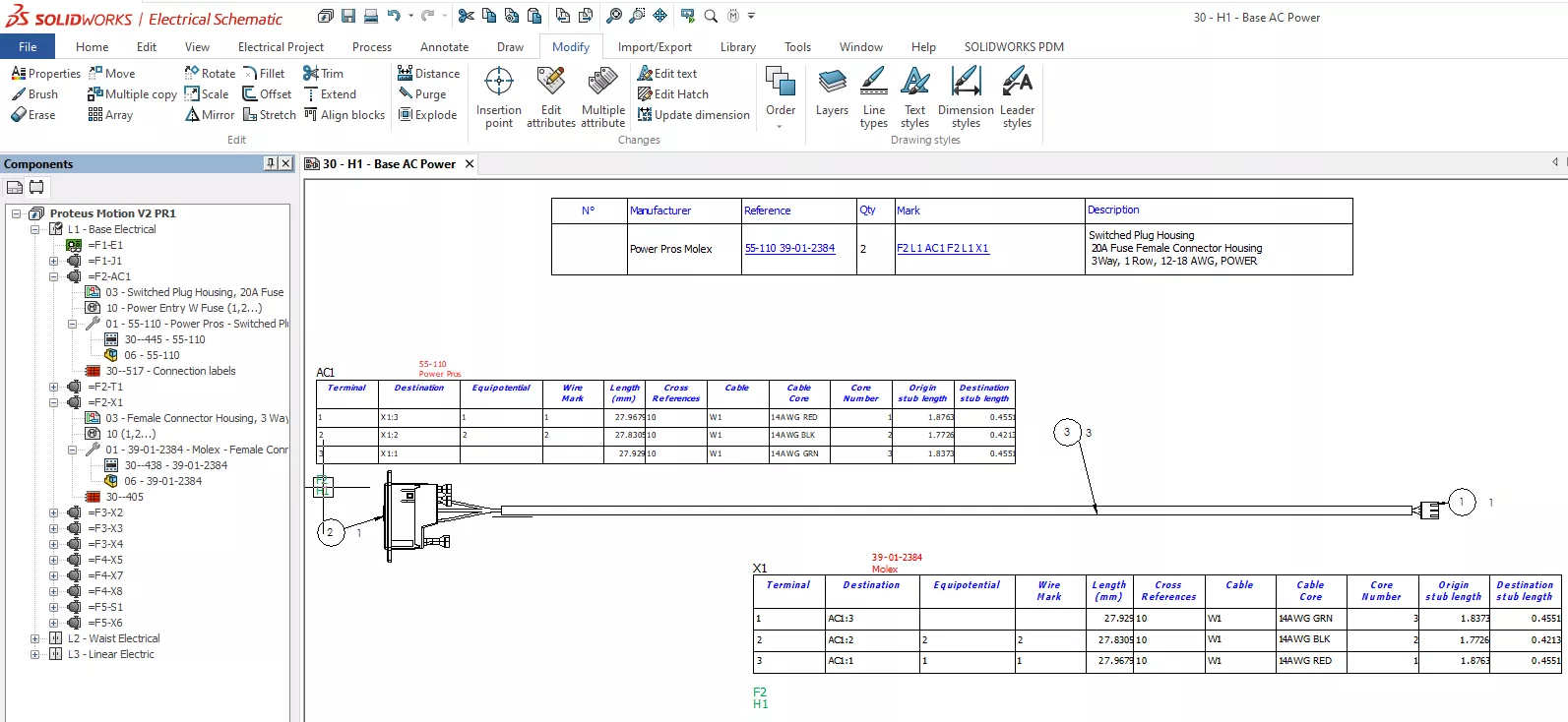 Generate dynamic Bills of Materials (BOMs), insert dynamic connection labels, auto-balloon the drawing, and navigate between symbols using hyperlinks.
Benefits of Intelligent Drawings
The Intelligent Drawings feature offers several significant benefits:
- Increased Efficiency: By converting mechanical drawings into interactive electrical diagrams, you save time and effort in creating detailed electrical layouts. The electrical project is centralized in the designing workflow.
- Interactive and Dynamic: The use of interactive symbols and hyperlinks makes it easier to manage and navigate complex drawings, improving the clarity and usability of your designs.
- Automated Documentation: Generate dynamic BOMs, auto-balloon your drawings, and insert connection labels effortlessly. This automation reduces manual effort and minimizes errors in your documentation.
- Improved Navigation: Hyperlinks within the drawings allow for easy navigation between related symbols and components, enhancing your ability to trace and verify connections.
When to use Intelligent Drawings
The Intelligent Drawings feature is versatile and can be applied in various scenarios:
- Complex Electrical Systems: For large-scale projects with intricate electrical systems, this feature helps in integrating and managing complex layouts more efficiently.
- Documentation and Reporting: Improve the quality of your documentation by automatically generating BOMs and incorporating dynamic labels, making reports more comprehensive.
- Troubleshooting and Verification: Use the interactive symbols and hyperlinks to quickly trace connections and verify the integrity of your electrical design, simplifying the troubleshooting process.
Categorised as: News | SOLIDWORKS Design
Discover our SOLIDWORKS Subscription
Get the most from your tools and the best from your designers with a SOLIDWORKS subscription package that is designed to help you succeed.

Related Posts

How to Find Reaction Forces in SOLIDWORKS Simulation
SOLIDWORKS helps us to find resultant forces through simulation studies. These virtual tests reduce the need for physical prototypes and give us an accurate answer.

Setting number of decimal places in a table on a drawing
When creating an equation in a drawing general table, is it possible to define the…

SOLIDWORKS Smart Fasteners
SOLIDWORKS Smart Fasteners is a really useful time saving tool, allowing you to automatically insert toolbox fasteners such as bolts and screws into an assembly providing there is a standard hole.

Why is my Flat Pattern not showing in SOLIDWORKS Drawings?
This may be linked to how the drawing is saved or it can be related to how sheet metal parts are displayed in drawings, read on to find out how to fix it.

SOLIDWORKS Tips: Are you Making this Common Mistake in Fatigue Analysis?
Simulation is a vital and complex engineering need. Fortunately, SOLIDWORKS makes it easy to test, correct mistakes and obtain accurate results.

How to Recover SOLIDWORKS Files After a Crash
SOLIDWORKS has two different methods to help you recover from an unexpected crash or loss of data in the form of auto-recovery and back-up settings.

Redesigning Santa’s Sleigh in SOLIDWORKS
Every year Father Christmas has to fly in his sleigh to deliver presents to boys and girls all over the world in just one night. To put this into perspective, it takes a little under 24 hours to fly from London (UK) to Sydney (Australia) in a streamlined Boeing 747, whereas Father Christmas’ mode of transport is believed to be a rather non-aerodynamic sleigh.

SOLIDWORKS Grid Systems – hidden away, but very useful!
Rory Niles provides an insight into the uses for Grid Systems within SOLIDWORKS 2018

Furniture Design Made Easy with SOLIDWORKS
Calling all furniture and interior designers: the days of creating square cabinets are over. What if we told you there’s a much easier way to bring your products to life?
Here’s 10 reasons why we feel SOLIDWORKS is better than any other software, especially if you’re designing furniture:
Making 3D Textures from Images on SOLIDWORKS
Turn images into 3D geometry with brand new SOLIDWORKS 3D Textures Feature