











8 Great New Features for SOLIDWORKS Electrical 2026

Written by: Stefano Bigazzi
Published: Jan 15, 2026
| View All Blogs
SOLIDWORKS 2026 brings enhancements across the entire SOLIDWORKS Portfolio, with new features that are sure to help electrical designers to streamline workflows, reduce errors, and offer greater control over design features.
These updates to SOLIDWORKS Electrical also strengthen collaboration between mechanical and electrical teams—making it easier to align across disciplines.
Read on to learn about key new features across SOLIDWORKS Electrical Schematics, SOLIDWORKS Electrical 3D, and Electrical Routing, with insights into how they can elevate your commercial design projects from our Electrical experts.
1. Smarter Manufacturer Part Imports
Managing manufacturer parts is a foundational task in electrical design.
SOLIDWORKS 2026 introduces a refined import process that simplifies how terminal and circuit values are handled.

Instead of manually entering repeated values for each terminal, engineers can now input them once in an Excel file, and the software automatically applies them across all relevant components.
This enhancement not only saves time but also reduces the risk of data entry errors, especially beneficial when dealing with large libraries of parts.
For users who need to create hundreds of parts and quickly edit terminal details this feature is a lifesaver!
The new Manufacturer Part Import feature in SOLIDWORKS Electrical 2026 streamlines the bulk creation of parts and makes terminal customisation faster and easier than ever before.
2. Enhanced Dynamic Connector Insertion
Connector-heavy designs often require meticulous symbol placement and terminal selection.
The new dynamic connector insertion interface now includes an “Expand” button, revealing advanced filters for circuit and terminal selection.
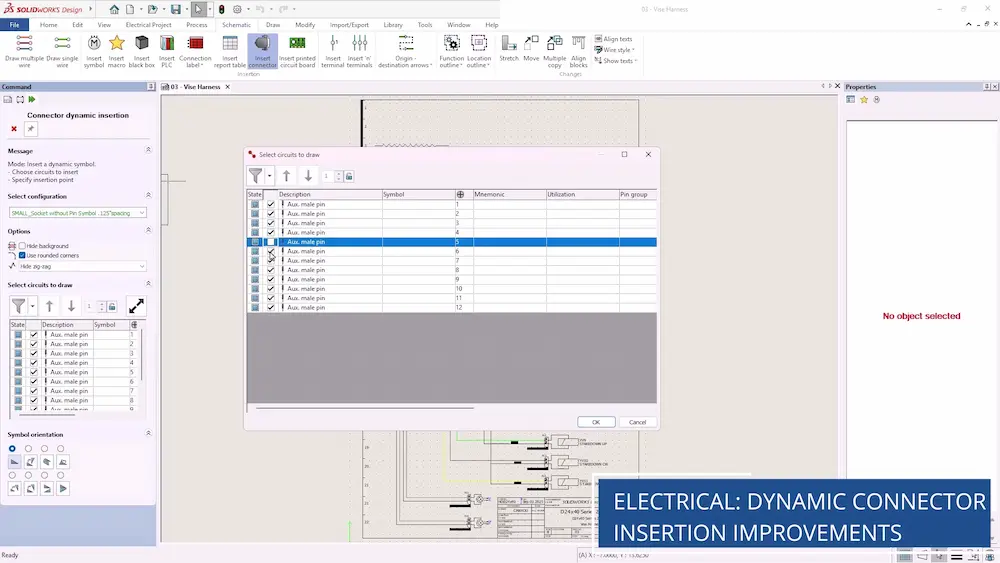
This is particularly useful for connectors with high pin counts, allowing engineers to quickly deselect or include specific terminals during symbol insertion.
The interface also streamlines the editing of circuit and terminal properties, resulting in a more intuitive and productive design experience.
This feature saves time and improves terminal accuracy during connector symbol insertion, making the design process more efficient and reliable.
3. Accessory Part Association
SOLIDWORKS Electrical 2026 makes assigning accessory parts to terminals and circuits simple, as accessory components such as seals, terminations (including ferrules, crimps, etc.), and other related items can now be directly linked to individual terminals instead of the main manufacturer part.
Once assigned, these accessories are reflected in connection labels, complete with manufacturer part numbers and termination details.

This feature enhances documentation accuracy and supports better communication with manufacturing teams by offering greater flexibility and precision when configuring connectors.
With harness design becoming more common in the industry, it’s very important to have a feature that lets you accurately and easily assign accessory manufacturer parts with terminals.
This feature combines with connection labels to make the whole process smoother accurate and helps avoid mistakes.
4. Improved PDF Export Options
Documentation is a critical part of any engineering workflow. The updated PDF export functionality now includes options to export by project, document, or file, with customisable naming formulas for folders and files.

Additionally, automatic orientation detection ensures that both landscape and portrait drawings are correctly rotated in the final output.
This enhancement makes it easier to generate professional, print-ready documentation directly from SOLIDWORKS Electrical.
This enhancement reduces the need for manual tweaks and streamlines the export process, especially for bespoke layouts configured with custom settings.
I can see this being a huge time saver at the end of long days working on projects and it should help reduce errors when trying to meet deadlines and boost collaboration.
5. Connection Point Parameter Editing
SOLIDWORKS Electrical 3D users will appreciate the new ability to edit connection point parameters in bulk.
A new command in the feature tree opens a table listing all connection points in the active file, allowing stub lengths to be updated collectively.
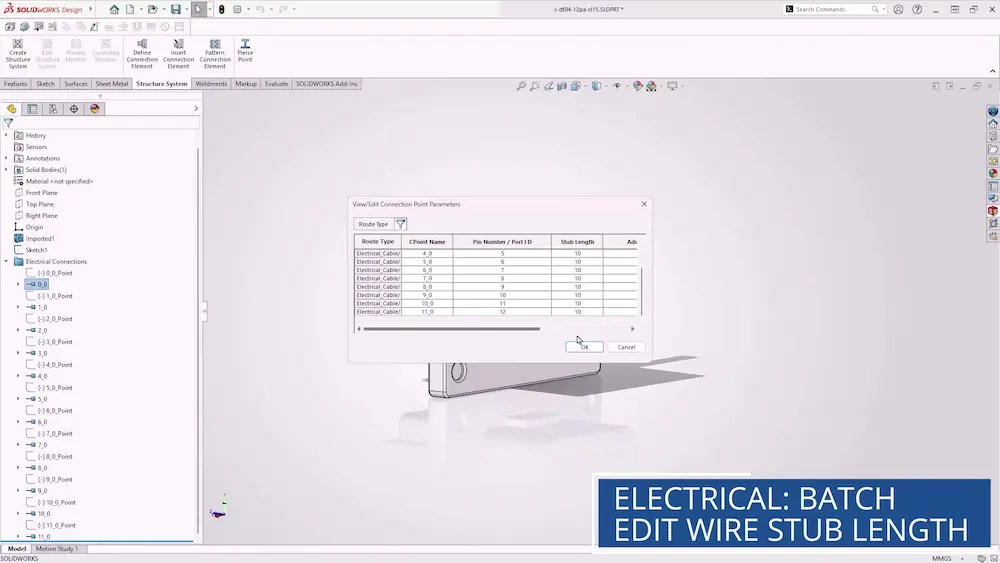
This eliminates the need to edit each feature individually, significantly reducing setup time and minimising the chance of configuration errors.
Bulk-editing tools are always a welcome addition to reduce repetitive workloads!
For Electrical 3D users, it speeds up stub length updates, reduces setup errors, and makes it easier to compare connection point properties at a glance.
6. Selective Wire Routing
Precise wire routing is crucial for ensuring both fit and functionality.
The new ‘Route Selected Wires’ command in SOLIDWORKS Electrical empowers engineers to route individual wires within a project, offering enhanced control over wire paths.

Whether you’re routing from particular terminals or verifying wire paths through support structures, this feature adds flexibility and precision to the design process.
The new ‘Route Selected Wires’ command is a great addition, giving precise control for routing wires.
This will be especially beneficial when working within tight spaces or addressing specific design constraints – I expect it will make verifying paths much easier.
7. Wire Tooltips for Harness Verification
Harness verification is now more visual and informative in SOLIDWORKS 2026.

When highlighting individual wires or branches, tooltips display showing wire properties, connector details, and harness tags. For branches, bundle diameter and wire count are also shown.
These tooltips are available to all users, even if routing is disabled, making it easier to inspect and validate harness designs before finalising.
The new wire tooltips are a great help during harness verification.
Being able to instantly see wire and branch details even without routing enabled will make design inspection much quicker and more intuitive.
8. Expanded Connector Table Properties
Manufacturing drawings benefit from the new connector table enhancements in the 2026 release of SOLIDWORKS Electrical.
Engineers can now add columns displaying additional route properties, provided the data exists in the ‘From-To’ list.
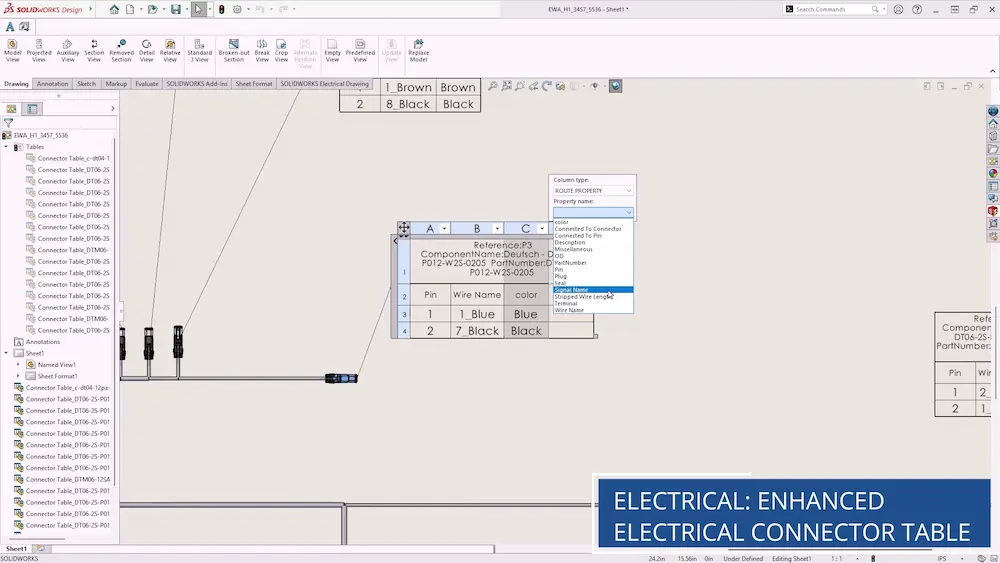
This allows for more complete flattened drawings, improving clarity and reducing the need for manual annotations while the ability to update all tables simultaneously ensures consistency across documentation.
The improved connector tables are a real boost for manufacturing drawings—adding route properties directly from the ‘From-To’ list makes the output clearer and more tailored to the user’s needs.
Conclusion
It’s worth highlighting again the impact of our two ‘top’ enhancements: Enhanced Dynamic Connector Insertion and Connection Point Parameter Editing.
These features work hand-in-hand across both 2D and 3D environments to streamline connector handling.
They significantly improve usability and reduce design time—especially in harness design, where such tasks are part of the daily workflow. By simplifying symbol placement and terminal configuration, they offer engineers a more efficient and less time-consuming experience.
In summary, SOLIDWORKS 2026 delivers a robust set of electrical design enhancements that cater to the needs of professional engineers working in commercial environments.
From smarter imports to more detailed documentation, these features streamline workflows and improve design accuracy.
Categorised as: SOLIDWORKS Electrical | Software | What's New
Get a SOLIDWORKS Quote
Interested in SOLIDWORKS? Contact us for questions, trials, or demos by clicking the button below or call 01926 333777. Our experts will help you find the perfect solution.

Related Posts

How to Find Reaction Forces in SOLIDWORKS Simulation
SOLIDWORKS helps us to find resultant forces through simulation studies. These virtual tests reduce the need for physical prototypes and give us an accurate answer.

Setting number of decimal places in a table on a drawing
When creating an equation in a drawing general table, is it possible to define the…

SOLIDWORKS Smart Fasteners
SOLIDWORKS Smart Fasteners is a really useful time saving tool, allowing you to automatically insert toolbox fasteners such as bolts and screws into an assembly providing there is a standard hole.

Why is my Flat Pattern not showing in SOLIDWORKS Drawings?
This may be linked to how the drawing is saved or it can be related to how sheet metal parts are displayed in drawings, read on to find out how to fix it.

SOLIDWORKS Tips: Are you Making this Common Mistake in Fatigue Analysis?
Simulation is a vital and complex engineering need. Fortunately, SOLIDWORKS makes it easy to test, correct mistakes and obtain accurate results.

SOLIDWORKS Visualize. Why go pro? – 6 Post Processing
In this blog we will be look at the post-processing options that can be found in SOLIDWORKS Visualize

SOLIDWORKS Visualize. Why go pro? – 7 Lighting
SOLIDWORKS Visualize uses a non-biased rendering engine, which allows for physically accurate lighting within a scene. It generates images with high amount of realism and correct set up can replicate photo studio lighting.

How to Get Your Serial Number for SOLIDWORKS Visualize Standard
Want to download Visualize to make photorealistic renders? Follow this guide for accessing your Visualize serial number that comes bundled in with SolidWorks Professional and Premium.

How to Recover SOLIDWORKS Files After a Crash
SOLIDWORKS has two different methods to help you recover from an unexpected crash or loss of data in the form of auto-recovery and back-up settings.

Redesigning Santa’s Sleigh in SOLIDWORKS
Every year Father Christmas has to fly in his sleigh to deliver presents to boys and girls all over the world in just one night. To put this into perspective, it takes a little under 24 hours to fly from London (UK) to Sydney (Australia) in a streamlined Boeing 747, whereas Father Christmas’ mode of transport is believed to be a rather non-aerodynamic sleigh.