











A Part Inside a Part? The Basics of Master Modelling in SOLIDWORKS

Written by: Terry O'Reilly
Published: Jun 12, 2025
| View All Blogs
Master modelling in SOLIDWORKS is a vital technique for CAD designers to understand. SOLIDWORKS is perfectly equipped to facilitate this type of modelling.
It is employed by many designers that work with external customer or supplier data and allows the user to import a part into another part document and build references from it.
By inserting a part within a SOLIDWORKS part document, new geometry can be referenced to the inserted part ensuring adequate fit and clearances are maintained. Let’s get into it.
What is Master Modelling?
‘Master modelling’ is a CAD modelling technique where models are created in relation or reference to another, separate model file.
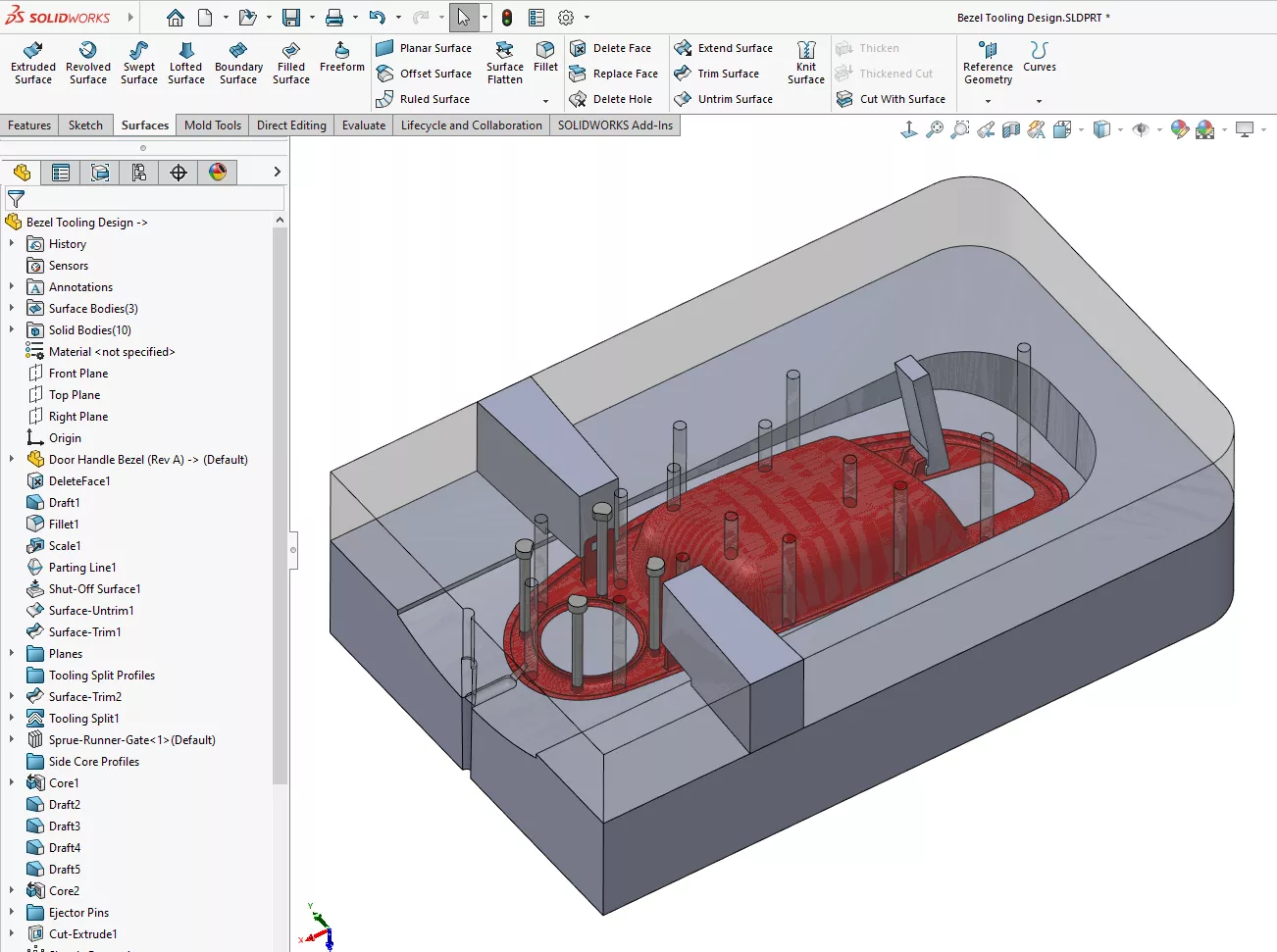
Consider a plastic part that is to be injection moulded; the finished part geometry can be inserted into another part file and the geometry for the tooling built up around it.
If any changes are made to the original, inserted part, then the downstream features will update accordingly. Using the main body as a reference will ensure the shape and fit is correct.
Within SOLIDWORKS, master modelling can be utilised in both part and assembly environments. We’ll be focused on just the part modelling environment in this article.
Who uses Master Modelling Techniques?
Master modelling is commonly used in the consumer products industry, but it isn’t limited to any single industry or designer.
You’ll find that master modelling can be applied to many different types of product design in SOLIDWORKS, and its advantageous to consider whether your models will benefit from using it.
Let’s consider an example with a simple consumer electrical product like an electric shaver.
The main body may be used as the inserted master part to provide positional references and drive the design, allowing other items (such as button details or the razor mount) to be designed. Using the main body as a reference will ensure the shape and fit is correct.
Did you know?
Our SOLIDWORKS training courses teach you everything you need to know to pass your SOLIDWORKS certification exams.
Solid Solutions customers with an Enhanced SOLIDWORKS Subscription also gain access to our SOLIDWORKS skills assessment tool. Use it to test your SOLIDWORKS skills and identify areas where your knowledge could be improved!
Working with Master Models
How to Create a Master Model in SOLIDWORKS
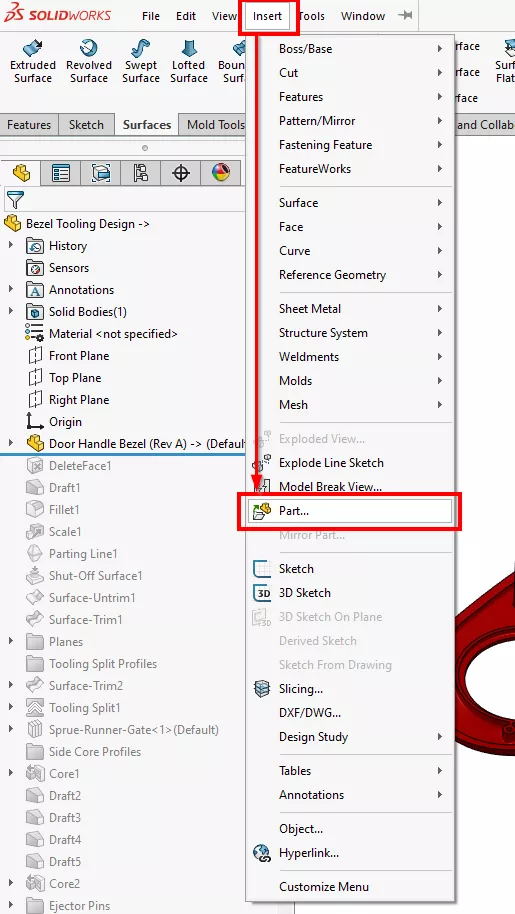
We’ll start with a blank SOLIDWORKS part file. To begin modelling, we need to insert a part into another part environment to create a parent and child linkage between the files.
To insert a part, simply use the Insert > Part menu string:
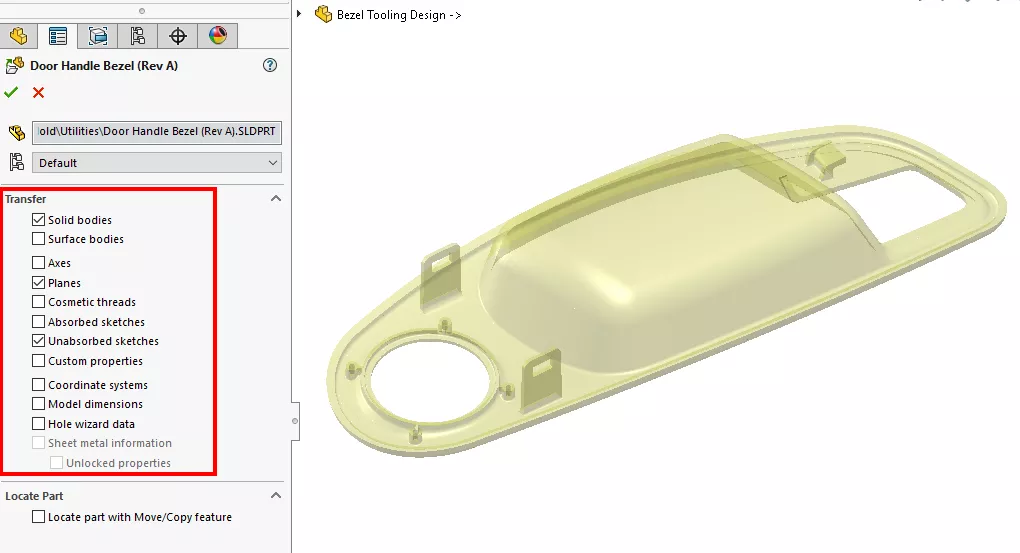
When inserting, you will be asked what data you want to bring along. Choose the check boxes as needed.
If you forget to pick an option, you can always edit the feature later and choose different options.
How to Check External References in SOLIDWORKS Parts
If you have received a model with an inserted part and are worried that you don’t see the latest information, then you can check in on the references.
The Feature Manager Tree will show a symbol attached to the inserted part. There are four possible symbols:
-> External reference intact and up to date- the master model is open in the background.
->? The reference is out of context, and this may be because the master model is not open or cannot be found.
->* The reference has been locked to prevent changes from propagating- locked references can be unlocked.
->x The reference has been broken preventing changes- and this is irreversible.
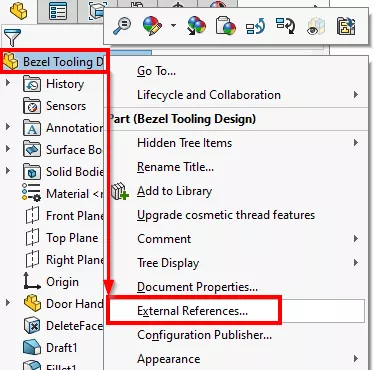
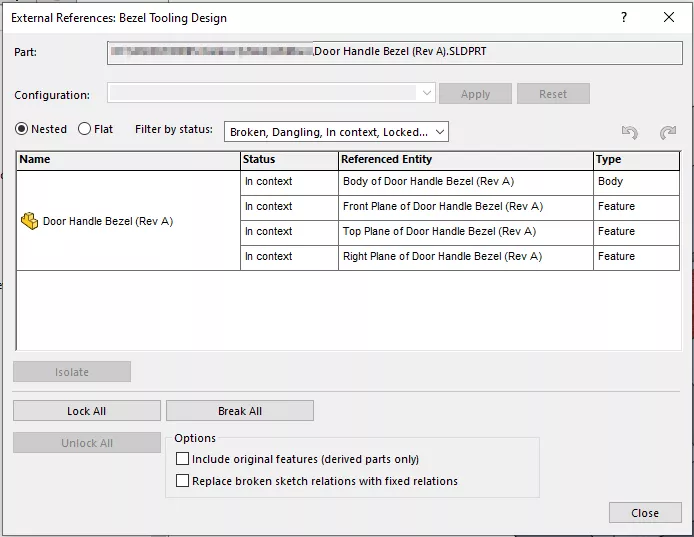
If you wish to interrogate further, you can right click the inserted part and choose External References from the right-click menu. This reveals a dialogue showing you the expected location and name of the inserted part, and details about any links.
How to Replace ‘Driving’ Master Model Parts in SOLIDWORKS
As the new part file has a reference back to the inserted master model so any changes made to the geometry or metadata of the inserted model will propagate through.
So what if we want to replace the master part with an alternative component or file? How can we do this without breaking our references in the new part and impacting the driven features?
Feature Focus: Multi-Body Part Modelling
Master modelling is an example of multi-body part modelling, as it is utilised within the part environment rather than within an assembly.
Weldment structures in SOLIDWORKS are based on multi-body part modelling, where timber and steel frames and other structures can be created from a master sketch. Modifying the master sketch will automatically update the solid bodies!
The answer isn’t obvious and must be done before opening the file. We need to swap out the file and change the reference before SOLIDWORKS notices.
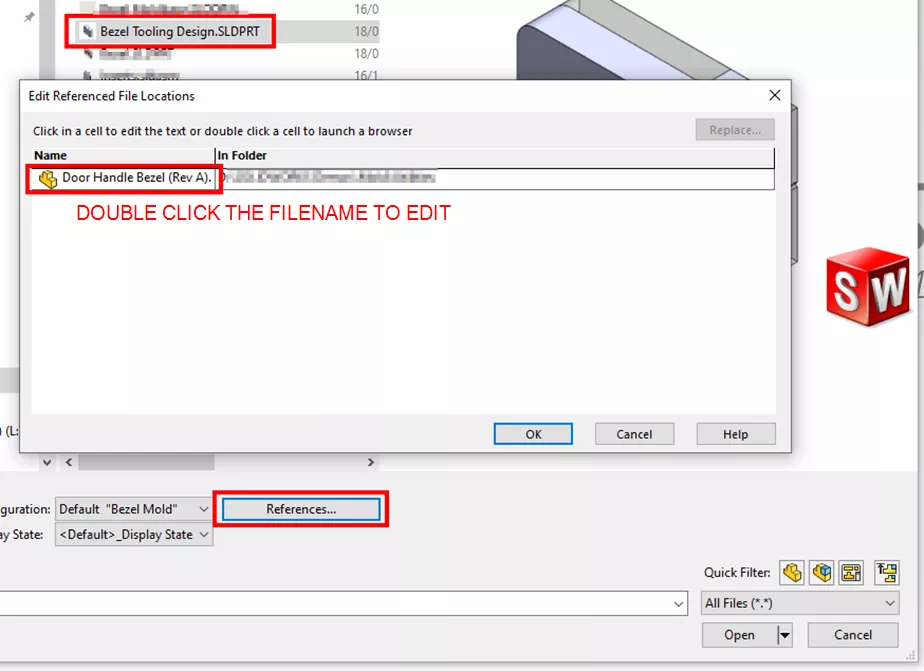
To change a reference when opening a file in SOLIDWORKS, look for ‘References’ button in the File > Open dialog box. Click once on the file you want to open, and then click the References button.
This displays all the external references within the file. In this case, we’re interested in the file location of the inserted part – our master model.
Within this dialog, we can double click on file and locate a substitute part. If you’ve attended our SOLIDWORKS Essentials or Advanced Part Modelling training courses, then you’ll probably notice that this is the same way that you can replace part references in the assembly and drawing views.
This will then replace the part, but be aware that you may find that some downstream features develop warnings or errors that can be resolved by repairing and editing sketches or features to re-aligned them with the replacement part.
Take the Next Steps
Master SOLIDWORKS with expert-led courses that help you boost your skills and confidence. You can attend online or in a classroom near you!
Choose from a huge range of professional SOLIDWORKS and CATIA training courses and save on multiple courses with a Training Passport.
Categorised as: SOLIDWORKS Design | Tutorials
Get Expert SOLIDWORKS Training
Get hands-on SOLIDWORKS training in-person or online, led by certified experts with real industry experience. With venues across the UK & Ireland, it’s easy to start learning today.
Related Posts

How to Find Reaction Forces in SOLIDWORKS Simulation
SOLIDWORKS helps us to find resultant forces through simulation studies. These virtual tests reduce the need for physical prototypes and give us an accurate answer.

Setting number of decimal places in a table on a drawing
When creating an equation in a drawing general table, is it possible to define the…

SOLIDWORKS Smart Fasteners
SOLIDWORKS Smart Fasteners is a really useful time saving tool, allowing you to automatically insert toolbox fasteners such as bolts and screws into an assembly providing there is a standard hole.

Why is my Flat Pattern not showing in SOLIDWORKS Drawings?
This may be linked to how the drawing is saved or it can be related to how sheet metal parts are displayed in drawings, read on to find out how to fix it.

SOLIDWORKS Tips: Are you Making this Common Mistake in Fatigue Analysis?
Simulation is a vital and complex engineering need. Fortunately, SOLIDWORKS makes it easy to test, correct mistakes and obtain accurate results.

Series 1 Land Rover Pedal Car – Made Easy with Solidworks!
The Series1 began production in 1948 designed to help get Britain farming after the war effort. It grew extremely popular and today enthusiasts are prepared to throw their life savings at restoring originals from that period.

How to Recover SOLIDWORKS Files After a Crash
SOLIDWORKS has two different methods to help you recover from an unexpected crash or loss of data in the form of auto-recovery and back-up settings.

Redesigning Santa’s Sleigh in SOLIDWORKS
Every year Father Christmas has to fly in his sleigh to deliver presents to boys and girls all over the world in just one night. To put this into perspective, it takes a little under 24 hours to fly from London (UK) to Sydney (Australia) in a streamlined Boeing 747, whereas Father Christmas’ mode of transport is believed to be a rather non-aerodynamic sleigh.

SOLIDWORKS Grid Systems – hidden away, but very useful!
Rory Niles provides an insight into the uses for Grid Systems within SOLIDWORKS 2018

Furniture Design Made Easy with SOLIDWORKS
Calling all furniture and interior designers: the days of creating square cabinets are over. What if we told you there’s a much easier way to bring your products to life?
Here’s 10 reasons why we feel SOLIDWORKS is better than any other software, especially if you’re designing furniture: