











A Step-by-Step Guide to Adding Dynamic Previews to Forms in DriveWorks

Written by: Paul Churm
Published: Oct 11, 2024
| View All Blogs
3D documents are a great way to enhance your DriveWorks forms.
As a ‘lightweight’ version of your model configured in SOLIDWORKS, these 3D documents display a live, updating preview of your design as you change your form in real time.
This blog will take you through the process of creating a 3D document, and then some methods you can use to build them up.
What is a 3D Document?
3D Documents are a type of DriveWorks file and there are many ways to build them up.
They let you view your products live in 3D and dynamically update as you change the inputted data in the form.
How to Create a 3D Document in DriveWorks
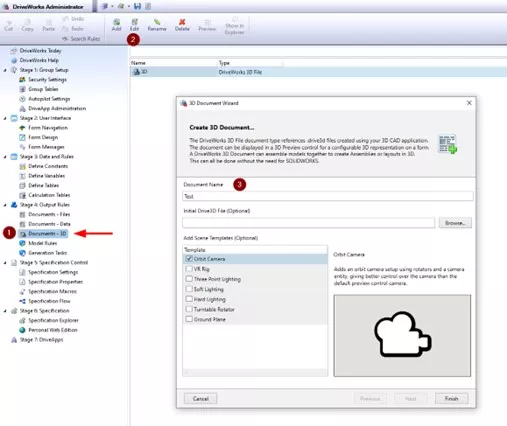
- Navigate to Stage 4: Output Rules > Documents – 3D within DriveWorks Administrator.
- Select Add from the command bar.
- Give your 3D Document a sensible name. In the 3D Document Wizard you can insert templates that add certain scenes to the 3D model.Feel free to add these if they sound useful as they can be easily deleted if not required later.Selecting each option gives a description of what will be added to the initial 3D Document. You can then hit Finish.
- This will bring you into the DriveWorks 3D Document editor where you can build up your 3D document using any of the methods below!
How to Add Geometry to a 3D Document
There are many ways you can add geometry to a 3D document, but one thing that each method has in common is the need to add geometry to a Node.
3D Documents are built up using a nodal structure, where each node can be positioned relative to the node above it and can inherit properties such as scale and appearance of the parent nodes.
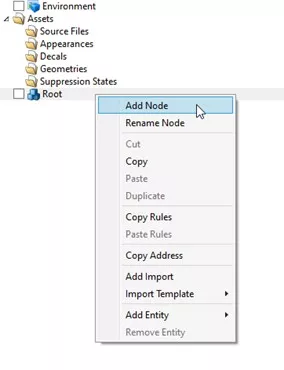
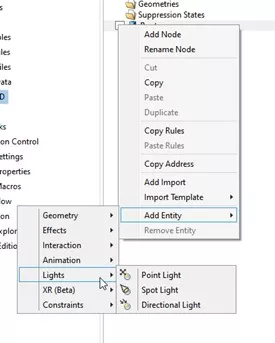
To add a node, you need to right click on an existing node, and select Add Node. You can then add Entities to each node.
An Entity is an additional feature you can add to a node in a 3D document.
This can be anything from geometry, to appearances, to lights and animations.
You can add multiple Entities to any individual node, and some entities are passed down to nodes beneath the one it was applied to (such as all the effect entities, which includes mapping an appearance to a node).
Types of Geometry in DriveWorks
To add geometry to a node, you need to add a geometry entity. We have multiple options here, and each option has its own pros and cons.
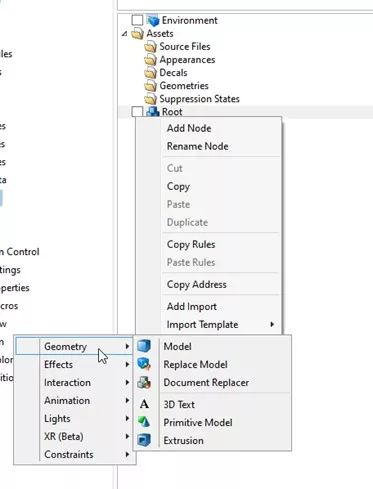
Model
This entity adds a geometry asset saved in the 3D Document to a node.
This is useful when the geometry is always going to be loaded in the 3D Document, as the geometry in this node will always be loaded even if it is suppressed at node level, when the 3D Document is displayed.
Replace Model
This entity looks for a Drive3D file to place into the current node. Using this method means that you do not have to add the geometry as an asset in the 3D Document.
Instead, you can build a dynamic rule to change the file path of the Drive3D file.
You can also choose to not load the model at all if it is not required, improving the performance of the 3D Document.
Document Replacer
This entity is the same as the Replace Model entity, but rather than referencing a Drive3D file, you are referencing another 3D Document.
3D Text
This entity allows you to add dynamic 3D text to a node.
Primitive Model
This entity allows you to add 3D geometry to the 3D Document without the need of any external Drive3D files.
You can add cubes, spheres, planes, domes, cones and cylinders to the 3D Document with this entity.
Each primitive model you add is dynamic and can be scaled along X, Y and Z-axes as required.
This is a lightweight method of adding geometry to a model, and we highly recommend using primitive entities over Drive3D files to help optimise performance.
Extrusion
New in DriveWorks 22, extrusions allow you to create custom geometry within a 3D Document.
The new Fill Paths and Hole Paths functions let you create extrusions and cuts as required.
Similarly to Primitives Models, this is a lightweight method of adding geometry to a model.
Once you have added geometry to your nodes, you can add further entities using the same logic.
We recommend using the DriveWorks help files to check what each entity can do so you can understand the full potential and capabilities of each.
How to Add a 3D Document to a DriveWorks Form
Once you have created your 3D Document, you can add your 3D document to your form.
Navigate to Stage 2: User Interface: Form Design > Form Design and then add a 3D Preview Box form control from the command bar.
This form control contains a property called Preview Document Name which you can set to the name of the 3D Document you have just created.
This will now display the 3D Document on the form and even works in the form test mode!
Categorised as: Design | DriveWorks | Tech Tips
Get Expert SOLIDWORKS Training
Get hands-on SOLIDWORKS training in-person or online, led by certified experts with real industry experience. With venues across the UK & Ireland, it’s easy to start learning today.
Related Posts

How to Find Reaction Forces in SOLIDWORKS Simulation
SOLIDWORKS helps us to find resultant forces through simulation studies. These virtual tests reduce the need for physical prototypes and give us an accurate answer.

Setting number of decimal places in a table on a drawing
When creating an equation in a drawing general table, is it possible to define the…

Why is my Flat Pattern not showing in SOLIDWORKS Drawings?
This may be linked to how the drawing is saved or it can be related to how sheet metal parts are displayed in drawings, read on to find out how to fix it.

Why is SOLIDWORKS Crashing?
It’s one of the great mysteries of life – why is SOLIDWORKS crashing? Let’s explore how SOLIDWORKS crashes and how we can improve performance in SOLIDWORKS.

Tech Support Blog: Why are my SOLIDWORKS BOM Quantities Wrong?
Why are my SOLIDWORKS BOM Quantities Wrong? A support call cropped up this week which…

Series 1 Land Rover Pedal Car – Made Easy with Solidworks!
The Series1 began production in 1948 designed to help get Britain farming after the war effort. It grew extremely popular and today enthusiasts are prepared to throw their life savings at restoring originals from that period.

How to Get Your Serial Number for SOLIDWORKS Visualize Standard
Want to download Visualize to make photorealistic renders? Follow this guide for accessing your Visualize serial number that comes bundled in with SolidWorks Professional and Premium.

How to Recover SOLIDWORKS Files After a Crash
SOLIDWORKS has two different methods to help you recover from an unexpected crash or loss of data in the form of auto-recovery and back-up settings.

Redesigning Santa’s Sleigh in SOLIDWORKS
Every year Father Christmas has to fly in his sleigh to deliver presents to boys and girls all over the world in just one night. To put this into perspective, it takes a little under 24 hours to fly from London (UK) to Sydney (Australia) in a streamlined Boeing 747, whereas Father Christmas’ mode of transport is believed to be a rather non-aerodynamic sleigh.

SOLIDWORKS Grid Systems – hidden away, but very useful!
Rory Niles provides an insight into the uses for Grid Systems within SOLIDWORKS 2018