











Advanced Assemblies: What are Envelopes in SOLIDWORKS and when to use them?
Written by: Terry O'Reilly
Published: Sep 8, 2025
| View All Blogs
Envelopes are a type of component specific to the assembly modelling environment in SOLIDWORKS.
They are a form of sub-assembly and may contain parts and/or sub-assemblies, often being utilised as selection tools or as a visual reference to aid communication of design intent within SOLIDWORKS assemblies.
This tutorial will guide you through common use-cases and how to create envelopes in SOLIDWORKS assemblies.
APPLICATIONS OF ENVELOPES IN SOLIDWORKS
Envelopes are especially useful when the top-level assembly is complex or performance intensive, and as positional references to external components.
They are commonly used with sub-assemblies deeper in the assembly structure, but may also be added at the top-level.
Envelopes have two core functions as:
- Selection Tools – envelopes can be used in the Advanced Selection menu to select, show, or hide components that are inside, outside, or interfering with the envelope volume.
- Reference Components – as envelope components are both weightless and excluded from bills of materials, they make for excellent reference components when positioning and sizing elements in SOLIDWORKS.
Let’s show you how to use envelopes in SOLIDWORKS by exploring an example that you might even use in your own home DIY.
The Envelope Publisher tool will be greyed out when working in an assembly with no subassemblies. Try inserting a sub-assembly first or read on to find out how to use the Envelope Publisher to create references from top-level assemblies in SOLIDWORKS.
How to Create Envelopes in SOLIDWORKS
Envelopes can be created in-context within an assembly or from inserted SOLIDWORKS parts or subassemblies.
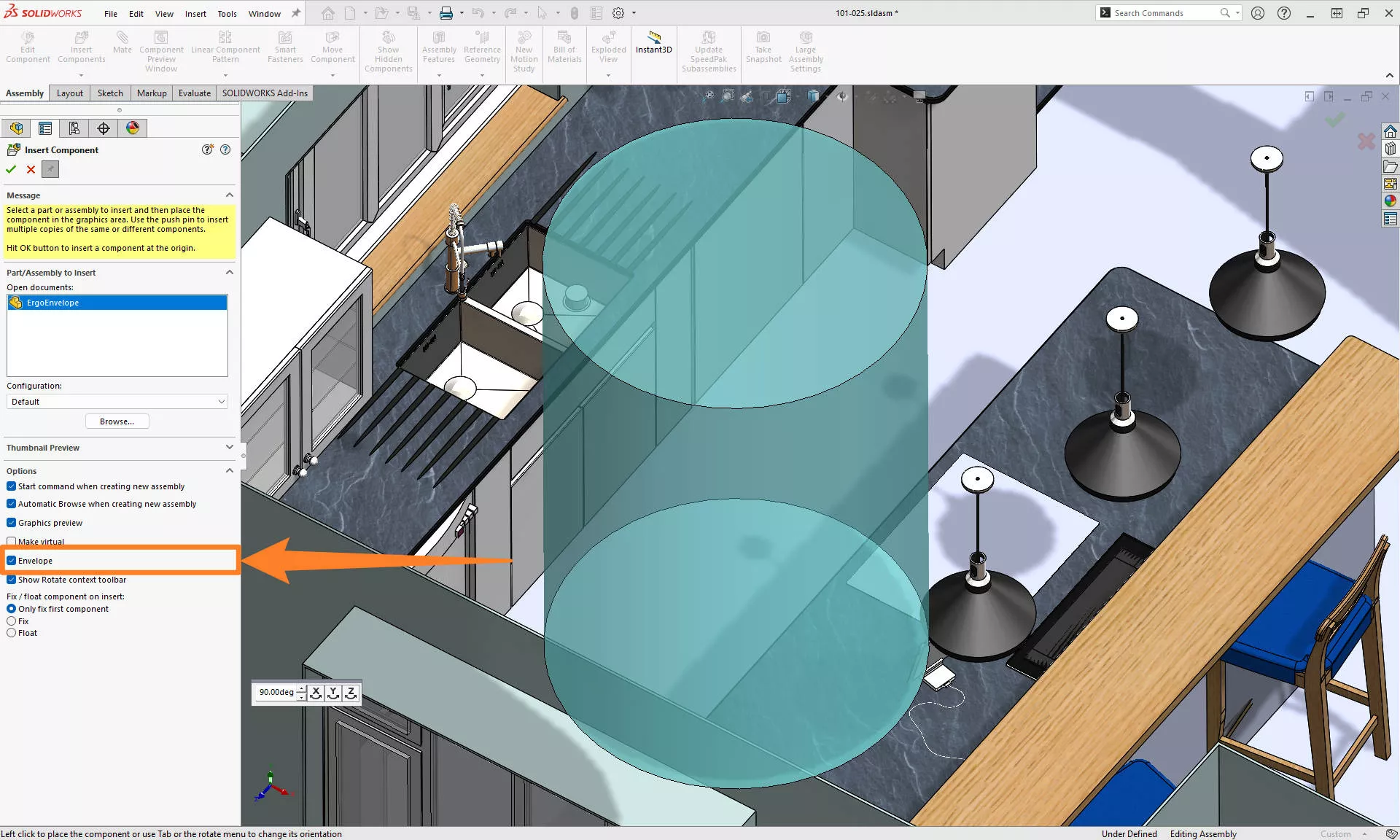
Envelopes can be created when inserting parts or assemblies into an assembly. Before placing a component, select the ‘Envelope’ tick box in the Insert Component property manager.
’In-context’ components that have already been inserted into an assembly can also be converted into envelopes.
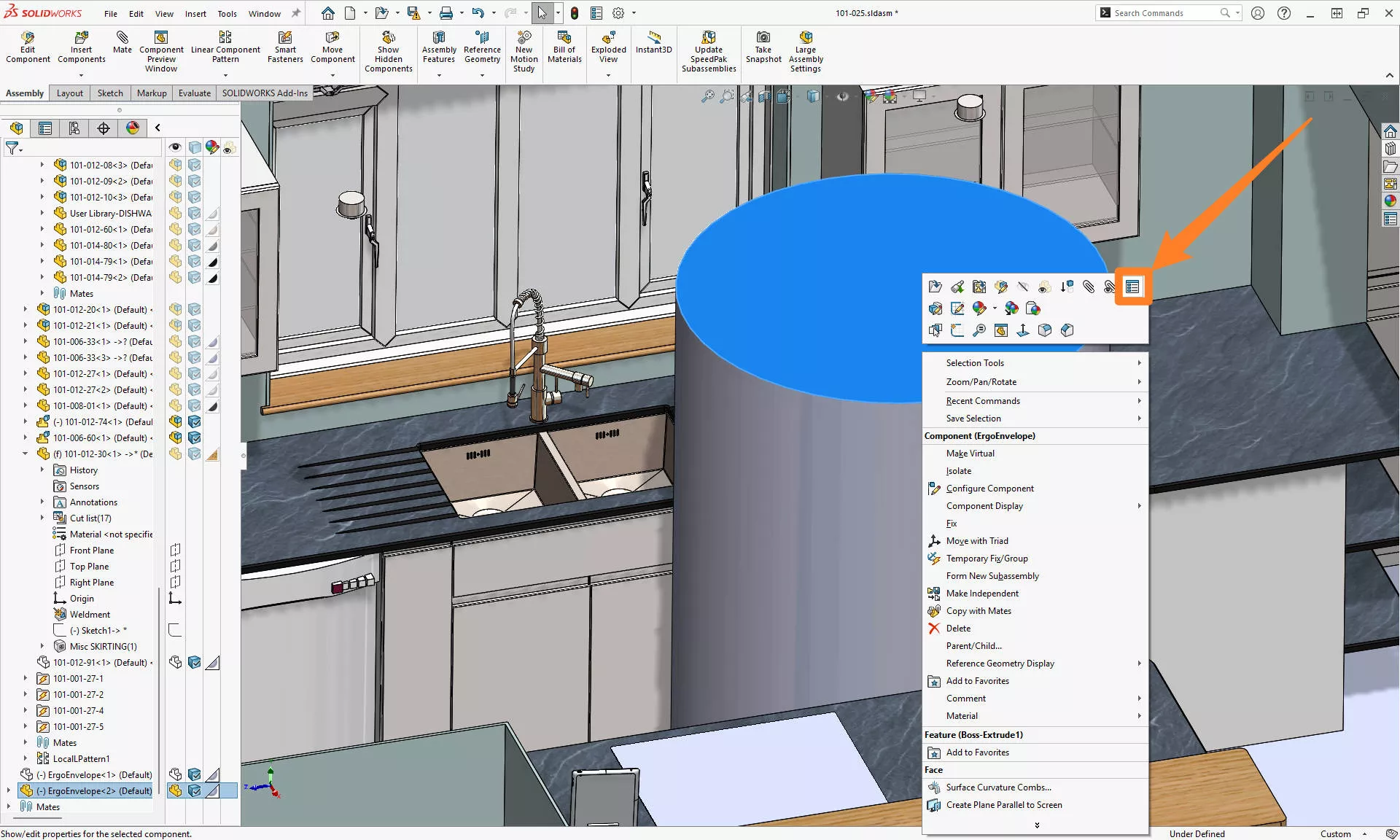
Right-click on the desired component and access the Component Properties from the right-click menu.
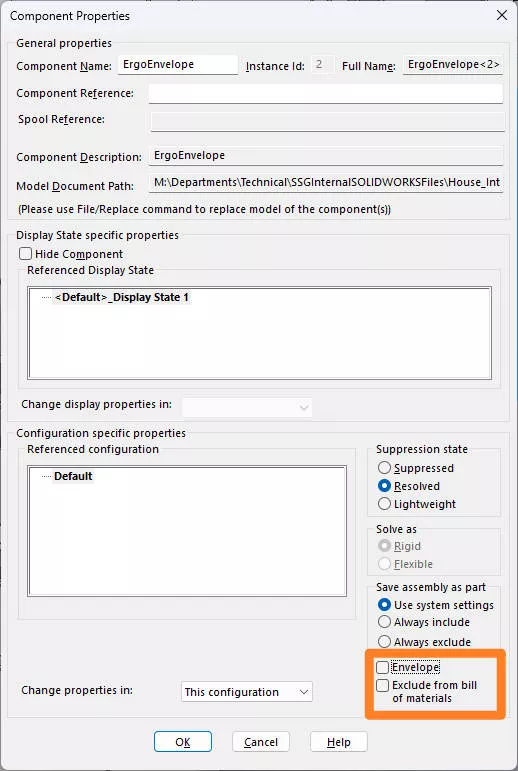
Within the Component Properties window, check the box for ‘Envelope’ to convert the component into a weightless envelope component.
Here it’s important to note that the option to ‘Exclude from bill of materials’ is checked by default and cannot be turned off for envelope components.
These envelope components are excluded from mass properties and other evaluation tools as they are ‘for reference only’. However, they can be used to mate to, dimension from, and position other elements.
Master SOLIDWORKS with expert-led courses that help you boost your skills and confidence.
Referencing Top-Level Components with the Envelope Publisher
The Envelope Publisher allows us to create envelopes within subassemblies from the top-level assembly.
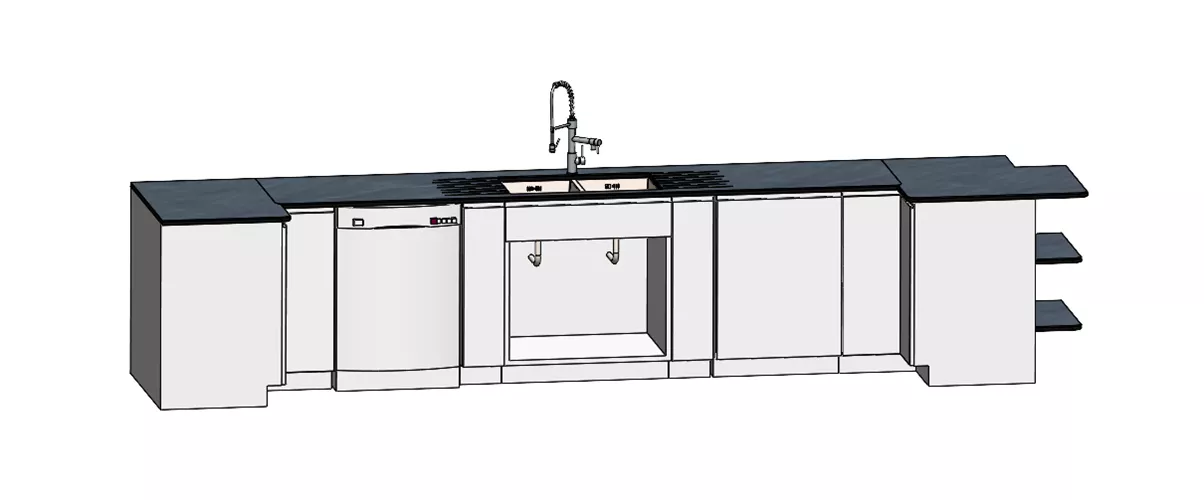
That way, we can build reference components into subassemblies like this kitchen unit and improve performance while making design changes.
We want to maintain the sink and plumbing components as references but exclude their mass and material properties from the unit assembly. As this is a top-level assembly, we can use the Envelope Publisher tool to create envelopes from our top-level assembly.
The Envelope Publisher feature which is found under Tools > Envelope Publisher.
Once in the property manager, we can select the components to include in the envelope and then any destination sub-assemblies they will be added to.
- Envelope Components are those that will comprise the final envelope. Add these to the blue ‘Components to use as envelopes’ box by selecting them from the viewport or the FeatureManager Tree.For our example, these will be any components that do not comprise the unit – the sink and tap components.
- Destination Subassemblies are any sub-assemblies that the envelope will be added to.Again, select these from the viewport or the FeatureManager Tree to add them to the purple ‘Destination Subassemblies’ box. In our case, this is the under-sink unit.
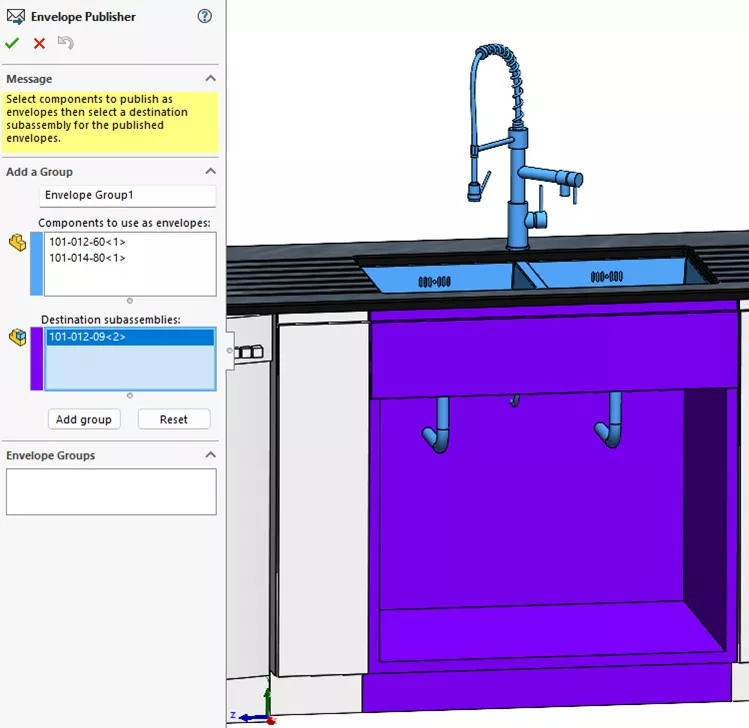
- The Envelope Publisher property manager and the final selections.
- Click ‘Add group’ when all selections have been made.
Additional envelopes can be created by repeating the selection process. For this example, we just need the one envelope so instead we’ll hit the green tick to confirm the command.
On confirming the command, we can open any of the selected destination sub-assemblies and see our new envelope.
Envelopes vs Interference Detection in SOLIDWORKS
A common misconception is that SOLIDWORKS envelopes can be used for determining component interferences.
However, as they are excluded from mass calculations, envelope components cannot be used within the Interference Detection tool and therefore actually hinder any interference evaluation.
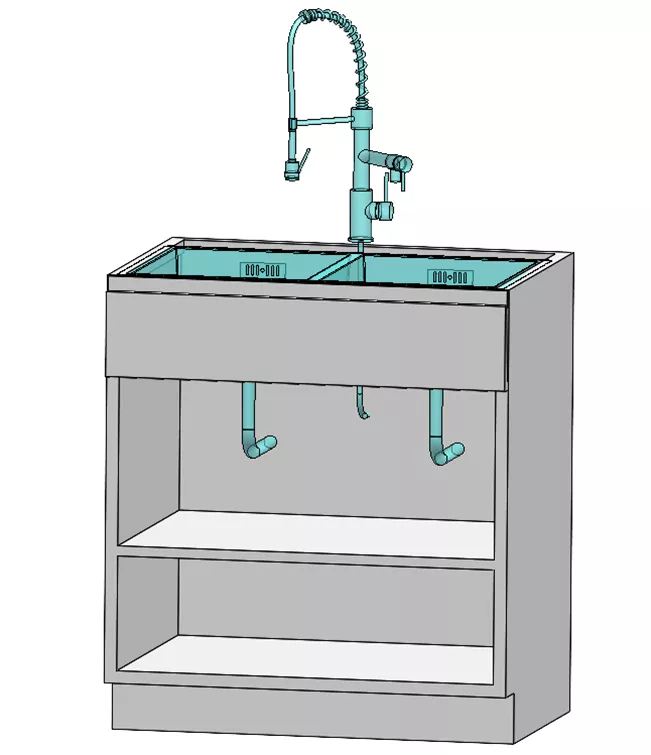
The under-sink cabinet with our shelf modification.
Take the model of the kitchen unit above. While we could technically achieve the shelf modification illustrated while using envelopes as reference components, we would not necessarily be alerted to interfering geometry.
It is therefore best practice to return the component(s) to a non-envelope state by right-clicking on the component, going to Component Properties, and deselecting the ‘Envelope’ checkbox from the Properties window.
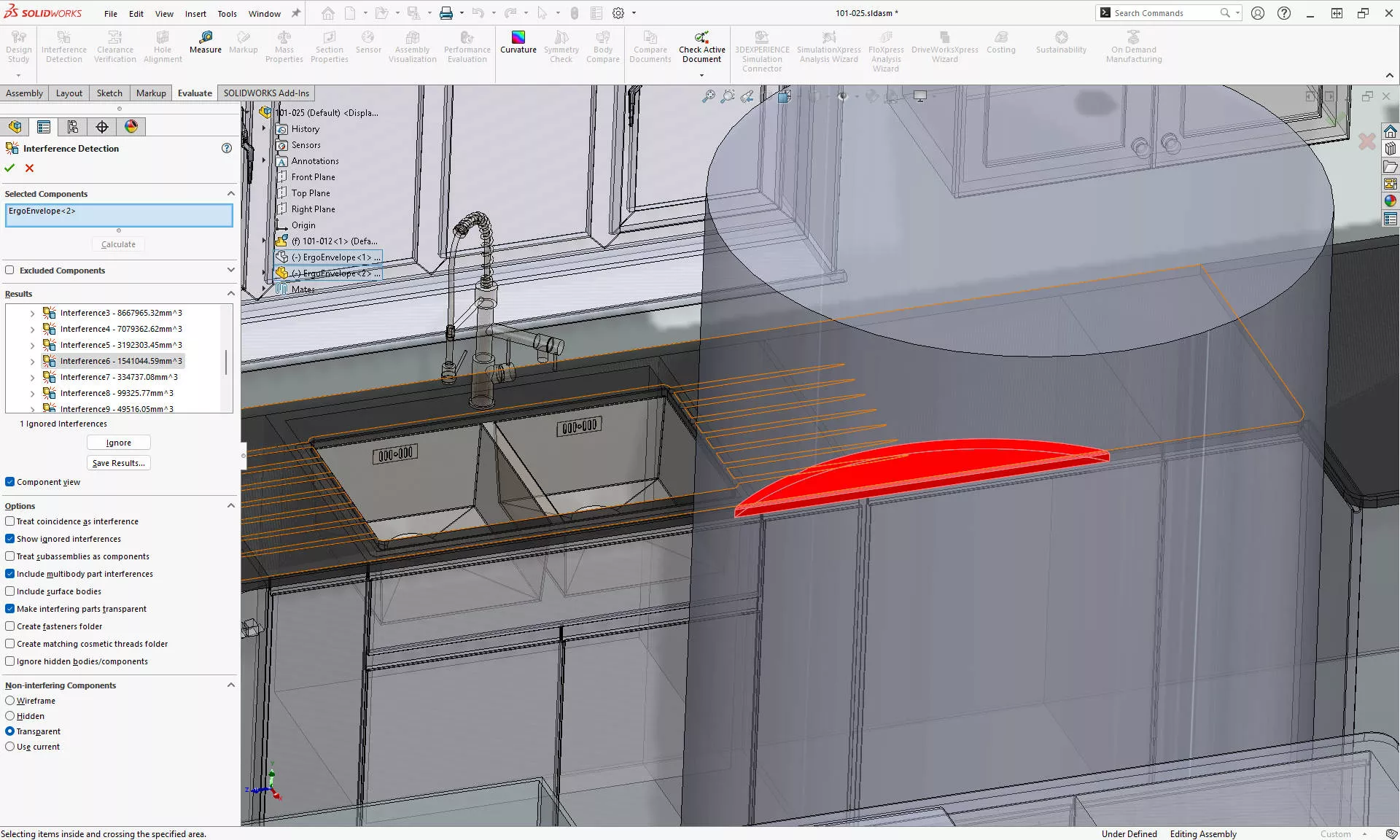
This will return the component to its normal state and allow it to be used in interference detection calculations, in this case checking whether someone would have adequate space to move around in the fitted kitchen.
Master SOLIDWORKS with expert-led courses that help you boost your skills and confidence.
How to Change the Appearance of Envelopes in SOLIDWORKS
Changing the appearance of envelopes can help to differentiate between envelope and component geometry as well as improve clarity in drawing views.
The default appearance for envelopes in SOLIDWORKS is a transparent, light blue colour and is visible in parent assemblies as well as any ‘destination’ subassemblies.
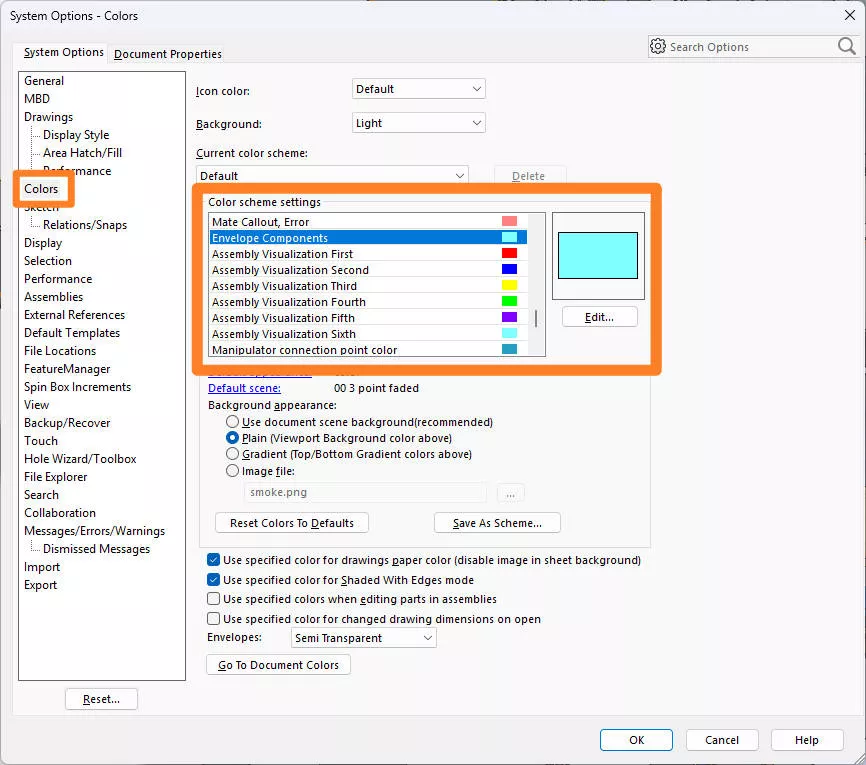
The colour of envelopes can be altered under System Options > Colors > Envelope components in the colour scheme settings list. Click ‘Edit…’ to choose a new colour for envelope components.
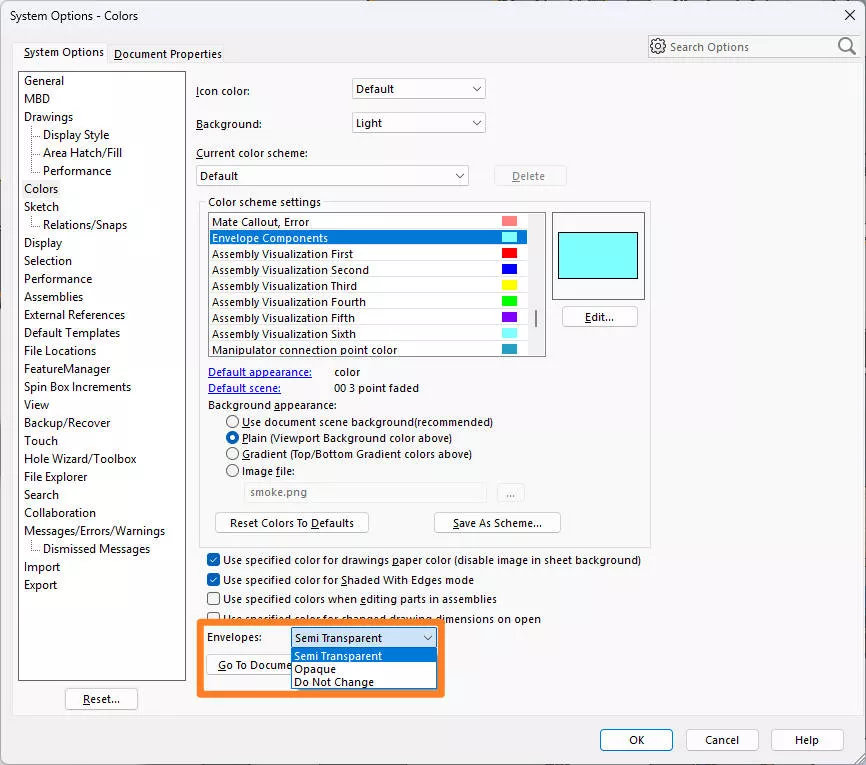
Similarly, on the same System Options > Colors tab, the transparency can be modified using the dropdown at the bottom of the window.
Individual envelopes can be shown and hidden like any other SOLIDWORKS component from the FeatureManager Tree. To hide or show all envelopes, right click the top-level assembly name in the feature tree and select ‘Hide All Envelopes’.
Master SOLIDWORKS with expert-led courses that help you boost your skills and confidence. You can attend online or in a classroom near you!
Choose from a huge range of professional SOLIDWORKS and CATIA training courses and save on multiple courses with a Training Passport.
Categorised as: SOLIDWORKS Design | Tutorials
Get Expert SOLIDWORKS Training
Get hands-on SOLIDWORKS training in-person or online, led by certified experts with real industry experience. With venues across the UK & Ireland, it’s easy to start learning today.
Related Posts

How to Find Reaction Forces in SOLIDWORKS Simulation
SOLIDWORKS helps us to find resultant forces through simulation studies. These virtual tests reduce the need for physical prototypes and give us an accurate answer.

Setting number of decimal places in a table on a drawing
When creating an equation in a drawing general table, is it possible to define the…

SOLIDWORKS Smart Fasteners
SOLIDWORKS Smart Fasteners is a really useful time saving tool, allowing you to automatically insert toolbox fasteners such as bolts and screws into an assembly providing there is a standard hole.

Why is my Flat Pattern not showing in SOLIDWORKS Drawings?
This may be linked to how the drawing is saved or it can be related to how sheet metal parts are displayed in drawings, read on to find out how to fix it.

SOLIDWORKS Tips: Are you Making this Common Mistake in Fatigue Analysis?
Simulation is a vital and complex engineering need. Fortunately, SOLIDWORKS makes it easy to test, correct mistakes and obtain accurate results.

Series 1 Land Rover Pedal Car – Made Easy with Solidworks!
The Series1 began production in 1948 designed to help get Britain farming after the war effort. It grew extremely popular and today enthusiasts are prepared to throw their life savings at restoring originals from that period.

How to Recover SOLIDWORKS Files After a Crash
SOLIDWORKS has two different methods to help you recover from an unexpected crash or loss of data in the form of auto-recovery and back-up settings.

Redesigning Santa’s Sleigh in SOLIDWORKS
Every year Father Christmas has to fly in his sleigh to deliver presents to boys and girls all over the world in just one night. To put this into perspective, it takes a little under 24 hours to fly from London (UK) to Sydney (Australia) in a streamlined Boeing 747, whereas Father Christmas’ mode of transport is believed to be a rather non-aerodynamic sleigh.

SOLIDWORKS Grid Systems – hidden away, but very useful!
Rory Niles provides an insight into the uses for Grid Systems within SOLIDWORKS 2018

Furniture Design Made Easy with SOLIDWORKS
Calling all furniture and interior designers: the days of creating square cabinets are over. What if we told you there’s a much easier way to bring your products to life?
Here’s 10 reasons why we feel SOLIDWORKS is better than any other software, especially if you’re designing furniture: