











Advanced SOLIDWORKS Tutorial: How to Make a Tennis Ball in SOLIDWORKS

Written by: Terry O'Reilly
Published: Jul 5, 2023
| View All Blogs
Tennis balls are a deceptively challenging shape to make in SOLIDWORKS.
In this SOLIDWORKS modelling tutorial, we’ll run you through the process of modelling a tennis ball while using some of the more advanced modelling tools SOLIDWORKS offers.
Throughout the course of Wimbledon, we’re exploring how to create and simulate tennis balls in SOLIDWORKS. Check back during the tournament for new content!
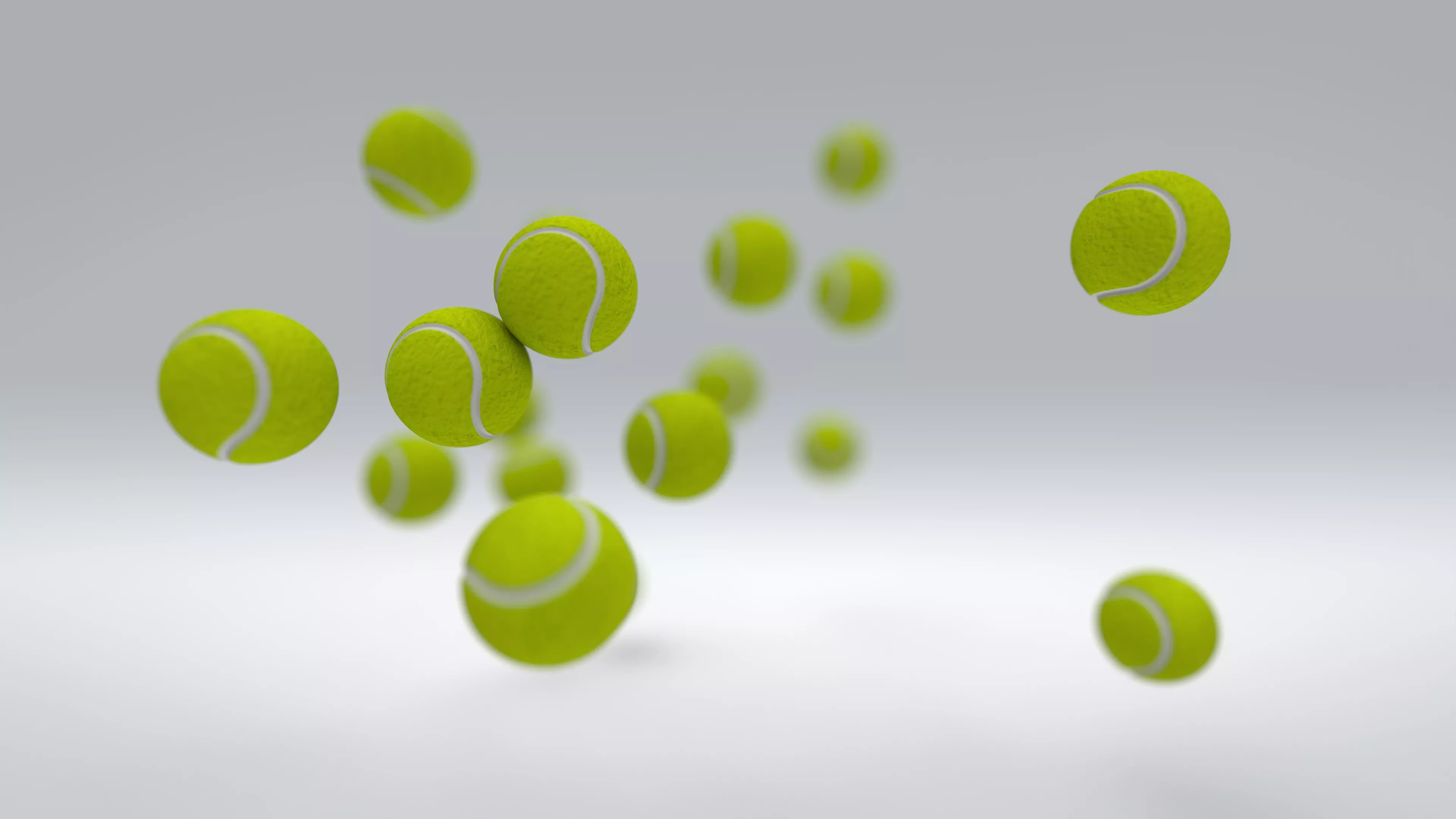
HOW TO MODEL A TENNIS BALL IN SOLIDWORKS
Most balls start with a sphere, and our tennis ball is no different.
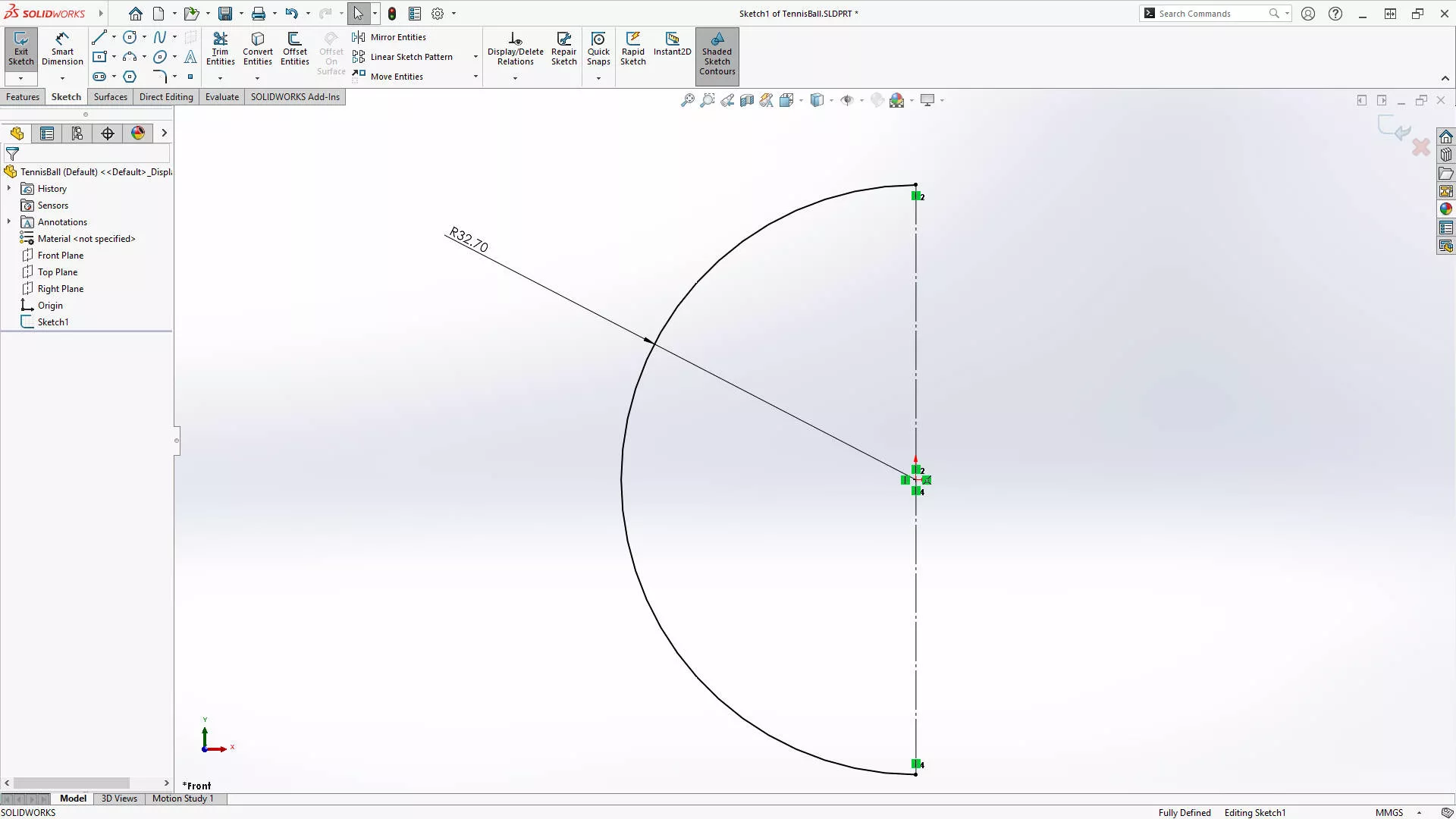
If you’ve been following our tutorial series, then you’ll be well away here! However, if you haven’t made a sphere before, then check out this short tutorial to learn how to make a sphere in SOLIDWORKS first.
As tennis balls are hollow, we’re creating a hollow sphere with a diameter of 65.4 mm.
Activate the Revolve Boss/Base command.
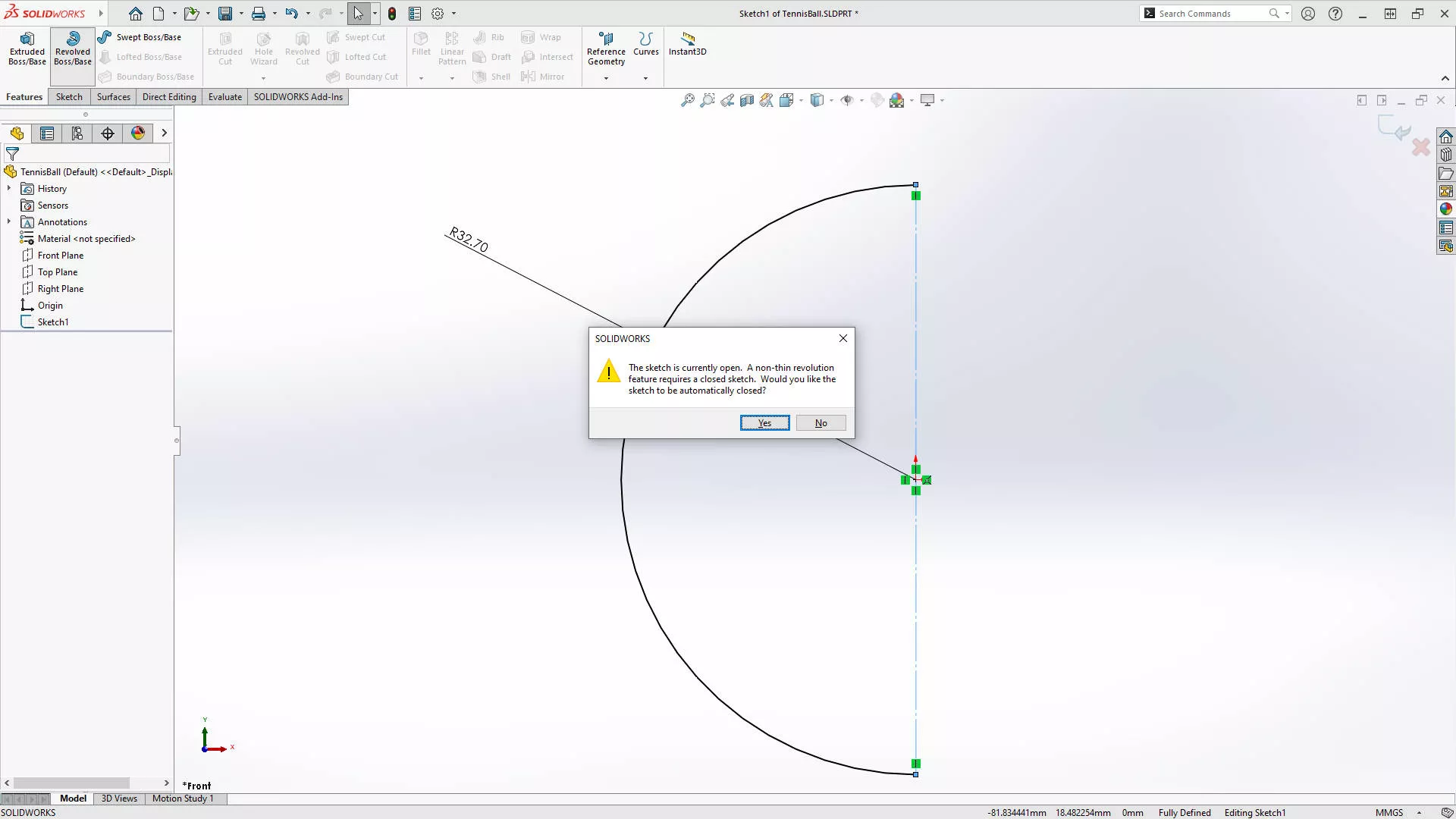
When revolving the sketch shown above, click NO on the dialog box asking about closing profiles. This will start the revolve with thin geometry and let us choose a wall thickness of 3mm.
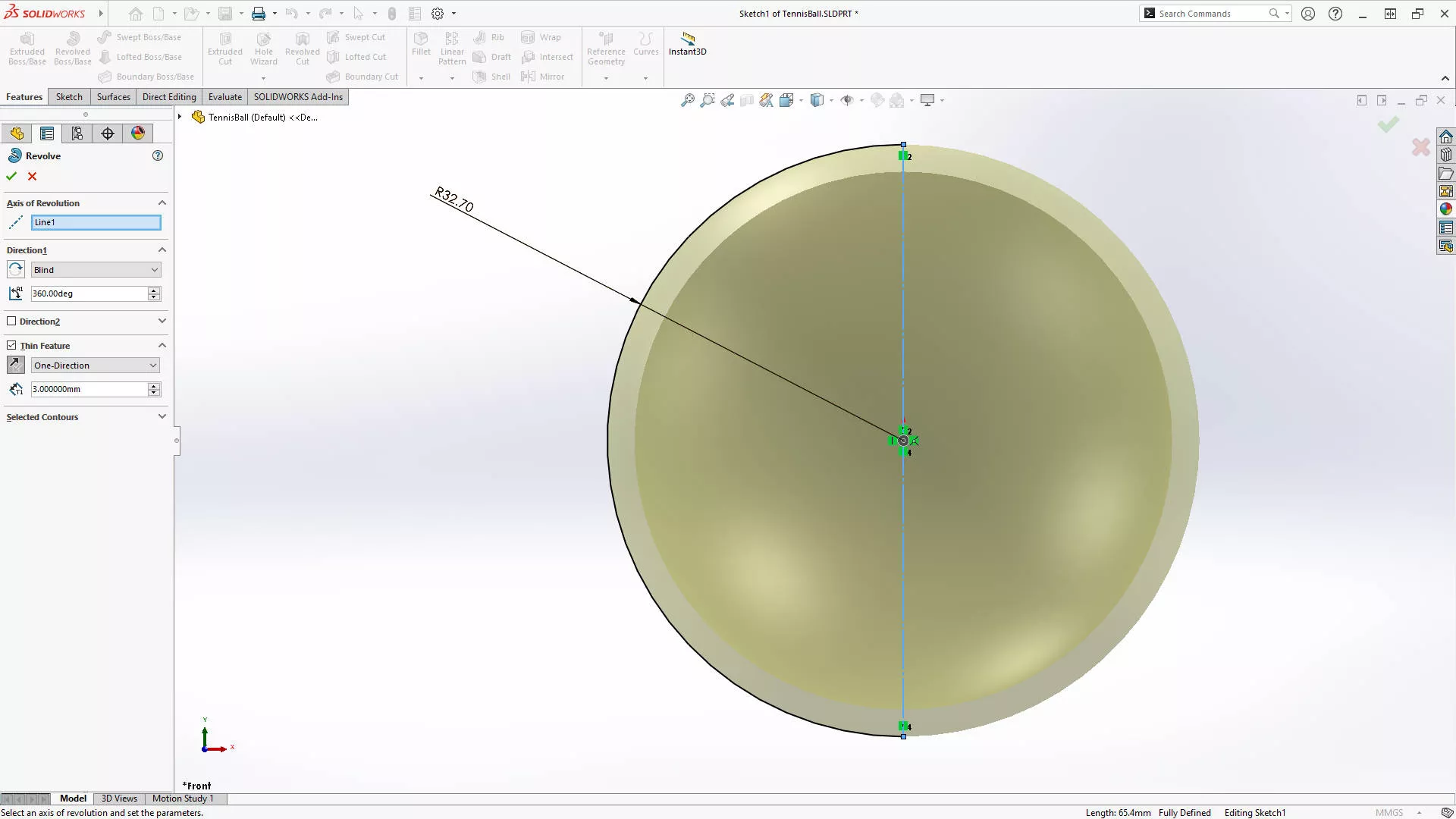
Make sure the thickness direction is inside the sketch. Toggle it with the arrows.
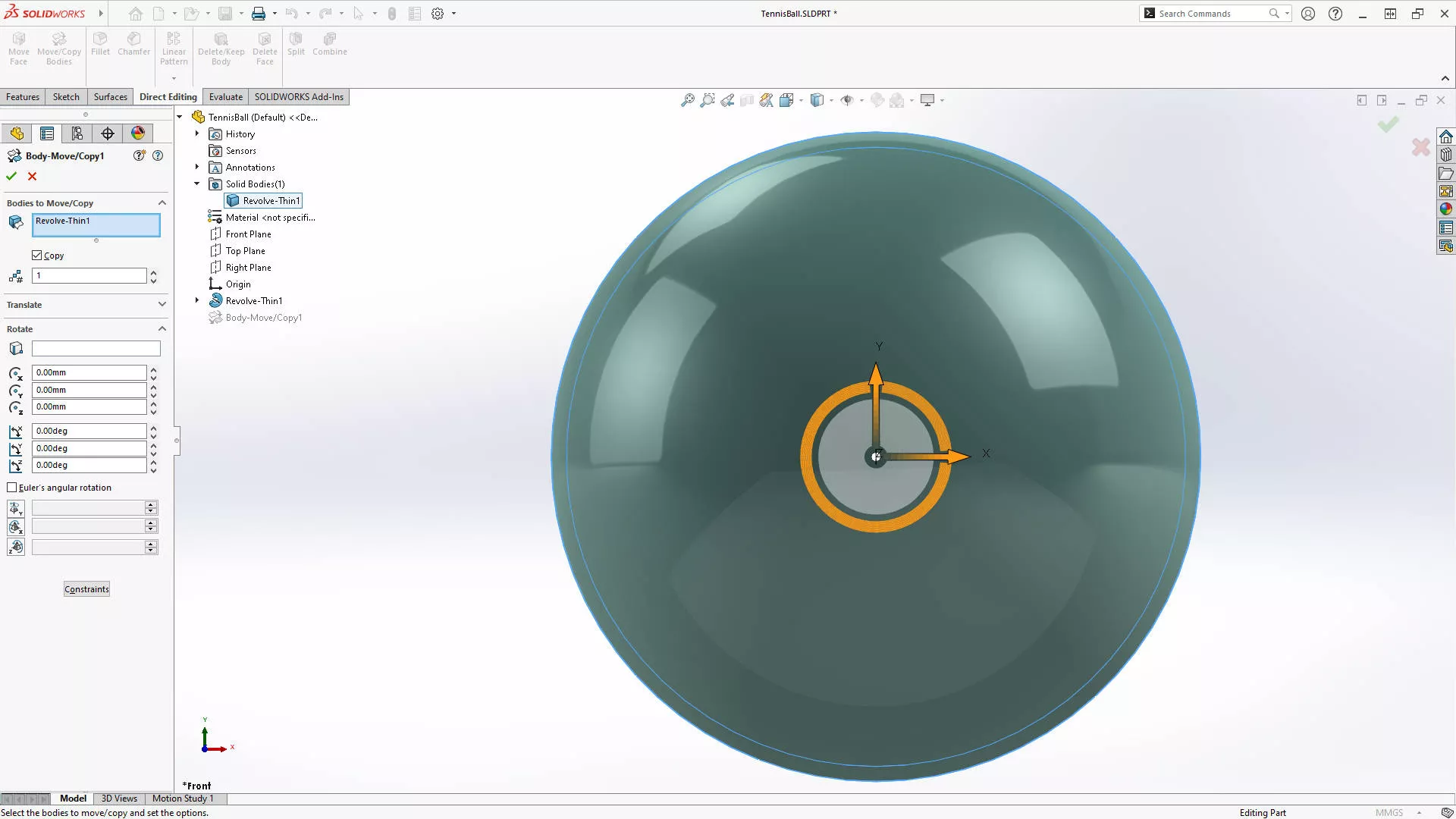
We’ll make a copy of this sphere to help us out later. Under the Direct Editing tab, select the Move/Copy Body tool.
Select the Copy checkbox and leave 1 in the box, as we only need one copy. There’s no need to change any other values, so click accept.
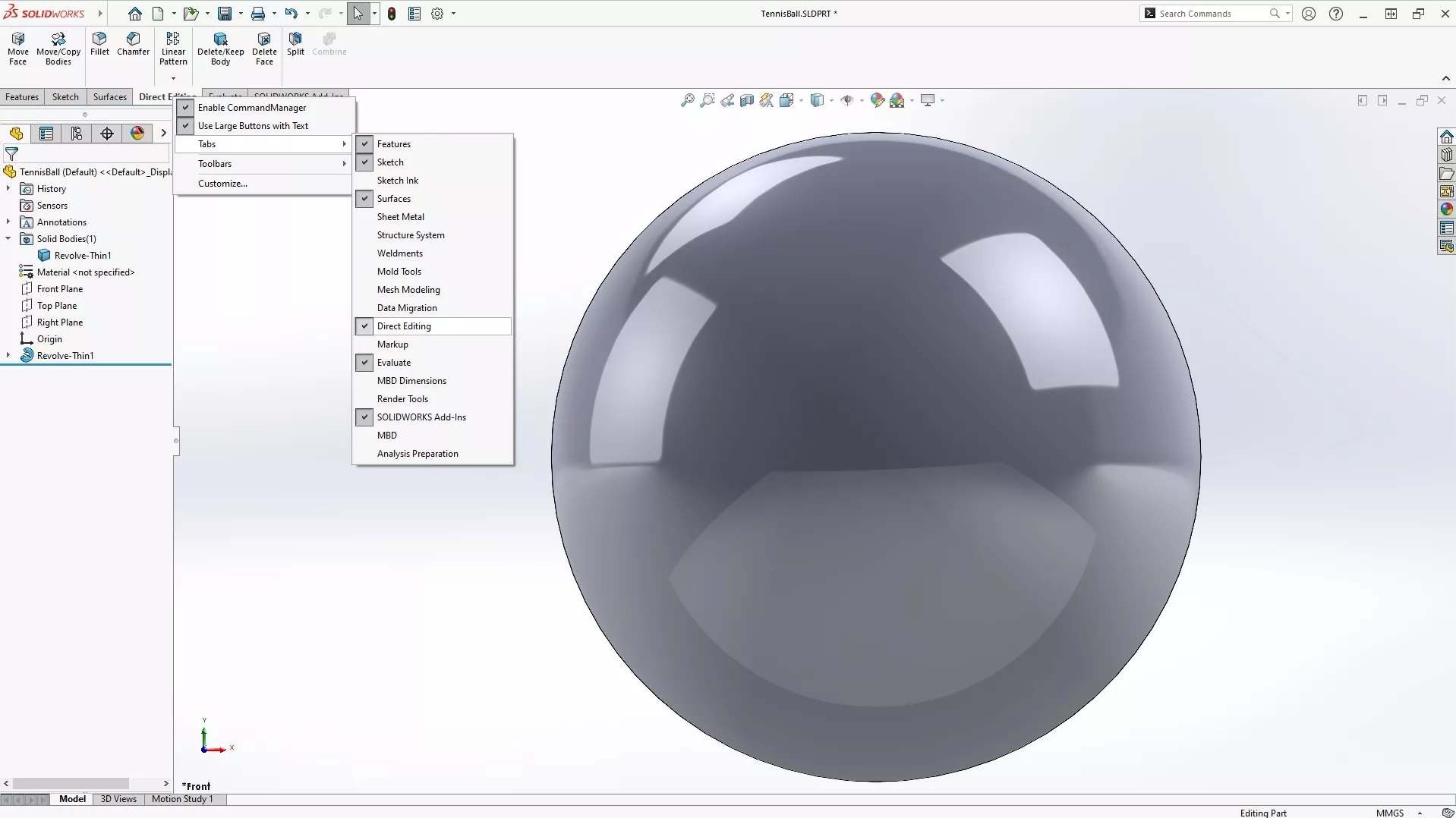
If you don’t see this tab, enable the Direct Editing tab by right-clicking on a tab name in the Command Manager and selecting Tabs > Direct Editing.
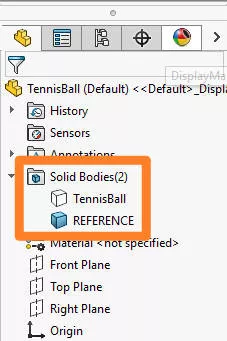
We’ll then name these two bodies. Expand the Solid Bodies folder in the FeatureManager Tree and name one ‘TennisBall’ and the other ‘REFERENCE’.
Hide the TennisBall body for now.
ADD NEW PLANES IN SOLIDWORKS
The geometry of a tennis ball is quite complex, but we can create this simply by chopping up this reference sphere with some planes.
First, we need a parametric reference sketch for these, so we can create any size of ball in the future!
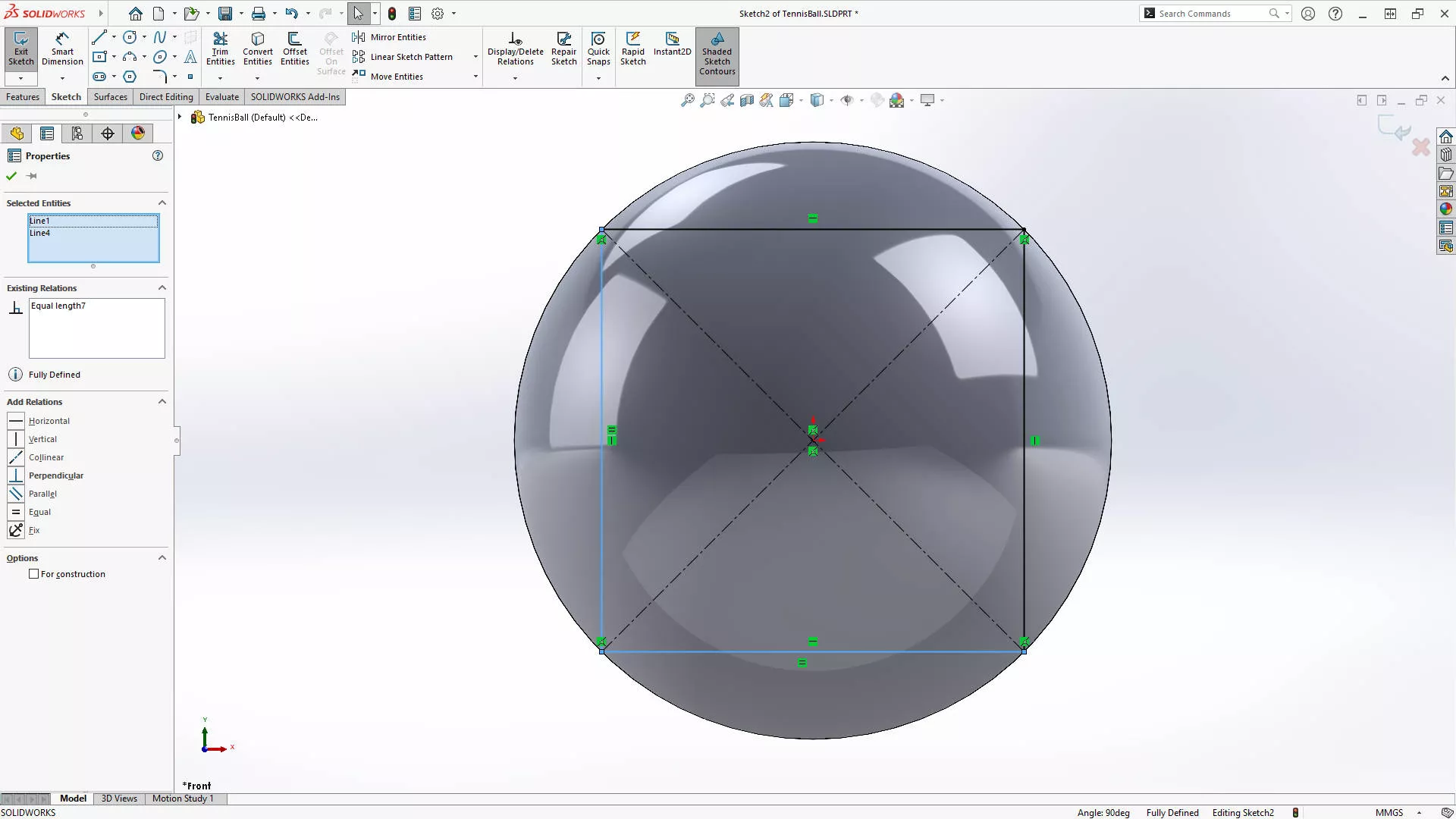
Start a new sketch on the Front plane and draw a Centre Rectangle from the origin. Add coincident relations between each corner point and the outline of the sphere.
An Equal relation must be added between a vertical and horizontal line. Exit the sketch.
Let’s add planes to each edge of this sketch.
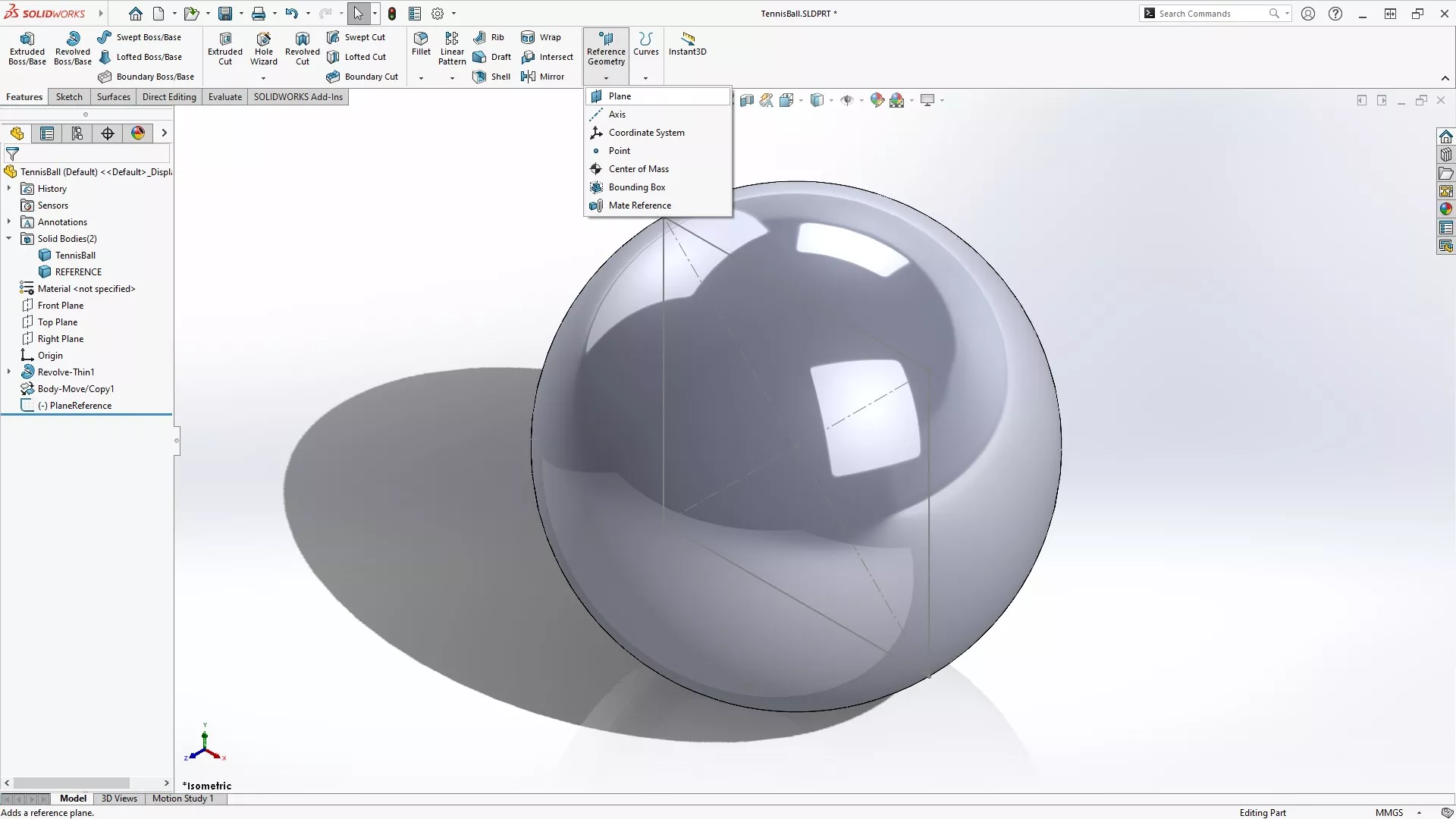
On the Features tab, drop down Reference Geometry and add a new plane.
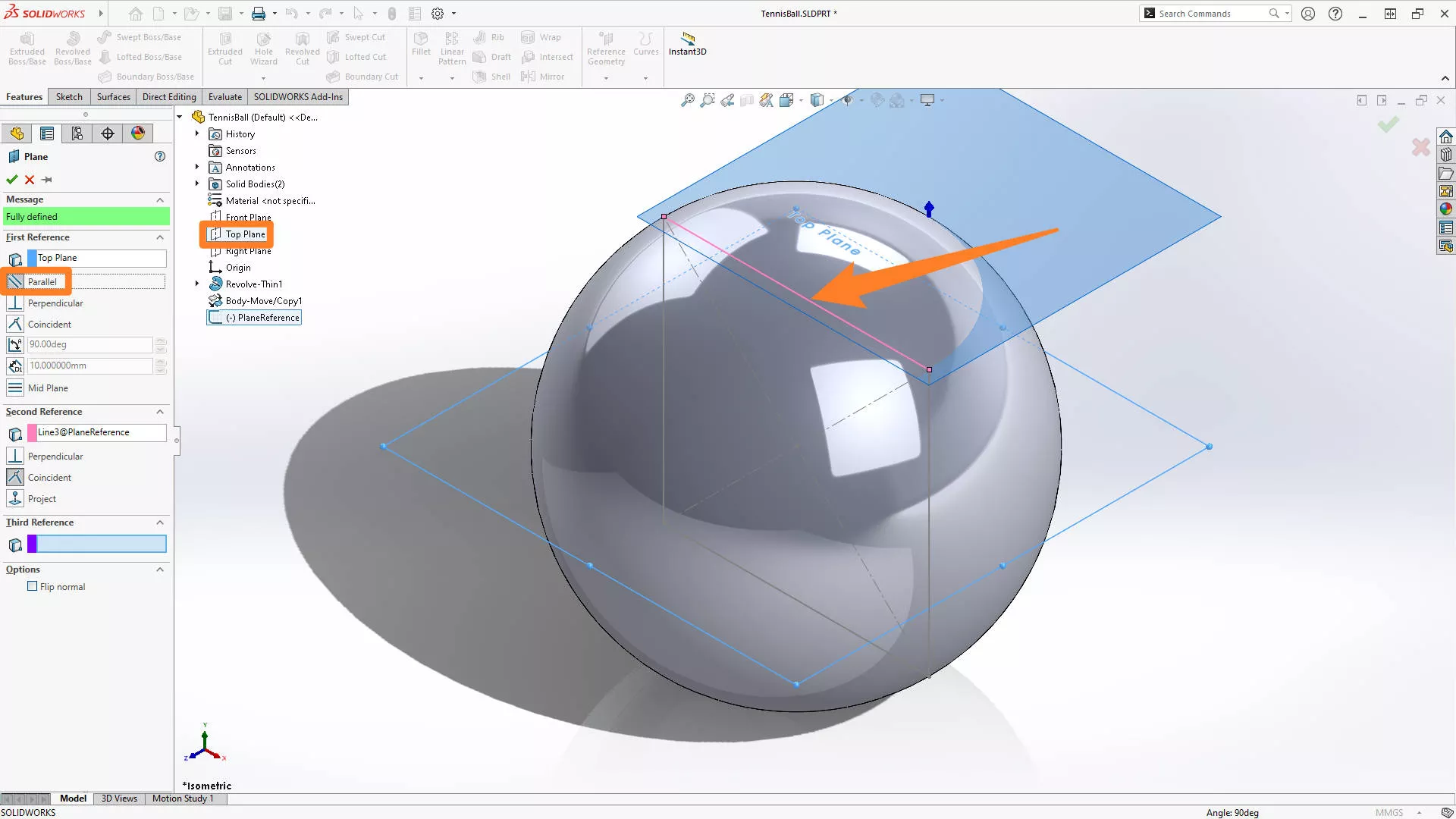
The first reference should be parallel to the Top Plane. Select the top edge of the rectangle sketch and accept the feature to create the upper plane.
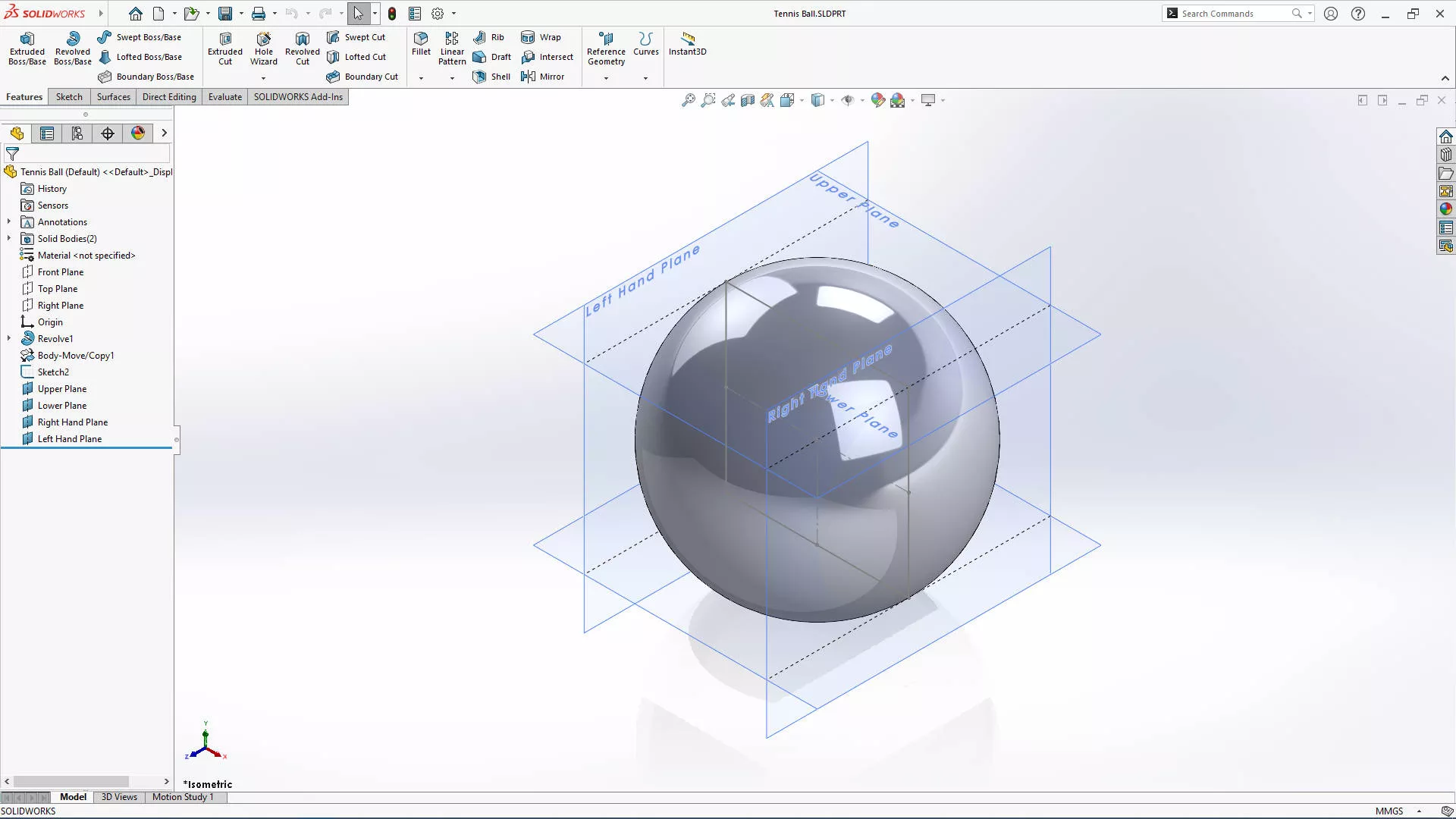
Repeat this process for the other three edges of the sketch, using the Right Plane as the first reference of the Left Hand and Right Hand planes.
SPLITTING A PART IN SOLIDWORKS
Now we’re ready to start slicing our sphere!
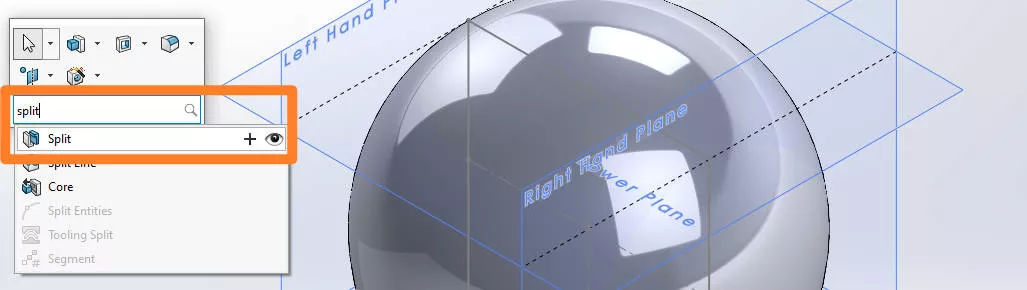
Hit the ’S’ key on the keyboard and search for the Split tool.
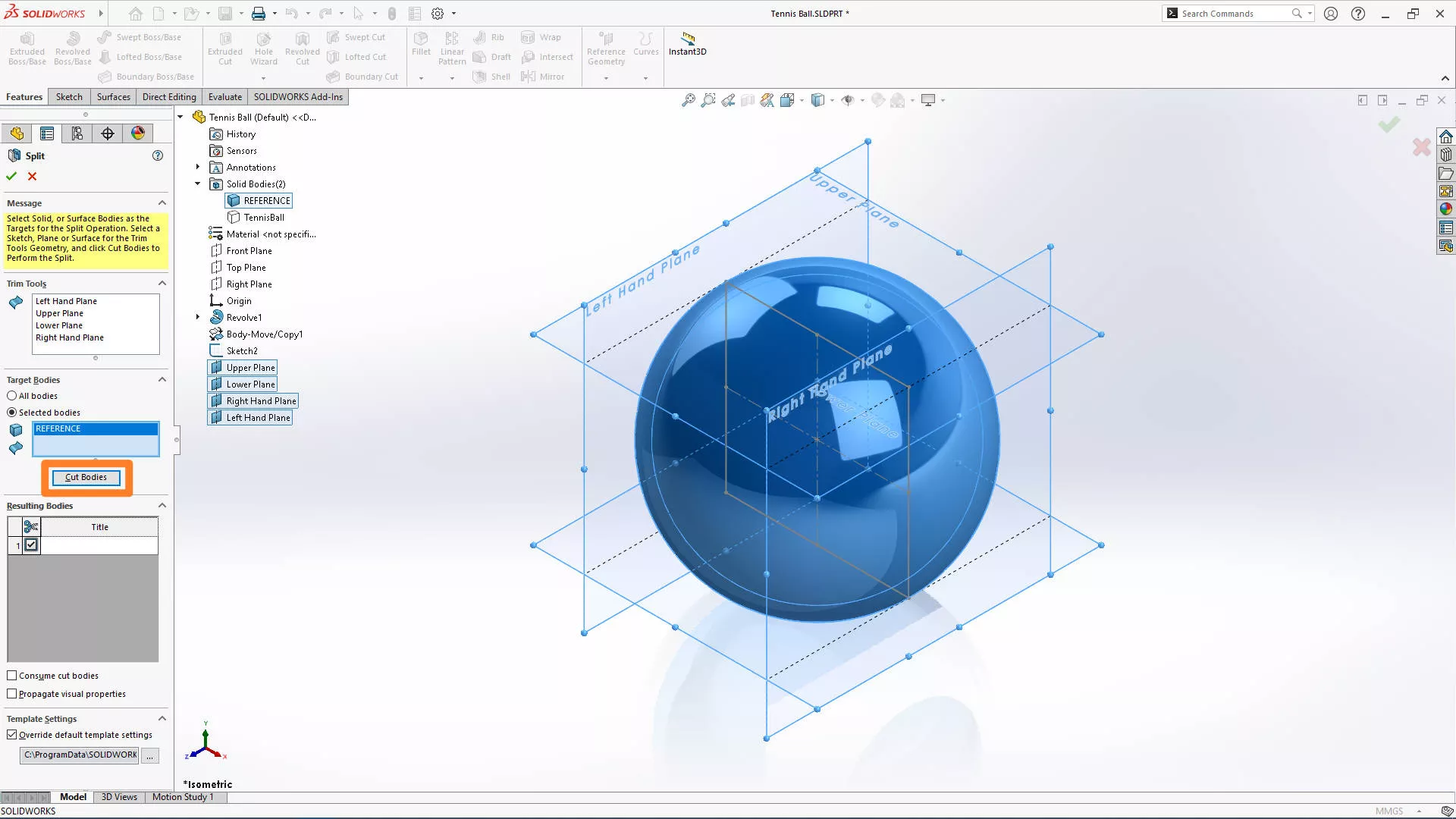
Select the four planes as the trim tools, and the REFERENCE body as the target.
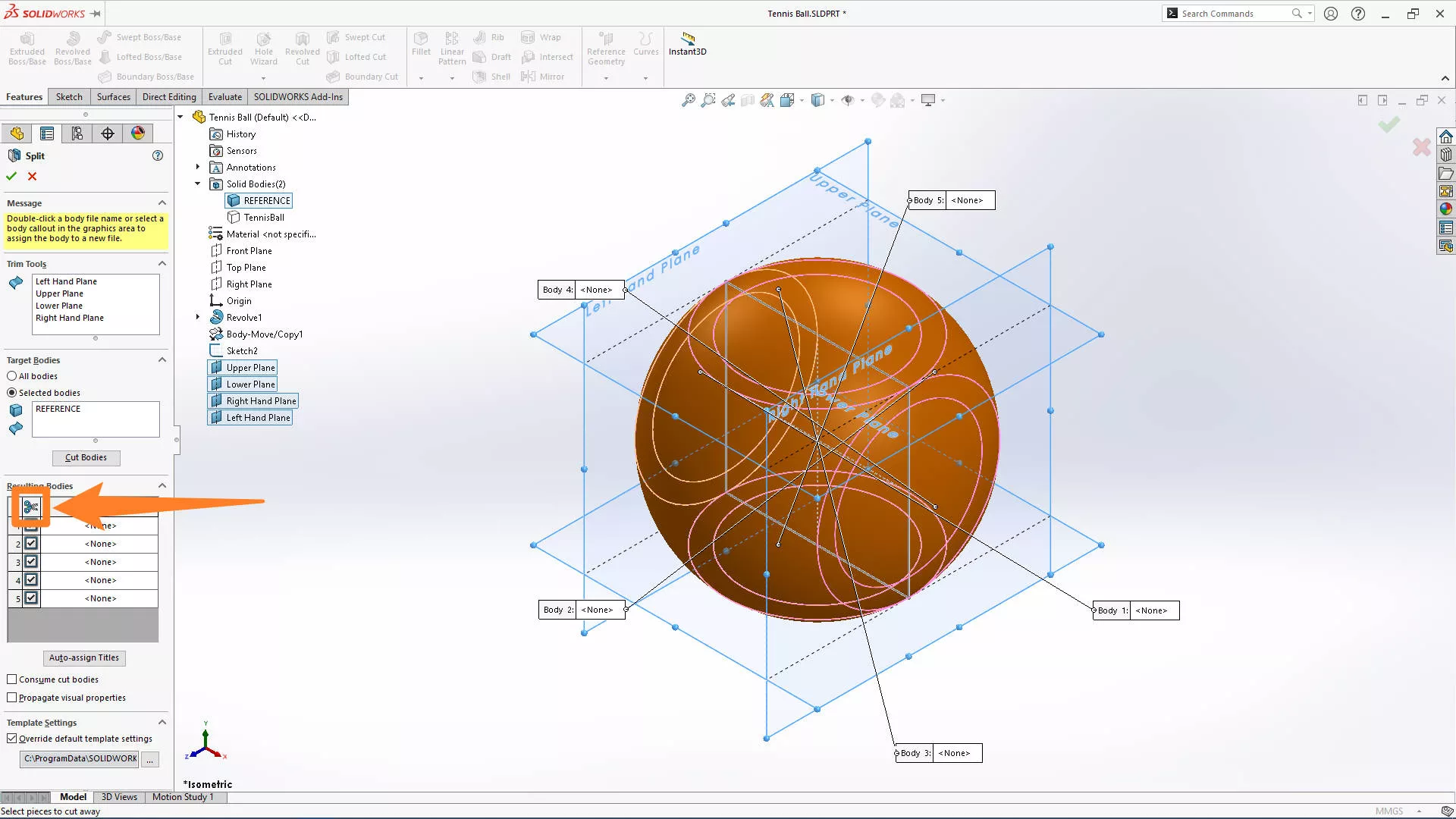
Click the scissors icon to cut the bodies and accept the feature.
For a more detailed tutorial on the Split command, check out this video!
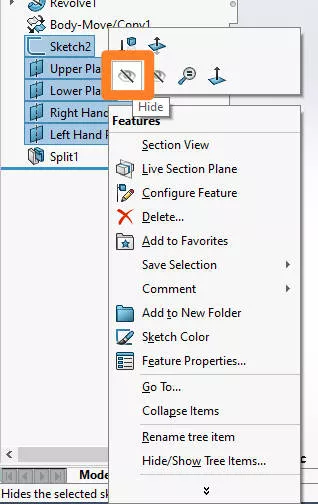
With the split created, we can hide out the planes and the rectangular sketch.
USING THE SWEPT CUT TOOL
Now we have the outlines of the ball geometry, we can cut the design in.
Activate the Swept Cut tool under the Features tab.
Select the circular profile option and choose a diameter of 2 mm.
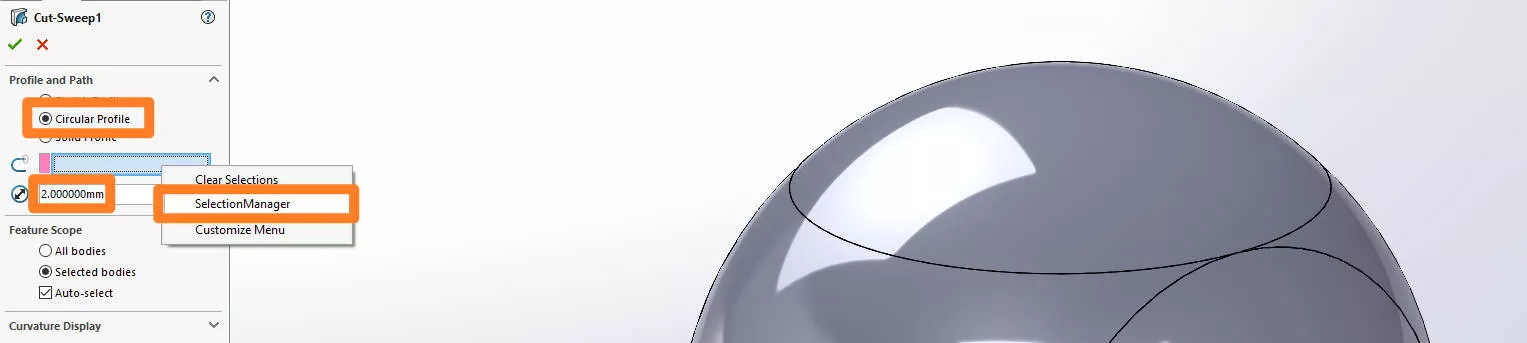
Right click in the path selection box and activate the SelectionManager.
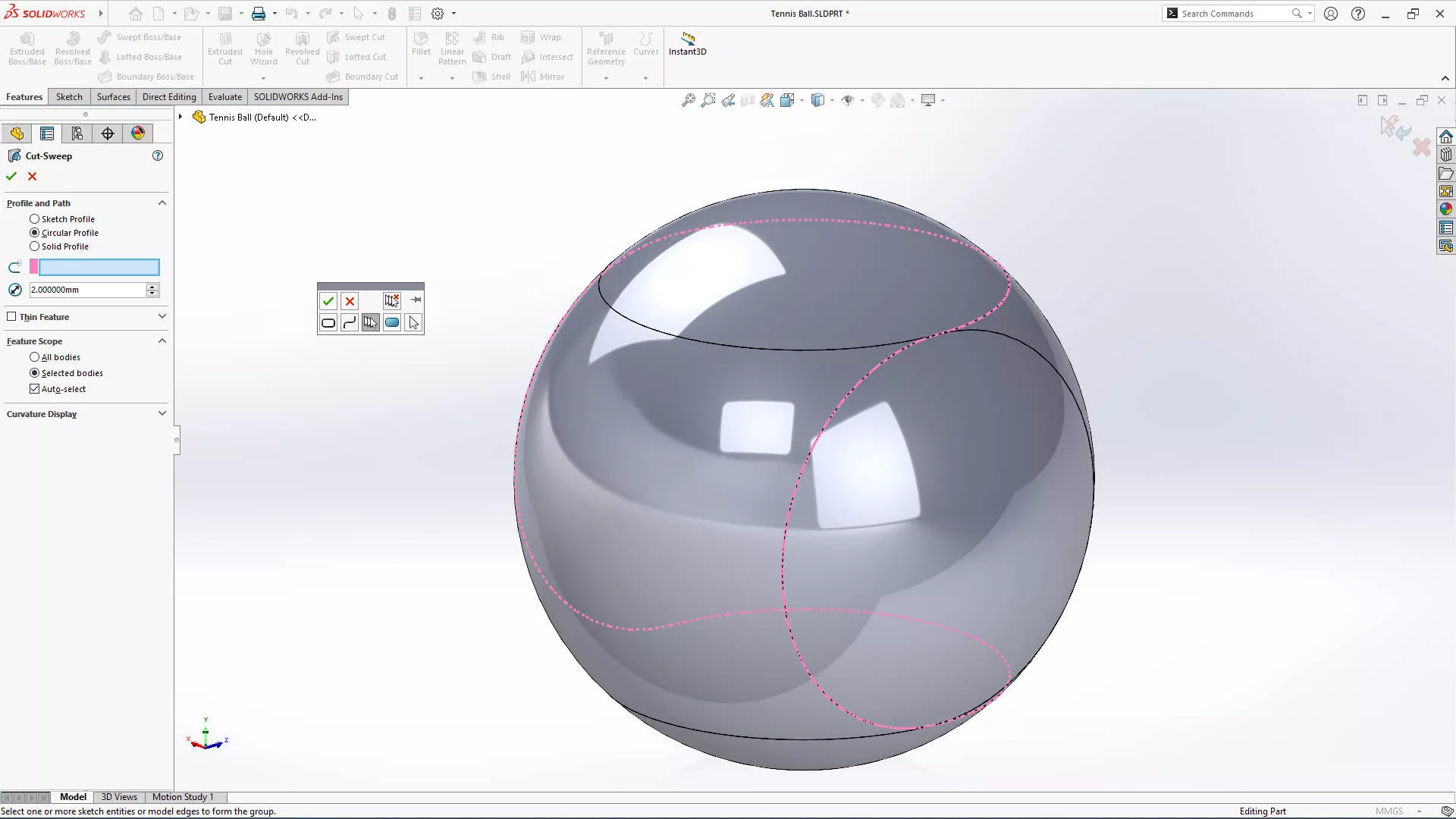
Click the edges of the bodies that make up a closed loop for the design. Click the green tick in the SelectionManager.
Before confirming the feature, we need to make sure it is cutting the correct body.
Choose the Feature Scope option Selected Bodies and remove any bodies from the list.
Expand the feature tree and show the TennisBall body by right clicking on it and selecting the eye icon.
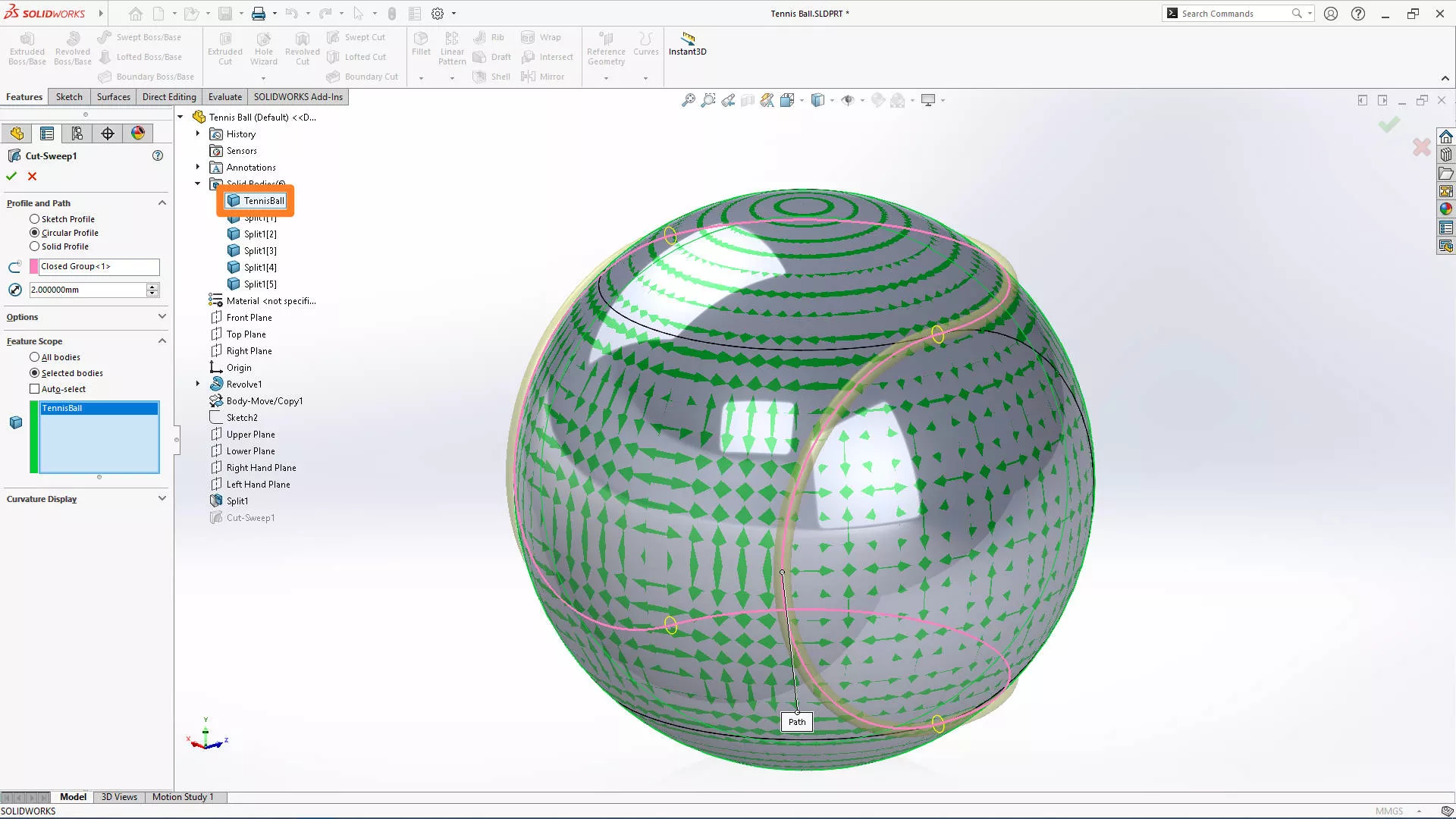
Select the TennisBall body as this is the body we want to modify and confirm the feature. 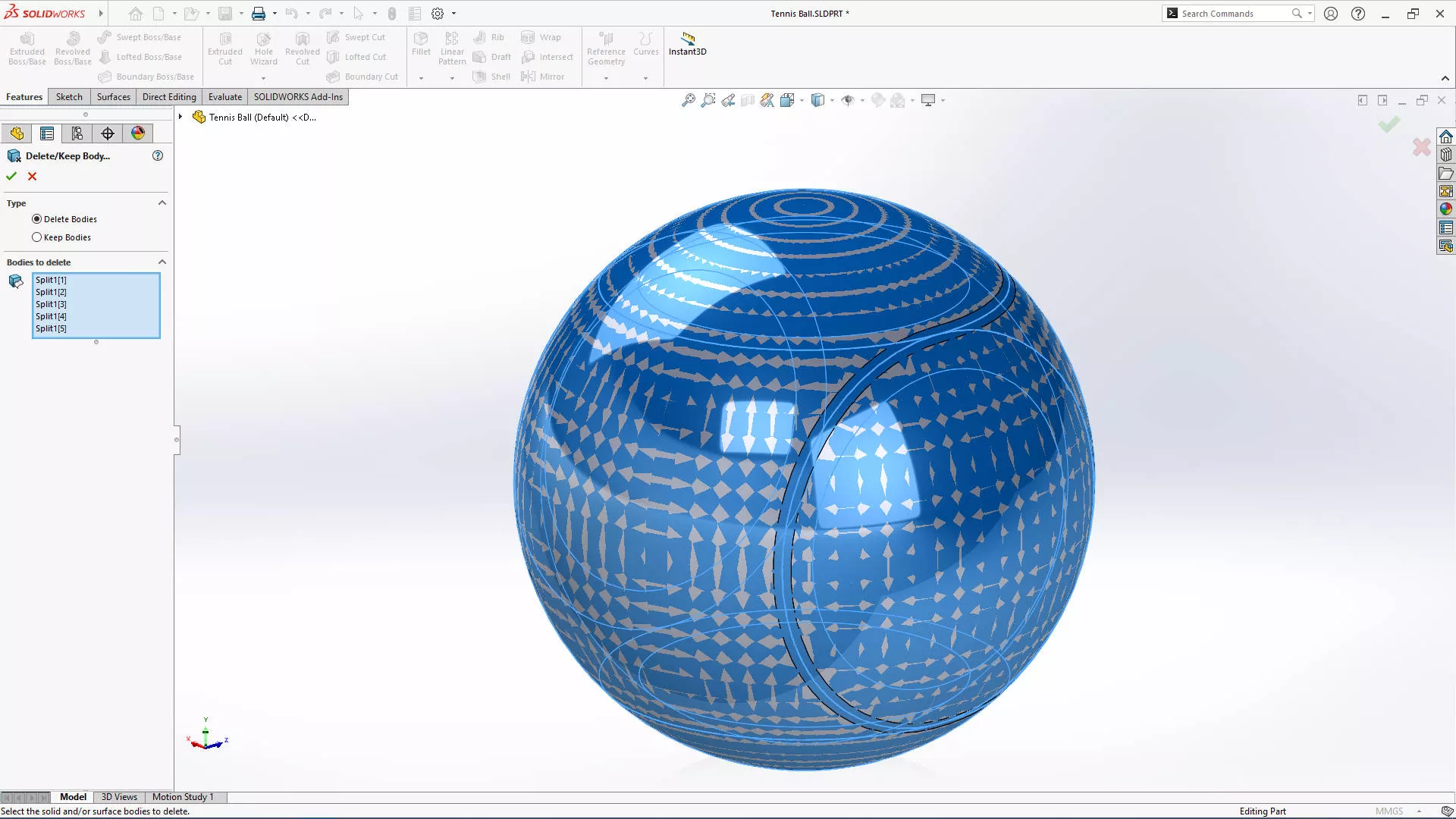
To keep things tidy, we’ll group-select the reference bodies from the Solid Bodies folder and delete them. This will appear as a feature in the tree.
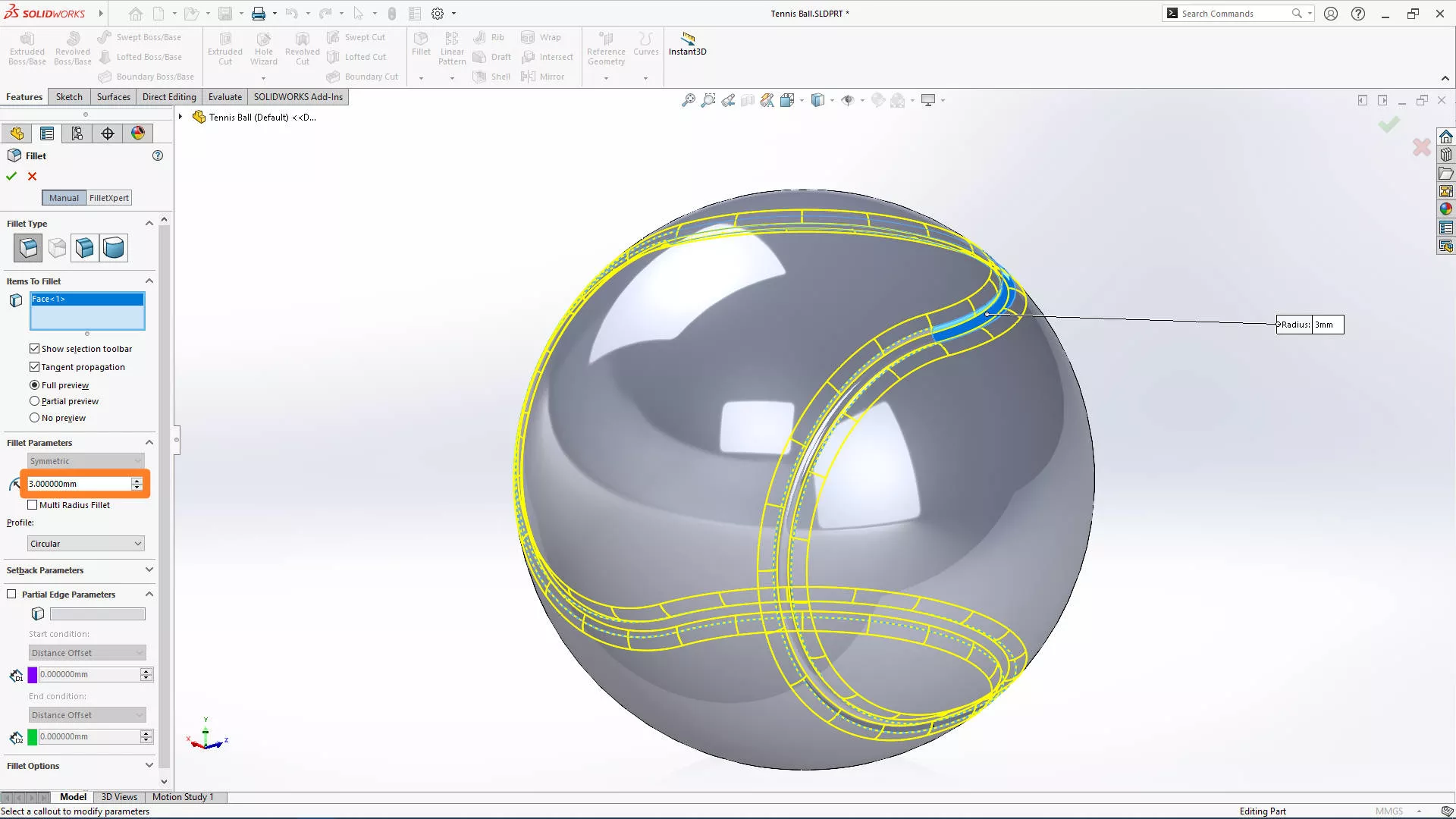
Our ball is looking pretty good, but we’ll add a fillet of 3 mm to edges of the cut design. Select any face within the loop to add the fillet to both edges at once.
ADDING APPEARANCES IN SOLIDWORKS
Currently we have a nice grey tennis ball… So let’s get this ball looking realistic with appearances!
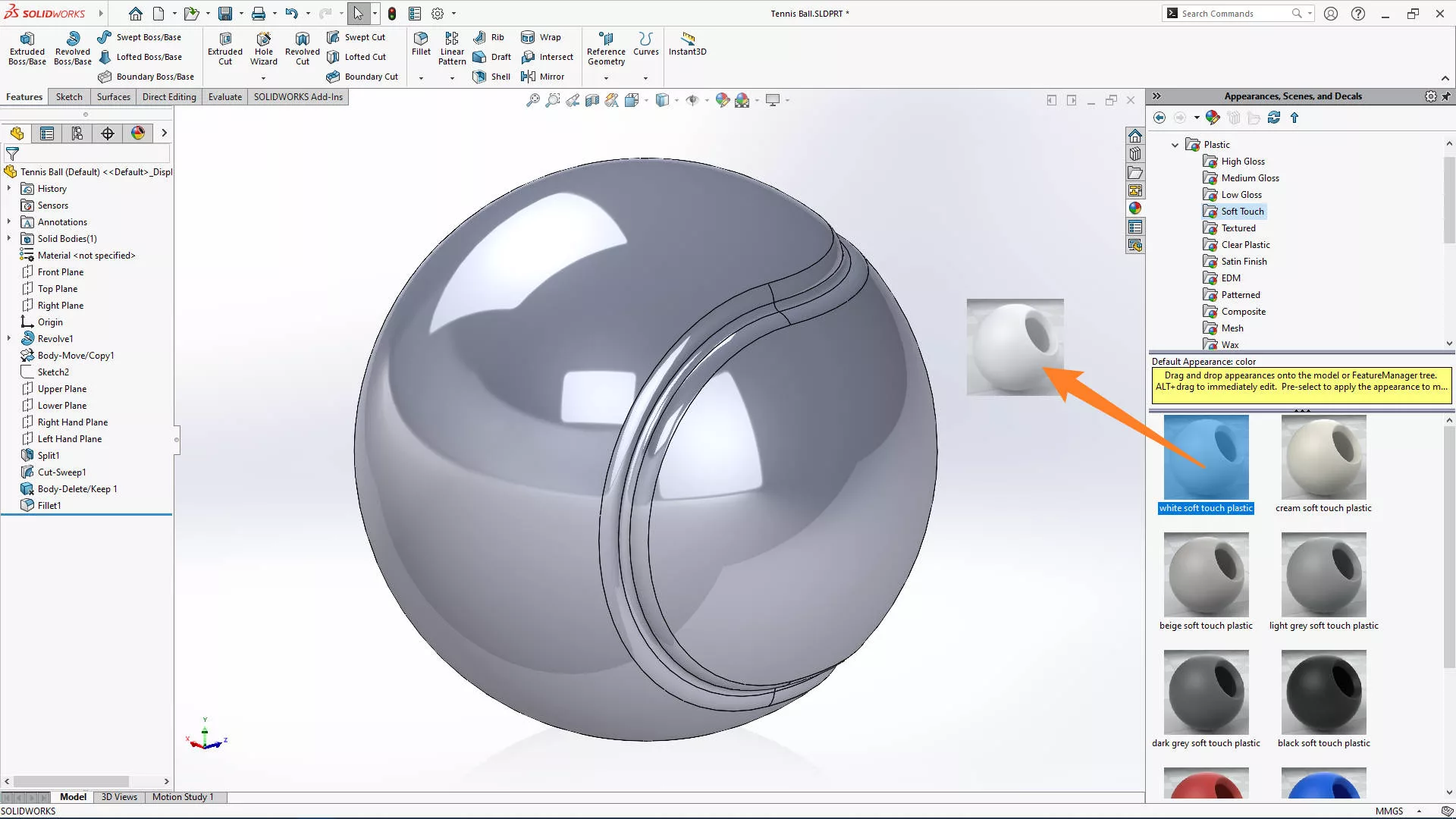
Activate the appearance manager in the task pane and drag the White Soft Touch Plastic appearance into the background of the model to apply it to the entire part.
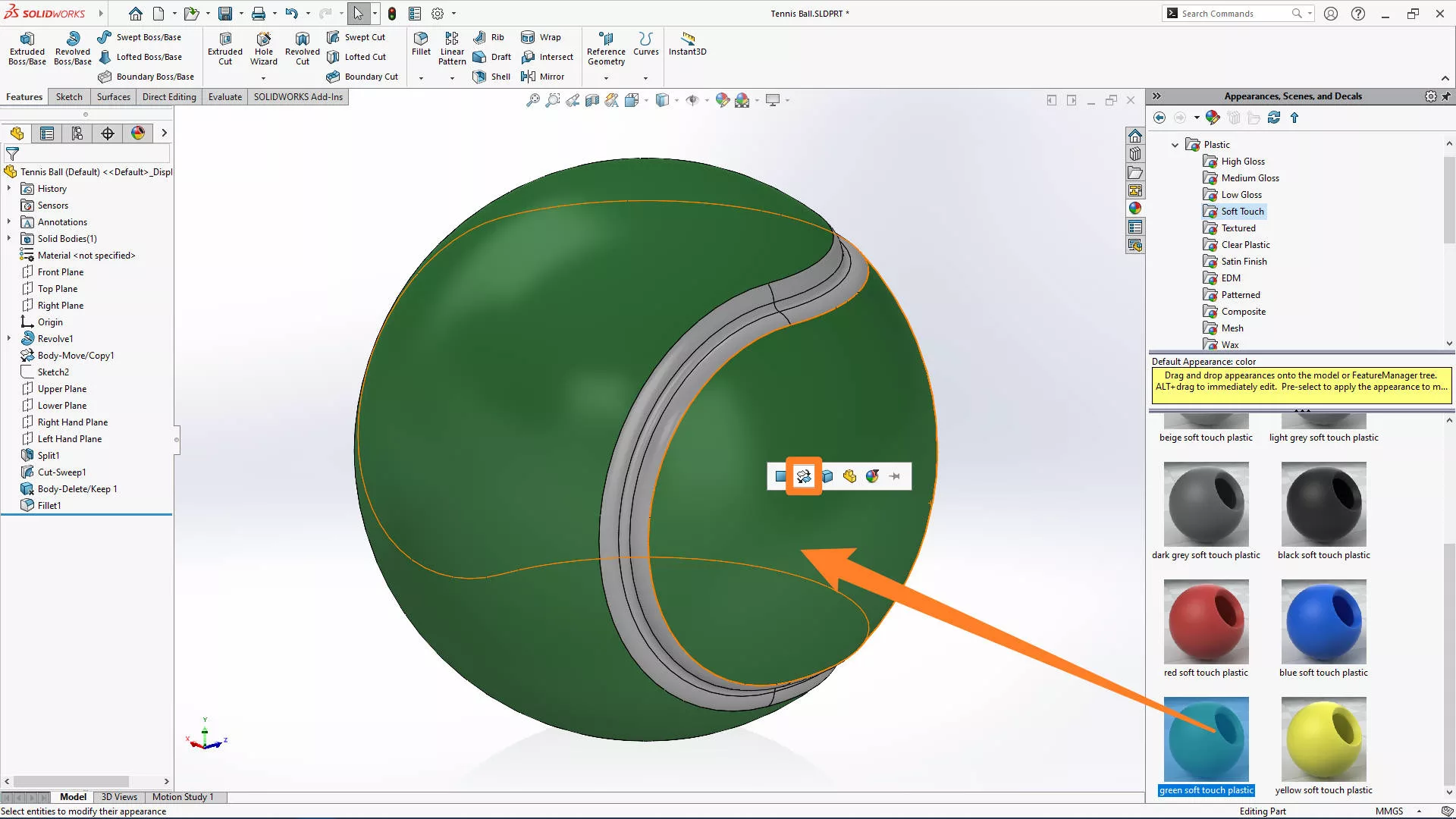
Then we’ll drag on any other appearance to the face of the ball. This green one will do. Make sure to apply it to the feature or faces, not the part. We’ll use this as a base to create a custom appearance.
Did you know? The 1985 Wimbledon Championship was the last tournament to be played with white tennis balls!
ADDING CUSTOM SOLIDWORKS APPEARANCES
SOLIDWORKS supports creating custom materials and appearances. Any high quality image can be used to give a realistic appearance.
Search for seamless textures online and download a suitable fuzzy felt texture for your tennis ball.
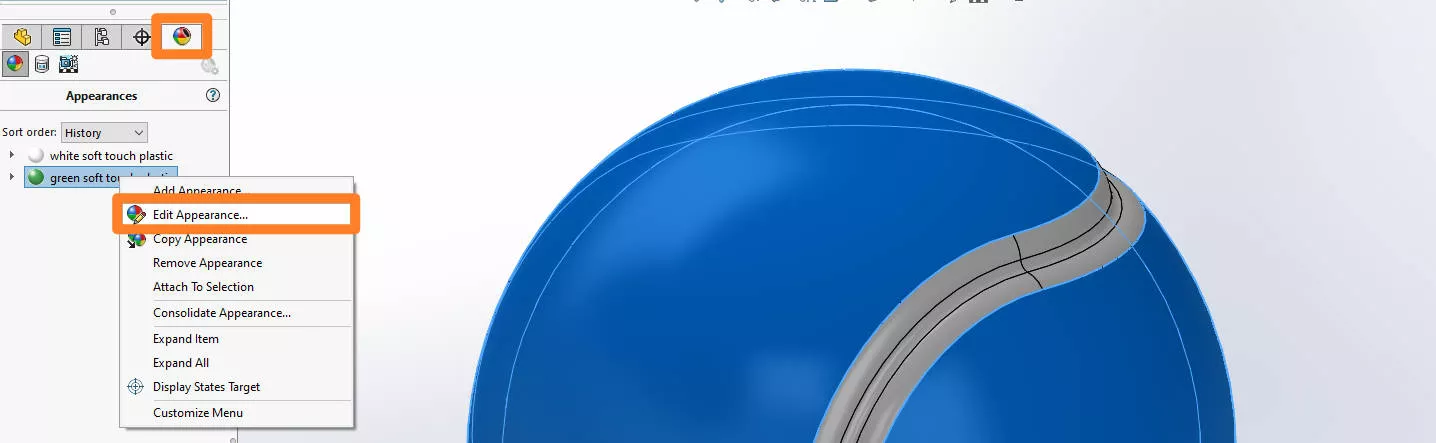
Under the appearance manager in the FeatureManager Tree, right click and edit the green appearance.
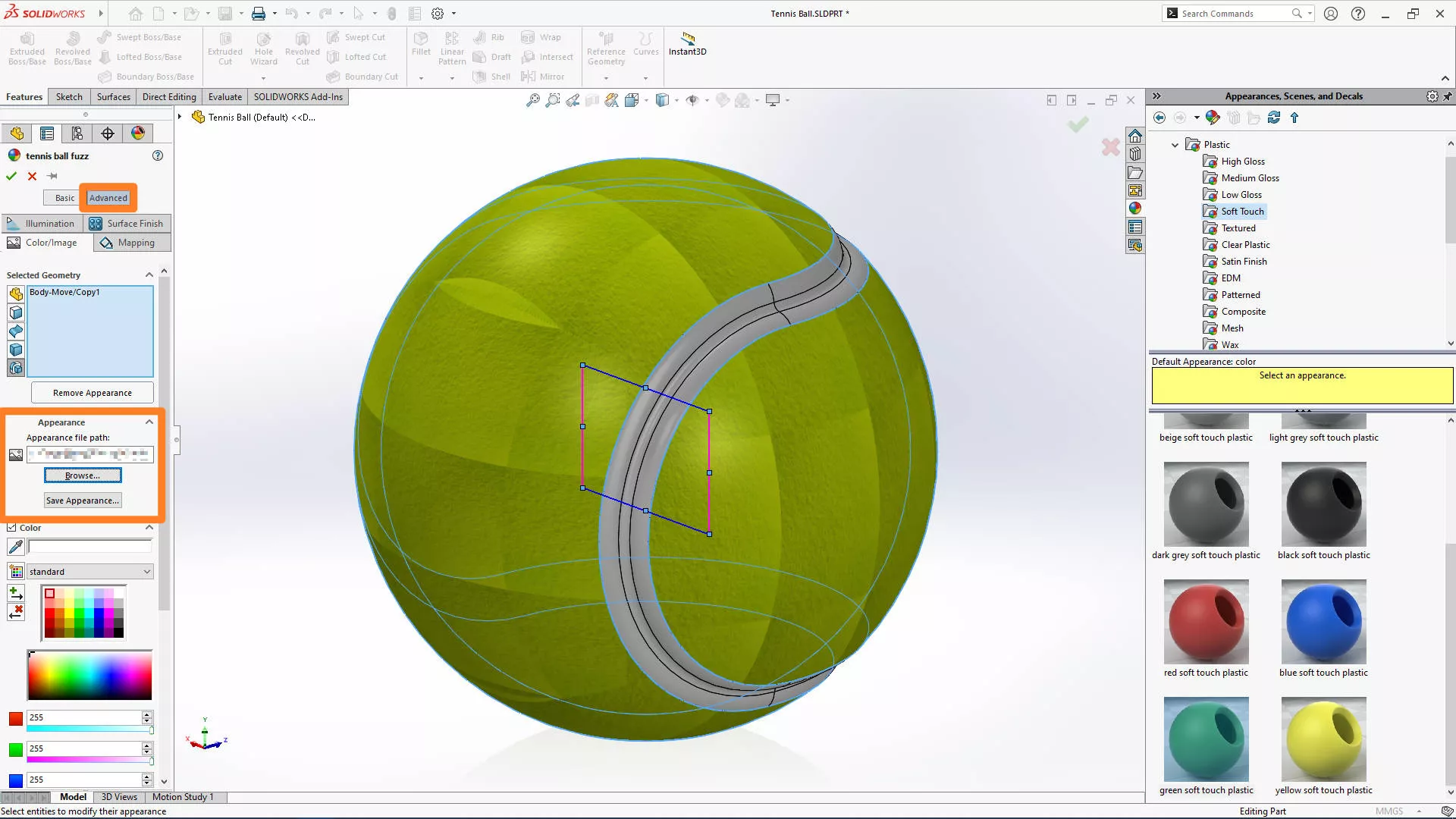
Activate the advanced options, and browse to the file location of the image you downloaded. The Save Appearance option lets you create a .p2m file that you can add to your appearance library for future use.
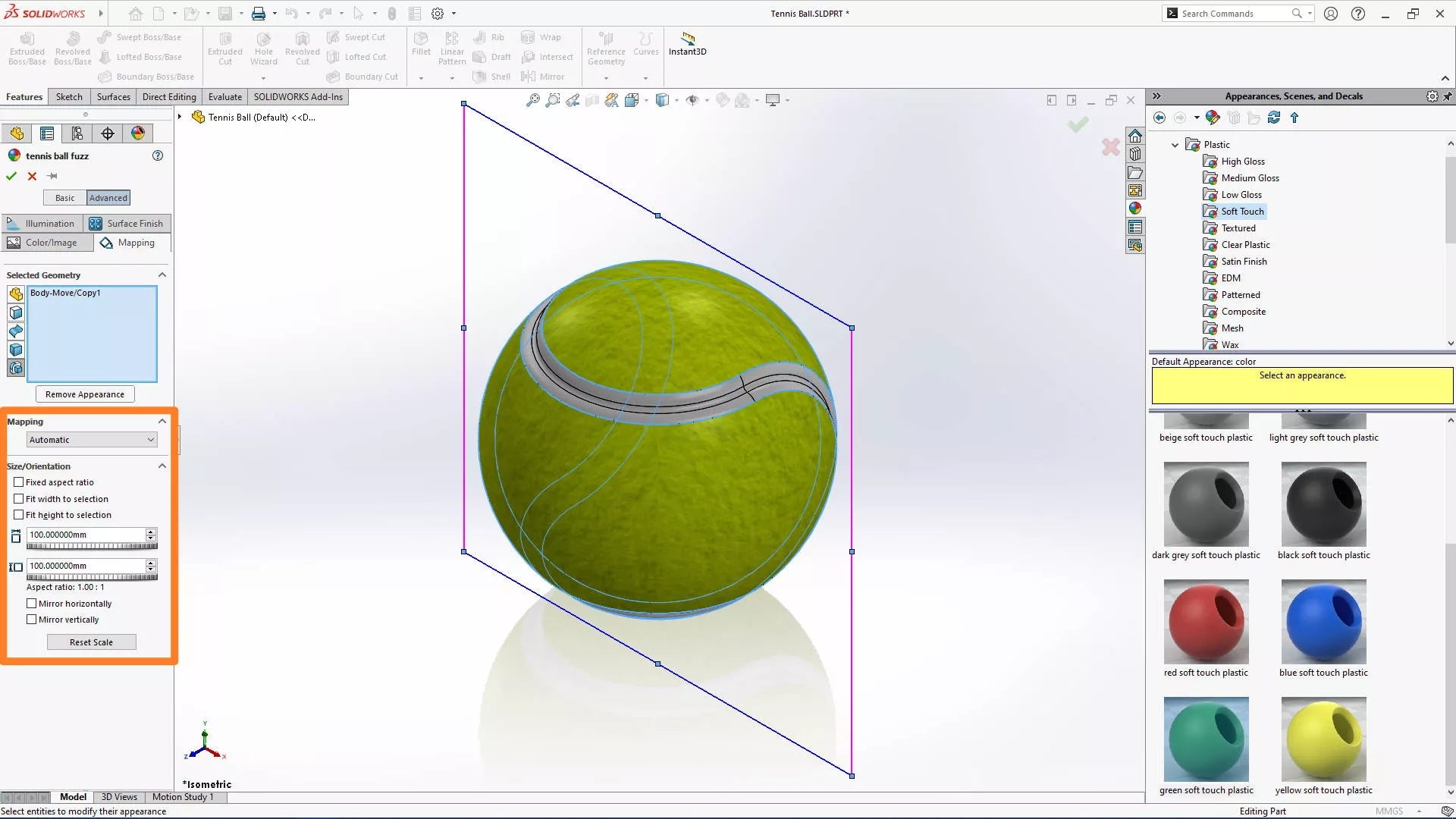
Under the mapping tab, we’ll set this to Automatic and remove the fixed aspect ratio to scale our image to 100 mm x 100 mm. These values may differ for your own image.
Learn how to create custom materials in SOLIDWORKS with this short tutorial.
REFINING THE BALL
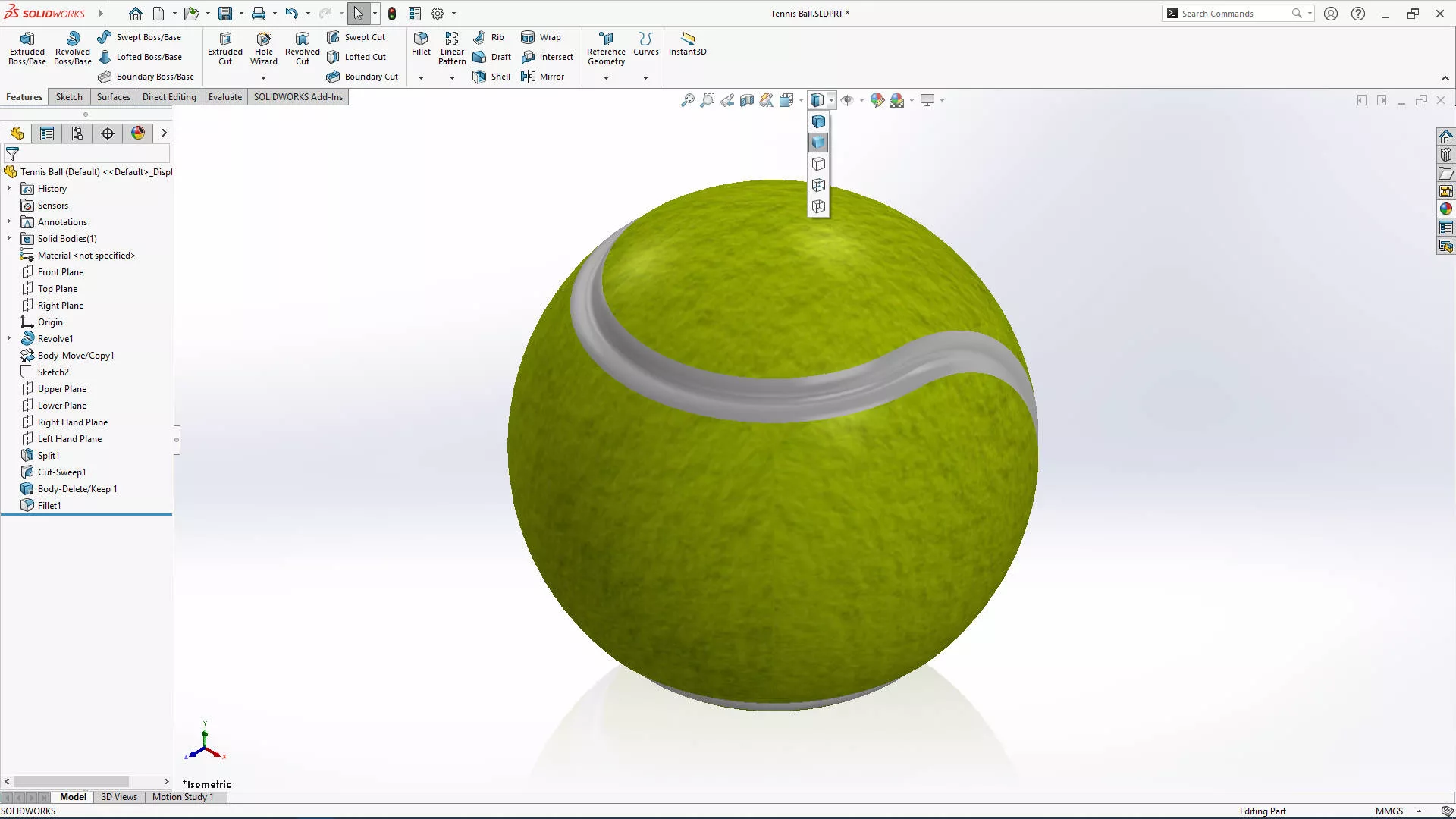
Take a look there! We think it’s looking pretty good, especially in shaded mode. But there is something not quite right…
Ah, there! The seam is just a bit too… seamless.
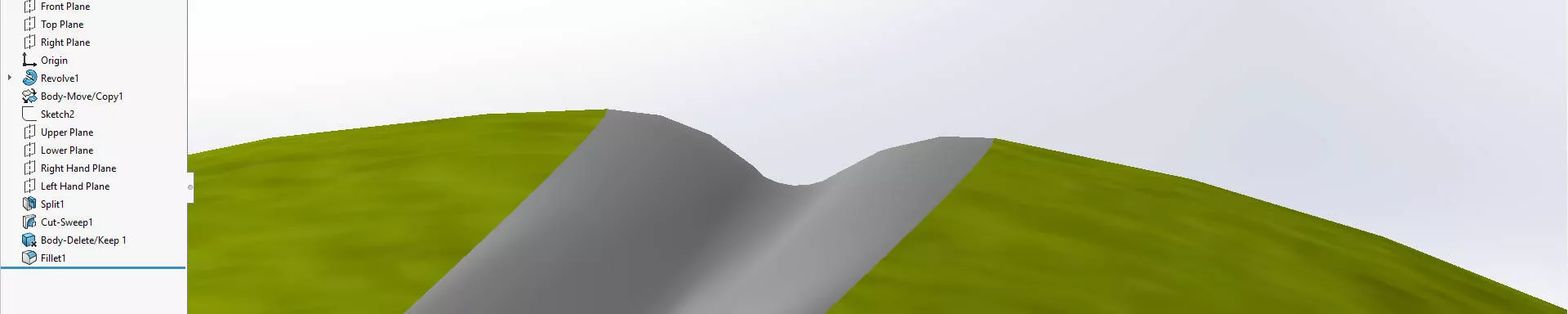
Let’s go back and modify our design, fortunately, we’ve modelled the part in such a way that it’s easy to make changes to earlier features without causing errors.
Let’s take a quick look at how we edit features in SOLIDWORKS and finish our tennis ball.
EDITING FEATURES IN SOLIDWORKS
We need to make the seam a little larger, so we’ll edit the first Swept Cut feature we made.
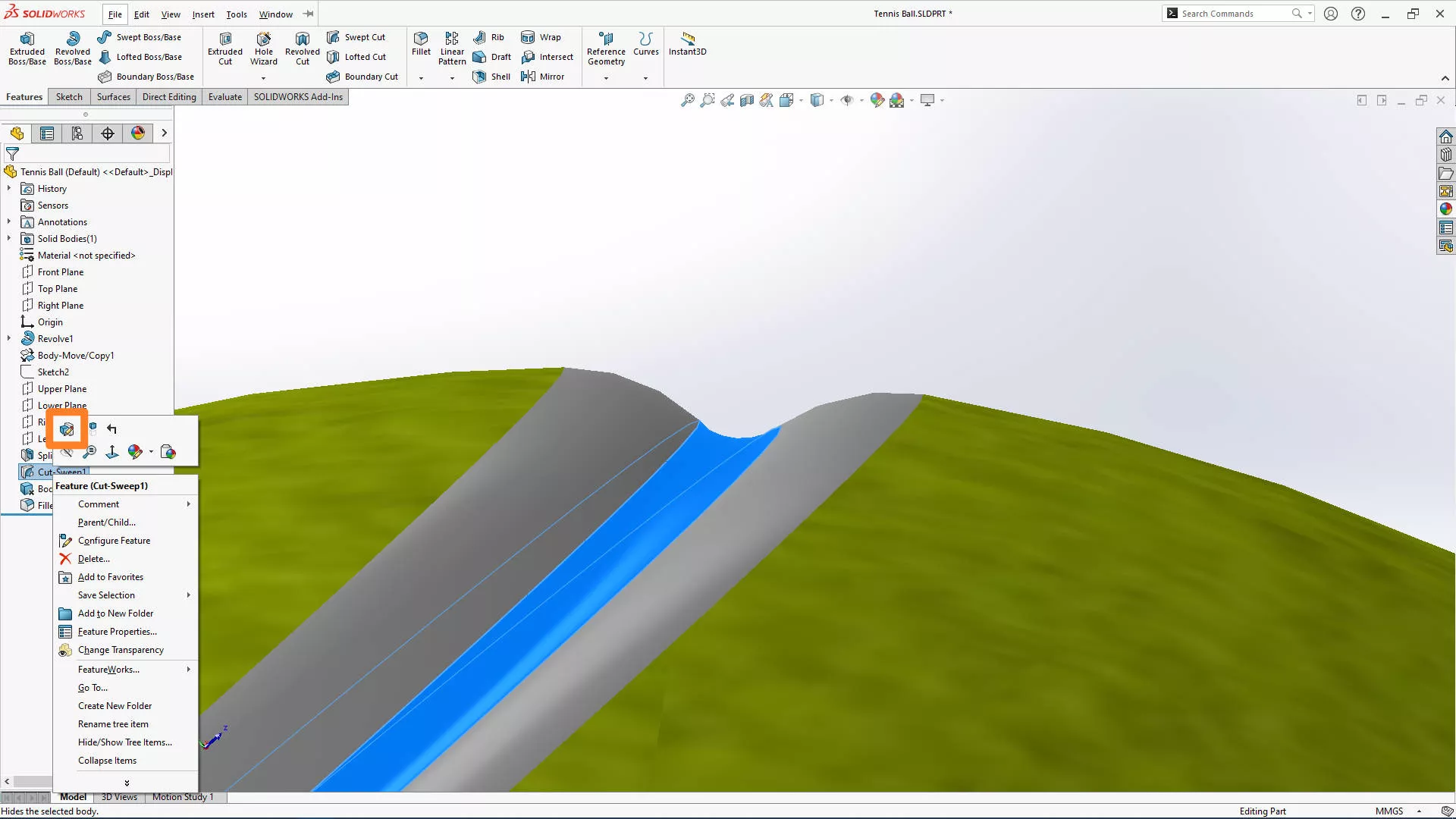
We’ll right click on the feature and select the Edit Feature button. This value should be changed to 3 mm.
When we confirm the feature, SOLIDWORKS will rebuild our model, keeping our references and appearances.
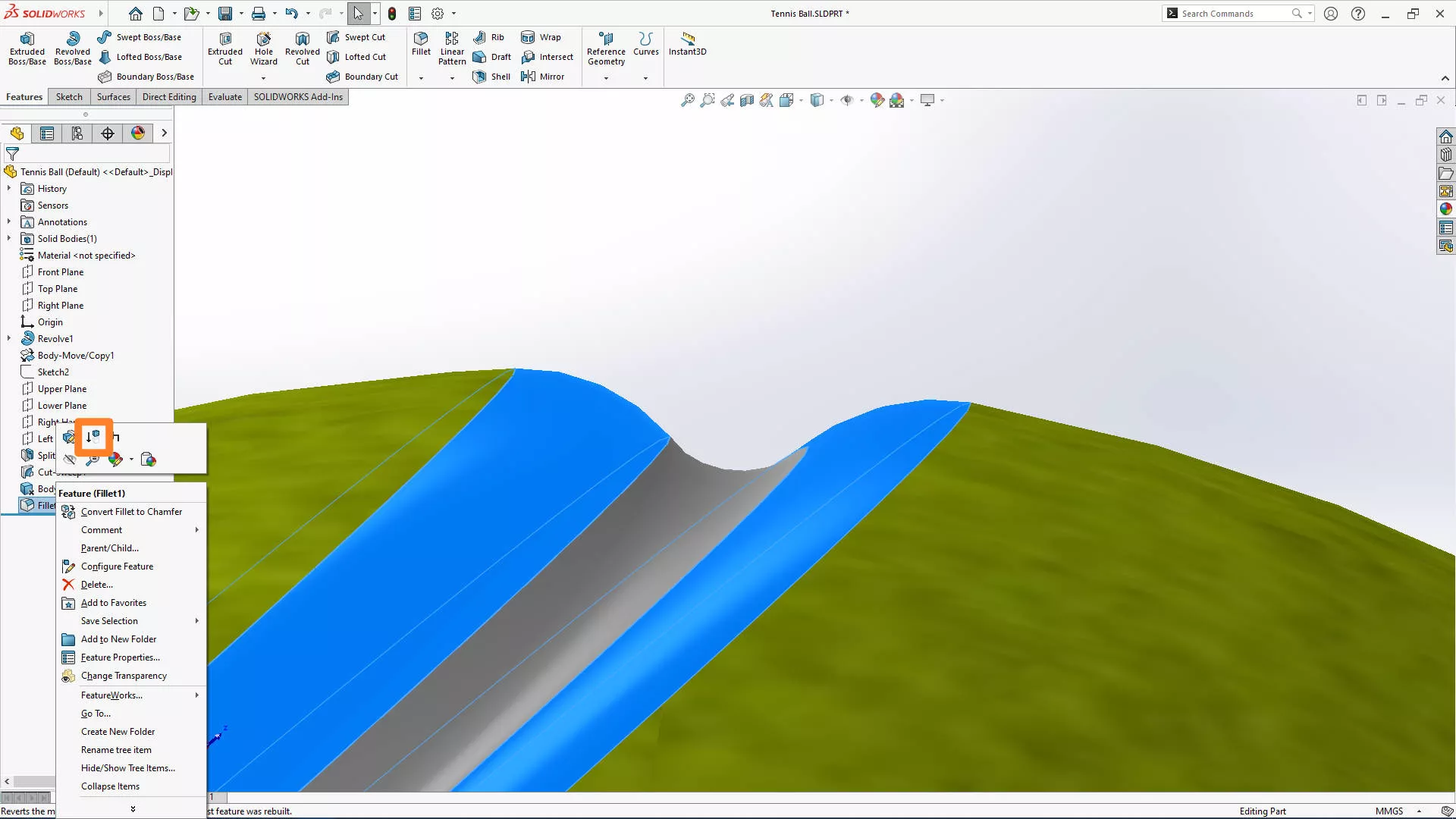
The next modification we’ll make will be destructive, so we’ll suppress the Fillet1 feature. We could delete it, but we may wish to bring it back in future. Suppressing is a great way to manage this.
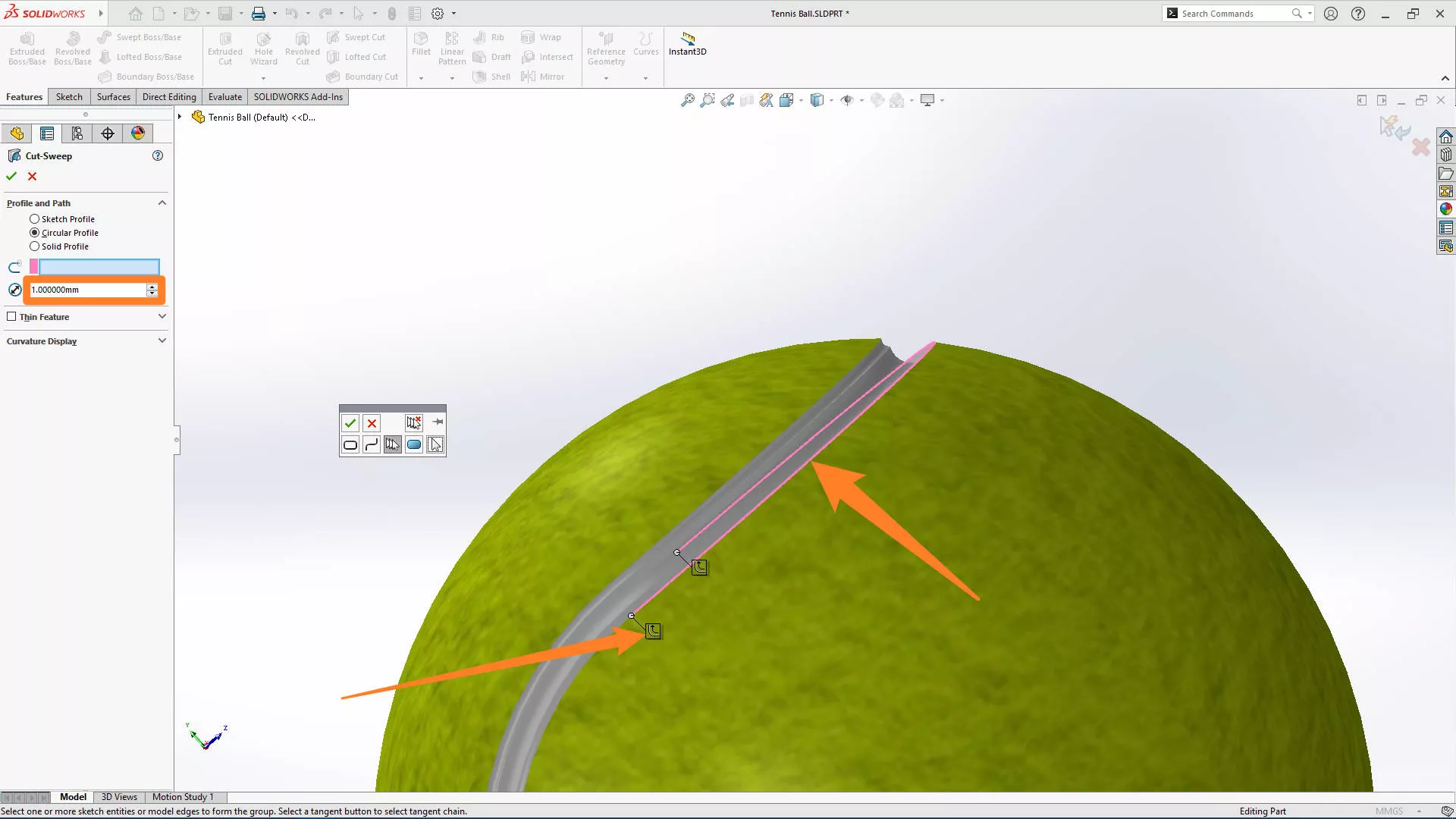
We’ll create two 1 mm swept cuts around the edges of the seam.
The same technique applies here as was used earlier in the model: activate the SelectionManager and select an edge. This time, as all the edges are tangential, we can click the propagate button and save ourselves some time!
Confirm the feature and repeat it for the other side.
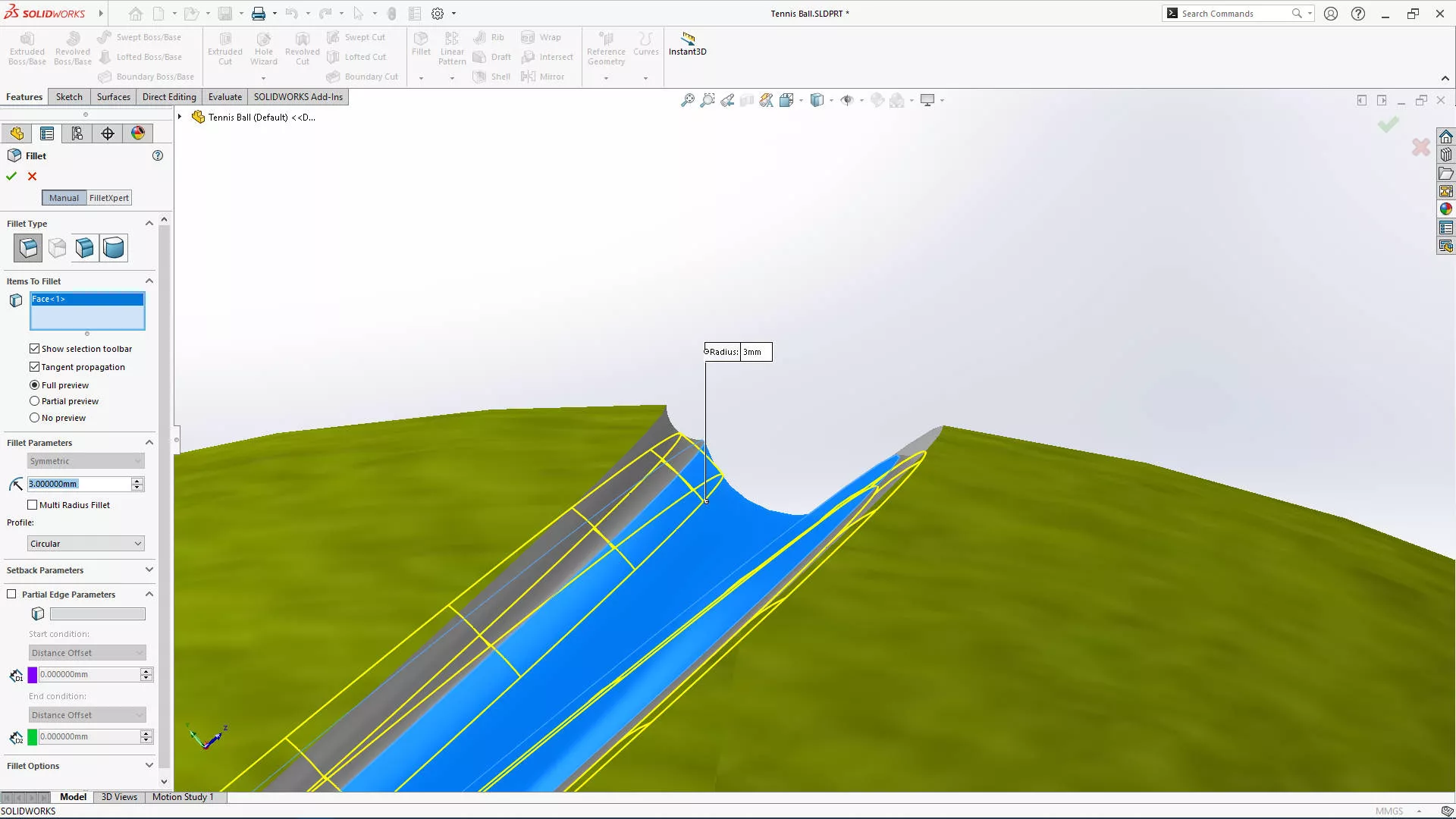
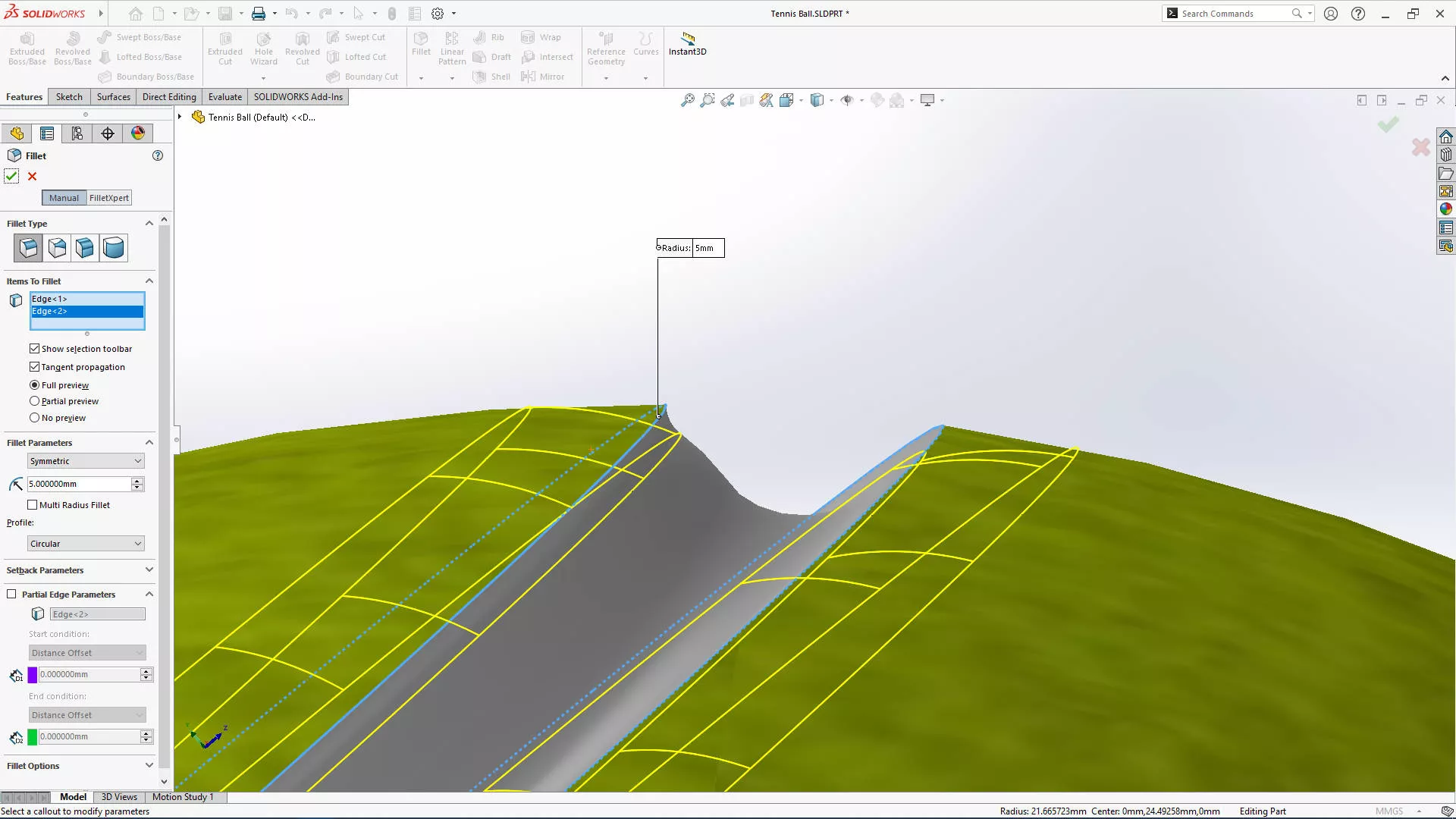
To smooth this seam out, we’ll add two final fillets. A 3 mm fillet is added to the internal white edges of the seam, and a 5 mm fillet is applied to the outer green edges.
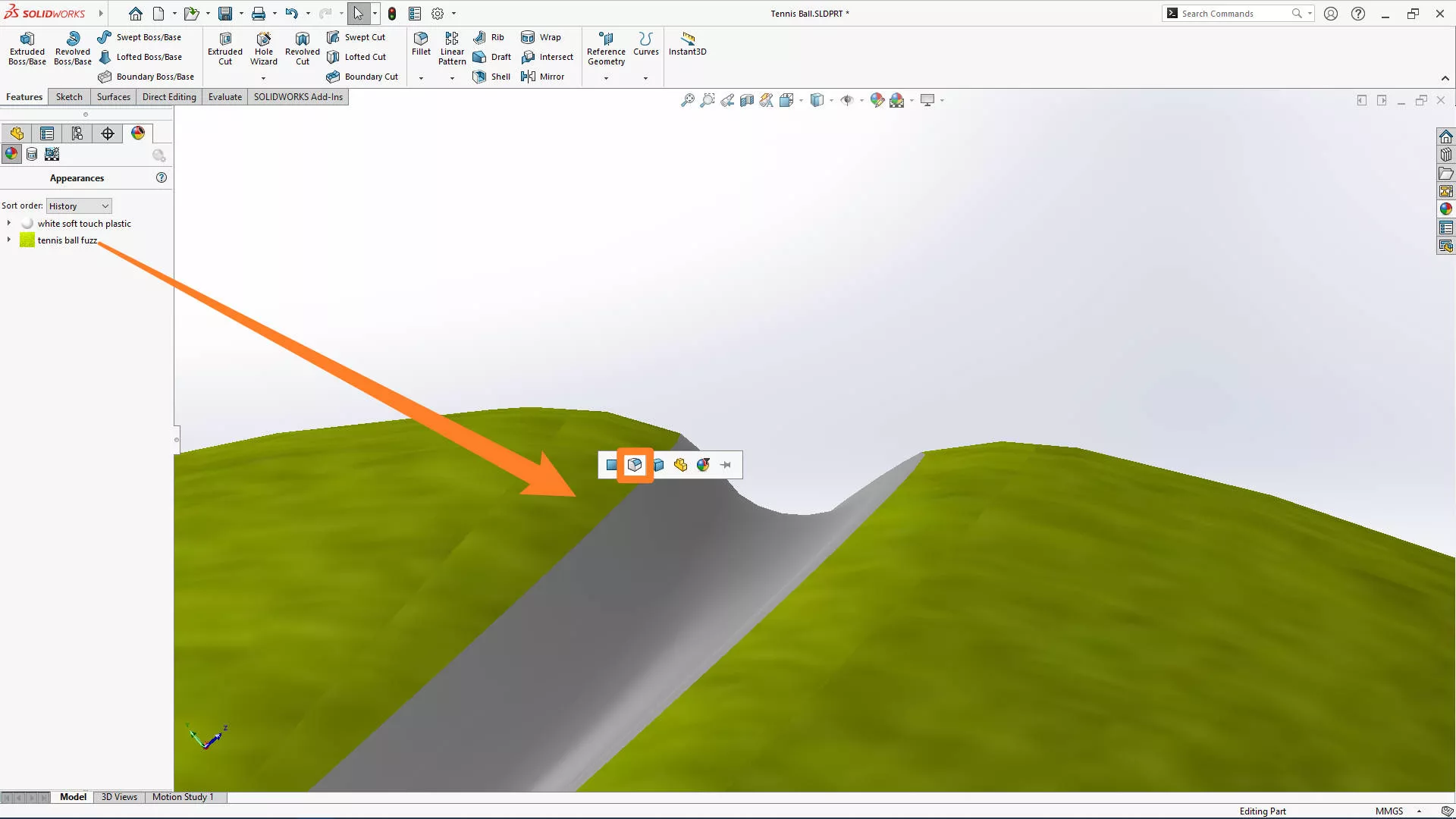
As these features have created new faces, we just need to drag on the tennis ball appearance to the feature.
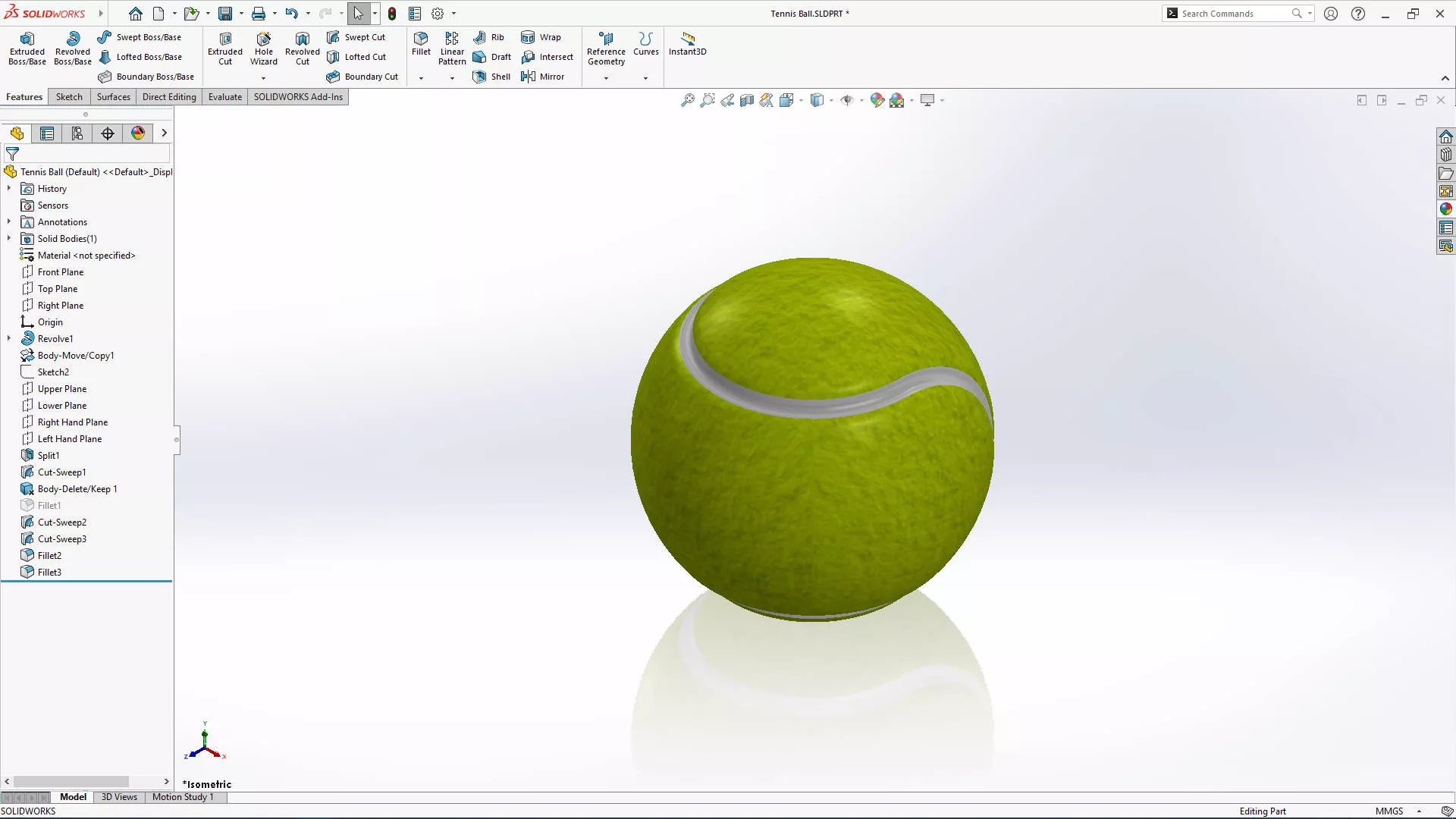
Taking a step back, those subtle tweaks have really enhanced the realism of our model with some much-needed depth.
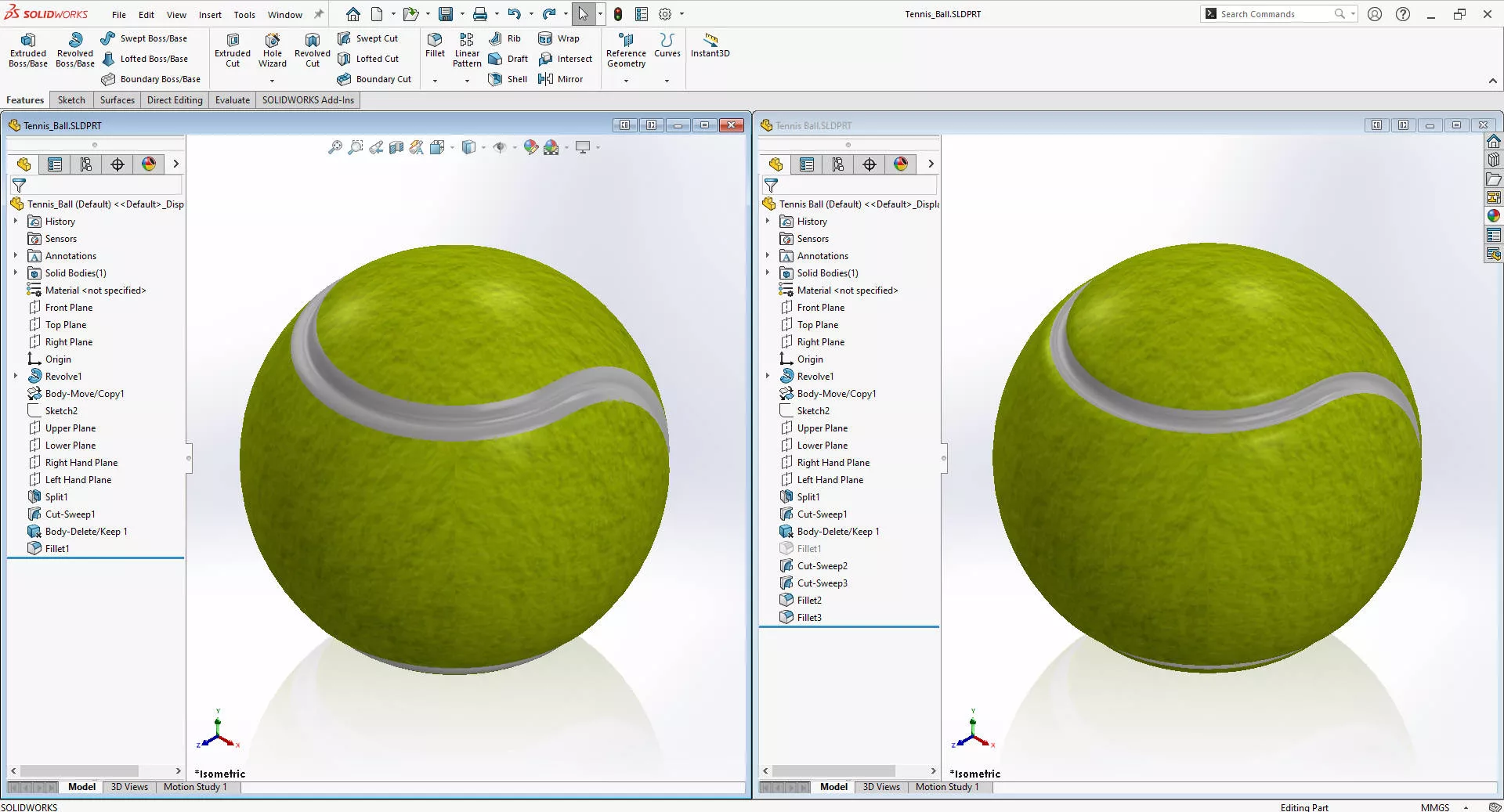
Before and after the design changes.
In our next tutorial, we’ll look at how we can make photorealistic renders and animations of the ball with SOLIDWORKS Visualize.
Take the Next Steps…
Why not expand your toolkit further with our SOLIDWORKS Essentials training course?
You’ll get hands on with the basics and some handy shortcuts, not to mention full access across four days to our expert SOLIDWORKS Engineers to ask any questions you want!
It doesn’t matter whether you’re a complete beginner or are intimately familiar with CAD, our friendly and expert trainers are ready to help you get the most out of SOLIDWORKS, either online or in a classroom local to you.
We also have a load of free SOLIDWORKS tutorials across our site, or you can check out our YouTube channel for more tips and tricks.
Categorised as: SOLIDWORKS Design | Tutorials
Get Expert SOLIDWORKS Training
Get hands-on SOLIDWORKS training in-person or online, led by certified experts with real industry experience. With venues across the UK & Ireland, it’s easy to start learning today.
Related Posts

How to Find Reaction Forces in SOLIDWORKS Simulation
SOLIDWORKS helps us to find resultant forces through simulation studies. These virtual tests reduce the need for physical prototypes and give us an accurate answer.

Setting number of decimal places in a table on a drawing
When creating an equation in a drawing general table, is it possible to define the…

SOLIDWORKS Smart Fasteners
SOLIDWORKS Smart Fasteners is a really useful time saving tool, allowing you to automatically insert toolbox fasteners such as bolts and screws into an assembly providing there is a standard hole.

Why is my Flat Pattern not showing in SOLIDWORKS Drawings?
This may be linked to how the drawing is saved or it can be related to how sheet metal parts are displayed in drawings, read on to find out how to fix it.

SOLIDWORKS Tips: Are you Making this Common Mistake in Fatigue Analysis?
Simulation is a vital and complex engineering need. Fortunately, SOLIDWORKS makes it easy to test, correct mistakes and obtain accurate results.

Series 1 Land Rover Pedal Car – Made Easy with Solidworks!
The Series1 began production in 1948 designed to help get Britain farming after the war effort. It grew extremely popular and today enthusiasts are prepared to throw their life savings at restoring originals from that period.

How to Recover SOLIDWORKS Files After a Crash
SOLIDWORKS has two different methods to help you recover from an unexpected crash or loss of data in the form of auto-recovery and back-up settings.

Redesigning Santa’s Sleigh in SOLIDWORKS
Every year Father Christmas has to fly in his sleigh to deliver presents to boys and girls all over the world in just one night. To put this into perspective, it takes a little under 24 hours to fly from London (UK) to Sydney (Australia) in a streamlined Boeing 747, whereas Father Christmas’ mode of transport is believed to be a rather non-aerodynamic sleigh.

SOLIDWORKS Grid Systems – hidden away, but very useful!
Rory Niles provides an insight into the uses for Grid Systems within SOLIDWORKS 2018

Furniture Design Made Easy with SOLIDWORKS
Calling all furniture and interior designers: the days of creating square cabinets are over. What if we told you there’s a much easier way to bring your products to life?
Here’s 10 reasons why we feel SOLIDWORKS is better than any other software, especially if you’re designing furniture: