











Assistive AI for Drawing Creation | What’s New in SOLIDWORKS Drawings & MBD 2026
Written by: Graham Stephenson
Published: Jan 15, 2026
| View All Blogs
SOLIDWORKS 2026 is the first release we’re seeing equipped with multiple AI tools as Dassault Systèmes continues to push the boundaries of automation, precision, and user control in technical documentation.
This year’s enhancements to 2D Technical Drawings and Model-Based Definition (MBD) are tailored to help professional engineers streamline workflows, reduce errors, and produce manufacturing-ready documentation with minimal manual effort.
We’ve asked our experienced SOLIDWORKS Engineers for their insight into the new features that are designed to support commercial designers and enhance design-to-production pipelines.
Intelligent View Placement and Annotation
Manual scaling and positioning of views is now a thing of the past, as SOLIDWORKS Design 2026 can now suggest the optimal template and sheet size, while still allowing users to apply their own.
Views are automatically scaled and arranged to minimise overlap.
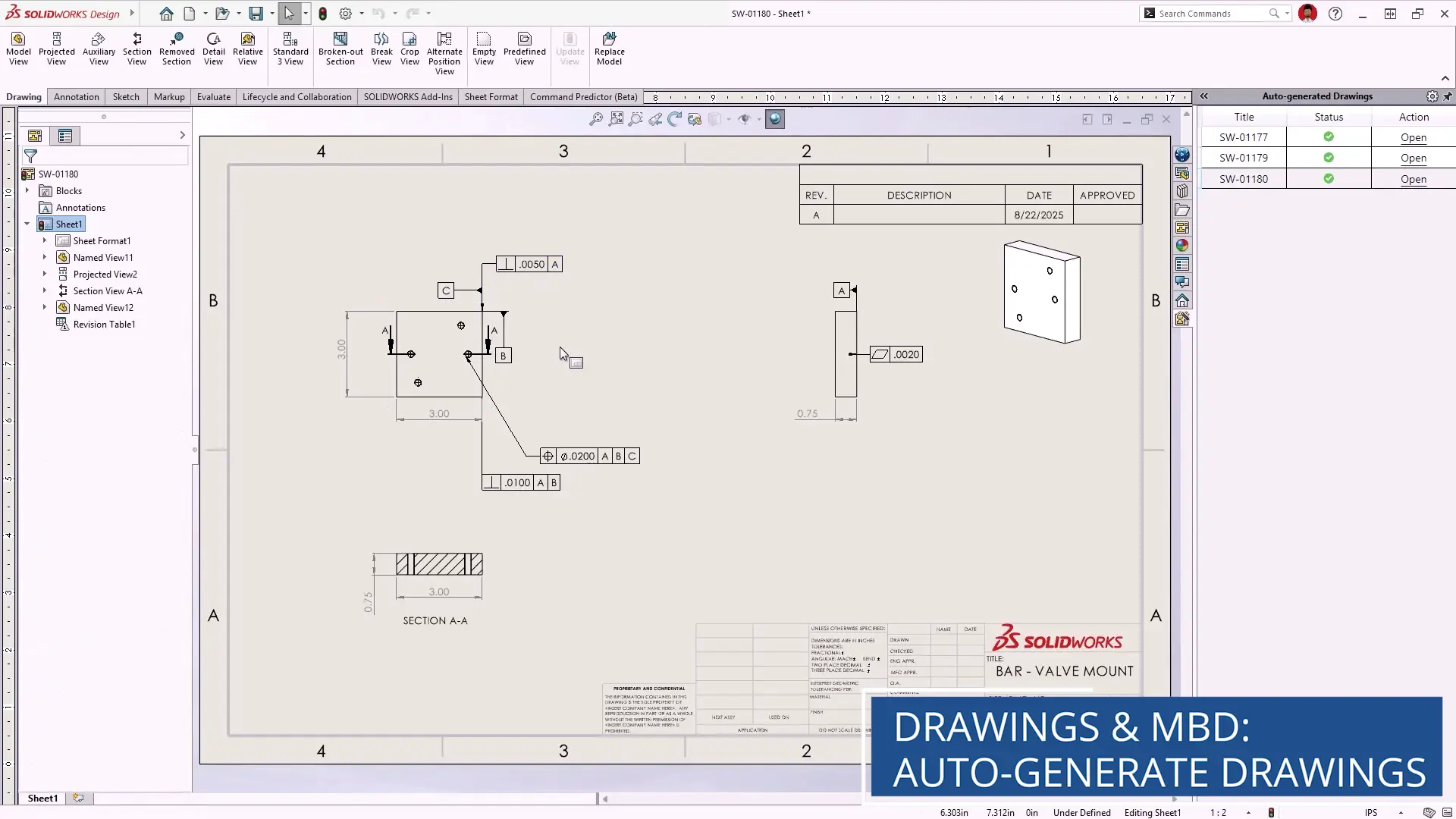
AI-based geometry recognition identifies section views and applies annotations such as hole callouts, geometric tolerances, and reference dimensions, making your drawings smarter and more production-ready from the outset.
Dassault Systèmes are equipping SOLIDWORKS Design with useful AI tools, so users are bound to start using them in projects soon.
As with any tool, they could be misused, so it’s going to be worth teams considering how they regulate their use.
We’d advise managers to explore these AI tools first and develop a written plan for implementing and controlling their safe use, so teams can benefit from enhanced productivity tools, without jeopardising quality or integrity.
Assembly Drawing Automation
For complex assemblies, SOLIDWORKS 2026 automates the insertion of bills of materials, auto balloons, and revision tables.

Engineers can now produce volumes of assembly drawings with minimal manual input, ensuring consistency and accuracy across projects.
It’s easy to only note the super flashy enhancements, but time-savers are really the best updates to look out for. This enhancement will dramatically reduce the time required to prepare comprehensive documentation.
Enhanced Magnetic Lines for Annotation Alignment
Originally introduced in 2012 for balloon organisation, magnetic lines now support a wider range of annotations, including notes, weld symbols, surface finish indicators, and geometric tolerances.
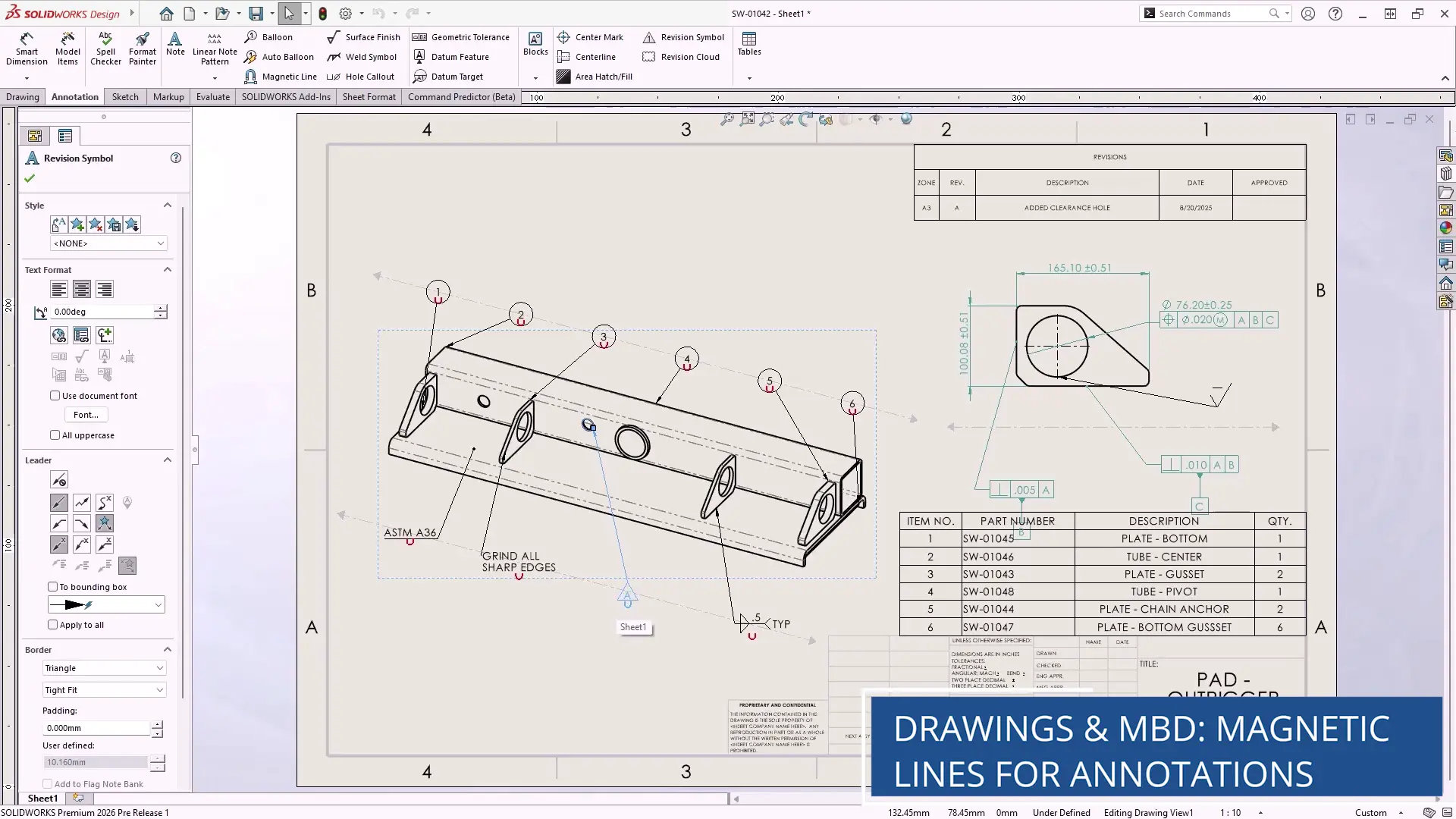
Simply draw a magnetic line over existing annotations to snap them into alignment or drag annotations to attach them manually.
This feature helps maintain a clean, professional layout with minimal effort.
AI-Powered Drawing Generation
SOLIDWORKS 2026 introduces a transformative feature – automatic drawing generation powered by artificial intelligence.

Engineers can now select one or more parts or assemblies and initiate drawing creation via a simple pop-up menu. The process runs in the background, allowing users to continue working uninterrupted.
This batch-driven approach significantly reduces the time spent on repetitive tasks, freeing up engineers to focus on high-value detailing and design refinement.
This enhancement is going to be a time-saver for sure! But is it time to sit back and let AI run wild with drawing generation? Not quite.
SOLIDWORKS is not replacing humans with AI in the design process, instead they are supplementing our design workflows with assistive tools.
Using AI tools to help with the heavy lifting will speed up the creation of part & assembly drawings, but it also frees up resource to undertake other tasks and creates space for reviewing documents more effectively.
This is one of the most exciting enhancements across the entire SOLIDWORKS 2026 portfolio. AI-powered drawing creation will stir up a variety of opinions and discussions as teams upgrade to SOLIDWORKS 2026 and start to explore the new tools.
Our Elite Engineer, Stuart Wortley, offers some further insight on potential use-cases for AI drawing creation:
Everyone has got to the end of a project – all the fun modelling of parts and assemblies is complete, problems are solved, simulation results have been analysed, and marketing images have been rendered.
That leaves only one job left to do: create detailed engineering drawings for all the work!
It is often a thankless and repetitive task that is vital for manufacturing, but now most of the work can be completed with AI, leaving the final tweaks and details up to you.
This is only something that is going to get better as the AI evolves and learns.
Improved Dimension Breaks for Clarity
Dimension clutter can obscure critical information and lead to manufacturing errors. SOLIDWORKS 2026 enhances the dimension break feature to include breaks around dimension text, improving readability.
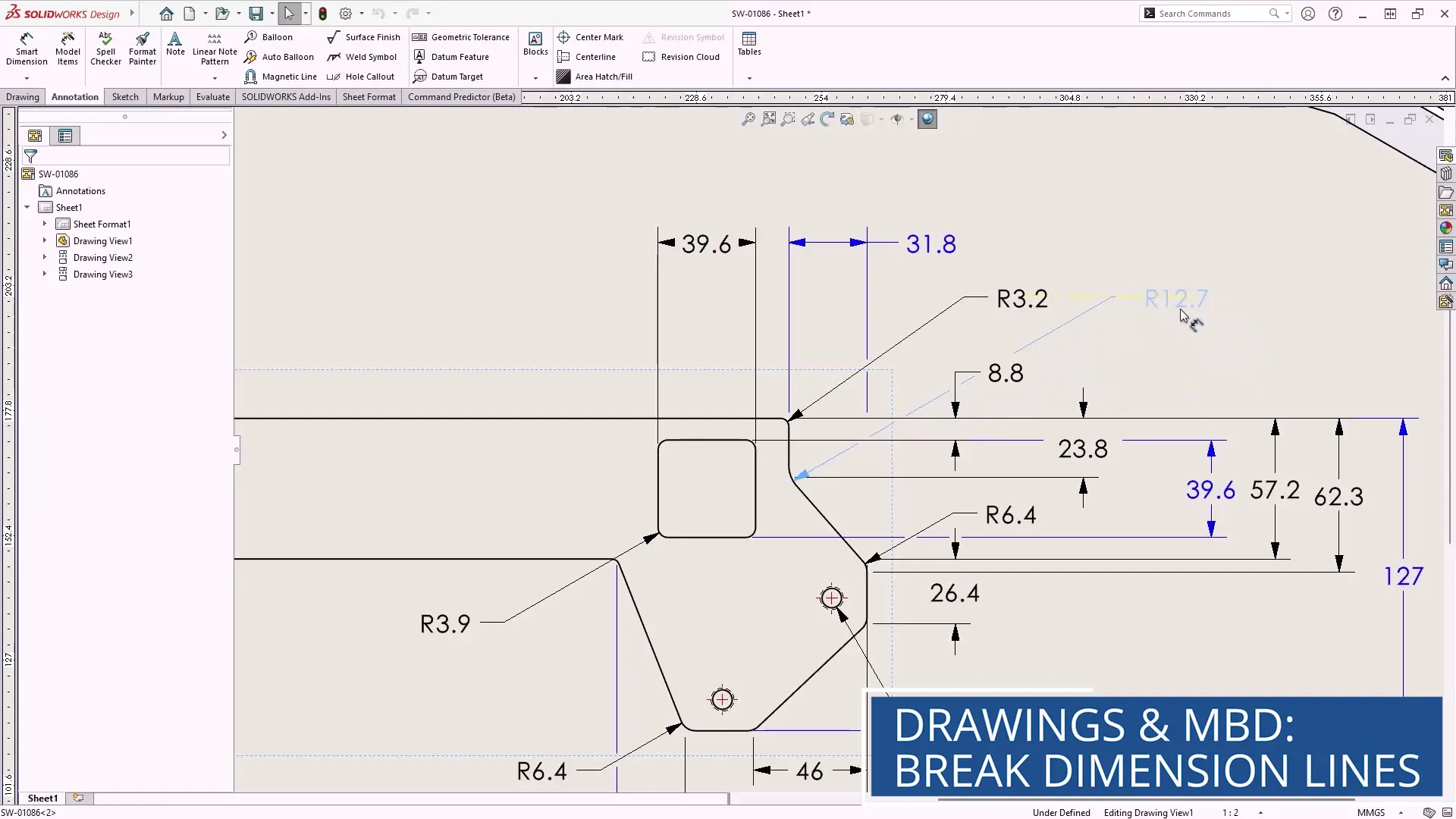
Breaks update dynamically as dimensions are moved and can be refreshed with a simple right-click to ensure your drawings remain clear and unambiguous, even as designs evolve.
Custom Text in Geometric Tolerance Frames
Geometric tolerance frames now support custom text entries in range fields, allowing for symbols or letter values in place of numeric ones.

This means Engineers can now specify tolerances with greater flexibility, supporting more sophisticated documentation standards.
I see this being a particularly useful enhancement when referencing variables from tables, notes, or tolerance books.
You may never need to use this feature, but like that piece of wood you keep in the shed (you know the one…) waiting for its moment, you’d miss it if it wasn’t there when the moment did arise!
ISO 21920-1 Surface Finish Symbols
A new document property enables surface finish symbols that conform to the ISO 21920-1 profile standard.
This update introduces a modernised symbol style and allows for the specification of tolerance indicators and optional datum references.
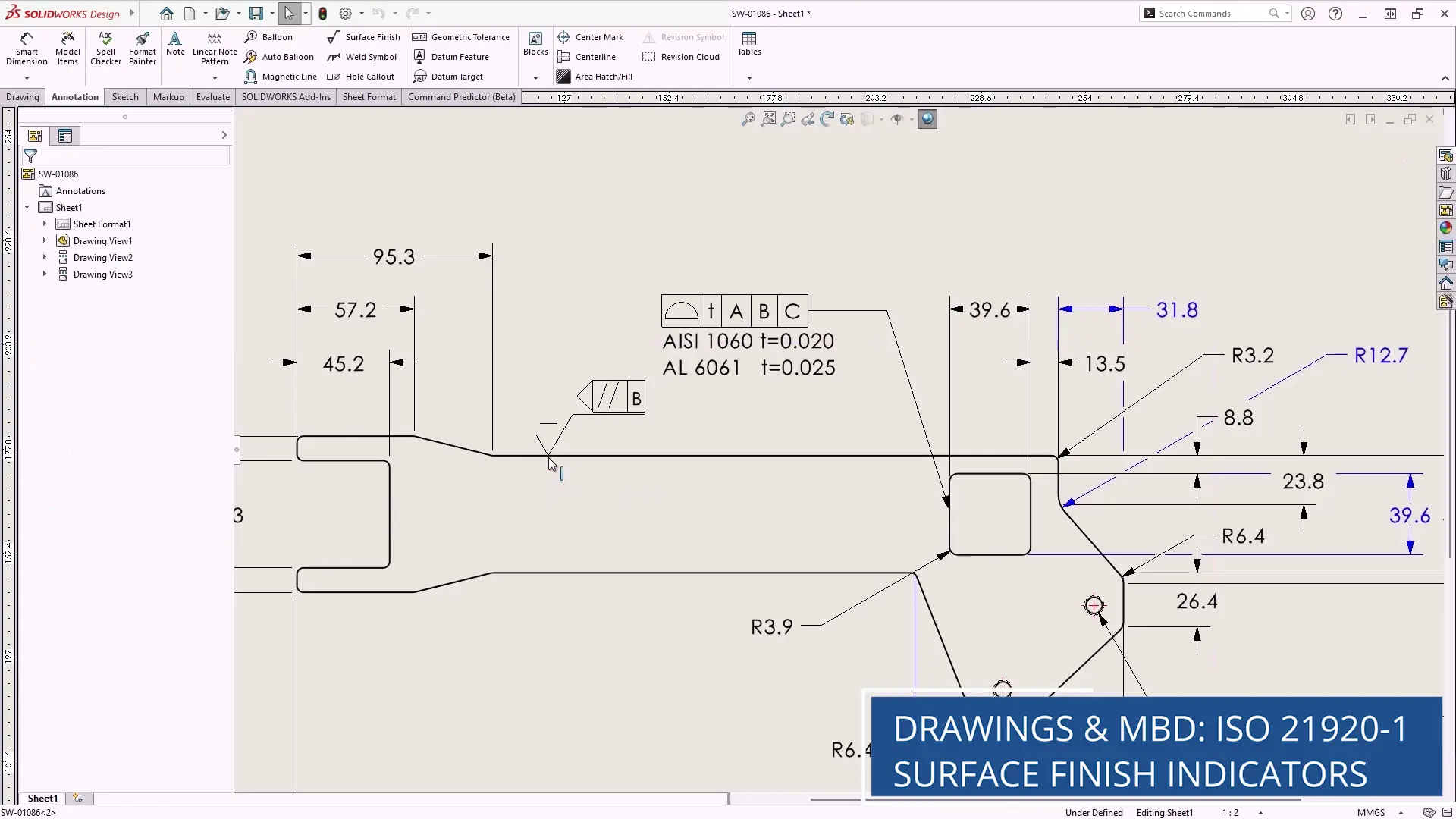
Engineers working in regulated industries or with international partners will appreciate the improved compliance and clarity.
Annotation Visibility Control in MBD
Model-Based Definition (MBD) users can now hide or show multiple annotations with the same ease as in 2D drawings.
Selected annotations turn grey to indicate they will be hidden and can be toggled back with a click.
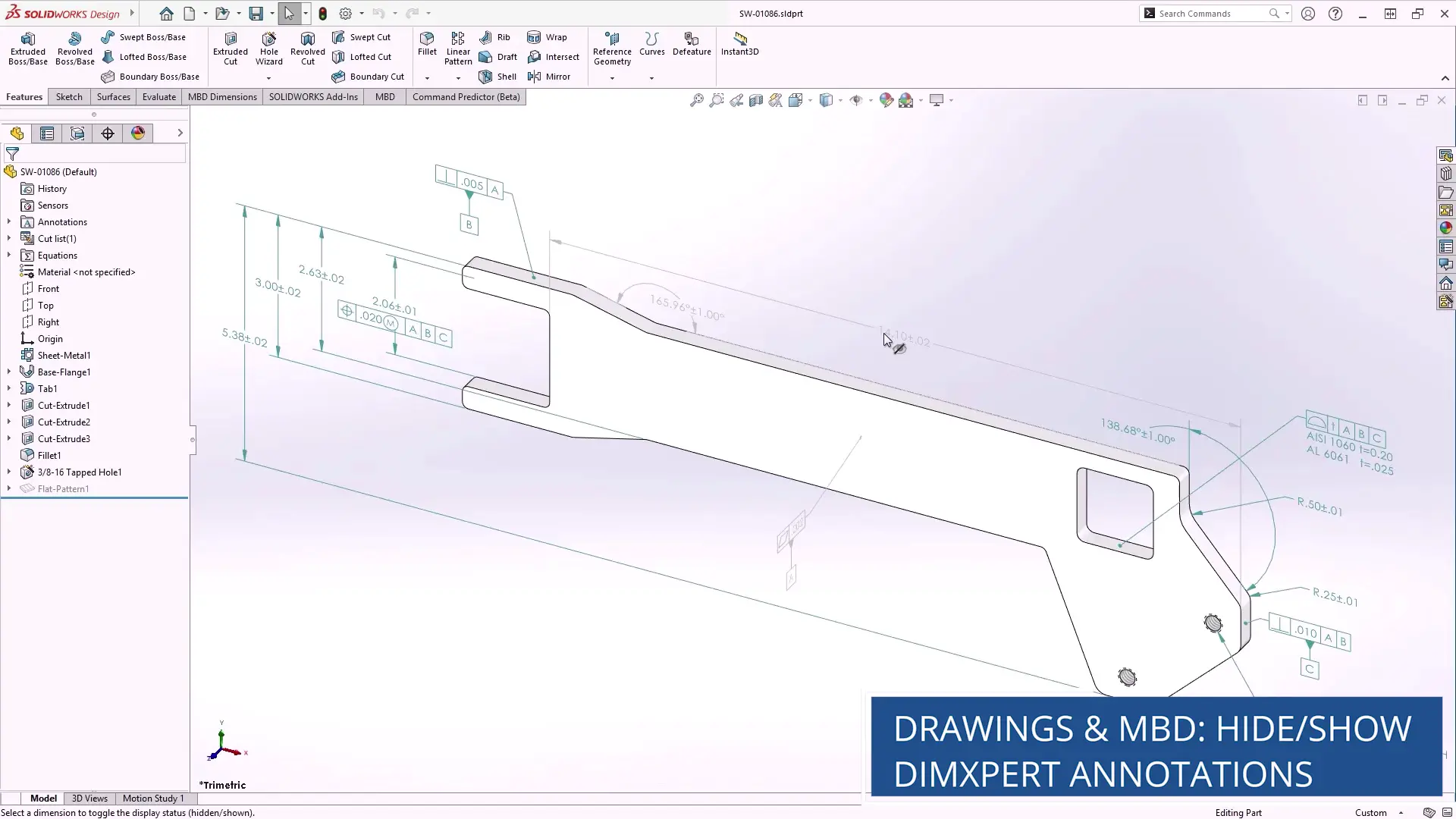
This selective control improves how design and manufacturing information is communicated, especially when working with vendors who prefer 3D documentation.
Filter Bar in DimXpert Manager
The DimXpert Manager tab now includes a filter bar similar to that found in the Feature Manager.
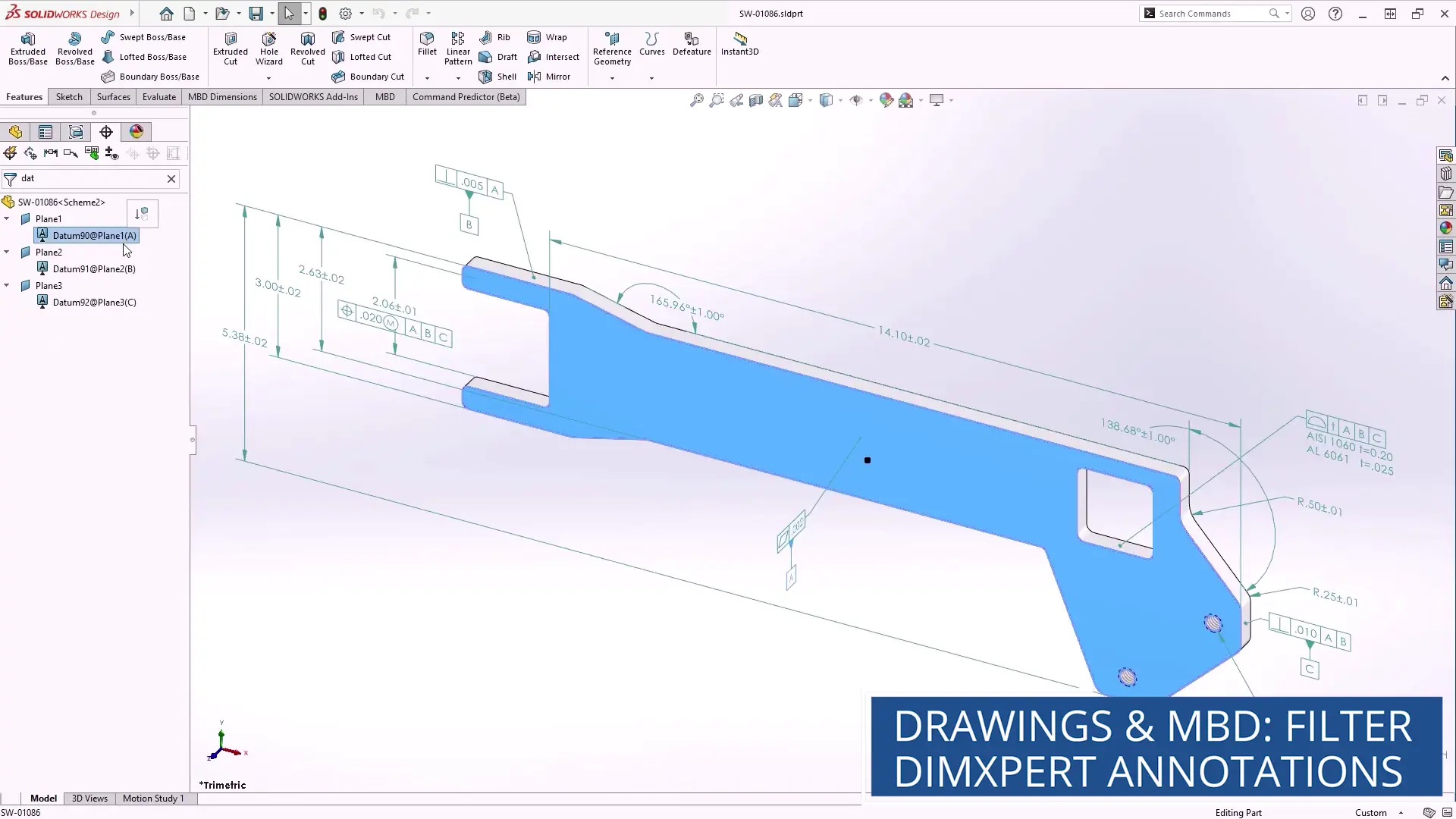
Engineers can quickly isolate dimensions, tolerances, or features by typing into the filter field.
This enhancement simplifies the management of complex models and reduces the risk of errors by making it easier to locate and edit specific elements.
A simple and elegant addition. Filters make SOLIDWORKS users lives easier!
CONCLUSION
SOLIDWORKS 2026 delivers a suite of intelligent drawing and MBD enhancements that empower engineers to work faster, smarter, and with greater precision.
Whether you are producing high-volume documentation or refining complex assemblies, these features are designed to support your commercial goals and improve collaboration across teams.
It’s exciting to see AI tools coming into SOLIDWORKS with real focus and purpose. Get ready to create drawings with more efficiency and precision than ever before.
Categorised as: AI | SOLIDWORKS MBD | Software | What's New
What's New in SOLIDWORKS?
Explore the latest innovations in SOLIDWORKS with our exclusive breakdown of live webinar, giving you on-demand access to the insights that matter most to your workflow.
Related Posts

How to Find Reaction Forces in SOLIDWORKS Simulation
SOLIDWORKS helps us to find resultant forces through simulation studies. These virtual tests reduce the need for physical prototypes and give us an accurate answer.

Setting number of decimal places in a table on a drawing
When creating an equation in a drawing general table, is it possible to define the…

SOLIDWORKS Smart Fasteners
SOLIDWORKS Smart Fasteners is a really useful time saving tool, allowing you to automatically insert toolbox fasteners such as bolts and screws into an assembly providing there is a standard hole.

Why is my Flat Pattern not showing in SOLIDWORKS Drawings?
This may be linked to how the drawing is saved or it can be related to how sheet metal parts are displayed in drawings, read on to find out how to fix it.

SOLIDWORKS Tips: Are you Making this Common Mistake in Fatigue Analysis?
Simulation is a vital and complex engineering need. Fortunately, SOLIDWORKS makes it easy to test, correct mistakes and obtain accurate results.

SOLIDWORKS Visualize. Why go pro? – 6 Post Processing
In this blog we will be look at the post-processing options that can be found in SOLIDWORKS Visualize

SOLIDWORKS Visualize. Why go pro? – 7 Lighting
SOLIDWORKS Visualize uses a non-biased rendering engine, which allows for physically accurate lighting within a scene. It generates images with high amount of realism and correct set up can replicate photo studio lighting.

How to Get Your Serial Number for SOLIDWORKS Visualize Standard
Want to download Visualize to make photorealistic renders? Follow this guide for accessing your Visualize serial number that comes bundled in with SolidWorks Professional and Premium.

How to Recover SOLIDWORKS Files After a Crash
SOLIDWORKS has two different methods to help you recover from an unexpected crash or loss of data in the form of auto-recovery and back-up settings.

Redesigning Santa’s Sleigh in SOLIDWORKS
Every year Father Christmas has to fly in his sleigh to deliver presents to boys and girls all over the world in just one night. To put this into perspective, it takes a little under 24 hours to fly from London (UK) to Sydney (Australia) in a streamlined Boeing 747, whereas Father Christmas’ mode of transport is believed to be a rather non-aerodynamic sleigh.