











Buying SOLIDWORKS: What’s the difference between SOLIDWORKS Standalone and Network licensing models?
Written by: Terry O'Reilly
Published: Jan 9, 2025
| View All Blogs
When it comes to selecting the right type of license for SOLIDWORKS, it’s essential to understand the differences between the two main options: standalone and network licenses.
Each comes with unique benefits, and your choice will depend on your specific needs and workflow requirements. Let’s explore the key distinctions to help you make an informed decision.
What are Standalone SOLIDWORKS Licenses?
Standalone licenses are ideal for individual users who don’t need to share the software between multiple users or machines. This license type is activated directly on a single machine via the SOLIDWORKS Activation Manager.
Once installed, the Activation Manager associates the license with the machine and remains active until SOLIDWORKS is uninstalled or the license is deactivated. This deactivation can be done through the SOLIDWORKS Help icon, allowing you to move the license to a new machine if needed.
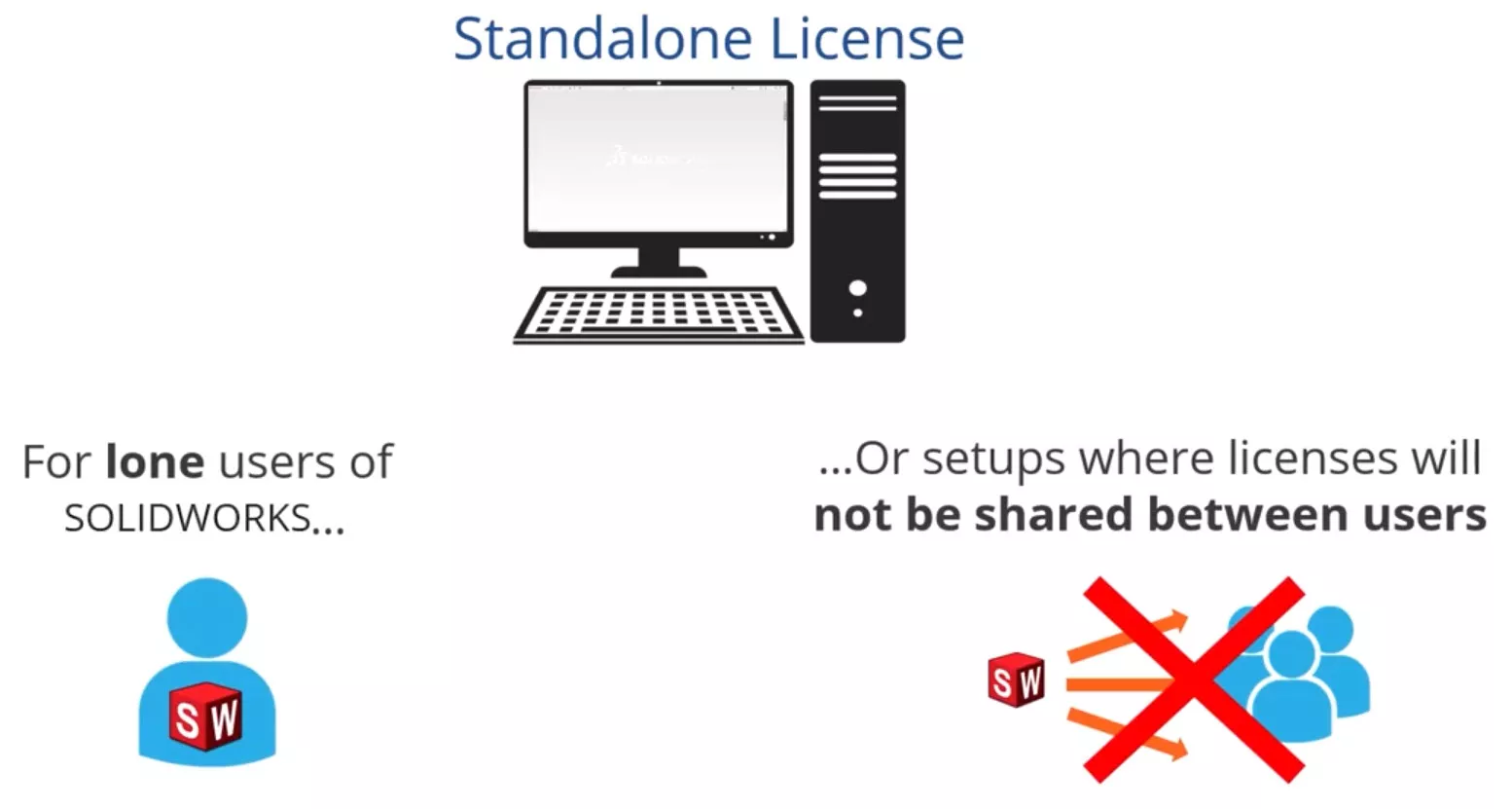
Standalone Licenses offer Simplicity for Single Users
One of the primary advantages of standalone licenses is their one-time activation process, which means that once the license is activated, you don’t need to maintain a constant internet connection to use the software. This makes standalone licenses a perfect solution for users working in remote areas or with limited internet access.
What are SOLIDWORKS Network Licenses?
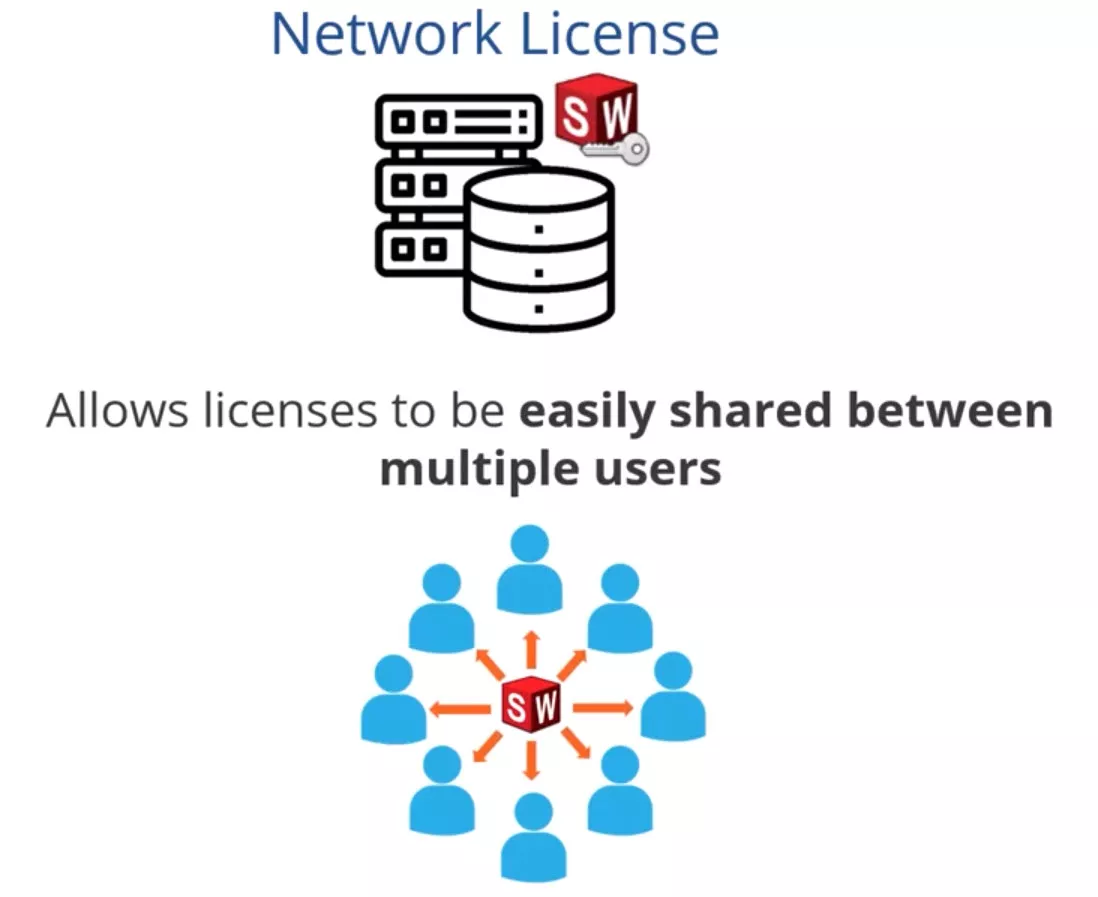
Network licenses offer more flexibility for businesses or teams that need to share licenses among multiple users. This type of license is managed through a SOLIDWORKS Network License (SNL) server, which can be hosted on either a physical or virtual machine. The server handles all license activations and deactivations, making it easier to manage software access within a company.
Network Licenses Provide Flexibility for Teams
When a user on a client machine starts a SOLIDWORKS product, the software checks out a license from the SNL server. Once the product is closed, the license is returned to the server and becomes available for other users to access. This sharing model is ideal for companies that have multiple users but don’t need every person to have a dedicated license at all times.
Additionally, network licenses offer the option to borrow a license for a set period. This can be particularly useful for employees who may need to work remotely or in areas without consistent internet access. The borrowed license remains with the user until the set borrowing period expires, and the license is returned to the server.
The Best of Both Worlds
Using Standalone and Network Licenses Together
What many users don’t realize is that standalone and network licenses can coexist in the same environment. For example, a company might have three users with standalone SOLIDWORKS Standard licenses, while also using a network license for SOLIDWORKS Simulation.
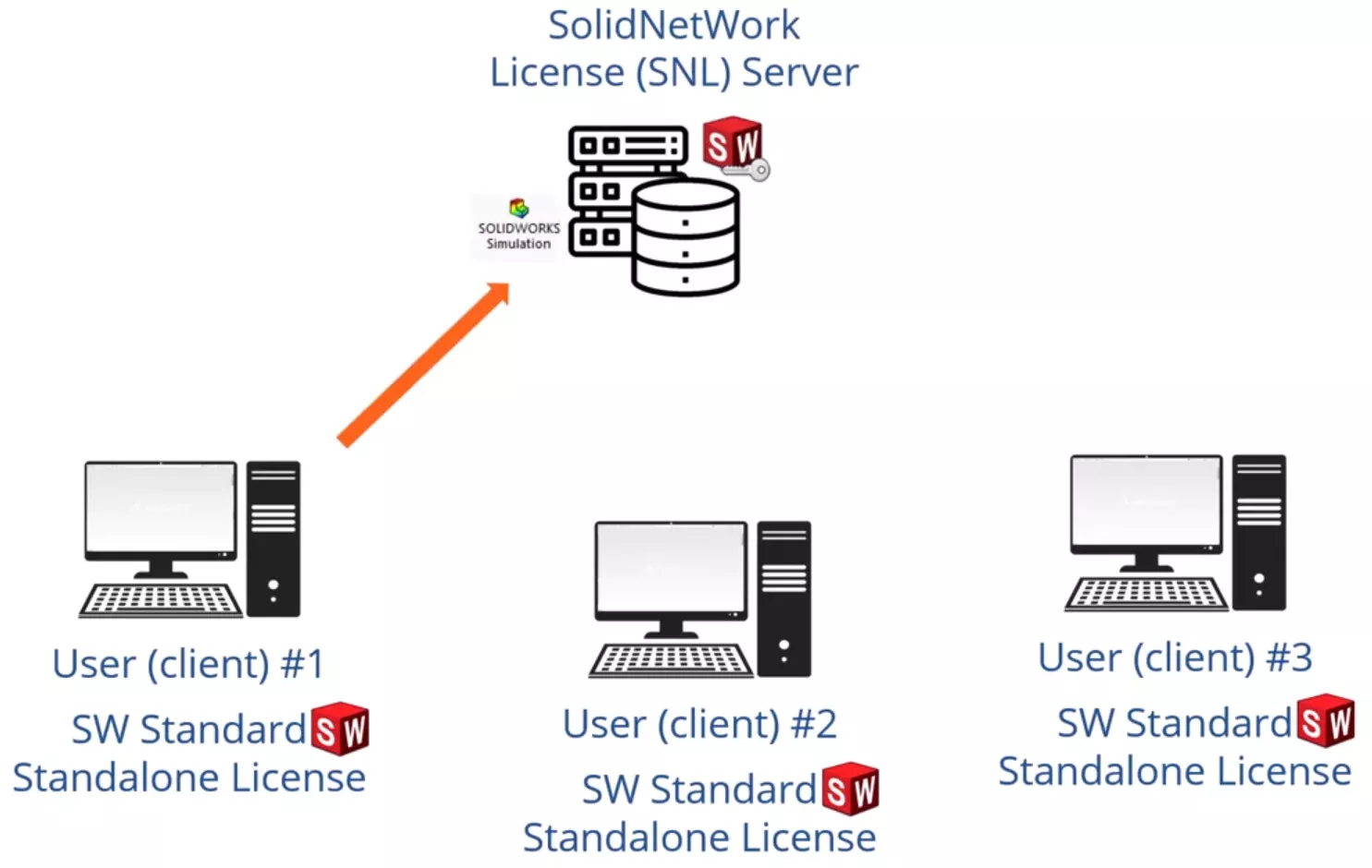
This hybrid approach enables businesses to efficiently manage their licenses based on specific needs.
Which SOLIDWORKS License is Best?
The best SOLIDWORKS license to choose is the one that best fits your requirements.
The decision between standalone and network licenses depends largely on your company’s size and how you intend to use the software.
If you are a sole user or prefer to have dedicated licenses for each machine, a standalone license will likely be the best option. However, for teams that need to share licenses across multiple users or locations, network licenses offer greater flexibility.
Make the Right Choice for Your Business
If you’re unsure about which license setup would provide the best option for your business, or if you’re looking to purchase new licenses, don’t hesitate to reach out to us. Our licensing specialists can guide you through the process and help you find the optimal solution.
Alternatively, visit our website for the latest licensing options and support services, or contact our team for assistance with license activation. We’re here to help you get started with the best setup for your needs!
Categorised as: SOLIDWORKS Design
Free SOLIDWORKS for Start‑Ups
Join the SOLIDWORKS for Start-ups programme and access professional SOLIDWORKS CAD software FREE for 12 months. Perfect for entrepreneurs, freelancers, and new businesses ready to build the future.
Related Posts

How to Find Reaction Forces in SOLIDWORKS Simulation
SOLIDWORKS helps us to find resultant forces through simulation studies. These virtual tests reduce the need for physical prototypes and give us an accurate answer.

Setting number of decimal places in a table on a drawing
When creating an equation in a drawing general table, is it possible to define the…

SOLIDWORKS Smart Fasteners
SOLIDWORKS Smart Fasteners is a really useful time saving tool, allowing you to automatically insert toolbox fasteners such as bolts and screws into an assembly providing there is a standard hole.

Why is my Flat Pattern not showing in SOLIDWORKS Drawings?
This may be linked to how the drawing is saved or it can be related to how sheet metal parts are displayed in drawings, read on to find out how to fix it.

SOLIDWORKS Tips: Are you Making this Common Mistake in Fatigue Analysis?
Simulation is a vital and complex engineering need. Fortunately, SOLIDWORKS makes it easy to test, correct mistakes and obtain accurate results.

How to Recover SOLIDWORKS Files After a Crash
SOLIDWORKS has two different methods to help you recover from an unexpected crash or loss of data in the form of auto-recovery and back-up settings.

Redesigning Santa’s Sleigh in SOLIDWORKS
Every year Father Christmas has to fly in his sleigh to deliver presents to boys and girls all over the world in just one night. To put this into perspective, it takes a little under 24 hours to fly from London (UK) to Sydney (Australia) in a streamlined Boeing 747, whereas Father Christmas’ mode of transport is believed to be a rather non-aerodynamic sleigh.

SOLIDWORKS Grid Systems – hidden away, but very useful!
Rory Niles provides an insight into the uses for Grid Systems within SOLIDWORKS 2018

Furniture Design Made Easy with SOLIDWORKS
Calling all furniture and interior designers: the days of creating square cabinets are over. What if we told you there’s a much easier way to bring your products to life?
Here’s 10 reasons why we feel SOLIDWORKS is better than any other software, especially if you’re designing furniture:
Making 3D Textures from Images on SOLIDWORKS
Turn images into 3D geometry with brand new SOLIDWORKS 3D Textures Feature