











Design Automation: Top 10 Driveworks Tips for New Users
Written by: Terry O'Reilly
Published: Oct 20, 2023
| View All Blogs
DriveWorks is a powerful design automation and sales configurator tool for SOLIDWORKS, and has become invaluable to businesses and engineers looking to streamline their design processes.
Learn the ideal best practice techniques for DriveWorks and how to prepare your SOLIDWORKS models for automation with 10 essential tips for mastering DriveWorks!
Whether you’re a new user, or just looking to enhance your DriveWorks skills, these top 10 tips will help you work more efficiently and effectively.
#1 – PROPER TRAINING IS KEY
When it comes to learning DriveWorks, don’t underestimate the importance of proper training.
DriveWorks is a powerful design automation tool, and naturally it can be challenging to use efficiently without the right knowledge.
At Solid Solutions, we run certified training courses for DriveWorks so you are fully equipped to automate your designs efficiently. We can deliver training courses at your site, online, or in one of our classrooms across the UK and Ireland.
Design automation can be challenging when you are starting out, and bad habits can form easily, so it’s worth investing in professional training from the start, to learn from the experts and save yourself time and reduce stress in the long run.
#2 – UTILISE TEMPLATES
Having a standard set of templates is crucial for maintaining consistency in your models.
These templates ensure that all models have the same custom properties, settings, units, and predefined features, such as planes or folder systems.
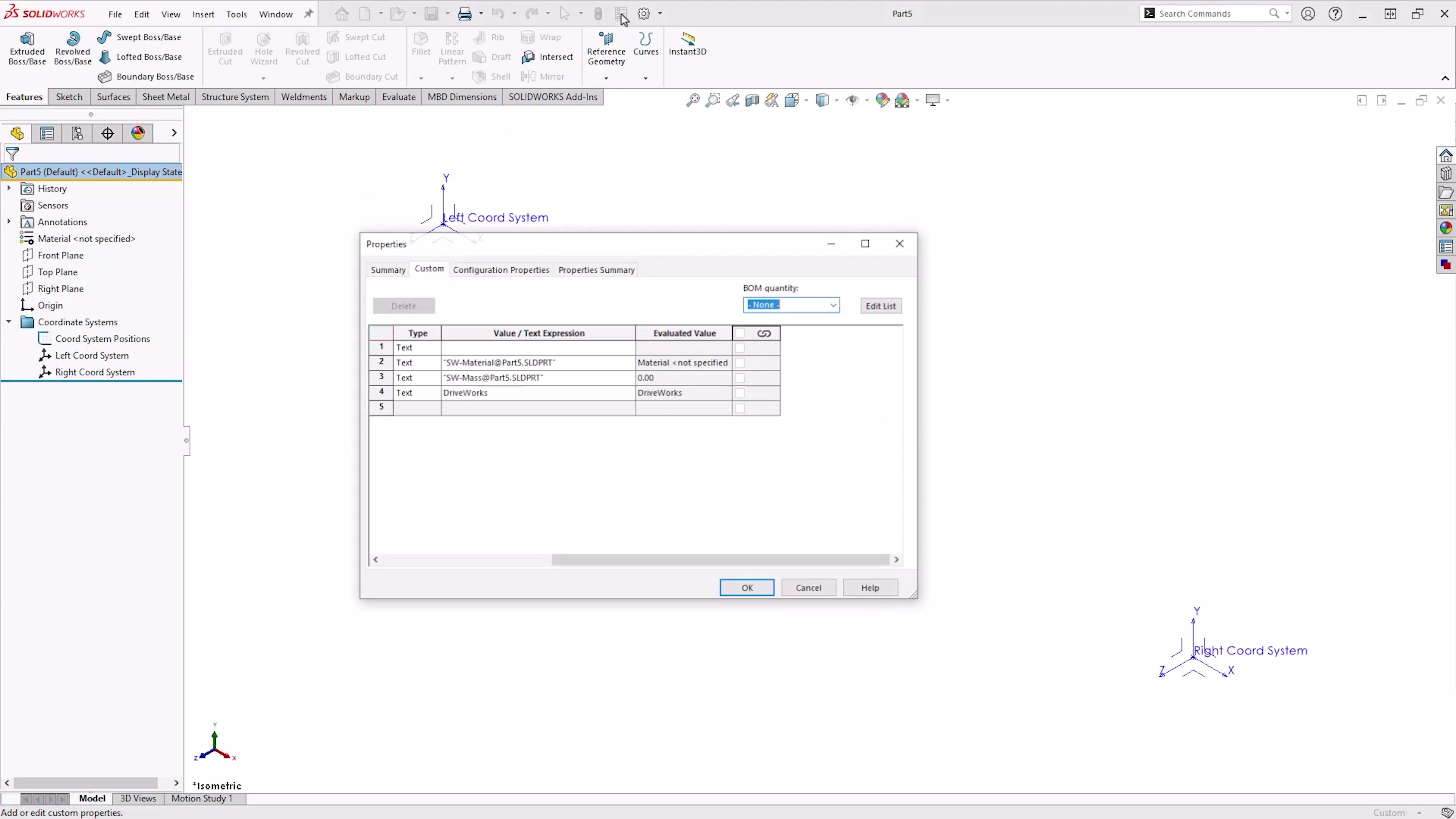
Once you hit on a workflow that suits you, then investing time in creating and using templates with pre-filled custom properties is a time-saver in the long run.
#3 – FUTURE-PROOF YOUR DESIGNS
A key element of any SOLIDWORKS model is design intent. This is the consideration of how a design should be modelled for maximum flexibility when making modifications or updating files in the future.
This approach is vital to consider when automating designs with DriveWorks.
You need to design your models to be robust and capable of accommodating changes, so make sure you test key dimensions throughout the modelling process. Change dimension values to see if the resulting behaviour is as you predict.
A proactive approach such as this ensures that your models won’t explode unexpectedly after you’ve automated processes.
#4 – MAINTAIN CONSISTENT PART ORIENTATIONS
Maintaining logical and consistent part orientations is essential for making your work more accessible to others and your future self.
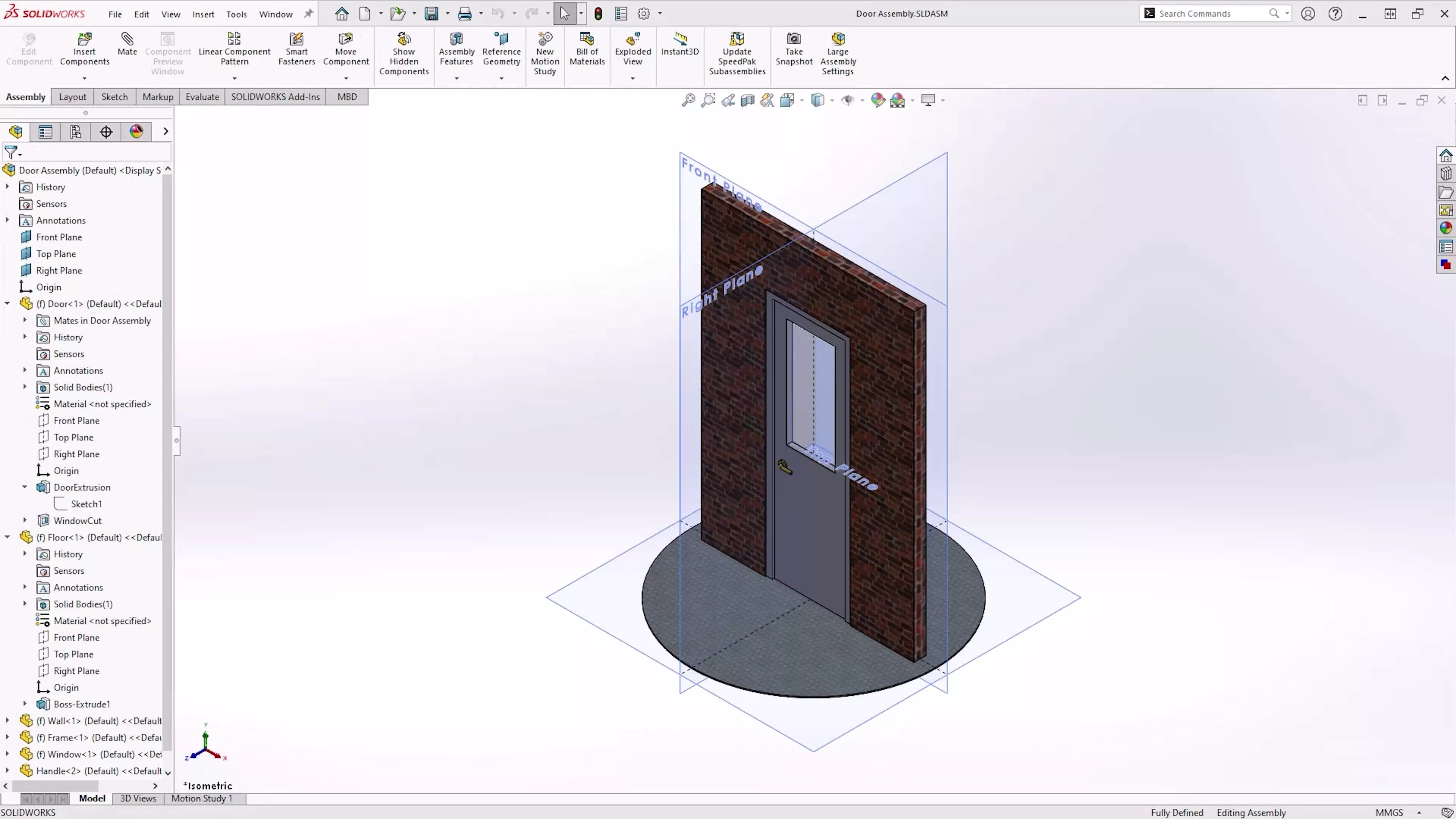
Staying consistent with your decisions ensures that anyone who works with your models can navigate and understand them more easily.
#5 – MAINTAIN A CONSISTENT ORIGIN POSITION
The origin position in your models plays a crucial role in facilitating symmetry and component creation.
When you keep it consistent between parts, you make it easier to work with standard planes and create components efficiently.
This means that fewer rules will be needed to drive your models, saving you time and effort.
Success Stories
Learn how Extronics successfully implement DriveWorks to automate their design process as they manufacture wireless technology for use in hazardous areas.
#6 – NAME KEY FEATURES, SKETCHES AND DIMENSIONS
As you work on your designs, it’s essential to name key features, sketches, and dimensions sensibly.
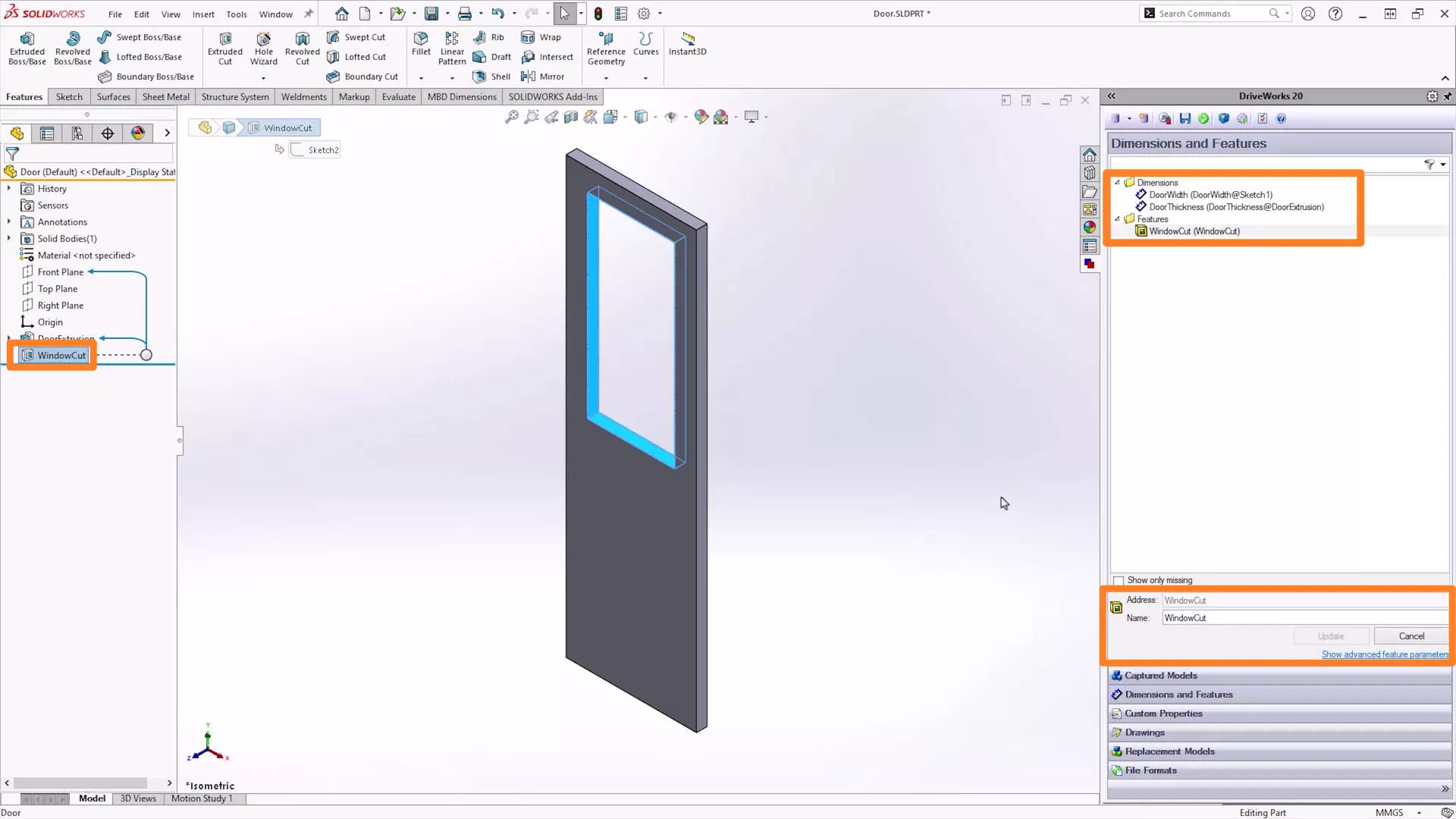
A slow double-click on a feature, or pressing F2 with one selected, will allow you to rename the feature.
This practice makes rule writing easier down the line, as naming them consistently will help you, and others understand and manage the design more efficiently.
You’ll find that, as you work with DriveWorks more, you develop a naming convention that works for you.
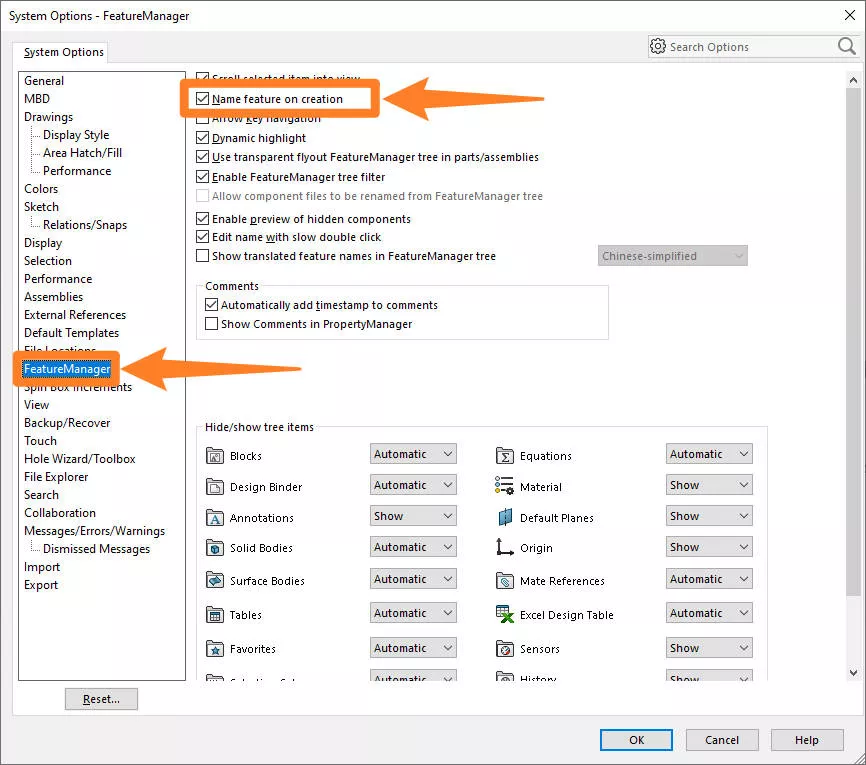
TOP TIP – You can also turn on a system option within SOLIDWORKS that will automatically give you the option to rename features on creation to help with this.
#7 – KEEP SKETCHES SIMPLE
This applies both to sketch geometry and the plane on which they exist.
By limiting your sketches to the three standard planes as much as possible, you avoid unnecessary planes and overcomplicating the model.
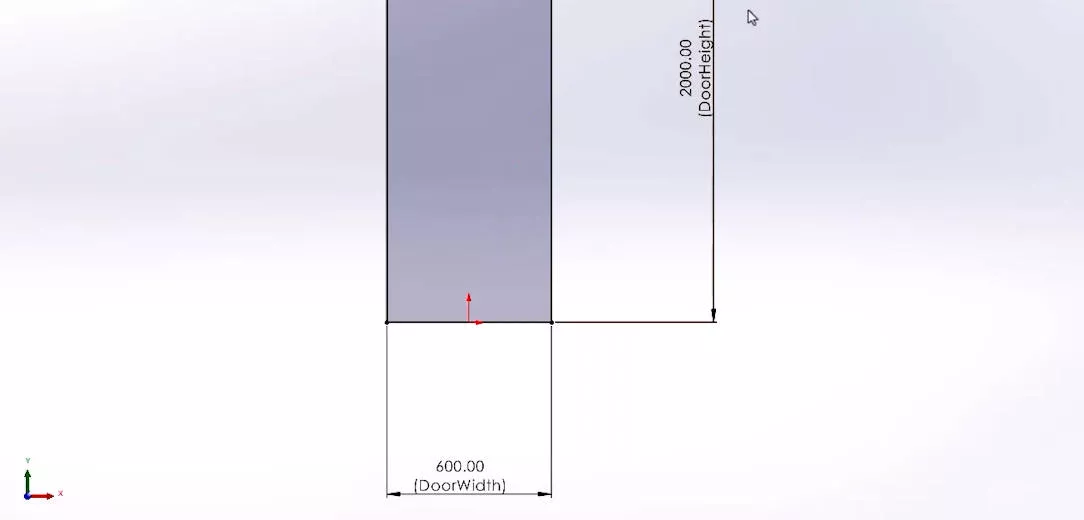
It’s also important to ensure sketches are fully defined.
Our SOLIDWORKS Essentials training course covers good sketching habits, part & assembly modelling, and technical drawing creation that will help you develop skills to advance in your career, as well as keeping models and sketches simple when designing.
#8 – SKETCH ON PLANES, NOT FACES
Sketching on planes rather than faces is a smart strategy to prevent the loss of references.
It helps to maintain the integrity of your design as you make changes.
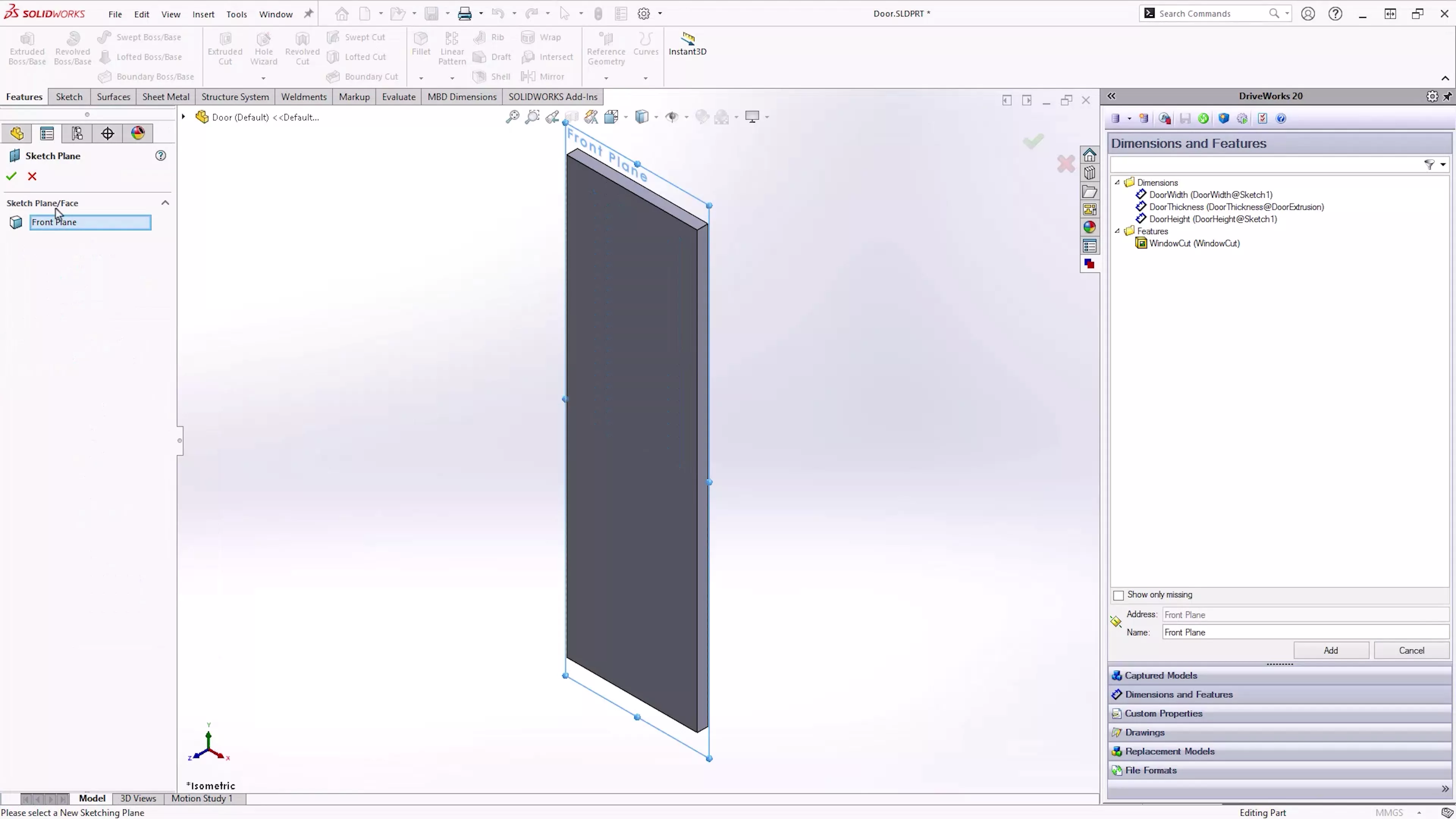
Consistently using the standard planes will simplify your work and prevent unnecessary complications.
#9 – AVOID IN-CONTEXT MODELLING
In-context modelling is the process of creating references between components in an assembly. It is often used in mechanisms or configurations to create geometry based on the position of another component.
While tempting, in-context modelling can sometimes lead to conflicts with DriveWorks design automation due to external references.
So when automating in SOLIDWORKS, it’s good practice to avoid using equations, design tables, and sketch patterns when working with DriveWorks.
Instead, let DriveWorks handle the design automation, keeping all the logic in one place, to ensure a seamless and error-free process.
#10 – MATING TO COORDINATE SYSTEMS
Position coordinate systems in sensible locations on your master models.
This is then useful for inserting components using generation tasks, as you can fully define a component’s position using a singular insert coordinate system mate task.
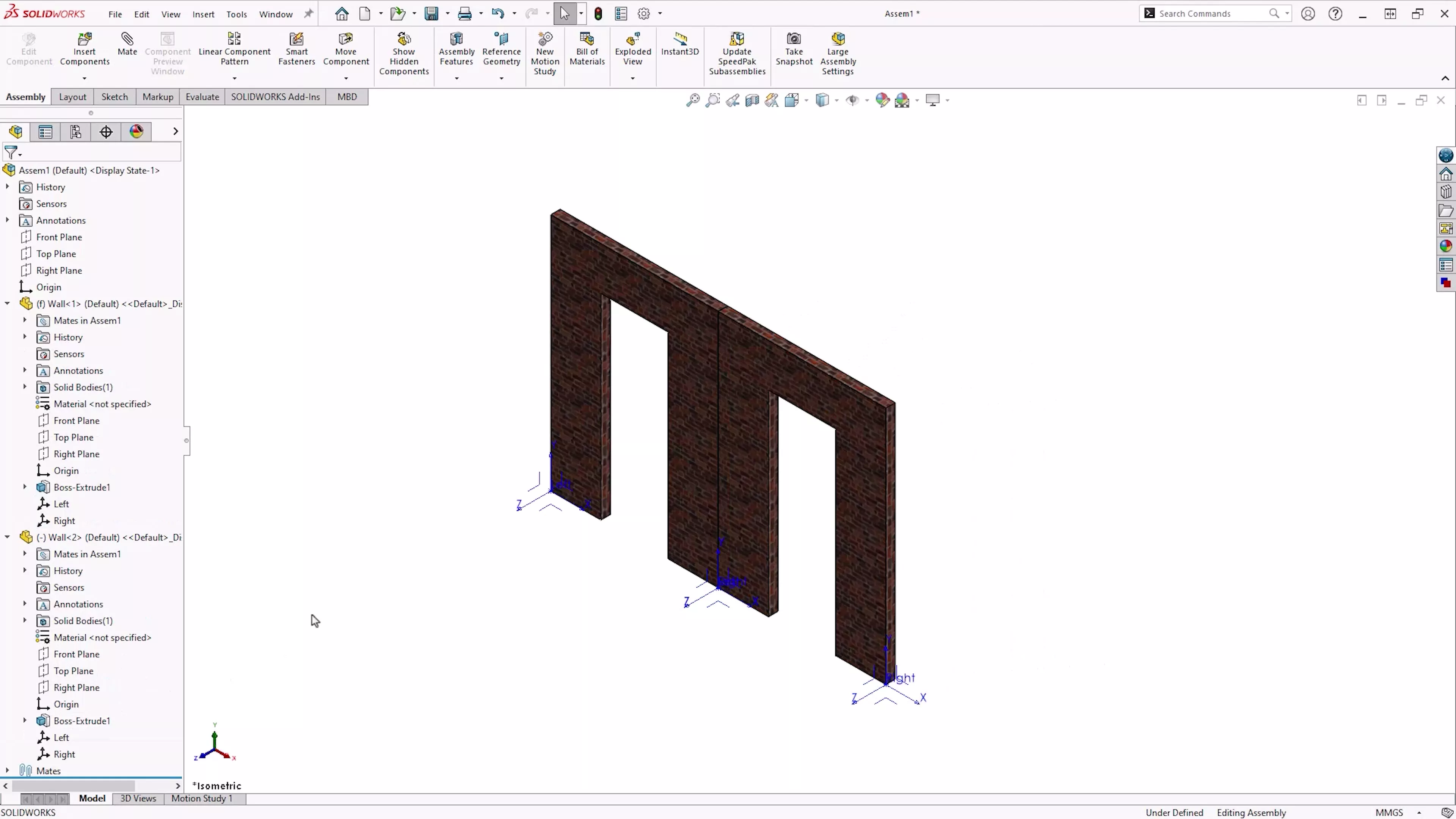
By referencing the co-ordinate system instead of vertices, faces, or sketch geometry, you avoid losing references when the model is altered, since SOLIDWORKS doesn’t need to keep track of those individual IDs that can change or disappear with geometry modification.
This prevents the master model from being overloaded and speeds up generation time.
Categorised as: SOLIDWORKS Design | Tech Tips
Get Expert SOLIDWORKS Training
Get hands-on SOLIDWORKS training in-person or online, led by certified experts with real industry experience. With venues across the UK & Ireland, it’s easy to start learning today.
Related Posts

How to Find Reaction Forces in SOLIDWORKS Simulation
SOLIDWORKS helps us to find resultant forces through simulation studies. These virtual tests reduce the need for physical prototypes and give us an accurate answer.

Setting number of decimal places in a table on a drawing
When creating an equation in a drawing general table, is it possible to define the…

SOLIDWORKS Smart Fasteners
SOLIDWORKS Smart Fasteners is a really useful time saving tool, allowing you to automatically insert toolbox fasteners such as bolts and screws into an assembly providing there is a standard hole.

Why is my Flat Pattern not showing in SOLIDWORKS Drawings?
This may be linked to how the drawing is saved or it can be related to how sheet metal parts are displayed in drawings, read on to find out how to fix it.

Why is SOLIDWORKS Crashing?
It’s one of the great mysteries of life – why is SOLIDWORKS crashing? Let’s explore how SOLIDWORKS crashes and how we can improve performance in SOLIDWORKS.

SOLIDWORKS Tips: Are you Making this Common Mistake in Fatigue Analysis?
Simulation is a vital and complex engineering need. Fortunately, SOLIDWORKS makes it easy to test, correct mistakes and obtain accurate results.

Tech Support Blog: Why are my SOLIDWORKS BOM Quantities Wrong?
Why are my SOLIDWORKS BOM Quantities Wrong? A support call cropped up this week which…

How to Get Your Serial Number for SOLIDWORKS Visualize Standard
Want to download Visualize to make photorealistic renders? Follow this guide for accessing your Visualize serial number that comes bundled in with SolidWorks Professional and Premium.

How to Recover SOLIDWORKS Files After a Crash
SOLIDWORKS has two different methods to help you recover from an unexpected crash or loss of data in the form of auto-recovery and back-up settings.

Redesigning Santa’s Sleigh in SOLIDWORKS
Every year Father Christmas has to fly in his sleigh to deliver presents to boys and girls all over the world in just one night. To put this into perspective, it takes a little under 24 hours to fly from London (UK) to Sydney (Australia) in a streamlined Boeing 747, whereas Father Christmas’ mode of transport is believed to be a rather non-aerodynamic sleigh.