











How to Update SOLIDWORKS Files for Compatibility with 3DEXPERIENCE

Written by: Prasad Bhonsule
Published: May 13, 2025
| View All Blogs
Configurations are a convenient way to create multiple variations of a part within a single SOLIDWORKS file. However, data management systems may use differing terms when handling these configurations.
In the 3DEXPERIENCE platform, SOLIDWORKS configurations will be interpreted as ‘Physical Products’, and there are some important settings you need to check before uploading files to the 3DEXPERIENCE platform.
Let’s explore what you need to do when using SOLIDWORKS configurations with the 3DEXPERIENCE platform.
Can you use SOLIDWORKS Configurations with 3DEXPERIENCE?
The short answer is ‘yes’! However, you need to be aware that, by default, saving SOLIDWORKS parts and assemblies to 3DEXPERIENCE triggers an on-the-fly conversion.
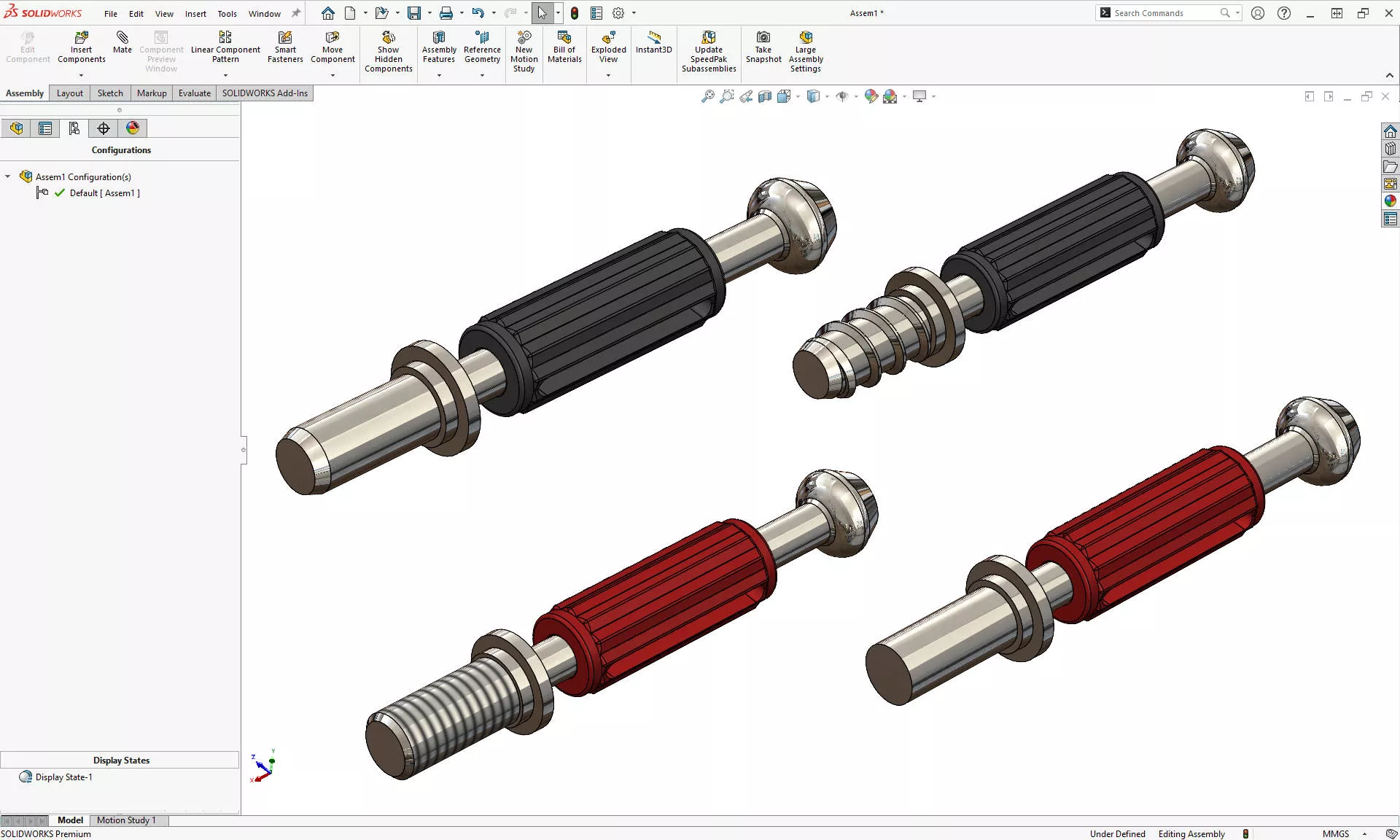
Configurations are used to show different design variations of SOLIDWORKS models.
While it may be convenient for cross-role working in the platform, this automated process can introduce delays and misaligned Custom Properties when processing large amounts of files.
Thankfully, we can choose when to perform this conversion before uploading to the 3DEXPERIENCE platform. So we can verify file structures and metadata in advance, reducing surprises, and speeding up cloud saves.
What happens to SOLIDWORKS files when saved to 3EXPERIENCE?
On upload to the 3DEXPERIENCE platform, SOLIDWORKS CAD files will undergo some internal changes so that
This conversion sees multi-configuration files become CAD Families, individual configurations transformed into Physical Products, and derived configurations appear as Representations.
SOLIDWORKS VS 3DEXPERIENCE
The four methods we’ll explore below will see SOLIDWORKS files and properties converted into their corresponding compatible formats.
Four ways to convert SOLIDWORKS files for 3DEXPERIENCE Compatibility
Since you could be converting many files when saving to the 3DEXPERIENCE platform, it’s important to take some time to prepare your files correctly to avoid running into unexpected issues further down the line.
There are four ways to convert SOLIDWORKS files ready for saving the platform:
- Right-Click Menu
- System Options
- Template Updates
- SOLIDWORKS Task Scheduler
#1 – Right-Click Menu
The first method is ideal for one-off or small batches of conversions.
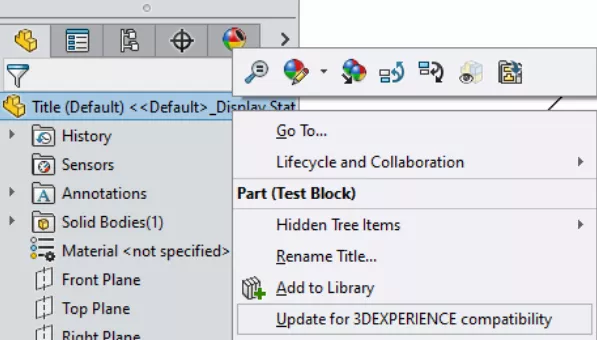
- In the FeatureManager tree, right-click the Title.
- Choose ‘Update for 3DEXPERIENCE compatibility’.
#2 – System Options
Manually updating every SOLIDWORKS files is tedious, and if you are often saving files to the 3DEXPERIENCE platform, at some point you’ll need to draw a firm line in the sand.
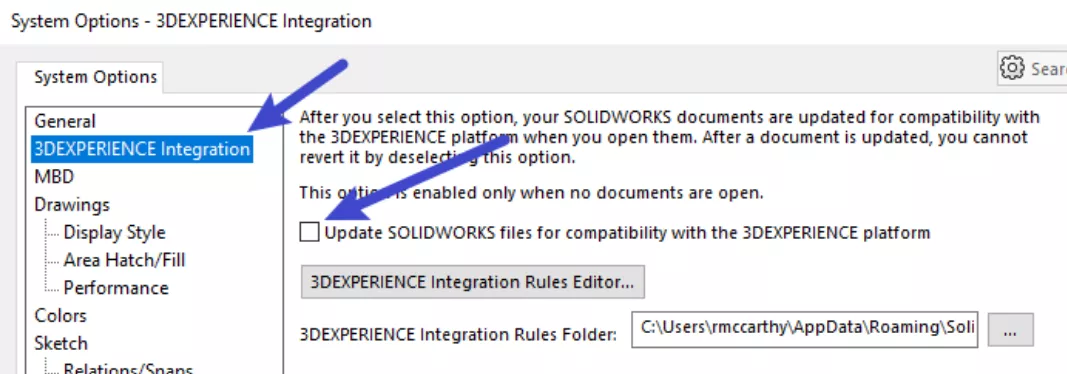
- Go to Tools → Options → System Options → 3DEXPERIENCE Integration.
- Tick Update SOLIDWORKS files for compatibility with the 3DEXPERIENCE platform.
- All files you open from now on will auto-convert.
#3 – Template Updates
System Options will prepare future uploads from a certain machine. However, they can be reset and are less convenient for a multi-user environment.
A robust way build in compatibility and to ensure every new SOLIDWORKS file is automatically created for the 3DEXPERIENCE platform, we can update our SOLIDWORKS templates.
- Browse to your templates location and open your template.
- Use the Right-Click Menu (Method 1) to convert it.
- Click “Save As” and save a new copy of the template.
- Appending the title with ‘3DEXPERIENCE’ and save it to your template folder.
Repeat this for each template file (part, assembly, and drawing) required for saving to the platform.
Enjoy priority support and premium resources when you upgrade your SOLIDWORKS subscription today.
#4 – SOLIDWORKS Task Scheduler
If you simply need to convert a large batch of files without necessarily preparing for future uploads, then the SOLIDWORKS Task Scheduler is perfect for running bulk-updates overnight or whenever is convenient.
- Launch SOLIDWORKS Task Scheduler.
- Select ‘Bulk Convert for 3DEXPERIENCE’.
- Point to your legacy files folder and schedule the run.
- Wake up to fully converted files, ready for upload!
What Changes after Conversion?
There are several notable changes that will occur within the SOLIDWORKS interface when working with a 3DEXPERIENCE-compatible CAD file.
- FeatureManager Tree TabsFirstly, there are changes to the FeatureManager Tree. The Configurations: CAD Family tab replaces the default ‘Configurations’ view.
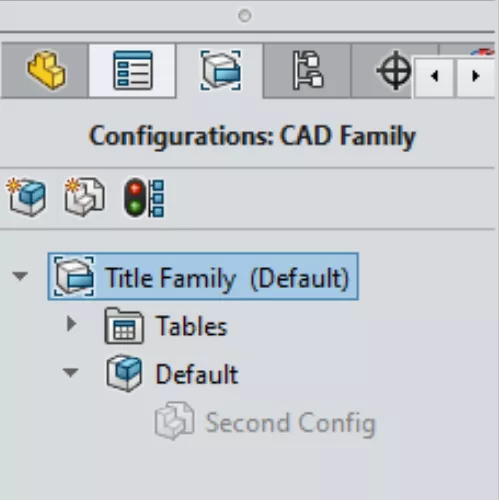
This tab shows the hierarchy of the file in 3DEXPERIENCE terms: Physical Products and Representations. This tab is used to create, promote, or demote items directly within SOLIDWORKS.
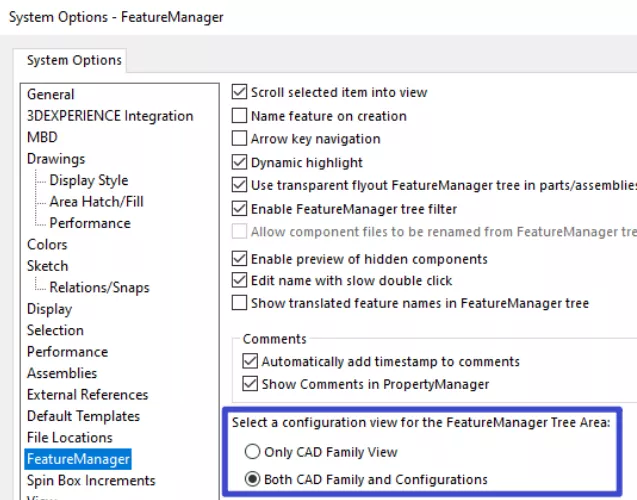
- Optional Side-by-Side ViewOld and new configuration views can be enabled concurrently. In the System Options, locate the FeatureManager settings and choose to enable ‘both CAD Family and Configurations’ tabs to retain a familiar view.
- Custom Properties → Configuration PropertiesAll custom properties will merge into Configuration Properties after conversion. This ensures metadata resides on the physical product that the 3DEXPERIENCE platform stores.
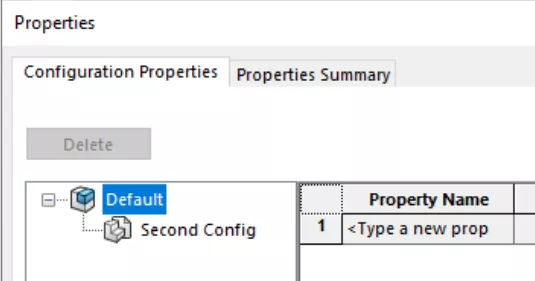
TOP TIP: Clear outdated configuration-specific properties first so only empty fields will copy across.
‘Best Practice’ when Working with the SOLIDWORKS Cloud Services
Storing SOLIDWORKS files in the 3DEXPERIENCE platform is an efficient way to manage your CAD data. To help you maintain efficiency, our data management experts recommend following two simple rules when saving to the 3DEXPERIENCE platform.
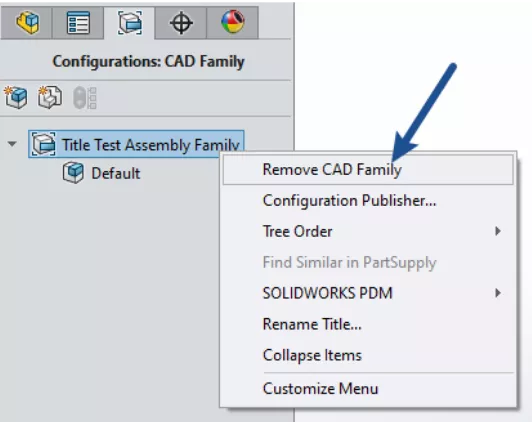
#1 – Enforce One Physical Product per File
By ensuring creating only one physical product per file, we can:
- Prevent the creation of CAD Families.
- Simplify file structures and improve performance.
- Control or vary rules per file or on your template.
#2 – Stay Within Dassault’s Guidance
Sometimes reading the instruction manual is just the best way to do things.
Dassault Systèmes are the developers of the 3DEXPERIENCE platform, and they recommend that no more than 20 Physical Products are created per CAD Family.
Exceeding this can degrade SOLIDWORKS performance, so aim for one wherever possible.
By proactively converting your files, you’ll control when and how your SOLIDWORKS data maps into the 3DEXPERIENCE hierarchy, maintain clean metadata and eliminate upload-time bottlenecks.
This other blog in the Platform Configuration Series explores in detail the UI settings to align your SOLIDWORKS environment more closely with the 3DEXPERIENCE paradigm.
Take the Next Steps
Get the most out of your 3DEXPERIENCE platform with our step-by-step starter guides and guided implementation services.
Together with our TriMech Group partners, these 3DEXPERIENCE platform starter guides can help to onboard new administrators and users of your 3DEXPERIENCE platform.
Categorised as: 3DEXPERIENCE | Data Management
Get a SOLIDWORKS Quote
Interested in SOLIDWORKS? Contact us for questions, trials, or demos by clicking the button below or call 01926 333777. Our experts will help you find the perfect solution.

Related Posts

How to Create a Pack and Go in SOLIDWORKS
Pack and Go in SOLIDWORKS should be used when sending SOLIDWORKS files to another person. Use this simple guide to help you safely send entire SOLIDWORKS projects.

3DExperience – Overview and Gaining Access
3DEXPERIENCE allows you to bring together colleagues and invited suppliers into a single web based platform allowing ideas to be shared and decisions to be made. The platform is CAD intelligent so will allow storage and viewing of your 3D models, even to non-SOLIDWORKS users if they need to review designs. In this series of blog posts we break down the general structure of the platform as well as a more in depth look into the main applications you can use. Each blog post will contain a commentated video summarising all that has been discussed in text form.

3D Experience – Dashboard Creation
Without Dashboards your 3DEXPERIENCE platform will be pretty empty so we need to understand what can be done with them on a per user basis and also how they can be shared to the rest of the team. In simple terms the dashboard is the layout of the webpage, the more complicated description you find on the 3DEXPERIENCE “Getting Started” screen is that “a dashboard is a holistic view on any topic or activity, gathering content from various sources. It is made of tabs, each tab containing widgets”.

3D Experience – 3DDrive
3DDrive is the storage application that sits on the 3DEXPERIENCE platform. As a basic comparison it is similar to Dropbox, OneDrive and Google Drive, and in fact these three programs can also be intergrated into 3DEXPERIENCE. Each user you invite to join your platform will consume a license and be given 5GB of storage space within 3DDrive.
What is 3DSWYM? A 3DEXPERIENCE Platform Tutorial
3DSwym is the application at the heart of the 3DEXPERIENCE, allowing users to connect and collaborate across the platform.

Microsoft SQL Server licensing for SOLIDWORKS PDM
October 2020 marks two important milestones for the SOLIDWORKS PDM family and SQL Server.

Part Numbering in SOLIDWORKS PDM Professional
When implementing a new PDM Professional Vault Customers will have the option to review their part numbering and classification requirements as they move to a system that allows them to, in most cases, automate the way the identify ‘parts’ within the Vault. Part Numbering is something that a lot of customers approach differently and this is often based on ‘how it’s always been done’ without necessarily considering what is the purpose of a Part Number within their organisations and wider within their supply chains. If we consider the humble part number. What is it’s purpose?

The 6 Golden Rules of Managing Data in SOLIDWORKS
When modelling in SOLIDWORKS, before you know it, you will have created lots of parts, assembly and drawing files, so it’s important to think about how you will manage these files and keep everything organised. Here we discuss the ‘6 Golden Rules’ of managing your SOLIDWORKS files using Windows Explorer and recommended methods for file naming, structuring your projects and managing revisions.
This kicks off a month looking at the management of CAD data, register for one of our upcoming live webinars at the bottom of this article.

PDM Professional – Assigning Users with Conditional Notifications
Often customers will create smaller project teams for specific jobs and in the past we have been asked if it is possible, within a multi stage workflow, to pre-assign at the creation stage users who will be notified as checker / approver within those transitions. This blog will demonstrate how, using conditional Notifications in PDM Professional, this can be configured. We will also create some logic to allow for certain parts of the workflow to be bypassed by validating the selected ‘names’ against transition conditions. In this example the ‘approvers’ will be assigned on the files DataCard, but it would be just as feasible to have these names inherited from a project folder card if defining the rules at a higher level was possible within your Teams.
Managing Disk Space with SOLIDWORKS PDM Part #1: Distributing the Archive
This blog series was prompted by a recent support ticket, logged when a customer found their PDM Professional installation suddenly became unusable. The warning message, led to my reviewing the Archive Server Log file and this quickly identified the problem being a result of the PDM Server running out of disk space.