











Rendering & Life After PhotoView 360 | What’s New in SOLIDWORKS Visualize 2026
Written by: Richard Earley
Published: Jan 15, 2026
| View All Blogs
Whether you’re pitching concepts to stakeholders or refining designs internally, the latest enhancements in SOLIDWORKS Visualize 2026 streamline workflows while empowering engineers with tools to transform CAD data into compelling, photorealistic content.
This blog explores the standout features of SOLIDWORKS Visualize 2026 and dives deeper with insights from our experienced Visualization Consultants.
DSPBR Appearance Library Integration
The 2026 release introduces a new DSPBR appearance type and library directly within SOLIDWORKS, aligning with the default appearance model used in SOLIDWORKS Visualize and across other Dassault Systèmes’ applications like CATIA and the 3DEXPERIENCE platform.
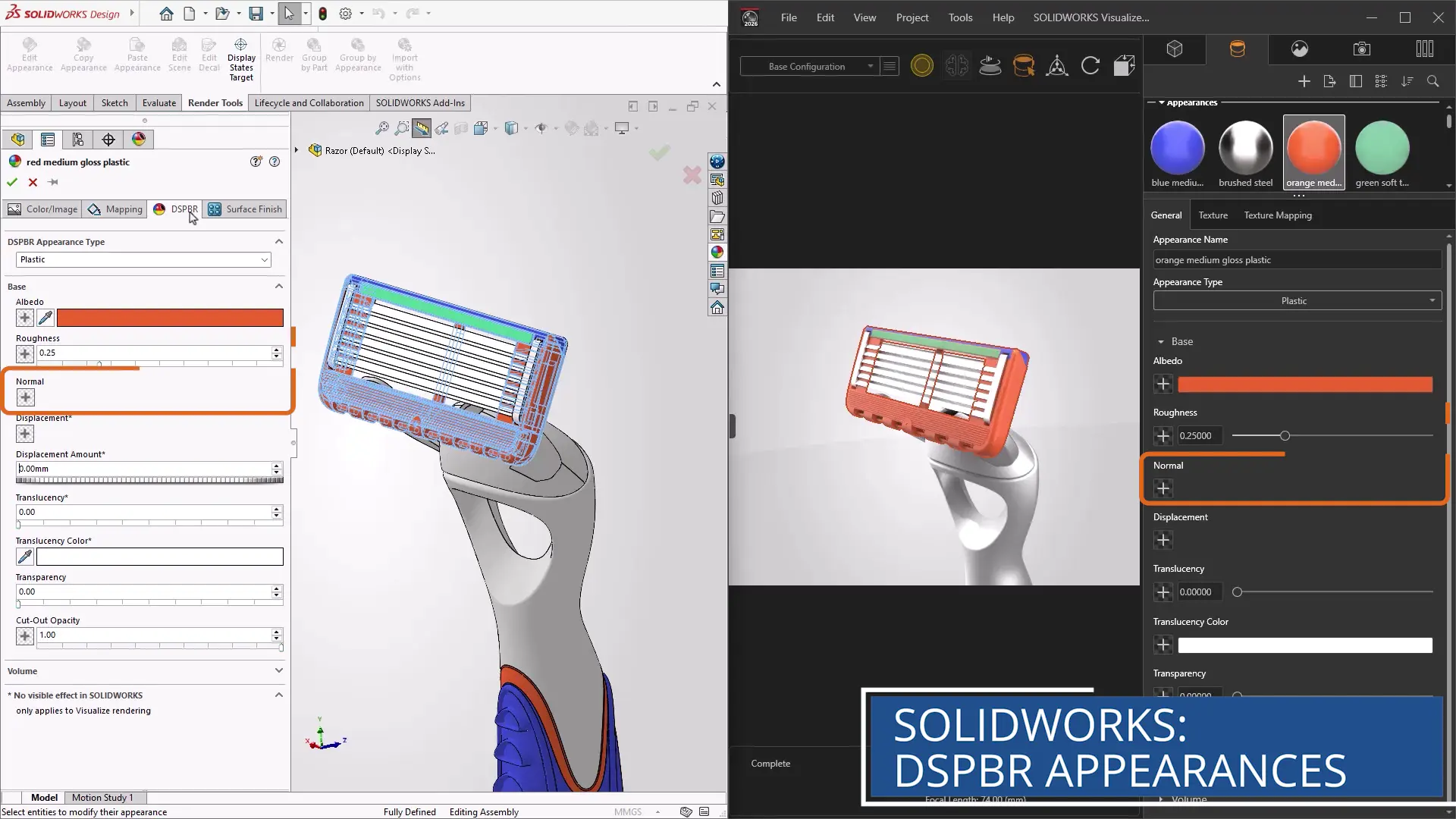
This integration ensures 1:1 appearance translation between SOLIDWORKS to Visualize, eliminating the need for manual rework and preserving visual consistency across platforms.
Engineers can now rely on a seamless workflow that enhances productivity and reduces time spent on appearance adjustments.
This is a welcome alignment by the SOLIDWORKS developers to standardise the appearance models across software.
It’s sure to help designers who work with multiple clients who use different systems and work across multiple different projects – a bit of a time-saving boost, and much less tinkering needed!
One-Click Rendering from SOLIDWORKS
Sometimes, a screenshot just won’t cut it, especially when presenting to internal stakeholders.
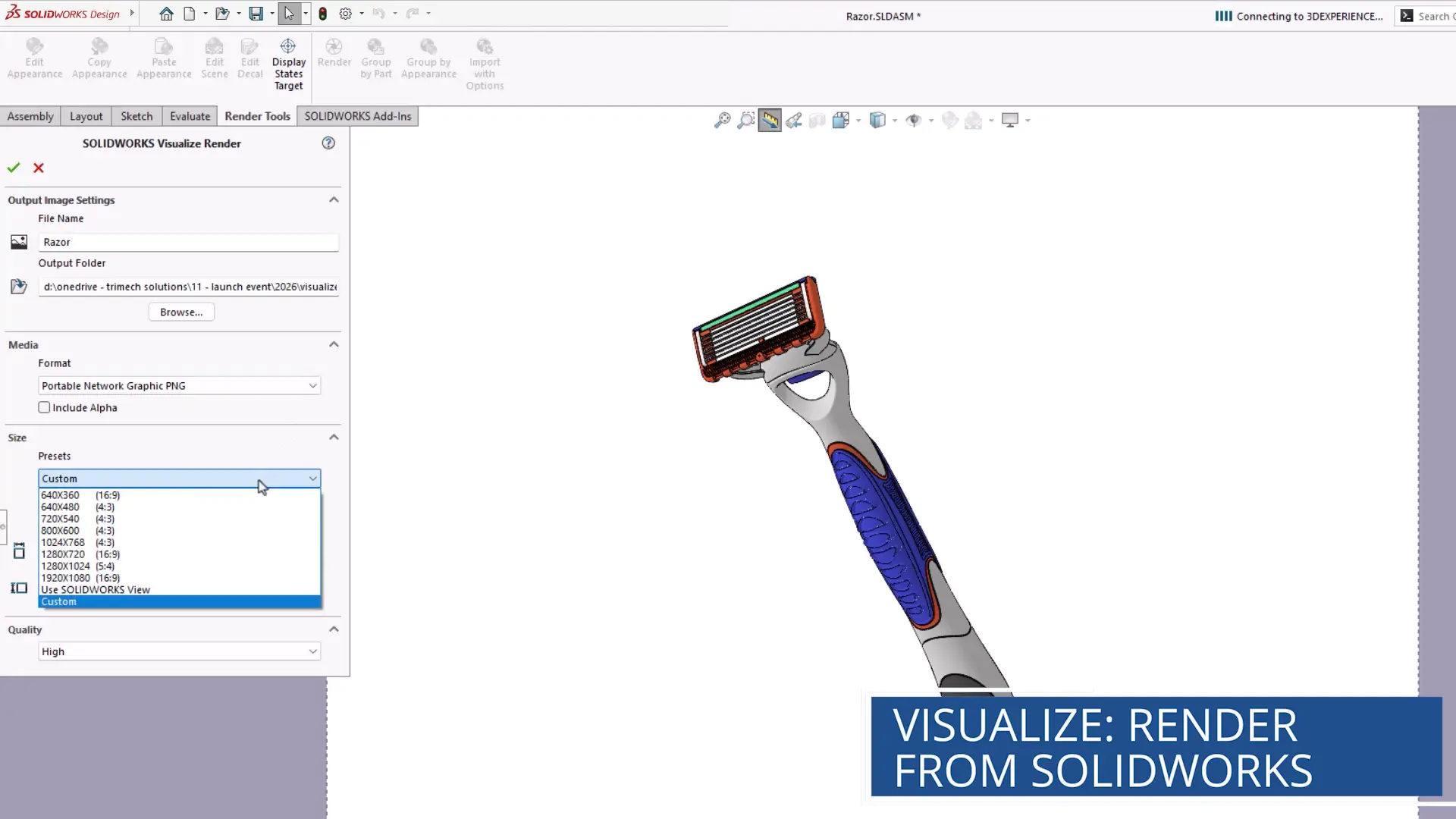
SOLIDWORKS 2026 introduces a dedicated render button that allows users to generate photorealistic images directly from their current view or defined camera, without leaving the SOLIDWORKS interface.
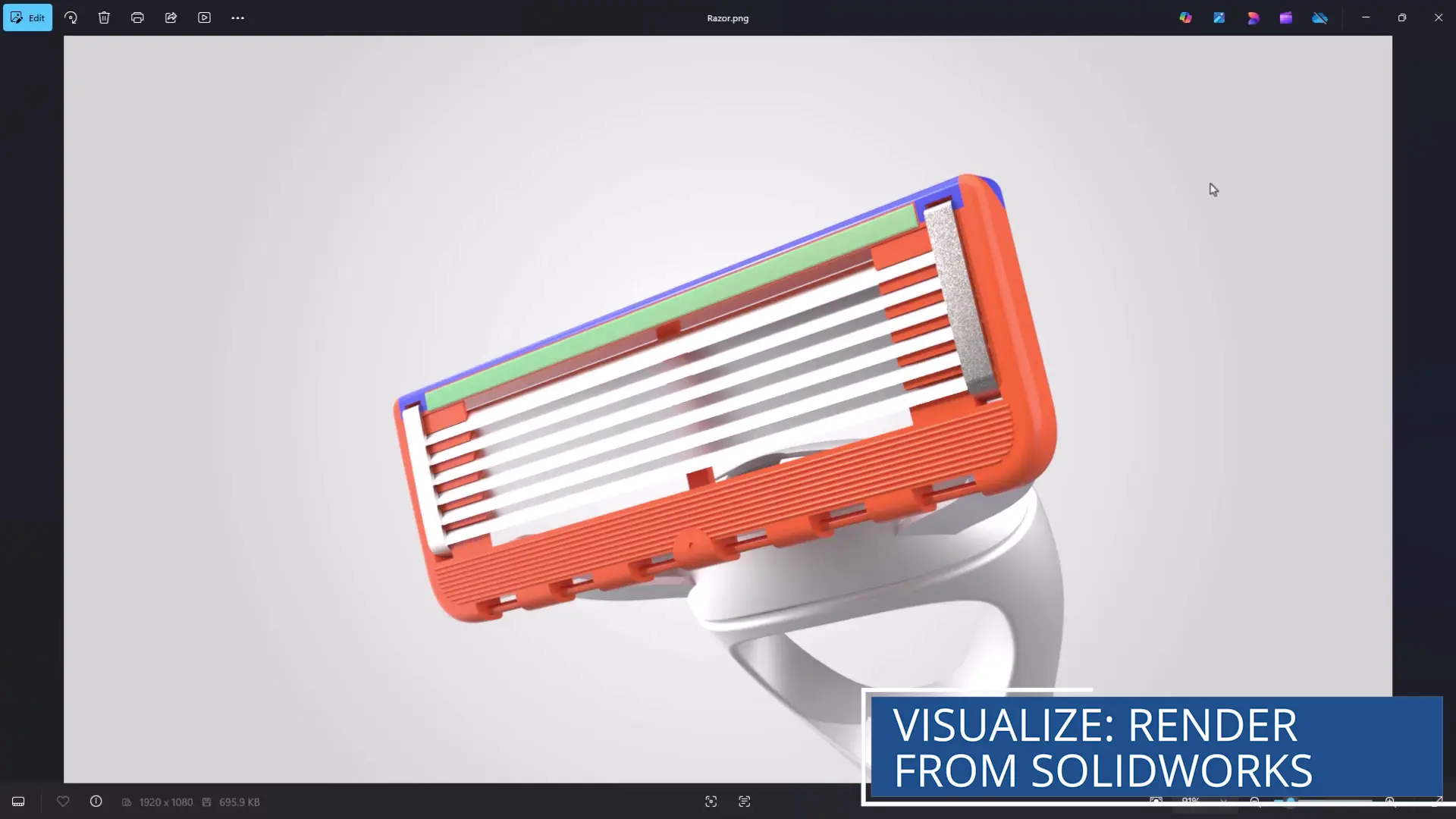
This silent rendering capability, powered by Visualize, makes it easier than ever to produce high-quality visuals for design reviews and presentations, all within a few clicks.
As long as users have access to SOLIDWORKS Visualize, they will never need to take a screenshot of CAD again.
With high quality appearances now being the standard, and single-command rendering from within SOLIDWORKS – your internal design review presentations just got better!
Fast Mode Rendering Enhancements
Visual feedback is critical when setting up complex render projects.
The Fast Mode in Visualize has been significantly upgraded to support real-time rendering across both AMD and NVIDIA graphics cards, and even on systems without GPU acceleration.
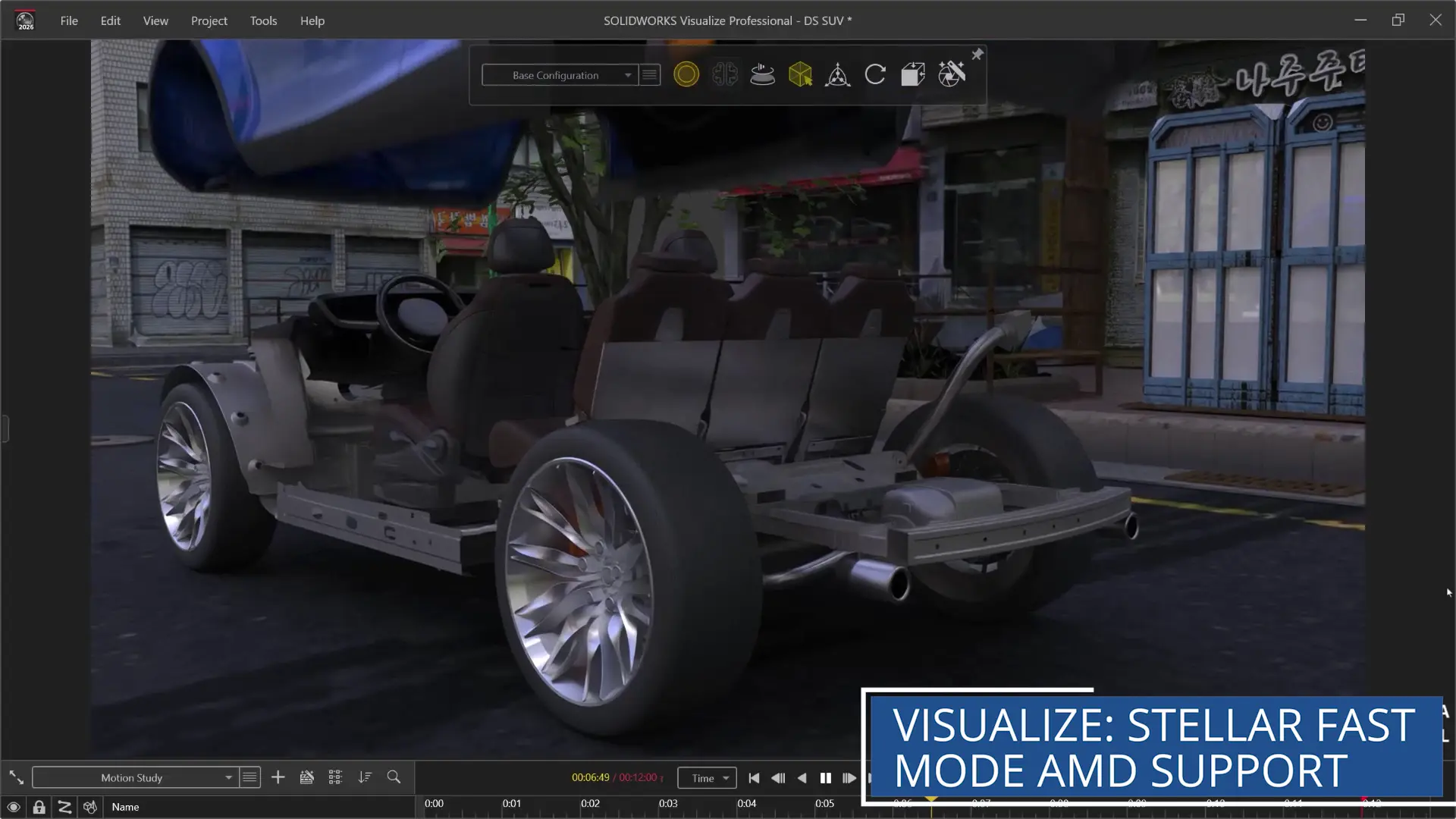
This mode now runs purely on CPU, making it accessible to a broader range of users.
With speed improvements rolled out in service packs since 2025, engineers can experience fluid, real-time rendering, even with large assemblies like full vehicle models.
Advanced Appearance Controls: Translucency & Thin Film
Visual realism takes a leap forward with the addition of translucency and thin film parameters.
Translucency allows for nuanced control over light transmission and colour tinting, ideal for simulating materials like human skin or foliage.
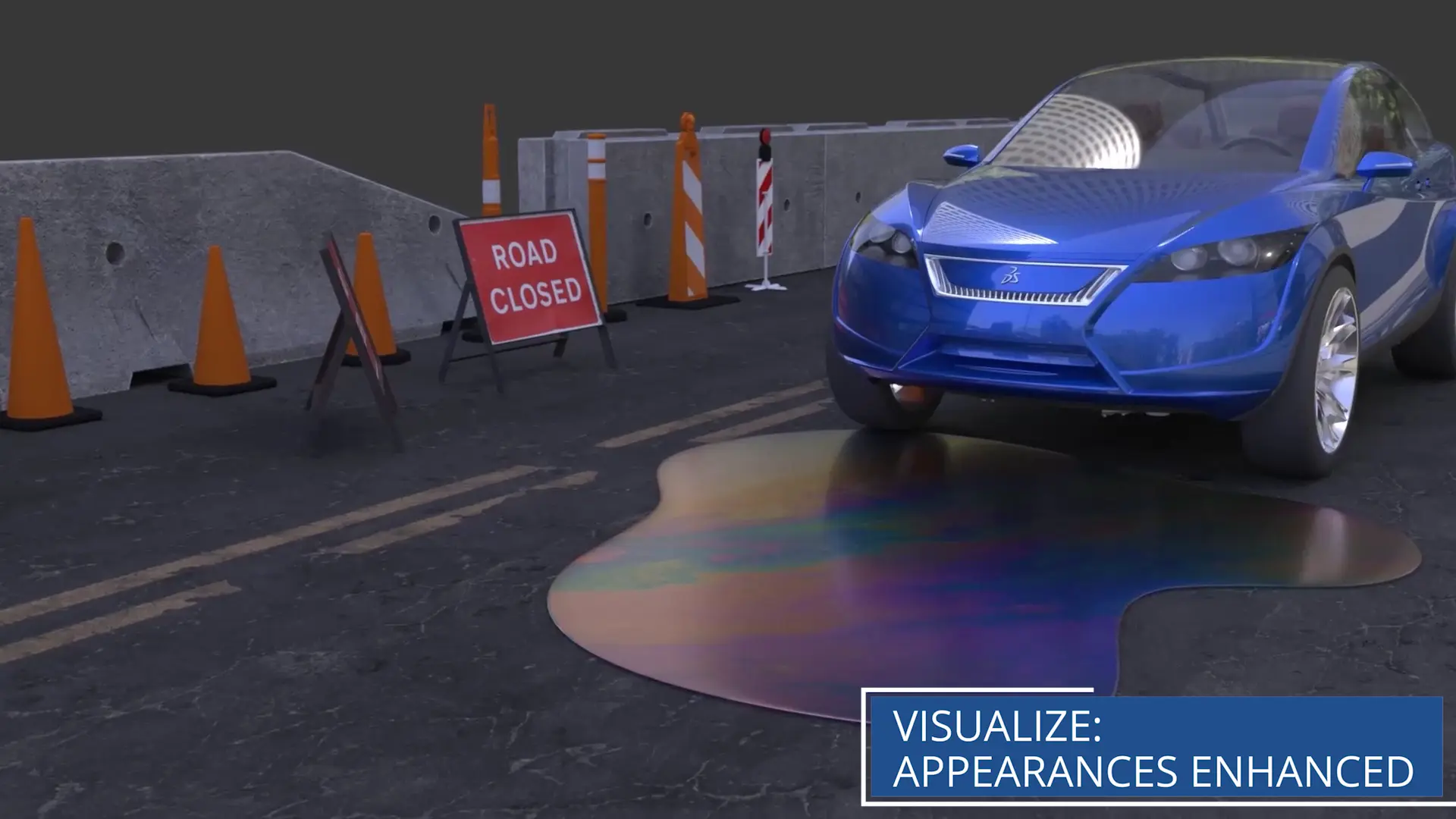
Thin film effects simulate light diffraction, enabling the creation of iridescent surfaces such as soap bubbles, oil slicks, or ski goggles.
These enhancements provide engineers with the tools to craft complex, lifelike materials that elevate the impact of their visualisations.
I’ve recently been practising my SOLIDWORKS Visualize skills by trying to render a cup of tea as realistically as possible…
The new thin film and translucency have made life so much easier when trying to mimic the fluid’s surface!
While it may feel more complicated at first, the granular control that DSPBR materials give us is a game-changer for lifelike rendering.
Optimised Geometry Import & Retessellation
Large projects often involve importing non-SOLIDWORKS geometry. Visualize 2026 introduces retessellation controls, allowing users to adjust the level of polygon detail during import.
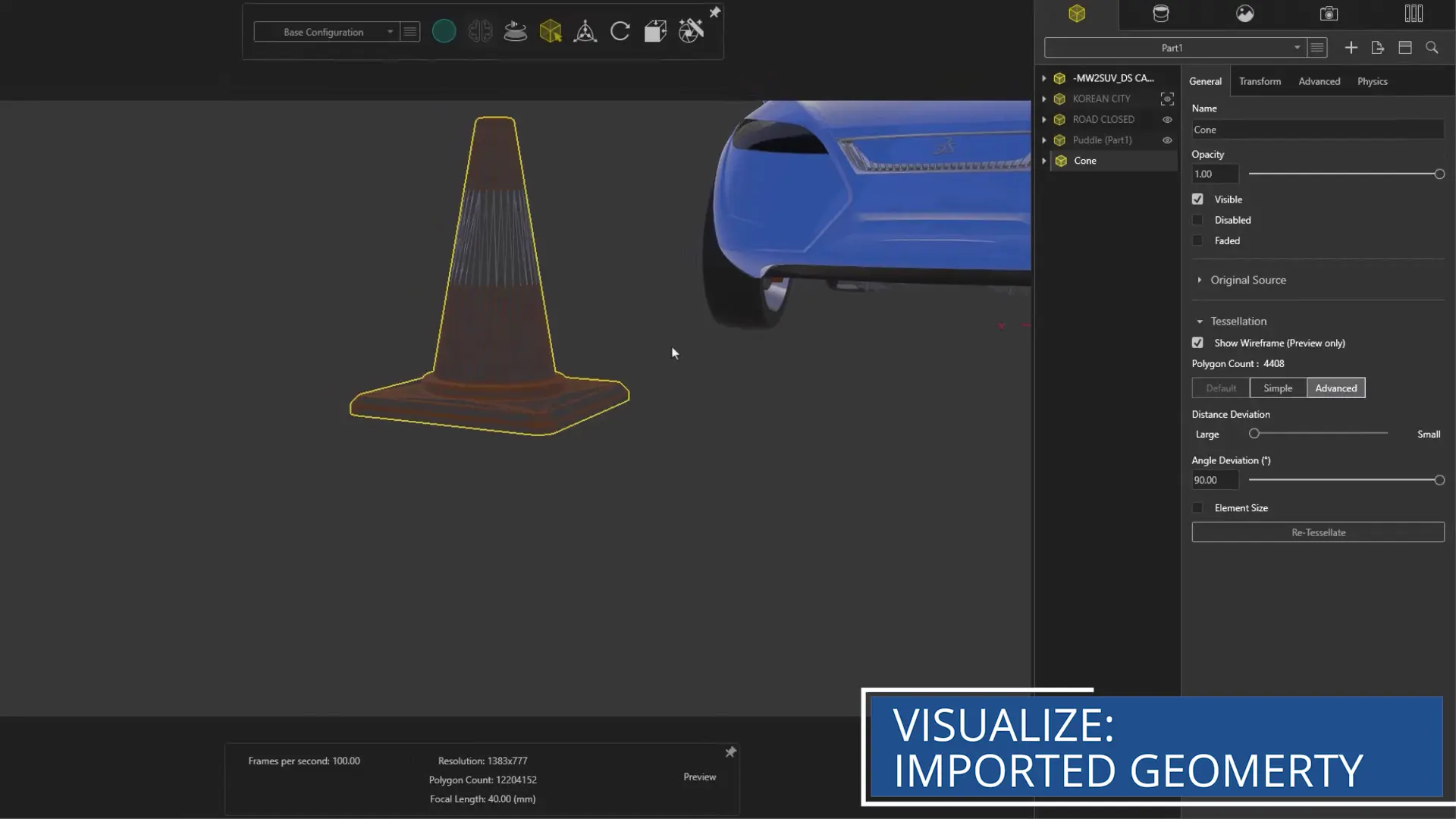
This is particularly useful for simplifying and optimising heavy files, improving viewport performance, and preparing models for downstream visualisation pipelines.
Engineers can now strike the perfect balance between detail and efficiency, ensuring smooth rendering even with complex assemblies.
A retessellation option not only speeds up imports, but I can see it being a real asset when working on a GPU-intensive project.
Being able to adjust parameters without needing to go back to SOLIDWORKS is also a great help for those non-SOLIDWORKS users of Visualize.
Enhanced Part Split Tool
Once geometry is imported, isolating specific components becomes essential.
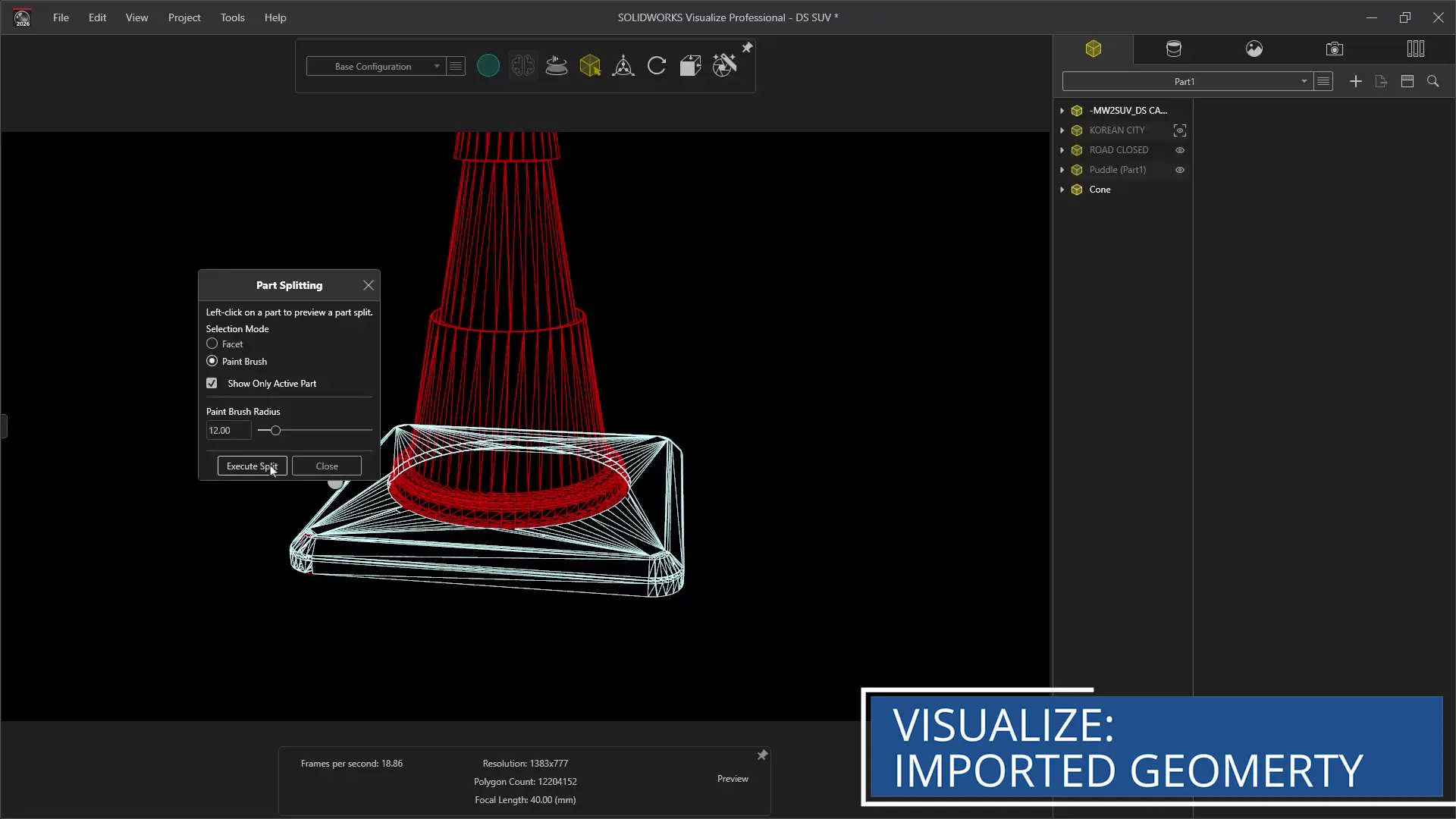
The enhanced Part Split tool now includes intuitive selection options like the paintbrush tool, enabling users to quickly select and isolate faces for focused editing.
This feature offers greater control and flexibility, making it easier to manage large assemblies and refine individual parts without affecting the entire model.
CONCLUSION
SOLIDWORKS Visualize 2026 delivers a suite of enhancements that redefine what’s possible in engineering visualisation.
From real-time rendering to advanced material effects and streamlined workflows, this release empowers designers and marketers to create stunning content with extra precision and opens the door for more creative results.
Categorised as: SOLIDWORKS Visualize | Software | What's New
What's New in SOLIDWORKS?
Explore the latest innovations in SOLIDWORKS with our exclusive breakdown of live webinar, giving you on-demand access to the insights that matter most to your workflow.
Related Posts

How to Find Reaction Forces in SOLIDWORKS Simulation
SOLIDWORKS helps us to find resultant forces through simulation studies. These virtual tests reduce the need for physical prototypes and give us an accurate answer.

Setting number of decimal places in a table on a drawing
When creating an equation in a drawing general table, is it possible to define the…

SOLIDWORKS Smart Fasteners
SOLIDWORKS Smart Fasteners is a really useful time saving tool, allowing you to automatically insert toolbox fasteners such as bolts and screws into an assembly providing there is a standard hole.

Why is my Flat Pattern not showing in SOLIDWORKS Drawings?
This may be linked to how the drawing is saved or it can be related to how sheet metal parts are displayed in drawings, read on to find out how to fix it.

SOLIDWORKS Tips: Are you Making this Common Mistake in Fatigue Analysis?
Simulation is a vital and complex engineering need. Fortunately, SOLIDWORKS makes it easy to test, correct mistakes and obtain accurate results.

SOLIDWORKS Visualize. Why go pro? – 6 Post Processing
In this blog we will be look at the post-processing options that can be found in SOLIDWORKS Visualize

SOLIDWORKS Visualize. Why go pro? – 7 Lighting
SOLIDWORKS Visualize uses a non-biased rendering engine, which allows for physically accurate lighting within a scene. It generates images with high amount of realism and correct set up can replicate photo studio lighting.

How to Get Your Serial Number for SOLIDWORKS Visualize Standard
Want to download Visualize to make photorealistic renders? Follow this guide for accessing your Visualize serial number that comes bundled in with SolidWorks Professional and Premium.

How to Recover SOLIDWORKS Files After a Crash
SOLIDWORKS has two different methods to help you recover from an unexpected crash or loss of data in the form of auto-recovery and back-up settings.

Redesigning Santa’s Sleigh in SOLIDWORKS
Every year Father Christmas has to fly in his sleigh to deliver presents to boys and girls all over the world in just one night. To put this into perspective, it takes a little under 24 hours to fly from London (UK) to Sydney (Australia) in a streamlined Boeing 747, whereas Father Christmas’ mode of transport is believed to be a rather non-aerodynamic sleigh.