











What's New in SOLIDWORKS 2024
Find out what’s new in SOLIDWORKS 2024 including a new automatic repair command, sheet metal tools, and a much-awaited new saving ability. The enhancements to help you model, visualise, and validate more easily with new cloud-based tools to aid collaboration and boost your productivity.
Alongside picking out the Top 10 best new features of SOLIDWORKS, we’ve dedicated this page to introducing you to all the fantastic new functionality that will enhance your design experience across the portfolio.
2024 Enhancements
What's New in SOLIDWORKS Design?
SOLIDWORKS 2024 includes previous version saving, improvements to the Hole Wizard, faster sketching tools among a host of other new part modelling enhancements.
Across The SOLIDWORKS Portfolio
SOLIDWORKS PDM 2024
SOLIDWORKS Simulation 2024
SOLIDWORKS Visualize 2024
SOLIDWORKS Electrical 2024
Get the latest SOLIDWORKS Version
SOLIDWORKS subscription customers are always entitled to the latest version of SOLIDWORKS, along with technical support and many other benefits. Click the link below for the latest downloads.
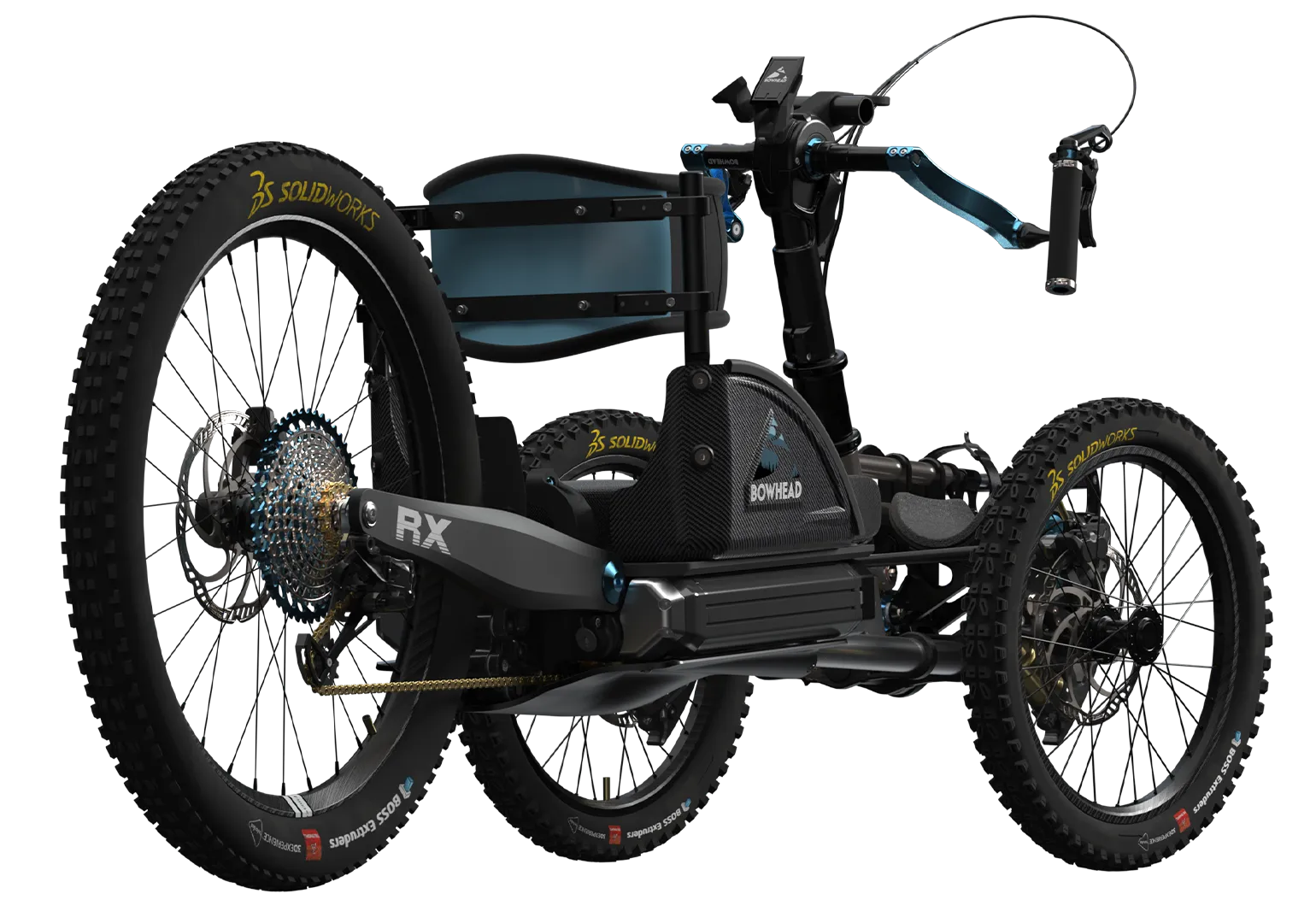
Browser-Based CAD Enhancements
Explore 2024's improvements to cloud-based applications on the 3DEXPERIENCE that integrate with SOLIDWORKS to provide complementary features.
SOLIDWORKS Simulation 2025
Sub-divisional modelling, lattice design, and generative, function-driven design can all integrate with SOLIDWORKS through dedicated applications on the 3DEXPERIENCE platform.
Lead the next generation of designers, and build upon the SOLIDWORKS Cloud Services to sculpt, script, and adapt your designs - all from your browser!
Advanced Simulation
Run complex structural, fluid, electromagnetic and plastic injection analyses from your browser or local machine with advanced simulation solutions, powered by ABAQUS technology.
Accelerate design innovation by solving engineering challenges for your SOLIDWORKS 3D designs with full data associativity via a secure connection to the 3DEXPERIENCE platform.
Digital Manufacturing
Monitor production of any scale with an integrated ERP & MEP system that puts the shop-floor first while supporting every stage of the manufacturing process, from order to shipping.
Accelerate growth with DELMIAWorks, so you’ll always know how much you are making and how well you are making it.
Related Content
What’s New in SOLIDWORKS 2025
Explore what’s new in SOLIDWORKS 2025 and see how advanced automation, improved UI, DraftSight 2025 and cloud-connected workflows can boost your productivity and design accuracy.
What’s New SOLIDWORKS 2023
SOLIDWORKS 2023 introduces refinements to popular features such as patterning and the ‘Move/Copy Body’ command, making everyday tasks more efficient. Combined with numerous behind-the-scenes performance and stability enhancements, this release offers practical improvements for users across a wide range of workflows.
What’s New SOLIDWORKS 2022
Supercharge your teams productivity with brand new enhancements coming in SOLIDWORKS 2022. Expect to see improved drawing capabilities, enhanced 3D texture support, a more flexible ‘Pack & Go’ feature, upgrades to part modeling and more.
What’s New in SOLIDWORKS 2021
SOLIDWORKS 2021 helps boost engineering productivity with new features like edge flanges on curved sheet metal and mesh diagnostics in Simulation, while GPU-accelerated graphics and streamlined assembly tools improve performance and workflow efficiency.