








SOLIDWORKS AI Virtual Companions
Written by: Charlie Pretorius
Published: Sep 29, 2026
| View All Blogs
SOLIDWORKS AI Virtual Companions: Meet AURA, LEO and MARIE
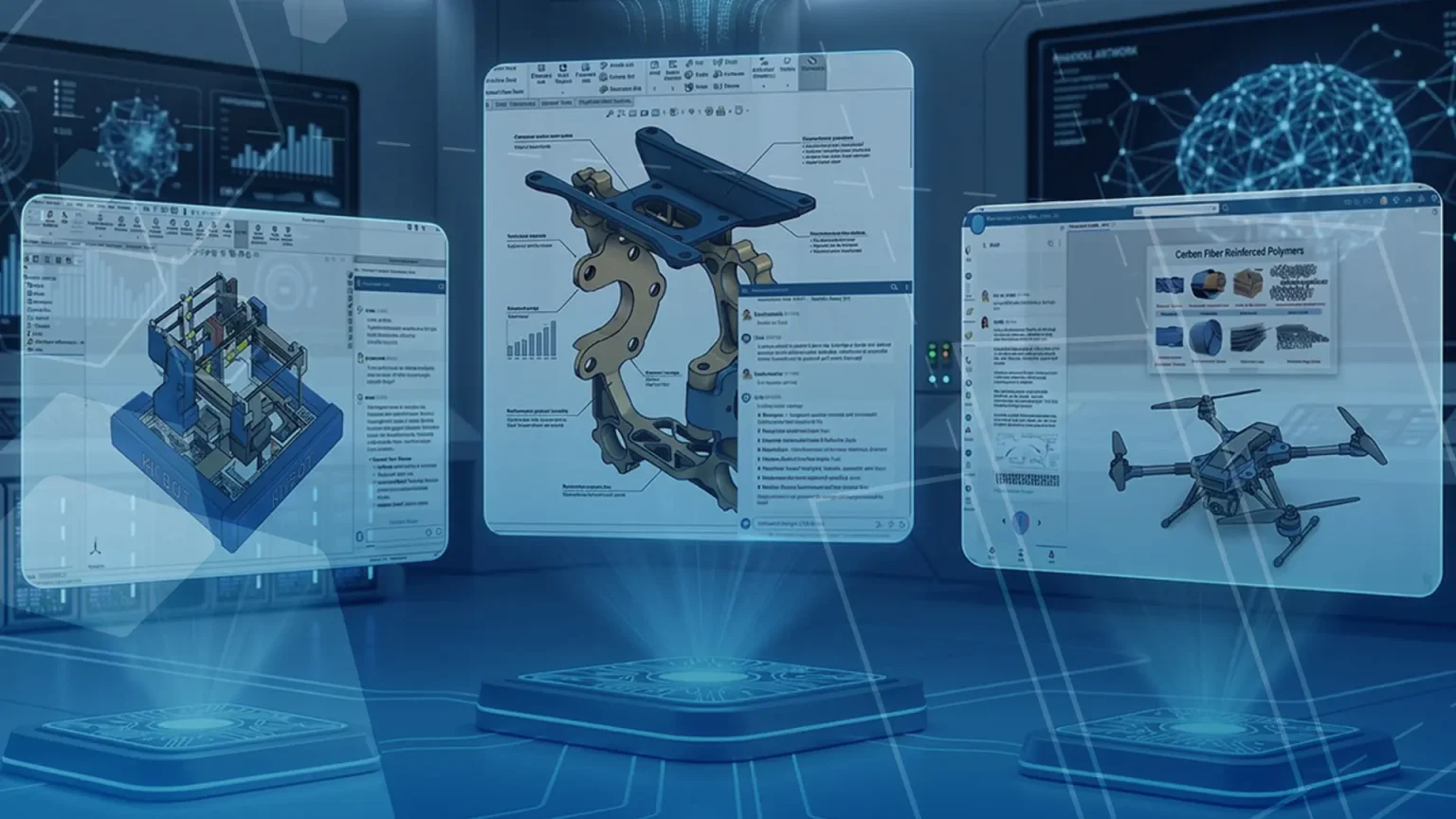
Artificial intelligence is rapidly becoming a practical tool for engineers, helping teams work more efficiently, make better decisions, and bring products to market faster. With the latest developments in SOLIDWORKS AI and the 3DEXPERIENCE platform, Dassault Systèmes has introduced a new generation of AI-powered Virtual Companions designed specifically for engineering, design, and scientific workflows.
These assistants are not generic AI chatbots. They have been developed to understand engineering processes, product development data, and industry-specific challenges, helping users access information, validate designs, and accelerate innovation.
What Are the 3DEXPERIENCE Virtual Companions?
The 3DEXPERIENCE Virtual Companions are AI assistants embedded within the Dassault Systèmes ecosystem. Each companion has been created for a specific purpose, allowing users to access expert guidance directly within their workflow.
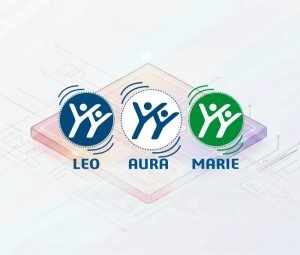
The three companions currently available are:
- AURA – Your enterprise knowledge expert
- LEO – Your AI engineering assistant
- MARIE – Your scientific research specialist
Together, they help bridge the gap between data, expertise, and decision-making, allowing engineers and researchers to spend less time searching for information and more time innovating.
AURA: Connecting You with the Right Knowledge
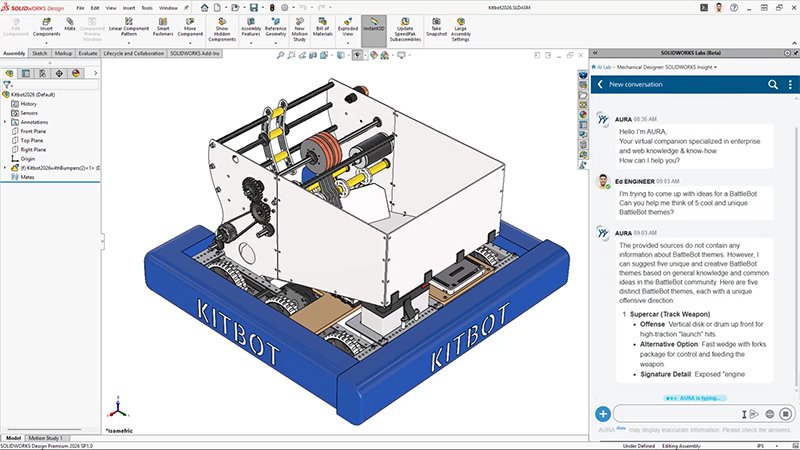
Engineering projects often require teams to navigate vast amounts of information, from product documentation and company standards to regulatory requirements and best practice guidance.
AURA is designed to simplify that process.
By understanding context and intent, AURA can help users quickly locate and interpret relevant information from across the 3DEXPERIENCE platform and connected knowledge sources. Whether you’re researching compliance requirements, looking for design guidance, or searching internal project information, AURA acts as an intelligent knowledge assistant.
For SOLIDWORKS users, this means less time spent hunting through files and documentation and more time focused on engineering work.
Ideal for:
- Design engineers
- Project managers
- Technical leads
- Compliance and quality teams
LEO: The Engineering AI Companion
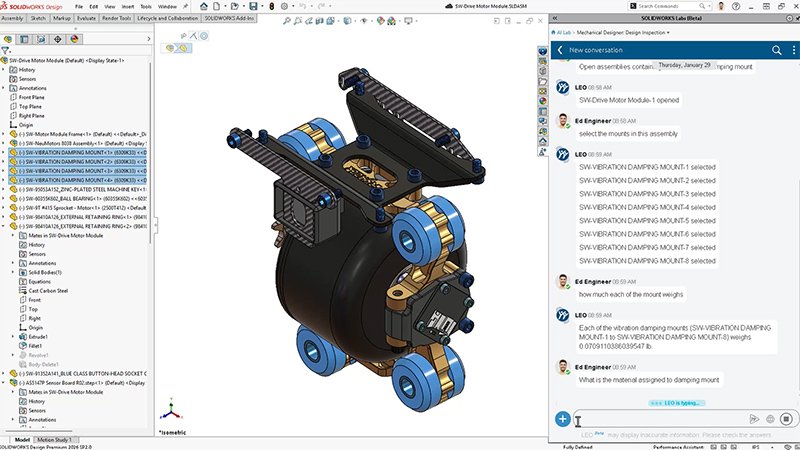
LEO has been developed specifically for engineers and product designers.
Its role is to assist with design, validation, manufacturability, and problem-solving throughout the product development process. By understanding engineering intent and system constraints, LEO can help automate repetitive tasks while supporting informed engineering decisions.
Capabilities include:
- Creating assembly structures from prompts
- Converting images into mesh geometry
- Adding intelligence to imported CAD data
- Supporting simulation and validation workflows
- Assisting with manufacturing-focused design decisions
Rather than replacing engineering expertise, LEO enhances it by reducing manual effort and providing intelligent assistance throughout the design cycle.
Ideal for:
- Mechanical engineers
- Product designers
- Manufacturing engineers
- Simulation specialists
MARIE: AI for Scientific Innovation
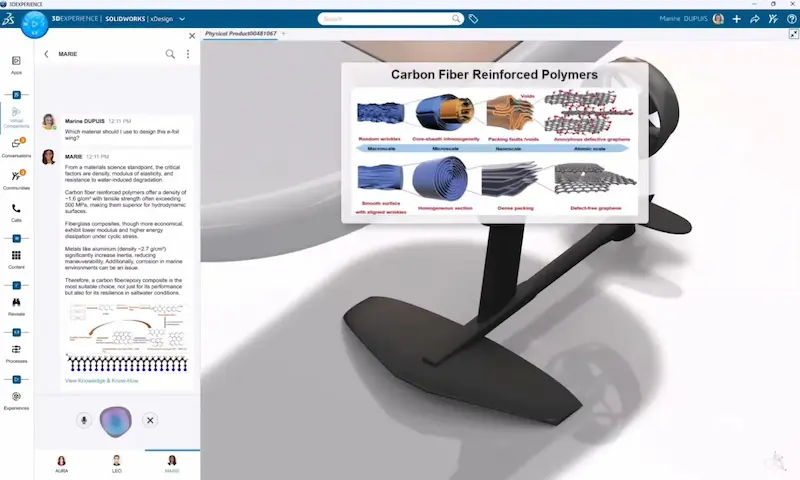
While AURA and LEO are closely aligned with engineering and design, MARIE focuses on scientific research and advanced analysis.
Built to support disciplines such as materials science, chemistry, microbiology, and laboratory research, MARIE helps researchers explore hypotheses, evaluate findings, and accelerate discovery.
Although currently positioned within the wider 3DEXPERIENCE ecosystem rather than directly for SOLIDWORKS design users, MARIE demonstrates how AI is expanding beyond traditional CAD applications and into the broader innovation lifecycle.
Ideal for:
- Research and development teams
- Materials specialists
- Laboratory scientists
- Advanced manufacturing organisations
- A Connected AI Experience
The true value of the Virtual Companions comes from how they work together.
An engineer may use LEO to validate a design, while simultaneously relying on AURA to identify company standards or relevant compliance requirements. Likewise, research teams can combine MARIE’s scientific expertise with AURA’s knowledge retrieval capabilities to support project decision-making.
Dassault Systèmes describes this approach as a new form of human-AI collaboration, where AI becomes a trusted digital colleague rather than simply a tool. The companions are designed to operate across multiple data types, including text, engineering data and simulation results, while maintaining enterprise-grade governance and security.
What Does This Mean for SOLIDWORKS Users?
For many organisations, AI adoption has traditionally been limited to general productivity tools. The introduction of engineering-focused AI assistants represents something far more significant.
SOLIDWORKS users can now begin incorporating AI directly into everyday engineering processes, helping to:
- Reduce time spent searching for information
- Accelerate design creation and modification
- Improve validation and decision-making
- Streamline collaboration across teams
- Support innovation with data-driven insights
As these capabilities continue to evolve, AI will become an increasingly important part of the engineering toolkit, helping organisations remain competitive while enabling engineers to focus on higher-value work.
The Future of Engineering Is Collaborative AI
The arrival of AURA, LEO and MARIE marks an important milestone in the evolution of SOLIDWORKS and the 3DEXPERIENCE platform. Rather than automating engineers out of the process, these Virtual Companions are designed to amplify human expertise, helping teams work smarter and solve more complex challenges.
Whether you’re seeking instant access to engineering knowledge, looking to accelerate design validation, or exploring the future of AI-powered product development, the 3DEXPERIENCE Virtual Companions offer a glimpse of what’s next for engineering.
Categorised as: AI | Automation | Design | Software
Want to learn more about SOLIDWORKS AI, Cloud Services, and the latest 3DEXPERIENCE innovations?
Speak to the Solid Solutions team today and discover how AI-powered engineering tools can help your organisation design faster, collaborate more effectively, and innovate with confidence.

Related Posts
How to Find Reaction Forces in SOLIDWORKS Simulation
SOLIDWORKS helps us to find resultant forces through simulation studies. These virtual tests reduce the need for physical prototypes and give us an accurate answer.

Setting number of decimal places in a table on a drawing
When creating an equation in a drawing general table, is it possible to define the…
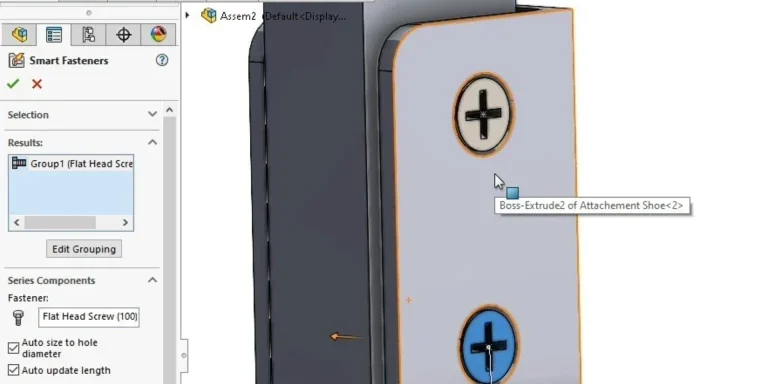
SOLIDWORKS Smart Fasteners
SOLIDWORKS Smart Fasteners is a really useful time saving tool, allowing you to automatically insert toolbox fasteners such as bolts and screws into an assembly providing there is a standard hole.
Why is my Flat Pattern not showing in SOLIDWORKS Drawings?
This may be linked to how the drawing is saved or it can be related to how sheet metal parts are displayed in drawings, read on to find out how to fix it.

SOLIDWORKS Tips: Are you Making this Common Mistake in Fatigue Analysis?
Simulation is a vital and complex engineering need. Fortunately, SOLIDWORKS makes it easy to test, correct mistakes and obtain accurate results.
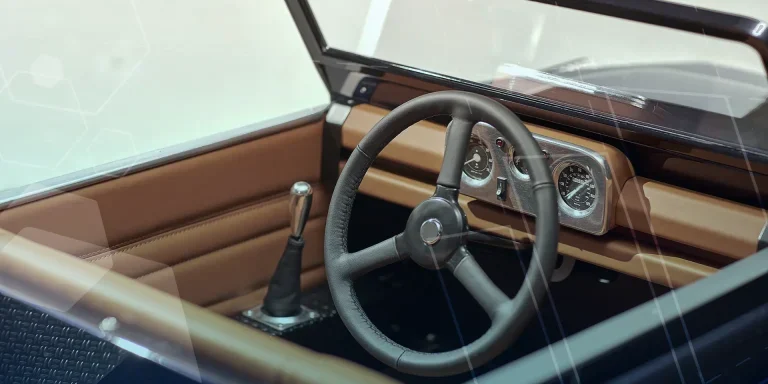
Series 1 Land Rover Pedal Car – Made Easy with Solidworks!
The Series1 began production in 1948 designed to help get Britain farming after the war effort. It grew extremely popular and today enthusiasts are prepared to throw their life savings at restoring originals from that period.
SOLIDWORKS Visualize. Why go pro? – 6 Post Processing
In this blog we will be look at the post-processing options that can be found in SOLIDWORKS Visualize
SOLIDWORKS Visualize. Why go pro? – 7 Lighting
SOLIDWORKS Visualize uses a non-biased rendering engine, which allows for physically accurate lighting within a scene. It generates images with high amount of realism and correct set up can replicate photo studio lighting.
How to Get Your Serial Number for SOLIDWORKS Visualize Standard
Want to download Visualize to make photorealistic renders? Follow this guide for accessing your Visualize serial number that comes bundled in with SolidWorks Professional and Premium.
How to Recover SOLIDWORKS Files After a Crash
SOLIDWORKS has two different methods to help you recover from an unexpected crash or loss of data in the form of auto-recovery and back-up settings.