











Understanding SOLIDWORKS Packages, Cloud Services & xDesign [2026]

Written by: Sophie Dranfield
Published: Feb 20, 2026
| Last Updated: February 26, 2026
| View All Blogs
Cutting through naming changes, new bundles, cloud tools, and product structure.
Over the past year, many designers and engineers have asked us about the evolving SOLIDWORKS product naming, cloud features, and browser‑based tools. With SOLIDWORKS Cloud being renamed to SOLIDWORKS xDesign along with other naming updates to both the desktop products and the 3DEXPERIENCE platform, it is understandable that terms like Cloud Services, xDesign, and browser‑based CAD can feel unclear.
This guide explains everything in one place, simply and without jargon, so you can understand:
- What is included in your SOLIDWORKS Desktop subscription
- What Cloud Services provides
- How SOLIDWORKS xDesign and other browser‑based tools fit in
- Why certain products are visible on the Solid Solutions website while others appear under the TriMech Group
Three Layers Working Together
The SOLIDWORKS Ecosystem in 2026
SOLIDWORKS today can be thought of in three connected layers:
1. SOLIDWORKS Desktop (Standard, Professional, Premium, Ultimate)
Installed locally, full‑featured, and the foundation of most engineering workflows.
2. Cloud Services
Included with new subscription licences purchased after July 2023, providing cloud storage and collaboration tools that integrate directly with SOLIDWORKS Desktop.
3. Browser-Based CAD Tools – SOLIDWORKS xDesign (formerly SOLIDWORKS Cloud)
Lightweight modelling tools that run fully in a browser and connect to the 3DEXPERIENCE platform. These can work in tandem with SOLIDWORKS or as a standalone experience.
These layers complement each other, so you do not have to choose between them.
Your Traditional CAD Tools
SOLIDWORKS Desktop Packages
The well-known desktop packages remain unchanged and continue to deliver the core design capabilities most teams rely on.
SOLIDWORKS Design Standard
- Core 3D modelling for parts and assemblies.
- Drawings and other documentation
- Import/export tools.
- Advanced AI Automation
SOLIDWORKS Design Professional
Everything in Standard, plus:
- Toolbox libraries
- Photorealistic rendering
- Access to SOLIDWORKS PDM Standard
- Task scheduling for automation
SOLIDWORKS Design Premium
Everything in Professional, plus:
- Advanced FEA simulation
- Motion analysis
- Electrical and Pipe Routing
- Advanced costing for parts and assemblies
SOLIDWORKS Design Ultimate
Everything in Premium, plus:
- Advanced bill of material management
- Project and Resource Management
- Product structure management
- Lean manufacturing tools
All desktop tools continue to run locally on your Windows workstation. Added SOLIDWORKS Design Ultimate functionality runs in browser.
What “Cloud Services” Really Means
A common misconception is that Cloud Services includes browser-based CAD. It does not.
Cloud Services provides:
- Secure online storage
- Simple revision control with approval workflows
- Cloud-based sharing and commenting
- A secure web-based 3D viewer for stakeholders without SOLIDWORKS installed.
- The ability to save SOLIDWORKS files directly to the cloud.
- 5-axis programming and nesting software
Think of Cloud Services as your collaboration and data backbone, not a modelling environment.
Cloud Services does not include:
- SOLIDWORKS xDesign
- Browser‑based CAD modelling
- Full 3DEXPERIENCE roles
- PLM/governance tools beyond basic functionality
Those belong to the next category.
Browser-Based CAD Tools: What is SOLIDWORKS xDesign (formerly named SOLIDWORKS Cloud)
Over the past few years, Dassault Systèmes has offered several browser-based design apps, including:
- xDesign – 3D Creator
- xShape – 3D Sculptor
- xSheetMetal – 3D Sheetmetal Creator
- xFrame – 3D Structure Creator
- xMold – 3D Mold Creator
- xDefine – Manufacturing Definition Creator
Previously this package was known as SOLIDWORKS Cloud, in 2026 this has been renamed to SOLIDWORK xDesign. However, you may still see individual app names referenced across materials and documentation.
This new name should help prevent confusion as while these cloud tools offer many of the same benefits as the desktop version of SOLIDWORKS they are distinctly different, and the old name of SOLIDWORKS Cloud may have implied that it was identical to the desktop SOLIDWORKS .
These tools:
- Run entirely in your browser
- Work on any internet connected device across Windows, Mac, ChromeOS and tablets
- Integrated with the 3DEXPERIENCE platform.
- Are ideal for conceptual design, ideation, and mobility.
- Use .sldxml files and not traditional SOLIDWORKS files
They are not included in the standard SOLIDWORKS Desktop subscription but are available as additional 3DEXPERIENCE roles.
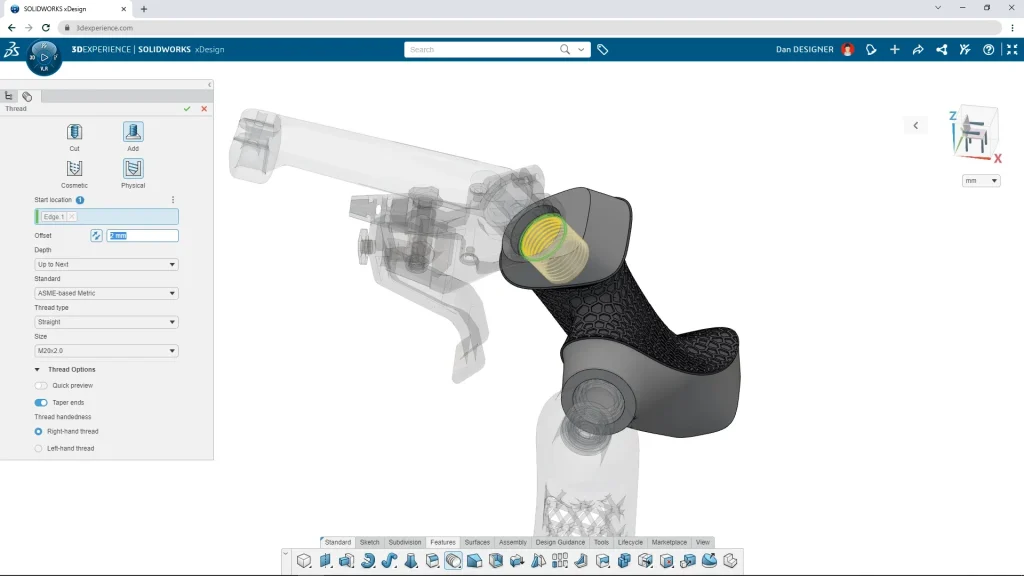
Editing a Part in SOLIDWORKS xDesign (formerly SOLIDWORKS Cloud)
How SOLIDWORKS and 3DEXPERIENCE Tools Are Organised Across the TriMech Group
Solid Solutions lists and supports all the tools that form part of the SOLIDWORKS ecosystem for UK & Ireland customers. This includes desktop products, Cloud Services, and selected browser‑based tools such as SOLIDWORKS xDesign. These are all available directly on our website.
However, the 3DEXPERIENCE platform is much broader. It includes advanced governance, simulation, lifecycle management and industry‑specific roles. These extended roles are supported by TriMech Enterprise Solutions, our specialist division within the TriMech Group.
How the portfolios are divided:
- Solid Solutions: SOLIDWORKS Desktop, Cloud Services, Simulation, Data Management, CAM, and selected browser‑based tools like xDesign.
- TriMech Enterprise: Full 3DEXPERIENCE platform roles, advanced cloud simulation, enterprise governance, and industry‑scale implementations.
This approach ensures customers always get expert‑level support based on the tools they actually use. If a requirement sits outside the Solid Solutions portfolio, we seamlessly connect you with the appropriate TriMech Enterprise specialists.
Should you use Browser-Based CAD or Stay on Desktop?
Both have their place. Here is a simple way to decide:
Choose SOLIDWORKS Desktop if you:
- Collaborate with large assemblies.
- Require full engineering detail.
- Need third party add-ins
- Need advanced simulation or routing.
- Rely on performance and automation.
- Need traditional SOLIDWORKS file formats
Consider SOLIDWORKS xDesign if you:
- Want to create concepts on any device.
- Work remotely or need mobility.
- Prefer a modern, lightweight interface.
- Want quick access for ideation and collaboration.
Summary Table
| Feature/Tool | Included in New SOLIDWORKS Subscription? | Browser-Based? | Best For |
|---|---|---|---|
| SOLIDWORKS Desktop | Yes | No | Complete engineering workflows |
| Cloud Services | Yes | Partly | Collaboration, sharing & cloud storage |
| xDesign | No | Yes | Conceptual & flexible modelling |
| Other 3DEXPERIENCE apps | No | Yes | Governance, simulation, manufacturing |
Keeping Things Clear for 2026 and Beyond
Naming changes and evolving cloud tools can easily create uncertainty, especially when desktop and browser-based tools are discussed together. Our aim is to keep things simple and transparent for SOLIDWORKS users across the UK & Ireland.
If you have questions about:
- What is included in your licence
- How Cloud Services works
- Whether SOLIDWORKS xDesign is right for you
- How the TriMech Group supports the wider toolset
Our team is here to help.
Want to Learn More?
Join one of our upcoming SOLIDWORKS customer events to see what is new in the 2026 release, across both desktop and cloud-connected tools.
Prefer a conversation? Contact our applications or Customer Development teams, and we will help you determine the setup that is best for your workflow.
Categorised as: SOLIDWORKS Cloud Services | SOLIDWORKS Design | SOLIDWORKS xDesign
Discover our SOLIDWORKS Subscription
Get the most from your tools and the best from your designers with a SOLIDWORKS subscription package that is designed to help you succeed.

Related Posts

How to Find Reaction Forces in SOLIDWORKS Simulation
SOLIDWORKS helps us to find resultant forces through simulation studies. These virtual tests reduce the need for physical prototypes and give us an accurate answer.

Setting number of decimal places in a table on a drawing
When creating an equation in a drawing general table, is it possible to define the…

SOLIDWORKS Smart Fasteners
SOLIDWORKS Smart Fasteners is a really useful time saving tool, allowing you to automatically insert toolbox fasteners such as bolts and screws into an assembly providing there is a standard hole.

Why is my Flat Pattern not showing in SOLIDWORKS Drawings?
This may be linked to how the drawing is saved or it can be related to how sheet metal parts are displayed in drawings, read on to find out how to fix it.

SOLIDWORKS Tips: Are you Making this Common Mistake in Fatigue Analysis?
Simulation is a vital and complex engineering need. Fortunately, SOLIDWORKS makes it easy to test, correct mistakes and obtain accurate results.

How to Recover SOLIDWORKS Files After a Crash
SOLIDWORKS has two different methods to help you recover from an unexpected crash or loss of data in the form of auto-recovery and back-up settings.

Redesigning Santa’s Sleigh in SOLIDWORKS
Every year Father Christmas has to fly in his sleigh to deliver presents to boys and girls all over the world in just one night. To put this into perspective, it takes a little under 24 hours to fly from London (UK) to Sydney (Australia) in a streamlined Boeing 747, whereas Father Christmas’ mode of transport is believed to be a rather non-aerodynamic sleigh.

SOLIDWORKS Grid Systems – hidden away, but very useful!
Rory Niles provides an insight into the uses for Grid Systems within SOLIDWORKS 2018

Furniture Design Made Easy with SOLIDWORKS
Calling all furniture and interior designers: the days of creating square cabinets are over. What if we told you there’s a much easier way to bring your products to life?
Here’s 10 reasons why we feel SOLIDWORKS is better than any other software, especially if you’re designing furniture:
Making 3D Textures from Images on SOLIDWORKS
Turn images into 3D geometry with brand new SOLIDWORKS 3D Textures Feature