











SOLIDWORKS Tips: How to Create Part Templates in SOLIDWORKS

Written by: Terry O'Reilly
Published: Aug 2, 2023
| View All Blogs
As a versatile and hugely customisable piece of CAD software, SOLIDWORKS part templates can contain huge amounts of metadata through custom properties.
These can be harnessed by creating templates for SOLIDWORKS parts, assemblies, and drawings.
Unlike some other CAD software, SOLIDWORKS doesn’t limit the number of templates you can create – you can create as many part, assembly, and drawing templates as you need.
Creating templates is straightforward, but the key to a good template is how much time it saves.
So, let’s look at how to create part templates in SOLIDWORKS to build in intelligence and save some time!
 A new template starts with an open file. Create a new Part file and head to the File Properties.
This is where we can build in metadata for future parts.
We want to build a template that will contain the part description and automatically populates the following properties:
- PartNo (the part filename)
- Material
- Weight
Alongside custom properties, features, sketches, and reference geometry can be saved into a part template. So if you’re just making a generic template, then make sure you have an empty Feature Tree before continuing.
If you make variations on a stock block or need common features between parts, then you can model them up and save them into the template too.
HOW TO ADD CUSTOM PROPERTIES IN SOLIDWORKS
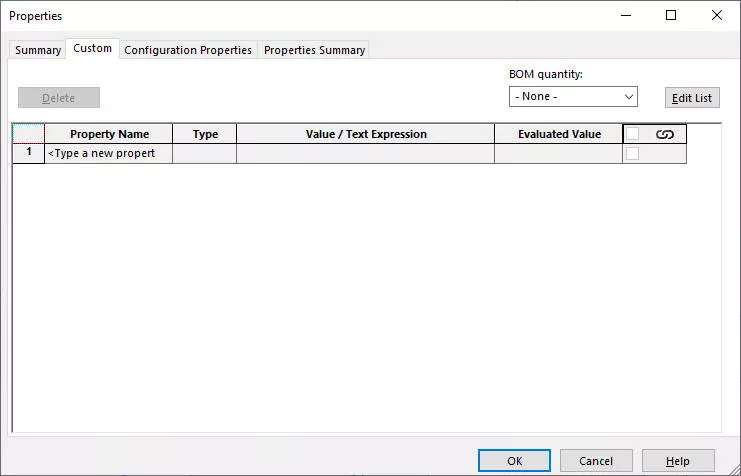
In the Custom menu, click on the cell under Property Name and drop-down the list of properties. You can choose any property from the list.
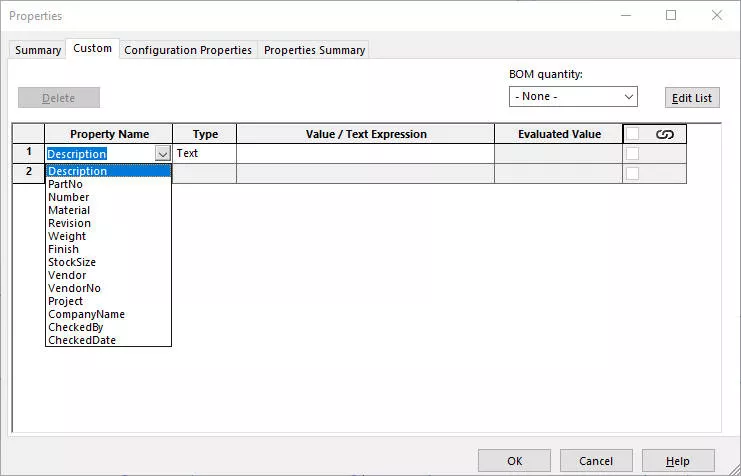
Choose Description from the list. Leave the value blank so this can be input by the designer for each part, or by the SOLIDWORKS PDM data card.
Let’s add the material property next. In the next row down, select Material from the Property Name drop down.
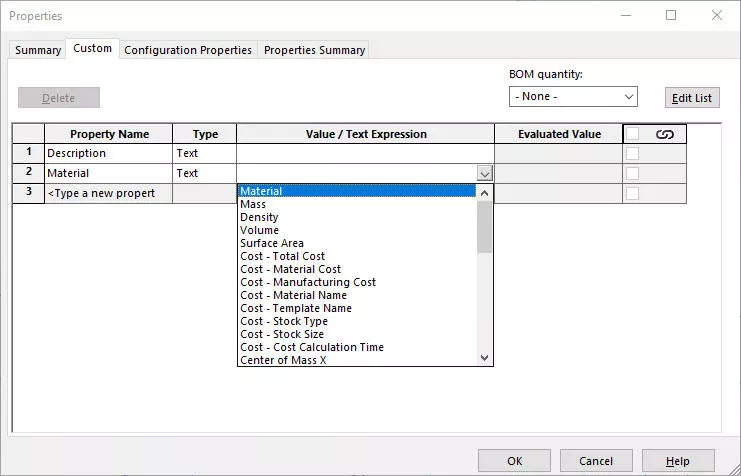
Some properties have data associated with them for their descriptions, and Material is one of these. These can be viewed from the drop down in the Value/Text Expression field.
Link the value with the part material through the drop down. This means that the material of the part will be updated here even if the part’s material is modified.
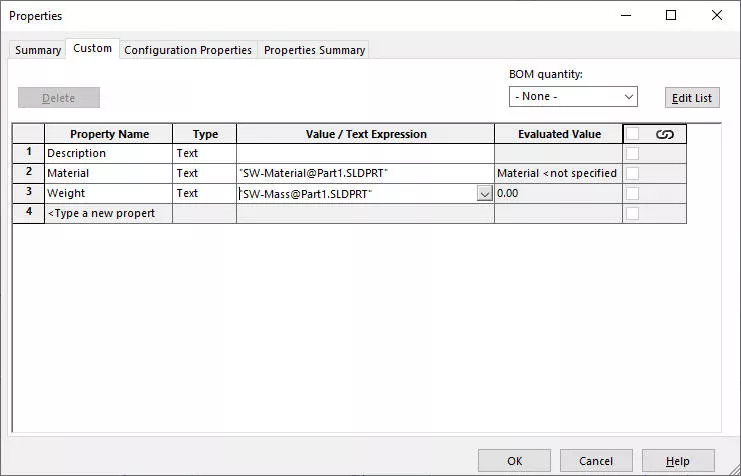
Similarly, add a new cell Weight and link it to the part’s mass by selecting Mass from the list in Value/Text Expression. When the part is modified, this will show the updated value in the right-hand column.
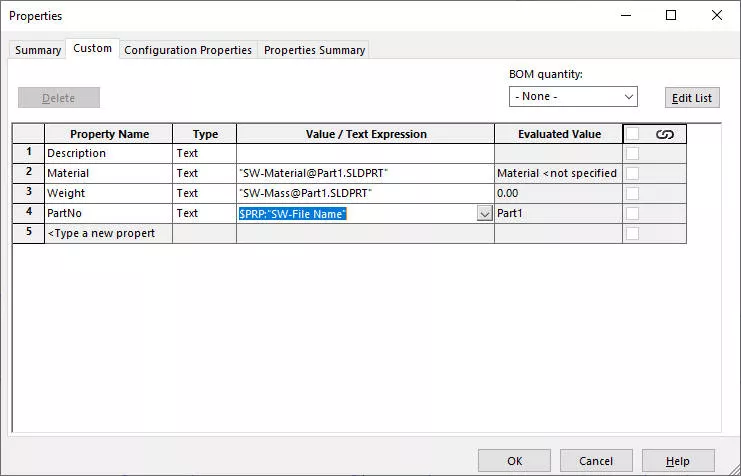
To add the PartNo, select it from the drop down and in the Value/Text Expression field, type in $PRP:”SW-File Name”
This will populate the value with the file name of the open part.
WHY SHOULD I USE CUSTOM PROPERTIES?
Custom properties are one of the most useful features in SOLIDWORKS as other SOLIDWORKS files can read these off automatically.
For example, the title block on a drawing can have empty text fields that are looking for the Material property. So when you insert a drawing view, the title block automatically fills itself in.
Bills of Materials can also read off these properties from the individual parts that you have used in an assembly. By building custom properties into a template, you save yourself and other designers a tonne of time.
HOW TO SAVE DOCUMENT PROPERTIES TO A SOLIDWORKS TEMPLATE
Document Properties can also be set in a template.
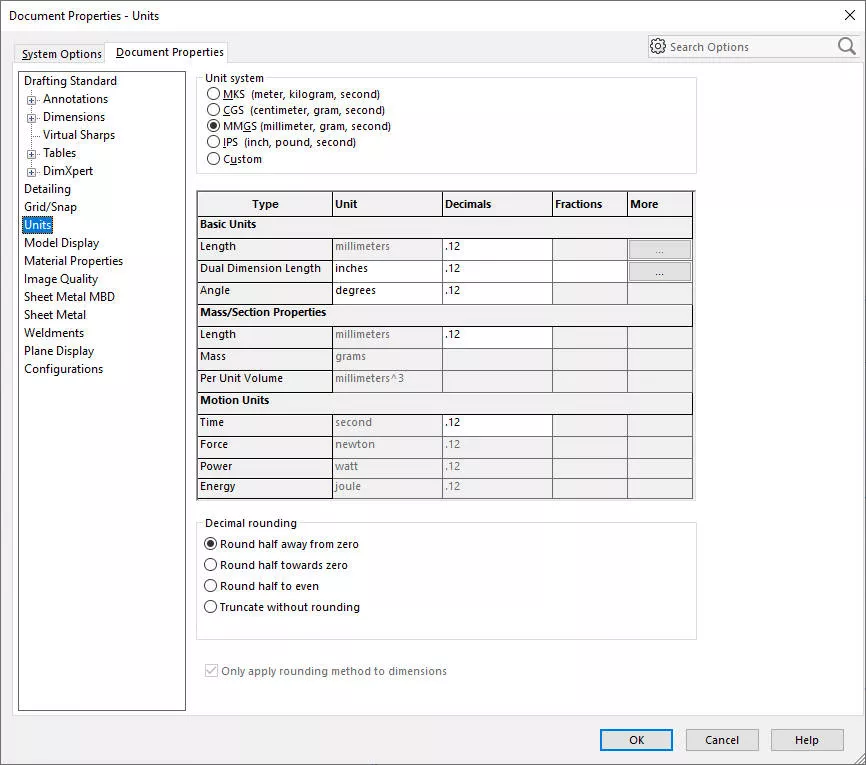
Any settings found under the Options cog > Document Properties can be saved to the template, so the units can be set to mm as required.
We can also change the SOLIDWORKS background and set the default view position within these settings if desired.
HOW TO SAVE A SOLIDWORKS PART TEMPLATE
When you’re ready, use Save As to save the empty part as a Part Template (a .prtdot file).
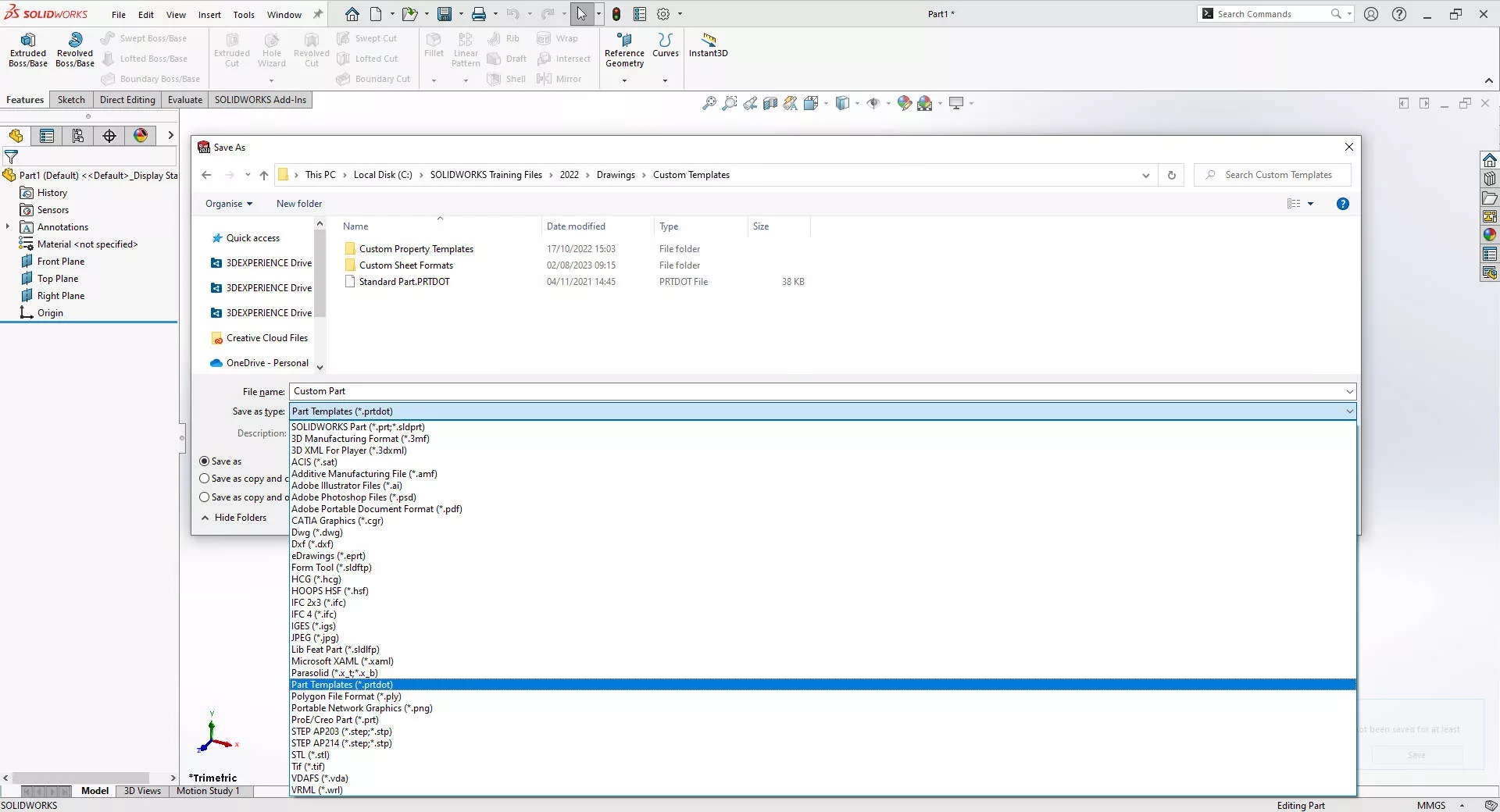
Before you browse to your template location, change the file type to Part Template before you start browsing to where you want to keep your templates. This will take you to the location saved in your File Locations.
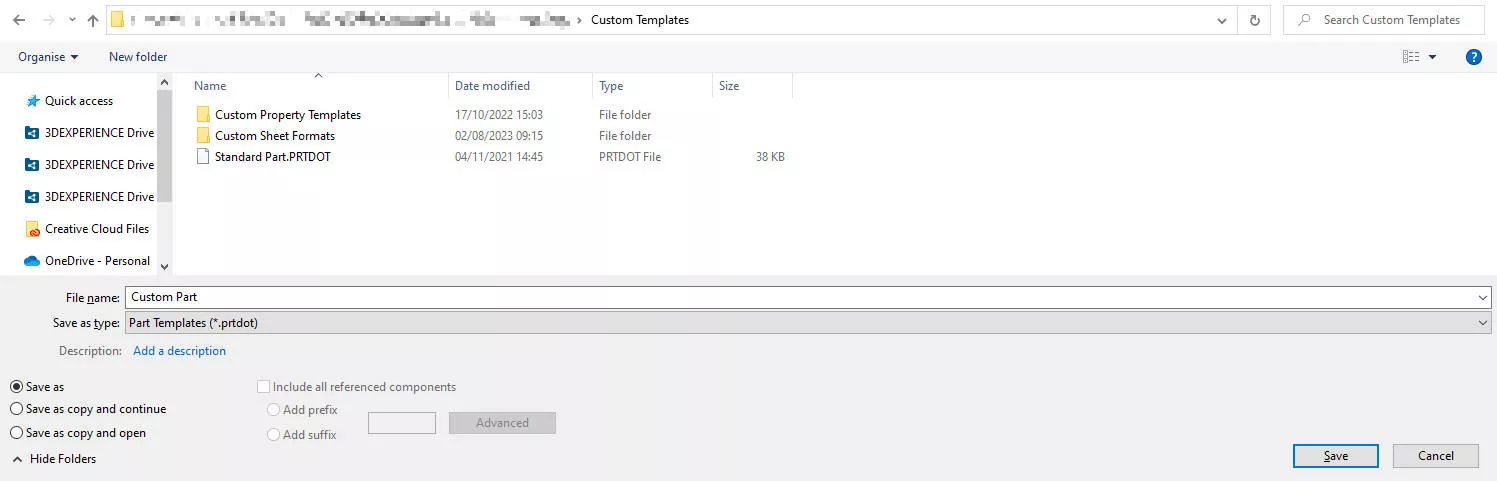
TOP TIP: Create a new folder outside of your default template location for your Custom Templates so you don’t save any to where the standard templates are. This will prevent losing any customised templates when upgrading, un-installing, or reinstalling the software!
Save the part template within the new folder. If you are using SOLIDWORKS PDM, make sure that this folder is created within the shared vault.
HOW TO CHANGE DEFAULT SOLIDWORKS TEMPLATE LOCATIONS
We need to tell SOLIDWORKS where to find our templates.
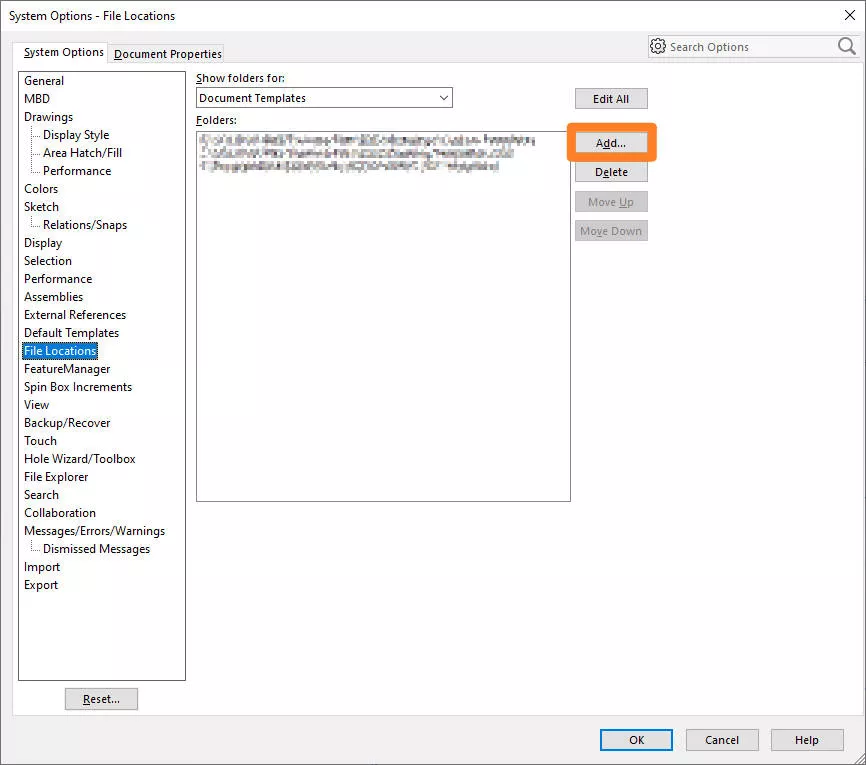
Under the Options cog > System Options > File Locations, ensure Document Templates is selected from the drop-down list at the top of the window.
Click on the Add button on the right, and browse to the folder where you saved your template and hit OK down at the bottom.
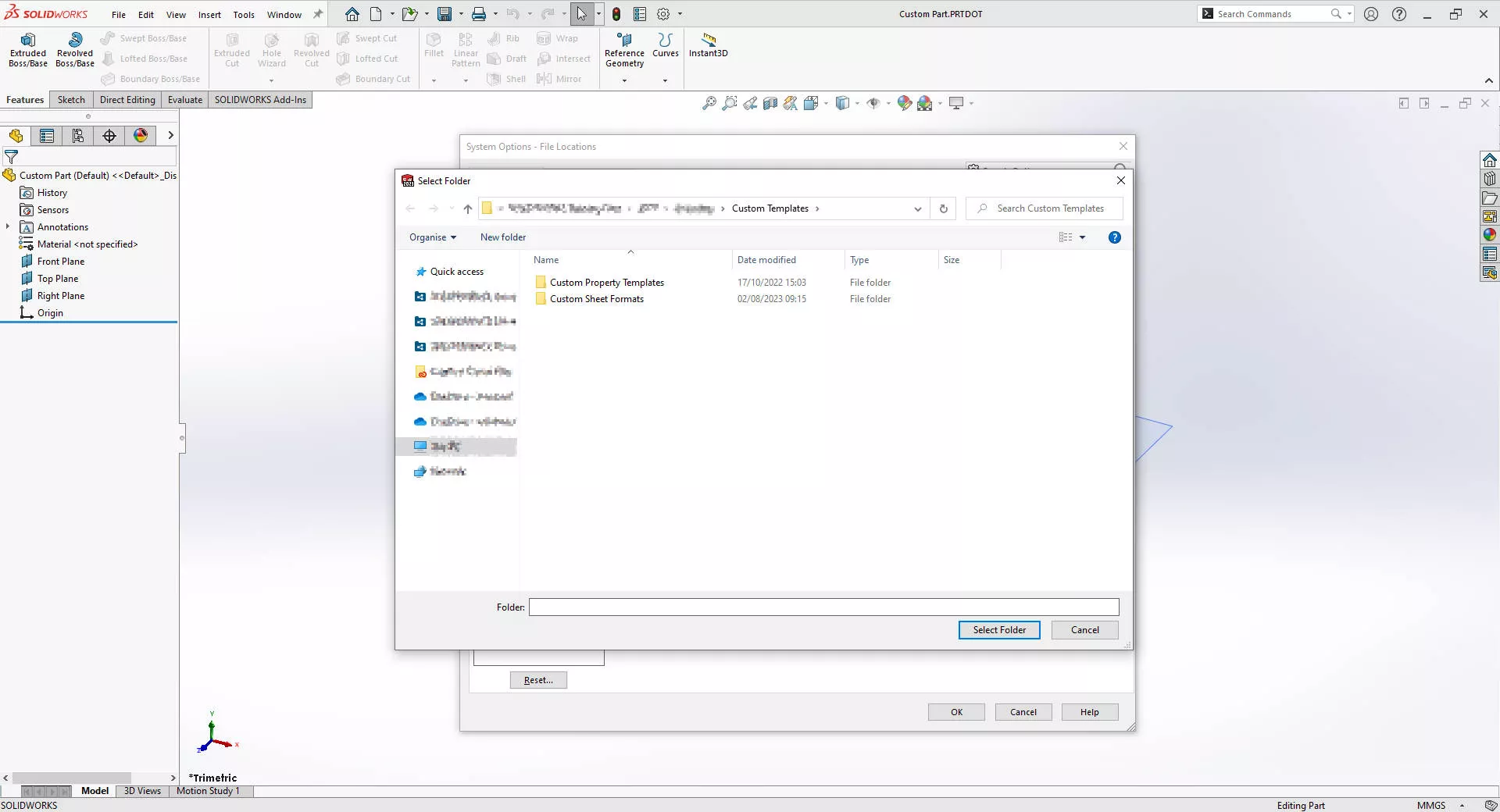
There’s no need to add this folder to any search paths so click No when prompted.
Now the next time you create a new part, click on the Advanced button at the bottom left to access your custom templates.
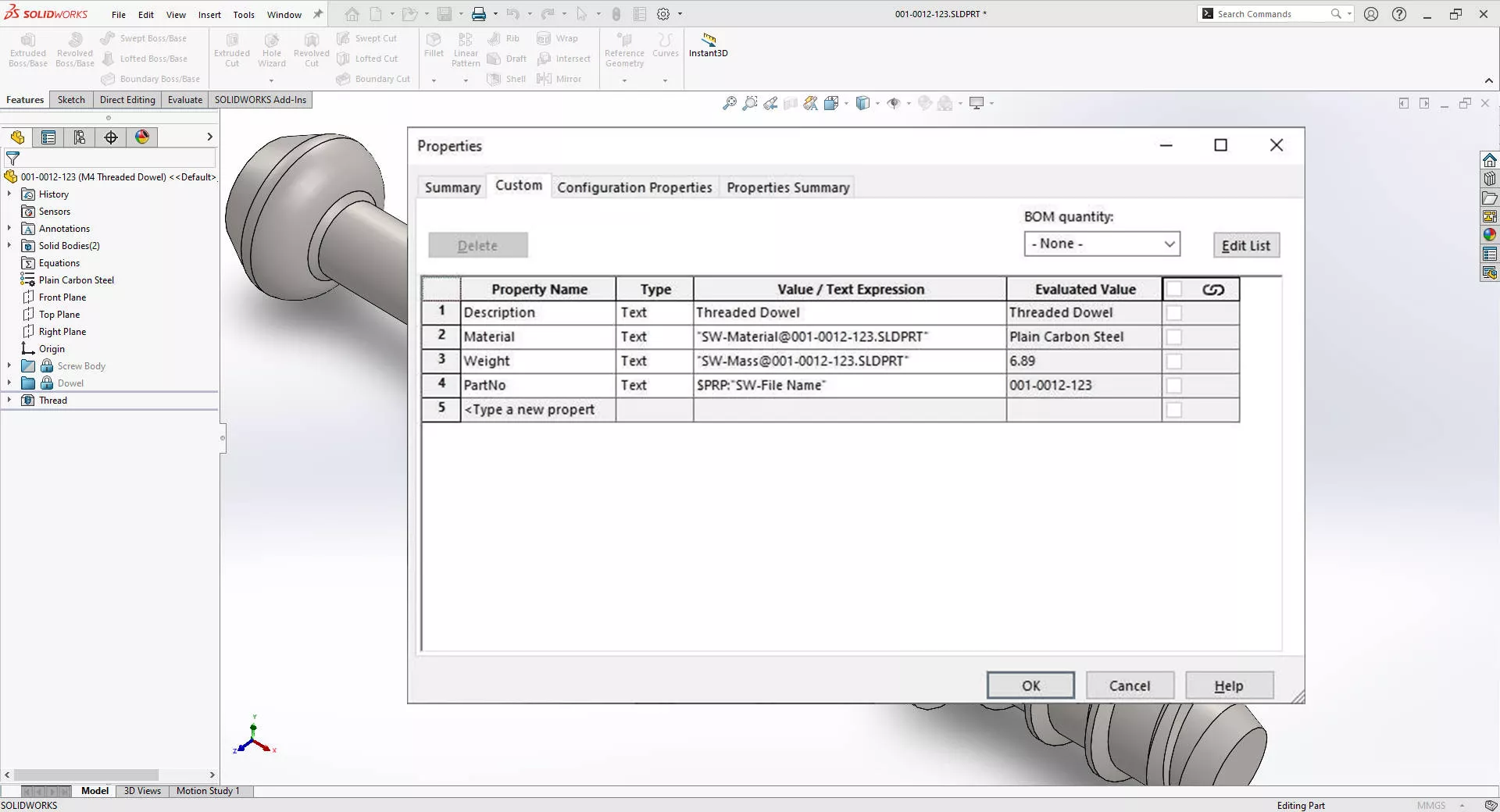
Every part you create using the custom template will have the custom properties already assigned, the unit settings you require, and anything else you’ve built in.
Categorised as: SOLIDWORKS Design | Tech Tips
Get Expert SOLIDWORKS Training
Get hands-on SOLIDWORKS training in-person or online, led by certified experts with real industry experience. With venues across the UK & Ireland, it’s easy to start learning today.
Related Posts

How to Find Reaction Forces in SOLIDWORKS Simulation
SOLIDWORKS helps us to find resultant forces through simulation studies. These virtual tests reduce the need for physical prototypes and give us an accurate answer.

Setting number of decimal places in a table on a drawing
When creating an equation in a drawing general table, is it possible to define the…

SOLIDWORKS Smart Fasteners
SOLIDWORKS Smart Fasteners is a really useful time saving tool, allowing you to automatically insert toolbox fasteners such as bolts and screws into an assembly providing there is a standard hole.

Why is my Flat Pattern not showing in SOLIDWORKS Drawings?
This may be linked to how the drawing is saved or it can be related to how sheet metal parts are displayed in drawings, read on to find out how to fix it.

Why is SOLIDWORKS Crashing?
It’s one of the great mysteries of life – why is SOLIDWORKS crashing? Let’s explore how SOLIDWORKS crashes and how we can improve performance in SOLIDWORKS.

SOLIDWORKS Tips: Are you Making this Common Mistake in Fatigue Analysis?
Simulation is a vital and complex engineering need. Fortunately, SOLIDWORKS makes it easy to test, correct mistakes and obtain accurate results.

Tech Support Blog: Why are my SOLIDWORKS BOM Quantities Wrong?
Why are my SOLIDWORKS BOM Quantities Wrong? A support call cropped up this week which…

How to Get Your Serial Number for SOLIDWORKS Visualize Standard
Want to download Visualize to make photorealistic renders? Follow this guide for accessing your Visualize serial number that comes bundled in with SolidWorks Professional and Premium.

How to Recover SOLIDWORKS Files After a Crash
SOLIDWORKS has two different methods to help you recover from an unexpected crash or loss of data in the form of auto-recovery and back-up settings.

Redesigning Santa’s Sleigh in SOLIDWORKS
Every year Father Christmas has to fly in his sleigh to deliver presents to boys and girls all over the world in just one night. To put this into perspective, it takes a little under 24 hours to fly from London (UK) to Sydney (Australia) in a streamlined Boeing 747, whereas Father Christmas’ mode of transport is believed to be a rather non-aerodynamic sleigh.