











Using SOLIDWORKS? Here are 5 Reasons Why You Need to Consider Buying a Professional Workstation
Written by: Terry O'Reilly
Published: Jan 15, 2025
| View All Blogs
As professional engineering CAD software, SOLIDWORKS can demand a lot from your PC.
So whether you’re looking to install SOLIDWORKS for the first time, or are simply exploring your options during an upgrade, it’s important to carefully consider what computer you intend to run it on.
We are often asked what the difference is between professional workstations vs regular desktop PCs and laptops built from off-the-shelf consumer grade parts.
So let’s walk you through 5 key reasons why professional workstations are the best choice for SOLIDWORKS users.
#1 Testing and Certification
Workstations are built around a tightly-controlled set of component options which undergo extensive internal testing to ensure compatibility and durability before being distributed.
They are then sent to software vendors such as SOLIDWORKS and Dassault Systèmes to undergo specific tests for certification to ensure they are compatible with SOLIDWORKS and other software.
When it comes to navigating Technical Support calls, we can only get support from the development teams on certified machines.
Issues that occur on unsupported systems must be replicated on a supported platform before we can get assistance from the R&D team.
View the full list of SOLIDWORKS system requirements here and view the list of certified hardware for use with SOLIDWORKS.
#2 Workstation-Grade Components
Specific workstation chipsets and motherboards are used with additional features such as support for Intel V-Pro Enterprise remote management and Error Correction Code memory.
These help to mitigate soft errors that might occur due to environmental factors and would otherwise result in a software or system instability.
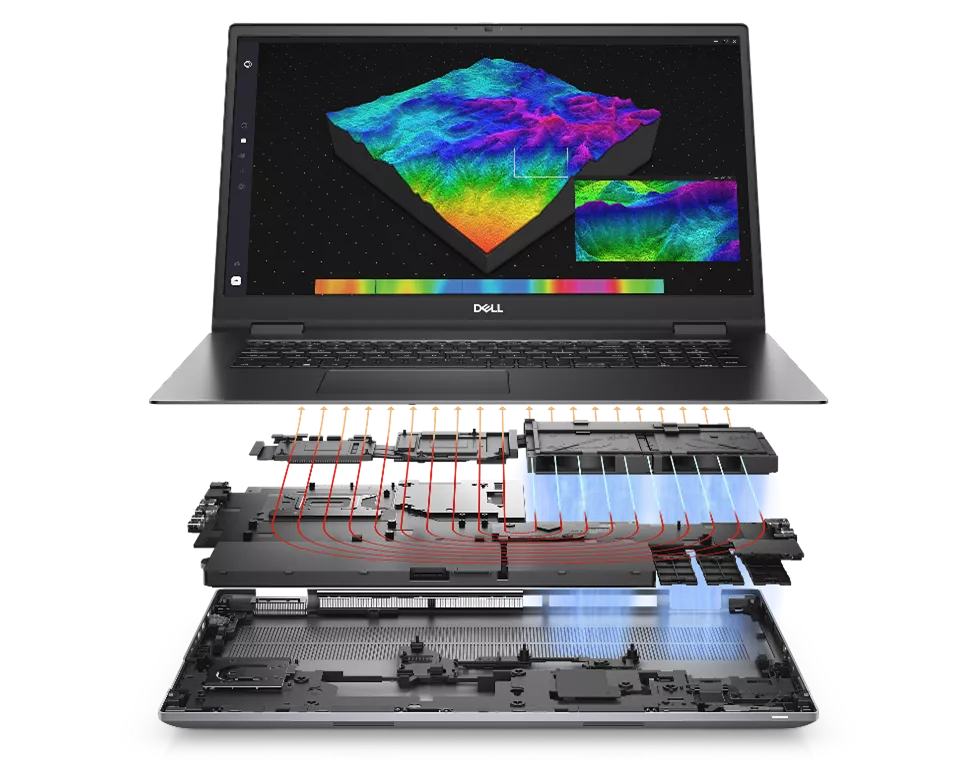
The Dell workstations recommended by Solid Solutions build upon this with Dell Reliable Memory Pro Technology which maps out faulty segments of memory to avoid them being written to again and, if errors reach a critical level, proactively suggests memory module replacement to avoid future problems.
#3 NVIDIA Professional Graphics Cards
In developing SOLIDWORKS, Dassault Systèmes have taken advantage of powerful NVIDIA professional graphics cards by including an enhanced graphics engine within SOLIDWORKS to utilise modern Open GL graphics techniques and accelerate performance with the most complex datasets.
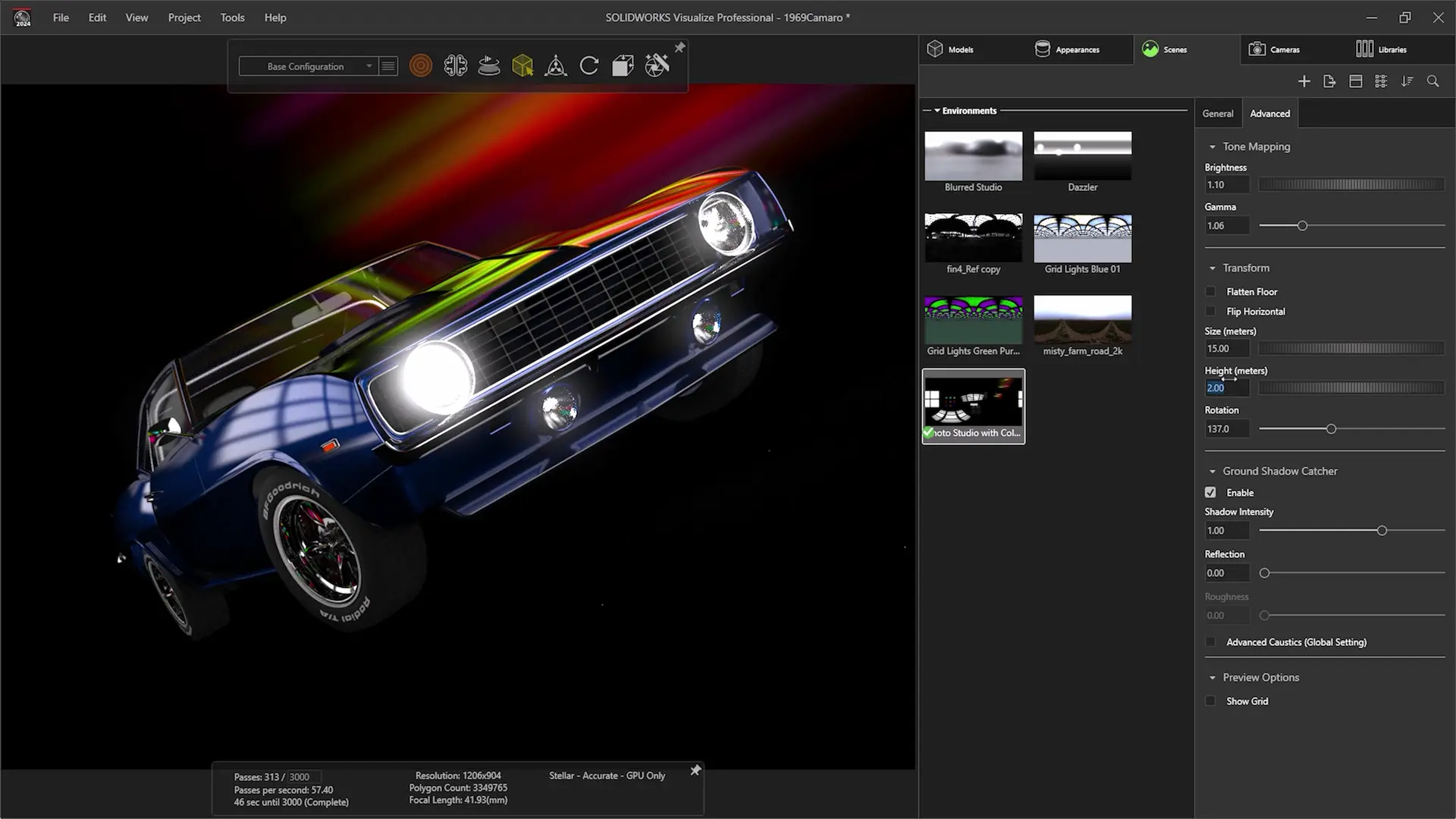
SOLIDWORKS Visualize has always leveraged the power of NVIDIA graphics cards and continues to be at the forefront of technology as SOLIDWORKS Visualize 2025 leverages the DS Stellar rendering engine.
This powerful engine allows SOLIDWORKS users to harness AI upscaling and denoising abilities based on NVDIA’s Deep Learning Super Sampling (DLSS) technology when rendering projects with SOLIDWORKS Visualize Professional.
#4 Dell Design to Perform
Workstations are more than a sum of their parts, and a considerable amount of R&D goes into ensuring that components perform at their peak for extended periods.
Professional workflows are different to many consumer-level tasks. For instance, while carrying out CFD analysis with SOLIDWORKS Flow Simulation, or rendering product images in SOLIDWORKS Visualize, the system may run at 100% for extended periods, compared to activities like gaming, where shorter bursts of high performance are preferred over long-term endurance.
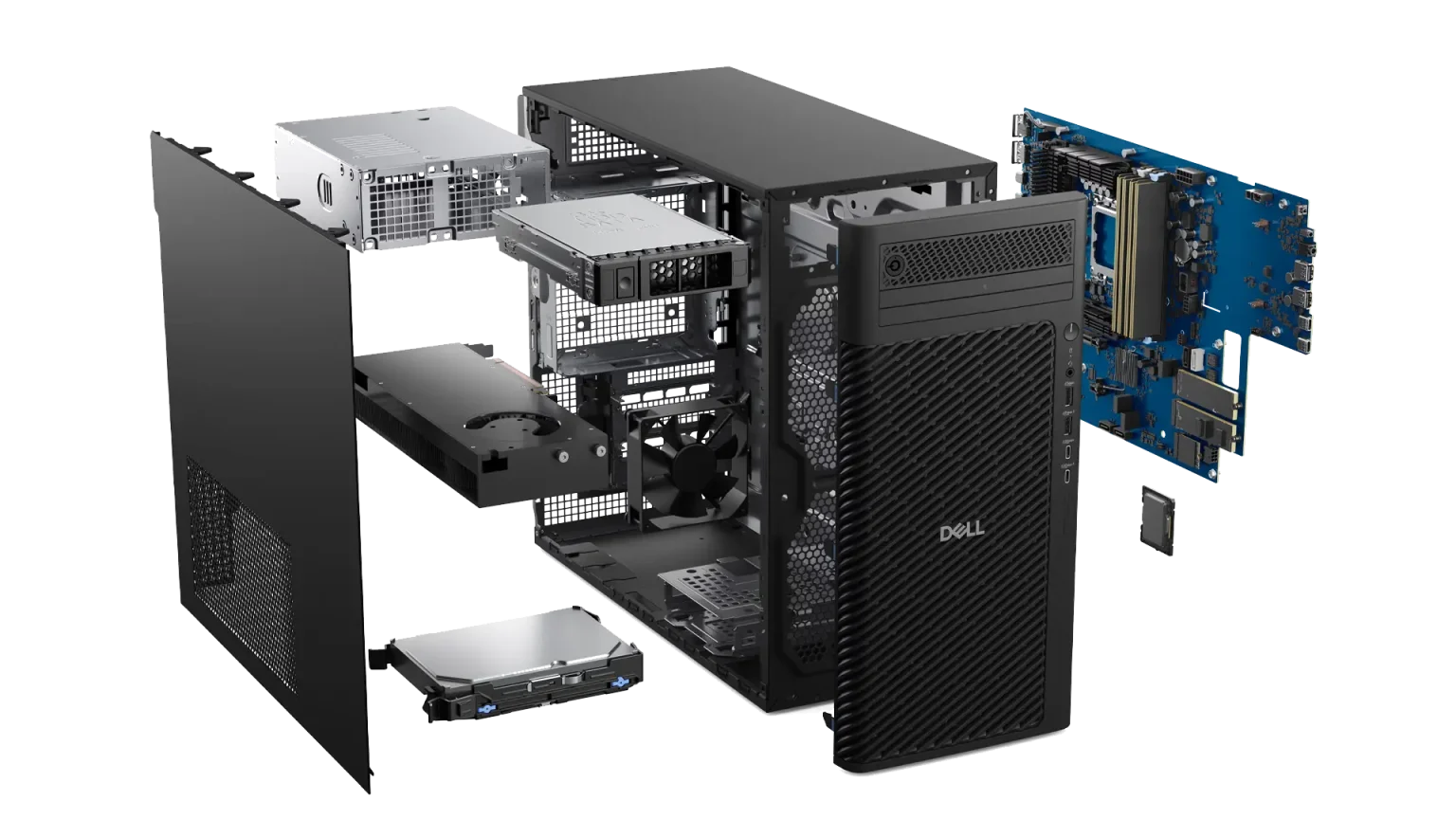
Dell demonstrated this commitment to performance with the latest Precision 3680 Desktop workstation. It may look like your typical desktop from the outside, but on the inside is an innovate take on desktop cooling.
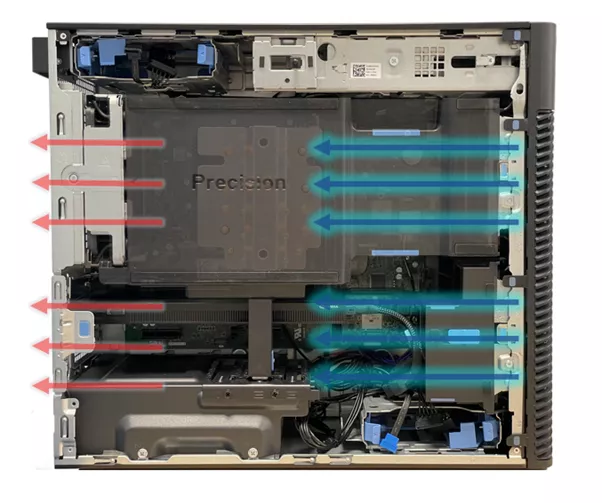
In a typical desktop setup, cold air is drawn in at the front and exhausted out of the rear of the system, however the Dell 3680 provides a lot of potential for re-circulating hot air from the increasingly powerful components.
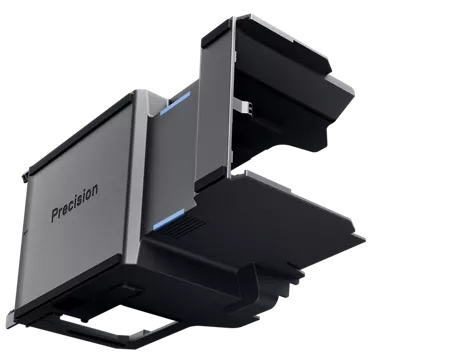
To avoid this, Dell’s new ’Air Shroud’ ducting directs cool air from the front to the back over the crucial components, and allows for peak CPU power of over double the previous generation at 253W with this innovative new design.
#5 Peace of Mind & Minimised Potential Downtime
Professional Workstations tend to come with longer warranties and better support than most consumer PCs – they certainly have more than home-builds!
All the systems that Solid Solutions use and supply come with Dell Pro Support.
This provides 24/7 expert remote support with next business day onsite service for any issue that cannot be resolved remotely, such as component replacement free-of-charge, to keep you or your team productive and minimise the risks of downtime to your business.
So, are you ready to upgrade to a professional workstation?
See our range of recommended SOLIDWORKS CAD Desktop & Laptop Workstations or contact hardware@solidsolutions.co.uk for tailored advice for your workflows.
Categorised as: Hardware | SOLIDWORKS Design
Looking to buy Hardware?
Having partnered with Dell for over 20 years, we can offer optimal SOLIDWORKS certified hardware at great value and with next business day delivery on most models.
Related Posts

How to Find Reaction Forces in SOLIDWORKS Simulation
SOLIDWORKS helps us to find resultant forces through simulation studies. These virtual tests reduce the need for physical prototypes and give us an accurate answer.

Setting number of decimal places in a table on a drawing
When creating an equation in a drawing general table, is it possible to define the…

SOLIDWORKS Smart Fasteners
SOLIDWORKS Smart Fasteners is a really useful time saving tool, allowing you to automatically insert toolbox fasteners such as bolts and screws into an assembly providing there is a standard hole.

Why is my Flat Pattern not showing in SOLIDWORKS Drawings?
This may be linked to how the drawing is saved or it can be related to how sheet metal parts are displayed in drawings, read on to find out how to fix it.

SOLIDWORKS Tips: Are you Making this Common Mistake in Fatigue Analysis?
Simulation is a vital and complex engineering need. Fortunately, SOLIDWORKS makes it easy to test, correct mistakes and obtain accurate results.

How to Recover SOLIDWORKS Files After a Crash
SOLIDWORKS has two different methods to help you recover from an unexpected crash or loss of data in the form of auto-recovery and back-up settings.

Redesigning Santa’s Sleigh in SOLIDWORKS
Every year Father Christmas has to fly in his sleigh to deliver presents to boys and girls all over the world in just one night. To put this into perspective, it takes a little under 24 hours to fly from London (UK) to Sydney (Australia) in a streamlined Boeing 747, whereas Father Christmas’ mode of transport is believed to be a rather non-aerodynamic sleigh.

SOLIDWORKS Grid Systems – hidden away, but very useful!
Rory Niles provides an insight into the uses for Grid Systems within SOLIDWORKS 2018

Furniture Design Made Easy with SOLIDWORKS
Calling all furniture and interior designers: the days of creating square cabinets are over. What if we told you there’s a much easier way to bring your products to life?
Here’s 10 reasons why we feel SOLIDWORKS is better than any other software, especially if you’re designing furniture:
Making 3D Textures from Images on SOLIDWORKS
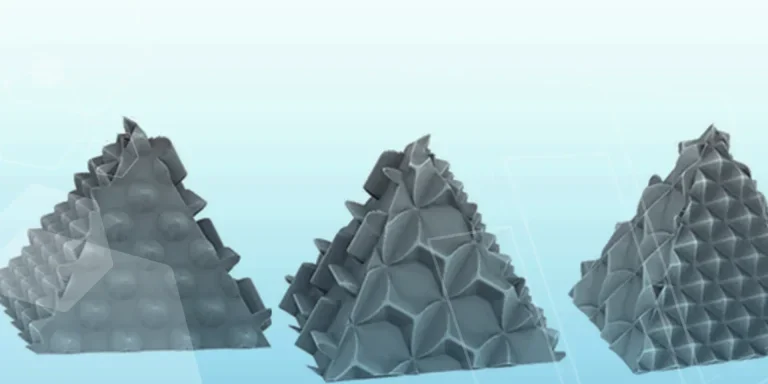
Turn images into 3D geometry with brand new SOLIDWORKS 3D Textures Feature