











Vintage Bauble Tutorial: How to Combine Helixes, Surfaces and Sweeps in SOLIDWORKS

Written by: Lewys Elvins
Published: Dec 10, 2024
| View All Blogs
In preparation for Christmas, we wanted to put some vintage baubles on our tree.
But, hark! The sound of baubles banging together could not be heard… and to our dismay (whether through years of annual tree-trimming, or a significant other’s personal preference…) our classy, vintage, hand-made baubles were no more.
So, we did just as anyone with access to a 3D printer at Christmastime would, and we decided to 3D print ourselves some new baubles!
We drew up our design in SOLIDWORKS to put a contemporary twist on a Christmas classic.
Read on to discover how you too can create advanced helical structures using the surface sweep and intersection curve commands to include in your own baubles and other designs.

The part will start with a simple sphere from which we will remove a helical shaped groove and repeat using a circular pattern. The groove is created using a lofted cut that will require a helical guide curve and several profile sketches to gently dig the groove into the circumference of the sphere.
Creating a Helical Surface
- Create a sphere, in this example the diameter is 100mm.
- Use the offset surface command and create a reference surface slightly bigger that the original sphere, Here we use 1mm. (This offset becomes important later).
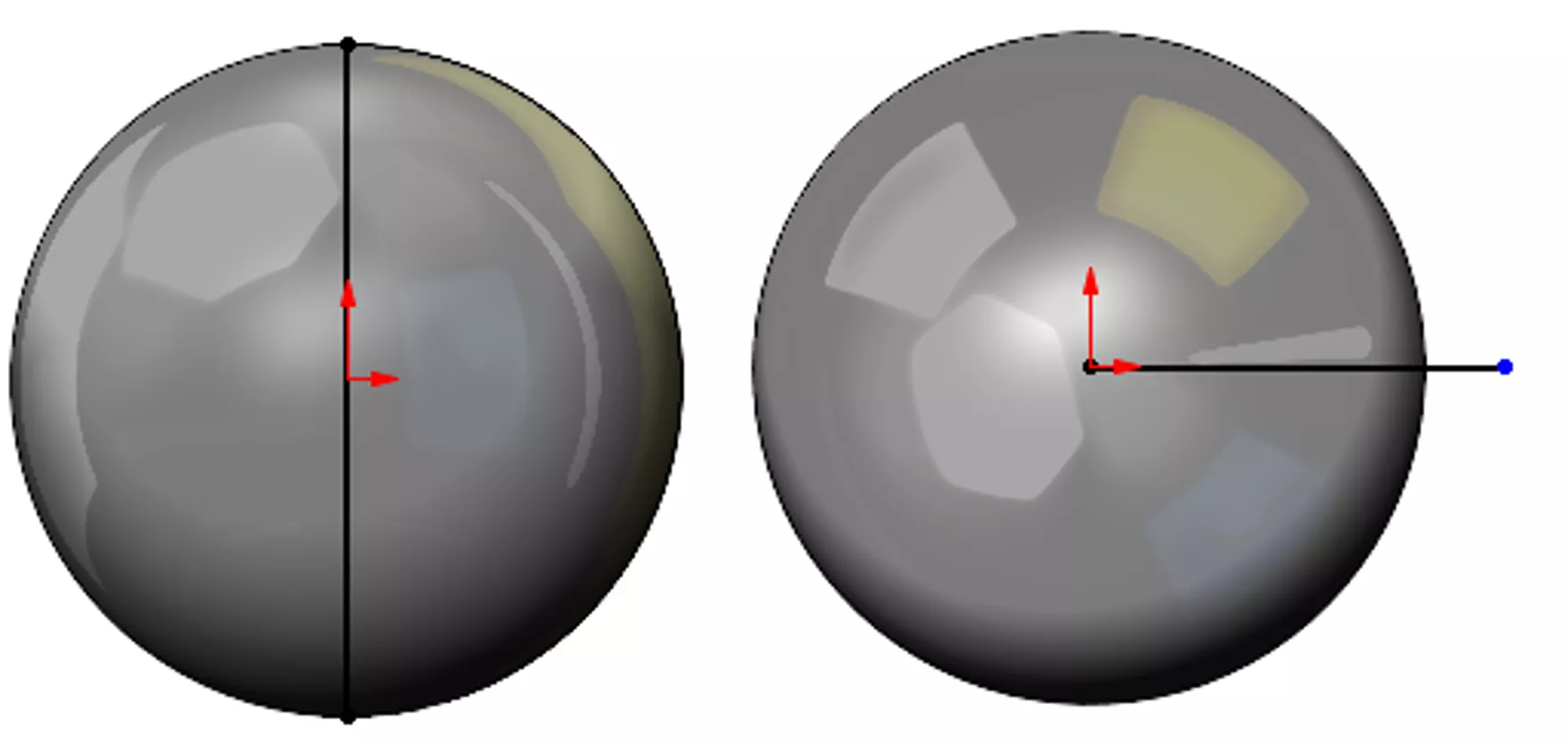
- Create two separate sketches, one on the front plane, which is a line that goes completely top to bottom of our new offset surface, and another on the top plane, a single line from the centre and is larger than the radius of the sphere.
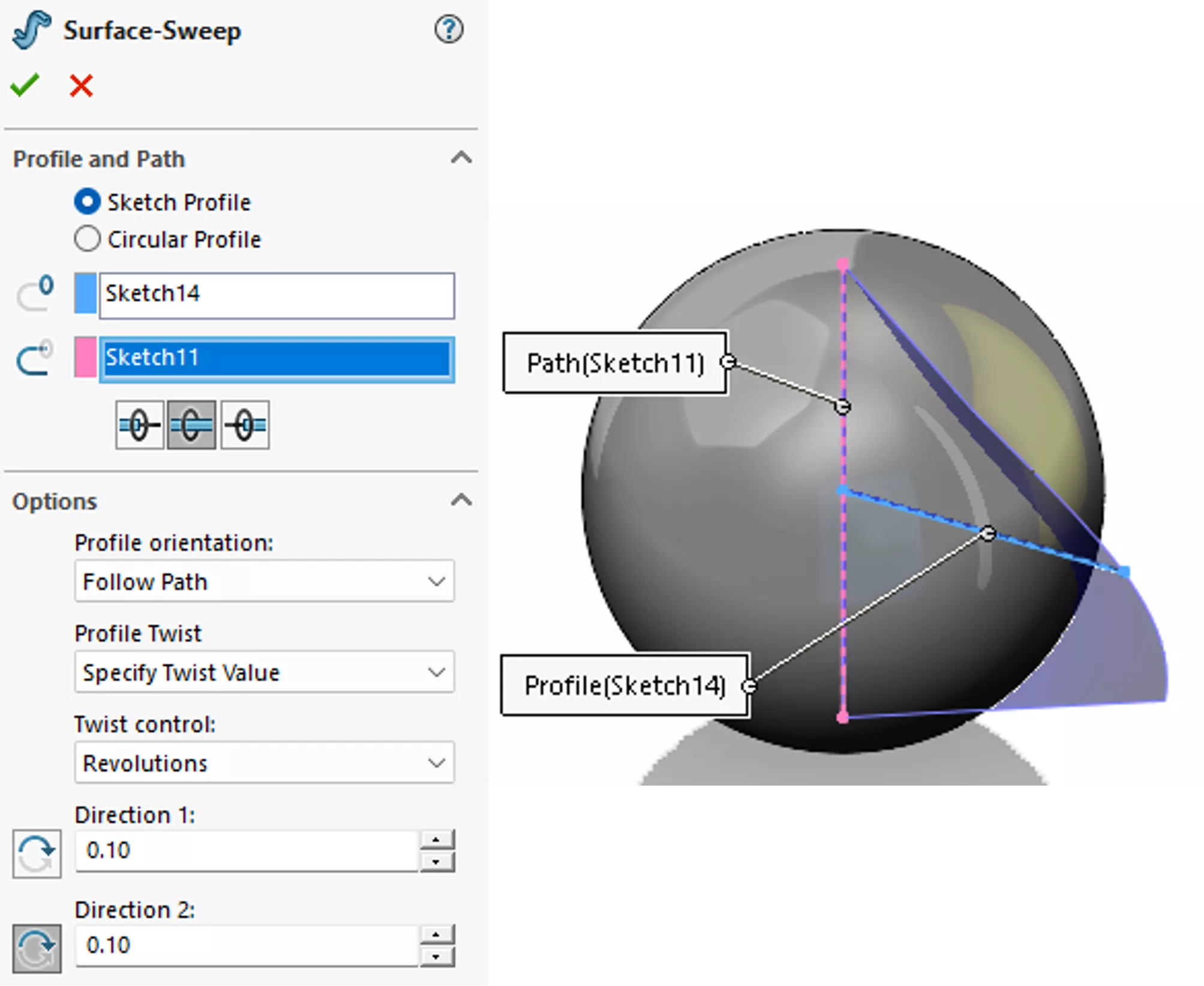
- Now create a swept surface from these two sketches, the first sketch is our path, the second is our profile. You will need to select the bidirectional option since the profile starts from the centre and under profile twist, select “Specify Twist Value.” You will see a preview of our next reference surface, which is effectively our groove path, we want to keep things simple with 30 degrees in both directions for now, but later you could have fun playing with these controls to make even more interesting shapes.
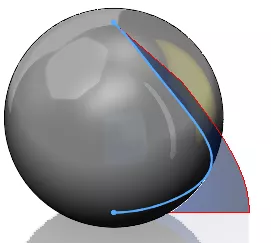
- We need to create the guide curve for our groove, we will do this by selecting both the offset sphere surface and the new helical twist surface and use the intersection curve tool. You will find it in the Tools > Sketch Tools drop down menu or search for it using the command search.
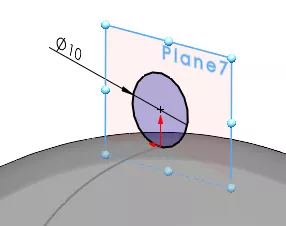
- We then need to create profiles for our groove, there will be three in total, one at the top, one at the bottom and a central profile. Start at the top and select the end vertex of your newly created helical path, hold down CTRL and select the path itself. With both of these selected, select on Plane from the Reference geometry tool, it will create a new plane that is perpendicular to the guide curve and positioned on the end vertex.
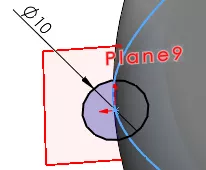
- Create a new sketch on this plane and draw a circle that is coincident to the path and tangent to the outside of the sphere, here we add a 10mm diameter dimension.
- Close the sketch and repeat for the bottom of the sphere. These are our start and end profiles.
- To create our central plane, we need to edit the 3D helical guide sketch and add a sketch point anywhere along its length. Select this point and the Top Plane and add an “On-Plane” relationship. Close the sketch and create a new reference plane as before, using this new point and the helical curve again.
- Open a sketch and draw a new circle but this time snap the centre of the circle to our guide path. Dimension the circle to 10mm and close the sketch.
- Hide both of the reference construction surfaces, they are no longer needed.
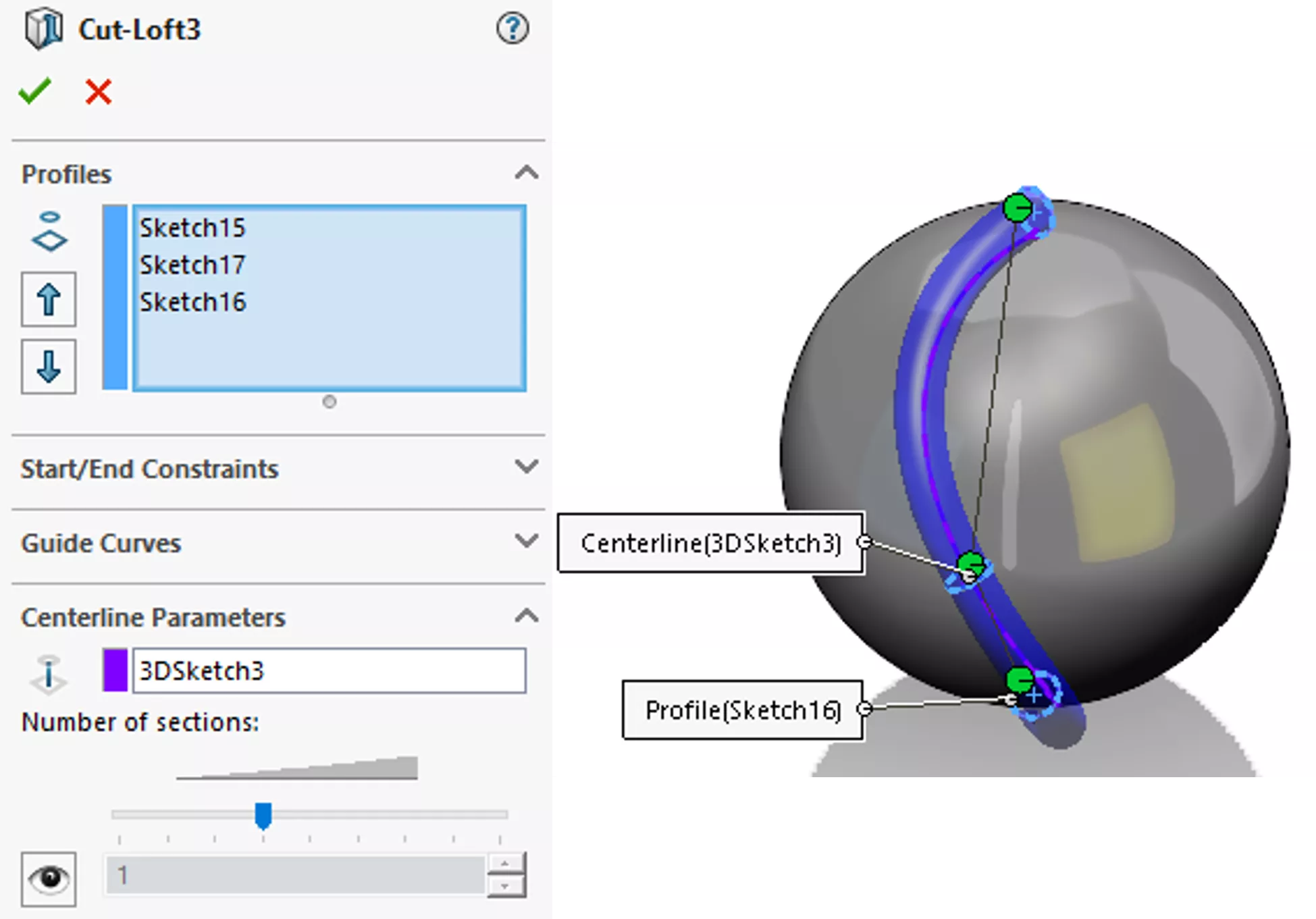
- To cut out the groove we will use the Lofted Cut tool, once activated you need to pick all three profiles in a logical order, either top to bottom or vice versa. We want our groove to follow the path we created so you need to select our 3D Sketch for the centreline path. If you are happy with the preview, finish the command to see our first groove.
- Add a fillet to the groove, we have used a 5mm.
- Create a reference axis using the front and right planes.
- Pattern the groove and fillet around this axis, equally spaced, twelve positions. Congratulations you have made your first Christmas bauble.

Feel free to experiment with the dimensions of this design to create further interesting baubles. The original spherical offset will determine how close the grooves merge at the poles of the sphere and the helical sweep will modify the direction of the groove. The central circular profile controls the depth of the groove while the circular pattern controls the number of grooves.
You can then add any fastening to the top with a quick circular sketch and a sweep so you can hang your bauble. Now all we need to do is save the part out as a .stl file and send it to print!
We’d love to see what you end up making, so follow along with the tutorial and show us your creations by tagging us over on LinkedIn and Instagram.
Categorised as: SOLIDWORKS Design | Tech Tips
Get a SOLIDWORKS Quote
Interested in SOLIDWORKS? Contact us for questions, trials, or demos by clicking the button below or call 01926 333777. Our experts will help you find the perfect solution.

Related Posts

How to Find Reaction Forces in SOLIDWORKS Simulation
SOLIDWORKS helps us to find resultant forces through simulation studies. These virtual tests reduce the need for physical prototypes and give us an accurate answer.

Setting number of decimal places in a table on a drawing
When creating an equation in a drawing general table, is it possible to define the…

SOLIDWORKS Smart Fasteners
SOLIDWORKS Smart Fasteners is a really useful time saving tool, allowing you to automatically insert toolbox fasteners such as bolts and screws into an assembly providing there is a standard hole.

Why is my Flat Pattern not showing in SOLIDWORKS Drawings?
This may be linked to how the drawing is saved or it can be related to how sheet metal parts are displayed in drawings, read on to find out how to fix it.

Why is SOLIDWORKS Crashing?
It’s one of the great mysteries of life – why is SOLIDWORKS crashing? Let’s explore how SOLIDWORKS crashes and how we can improve performance in SOLIDWORKS.

SOLIDWORKS Tips: Are you Making this Common Mistake in Fatigue Analysis?
Simulation is a vital and complex engineering need. Fortunately, SOLIDWORKS makes it easy to test, correct mistakes and obtain accurate results.

Tech Support Blog: Why are my SOLIDWORKS BOM Quantities Wrong?
Why are my SOLIDWORKS BOM Quantities Wrong? A support call cropped up this week which…

How to Get Your Serial Number for SOLIDWORKS Visualize Standard
Want to download Visualize to make photorealistic renders? Follow this guide for accessing your Visualize serial number that comes bundled in with SolidWorks Professional and Premium.

How to Recover SOLIDWORKS Files After a Crash
SOLIDWORKS has two different methods to help you recover from an unexpected crash or loss of data in the form of auto-recovery and back-up settings.

Redesigning Santa’s Sleigh in SOLIDWORKS
Every year Father Christmas has to fly in his sleigh to deliver presents to boys and girls all over the world in just one night. To put this into perspective, it takes a little under 24 hours to fly from London (UK) to Sydney (Australia) in a streamlined Boeing 747, whereas Father Christmas’ mode of transport is believed to be a rather non-aerodynamic sleigh.