











What are the Best File Formats to Export from SOLIDWORKS?
Written by: Lewys Elvins
Published: Jan 27, 2026
| View All Blogs
SOLIDWORKS can import and export a variety of file formats to allow you to work collaboratively with other companies and designers who may be using different CAD packages.
Neutral file formats, like STEP and IGES files, aid this collaboration as lots of CAD packages can import them successfully.
But which format is best to use? And when should you use different file formats?
We’ll show you the recommended way to choose what neutral file format you need, and how to export different file types from SOLIDWORKS while protecting your intellectual property.
HOW DO I EXPORT DIFFERENT FILE TYPES FROM SOLIDWORKS?
The first thing to consider when collaborating with other users on a project is which CAD software they are using.
If they are using the same version of SOLIDWORKS as you, then no export is required, other than the occasional Pack & Go.
You can collaborate online through the SOLIDWORKS Cloud Services, or send part files and zipped folders of assemblies and drawings through with the Pack and Go command.
Since SOLIDWORKS 2024, you can also save files as previous versions for opening in SOLIDWORKS 2022 or 2023.
Sometimes it isn’t appropriate to send your SOLIDWORKS files. One reason not to send a SOLIDWORKS file to a collaborator would be to disguise intellectual property.
In this case, exporting as a neutral file format will prevent the feature tree and design intent of the model from being revealed.
Models can also be further simplified by removing internal geometry with the defeature command that we’ll explore later in this blog.
You can learn how to Pack & Go files from SOLIDWORKS with this short tutorial.
IS THERE A PREFERRED FILE TYPE TO IMPORT INTO SOLIDWORKS?
If you must import or export CAD files between different programs, then native file formats will always be preferred over neutral ones.
With the 3D Interconnect import option turned on, SOLIDWORKS can directly import files from Catia V5, Autodesk Inventor, and more, while retaining a link to the original file and preserving data during translation.

Each CAD package uses different algorithms to represent 3D shapes. When these files are translated, there will always be an opportunity for error to occur due to tolerance and rounding differences.
When importing a native file this translation only occurs once, leading to fewer opportunities for error.
However, if you were to export a SOLIDWORKS file into a neutral file format (such as STEP) and then reimport it into a different CAD system, two data translations will have occurred, increasing the likelihood of geometric errors.

If you receive a neutral format CAD file, it is worthwhile asking how many times the file has potentially been translated between systems.
If the answer is unknown, we recommend re-exporting the file from the original native CAD, to reduce the stack up of tolerances and potential for errors.
WHICH NEUTRAL FILE FORMAT SHOULD I USE?
Our recommended order of priority for neutral file formats starts with Parasolid, then ACIS, STEP and finally IGES.
Other neutral file formats do exist, such as STL and OBJ, but these will import as graphical bodies which are typically hard to work with.
Parasolids are ideal because this format shares the same underlying modelling kernel as SOLIDWORKS. The kernel information does not need to be translated, which results in better model accuracy.
Beyond Parasolid, our next best choices would be ACIS, STEP and IGES – in that order. Each of these file formats requires greater translation than the next, increasing the risk of geometry errors.
We recommend that you always ask the recipient of the neutral file which type of files they can import, and use this information to choose the best option from the above format hierarchy.
HOW CAN I SHARE CAD DATA AND PROTECT INTELLECTUAL PROPERTY?
As part of the TriMech Group, we help businesses across the world collaborate, design, and manufacture products while protecting their intellectual property (IP).
It’s important to remember that sharing SOLIDWORKS files gives the recipient access to all of the modelling data that is included within the part, drawing, assembly, or Pack and Go.
If you are sharing SOLIDWORKS files, then consider whether the recipient requires all of the CAD data.
You could share an interactive (but still protected) version of your CAD via a link through the Share & Markup function included with the SOLIDWORKS Cloud Services, or save a version of your CAD to view with the free eDrawings CAD viewer.
To protect IP, you can export files as non-SOLIDWORKS files. This removes the feature tree data, as each CAD package has different ways of creating and organizing model features.
You can test this by exporting a file and re-importing it to observe what information is stored in the neutral file before you send it.
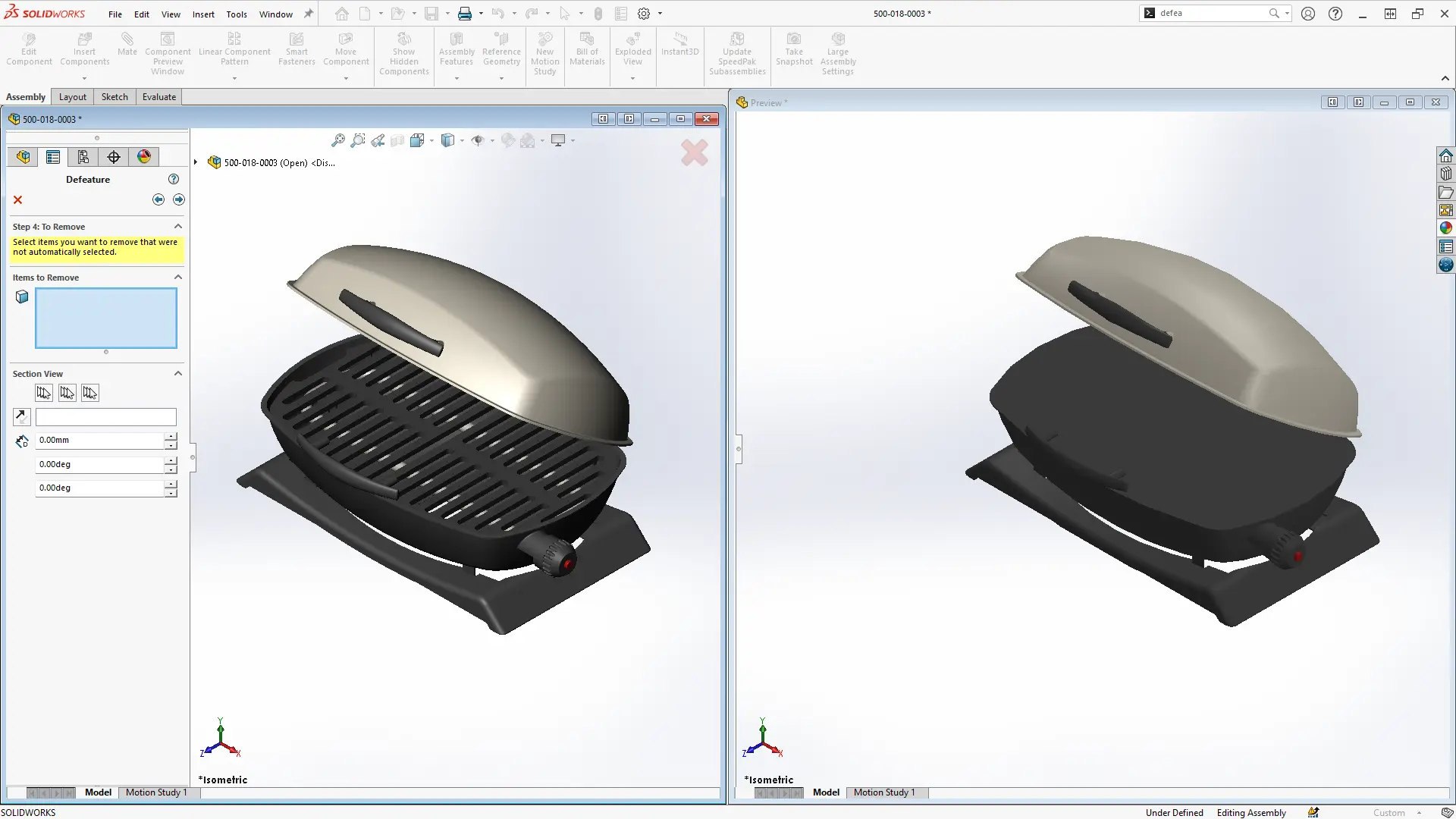
If you need to take this a step further, and obscure, remove, or simplify details of the model, then the defeature command can be used.
This allows you to create an independent copy of your model and customise what model components and features you would like to share with collaborators.
This could include removing internal components or features that a collaborator does not need to see.
Get Expert SOLIDWORKS Training
Get hands-on SOLIDWORKS training in-person or online, led by certified experts with real industry experience. With venues across the UK & Ireland, it’s easy to start learning today.
Related Posts

How to Find Reaction Forces in SOLIDWORKS Simulation
SOLIDWORKS helps us to find resultant forces through simulation studies. These virtual tests reduce the need for physical prototypes and give us an accurate answer.

Setting number of decimal places in a table on a drawing
When creating an equation in a drawing general table, is it possible to define the…

SOLIDWORKS Smart Fasteners
SOLIDWORKS Smart Fasteners is a really useful time saving tool, allowing you to automatically insert toolbox fasteners such as bolts and screws into an assembly providing there is a standard hole.

Why is my Flat Pattern not showing in SOLIDWORKS Drawings?
This may be linked to how the drawing is saved or it can be related to how sheet metal parts are displayed in drawings, read on to find out how to fix it.

SOLIDWORKS Tips: Are you Making this Common Mistake in Fatigue Analysis?
Simulation is a vital and complex engineering need. Fortunately, SOLIDWORKS makes it easy to test, correct mistakes and obtain accurate results.

Series 1 Land Rover Pedal Car – Made Easy with Solidworks!
The Series1 began production in 1948 designed to help get Britain farming after the war effort. It grew extremely popular and today enthusiasts are prepared to throw their life savings at restoring originals from that period.

SOLIDWORKS Visualize. Why go pro? – 6 Post Processing
In this blog we will be look at the post-processing options that can be found in SOLIDWORKS Visualize

SOLIDWORKS Visualize. Why go pro? – 7 Lighting
SOLIDWORKS Visualize uses a non-biased rendering engine, which allows for physically accurate lighting within a scene. It generates images with high amount of realism and correct set up can replicate photo studio lighting.

How to Get Your Serial Number for SOLIDWORKS Visualize Standard
Want to download Visualize to make photorealistic renders? Follow this guide for accessing your Visualize serial number that comes bundled in with SolidWorks Professional and Premium.

How to Recover SOLIDWORKS Files After a Crash
SOLIDWORKS has two different methods to help you recover from an unexpected crash or loss of data in the form of auto-recovery and back-up settings.