











What Happened to SOLIDWORKS? The 10 Biggest Changes to CAD in the Last 5 Years
Written by: Terry O'Reilly
Published: Feb 20, 2025
| View All Blogs
Every year SOLIDWORKS releases exciting new updates and powerful new features to improve your design experience.
There’s always a new feature or capability to get excited about, but when you take a step back, you realise just how many enhancements have happened in the last 5 years alone!
So, we’ve pulled together our top 10 favourites of the enhancements that SOLIDWORKS has seen in that time. What do you reckon… do you agree with our list?
#10 – New Technical Drawing Tools
The latest SOLIDWORKS versions have revolutionised the way that technical drawings are created, allowing for less manual input of key information.
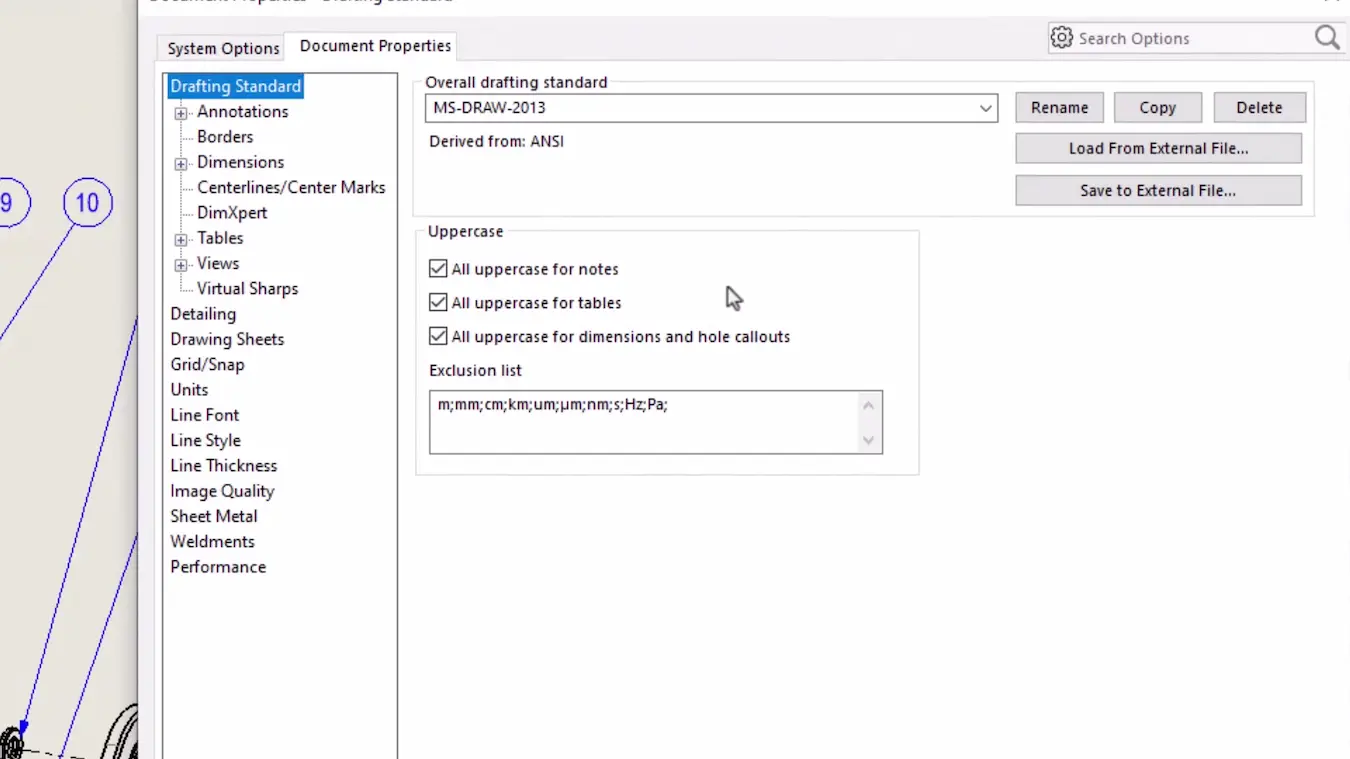
- Uppercase settings – now you can ensure consistency across drawings by enforcing notes, dimensions and hole callouts to always be uppercase.
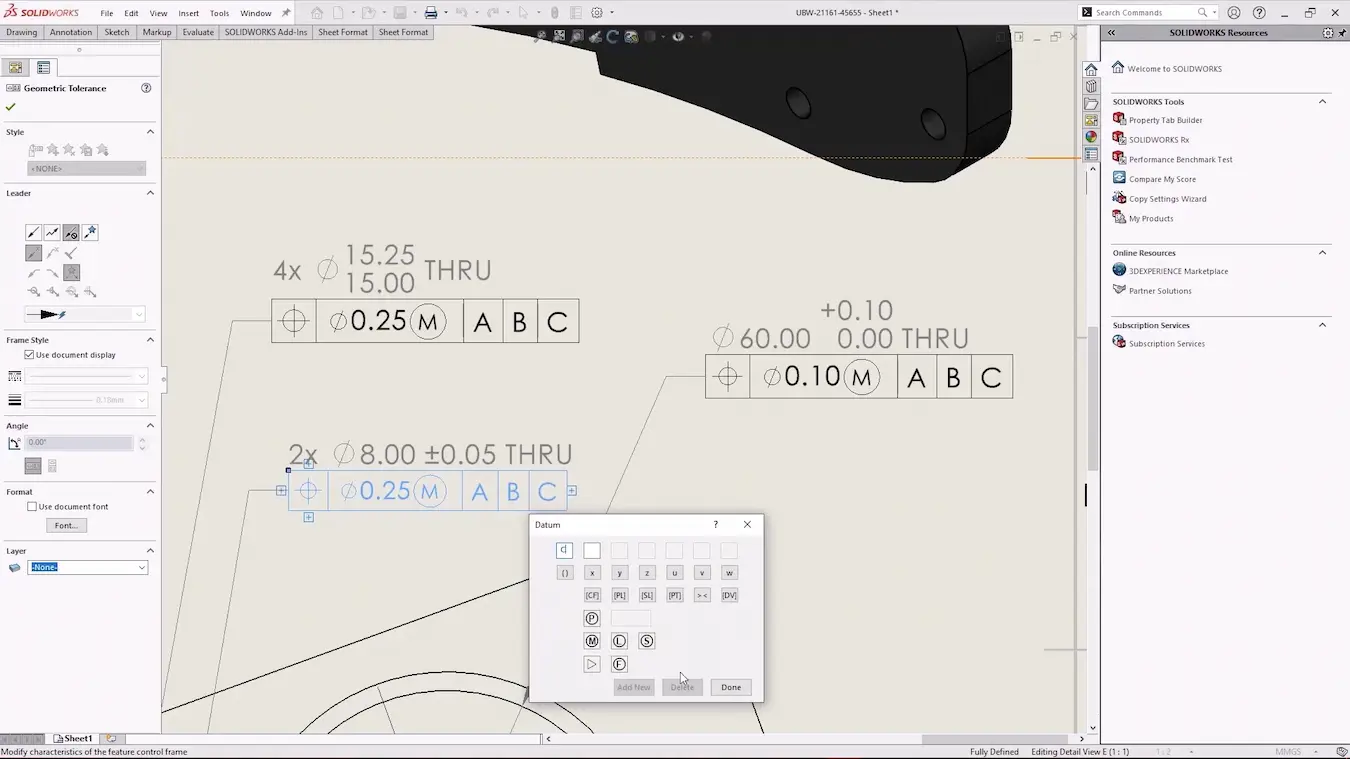
- Improved annotations – communicate your design intent clearly with improved tools such as the new Geometric Design and Tolerancing user interface.
- Cut lists for all BOM types – Now you can include detailed cut list information such as profile information, lengths and cut angles in and BOM.
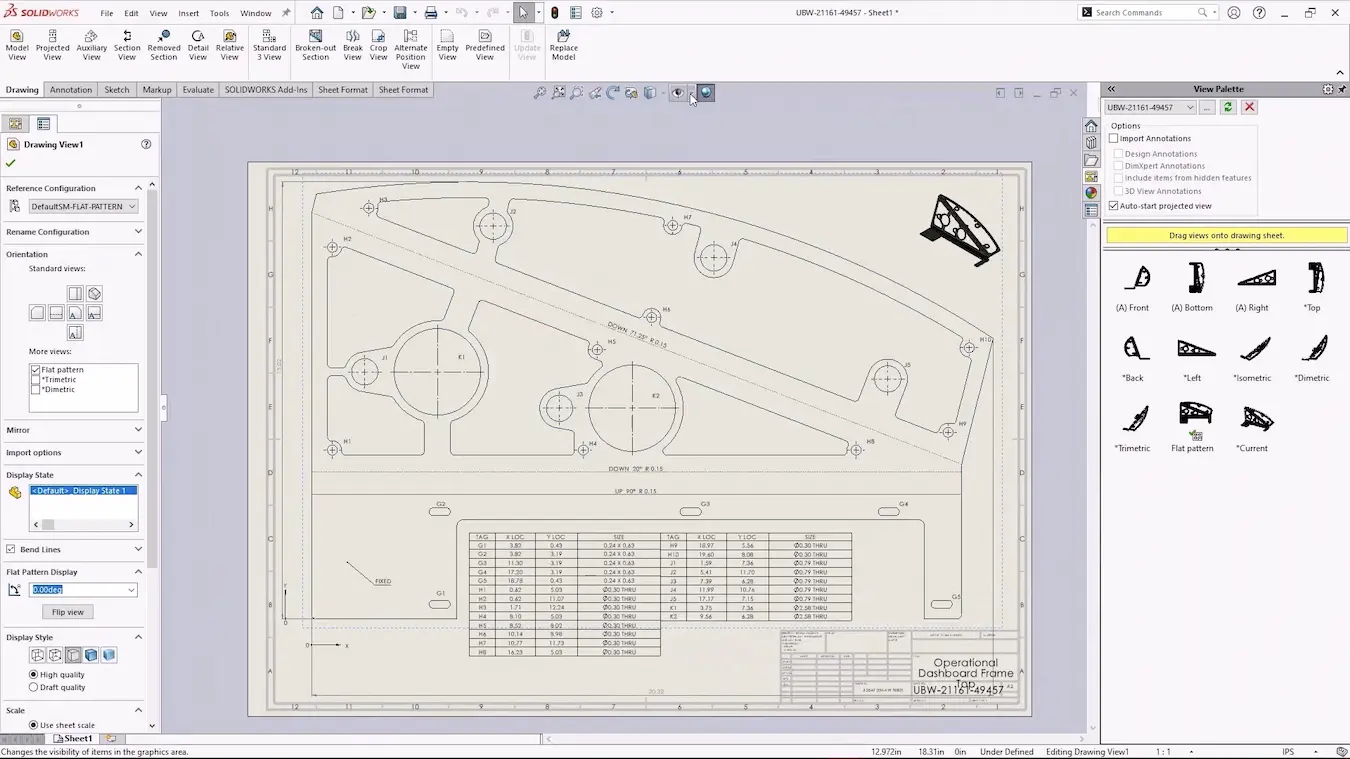
You can also filter BOMs like in Excel for quicker access to the information you need. - Pre-defined flat pattern views – these allow you to create sheet metal drawing templates which will automatically populate with a flat pattern view and display bend lines to save time.
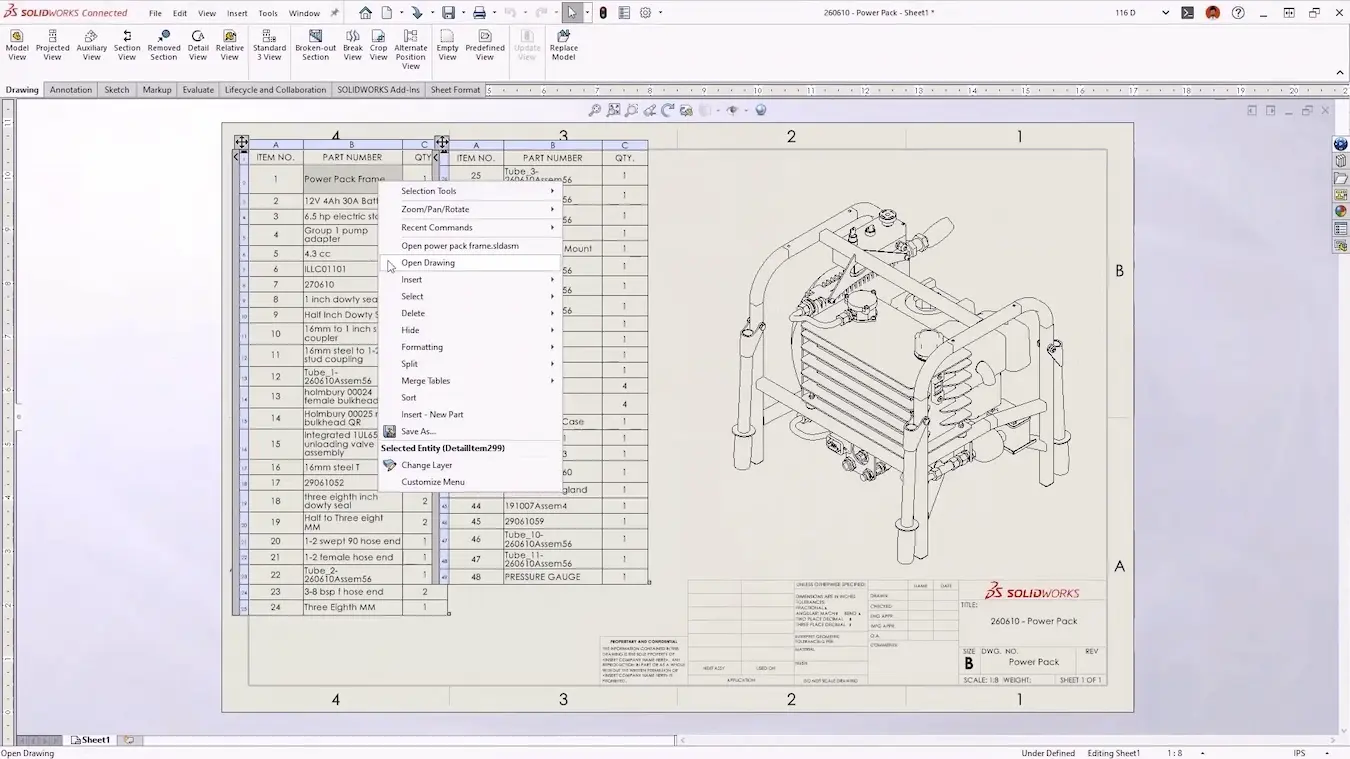
- Reference other drawings – You can now reference drawings within other drawings to keep all necessary information in one place.
- Improved balloons – Display quantities alongside item numbers to eliminate the need to repeatedly reference a BOM.
#9 – Enhanced CAD Viewers
A crucial aspect of design work is the ability to share your files. Recent improvements give you increased options for you can showcase your designs to get the best results.
The eDrawings CAD file viewer has had a number of improvements:
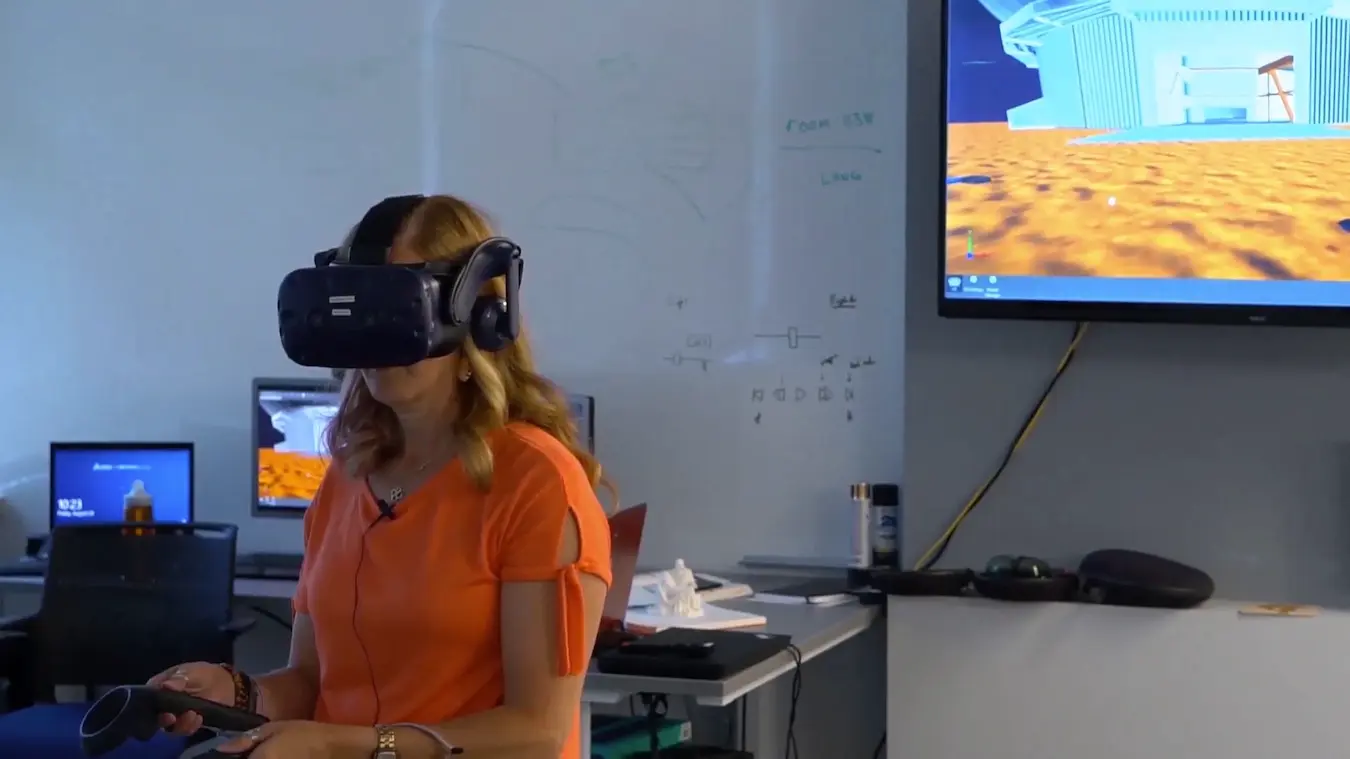
- Immersive VR compatibility to allow you to step inside your designs.
- See custom and configuration specific properties directly within files.
- Improved rendering for a more realistic viewing experience.
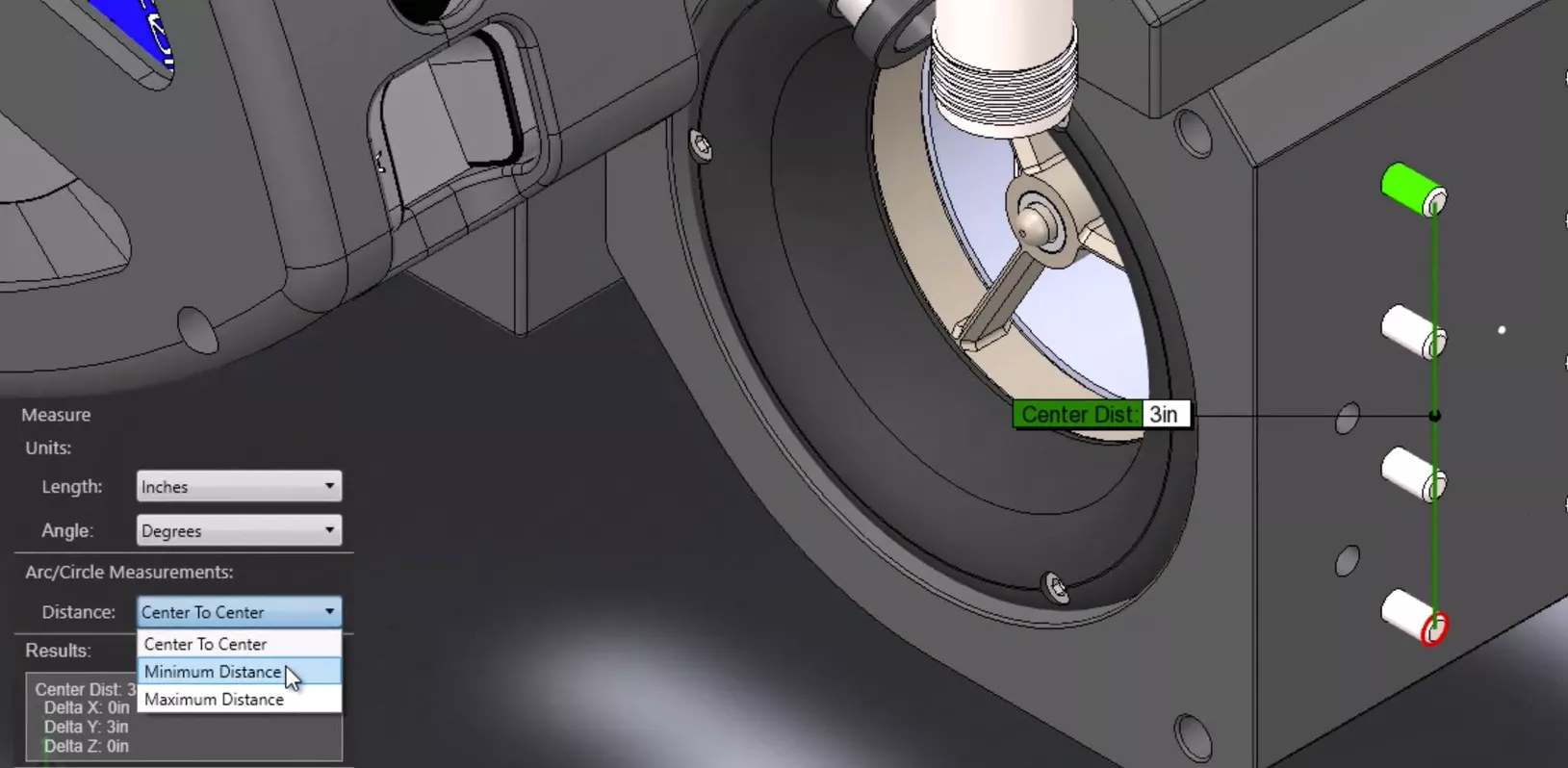
- Measurement tool upgrades for improved accuracy on complex design.
- Move and rotate individual bodies to dig deeper into designs.
- More supported file types for seamless collaboration with different file formats.
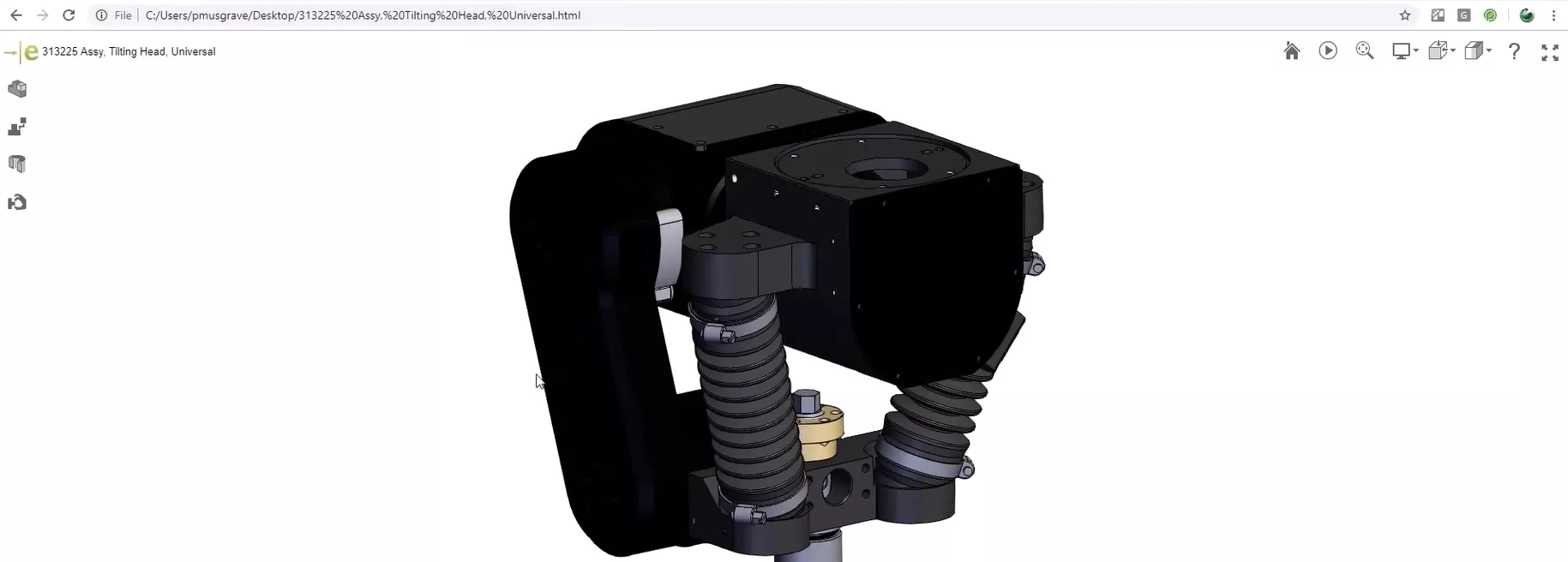
- Export directly to HTML format to view files using a web browser.
Additionally, once integrated with the 3DEXPERIENCE platform, you can instantly share links to CAD files from SOLIDWORKS which can be opened without any specialist software to allow for more efficient collaboration.
#8 – Cloud Integration
Thanks to the SOLIDWORKS Cloud Services, SOLIDWORKS users can now integrate directly with the 3DEXPERIENCE platform to access cloud data management tools and enhance their design process with integrated collaboration tools.
Utilising these tools helps business to realise some key benefits:
- Advanced data management with ENOVIA. This allows for version control, bill of materials (BOM) management and product life cycle management (PLM).
- Manage projects, review files and submit approvals directly within the cloud based 3DDrive.
- Integration with SIMULIA for advanced simulation and DELMIA for manufacturing process planning giving insight for all aspects of the design process in the same place.
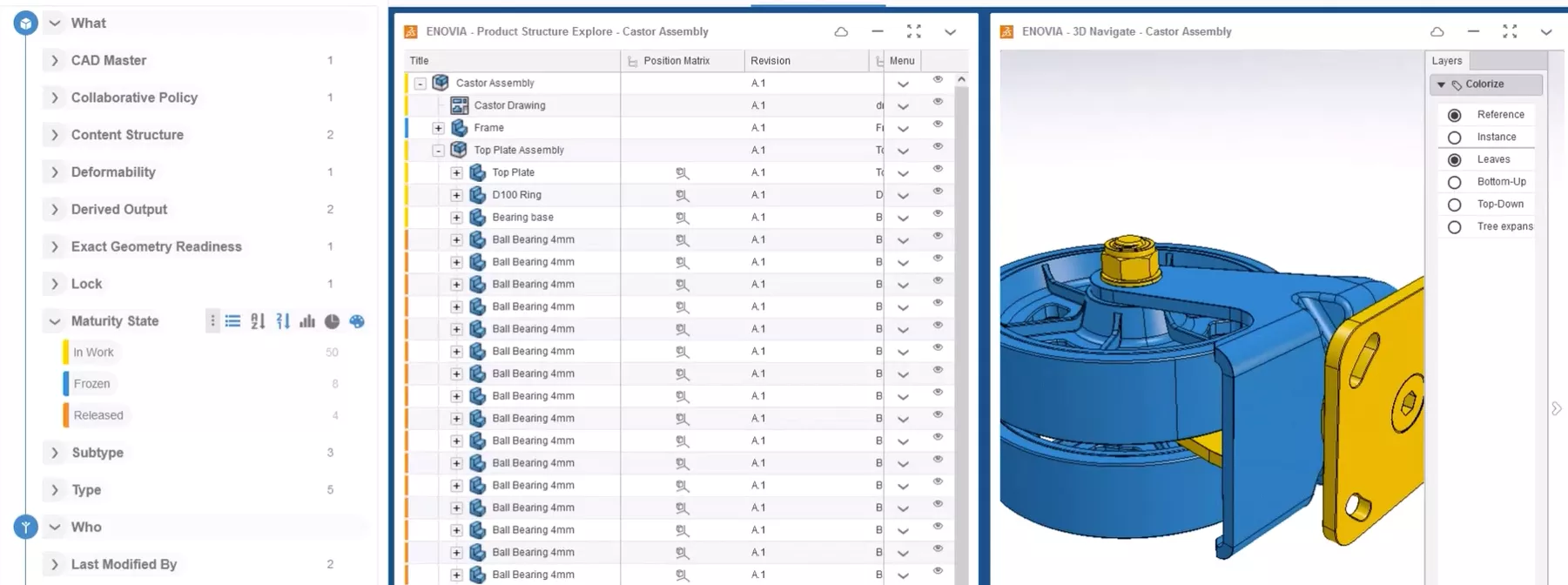
By the 3DEXPERIENCE platform into your SOLIDWORKS design process, you will instantly be enabled to innovate faster and streamline your design-to manufacture process.
#7 – More Supported File Formats
The last 5 releases of SOLIDWORKS have vastly improved our options for importing and exporting files.
- STEP Filter – Selectively open STEP files to choose the exact parts you need to work on. This makes large files much more manageable and speeds up opening times.
- 3D Interconnect – Eliminate the need for file conversions and enable smoother referencing of native CAD data from other systems.
- Improved DXF and DWG exporting – These exports are now more intuitive, with colours already applied to lines for quicker preparation of drawings for manufacture or sharing.
- Textures supported on OBJ imports – Preserving the original model.
- Previous version compatibility – SOLIDWORKS now supports previous version compatibility for conversions up to 2 years older than the year version exporting the file.
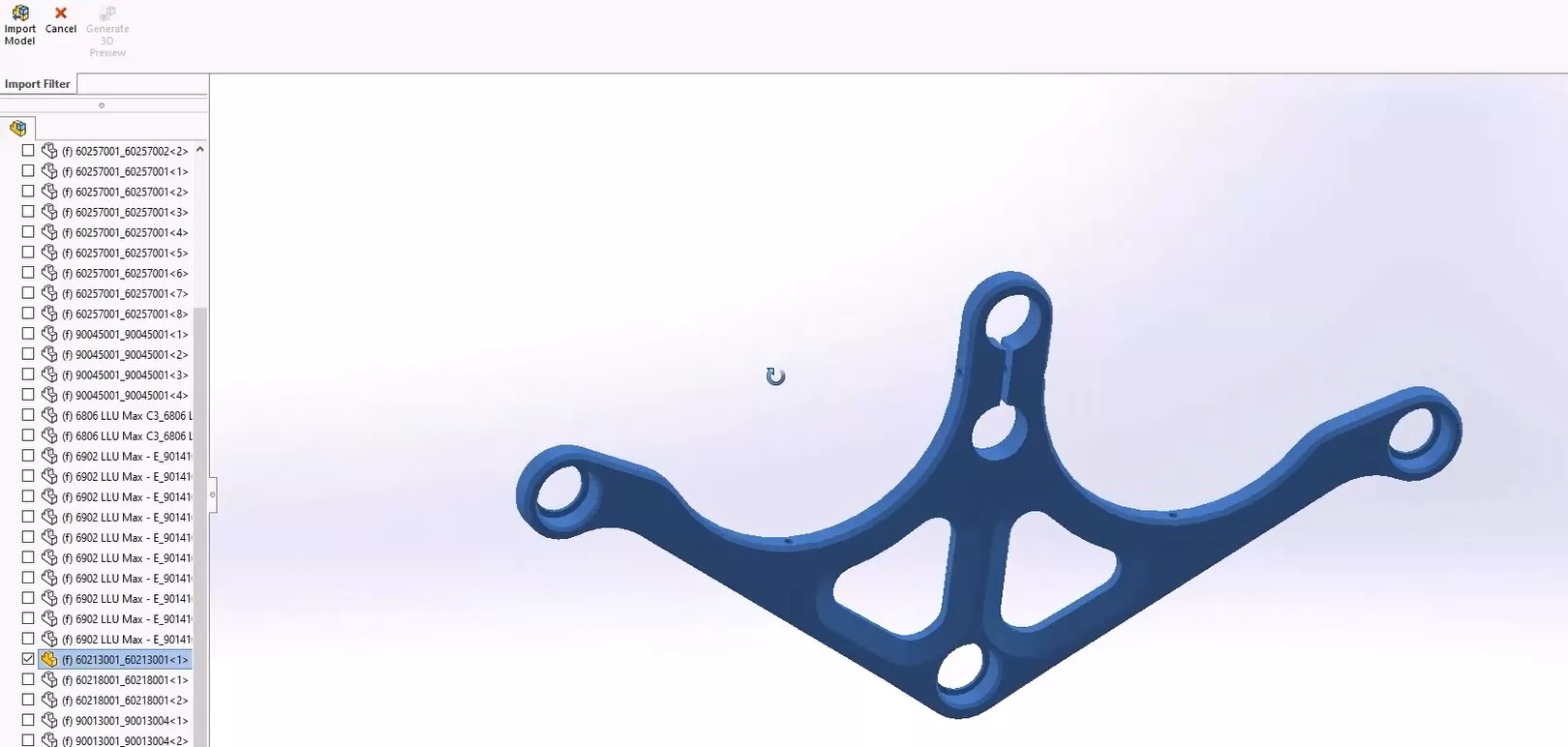
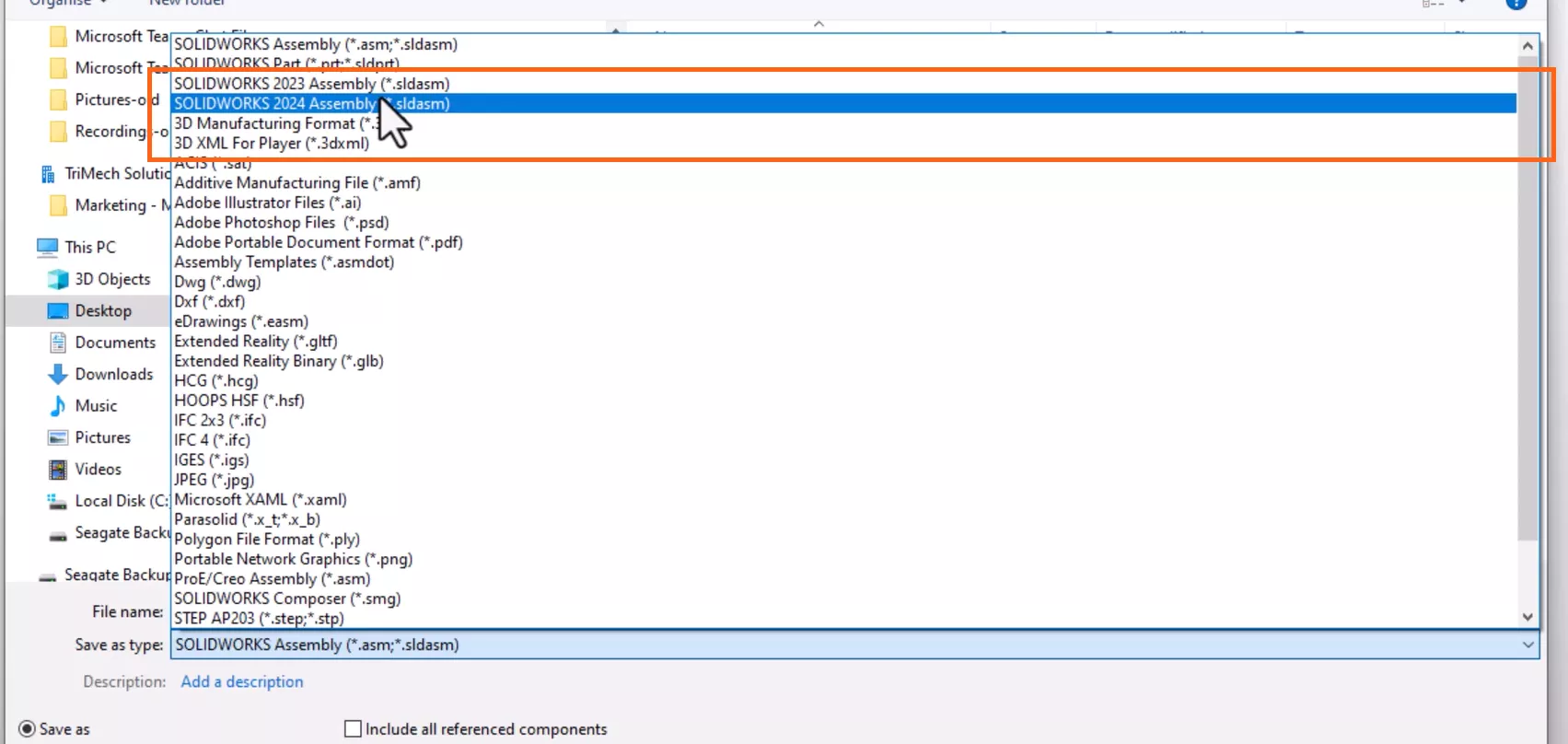
These improvements help to streamline the process of working with suppliers who may be using other CAD software, allowing you to spend more time designing, and less time converting files.
#6 – Interface Customisation
Customising SOLIDWORKS has never been easier, there are so many new shortcuts and options added each year which can help to optimise your design process. Here are some of the best options to look out for:
- Collapsible command manager – maximise screen real estate to fit your workflow.
- The ‘S’ key – instant access to your most used tools as well as the ability to customise and command search directly within the toolbar.
- Mouse gestures – Drag with a right click to quickly access your favourite commands and reduce mouse movement.
- The ‘Q’ key – Temporarily view reference geometry to reduce clicks.
- Enhanced search – find where commands are located using the ‘eye’ icon.
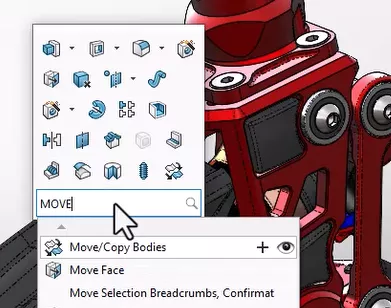
With all of these powerful tools at your disposal, you can truly make SOLIDWORKS your own and dramatically increase modelling efficiency.
#5 – New Assembly Features
Major updates to assemblies in recent years enhance the experience and help to optimise your designs. Here are our top picks:
- Flexible components – Allow parts to adjust based on assembly conditions, useful for changeable geometry such as springs to offer greater versatility.
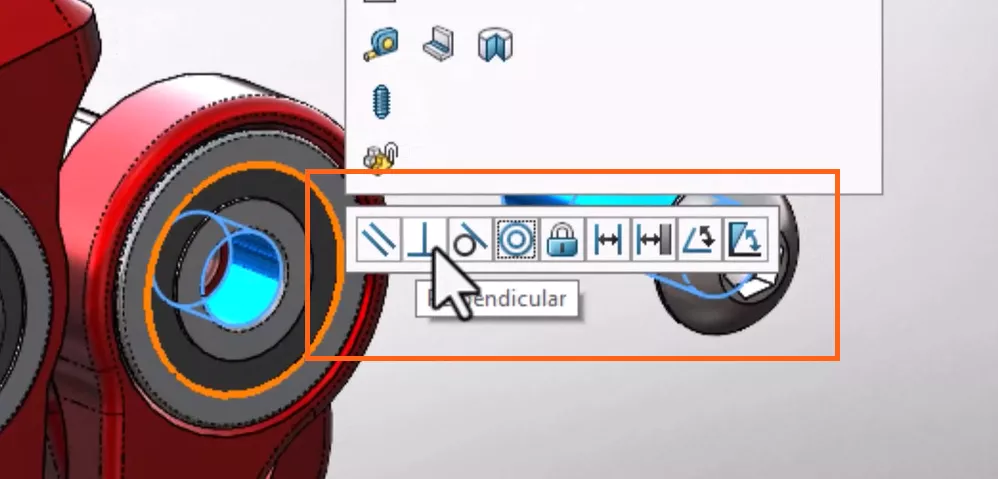
- Quick mates – These tool bars have been improved to provided better recommendations and speed up the mating process.
- Variable patterns – Greater instance control allows you to modify distances, angles or orientations in complex designs. You can also configure these values for added versatility.
- Save as part – To simplify your designs, or reduce complexity to send to a supplier, you can save an entire assembly as a solid part, or only external surfaces to hide internal IP.
- ‘Z-up’ templates – The 2025 update introduces ‘Z-up’ templates for parts and assemblies, improving collaboration particularly for manufacturing systems.
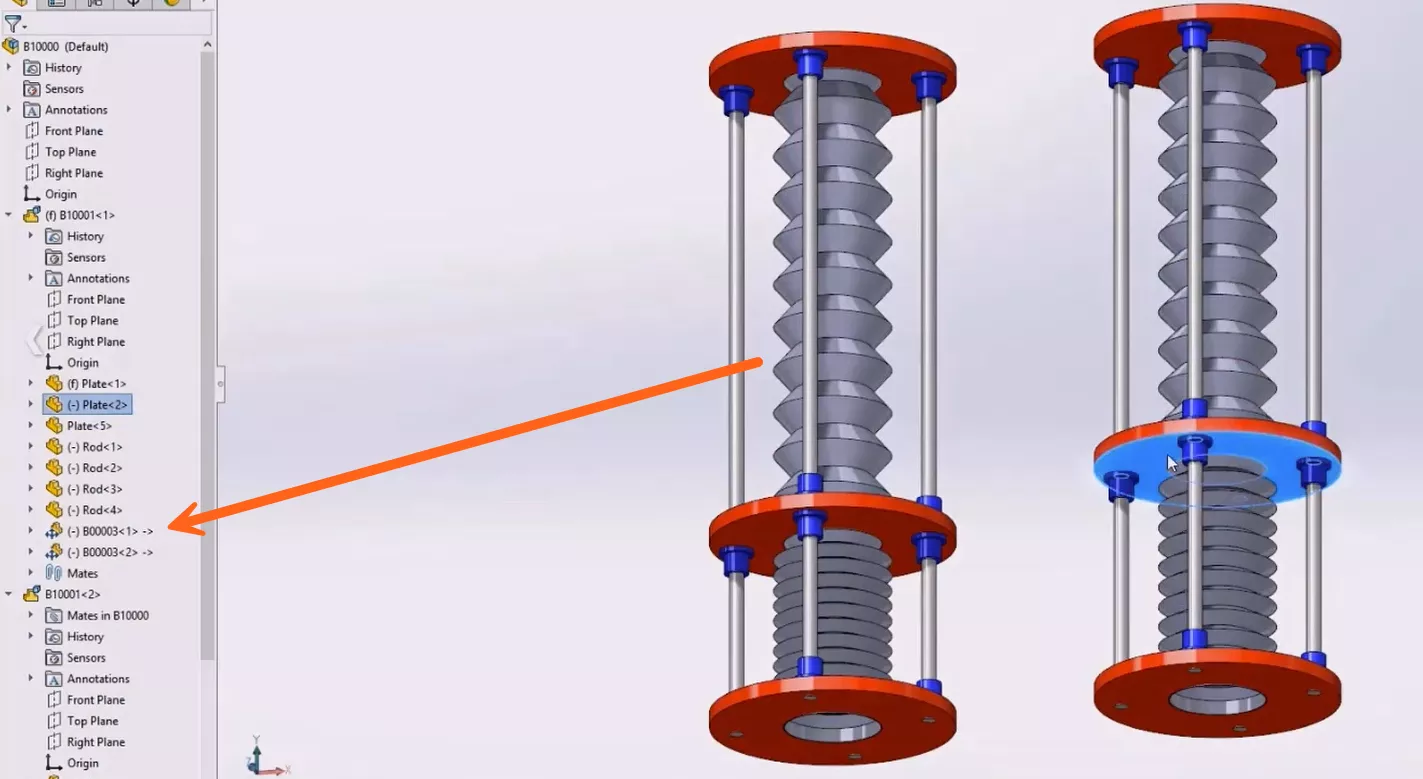
- Copy with mates – introduced in 2021, allows you to copy parts, with their associated mates. This makes it much easier to replicate the parts constraints in other areas of an assembly.
#4 – Realistic Rendering Capabilities
SOLIDWORKS Visualize is a standalone application designed to help you create high-quality photorealistic imagery from CAD models.
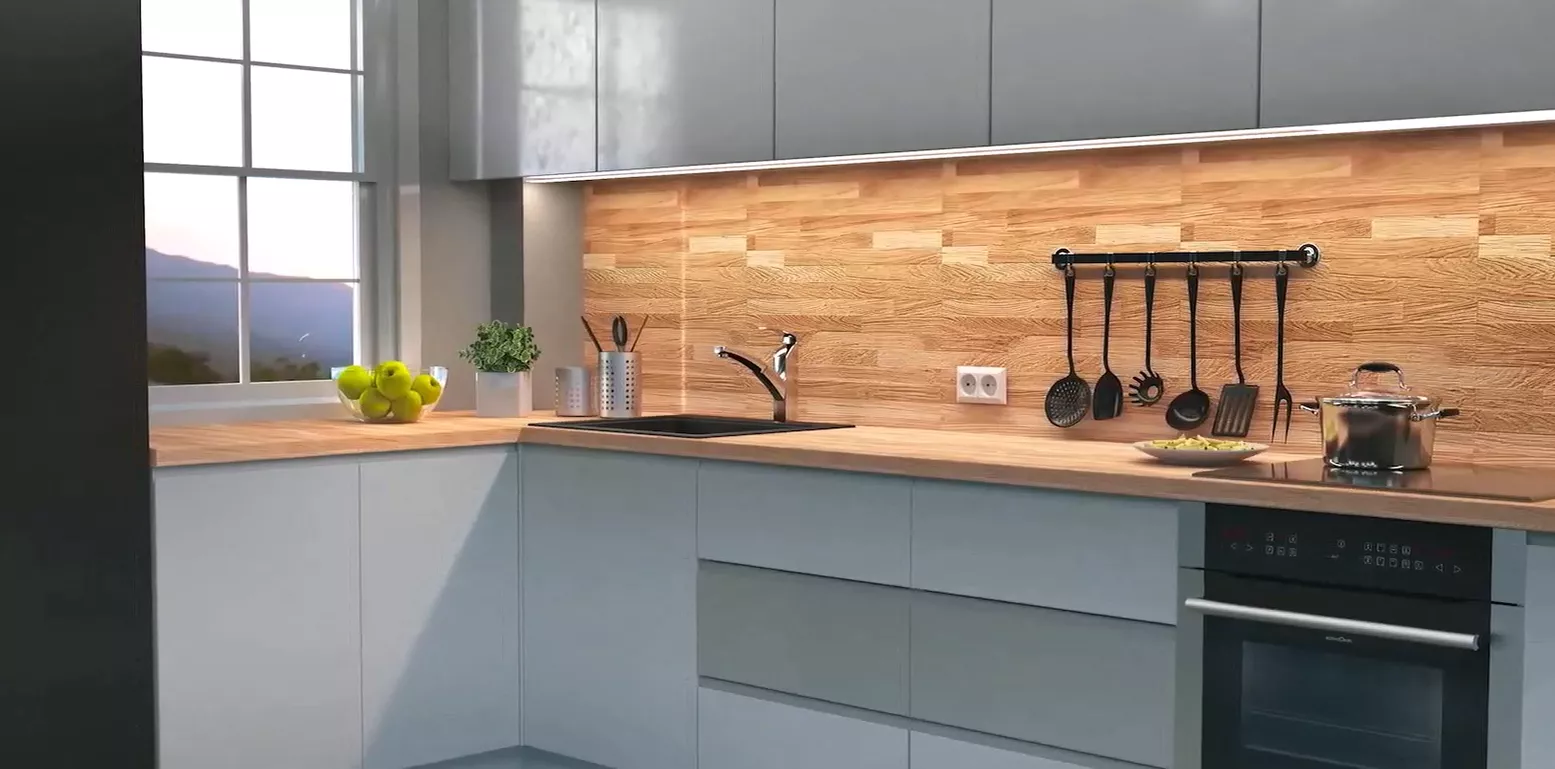
The last 5 years of development have made significant improvements to its functionality, here are some of the standout features which have been added:
- Extended reality (XR) Exporter – Easily convert visualize files into augmented reality (AR) or virtual reality (VR) experiences for highly interactive project presentations.
- Full integration with SOLIDWORKS PDM – simplifying file organisation.
- IES light profiles – For defining light distribution characteristics of real-world light sources, this gives you greater control over how light is emitted from each light fixture. This can include intensity, direction and distribution pattern.
- Match camera tool – helping to align models with a backplate for more accurate positioning.
- Geometry shadow catching – enhances realism by creating geometry such as walls to catch shadows and incorporate this into the background.
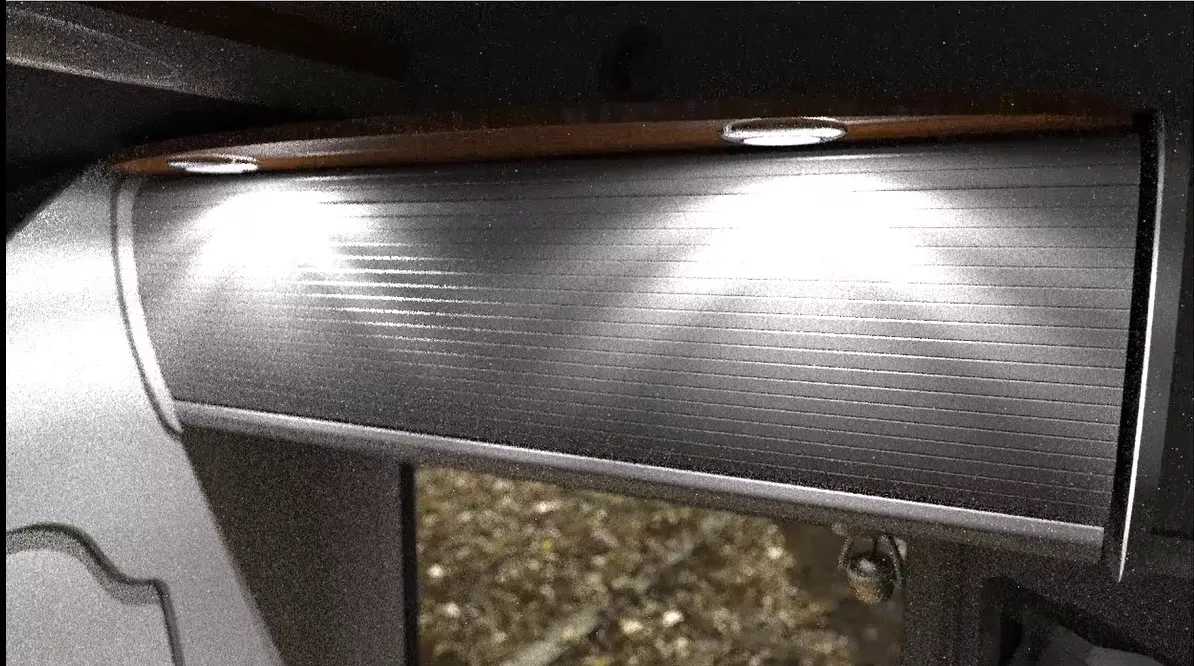

The most impressive enhancement is the new render engine, which boosts performance, making viewport interactions smoother and significantly reducing render times, especially for high-resolution images and high-end GPUs.
#3 – New Part Features
SOLIDWORKS continues to evolve, by streamlining part creation with new tools and reduced workflows.
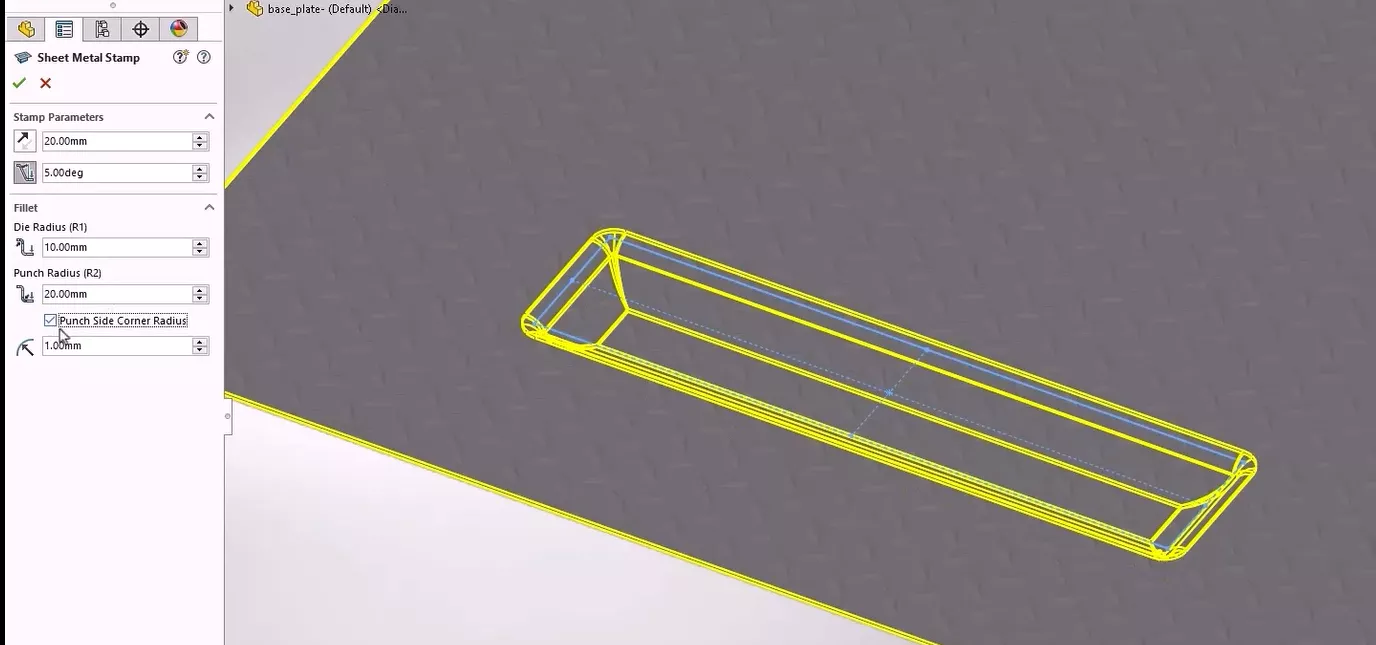
- Improved sheet metal stamps – More precise creation of stamped or pressed using a single sketch to give far greater control.
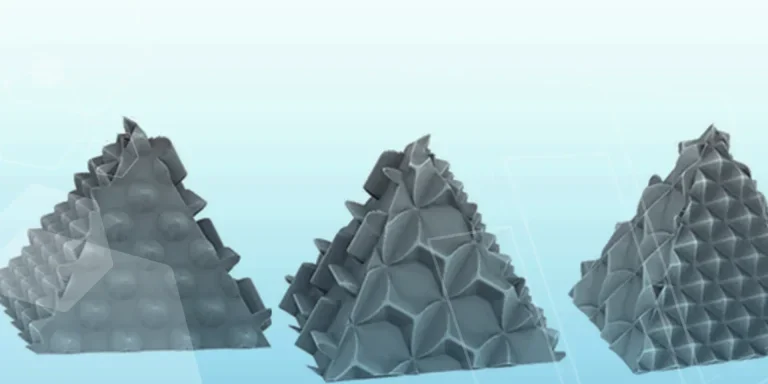
- Simpler 3D Textures – Create realistic surface textures, such as a knurled finish. Apply these to your designs using a library asset or your own image, the results can even be 3D printed.
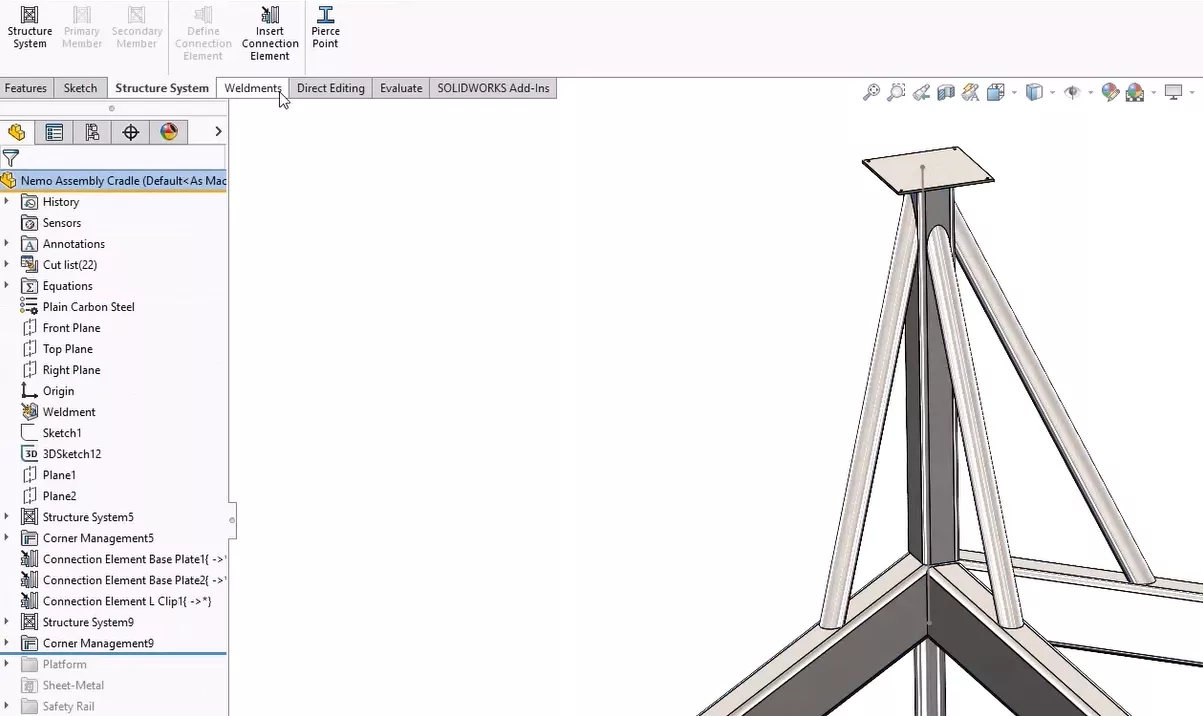
- Structure systems – Introduced in 2019, this environment enables you to create and modify complex frames and structures, without the need to sketch geometry.
- The stud wizard – Allows you to quickly add studs to your part designs for fasteners or hardware.
- Sheet metal sensors – Monitor critical parameters such as bend radius, material thickness and sheet size to ensure manufacturability.
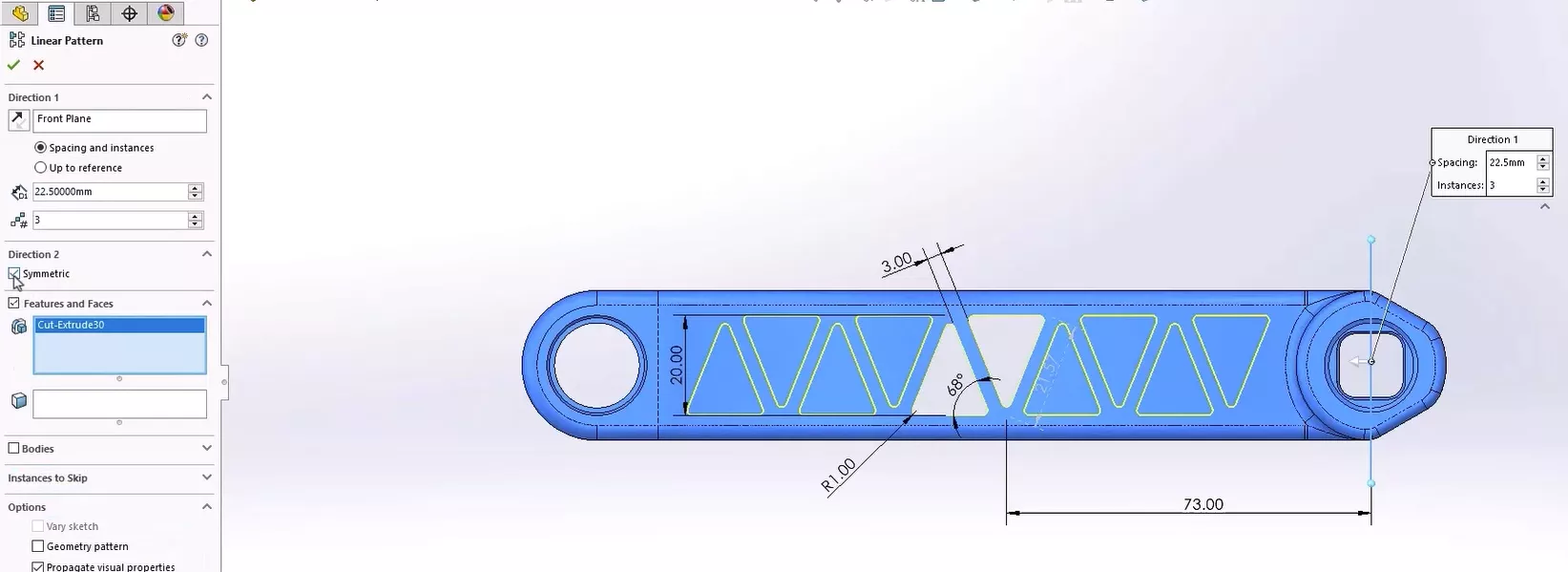
- Linear pattern ‘symmetric’ option – Automatically creates mirror features patterned in the same linear direction.
#2 – Large Design Review and Detailing
Large assembles can sometimes create performance issues, but there are many ways to optimise the assembly and make reviewing and editing the file more efficient.
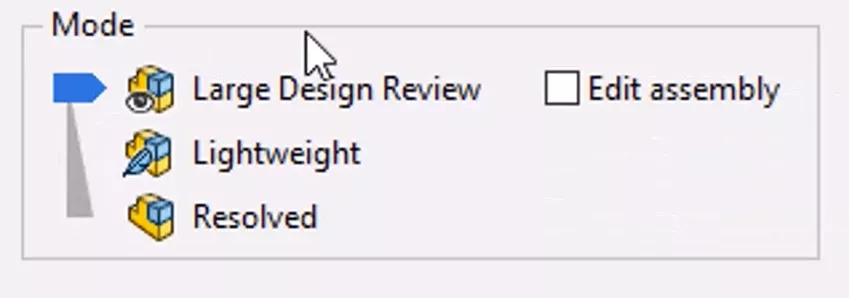
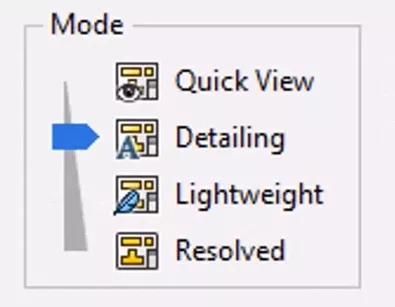
In the last 5 years, Large design review (LDR) mode has been massively improved to allow users to efficiently open large assemblies without the typical performance delays.
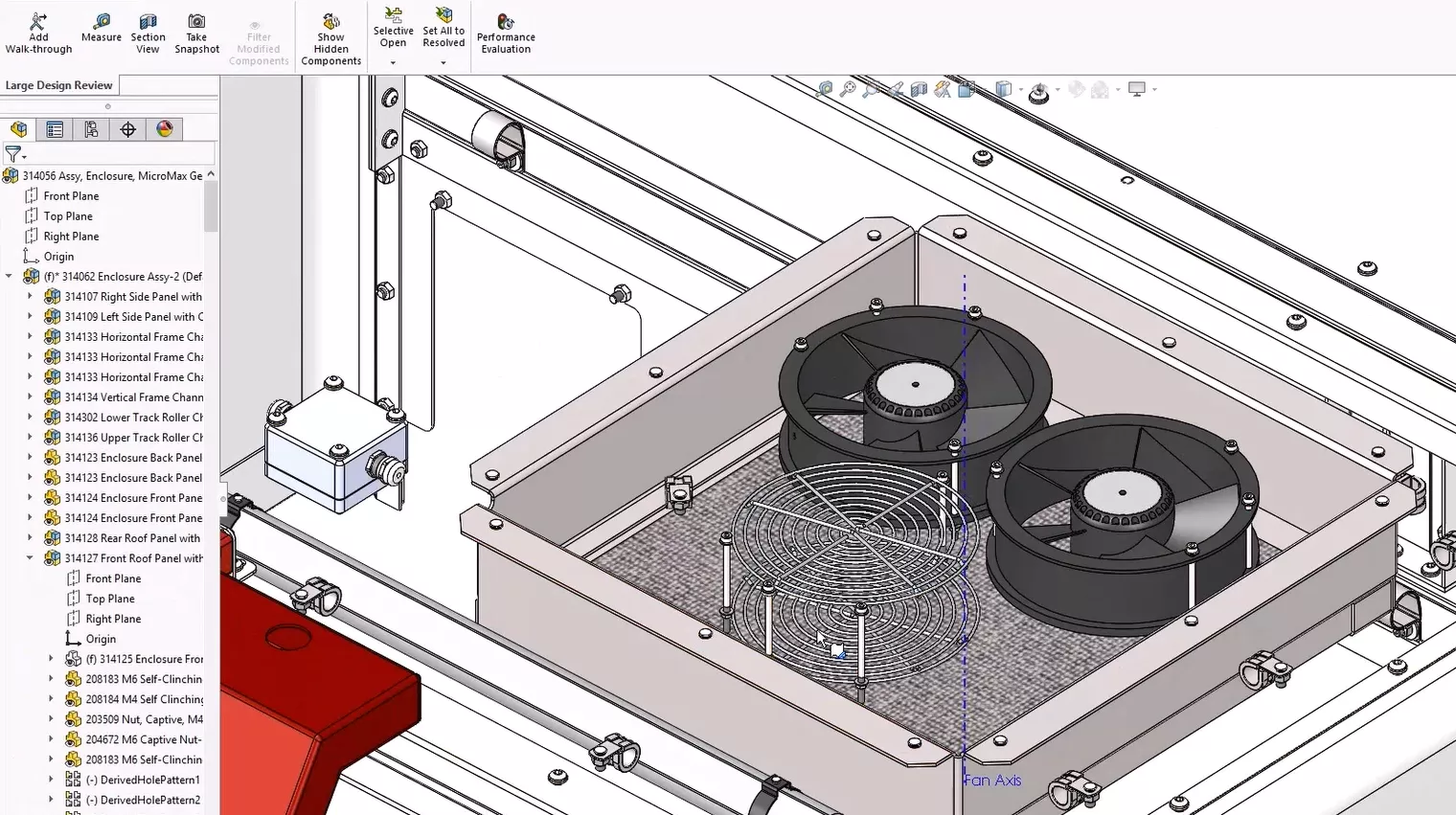
LDR mode only loads the essential data of an assembly such as structure and mates to enable faster reviews. Users can navigate the feature-manager design tree, measure distances, create cross-sections, hide/show components and even detect interferences.
The graphics performance of LDR has also dramatically improved, better aiding assembly navigation and making file management more efficient, with faster load times for lightweight and referenced files.
The equivalent ‘detailing mode’ for drawings, allows users to work with 2D drawings without fully loading the 3D model. This allows large and complex drawings to open quickly, while still allowing editing capabilities such as annotations and even creation of section and detail views without fully loading the model.
#1 – Optimised Performance
Each year, SOLIDWORKS performance takes a big leap. In the last 5 years, there have been significant improvements aimed at efficiency for users working with large assemblies, complex models and detailed drawings. The key advancements include:
- Enhanced graphics performance setting – More powerful GPU and optimised rendering techniques mean smoother interaction with complex parts, better real-time visualisation and faster regeneration of graphics.
- Improved load times – The time to open large files is better optimised with more efficient loading methods year on year.
- Memory and CPU optimization – Improvements have been made to memory handling and multithreading capabilities, allowing better system resource usage. This means improvements for both standard and high-end systems.
- Better assembly management – managing complex projects has become smoother as lag and bottlenecks for large files have bee reduced due to better file handling.
- Cloud and collaboration tools – the integration of SOLIDWORKS PDM and the 3DExperience offer solutions to enhance performance when opening and transferring files.
It’s never been a better time to upgrade to SOLIDWORKS 2025, contact us today to discover the power of SOLIDWORKS.
If you need help upgrading, our expert support team is always on hand, contact them here.
Take the Next Steps
Discover all the latest updates across the SOLIDWORKS 2025 portfolio and how you can enhance your efficiency with our deep-dive webinar, blogs, and videos.
It’s more than just annual updates, though. Make the most of your SOLIDWORKS subscription with our Enhanced subscription package to unlock exclusive discounts, priority support, and so much more!
Categorised as: News | SOLIDWORKS Design | What's New
Get a SOLIDWORKS Quote
Interested in SOLIDWORKS? Contact us for questions, trials, or demos by clicking the button below or call 01926 333777. Our experts will help you find the perfect solution.

Related Posts

How to Find Reaction Forces in SOLIDWORKS Simulation
SOLIDWORKS helps us to find resultant forces through simulation studies. These virtual tests reduce the need for physical prototypes and give us an accurate answer.

Setting number of decimal places in a table on a drawing
When creating an equation in a drawing general table, is it possible to define the…

SOLIDWORKS Smart Fasteners
SOLIDWORKS Smart Fasteners is a really useful time saving tool, allowing you to automatically insert toolbox fasteners such as bolts and screws into an assembly providing there is a standard hole.

Why is my Flat Pattern not showing in SOLIDWORKS Drawings?
This may be linked to how the drawing is saved or it can be related to how sheet metal parts are displayed in drawings, read on to find out how to fix it.

SOLIDWORKS Tips: Are you Making this Common Mistake in Fatigue Analysis?
Simulation is a vital and complex engineering need. Fortunately, SOLIDWORKS makes it easy to test, correct mistakes and obtain accurate results.

How to Recover SOLIDWORKS Files After a Crash
SOLIDWORKS has two different methods to help you recover from an unexpected crash or loss of data in the form of auto-recovery and back-up settings.

Redesigning Santa’s Sleigh in SOLIDWORKS
Every year Father Christmas has to fly in his sleigh to deliver presents to boys and girls all over the world in just one night. To put this into perspective, it takes a little under 24 hours to fly from London (UK) to Sydney (Australia) in a streamlined Boeing 747, whereas Father Christmas’ mode of transport is believed to be a rather non-aerodynamic sleigh.

SOLIDWORKS Grid Systems – hidden away, but very useful!
Rory Niles provides an insight into the uses for Grid Systems within SOLIDWORKS 2018

Furniture Design Made Easy with SOLIDWORKS
Calling all furniture and interior designers: the days of creating square cabinets are over. What if we told you there’s a much easier way to bring your products to life?
Here’s 10 reasons why we feel SOLIDWORKS is better than any other software, especially if you’re designing furniture:
Making 3D Textures from Images on SOLIDWORKS
Turn images into 3D geometry with brand new SOLIDWORKS 3D Textures Feature