











3 Easy Ways to Make Your Renders More Realistic with SOLIDWORKS Visualize
Written by: Richard Earley
Published: Jan 22, 2026
| View All Blogs
Creating photorealistic renders in SOLIDWORKS Visualize can be a challenging task, but with a few key techniques, you can significantly enhance the realism of your renders.
Here, we’ll explore three essential tips to elevate your renders and help you add that extra touch of realism to your product renders.
#1 Imperfections are Perfect
While SOLIDWORKS models are often perfect for manufacturing purposes, they may not look realistic in a render.
Real-world objects actually have imperfections that need to be reflected in your models if you want to convey ultimate realism.
So what can you do? You can tweak your models and spend some time in SOLIDWORKS adding small imperfections like rounded corners and slight gaps between parts.
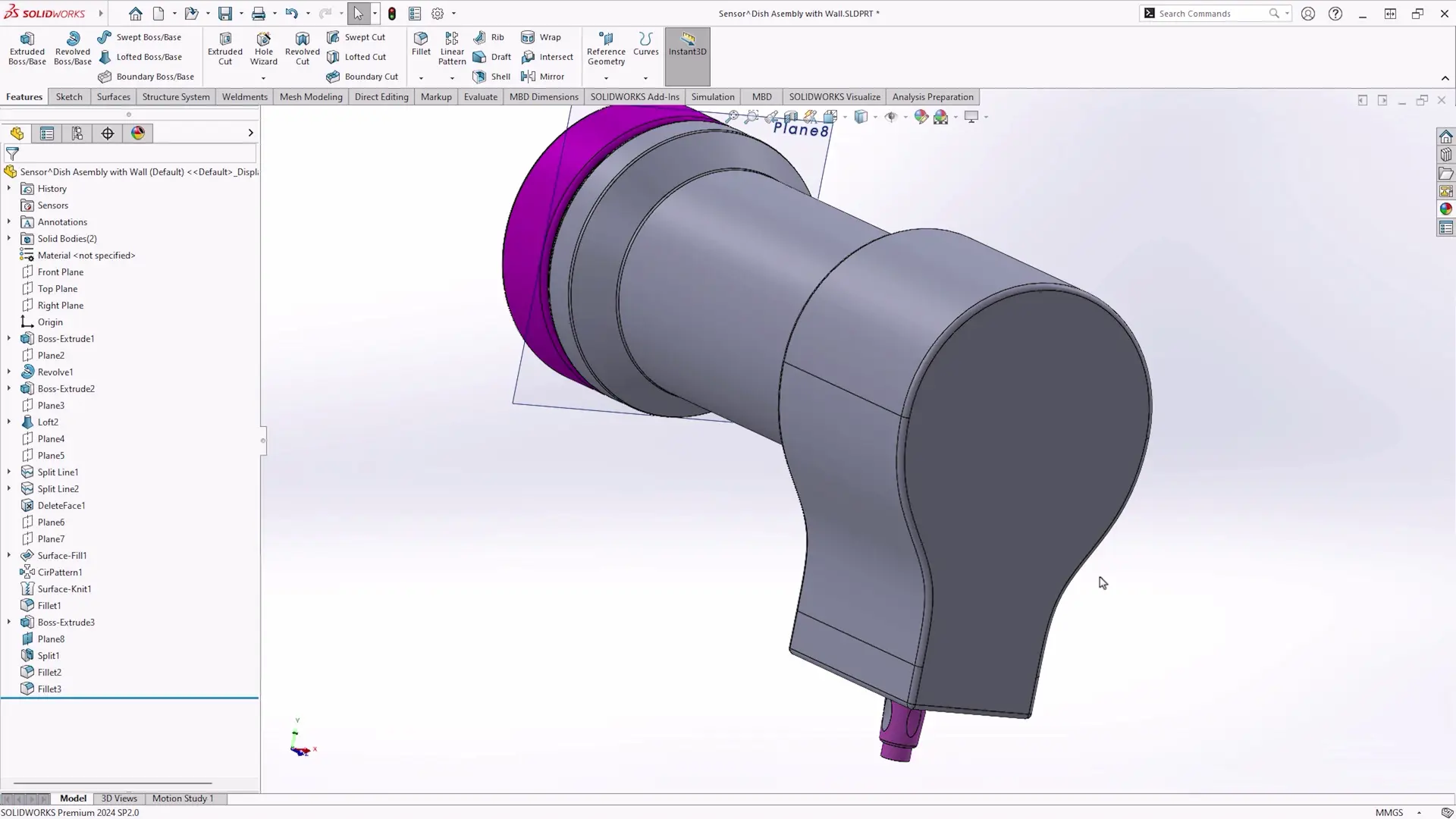
We do have the rounded corner option to use in SOLIDWORKS Visualize to break sharp corners, but for the best results, you really want to add these details directly in SOLIDWORKS and retain maximum control of your CAD data.
We also want to avoid tessellation. Low image quality settings can result in tessellated curves on models that appear as a series of straight lines.
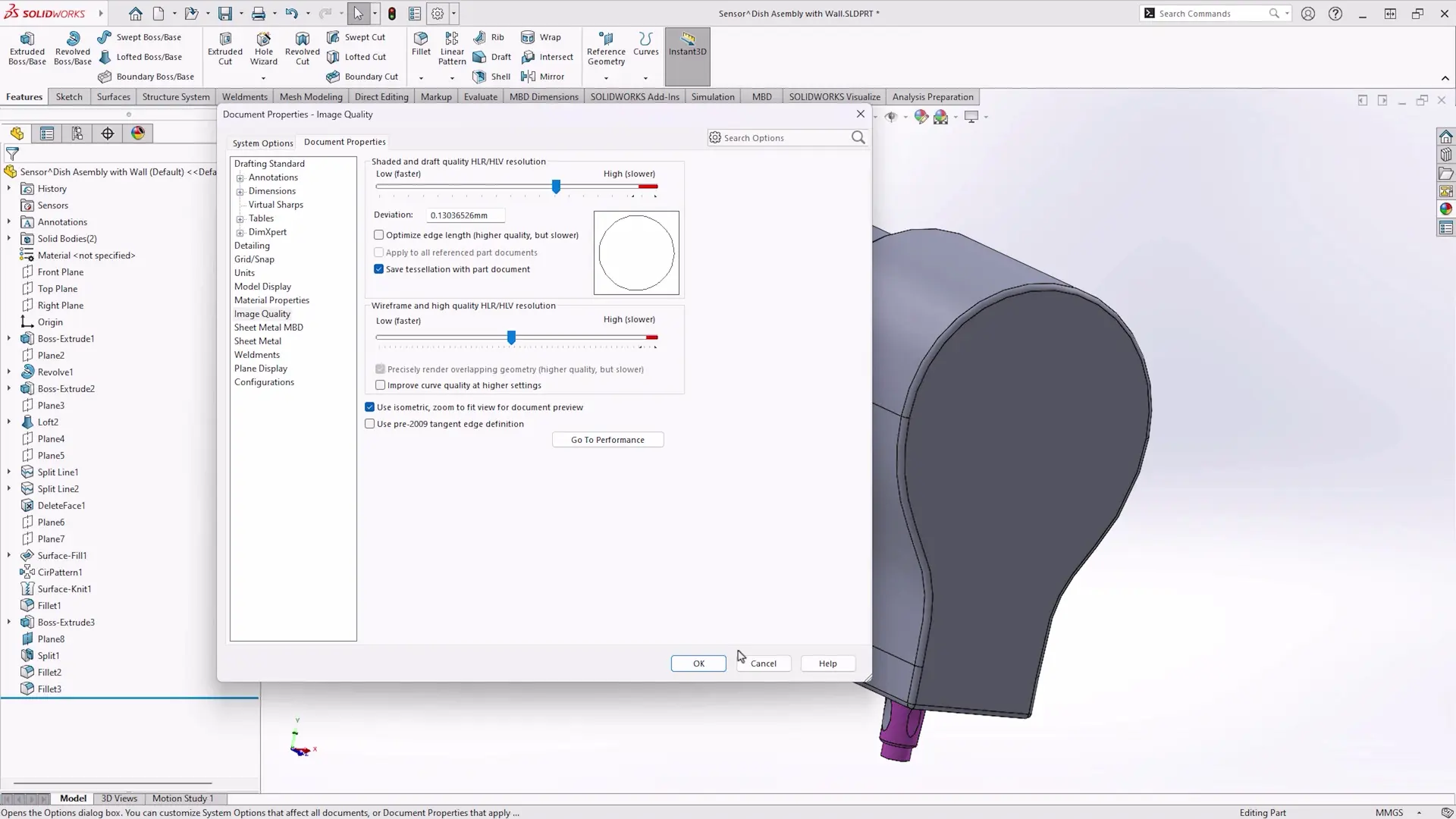
Avoid this by turning up the image quality slider in SOLIDWORKS before sending to render to ensure smooth curves.
Your product is really being produced, right?
So don’t be afraid to add manufacturing marks to your models!
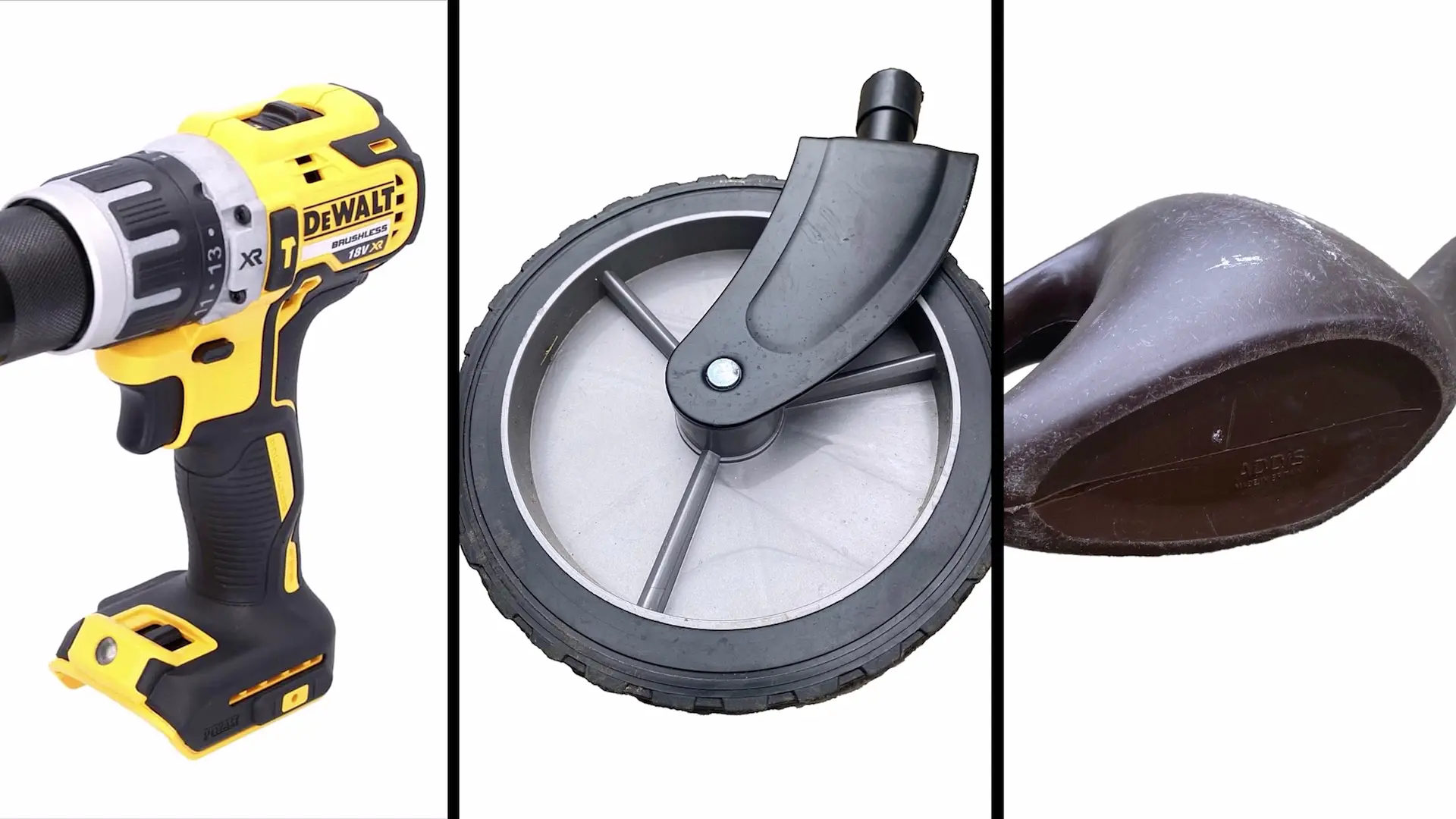
Include details like parting lines, sink marks, and slight variations that might occur due to manufacturing processes.
These can be added through textures and clever lighting, but incorporating them directly into the model often yields better results.
Remember, subtlety is key. Real-world objects are not perfectly clean or uniform, so adding slight imperfections can greatly enhance realism.
#2 – Interrogate Your Textures
What do appearances actually look like in reality? Take some time to look at the real version of what you are trying to create and try to match the texture on the screen to what is in your hand.
Be sure to utilise the DSPBR appearances within SOLIDWORKS Visualize. These appearances are designed to mimic real materials with great accuracy.
Play about with the sliders and texture maps that are available to add as much texture and imperfection as possible.
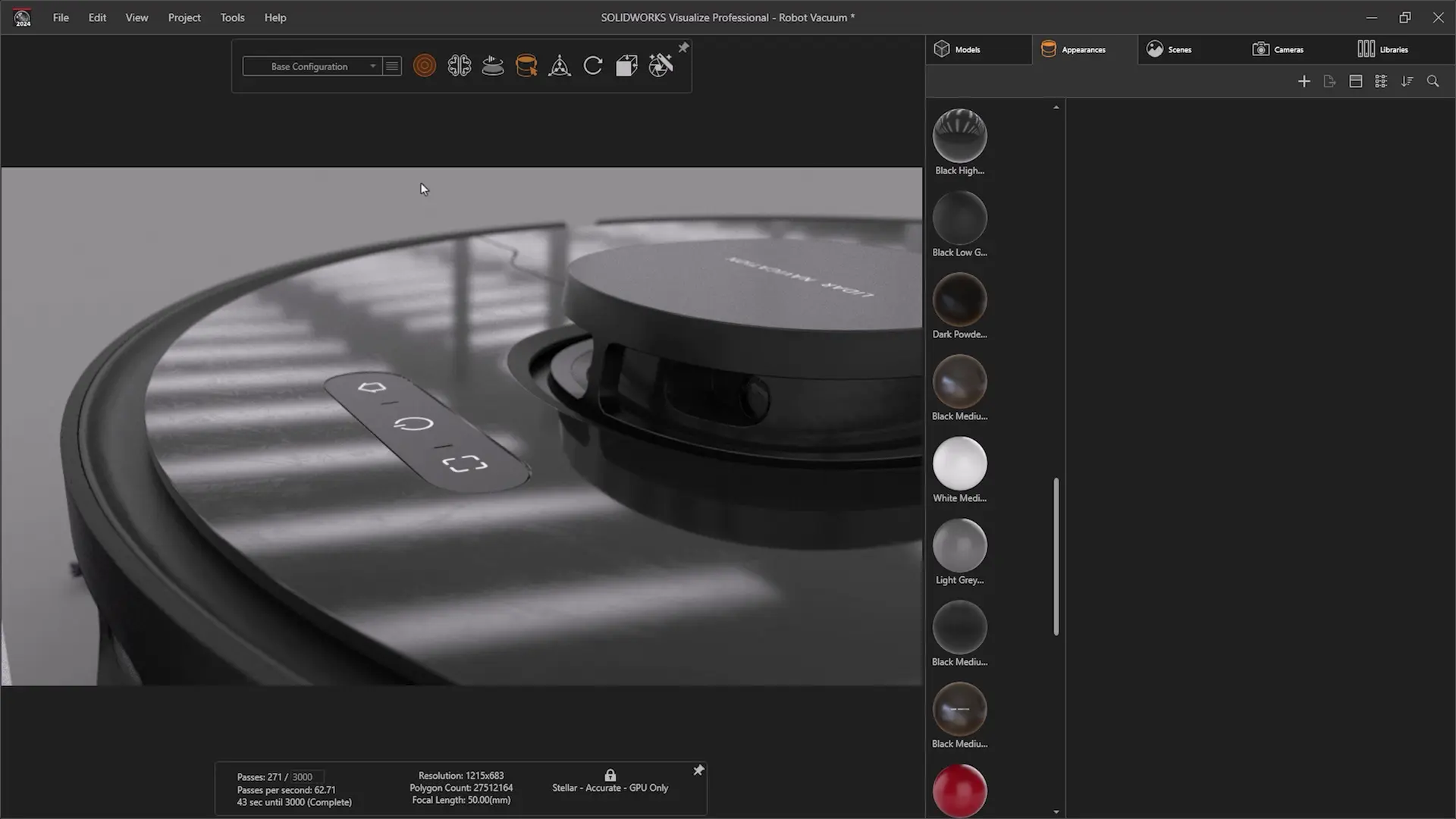
Utilise the depth slider of normal or displacement maps to modify how the surface interacts with light sources to add some roughness or gouges to the finish.
While you work with those textures, make sure you avoid repetition where you can.
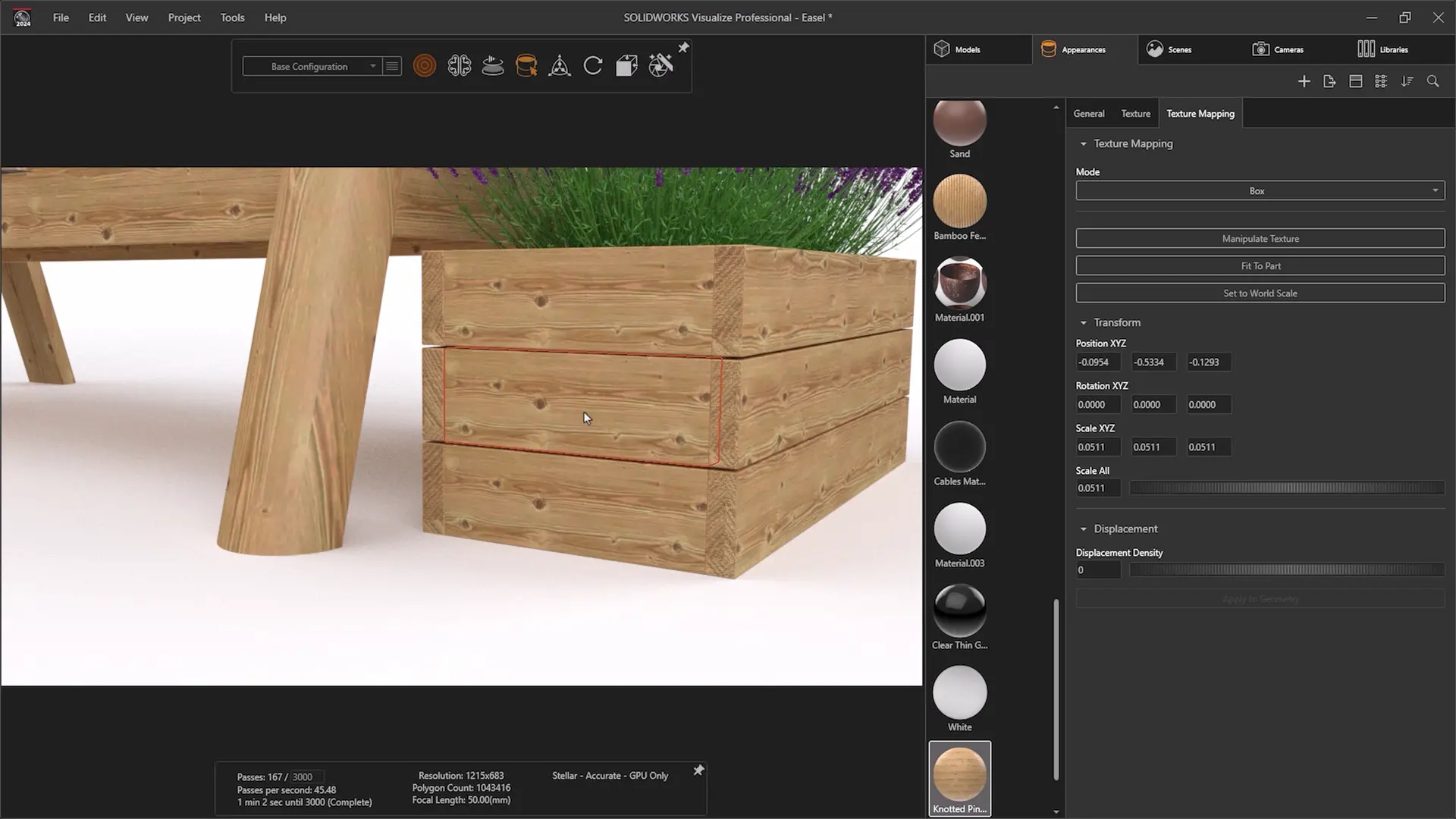
Does this repeated wood grain look realistic to you?
Ensure that textures like wood grain do not repeat across multiple parts, as this can look unnatural. Adjust each texture individually to break up any repetition.
There’s no secret sauce here, just get your textures as close as possible to the real thing!
#3 – Light it Right
Lighting is perhaps the most critical factor in achieving photorealism. Good lighting sets the mood and brings out the details in your render.
HDRI lighting (High Dynamic Range Images) is perfect for evenly lighting your scenes and adding realistic reflections.
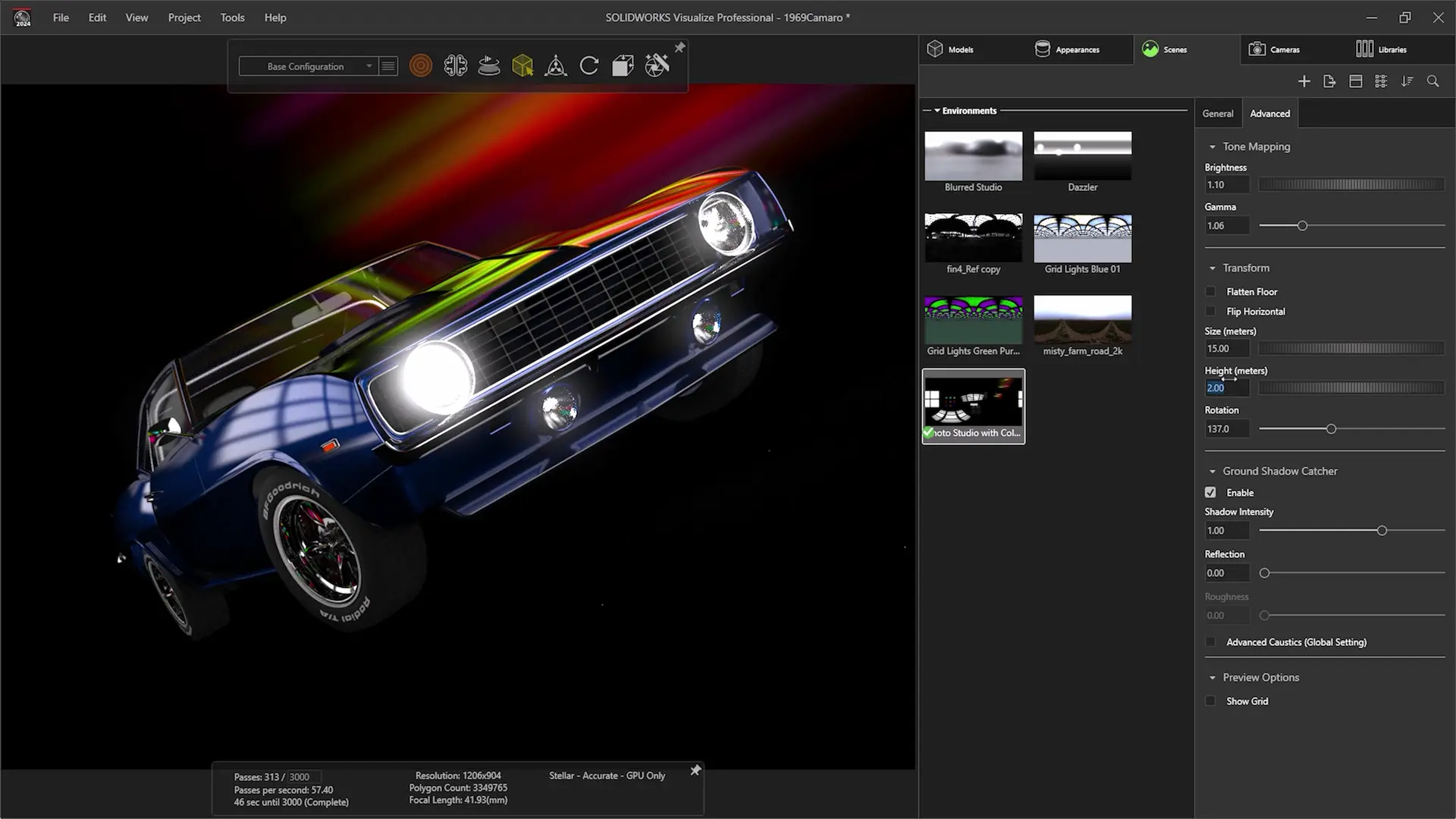
Choose an appropriate HDRI from the SOLIDWORKS Visualize cloud library or download more from sites like Poly Haven, then adjust the brightness, gamma, rotation, and other settings to get the desired effect.
SOLIDWORKS Visualize Professional comes with fully customisable physical lights.
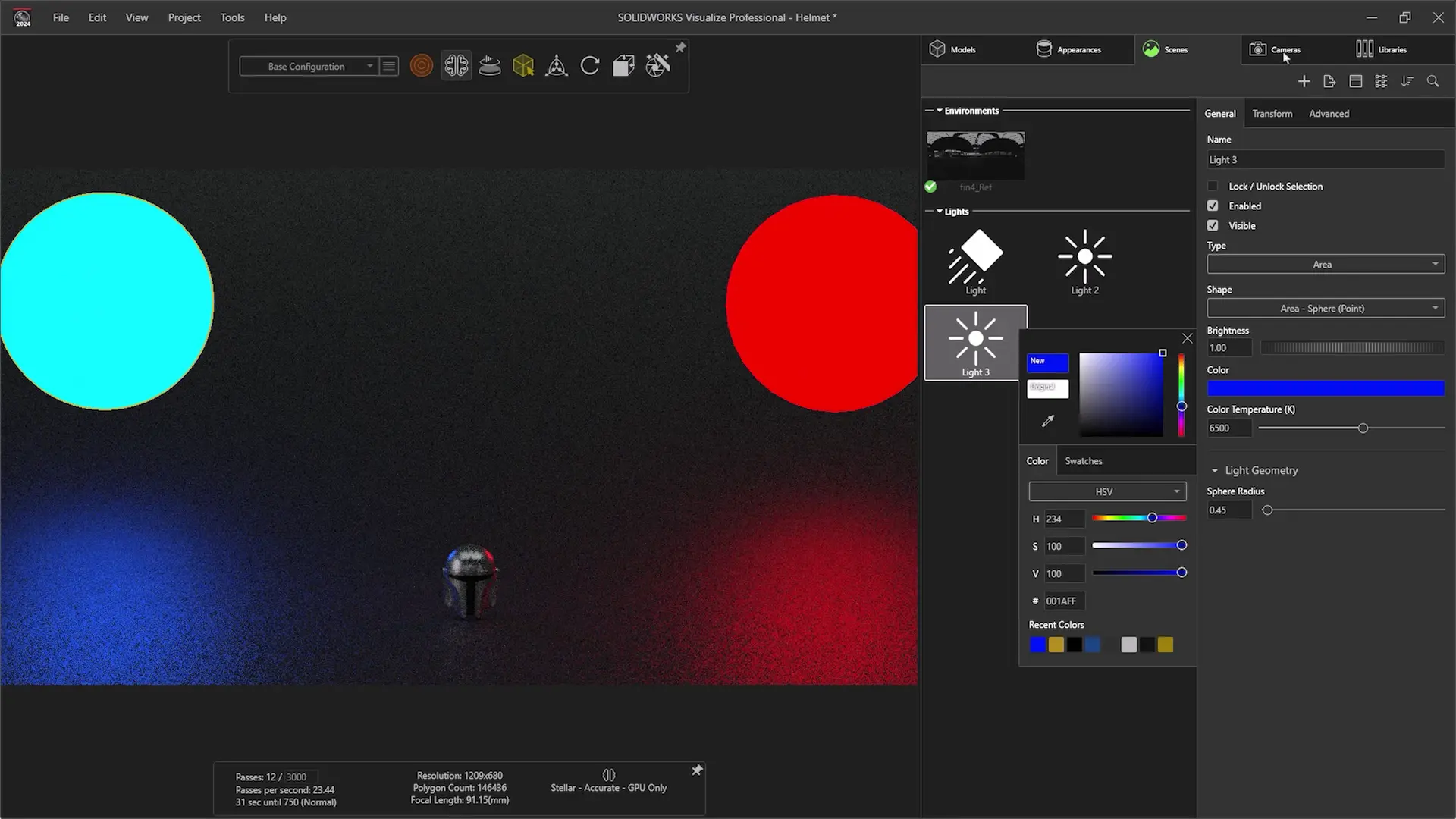
These mimic real-world lighting equipment and tend to provide more control over the lighting than a simple environment.
Some of these lights are IES Profiles – maps of real lighting patters that are available from manufacturers. These offer detailed control over light falloff, luminescence, and shape.
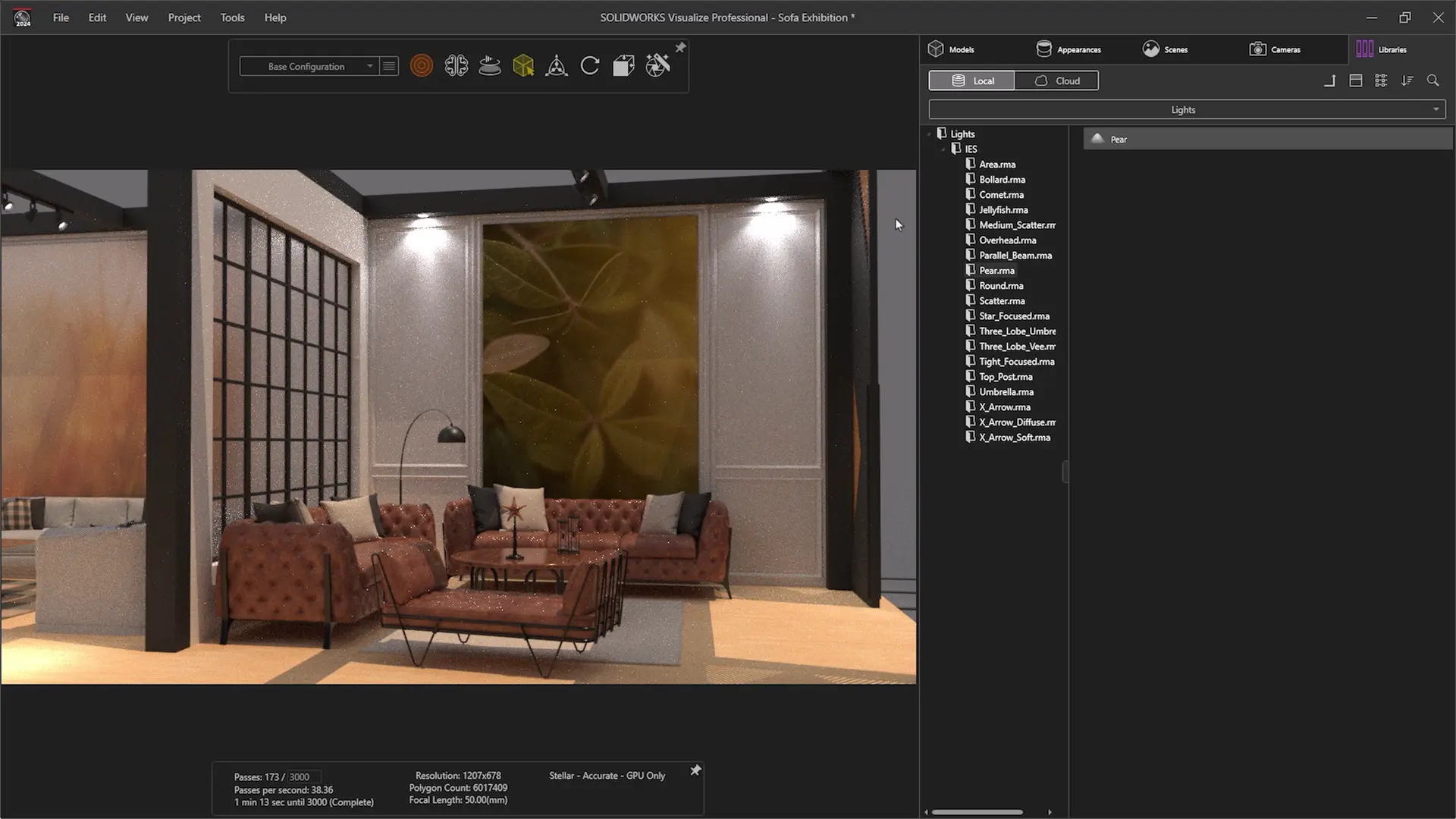
They are essential for rendering interiors and can significantly enhance the realism of a scene.
Be sure to experiment with different lighting setups to see what works best for your scene, by combining HDRI environments with physical lights, you can achieve a truly realistic setting.
BONUS TIP – Learn from the Experts
While these tips will get you started on the path to more realistic renders, mastering rendering or SOLIDWORKS Visualize requires practice and in-depth knowledge.
That’s we recommend investing in a professional training course that will accelerate your learning and help you achieve professional-quality renders faster.
We run courses online and across the UK and Ireland throughout the year for CAD software including SOLIDWORKS Visualize Standard and SOLIDWORKS Visualize Professional.
Our professional training provides:
- Comprehensive Learning: Detailed tutorials and hands-on exercises cover all aspects of the software.
- Expert Guidance: Learn from industry experts who share tips and tricks that you won’t find in basic tutorials.
- Advanced Techniques: Explore advanced features and techniques that can take your renders to the next level.
Find a course near you and hone your skills further, so you can confidently tackle complex projects and create stunning, photorealistic renders that impress clients and stakeholders alike.
To achieve true photorealism in SOLIDWORKS Visualize, you need a combination of detailed geometry, realistic textures, and effective lighting; with practice and the right training, you can transform your renders and bring your designs to life with astonishing realism.
Categorised as: SOLIDWORKS Design | SOLIDWORKS Visualize
Start-ups Get SOLIDWORKS for FREE
Join the SOLIDWORKS for Start-ups programme and access professional SOLIDWORKS CAD software FREE for 12 months. Perfect for entrepreneurs, freelancers, and new businesses ready to build the future.
Related Posts

How to Find Reaction Forces in SOLIDWORKS Simulation
SOLIDWORKS helps us to find resultant forces through simulation studies. These virtual tests reduce the need for physical prototypes and give us an accurate answer.

Setting number of decimal places in a table on a drawing
When creating an equation in a drawing general table, is it possible to define the…

SOLIDWORKS Smart Fasteners
SOLIDWORKS Smart Fasteners is a really useful time saving tool, allowing you to automatically insert toolbox fasteners such as bolts and screws into an assembly providing there is a standard hole.

Why is my Flat Pattern not showing in SOLIDWORKS Drawings?
This may be linked to how the drawing is saved or it can be related to how sheet metal parts are displayed in drawings, read on to find out how to fix it.

SOLIDWORKS Tips: Are you Making this Common Mistake in Fatigue Analysis?
Simulation is a vital and complex engineering need. Fortunately, SOLIDWORKS makes it easy to test, correct mistakes and obtain accurate results.

SOLIDWORKS Visualize. Why go pro? – 6 Post Processing
In this blog we will be look at the post-processing options that can be found in SOLIDWORKS Visualize

SOLIDWORKS Visualize. Why go pro? – 7 Lighting
SOLIDWORKS Visualize uses a non-biased rendering engine, which allows for physically accurate lighting within a scene. It generates images with high amount of realism and correct set up can replicate photo studio lighting.

How to Get Your Serial Number for SOLIDWORKS Visualize Standard
Want to download Visualize to make photorealistic renders? Follow this guide for accessing your Visualize serial number that comes bundled in with SolidWorks Professional and Premium.

How to Recover SOLIDWORKS Files After a Crash
SOLIDWORKS has two different methods to help you recover from an unexpected crash or loss of data in the form of auto-recovery and back-up settings.

Redesigning Santa’s Sleigh in SOLIDWORKS
Every year Father Christmas has to fly in his sleigh to deliver presents to boys and girls all over the world in just one night. To put this into perspective, it takes a little under 24 hours to fly from London (UK) to Sydney (Australia) in a streamlined Boeing 747, whereas Father Christmas’ mode of transport is believed to be a rather non-aerodynamic sleigh.