








5 NEW Time-Saving Sheet Metal & Fabrication Tools: What’s New in SOLIDWORKS 2024

Written by: Terry O'Reilly
Published: Nov 17, 2023
| View All Blogs
SOLIDWORKS is widely used by sheet metal and structural fabricators to design, validate, and manufacture a huge range of designs that require welding, pressing, stamping, forming and punching processes.
SOLIDWORKS 2024 is the latest release of the popular 3D CAD software and offers some great enhancements to help sheet metal designers and fabricators work more easily and manufacture components even more rapidly.
1. TAB & SLOT IMPROVEMENTS
Propagate Slots is a time-saving enhancement that allows users to add slots to copied parts effortlessly, as we can now easily reuse the tab and slot feature in assemblies.
After copying a part with a Tab & Slot feature, right-clicking on the part gives us the option to ‘propagate slots’ within the right click menu.
We can choose individual slots to propagate, or simply choose all instances. This will copy the feature to adjacent parts as well as to the selected component.

The Tab & Slot tool sees a second improvement through the inclusion of a normal cut option in the feature property manager for extra flexibility.
2. STAMP TOOL
This brand-new tool has the potential to challenge for the title of ‘best new feature’ in SOLIDWORKS 2024.
A versatile addition to SOLIDWORKS 2024’s sheet metal design toolset, the Stamp Tool simplifies the creation of intricate features, such as wheel indents on a base plate.

Designers can easily add dimensions, define drafts, and control radii, providing a level of flexibility and precision that was previously unmatched.
The Stamp Tool proves to be a time-saving alternative to traditional forming tools, enhancing efficiency and complementing SOLIDWORKS’ user-friendly interface.
Success Stories
Are you a start up? Gravity were too.
They graduated from our Entrepreneur programme to design and build awesome jet suits – you might have seen them opening several F1 Grand Prix’s throughout 2023!
Check out our Entrepreneur Programme to find out how you could also get SOLIDWORKS for FREE for your first year.
3. RIP COMMAND
SOLIDWORKS 2024 also introduces an enhancement to the Rip Command, to ensure it can flatten thin-walled cylindrical geometry.

Previously, thin-walled sections needed to be manually converted to sheet metal components. Now, the Rip tool is strengthened to accommodate this thin-walled geometry and generate flat patterns in far fewer clicks to save some valuable brain power and time.
4. AUTOMATIC CORNER MANAGEMENT
Structural design in SOLIDWORKS has been enhanced with improved corner management.
The tool launches after completing the secondary member selection, and now lets us group corners automatically. This is a huge time saver, as we no longer have to manually select individual corners – instead, SOLIDWORKS 2024 will group similar corners and apply collective corner treatments to them.
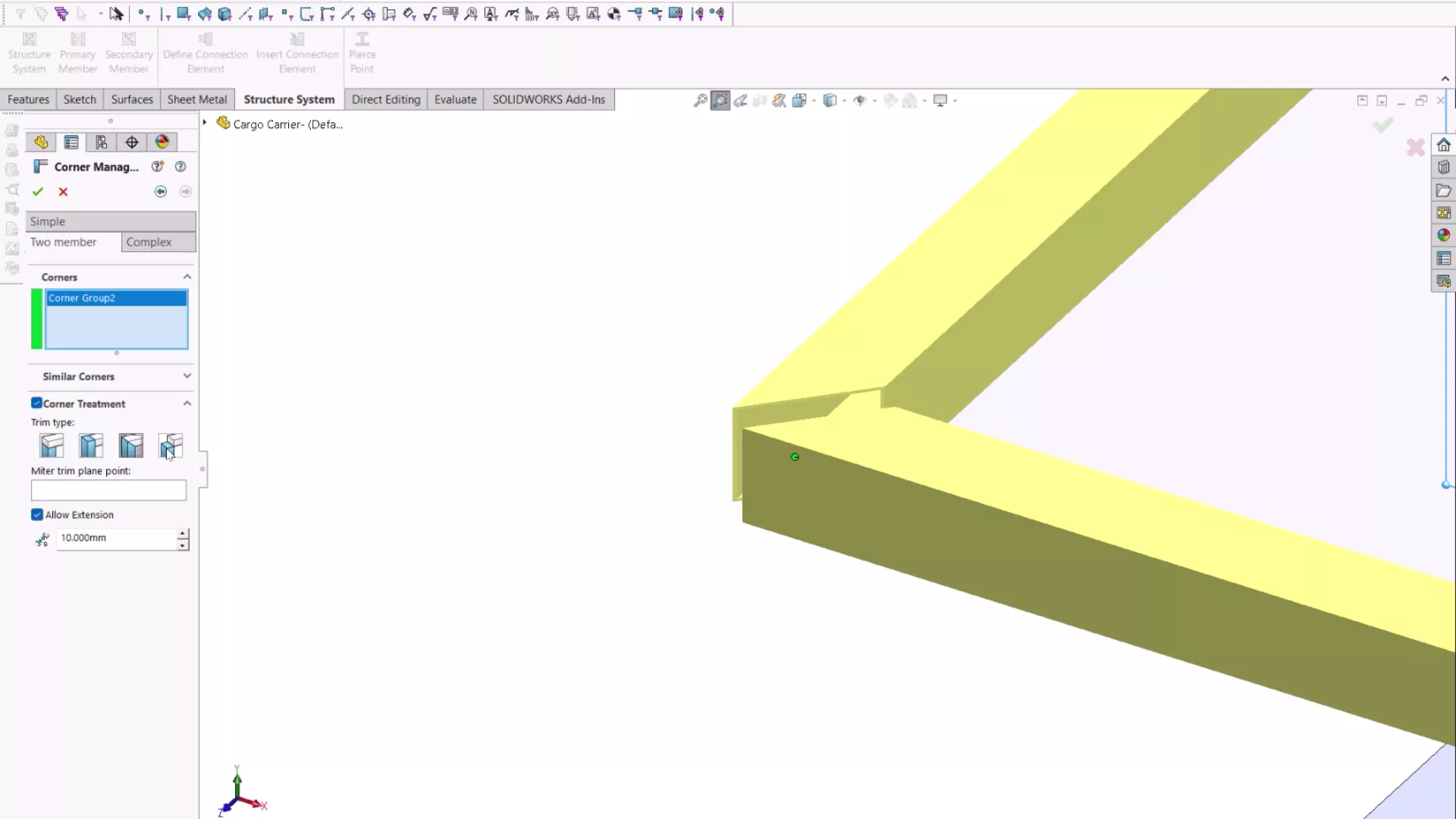
These treatments can still be modified individually to maintain maximum control over your designs.
5. CUT LIST UNITS
Fabrication processes have been streamlined further by adding the option to include units in Cut List properties.
This modification also extends to custom properties and will pull units through automatically to Cut List tables and BOMs in SOLIDWORKS technical drawings.
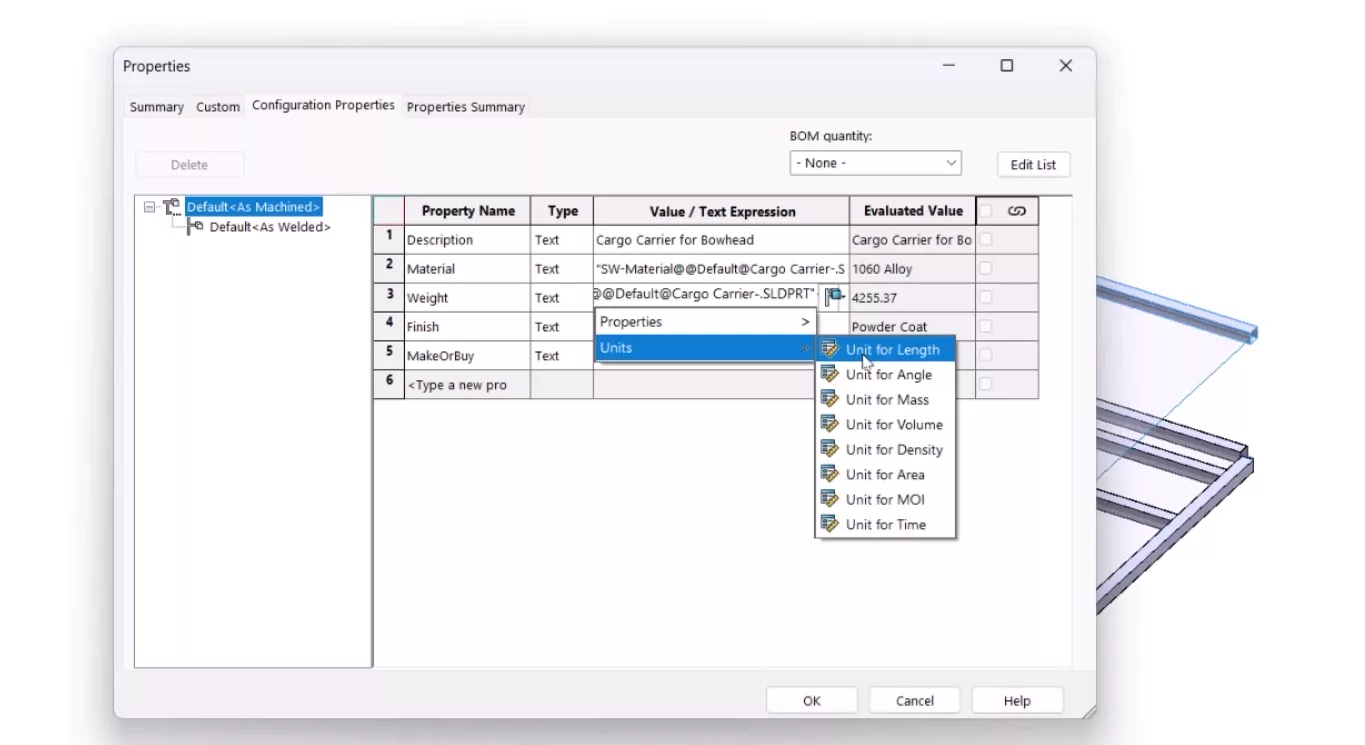
It’s a simple but powerful enhancement that gives users more flexibility and control over how they present designs for review, approval, and manufacture.
Take the Next Steps…
Our Sheet Metal and Weldments SOLIDWORKS training courses offer a great opportunity to get to grips with all of these tools and learn best practices from the SOLIDWORKS experts.
All of our courses can be attended online, or find a classroom near you.
Don’t forget that with a SOLIDWORKS subscription you gain access to our expert SOLIDWORKS Technical Support team.
If you find your workflow disrupted or just have a question about SOLIDWORKS, then give us a call on 01926 333 777 or drop an email to support@solidsolutions.co.uk and one of our expert Engineers will be in contact.
Categorised as: SOLIDWORKS Design | What's New
Get a SOLIDWORKS Quote
Interested in SOLIDWORKS? Contact us for questions, trials, or demos by clicking the button below or call 01926 333777. Our experts will help you find the perfect solution.

Related Posts

How to Find Reaction Forces in SOLIDWORKS Simulation
SOLIDWORKS helps us to find resultant forces through simulation studies. These virtual tests reduce the need for physical prototypes and give us an accurate answer.

Setting number of decimal places in a table on a drawing
When creating an equation in a drawing general table, is it possible to define the…
SOLIDWORKS Smart Fasteners
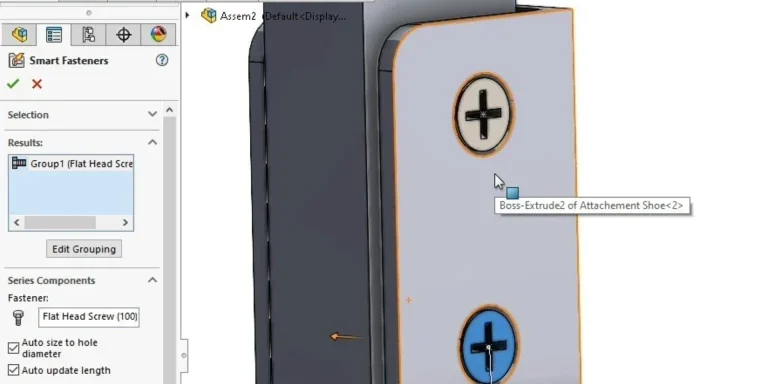
SOLIDWORKS Smart Fasteners is a really useful time saving tool, allowing you to automatically insert toolbox fasteners such as bolts and screws into an assembly providing there is a standard hole.
Why is my Flat Pattern not showing in SOLIDWORKS Drawings?
This may be linked to how the drawing is saved or it can be related to how sheet metal parts are displayed in drawings, read on to find out how to fix it.

SOLIDWORKS Tips: Are you Making this Common Mistake in Fatigue Analysis?
Simulation is a vital and complex engineering need. Fortunately, SOLIDWORKS makes it easy to test, correct mistakes and obtain accurate results.

How to Recover SOLIDWORKS Files After a Crash
SOLIDWORKS has two different methods to help you recover from an unexpected crash or loss of data in the form of auto-recovery and back-up settings.

Redesigning Santa’s Sleigh in SOLIDWORKS
Every year Father Christmas has to fly in his sleigh to deliver presents to boys and girls all over the world in just one night. To put this into perspective, it takes a little under 24 hours to fly from London (UK) to Sydney (Australia) in a streamlined Boeing 747, whereas Father Christmas’ mode of transport is believed to be a rather non-aerodynamic sleigh.
SOLIDWORKS Grid Systems – hidden away, but very useful!
Rory Niles provides an insight into the uses for Grid Systems within SOLIDWORKS 2018
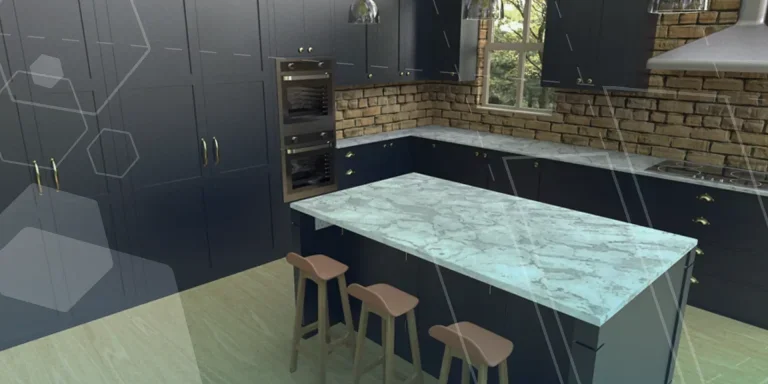
Furniture Design Made Easy with SOLIDWORKS
Calling all furniture and interior designers: the days of creating square cabinets are over. What if we told you there’s a much easier way to bring your products to life?
Here’s 10 reasons why we feel SOLIDWORKS is better than any other software, especially if you’re designing furniture:
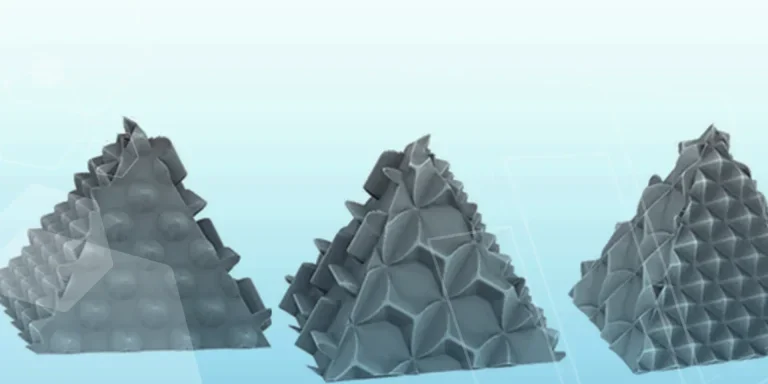
Making 3D Textures from Images on SOLIDWORKS
Turn images into 3D geometry with brand new SOLIDWORKS 3D Textures Feature