6 Things Every SOLIDWORKS User Should Check After Installing SOLIDWORKS 2025
Written by: Terry O'Reilly
Published: Dec 3, 2024
| View All Blogs
Now that you’ve successfully installed SOLIDWORKS, there are a few things to run through to make sure that you can design freely and get the best return on your investment.
Don’t forget, your SOLIDWORKS subscription gives you access to our expert Technical Support team to provide assistance at every stage of your SOLIDWORKS journey. So just drop us a call or email us if you ever get stuck or have questions.
This blog focuses on your post-installation experience and we’ll show you what checks to make, what to keep in mind, and where new features are found.
And if you haven’t installed SOLIDWORKS yet (well, firstly, what are you waiting for?), make sure you’ve read through our 10 things to do before upgrading to SOLIDWORKS 2025 before doing so.
#1 – Activate Your SOLIDWORKS 2025 License
Upon launching SOLIDWORKS 2025 for the first time after it has been installed or upgraded, it’s required you activate your license.
This ensures your license is valid and should only take a few seconds. It’s unlikely you’ll encounter any issues at this stage, especially if you’re upgrading SOLIDWORKS on the same machine that was running the prior version.
However, computer upgrades or outdated folders can sometimes disrupt the activation, resulting in an ‘activation failed’ error. If you encounter this, then be sure to contact our Technical Support team to assist you in resolving the issue.
#2 – Log into the 3DEXPERIENCE Platform
The SOLIDWORKS Cloud Services are included with your SOLIDWORKS subscription and provide you with secure cloud storage, collaborative share & markup tools, as well as product lifecycle management and project planning tools.
To access them, you’ll need to activate your 3DEXPERIENCE platform and log in.
The 3DEXPERIENCE platform is straightforward to activate, and you can follow the video tutorial above or read our guide to activating the 3DEXPERIENCE platform produced in collaboration with TriMech for a full walkthrough and in-depth explanations of the functions included.
Well-considered data management and lifecycle management is crucial, and a yearly upgrade gives you the chance to evaluate and optimise the security and workflows you have in place.
Even if you’re not looking to change your data management process, it’s worth activating the 3DEXPERIENCE platform as this is where forums, learning material and enhancement requests can be accessed.
If you’ve purchased SOLIDWORKS and are unsure whether you have access to Cloud Services, then do get in touch with our expert Technical Support team.
#3 – Check Your Hardware is Optimised for SOLIDWORKS
Any fresh installation provides a good opportunity to check that your machine is optimised to run SOLIDWORKS effectively.
Professional graphics cards are recommended when running SOLIDWORKS and, as the software is intended to run on high-performance workstations, it is always worth making sure your system is configured to handle it.

You can find out what your system is currently running using the SOLIDWORKS Rx tool. This diagnostics tool is installed alongside SOLIDWORKS and can be found within the Windows Start menu.
Here, you’ll find key information like your computer’s available memory, latest reboot, and crucially, your graphics card driver.
Your graphics driver may be out of date if you’ve recently upgraded SOLIDWORKS or your operating system. Update your graphics card driver to ensure your PC is equipped to perform at its best!

Rebooting your PC regularly is vital to continued performance. You wouldn’t perform at your best after being awake for 10 days straight without a nap, would you? Well, neither does your computer.
Your machine runs a bunch of services, and over time these build up until they are either manually disabled or your machine is restarted.
These services can impede the performance of software like SOLIDWORKS, making lagging and crashing more likely. Our Technical Support team are experienced with performance-related issues and can help you to find out why SOLIDWORKS is crashing, so do give them a call if you are experiencing any instability.
To ensure your machine is properly reset when you restart and to cleanse your system of redundant services, it’s highly recommended that you alter your machine’s start-up settings.
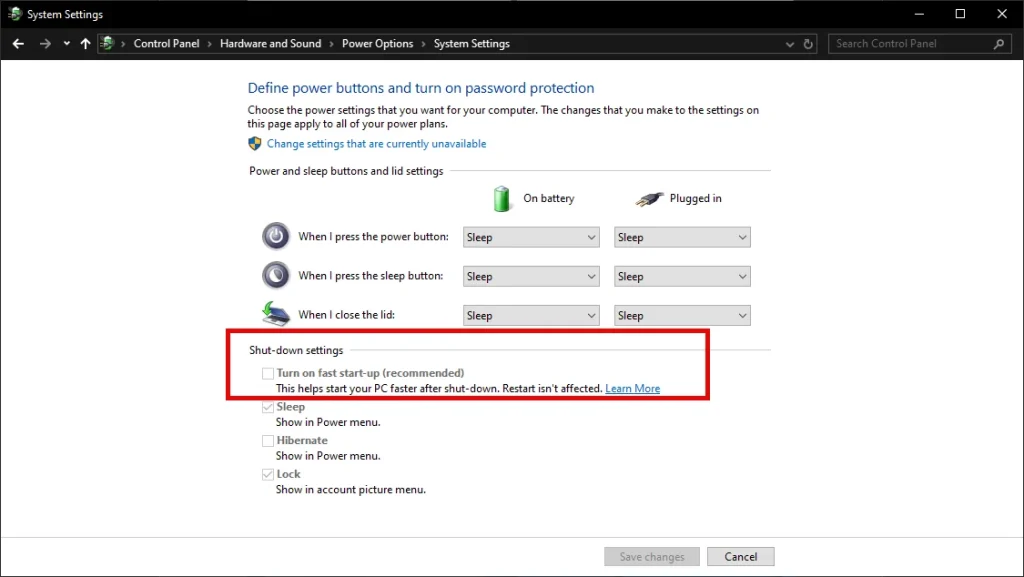
In the Control Panel -> Hardware and Sound -> Power Options -> System Settings, you can find the ‘Fast Start-Up’ function.
This will be enabled by default, and makes your machine restart faster by saving lots of system information into memory when shutting down, and picking it back up when you boot up.
So instead of resetting completely, and having a restorative sleep, your PC is trying to run programs before it is even awake! So, we recommend turning off fast start – your machine may take slightly longer to boot up, but your patience will be rewarded with better performance.
#4 – Personalise Your SOLIDWORKS System Options
Once upgraded, SOLIDWORKS should look and behave the way you’d expect because the installation inherits the user’s system options from the prior year. If you’ve tweaked the factory settings – modified selection or background colours, toolbar arrangement, shortcuts – you’ll see these pulled through into the latest version. Convenient, but sometimes overkill.
Where it may cause disruption is how it looks at your File Locations, a crucial and often modified section of your System Options. This is where you control the file-path of templates, sheet formats, weldment profiles, tables, and other external data you want SOLIDWORKS to notice.
If you label your SOLIDWORKS folders by year, it may still be looking at last year’s folders for information. Generally, most file paths will appear as:
C:ProgramDataSOLIDWORKSSOLIDWORKS 20xx…
C:Program FilesSOLIDWORKS CorpSOLIDWORKSLang*Language*…
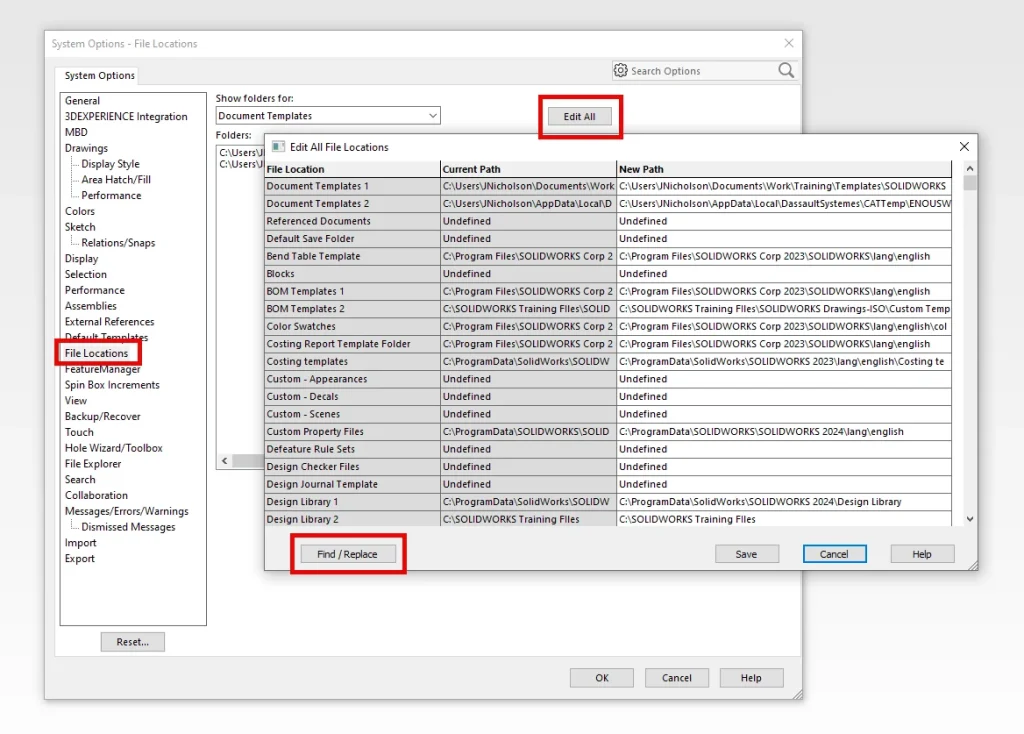
We can manually alter these paths to a custom location by using ‘Add’ to find the preferred path, and delete the redundant locations. However, if you notice all paths reference the previous year, we can update all paths in one step.
Click ‘Edit All’. The resulting pop-up will show all current paths.
Using the Find/Replace function, we can change the old year (2024) to the current year (2025). Select ‘Replace All’ and all system paths will modify to reference the most up-to-date files.
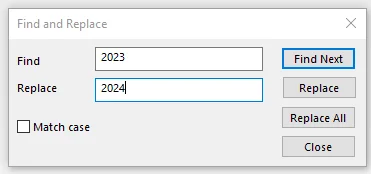
If you don’t include the year in the path, all other custom paths you’d set (network locations, PDM folders, 3DEXPERIENCE bookmarks) should automatically be correct, but we’d still recommend checking this post-upgrade.
#5 – Set up the SOLIDWORKS Toolbox
Another setting work checking is your Toolbox location. Depending on your installation settings, this may have changed to the default ‘SOLIDWORKS Data 20xx’ location. If you intended for this to be pointing at a shared toolbox (on a network, PDM Vault, 3DEXPERIENCE platform) you will need to modify this path.
Find ‘Hole Wizard/Toolbox’ in the System Options, and ensure the file path you see under ‘Hole Wizard and Toolbox folder’ is as expected. If not, use the […] to modify this path.

Like File Locations, there is a likelihood this path may be referencing an old, out-of-date path with a previous year. If this is the case you may run into issues when using the hole wizard/ Toolbox function, so manually change this path to the same year your SOLIDWORKS version. If the path appears correct and you’re still having issues with the Toolbox post-upgrade, or any other settings for that matter, please contact Support.
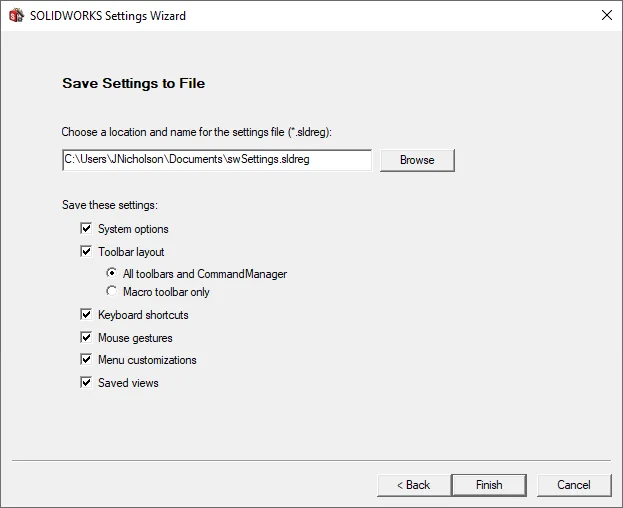
Top Tip: If you’re like to customise your SOLIDWORKS settings, it’s worth backing them up every now and again! Drop-down System Options to find Save/Restore Settings and follow along with this tutorial video.
From there, you can save settings from System Options to Mouse Gestures.
The resulting settings file can be saved to a network, or copied across machines, and ‘restored’ on a colleagues PC as a way to standardise system preferences across devices.
#6 – Explore the New Features!
Whenever you install SOLIDWORKS, you’ll be greeted with the latest release notes and new features in the form of What’s New in SOLIDWORKS 2025. You can also access this at any time through the Help menu within SOLIDWORKS.
While you may fancy some light reading of the 200+ page document of features, we’ve pulled out the key features across the portfolio on our blog and in our webinar for your convenience.
You may also find it worthwhile to toggle on the ‘Interactive’ feature whenever you upgrade. This notifies you of new features within your own SOLIDWORKS interface, showing a ‘?’ on any property managers that have been updated.
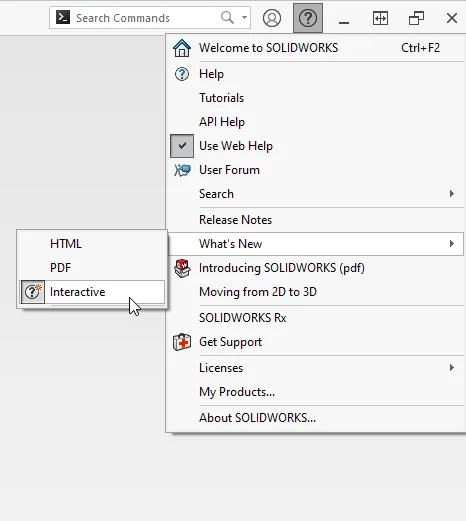
Clicking the ‘?’ symbol will highlight that specific enhancement in the guide, alongside examples of when it should be used so you’ll never miss out on a major SOLIDWORKS update again!
Categorised as: SOLIDWORKS Design | Tech Tips
Get a SOLIDWORKS Quote
Interested in SOLIDWORKS? Contact us for questions, trials, or demos by clicking the button below or call 01926 333777. Our experts will help you find the perfect solution.

Related Posts

How to Find Reaction Forces in SOLIDWORKS Simulation
SOLIDWORKS helps us to find resultant forces through simulation studies. These virtual tests reduce the need for physical prototypes and give us an accurate answer.

Setting number of decimal places in a table on a drawing
When creating an equation in a drawing general table, is it possible to define the…

SOLIDWORKS Smart Fasteners
SOLIDWORKS Smart Fasteners is a really useful time saving tool, allowing you to automatically insert toolbox fasteners such as bolts and screws into an assembly providing there is a standard hole.

Why is my Flat Pattern not showing in SOLIDWORKS Drawings?
This may be linked to how the drawing is saved or it can be related to how sheet metal parts are displayed in drawings, read on to find out how to fix it.

Why is SOLIDWORKS Crashing?
It’s one of the great mysteries of life – why is SOLIDWORKS crashing? Let’s explore how SOLIDWORKS crashes and how we can improve performance in SOLIDWORKS.

SOLIDWORKS Tips: Are you Making this Common Mistake in Fatigue Analysis?
Simulation is a vital and complex engineering need. Fortunately, SOLIDWORKS makes it easy to test, correct mistakes and obtain accurate results.

Tech Support Blog: Why are my SOLIDWORKS BOM Quantities Wrong?
Why are my SOLIDWORKS BOM Quantities Wrong? A support call cropped up this week which…

How to Get Your Serial Number for SOLIDWORKS Visualize Standard
Want to download Visualize to make photorealistic renders? Follow this guide for accessing your Visualize serial number that comes bundled in with SolidWorks Professional and Premium.

How to Recover SOLIDWORKS Files After a Crash
SOLIDWORKS has two different methods to help you recover from an unexpected crash or loss of data in the form of auto-recovery and back-up settings.

Redesigning Santa’s Sleigh in SOLIDWORKS
Every year Father Christmas has to fly in his sleigh to deliver presents to boys and girls all over the world in just one night. To put this into perspective, it takes a little under 24 hours to fly from London (UK) to Sydney (Australia) in a streamlined Boeing 747, whereas Father Christmas’ mode of transport is believed to be a rather non-aerodynamic sleigh.