












Laser Cut with SOLIDWORKS 2022
Written by: Terry O'Reilly
Published: Dec 15, 2021
| View All Blogs
It’s easier than ever to laser cut with SOLIDWORKS thanks to the latest improvements to DXF and DWG exports in SOLIDWORKS 2022. So why not create your own homemade Christmas decorations?
We had a go ourselves using the new ability to export coloured sketch lines directly to DXF and DWG. Read on to see how they turned out!
What is laser cutting?
Laser cutting is a computer-controlled manufacturing process that uses a high-power laser beam to cut or engrave designs into wood and metal. SOLIDWORKS files can be exported to vector files which are easily read by laser cutters for fast and accurate manufacture.
How to laser cut with SOLIDWORKS
To try out the new features and bring some Christmas cheer to the office we decided to create wooden Christmas decorations. This tree design was modelled as a multibody part to begin and then the individual bodies were saved to their own files by using the Save Bodies command.
The best way to prepare for laser cutting with SOLIDWORKS is to create or convert bodies with the Sheet Metal tools, as the flat pattern lets you make the most of sketch geometry.
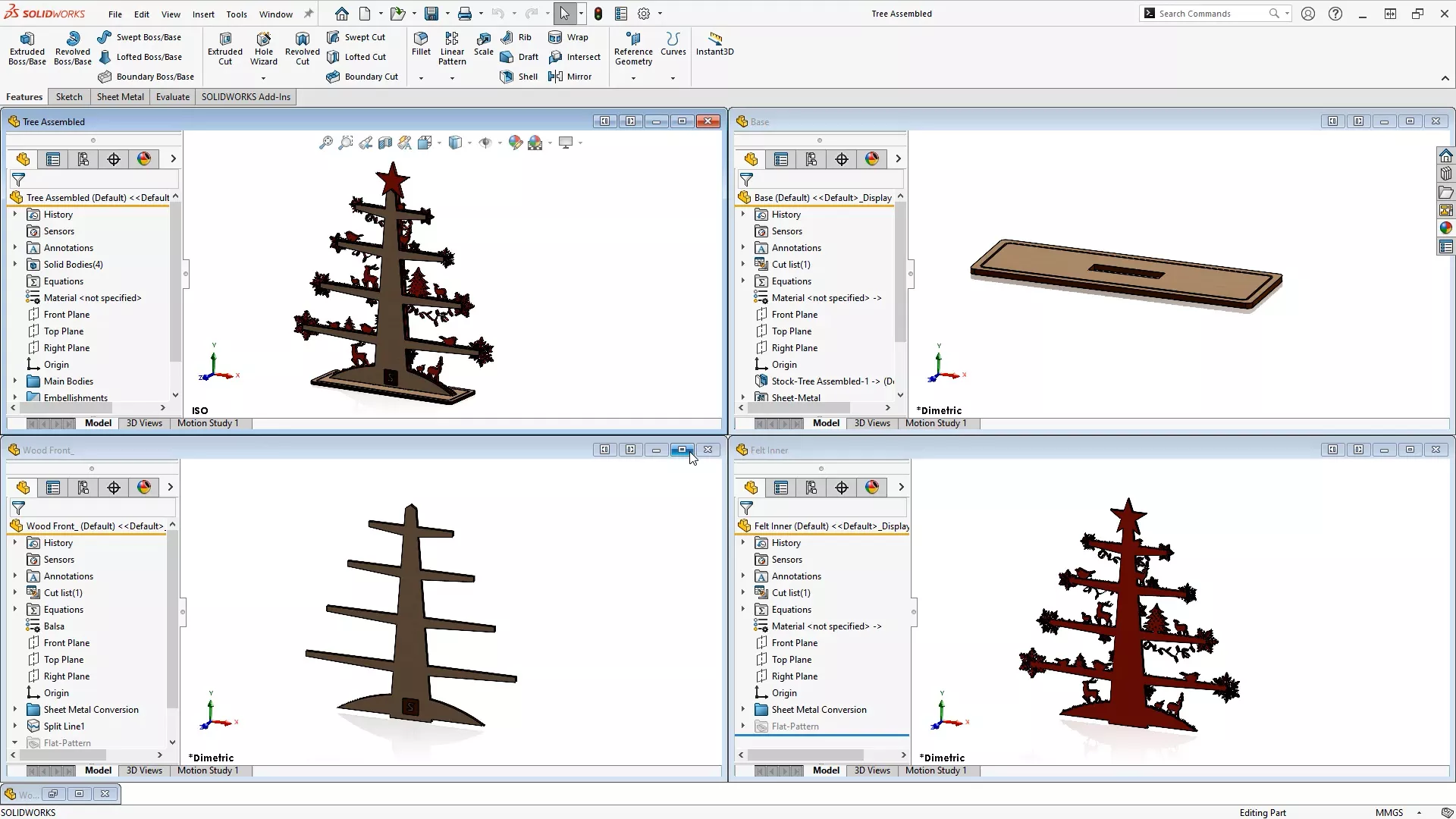
Since laser cutters read vector files, it’s necessary to export the outlines of these parts to DXFs or DWGs. In SOLIDWORKS 2022, exporting to DXF and DWG has been improved by the ability to export coloured sketch lines directly from the model.
Preparing the Model with Sketch Colours
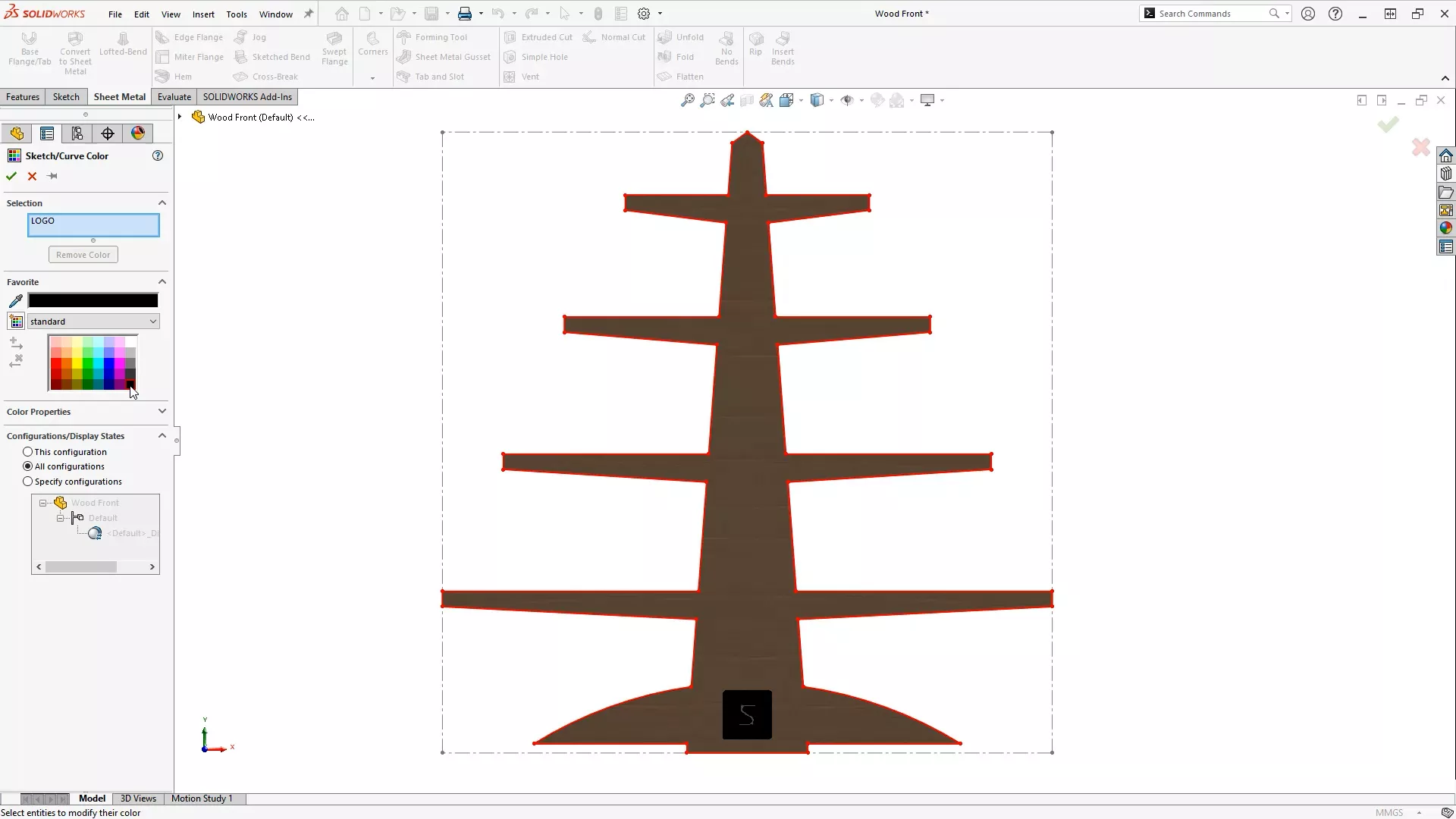
For our model we needed to differentiate between what design we want cutting and what needs to be engraved, so we coloured the cutting lines red and the engraving lines black.
For our tree model we needed to cut the outline of the part and engrave the logo. It’s best practice to separate the lines used to cut and lines to engrave into different sketches. To create a sketch of the outline we started a new sketch, selected the face and used the Convert Entities tool to turn the model edges into sketch lines. A similar process was followed for the engraving.
Once the separate sketches had been created we added colour to each one by right clicking the sketch in the Feature Manager Tree, selecting sketch colour and choosing the required colour.
Exporting to DWG/DXF
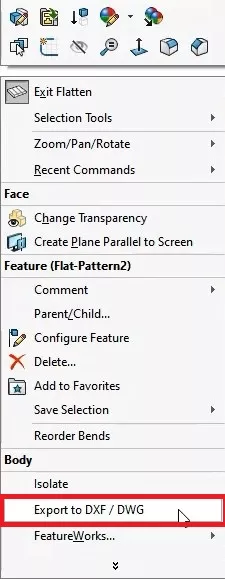
With the model prepared, the next step was to export a DXF for laser cutting. The export process is straightforward, simply right click on the desired flat face, select Export to DXF/DWG from the menu and choose a location to save the file to.
Before clicking save within the file browser, check the export system options. Make sure that custom maps are enabled, and select the option to not show mapping on each save.
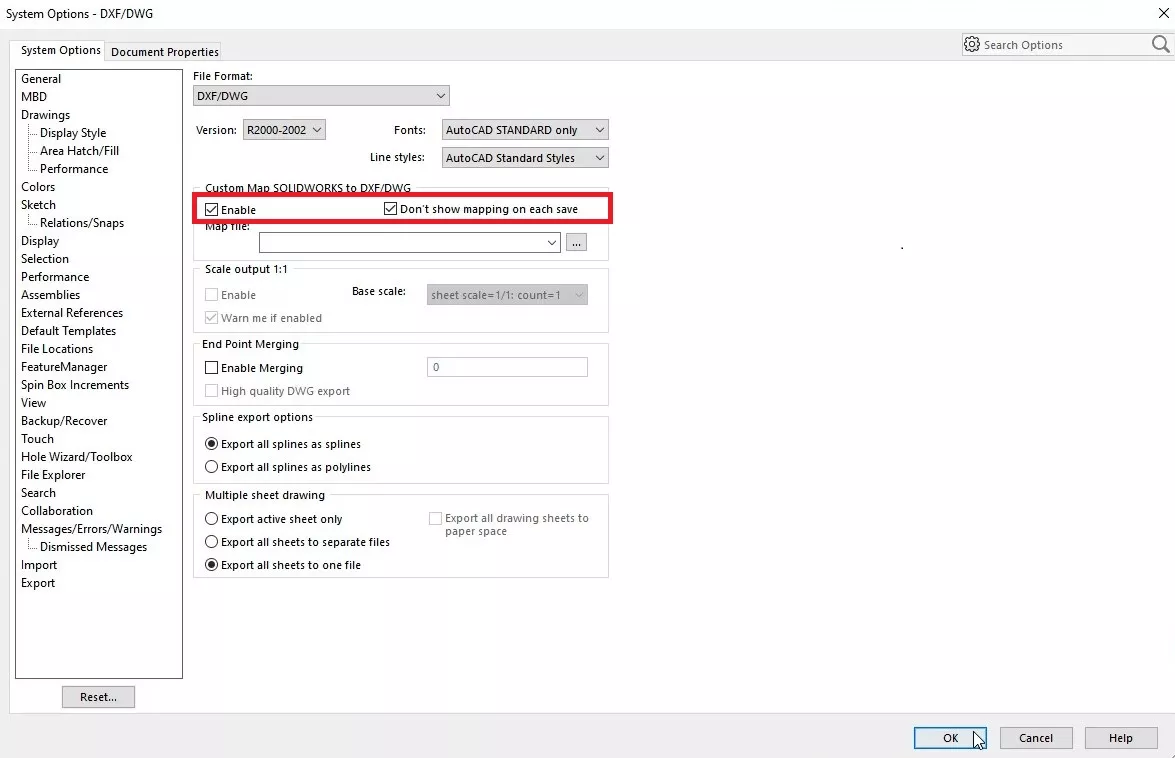
This option allows sketch geometry to take precedence over existing geometry edges.
When the Property Manager appears, make sure to select sheet metal and tick the option to include sketches.
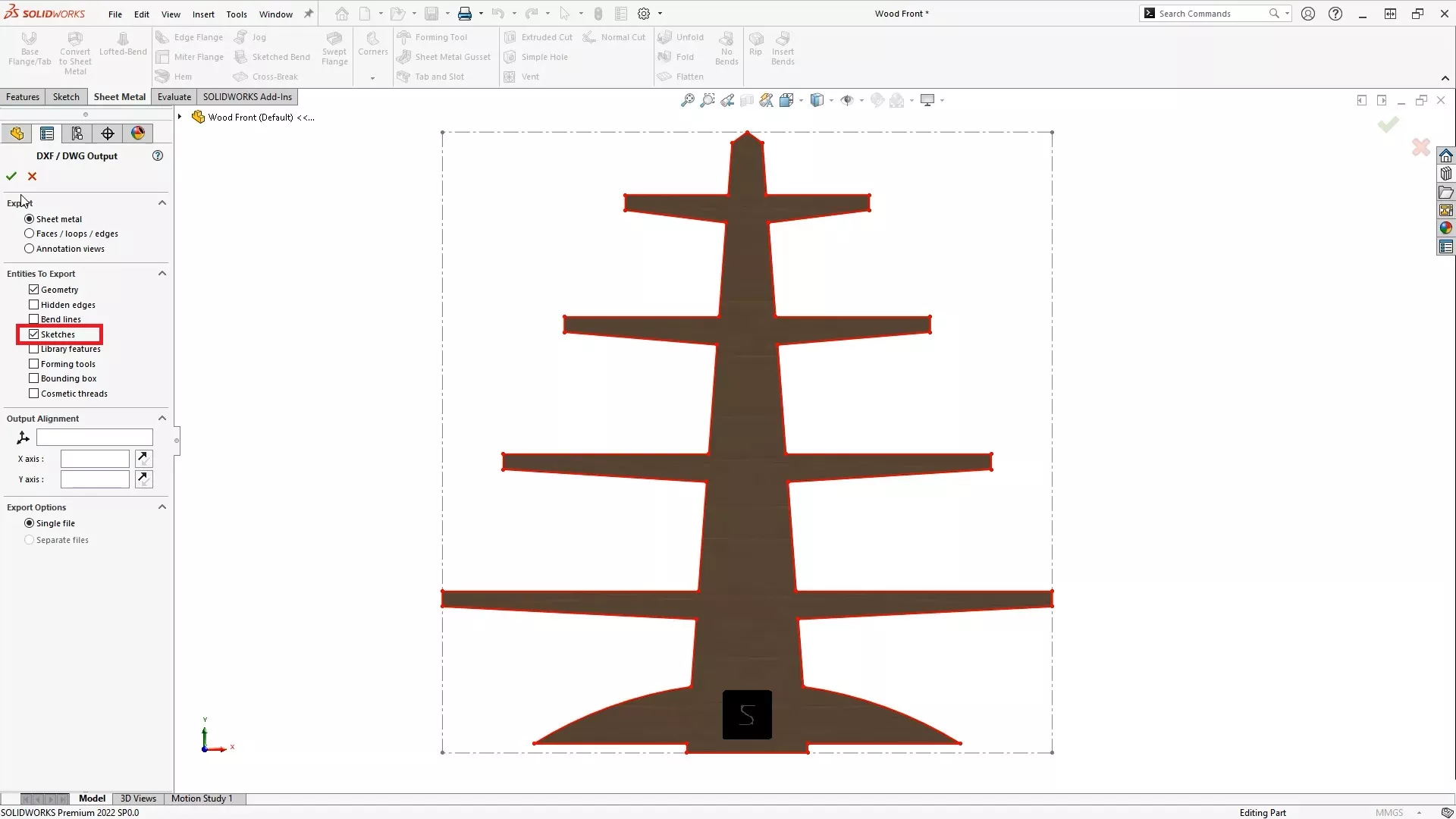
You can review the results in the pop-up window before committing to the save. We were happy with our results, so the final step was to open this up in DraftSight and start laser cutting!
The finished product looks perfectly festive! So if you have access to a laser cutter why not explore the new SOLIDWORKS 2022 spruce up your home this winter with some homemade decorations of your own?

Categorised as: Design | DraftSight | SOLIDWORKS Design
Get a SOLIDWORKS Quote
Interested in SOLIDWORKS? Contact us for questions, trials, or demos by clicking the button below or call 01926 333777. Our experts will help you find the perfect solution.

Related Posts

How to Find Reaction Forces in SOLIDWORKS Simulation
SOLIDWORKS helps us to find resultant forces through simulation studies. These virtual tests reduce the need for physical prototypes and give us an accurate answer.

Setting number of decimal places in a table on a drawing
When creating an equation in a drawing general table, is it possible to define the…

SOLIDWORKS Smart Fasteners
SOLIDWORKS Smart Fasteners is a really useful time saving tool, allowing you to automatically insert toolbox fasteners such as bolts and screws into an assembly providing there is a standard hole.

Why is my Flat Pattern not showing in SOLIDWORKS Drawings?
This may be linked to how the drawing is saved or it can be related to how sheet metal parts are displayed in drawings, read on to find out how to fix it.

SOLIDWORKS Tips: Are you Making this Common Mistake in Fatigue Analysis?
Simulation is a vital and complex engineering need. Fortunately, SOLIDWORKS makes it easy to test, correct mistakes and obtain accurate results.

Series 1 Land Rover Pedal Car – Made Easy with Solidworks!
The Series1 began production in 1948 designed to help get Britain farming after the war effort. It grew extremely popular and today enthusiasts are prepared to throw their life savings at restoring originals from that period.

How to Recover SOLIDWORKS Files After a Crash
SOLIDWORKS has two different methods to help you recover from an unexpected crash or loss of data in the form of auto-recovery and back-up settings.

Redesigning Santa’s Sleigh in SOLIDWORKS
Every year Father Christmas has to fly in his sleigh to deliver presents to boys and girls all over the world in just one night. To put this into perspective, it takes a little under 24 hours to fly from London (UK) to Sydney (Australia) in a streamlined Boeing 747, whereas Father Christmas’ mode of transport is believed to be a rather non-aerodynamic sleigh.

SOLIDWORKS Grid Systems – hidden away, but very useful!
Rory Niles provides an insight into the uses for Grid Systems within SOLIDWORKS 2018

Furniture Design Made Easy with SOLIDWORKS
Calling all furniture and interior designers: the days of creating square cabinets are over. What if we told you there’s a much easier way to bring your products to life?
Here’s 10 reasons why we feel SOLIDWORKS is better than any other software, especially if you’re designing furniture: