











END OF LIFE ANNOUNCEMENT: Saying Goodbye to PhotoView 360
Written by: Richard Earley
Published: Sep 27, 2023
| View All Blogs
Alas, the faithful render engine that has been part of SOLIDWORKS since 2009 is finally being retired.
When you activate PhotoView 360 in SOLIDWORKS 2023, you will be greeted with information that PhotoView360 will no longer be included as of SOLIDWORKS 2024.
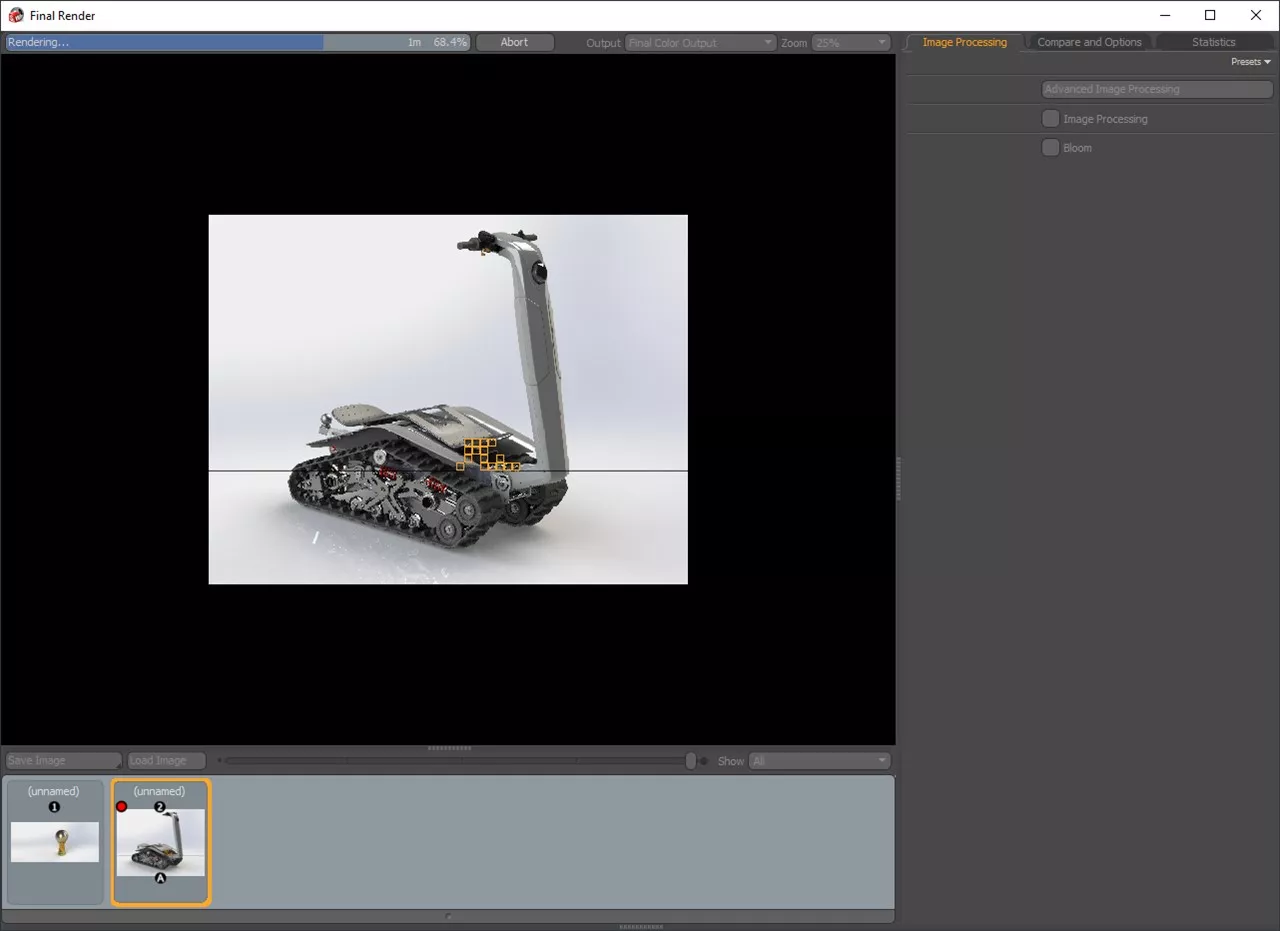
NOSTALGIA: The thrill of watching all the individual orange render buckets race across the screen – one bucket per core on your processor.
In this blog, we want to explore why PhotoView 360 is being retired, what other options are out there, while paying homage to a fond part of both SOLIDWORKS Professional and SOLIDWOKRS Premium.
Why is PhotoView 360 being Retired?
SOLIDWORKS has had many render engines over the years, with the latest and greatest technology integrated periodically and older solutions retired. In this case, the evolution from PhotoView 360 to SOLIDWORKS Visualize has unlocked the power of the graphics card (GPU) for rendering.
This methodology is far quicker, with almost instant photorealistic images being created rather than waiting on the individual cores of the processor (CPU) to render each segment.
What Other Render Engines has SOLIDWORKS Used?
SOLIDWORKS has had various rendering software over the years, driven by different underlying rendering engines.
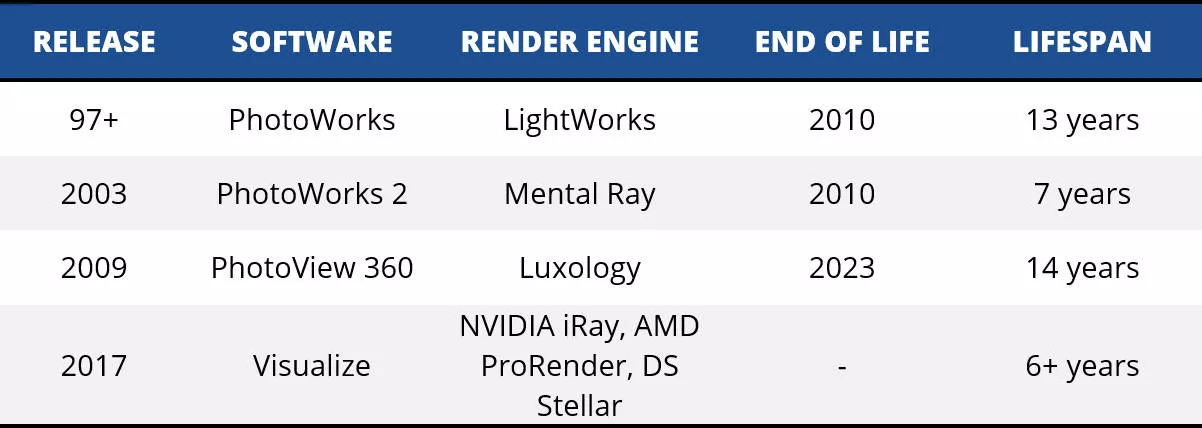
As technology has changed, so have the rendering toolsets that accompany SOLIDWORKS.
How will this Affect Me?
The answer to this is complicated and depends upon how your PhotoView 360 is packaged. PhotoView 360 was included with SOLIDWORKS Office, SOLIDWORKS Professional, SOLIDWORKS Premium as well as a separate purchase (discontinued in 2010).
SOLIDWORKS PROFESSIONAL & PREMIUM CUSTOMERS
You already have access to SOLIDWORKS Visualize Standard included in your active subscription.
Don’t know how to access this? Speak to our expert Technical Support team to access your SOLIDWORKS Visualize serial key and download link.
SOLIDWORKS OFFICE CUSTOMERS
There are a couple of options for customers using SOLIDWORKS office and we’re able to offer a choice of free upgrades:
- to SOLIDWORKS Professional with Cloud Services (Commercial licenses only – Standalone or Networked)
- to SOLIDWORKS Professional (GSA and Research licences – Standalone or Networked).
Speak to your account manager to start this process.
PHOTOVIEW 360 STANDALONE CUSTOMERS
If you have purchased PhotoView 360 as a standalone license, then we are offering a free upgrade to SOLIDWORKS Visualize Standard (Standalone and Networked) to keep you running.
Speak to your account manager to start this process.
How do I Create Animations without PhotoView 360?
Well, firstly please note that PhotoView 360 is not being removed from existing installations and all licenses of Desktop SOLIDWORKS allow concurrent versions to be installed on the same PC.
However, we would recommend exploring the capabilities of Visualize Professional or Visualize Connected, as these achieve a higher degree of realism, as well as dramatically decreasing the render time.
Although there are developments in the pipeline, there are no direct rendered animation replacements included within SOLIDWORKS Professional or SOLIDWORKS Premium.
For this reason, some clients might find it beneficial to retain SOLIDWORKS 2023 SP5 for this functionality.
If you have any questions regarding the incoming changes to PhotoView 360 and SOLIDWORKS 2024, then please get in touch with your account manager or give us a call on 01926 333777.
Take the Next Steps…
To learn more about SOLIDWORKS Visualize and how you can create stunning realistic product renders, why not book on to one of our CPD-accredited training courses?
Whether you’re a beginner or already intimately familiar with CAD, our friendly and expert trainers are ready to help you get the most out of SOLIDWORKS and SOLIDWORKS Visualize, either online or in a classroom local to you.
Categorised as: SOLIDWORKS Visualize | Visualisation
Ready to Switch to SOLIDWORKS?
SOLIDWORKS Design has been the industry standard 3D CAD software for over 25 years. Solid Solutions offers a range of packages to suit your needs.

Related Posts

SOLIDWORKS Visualize. Why go pro? – 6 Post Processing
In this blog we will be look at the post-processing options that can be found in SOLIDWORKS Visualize

SOLIDWORKS Visualize. Why go pro? – 7 Lighting
SOLIDWORKS Visualize uses a non-biased rendering engine, which allows for physically accurate lighting within a scene. It generates images with high amount of realism and correct set up can replicate photo studio lighting.

How to Get Your Serial Number for SOLIDWORKS Visualize Standard
Want to download Visualize to make photorealistic renders? Follow this guide for accessing your Visualize serial number that comes bundled in with SolidWorks Professional and Premium.
Creating Interactive Animations with SOLIDWORKS Visualize
Interactive Images are a great export option within Visualize Professional, allowing you to view the model in a series of 360 orbital spins within a web browser.
However, what happens if I want to use this interactive method to demonstrate a mechanism or animation instead?

How to Create 360VR Video using SOLIDWORKS Visualize
Virtual Reality(VR) videos provide one of the most immersive methods of viewing a design concept and can be used to bring your product showcases to the next level. Recently VR has become a valuable tool for many companies when it comes to design reviews and interactive product training. Check out this short blog to learn how to export 360VR videos using SOLIDWORKS Visualize.

Creating a Kicking Tee for the Rugby Lions Series – Modelling Walkthrough
As the Rugby Lions Series continues Solid Solutions and MECAD are continuing to compete off the pitch using SOLIDWORKS. Our second challenge was to create a Kicking Tee, a small yet key piece of equipment that is used almost every game. Various designs exist but we decided to model an adjustable kicking tee. Read on for some SOLIDWORKS tips and an overview of our modelling process.
How to Create Animations in SOLIDWORKS
3D animations are a great way to display your designs, no matter what stage of the design process you are at and can provide companies of almost any industry with huge leverage in improving their operational efficiency. Animated marketing videos are a fantastic way to communicate a message that may be difficult or costly to explain other than by using conceptual animations. They are very flexible with the only limitation being your imagination.
Below is an example of a marketing video of an GoPro gimbal.

SOLIDWORKS Visualize Import Modes – Updated for 2022
If you have been using SOLIDWORKS Visualize 2022 you may have noticed some subtle changes on the import geometry tab from previous versions. These changes weren’t listed in the What’s New documentation and were introduced a little under the radar. In this blog we’ll explain what has changed and how it can save you time.

How to Create Realistic Lighting in SOLIDWORKS Visualize
SOLIDWORKS Visualize is equipped with some simple tools to help you get realistic lighting for your product renders.
SOLIDWORKS Tips: How to Animate Rotations in SOLIDWORKS Visualize
Pivot points hold the key to unlocking awesome animations in SOLIDWORKS Visualize. Check out this walkthrough to learn how to create them easily!