











How to Create Animations in SOLIDWORKS
Written by: Richard Earley
Published: Apr 8, 2022
| View All Blogs
This blog will guide you through the basics of creating 3D animations in SOLIDWORKS and SOLIDWORKS Visualize.
3D animations are a great way to display your designs. Whether you’re validating a design concept or creating a visual representation of your product, companies from all industries – at any stage in their design process – can take advantage of 3D animation to communicate their product ideas and concepts.
In addition to supporting the design process, animated marketing videos can be created using these 3D animations. These videos can allow you to validate a product before manufacture through crowdfunding like our customer Yawboard, or provide sleek, immersive videos to promote existing products at a low cost.
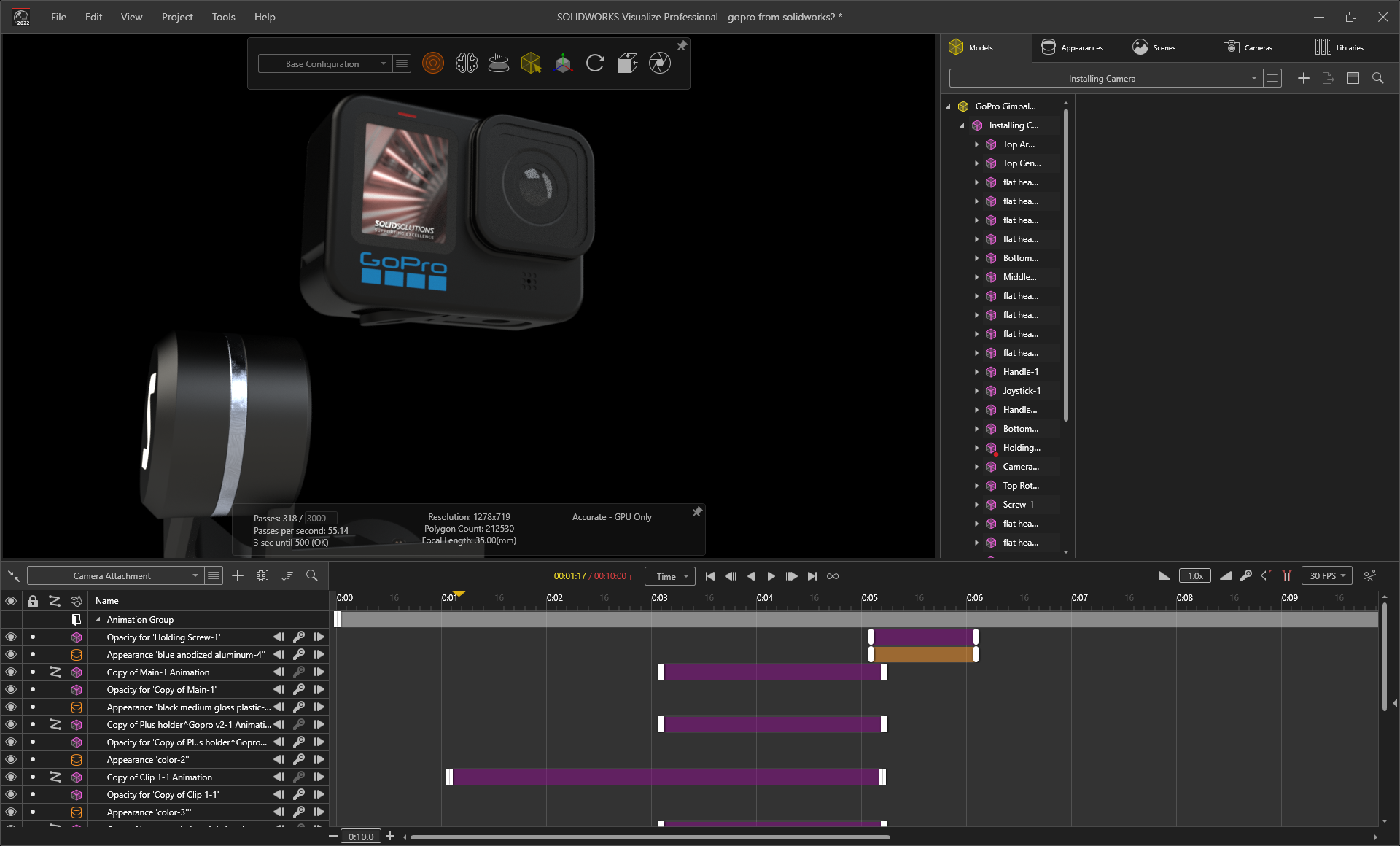
In this example, we will be creating a marketing video for a GoPro Gimbal. This animation was created for this blog and animated in SOLIDWORKS before being imported into SOLIDWORKS Visualize Professional to produce a more photo-realistic look.
Types of Animations in SOLIDWORKS
Within SOLIDWORKS, there are three types of animations that you can create: Animation, Basic Motion, and Motion Control. These can be produced using the ‘Motion Manager’, which is available in all SOLIDWORKS versions and is built seamlessly into the SOLIDWORKS interface.
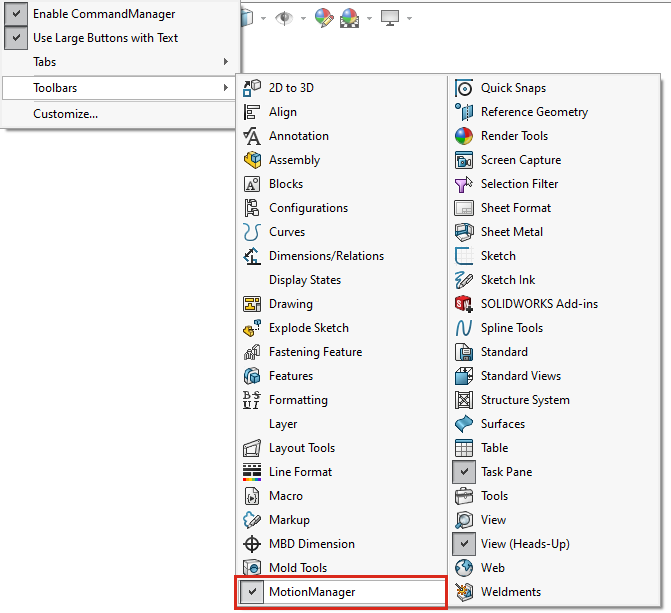
To turn on the motion manager (it should be on by default), right-click anywhere on the Command Manager and select Toolbars > Motion Manager.
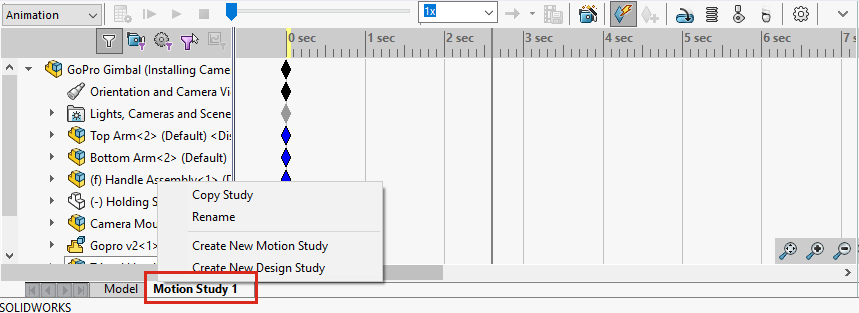
The timeline can then be viewed at the bottom of the screen by clicking the tab Motion Study 1:
This motion study can be deleted or renamed by right-clicking this tab as well.
As mentioned above, there are three different types of animations in SOLIDWORKS that you can generate directly within, and these can be selected using the drop-down in the top left corner of the timeline.
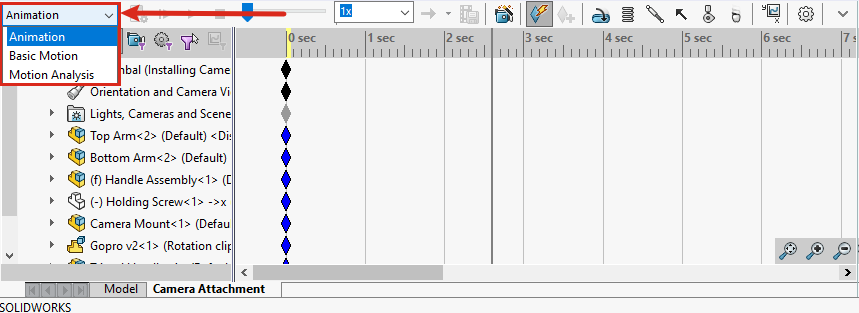
- Animation: This option is used to create presentation-worthy animations showing motion without the need to account for mass or gravity. The animation option is included in all SOLIDWORKS licences and is used in this Gimbal example.
- Basic Motion: A step up from animation, this option is used to create animations with approximate simulations of motion that account for mass, collisions, or gravity. This type of animation comes as standard with all SOLIDWORKS licences.
- Motion Analysis: If you are looking to run computational simulations that take the physics of the assembly motion into account, this is the option you would choose. Motion Analysis is only available with the SOLIDWORKS Motion add-in from SOLIDWORKS Premium.
Keyframe Animation and Change Bars
Once we have decided on the motion type we want, we can create the animations within the timeline. This consists of a full feature tree showing all parts, subassemblies, mates, lights, cameras, and the orientation of the viewport with a timeline that we create keys on that represents time-based changes by using keyframe animation.
Using our example, let’s start by taking a look at the section where the camera attaches to the gimbal.
To begin with, we’re starting with the downward movement the GoPro makes onto the gimbal. Essentially this motion shows the GoPro moving from position A to position B, and we need to represent this movement by placing keys on the timeline.
To do this, we will need to place a key for the GoPro Camera at 1 second, this key is going to tell the GoPro to be in position A, while another key at 2 seconds will tell the GoPro to be in position B.
Once you have done this SOLIDWORKS will automatically add a change bar in between the keys. This bar represents the movement we have told the GoPro to make between the two keys and will prompt the GoPro to move when the animation is played.
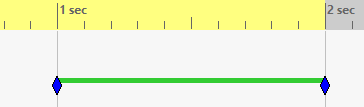
Depending on what has changed and how it has changed, this change bar will show in different colours. For example, this one is green because it represents a change in position that has been made by dragging the component. If the change bar showed as pink, this would signify a change in appearance.
There are a few different methods to create move components and keys. Next, we’ll look at how the rotation of the camera clips can be created using an exploded view in the model tab.
Using Exploded Views and the Animation Wizard
Exploded views can have many uses, but for this Gimbal example, we’re simply using them as an easy way to create an animation step.
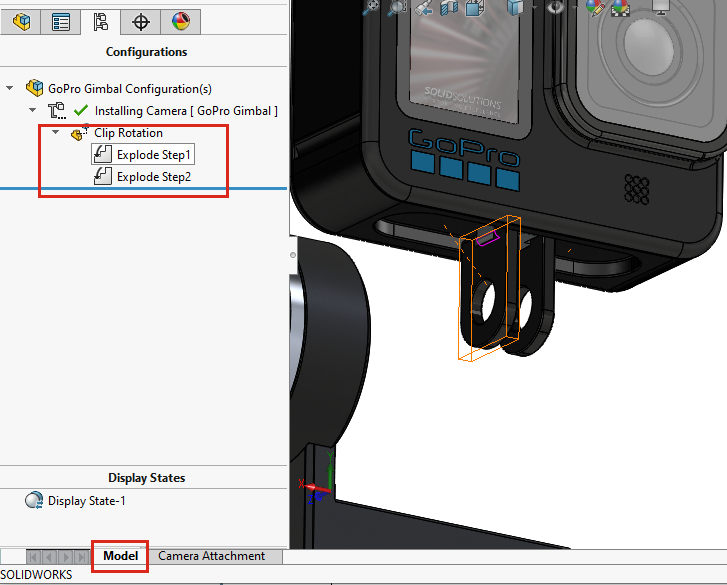
The Animation Wizard makes it easy to import exploded views into the timeline.
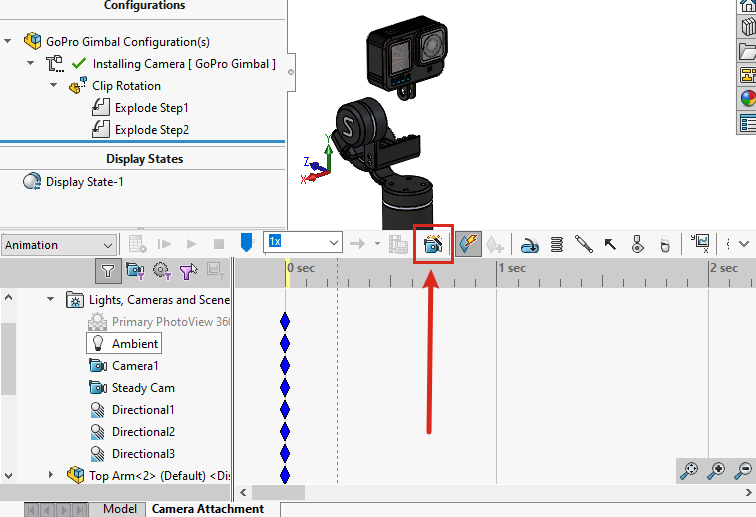
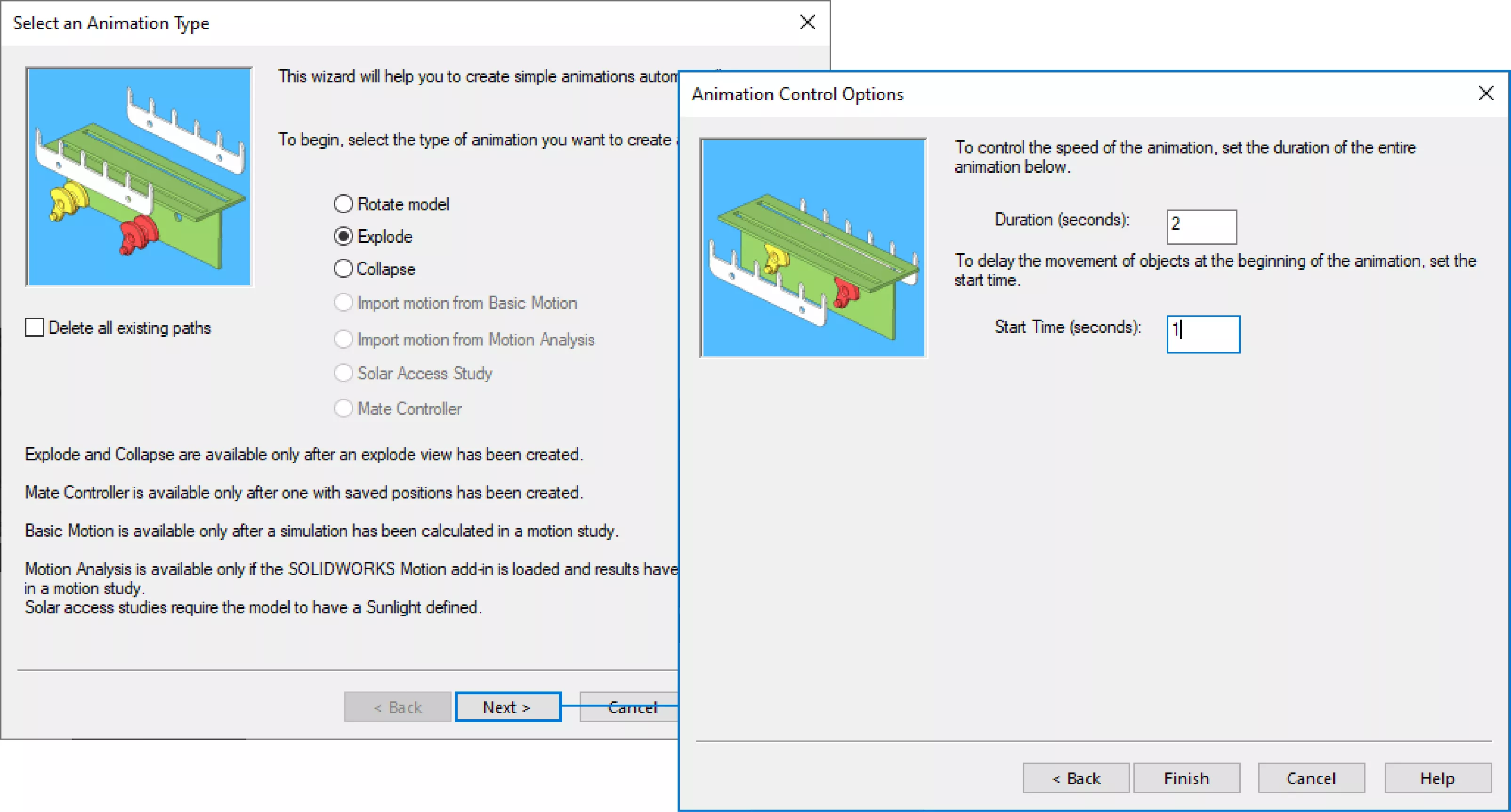
During the import, you will be able to choose when the animation from the exploded view should start and its duration.
Note: This tool can also be used to bring animations in from the Mate Controller – this can be a good option for controlling lots of value mates such as distance or angles. It’s also worth noting that only the first exploded view will be imported if you have multiple exploded views.
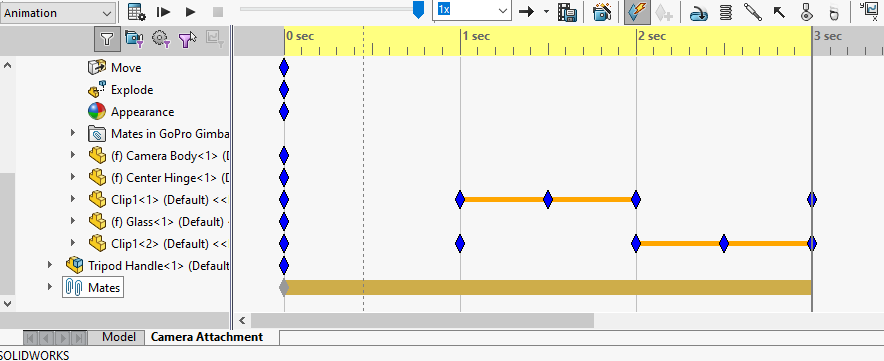
Once this command is complete, the keys and change bars will be created in the timeline automatically. If you wish to change the times of these keys, you can do so by directly clicking and dragging the keys. In addition to this, you can also remove a key entirely by selecting it and pressing delete.
Note: The orange change bar denotes that this movement was created from the exploded view.
Moving Components Manually
The next thing we need to add to the animation is the movement of the GoPro down onto the mount, we discussed this briefly as an example already, but now we will cover the full details of the move.
As the GoPro isn’t fixed in place and is undefined with mates, we can move it with a simple click and drag, making it easier to create this movement.
To create this type of movement we will need to utilise the time bar; by moving the time bar to the required time and then moving the GoPro in the viewport. If Autokeys is turned on, a key will automatically be created in the timeline wherever the time bar is placed at the time you make a change, such as dragging the GoPro. Alternatively, if Autokeys is turned off, you can use the place key option to manually record changes at the set time.
We don’t want the GoPro to move until the camera arms have rotated down. There will always be a key at 0 seconds, meaning that if we dragged the GoPro immediately, the change bar would go from 0 seconds and not 3 seconds. In order to prevent this, we need to hold the GoPro in position for the first 3 seconds; we can do this by placing an identical key at 3 seconds by dragging the key on the GoPro row from 0 to 3 seconds to copy it. As the keys are the same at 0 seconds and 3 seconds, there will no longer be any movement.
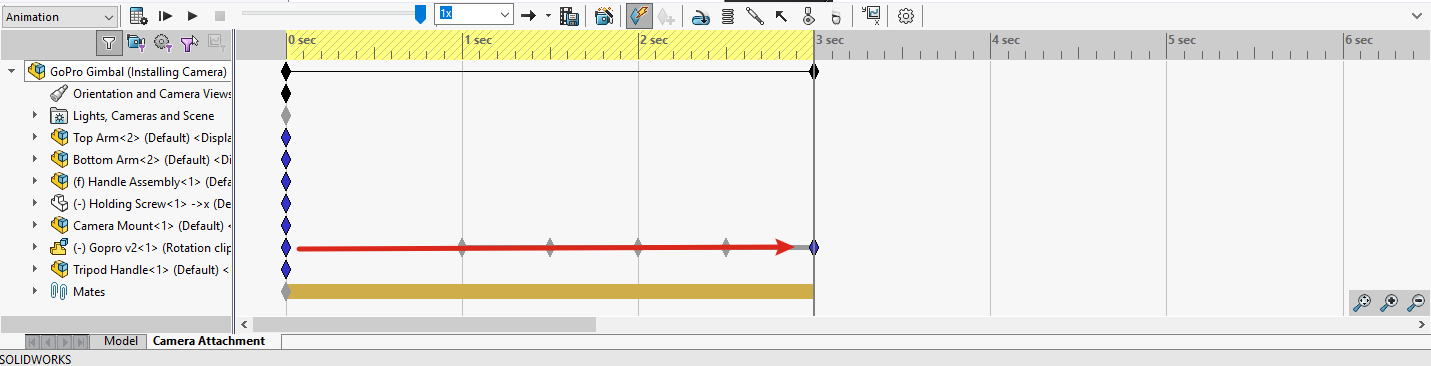
Next, we can set the time bar to 5 seconds and drag the GoPro down into position, as soon as we release the GoPro, a key will be placed at 5 seconds.
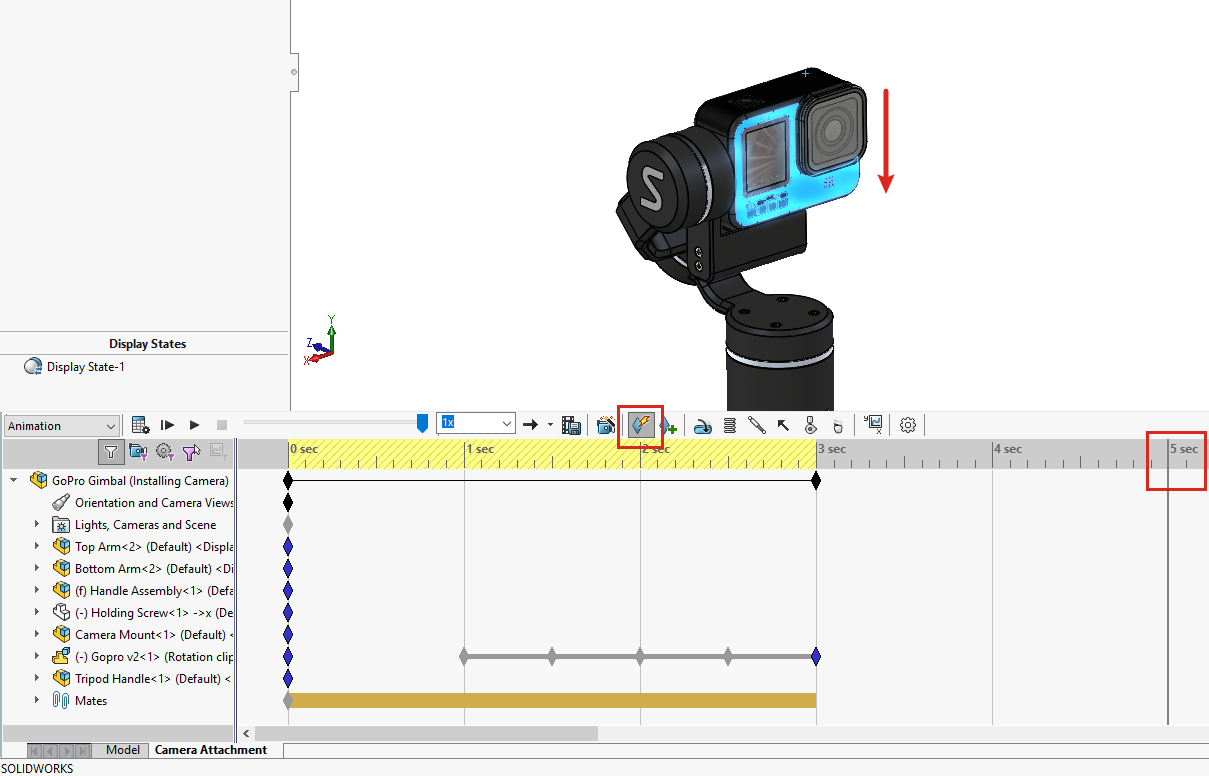
You may need to hit Recalculate (shown below) to rebuild the animation, then you will be able to use the play buttons to replay the animation.

Holding the GoPro on the mount is a screw that is currently hidden. To ensure that this screw remains hidden until 5 seconds, we need to copy the key for this part at 0 seconds to 5 seconds.
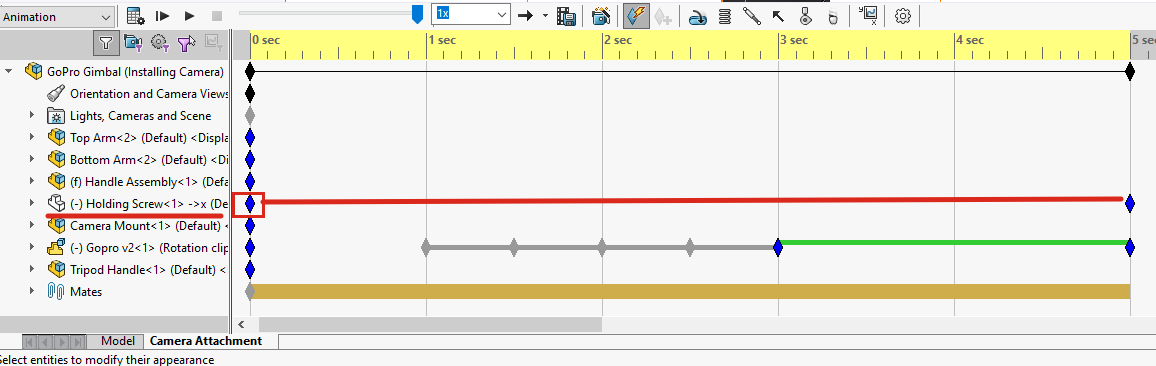
To show the screw we can then move the time bar to 6 seconds, select the holding screw and choose Show on the right click menu:
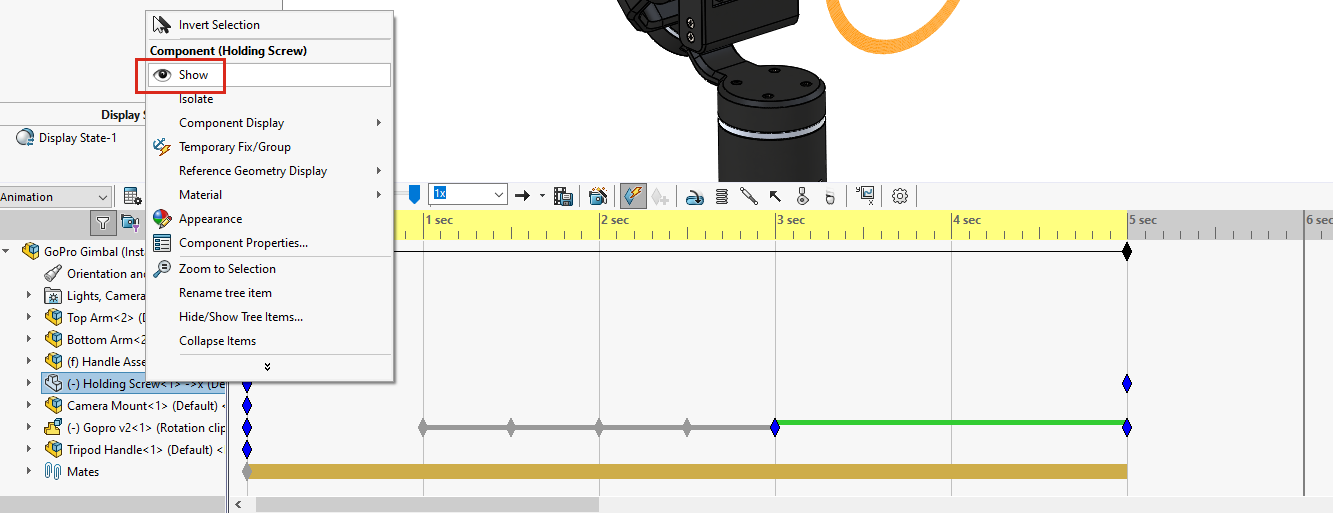
If you are using SOLIDWORKS 2022 this part will fade in between 5 and 6 seconds – in previous versions, this was more of a binary feature that would abruptly show the part.
Unlike the GoPro, the holding screw is fixed in position using mates, specifically a distance mate. This mate can be animated to move the screw.
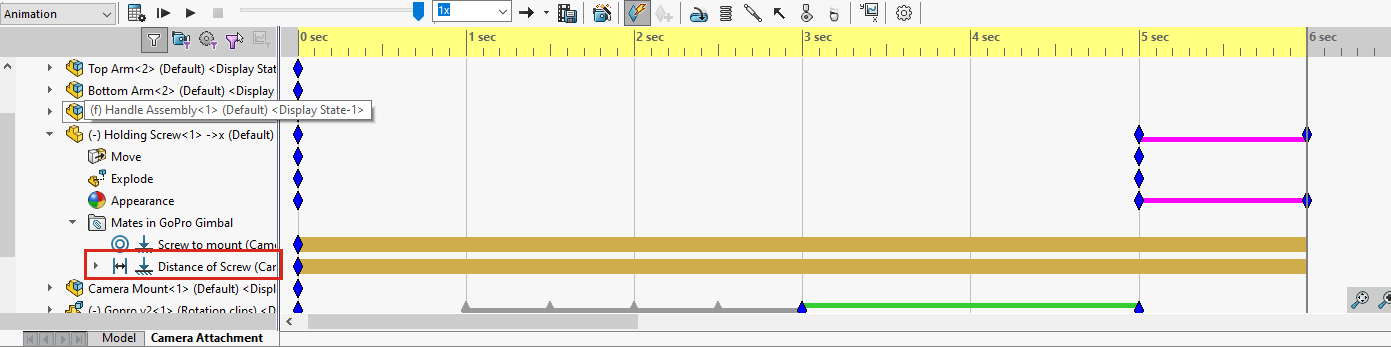
First, we need to copy the key at 0 seconds to 6 seconds by a click and drag in the timeline, and then with the time bar set to 9 seconds we can edit the mate by double clicking, changing the value to 0 mm.
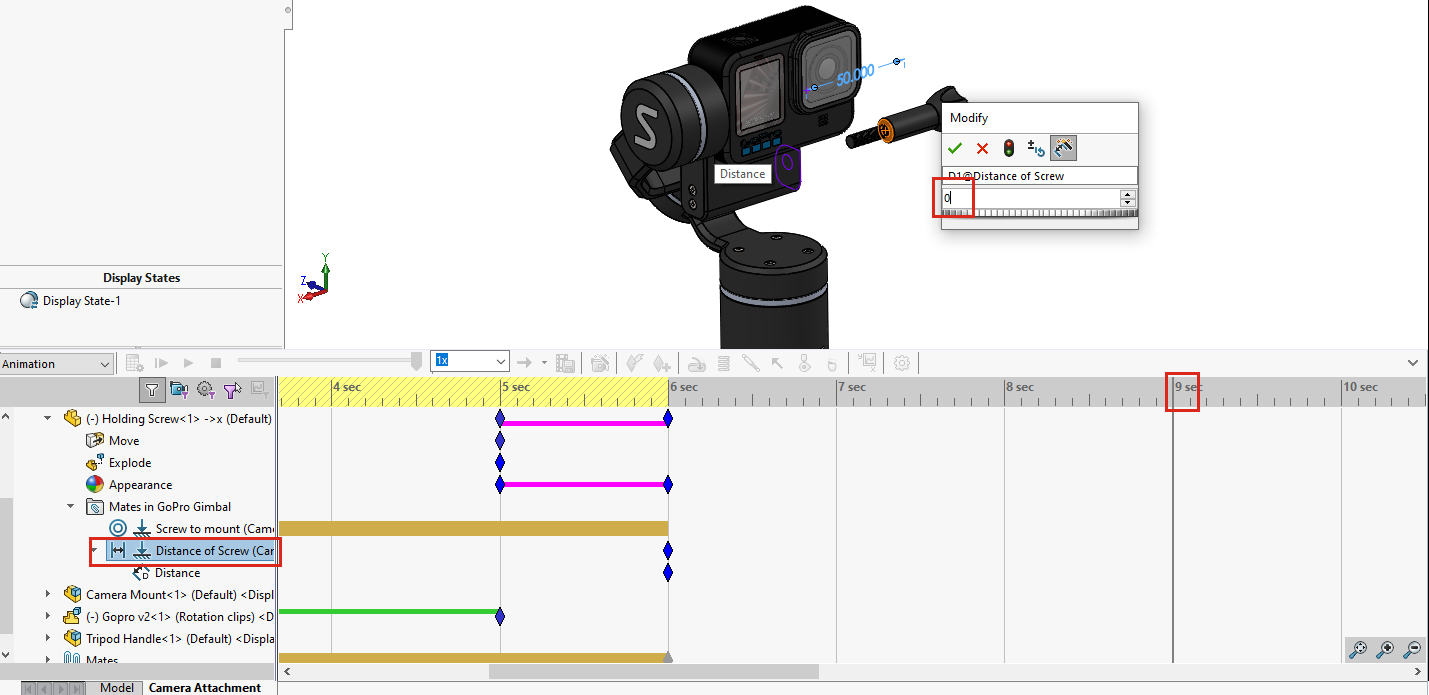
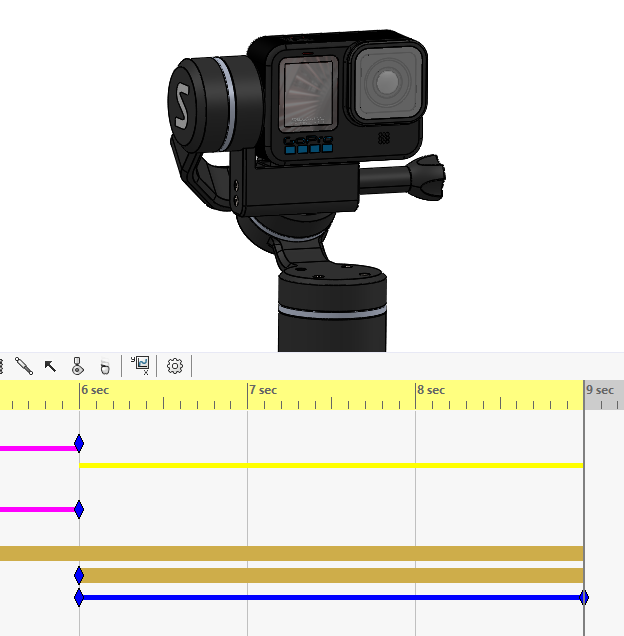
As soon as this is confirmed, a key will automatically be created at the location of the time bar and the change bar denotes the movement is added.
Using Motors
Instead of the screw simply moving from one position to the next, for this example, we also want to show it rotating – as it is a screw, after all.
We’ve already covered how to move components by using the Animation Wizard, dragging them and editing mates. The final way to show movement within an animation motion study is to use a motor.
Motors move components in an assembly by simulating the effects of various types of motors. We can use either a rotary motor or a linear motor. If you were doing a motion analysis study, we would also use a path mate motor. However, to show the screw rotating, we simply need to use a rotary motor:
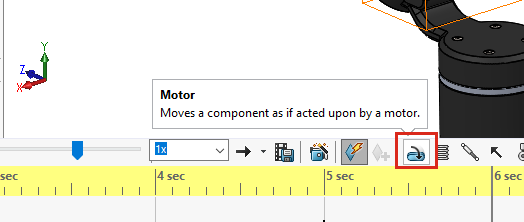
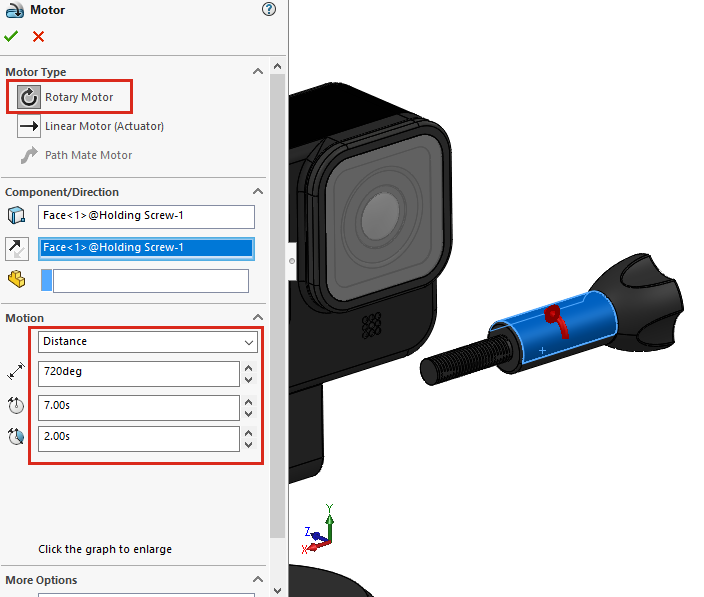
We can define the motion that the motor inputs in a number of ways – in this example, it is a simple number of degrees with a turn on time and a duration time. When confirmed, the motor will appear near the top of the timeline’s feature tree and can be edited or turned on/off from here.
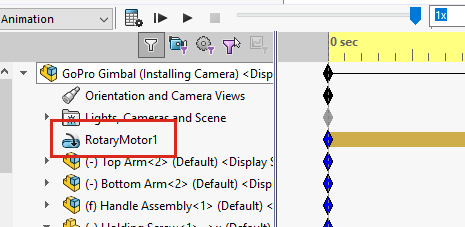
The animation of the geometry will then be complete.
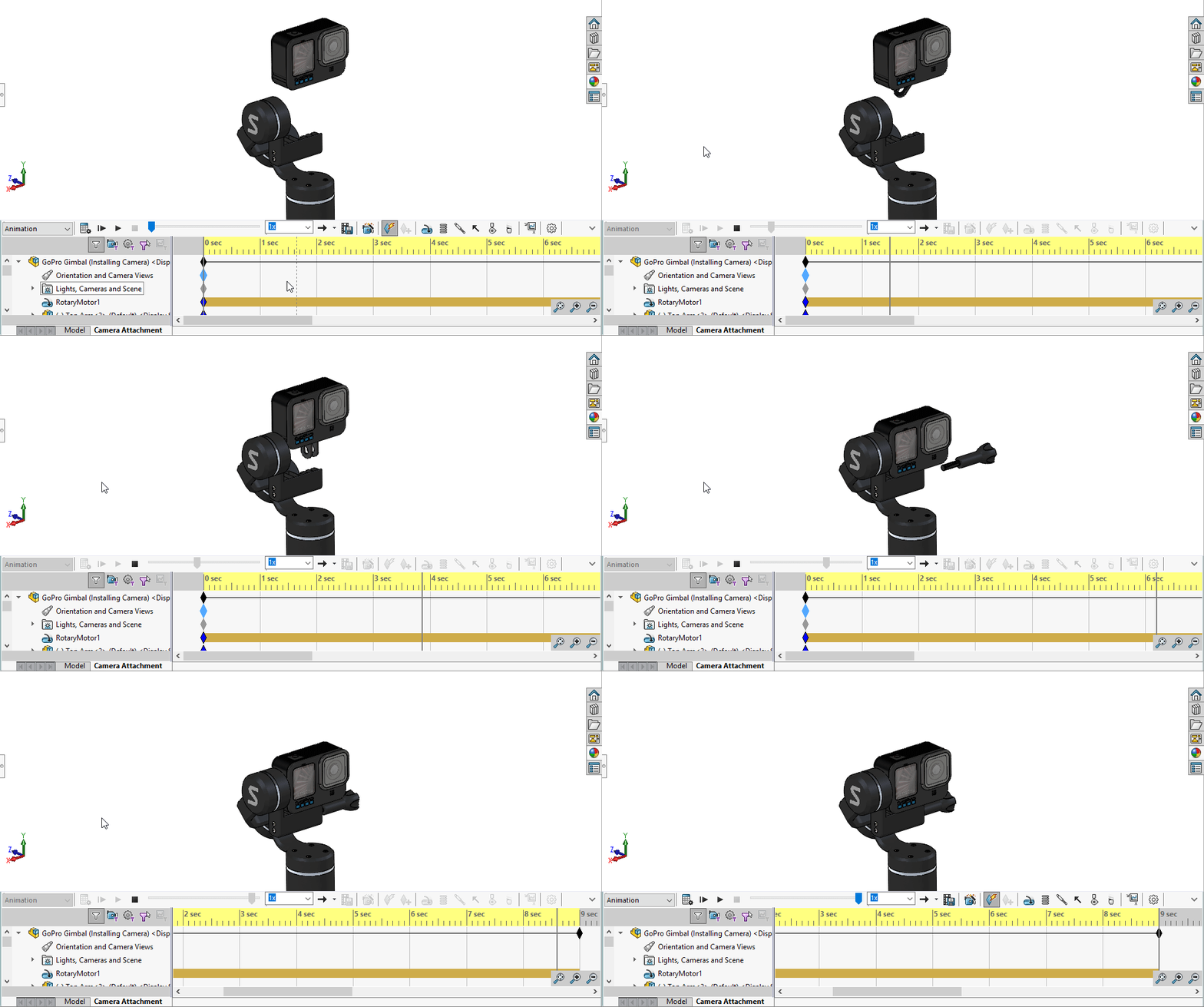
Moving the Camera
Though the geometry is complete, the orientation will be the same as the model tab when we started this motion study. We may want a different angle, or what we recommend, is to use a camera.
Cameras are ideal as they have lenses equivalent to real-life lenses and provide a realistic perspective. They can also be modified and animated in the same way we have previously seen within the geometry.
By default, any changes in the viewport or the orientation will be ignored. – This is because of a feature that is on by default called Disable View Key Creation. In order to change the orientation, this feature must be turned off and can be changed by right-clicking the menu of the Orientation and Camera Views folder at the top of the timeline feature tree.
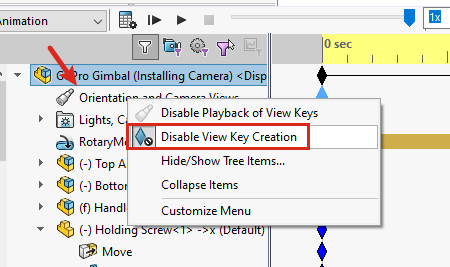
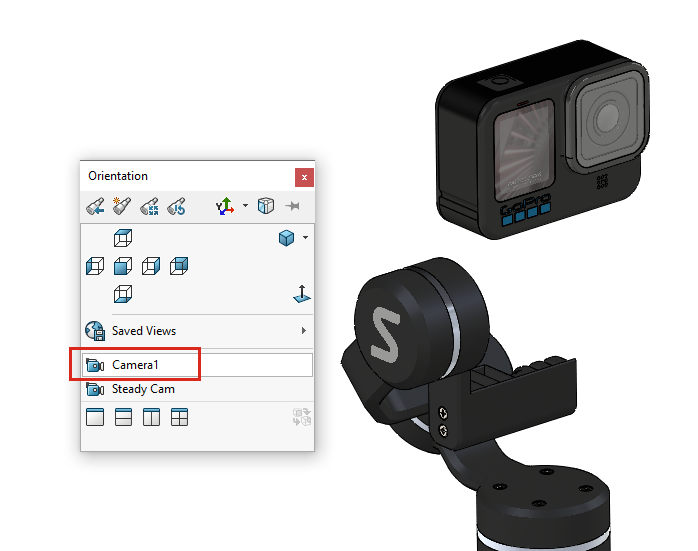
Once this option is turned off, changes to the orientation will be saved meaning that we can then activate a camera while at 0 seconds, and this will be recorded and saved as a key.
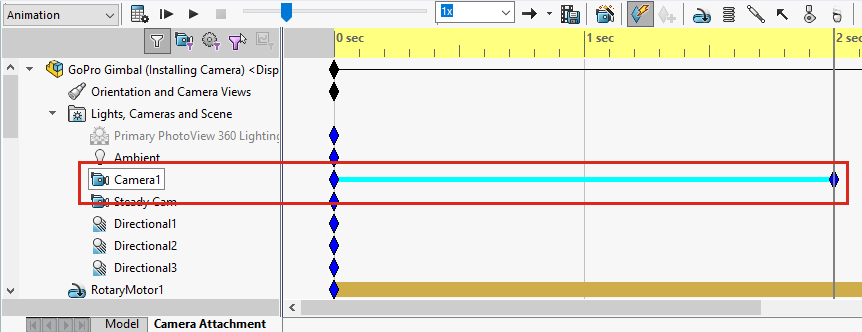
To animate the camera, move the time bar to the desired time, double click on the camera within the Lights, Cameras and Scene tab and change the cameras settings. As soon as the change is confirmed in the property manager, a key will be created.
Once the animation is complete, we can output it as an MP4 from the Save Animation icon:

Exporting to SOLIDWORKS Visualize
If you want to go a step further and create a more photorealistic render like those shown in the examples video at the start of this blog, you will need to use SOLIDWORKS Visualize Professional. Visualize Standard comes with SOLIDWORKS Professional and Premium, while Visualize Professional is an additional purchase that produce complex, photorealistic renders, animations, and VR content.
As Visualize is a stand-alone software, we will need to import our animation into it we can do this by exporting it from SOLIDWORKS. To do this, we will need to activate the Visualize Add-in from Tools > Add-Ins > Visualize.
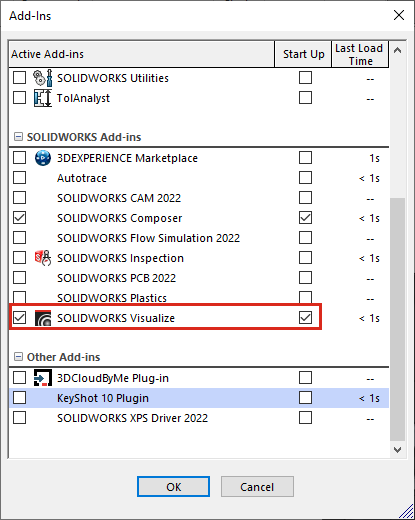
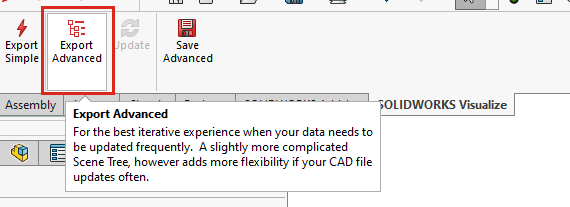
This will show a new tab on the command manager. To export the animation, we must choose Export Advanced, choose which motion study we want and press ok. It will recalculate our motion study in the timeline and then open Visualize with our model and animation shown.
We hope this guide has been enough to get you started, though if you want to know more, we have training courses for both Animations and Visualize.
Categorised as: Tutorials | Visualisation
Get Expert SOLIDWORKS Training
Get hands-on SOLIDWORKS training in-person or online, led by certified experts with real industry experience. With venues across the UK & Ireland, it’s easy to start learning today.
Related Posts

Series 1 Land Rover Pedal Car – Made Easy with Solidworks!
The Series1 began production in 1948 designed to help get Britain farming after the war effort. It grew extremely popular and today enthusiasts are prepared to throw their life savings at restoring originals from that period.

SOLIDWORKS Visualize. Why go pro? – 6 Post Processing
In this blog we will be look at the post-processing options that can be found in SOLIDWORKS Visualize

SOLIDWORKS Visualize. Why go pro? – 7 Lighting
SOLIDWORKS Visualize uses a non-biased rendering engine, which allows for physically accurate lighting within a scene. It generates images with high amount of realism and correct set up can replicate photo studio lighting.

How to Get Your Serial Number for SOLIDWORKS Visualize Standard
Want to download Visualize to make photorealistic renders? Follow this guide for accessing your Visualize serial number that comes bundled in with SolidWorks Professional and Premium.
Creating Interactive Animations with SOLIDWORKS Visualize
Interactive Images are a great export option within Visualize Professional, allowing you to view the model in a series of 360 orbital spins within a web browser.
However, what happens if I want to use this interactive method to demonstrate a mechanism or animation instead?
How to Find & Activate SOLIDWORKS Xpress Products
Find & activate SOLIDWORKS Xpress products in five simple steps. Xpress tools come with every seat of SOLIDWORKS and unlock additional functionality.
How to Create 360VR Video using SOLIDWORKS Visualize
Virtual Reality(VR) videos provide one of the most immersive methods of viewing a design concept and can be used to bring your product showcases to the next level. Recently VR has become a valuable tool for many companies when it comes to design reviews and interactive product training. Check out this short blog to learn how to export 360VR videos using SOLIDWORKS Visualize.
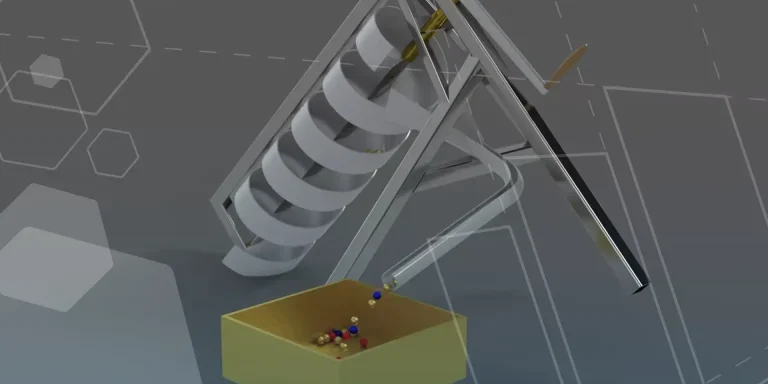
Modelling an Archimedes’ Screw with SOLIDWORKS
Archimedean screws are often referred to as “water screws” since they are commonly used to transport water between different heights. We often see some of our customers do screw feeders and we thought it may be beneficial to create a blog documenting an effective modelling workflow to create your very own Archimedean screw.
How to come up with ideas for your design or engineering project – some helpful tips
We know coming up with an interesting and creative design or engineering project can be…
Creating a Kicking Tee for the Rugby Lions Series – Modelling Walkthrough
As the Rugby Lions Series continues Solid Solutions and MECAD are continuing to compete off the pitch using SOLIDWORKS. Our second challenge was to create a Kicking Tee, a small yet key piece of equipment that is used almost every game. Various designs exist but we decided to model an adjustable kicking tee. Read on for some SOLIDWORKS tips and an overview of our modelling process.