











SOLIDWORKS Visualize Import Modes – Updated for 2022

Written by: Richard Earley
Published: Jun 30, 2022
| View All Blogs
If you have been using SOLIDWORKS Visualize 2022 you may have noticed some subtle changes on the import geometry tab compared to the previous versions. These changes weren’t listed in the What’s New documentation and were introduced a little under the radar. In this blog we’ll explain what has changed and how it can save you time.
To review these changes, we will take a look at this extending dining table’s feature tree.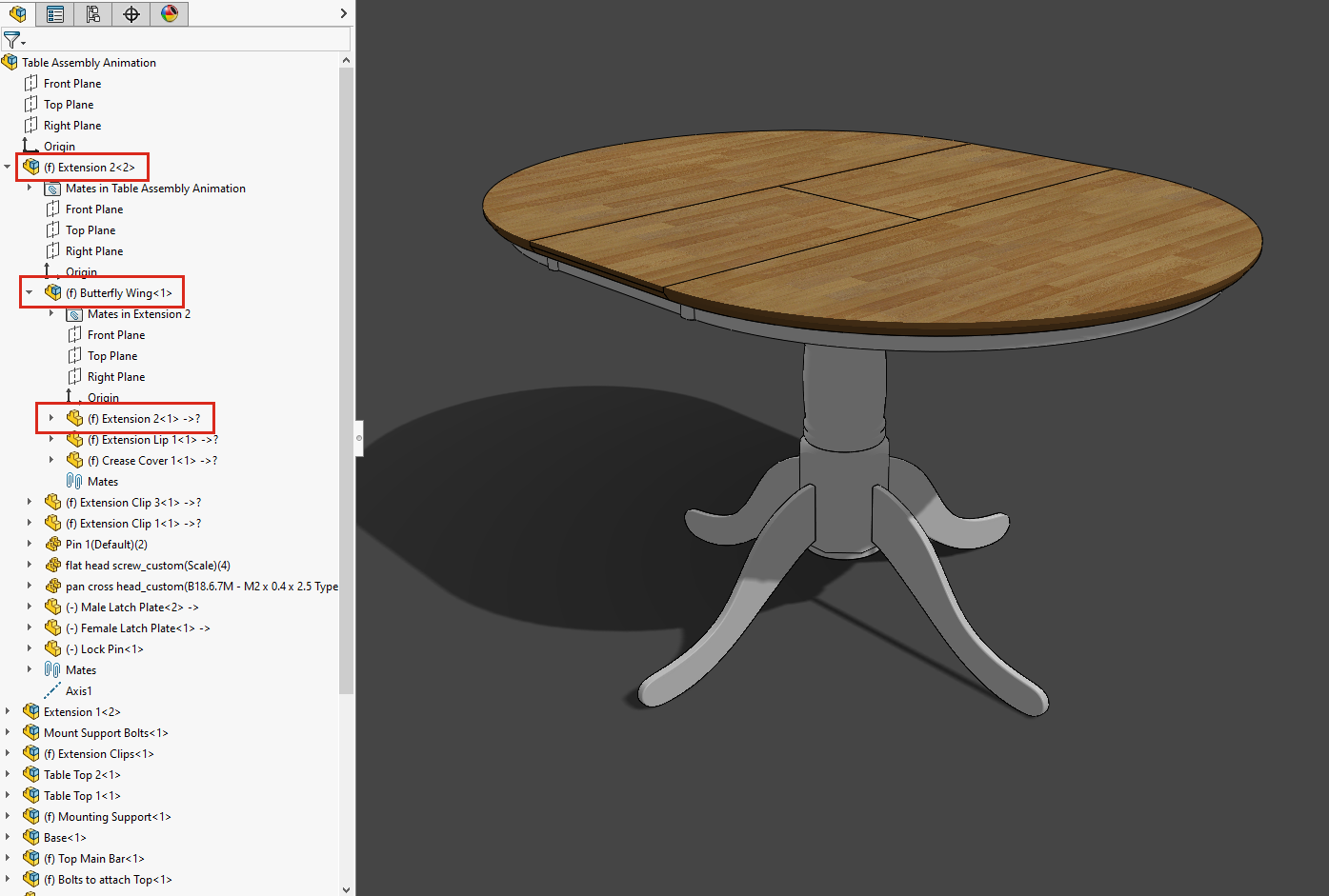
As you can see, this model has a number of subassemblies within the top-level assembly and even subassemblies within subassemblies. This is important to notice as the changes we will be reviewing in Visualize will change how it treats this kind of set up.
So first of all, what were the old options pre-2022?
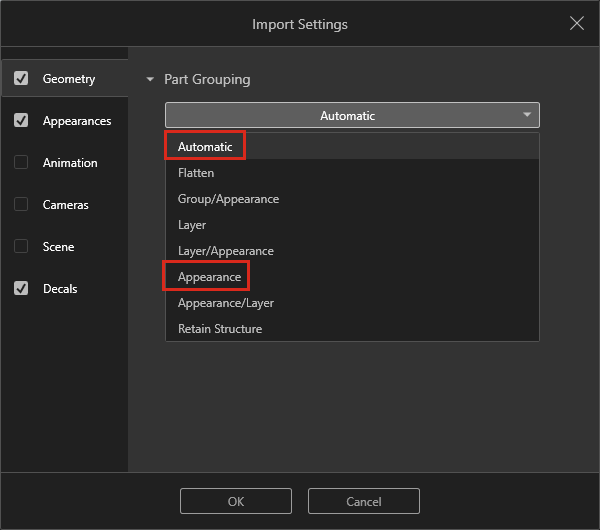
If you have been on our training or watched any online videos regarding the import settings of Visualize, you’ll know that although there are quite a few different options that you can bring your model into Visualize with, if importing a SOLIDWORKS model we always suggest using the Automatic or the Appearance import options.
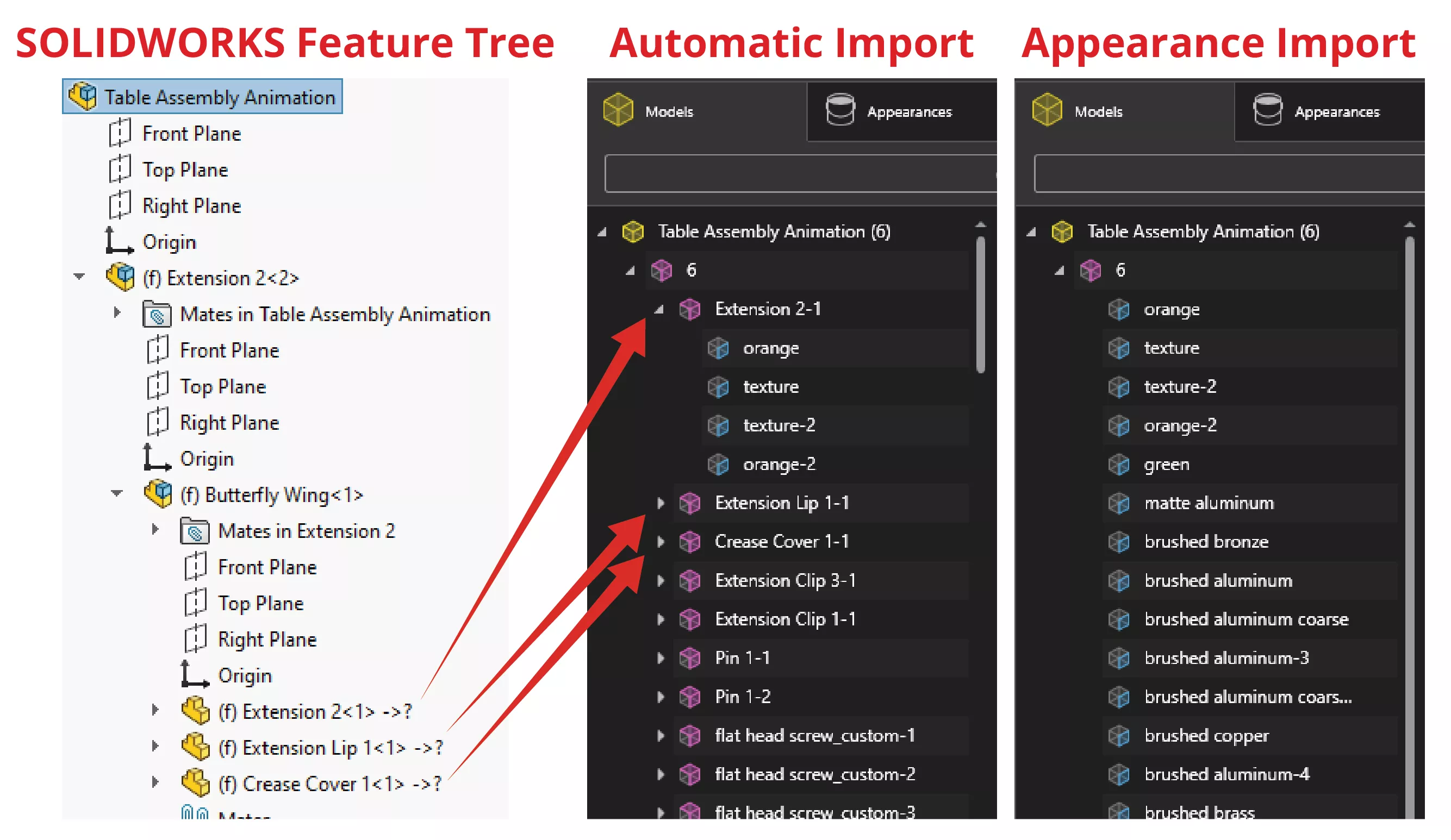
Using the automatic import method would ignore subassemblies and just list all the parts as ‘groups’ within Visualize. Any different appearances applied to those parts in SOLIDWORKS would appear as blue part files under the group.
The appearance import method would ignore the structure of the feature tree in SOLIDWORKS completely and just combine any parts, with the same appearance applied, as one part within Visualize.
The automatic method had to be used if you were to reimport the model but the appearance method was great if you wanted a more simple, quick and easy feature tree and you weren’t going as deeply into editing your part file. The issues were that both methods did not line up exactly with the SOLIDWORKS feature tree, meaning for example if you wanted to create an exploded view, an animation, or even just hide a subassembly within Visualize, you would have to multi-select all of the groups or create a new top-level group. This could sometimes also cause issues when the file was reimported.
So what’s new in SOLIDWORKS Visualize 2022?
Both import methods mentioned above are still available within Visualize 2022, however Automatic has now been renamed to ‘Part/Appearance’ and is no longer the default setting.
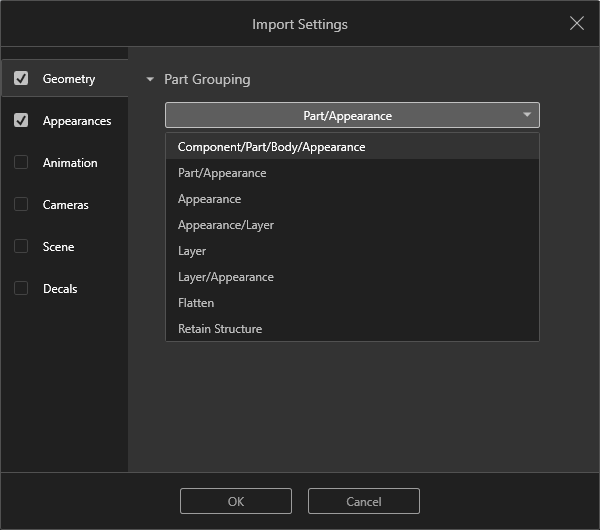
The new default import method is ‘Component/Part/Body/Appearance’. This is essentially a rejigged and improved Group/Appearance method from 2021 that was traditionally for wire files.
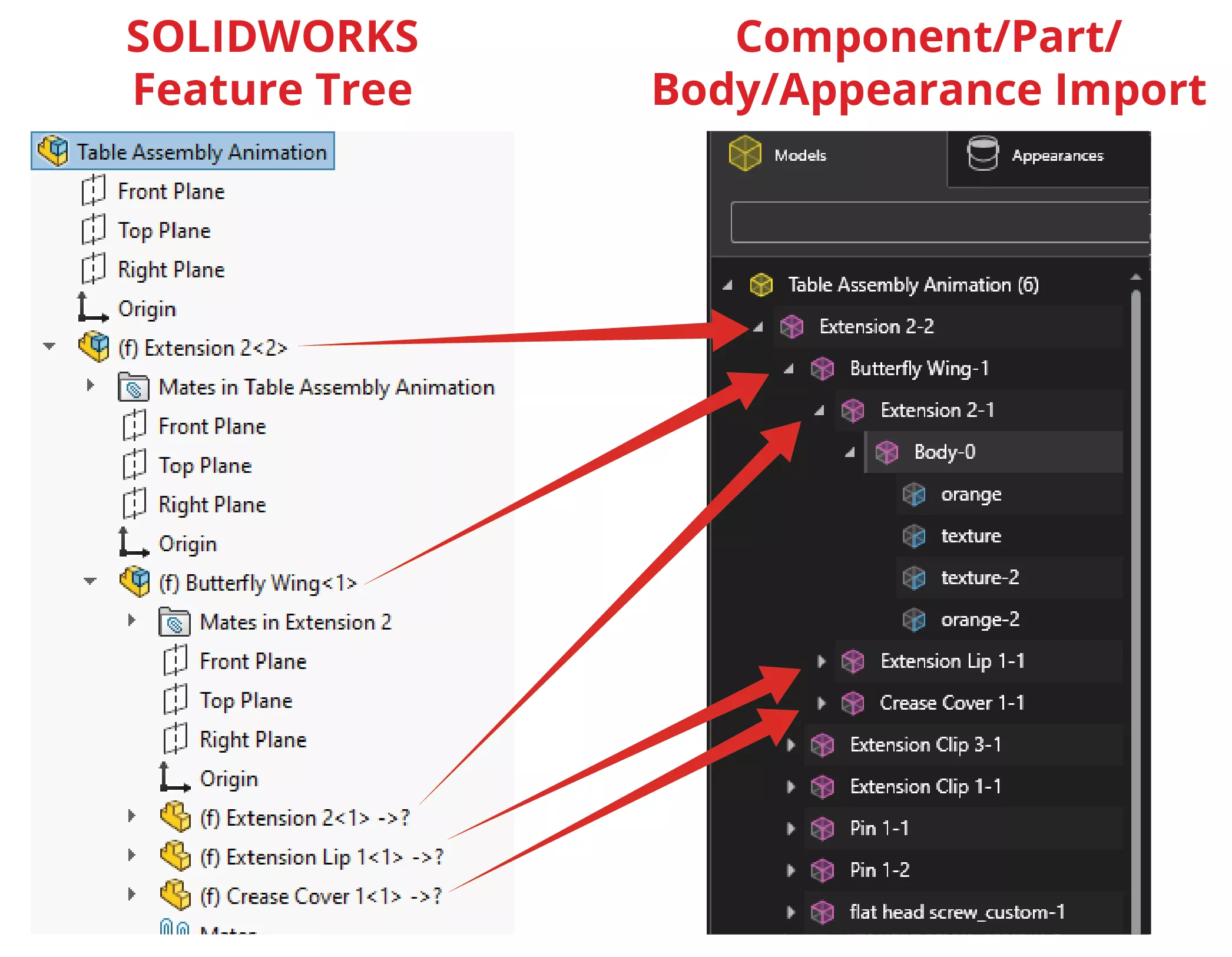
This new method follows the SOLIDWORKS Feature tree exactly; subassemblies become top level groups with groups inside them for further subassembly levels and part files. Even bodies become groups, which means that if you have something like a weldment part that has many different bodies inside a single part file, they are now easier to deal with when you come to Visualize.
This new method makes it easier than ever to bring files over from SOLIDWORKS to Visualize. It reduces the work that needs to be done within Visualize, especially for those who have Professional and want to create animations at different levels within the feature tree. Our testing also shows stability and performance improvements when reimporting larger models in Visualize.
Make sure to upgrade now for this and many other enhancements added in SOLIDWORKS Visualize 2022.
Categorised as: SOLIDWORKS Visualize | Visualisation
Get Expert SOLIDWORKS Training
Get hands-on SOLIDWORKS training in-person or online, led by certified experts with real industry experience. With venues across the UK & Ireland, it’s easy to start learning today.
Related Posts

SOLIDWORKS Visualize. Why go pro? – 6 Post Processing
In this blog we will be look at the post-processing options that can be found in SOLIDWORKS Visualize

SOLIDWORKS Visualize. Why go pro? – 7 Lighting
SOLIDWORKS Visualize uses a non-biased rendering engine, which allows for physically accurate lighting within a scene. It generates images with high amount of realism and correct set up can replicate photo studio lighting.

How to Get Your Serial Number for SOLIDWORKS Visualize Standard
Want to download Visualize to make photorealistic renders? Follow this guide for accessing your Visualize serial number that comes bundled in with SolidWorks Professional and Premium.
Creating Interactive Animations with SOLIDWORKS Visualize
Interactive Images are a great export option within Visualize Professional, allowing you to view the model in a series of 360 orbital spins within a web browser.
However, what happens if I want to use this interactive method to demonstrate a mechanism or animation instead?

How to Create 360VR Video using SOLIDWORKS Visualize
Virtual Reality(VR) videos provide one of the most immersive methods of viewing a design concept and can be used to bring your product showcases to the next level. Recently VR has become a valuable tool for many companies when it comes to design reviews and interactive product training. Check out this short blog to learn how to export 360VR videos using SOLIDWORKS Visualize.

Creating a Kicking Tee for the Rugby Lions Series – Modelling Walkthrough
As the Rugby Lions Series continues Solid Solutions and MECAD are continuing to compete off the pitch using SOLIDWORKS. Our second challenge was to create a Kicking Tee, a small yet key piece of equipment that is used almost every game. Various designs exist but we decided to model an adjustable kicking tee. Read on for some SOLIDWORKS tips and an overview of our modelling process.
How to Create Animations in SOLIDWORKS
3D animations are a great way to display your designs, no matter what stage of the design process you are at and can provide companies of almost any industry with huge leverage in improving their operational efficiency. Animated marketing videos are a fantastic way to communicate a message that may be difficult or costly to explain other than by using conceptual animations. They are very flexible with the only limitation being your imagination.
Below is an example of a marketing video of an GoPro gimbal.

How to Create Realistic Lighting in SOLIDWORKS Visualize
SOLIDWORKS Visualize is equipped with some simple tools to help you get realistic lighting for your product renders.
SOLIDWORKS Tips: How to Animate Rotations in SOLIDWORKS Visualize
Pivot points hold the key to unlocking awesome animations in SOLIDWORKS Visualize. Check out this walkthrough to learn how to create them easily!

SOLIDWORKS Visualize: Rendering with Gravity
SOLIDWORKS Visualize allows you to recreate the imperfections of photography by creating random, organic arrangements of components with gravity.