











How to Back Up Your SOLIDWORKS Electrical Schematics Data with the Environment Archiver
Written by: Stefano Bigazzi
Published: May 20, 2025
| View All Blogs
A traditional SQL snapshot simply isn’t enough to rely on for backing up critical project data.
SOLIDWORKS Electrical users can automate the backup of projects and environment data using the Environment Archiver tool to create robust and reliable backups of important data.
This tool creates a .tewzip archive file that includes projects, symbols, manufacturer parts, and other essential data, offering a hands-off, reliable method for safeguarding your entire electrical environment.
What is the SOLIDWORKS Environment Archiver?
The Environment Archiver is an external application provided with SOLIDWORKS Electrical that allows users to save and restore the environment they are working in.
A dedicated interface is available to configure settings within SOLIDWORKS Electrical, and the tool can be scheduled to run backups and archive files whenever it’s convenient.
How often should you backup SOLIDWORKS Electrical projects?
We typically recommend creating regular backups of your SOLIDWORKS Electrical environment once or twice a week, scheduling them to run during out-of-office hours for maximum efficiency.
Unlike an SQL snapshot, which captures only part of the data, the Environment Archiver ensures a complete backup of your SOLIDWORKS Electrical project data.
This feature was first introduced in SOLIDWORKS Electrical 2021, and in the latest versions, the process can now be fully automated using Windows Task Scheduler.
How to Save & Backup SOLIDWORKS Electrical Projects
Let’s walk you through how to use the Environment Archiver to save and backup your SOLIDWORKS Electrical projects:
- Locating the Environment Archiver
- Understanding the Environment Archiver Interface
- How to Schedule Automatic Backups
IMPORTANT CONSIDERATIONS
There are a few key considerations to note before using the SOLIDWORKS Electrical Environment Archiver:
- Admin Rights: The Archiver must be run with admin privileges or by an account with administrator permissions.
- Licensing: A valid SOLIDWORKS Electrical license is required on the machine where the Archiver is being run.
- Server Use: You can run the Archiver on a server, but the SOLIDWORKS Electrical client must also be installed on that machine.
Where to Find the SOLIDWORKS Environment Archiver
To manually start the application, locate the tool by either:
- Searching for EwEnvironmentArchiver.exe in your Windows Start menu
- Navigating directly to the file path.
DEFAULT FILE PATH
C: > Program Files > SOLIDWORKS Corp > SOLIDWORKS Electrical > bin > EwEnvironmentArchiver > ewenvironmentarchiver.exe
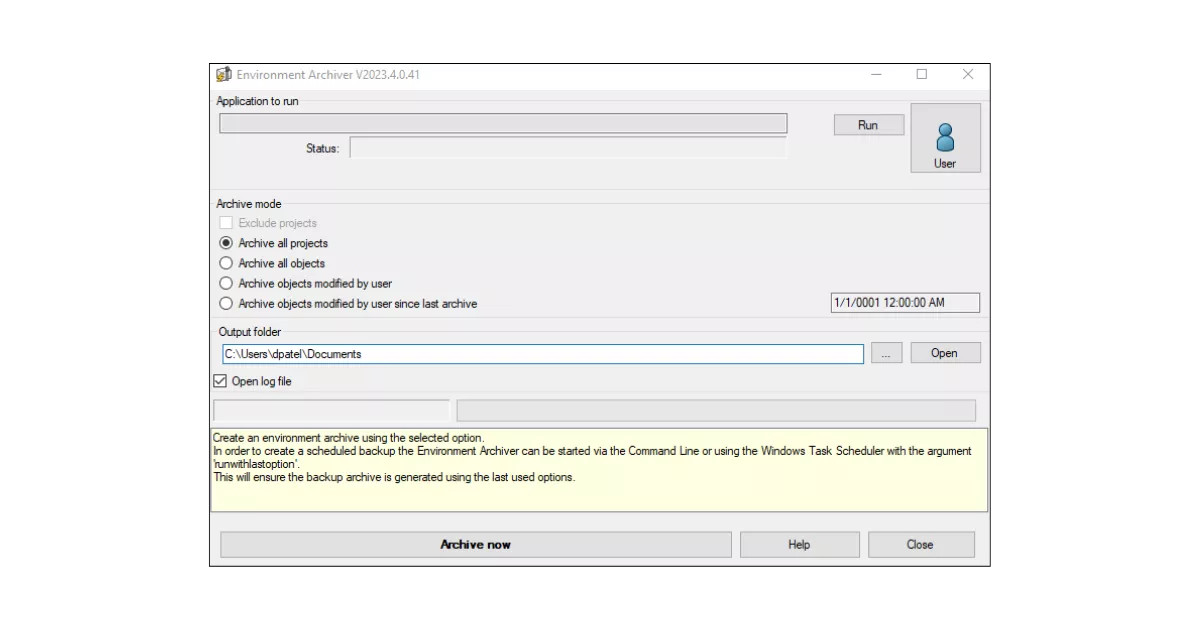
The Environment Archiver Interface Explained
Once launched, the interface allows you to configure your archive to your requirements.
Let’s break down some of the key areas of the interface.
- User: Credentials for background operation
- Run: Launches the application
- Archive Mode: Allows you to select which items and objects to archive:
- All Projects
- All Objects
- Objects modified by the User
- Objects modified since the last archive
- Output Folder: Define the storage location for the .tewzip archive
- Open Log File: View details of the completed archive
- Archive Now: Immediately create a backup
In terms of storing archive files, we recommend running the archiver directly on the workstation or server, then moving the archive to a secure backup location (e.g. SOLIDWORKS PDM vault, NAS, physical media, or cloud storage).
Thinking about upgrading? Find the best CAD workstation for you with our range of Dell hardware.
How to Schedule Automatic Backups in SOLIDWORKS Electrical
From SOLIDWORKS Electrical 2024 SP1 onwards, you can schedule the Archiver to run unattended using Task Scheduler with the ’runwithlastoption’ command-line argument. Here’s how to configure the automatic backup:
- Perform an Initial Manual Archive
First, manually click Archive Now to save your preferred options. These will be reused by the Task Scheduler. - Open Task Scheduler
Search for the Windows Task Schedule (not the SOLIDWORKS task scheduler!) and open the application.
The default location is C:WindowsSystem32taskschd.msc.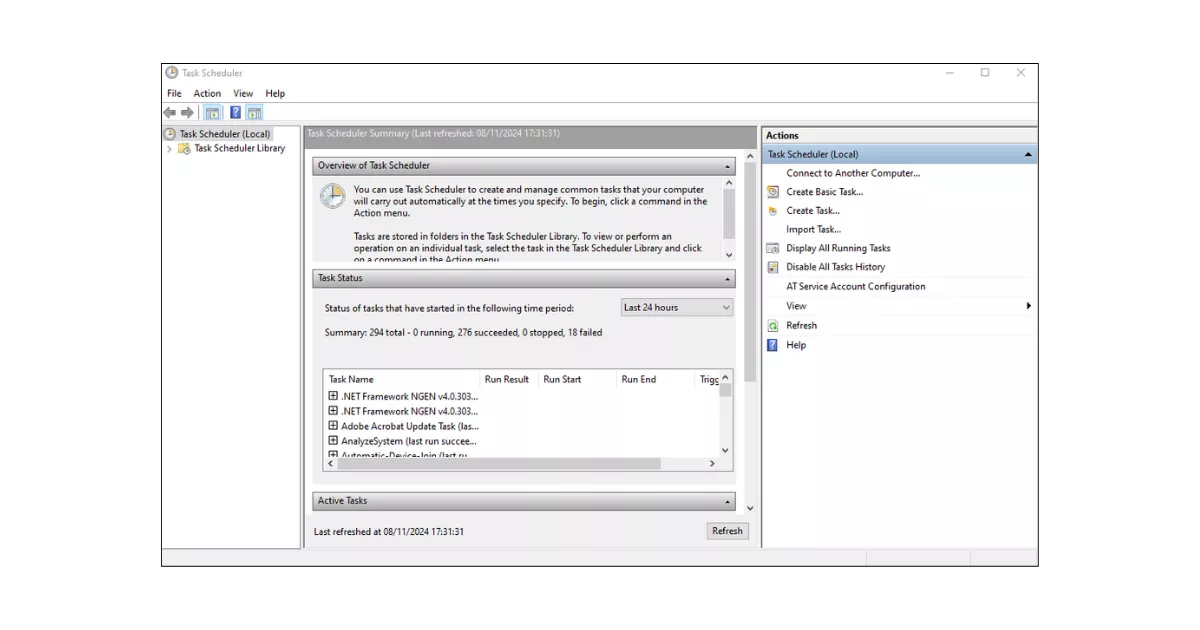
- Create a New Task
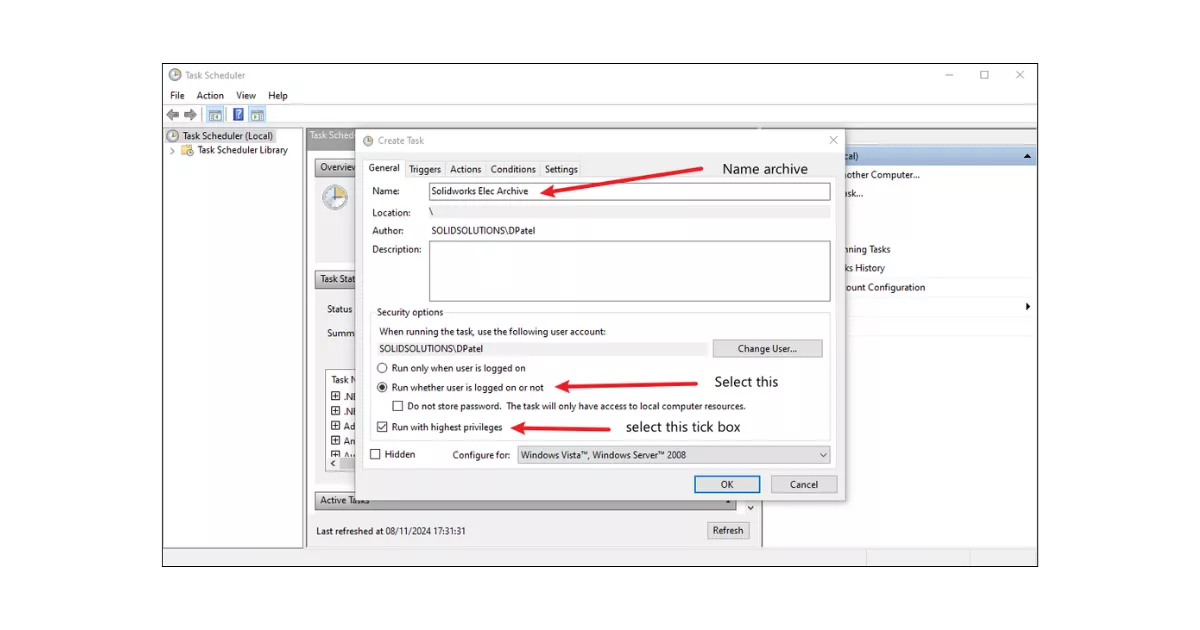
In the Actions menu, select ‘Create Task’ and give the task a descriptive name.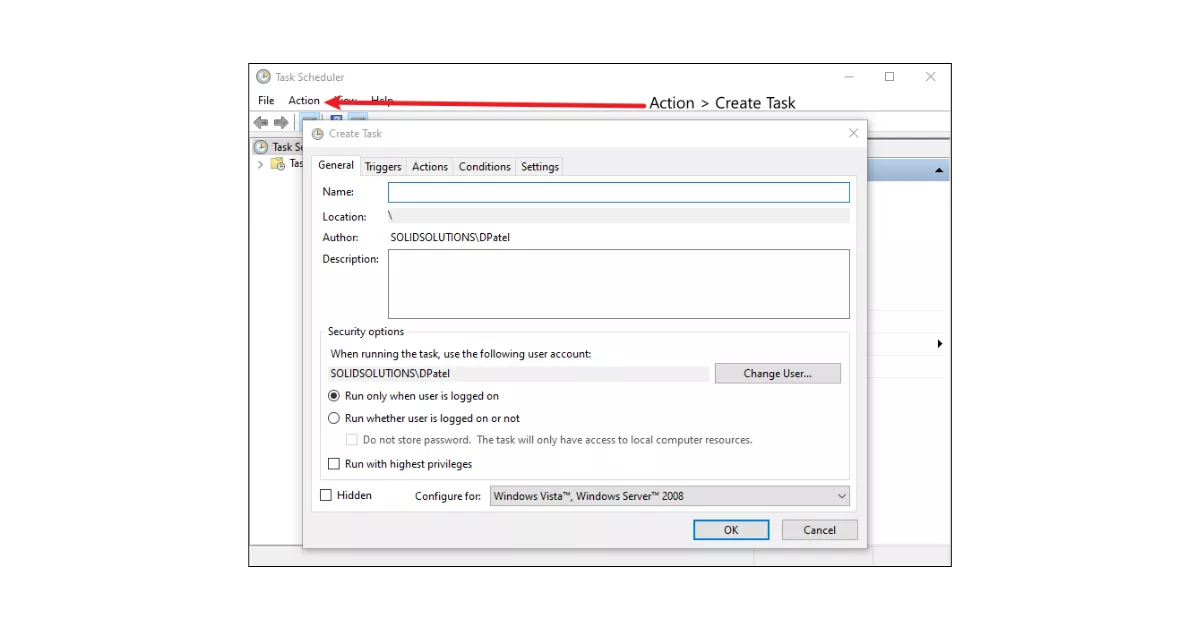
Then select ‘Run whether user is logged on or not’, before ticking ‘Run with highest privileges’.
- Set the Trigger
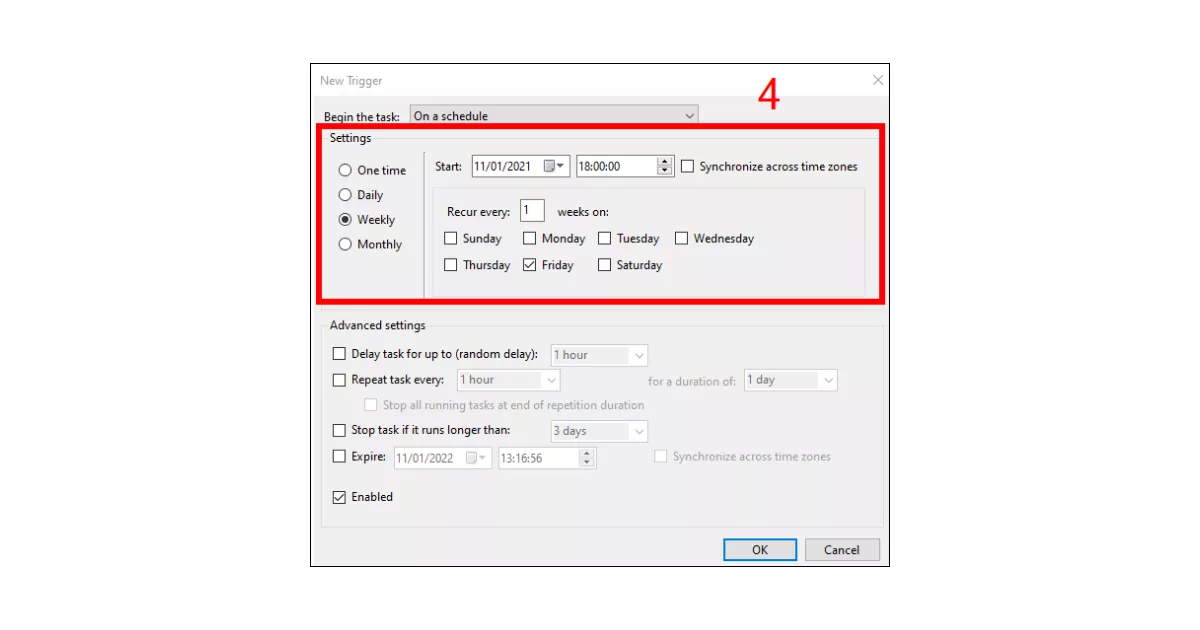
Now we need to tell the Task Scheduler what event will start our archive process. Any scheduling automation requires a time-based trigger. So click ‘New’ to add a new Trigger, and e.g. every Friday evening.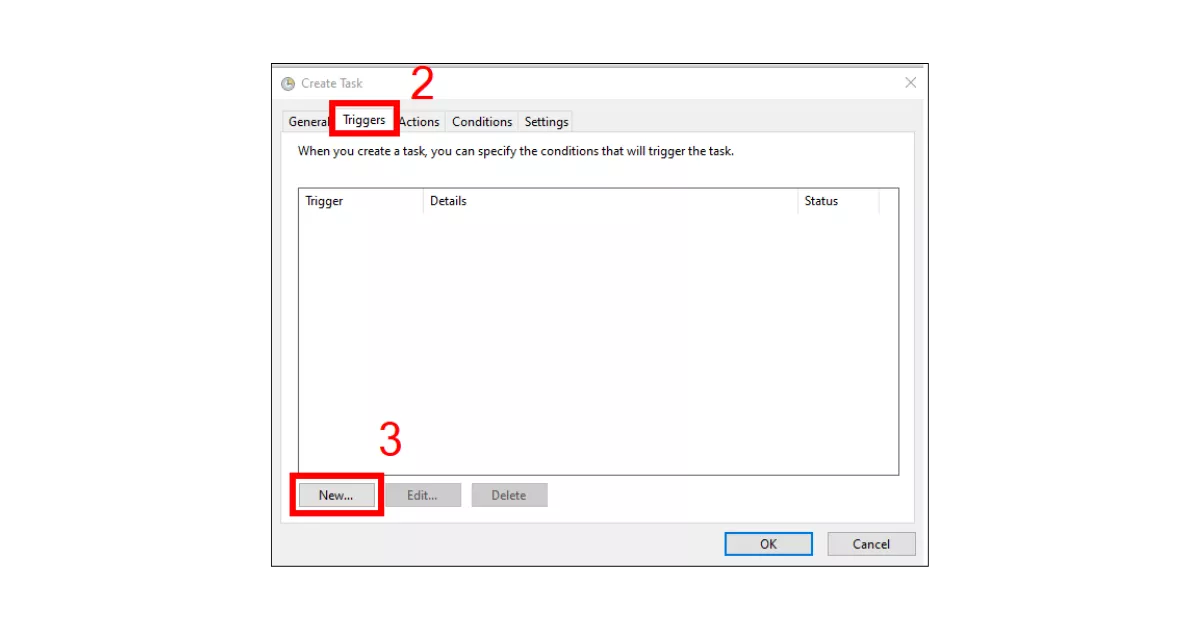
Then adjust the advanced the options as desired to:
- Stop the task if it exceeds a set time.
- Repeat the task weekly.
- Add the Action
Under the Actions tab, set the program to run.
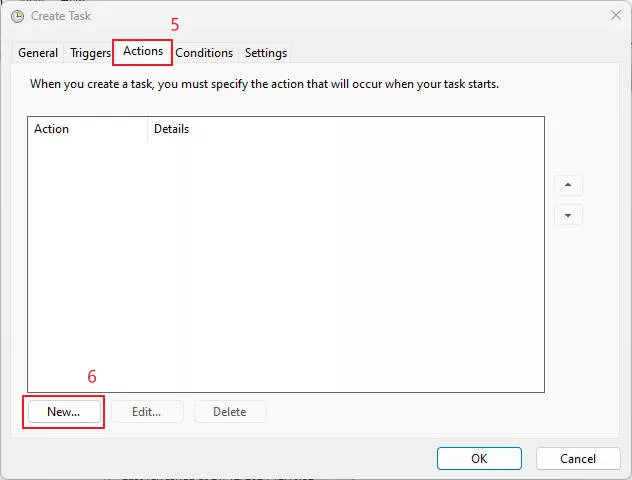
Browse to the file location of the archiver tool C:Program FilesSOLIDWORKS CorpSOLIDWORKS ElectricalbinEwEnvironmentArchiverEwEnvironmentArchiver.exe.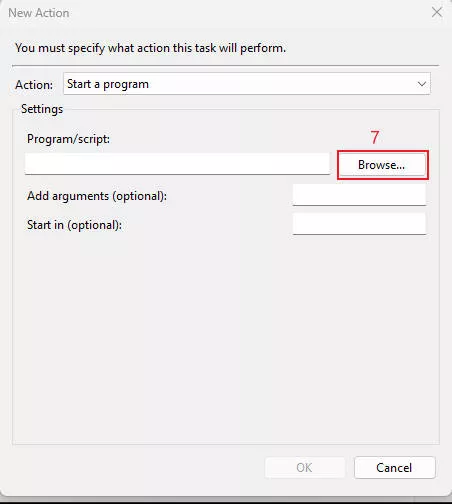
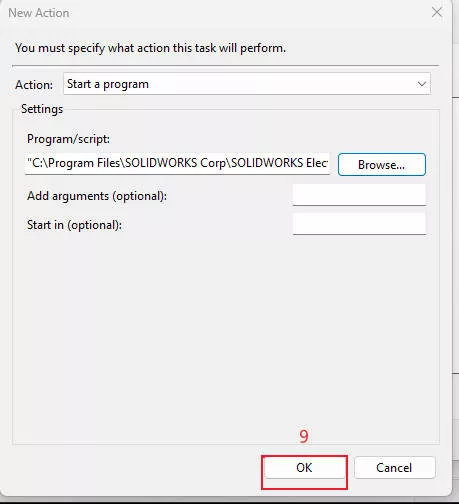
Use the argument ’runwithlastoption’.
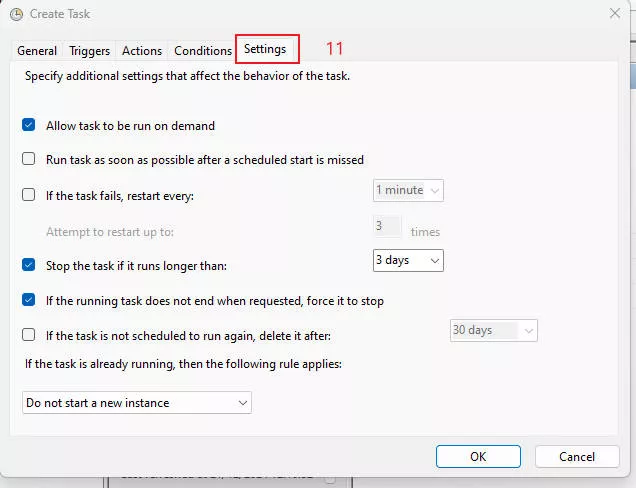
- Configure Conditions and Settings
In the Conditions tab, we can configure power settings. This is especially important for laptops running on battery power to extend their uptime and reduce their power consumption.
The Settings tab lets us enable retries and configure failure recovery options. Clicking OK will confirm the task and prepare it to trigger at the next scheduled time.
TOP TIP: Schedule backups to run weekly outside of office hours when no users are actively working in SOLIDWORKS Electrical.
Troubleshooting the SOLIDWORKS Environment Archiver
Typically, SOLIDWORKS Electrical users have a positive experience using the Environment Archiver tool.
If you need assistance with creating a backup, or happen to encounter any issues, then make the most of your SOLIDWORKS subscription.
Your IT team may also be able to assist you regarding Windows Task Scheduler permissions to ensure all files and folders have appropriate conditions applied.
The Environment Archiver provides a simple, yet robust, solution to back up your SOLIDWORKS Electrical data.
By scheduling regular automated backups, you ensure peace of mind, compliance with data retention policies, and minimal disruption in case of failure.
Take the Next Steps
Master SOLIDWORKS Electrical with expert-led courses that help you boost your skills and confidence. You can attend online or in a classroom near you!
Choose from a huge range of professional SOLIDWORKS and CATIA training courses and save on multiple courses with a Training Passport.
Categorised as: SOLIDWORKS Electrical | Tutorials
Get Expert SOLIDWORKS Training
Get hands-on SOLIDWORKS training in-person or online, led by certified experts with real industry experience. With venues across the UK & Ireland, it’s easy to start learning today.
Related Posts

Series 1 Land Rover Pedal Car – Made Easy with Solidworks!
The Series1 began production in 1948 designed to help get Britain farming after the war effort. It grew extremely popular and today enthusiasts are prepared to throw their life savings at restoring originals from that period.
Creating Interactive Animations with SOLIDWORKS Visualize
Interactive Images are a great export option within Visualize Professional, allowing you to view the model in a series of 360 orbital spins within a web browser.
However, what happens if I want to use this interactive method to demonstrate a mechanism or animation instead?

How to Find & Activate SOLIDWORKS Xpress Products
Find & activate SOLIDWORKS Xpress products in five simple steps. Xpress tools come with every seat of SOLIDWORKS and unlock additional functionality.

How to Create 360VR Video using SOLIDWORKS Visualize
Virtual Reality(VR) videos provide one of the most immersive methods of viewing a design concept and can be used to bring your product showcases to the next level. Recently VR has become a valuable tool for many companies when it comes to design reviews and interactive product training. Check out this short blog to learn how to export 360VR videos using SOLIDWORKS Visualize.
Modelling an Archimedes’ Screw with SOLIDWORKS
Archimedean screws are often referred to as “water screws” since they are commonly used to transport water between different heights. We often see some of our customers do screw feeders and we thought it may be beneficial to create a blog documenting an effective modelling workflow to create your very own Archimedean screw.

How to come up with ideas for your design or engineering project – some helpful tips
We know coming up with an interesting and creative design or engineering project can be…

DesignSpark Electrical
Do you use DesignSpark Electrical? If so, you will want to know the DesignSpark Electrical…
Connection Detailing in SOLIDWORKS 2022
With SOLIDWORKS 2022 you can add connection detailing to your structural members. Learn how to create and add structural connections to your SOLIDWORKS models quickly and easily.

How to use Configuration Tables in SOLIDWORKS
Learn how to add, manage, and control features between configurations with configuration tables and find out what’s new in SOLIDWORKS 2022.

How to Create Animations in SOLIDWORKS
3D animations are a great way to display your designs, no matter what stage of the design process you are at and can provide companies of almost any industry with huge leverage in improving their operational efficiency. Animated marketing videos are a fantastic way to communicate a message that may be difficult or costly to explain other than by using conceptual animations. They are very flexible with the only limitation being your imagination.
Below is an example of a marketing video of an GoPro gimbal.